Search the Community
Showing results for tags 'essentials'.
Found 3 results
-

Version 1.0.0
1 download
EssentialsX — the lightweight “essentials” your Rust server actually needs Give your players the quality‑of‑life features they expect — without bloat. EssentialsX bundles the most-used commands into one clean, configurable plugin, Teleportation done right: TPA + Homes with warmup, cooldowns, movement/damage cancel, hostile checks. Kits system: permissions, cooldowns, inventory-space protection, and an admin command to create kits straight from your inventory. Modern chat experience: configurable chat format with {GROUP}/{NICK}/{MESSAGE}, Minecraft-style & colors, permission-based group tags. AutoMessages: scheduled server announcements with & colors. Wipe timer that fits your schedule: weekly / biweekly / monthly wipe schedules. Admin tools: broadcast announcements and inventory view (/invsee) with view-only mode by default. Full control: every module can be toggled via Features (enable/disable) and hidden automatically. Multi-language: all messages live in config and can be edited per language. Main Features - TPA teleport requests with timeout, warmup, cooldown, and cancel on movement/damage - Homes with limits, warmup, cooldown, and cancel on movement/damage - Kits with per-kit permissions and cooldowns - Admin kit creation that reads the creator’s inventory and saves it into config - Private messages (/msg) and quick reply (/r) - /pop online counter - /wipe countdown based on a configurable schedule (weekly/biweekly/monthly) - Admin broadcast messages - Inventory view (invsee) for admins - Chat formatting with {GROUP}/{NICK}/{MESSAGE} and Minecraft-style color codes (&0..&f, &r) - Multi-language messages (EN/RU/PL/ES/DE) via config - AutoMessages (periodic server messages) via config MORE FEATURES COMMING SOON! Installation 1) Copy the file `EssentialsX.cs` into your server’s plugins folder: oxide/plugins/EssentialsX.cs 2) Reload or restart the server: oxide.reload EssentialsX 3) Edit the generated config file: oxide/config/EssentialsX.json COLOR CODES: &0 black &1 dark blue &2 dark green &3 dark aqua &4 dark red &5 dark purple &6 gold &7 gray &8 dark gray &9 blue &a green &b aqua &c red &d light purple &e yellow &f white CONFIG Default "Chat": { "Format": "[{GROUP}] <{NICK}> {MESSAGE}", "UseMinecraftColors": true, "AllowPlayerMessageColors": true, "PermissionPrefixes": [ { "Permission": "essentialsx.prefix.admin", "Prefix": "<color=#FF5555>ADMIN</color>", "Priority": 100 }, { "Permission": "essentialsx.prefix.vip", "Prefix": "<color=#FFAA00>VIP</color>", "Priority": 10 } ] }, Modern example: "Chat": { "Format": "{GROUP} &7{NICK} &b» &7{MESSAGE}", "UseMinecraftColors": true, "AllowPlayerMessageColors": true, "PermissionPrefixes": [ { "Permission": "essentialsx.prefix.admin", "Prefix": "<color=#FF5555>[ADMIN]</color>", "Priority": 100 }, { "Permission": "essentialsx.prefix.vip", "Prefix": "<color=#FFAA00>[VIP]</color>", "Priority": 10 } ] }, Example of language coloring: default "Help.Header": "EssentialsX commands (page {0}/{1}):", Custom "Help.Header": "&eEssentialsX commands (&fpage {0}&c/&f{1}&e):", Languages (Server-wide) - Set the server language in config: Language: "en" | "ru" | "pl" | "es" | "de" - All plugin messages will use the selected language. Player Commands TPA - /tpa <name> Sends a teleport request to another online player. - /tpaccept Accepts the pending request (teleports the requester to you). - /tpdeny Denies the pending request. Notes (TPA) - Requests expire after a configurable timeout. - Teleport uses warmup time (countdown). - Teleport can be cancelled if the teleporting player moves too far. - Teleport can be cancelled if the teleporting player takes damage/hostile. - Cooldowns are saved and survive restarts. Homes - /sethome <name> Saves your current position as a home. - /home <name> Teleports you to the selected home. - /removehome <name> Removes an existing home. - /homes Lists your homes. Notes (Homes) - Home limit can be configured and can also be increased by permission. - Teleport uses warmup time (countdown). - Teleport can be cancelled on movement/damage. Kits - /kits Shows kits you can use (based on permissions). - /kit <name> Redeems a kit. Notes (Kits) - Each kit can have: - Items (with amount, skin, condition, attachments/contents where supported) - Per-kit permission - Cooldown - Kit cooldowns are saved and survive restarts. Messaging - /msg <name> <message> Sends a private message to another online player. - /r <message> Replies to the last player you messaged (or who messaged you). Info Commands - /pop Shows online player count. - /wipe Shows time remaining until next wipe (from config). - /help [page] Shows available player commands (paged). - /help admin [page] Shows available admin commands (paged). Admin Commands Broadcast - /broadcast <text> Sends a server-wide announcement with a configurable prefix. Permission: essentialsx.admin.broadcast Invsee - /invsee <name> Opens the target player’s inventory for viewing (view-only by default). Permission: essentialsx.admin.invsee Create Kit (from inventory) - /createkit <name> <cooldownSeconds> Reads your current inventory (main/belt/wear) and creates/overwrites a kit in config. A permission is automatically created for the kit using the configured prefix. Permission: essentialsx.admin.createkit Permissions Summary - essentialsx.admin.broadcast - essentialsx.admin.invsee - essentialsx.admin.createkit - essentialsx.chat.colors - essentialsx.prefix.admin - essentialsx.prefix.vip Config Overview (Important Keys) Language - Language: "en" (default) Supported: en / ru / pl / es / de Translations / Messages - UseMinecraftColorsInMessages If true, translation strings can use Minecraft color codes (&0..&9, &a..&f, &r). Use && for a literal &. - Messages All translation strings are stored in config. Wipe - Wipe.Mode: "weekly" | "biweekly" | "monthly" - Wipe.TimeZoneOffsetMinutes: 0 - Wipe.Weekly.DayOfWeek: "Thursday" - Wipe.Weekly.Hour: 16 - Wipe.Weekly.Minute: 0 - Wipe.BiWeekly.AnchorUtc: "2026-01-01T14:00:00Z" (used when Mode = biweekly) - Wipe.Monthly.Day: 1 - Wipe.Monthly.Hour: 20 - Wipe.Monthly.Minute: 0 Chat Prefix - Chat.Format Supports Minecraft-style color codes (&0..&9, &a..&f, &r) and placeholders: {GROUP}, {NICK}, {MESSAGE} - Chat.UseMinecraftColors If true, color codes in Chat.Format are converted to Rust <color=#...> tags. - Chat.AllowPlayerMessageColors If true, players with permission essentialsx.chat.colors can color their own message by typing & codes (e.g. "&2Hejka"). - Chat.PermissionPrefixes List of permission-based group tags (used for {GROUP}) with priority. Features (enable/disable) - Features (enable/disable) Toggle each module on/off. Disabled features do not work and are hidden from /help. Teleport (TPA) - Teleport.RequestTimeoutSeconds - Teleport.WarmupSeconds - Teleport.CooldownSeconds - Teleport.BlockIfHostile - Teleport.CancelOnDamage - Teleport.CancelOnMoveDistance - Teleport.SleepBeforeTeleportSeconds - Teleport.SleepAfterTeleportSeconds Home - Home.WarmupSeconds - Home.CooldownSeconds - Home.BlockIfHostile - Home.CancelOnDamage - Home.CancelOnMoveDistance - Home.SleepBeforeTeleportSeconds - Home.SleepAfterTeleportSeconds - Home.DefaultLimit - Home.LimitsByPermission Kits - Kits.PermissionPrefix (default: "essentialsx.kit.") - Kits.KitDefinitions Messaging - Messaging.SentPrefix - Messaging.ReceivedPrefix Broadcast AutoMessages - Features (enable/disable).AutoMessages - AutoMessages.IntervalSeconds - AutoMessages.Random - AutoMessages.MinOnline - AutoMessages.UseMinecraftColors - AutoMessages.Messages - Broadcast.Prefix Invsee - Invsee.TimeoutSeconds - Invsee.AllowModify$2.49 -

Version 2.0.1
121 downloads
AdminEssentials is a powerful and easy-to-use toolkit for Rust server administrators. It provides a comprehensive suite of moderation, management, and utility commands to help you run your server smoothly. Features Teleportation tools: Teleport to players or coordinates, teleport back to previous locations, and teleport to placed map markers. Player moderation: Kick players, ban players (with timed durations and reasons), and unban players via simple commands. Player management: Heal players to full health, kill players instantly, and toggle special modes like God mode and Creative mode for yourself or others. Inventory and items: Give items to players, clear a player’s inventory, repair items, and view any player’s inventory contents in real time. Item Trash Can: Includes a personal Trash Can UI for safely destroying items. Server controls: Change the server time, set a personal “admin time”, instantly clear all weather effects, and reload server plugins in-game. Communication: Send private messages to players and reply quickly to the last message. Display a list of all online players and get detailed information on any player with a WhoIs lookup command. Automated messages: Optionally broadcast welcome messages to joining players and goodbye messages on disconnect. Configure periodic auto-messages that broadcast to the server at set intervals. Logging and customization: All admin actions can be logged to the server console/RCON and/or to a Discord webhook (configurable per command). Customize the chat prefix and icon for AdminEssentials messages to suit your server’s style. Commands (Use these commands in chat with the "/" prefix. All commands require the user to have the appropriate permission as listed in the Permissions section.) Teleportation Commands /goto – Teleport yourself to a player or to specific coordinates. (You can also teleport one player to another by specifying two player names.) /tpm – Toggle “teleport to marker” mode. When enabled, placing a map marker will instantly teleport you to that location. Use /tpm again to disable this mode. /back – Teleport back to your last saved location. Typically this returns you to where you teleported from (or your death location, if applicable). /spectate – Spectate the target player. Puts you into spectate mode attached to that player. Use the command again (or the on-screen UI button) to exit spectating and return to your original position. Moderation Commands /kick [reason] – Kick a player from the server. You may provide an optional reason which will be shown to the player. /ban [duration] [reason] – Ban a player. Optionally specify a duration (e.g. “30m”, “2h”, “7d”) and/or a reason. If no duration is given, a default (1 day) ban is applied. /unban – Unban a player. You can use either the player’s name or Steam ID. Player Management Commands /heal [player] – Fully heal yourself (no name) or the specified player (if a name is given). Restores health and vital stats to maximum. /kill [player] – Instantly kill yourself or the specified player. /god [player] – Toggle god mode (invincibility) on yourself or on another player. A player in god mode will not take damage or die until god mode is toggled off. /creative [player] – Toggle Rust’s creative mode on yourself or on another player. Creative mode allows building and crafting without restrictions. /creativeall – Toggle creative mode for all players on the server at once. Inventory Commands /give [amount] [skinId] [name] – Give an item to a player. You must specify the target player and item short name (or Item ID). You can optionally specify an amount (default 1), a skin ID, and a custom item name. /clear [player] – Clear your own inventory (no name given) or another player’s inventory (if a player name is provided). This completely empties the inventory of the target. /repair [player] – Repair the currently held item to full condition. If a player name is given, repair that player’s held item instead. /repairall [player] – Repair all items in your inventory. If a player name is given, repair all items in that player’s inventory instead. /viewinv – View the specified player’s inventory. This opens the target player’s inventory containers (main, belt, wear) for you, allowing you to see and/or move items. /trash – Open your personal trash can UI. This provides a special container (default 18 slots) where you can place items to destroy. Closing the trash UI with items inside will delete those items (after you confirm via the Delete button). Server Management Commands /time <0-24> – Change the server time to the specified hour (0–24). For example, “/time 12” sets in-game time to noon. /admintime [0-24] – Set your personal time of day. This overrides the server time for you only (useful for admins who want daylight while it’s night on the server). Specify an hour (0–24) to lock your time, or use no argument to reset back to normal server time. If you run it with no number or with -1 it will disable admintime. /clearweather – Instantly clear all weather effects on the server. This will stop rain, fog, and thunderstorms, returning to clear weather. /reload [plugin] – Reload an Oxide/Umod plugin. By default (no name given), this will reload the AdminEssentials plugin itself. You can specify another plugin name to reload that plugin instead. Communication Commands /pm <player> <message> – Send a private message to a player. The target player will receive your message privately. /r <message> – Reply to the last private message you received. This sends a PM back to whoever last messaged you (equivalent to a “reply” function). Information Commands /whois [player] – Display detailed information about a player. With no name, it will show your own info. The info can include the player’s name, Steam ID, position coordinates, connection status, health and vitals, and flags (admin, godmode, etc.). (The amount of detail shown depends on your permissions; see Permissions.) /players – Show a list of all online players on the server. By default this will list the player names (and possibly IDs) in chat. Utility Commands /essentials – Display the AdminEssentials help list. This command prints a list of all available AdminEssentials commands (the same commands listed above) with brief descriptions, to your chat. Only users with permission can use this. Permissions (Each permission can be granted to server staff or groups to allow use of the corresponding commands. All permission strings begin with adminessentials. as shown.) adminessentials.goto – Required to use the /goto command. adminessentials.back – Required to use the /back command. adminessentials.tpm – Required to use the /tpm teleport-to-marker command. adminessentials.spectate – Required to use /spectate. adminessentials.kick – Required for the /kick command. adminessentials.ban – Required for the /ban command. adminessentials.unban – Required for the /unban command. adminessentials.heal – Allows use of /heal. adminessentials.kill – Allows use of /kill. adminessentials.god – Allows use of /god mode toggle. adminessentials.creative – Allows use of /creative mode toggle. adminessentials.creativeall – Allows use of /creativeall (creative mode for all players). adminessentials.give – Required for /give item command. adminessentials.clear – Required for /clear inventory command. adminessentials.repair – Required for /repair command (repair held item). adminessentials.repairall – Required for /repairall command (repair all items). adminessentials.viewinv – Required for /viewinv (view player inventory). adminessentials.trash – Required for /trash (open personal trash can). adminessentials.time – Allows use of /time to set server time. adminessentials.admintime – Allows use of /admintime for personal time setting. adminessentials.clearweather – Allows use of /clearweather. adminessentials.reload – Allows use of /reload command to reload plugins. adminessentials.pm – Required for /pm and /r (private messaging commands). WhoIs Information Permissions: (The /whois command output is divided into sections; each section requires a specific permission. Granting all will show full info.) adminessentials.whois.info – Allows the /whois command to show basic info: player name, Steam ID, and position. adminessentials.whois.status – Allows /whois to show connection status (online/offline), life status (alive or dead), sleeping or wounded state. adminessentials.whois.stats – Allows /whois to show the player’s stats: health, calories, hydration, temperature, radiation, bleeding, wetness. adminessentials.whois.flags – Allows /whois to show player flags: whether the player is admin, in creative mode, developer mode, flying, or in god mode. adminessentials.players – Required for the /players list command. adminessentials.help – Required for the /essentials help command (to view the in-game command list).$19.99- 15 comments
- 1 review
-
- 2
-

-

-
- #admin
- #essentials
- (and 17 more)
-
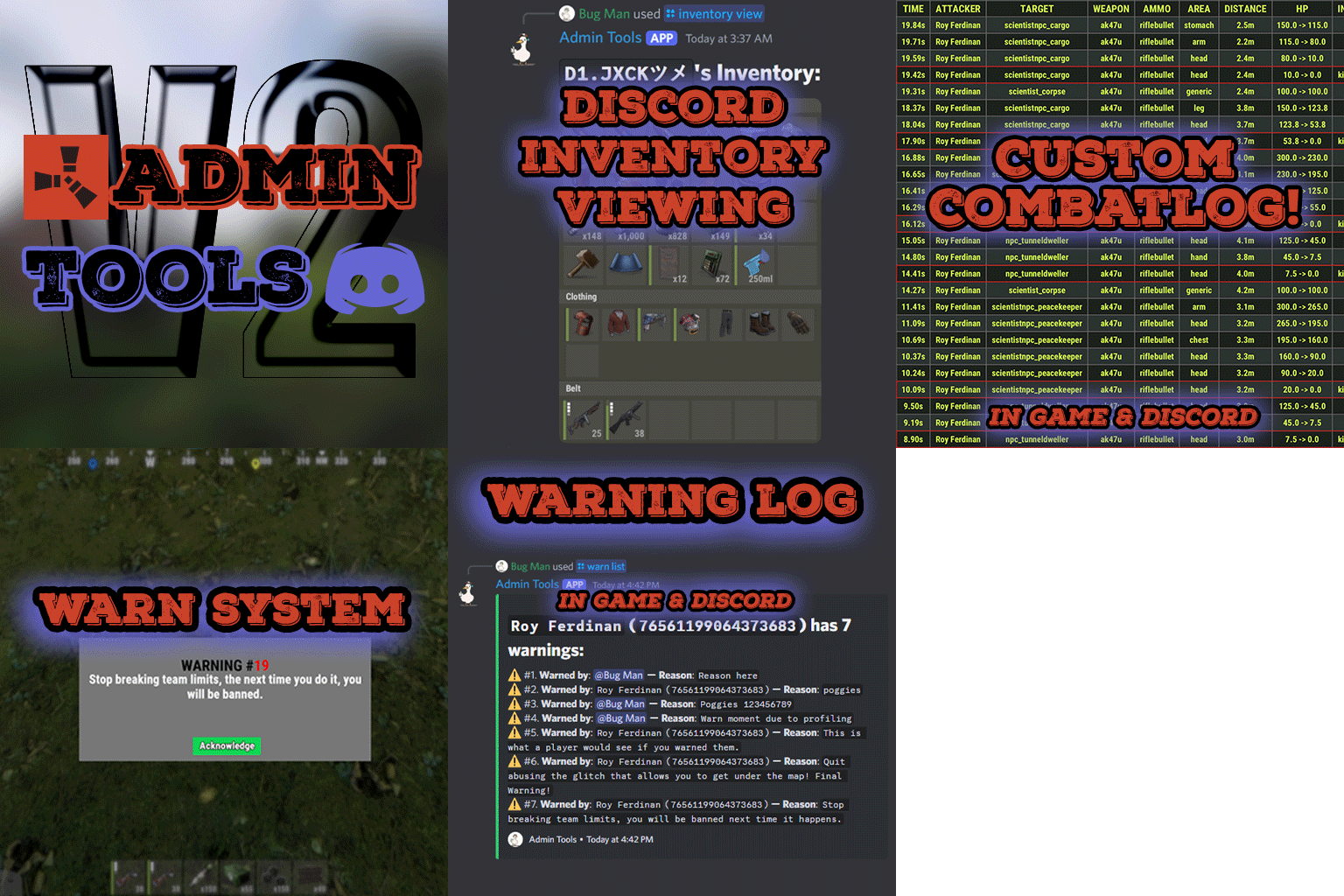
Version 2.0.3
531 downloads
Admin Tools is an all-in-one plugin designed to make your job as a server owner/admin easier. This plugin has a wide range of features and commands that allow you to control your server easily, both in-game and via Discord. It also adds custom quality of life features exclusive to this plugin! ★ Inventory Viewing System - View an NPC or player's inventory in Discord and in-game ★ Multi-Server Support - Allows you to manage multiple Rust servers from a single bot ★ Custom Combatlog System - View a player's combatlog in Discord and in-game ★ Backpack Viewing System - View a player's backpack (uMod plugin) in Discord ★ Custom ID System - Get the ID of players on your server quick and easy, copy directly from chat ★ Warn System - Inform players of their wrongdoings and keep track of them (Warn Visuals: UI, Chat, Chat + Toast/Gametip) ★ Watchlist System - Lets you put suspicious players on a list for you to monitor, logs in-game and to discord ★ Server Command System - Reload/load/unload plugins and other console commands in Discord and in-game ★ F7 Report Logging System - Log F7 reports to discord with their combat log attached (if enabled) ★ and more! (Rest of features below) Please note, the Permissions UI Shown on screen towards the start of this video is FROM CARBON, NOT THE PLUGIN Please note, the Permissions UI Shown on screen towards the start of this video is FROM CARBON, NOT THE PLUGIN (Changed/Exclusive): * Timestamps for video in video's description - Make sure to up video quality if watching from this site. * Timestamps for video in video's description - Make sure to up video quality if watching from this site. ★ Permission System - Grant/revoke permissions to groups and players from Discord and in-game ★ Minecraft Creative System - While enabled, hold middle click to get the item you're looking at ★ Rename System - Rename the players who think they are funny (toggle in config) ★ Tempban System - Tempban players with no database required ★ Unique ID System - Find players even when they have the same or similar names -- Thanks to nivex ★ Kill, Wound, Revive & Respawn System - Kill, wound (down), revive and respawn players from Discord and in-game ★ Team Viewing System - View a player's team members from Discord and in-game Q: Does this plugin have a GUI or do its commands use GUI? A: No. The only UI in-game for this plugin is the warning screens. Please do not purchase this plugin thinking it has GUI for its commands, they are ALL commands entered into chat, Discord, or RCON. There are however, 'modals' for Discord, but nothing GUI based for within the game other than the warning screens displayed when '/warn'ing a user (which can be configured by the user). Q: How do I set up the bot? A: Set Up Instructions - If you miss any permissions, can always add them to the Admin Tools role in discord after you invite the bot. Q: Does this plugin link players to Rust? A: No. You can use the free plugin DiscordCore by MJSU if you would like to link your players. Q: Does this plugin log kills/PMs/F1 Spawn/chat? A: No. Admin Tools only logs the following if enabled: F7 Reports, Bans, commands from this plugin, and players who are watchlisted. You can always view a player's combatlog from discord though. You can use the free logging plugins DiscordLogger by MONoH or DiscordChat by MJSU depending on your goal. However, personally, I recommend against using logging functionality that would be occurring very frequently due to Discord's rate limiting. Though, DIscordLogger is made in a way that combines messages if possible to prevent limiting. Q: Can this log to multiple Discord servers? A: YES. All you need to put for logging to multiple servers is the channel ID you want to log to in the list of channel IDs in the config. Q: Does this plugin ONLY work with Discord Extension 3.0.0+? A: YES. You need to download the 3.0.0+ version from GitHub, it is linked at the top (and right here) as a required dependency. Any version prior to 3.0.0 will not work with this plugin, but any version 3.0.0 and later will. Q: Will this work on a shared hosting server? A: Yes, BUT you will not be able to take advantage of the threading done within the plugin. It should still work fine, but when you're on a shared host, you may only have access to a single core/thread (not positive on which) and as a result the threading I am doing in the plugin will just be ran on the main thread. As a result some of the discord functionality (ie: image generation) may affect the server as its now running on the main thread (what the server uses to run the game on) instead of a separate thread which would normally not affect the server. The image generation stuff (backpack and inventory) is normally pretty quick depending on number of items and pictures being used/sent, and can be between 100-250ms to generate on my server, however that was while no players were on. Q: How do I fix this error Response Code: Forbidden Discord Error Code: 50001 Discord Error: Missing Access ? A: All you need to fix this issue is MFA/2FA on the account used to create the bot. This issue is caused by Discord requiring your account to have either MFA or 2FA due to the bot being in a Community Discord server. After you add 2FA/MFA this error will go away. Q: Renaming isn't working, how do I fix this? A: The issue is likely that you don't have it enabled in the config, make sure to enable it in the config, its above the warning options and the discord API options. Q: My commands aren't appearing, how do I fix this? A: You can do the following in an attempt to try and force the bot to update its commands: Discord > Server Settings > Integrations > Admin Tools Bot > Toggle one of the checkboxes it shows in either Roles & Members or Channels > Save > Undo toggle > Save again. Q: Does this work with Rustcord? A: Yes, however you need this version here by MJSU as it has been updated to work with DiscordExtension 3.0.0+ versions. Q: How do I set up Multi-Server Support? A: Do as follows: Enable the bool (true/false) config option for multi-server system. Fill and keep the list of servers order the same if possible between configs (not required, but recommended). Use the /server command in discord to swap to the server you want to start listening to/sending commands to. On first use of command, it will error in all but one server console (tries to reply to a message more than once), that is expected and doesn't do that after that first command. It is used to set it up. If you want the activity information to change when swapping servers, make sure to enable that functionality in the config. Special thanks to Nivex for both creating and allowing me to use the method used to generate unique IDs for players. For support, please make a support ticket or join the Cobalt Studios Discord.$29.99
.thumb.png.9d49d03b0e808268ad5fdc77d655118d.png)