Search the Community
Showing results for tags 'halloween'.
-
Version 1.0.4
17 downloads
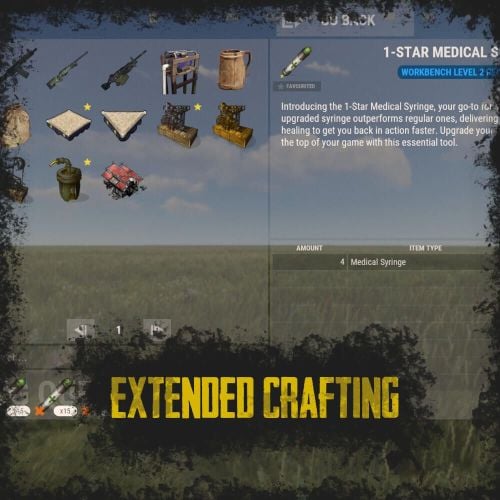
RUST Plugin Test Server TEST MY PLUGINS THERE! connect play.thepitereq.ovh:28050 Extended Crafting creates another look-like RUST Crafting menu where you can create an infinite amount of custom crafting recipes. It fully supports custom item creation and a few additional systems like daily crafts, cooldowns and support for crafting plugins. Almost exact RUST UI design with few required add-ons (new features, rust UI limitations) Fully customizable layout, categories and items. Written with performance in mind. Mark your favorite crafts. Sectional UI updates and live UI updates (crafting queue, time, etc.) Support for crafting speed-up plugins. (ZLevelsRemastered, SkillTree) Ability to enable Status display. (Requires Simple Status Plugin) Crafting cooldowns, daily limits, and per-wipe limits. Huge possibilities with permission configuration for VIP players. extendedcrafting.admin - Gives admin options. Few options still need to be enabled in config in order to use them, like GIVE option. There are more permissions possible, but they are modified and created by user, so won't list them here. All user commands are configurable on top of the config. By default, it's /craft. Run Commands On Craft You can create crafts that run the CONSOLE command when they are finished. Here you can find a full list of variables that can be added there. {userId} - Will be replaced with steamId of user. {userName} - Will be replaced with nickname of user. {userPosX} - Coordinate X of user. {userPosY} - Coordinate Y of user. {userPosZ} - Coordinate Z of user. void OnCustomItemCraft(BasePlayer player, string category, string itemKey, int craftAmount) Configuration from the video preview. Contains many craft recipes that require plugins that are paid, or unavailable. Recommend using only the test/preview configuration. ExtendedCrafting.json { "Commands": [ "c", "craft" ], "UI And Command Delay Between Actions (performance option, in seconds)": 0.1, "Clear Wipe Cooldowns On Wipe": true, "Enable Crafting Statistics": true, "Drop Queued Crafting Items To Ground On Death": true, "Format Crafting Time To Minutes (will round values)": false, "Enable Admin Give (click recipe with SPRINT button, required permission extendedcrafting.admin)": true, "Enable Logging": true, "Enable Crafting Status Indicator (Requires SimpleStatus Plugin)": false, "New Day Check Interval (in seconds, used for per-day limits, 0 to disable)": 600, "Max Queued Craftings": 10, "Workbench Bonus Higher By 1 Than Required Time Multiplier (0 to disable)": 0.5, "Workbench Bonus Higher By 2 Than Required Time Multiplier (0 to disable)": 0.25, "Workbench Bonus Higher By 3 Than Required Time Multiplier (0 to disable)": 0.0, "Used Craft Time Divider Plugin (see website documentation for plugin IDs, 0 to disable)": 0, "Skill Tree Bonuses - Enable Craft Speed": false, "Skill Tree Bonuses - Enable Craft Duplicate": false, "Crafting Time Multiplier Modify Permissions (for all craftings, from best to worst)": { "extendedcrafting.crafttime.admin": 0.1, "extendedcrafting.crafttime.vip": 0.5 }, "Max Craft Amount Per Task": 100000, "WARNING! Categories can't have spaces in their names!": "Each category name have their translation in language file in /lang/en/ExtendedCrafting.json!", "Craftings - Categories and Items": { "FirstTestCat": { "Icon - Item Shortname or URL or Sprite Directory": "", "Icon - Use Normalized Colour And Style (For Shortname and URL)": true, "Required Permission": "", "Crafting Time Multiplier Modify Permissions (for whole category, from best to worst)": { "extendedcrafting.crafttime.test.1": 0.25, "extendedcrafting.crafttime.test.2": 0.75 }, "Display Blacklist Permissions (need to have all)": [ "extendedcrafting.hideme.test.1", "extendedcrafting.hideme.test.2" ], "WARNING! Item recipe key values must be unique and have no spaces!": "They are only key values for config and better performance. They are not visible anywhere!", "Item Recipes": { "TestItem_1": { "Item Details": { "Shortname": "metal.refined", "Skin ID": 0, "Amount": 2, "Custom Name": "" }, "Commands Ran On Craft": [ "say Player {userName} crafted test item!", "say Player {userName} crafted item and his ID is {userId}." ], "Craft Requirements": { "Disable Craft Plugin Time Bonus": false, "Workbench Level Required": 1, "Crafting Time (in seconds, 0 - insta-craft)": 5, "Crafting Cooldown (in seconds, 0 - disable cooldown)": 0.0, "Max Craft Amount Per Task Override (0 to disable)": 0, "Crafting Time Modify Permissions (per crafting recipe, from best to worst)": {}, "Max Daily Crafts (0 to disable)": 0, "Max Daily Crafts Permissions (per crafting recipe, from best to worst)": {}, "Max Per-Wipe Crafts (0 to disable)": 0, "Max Per-Wipe Crafts Permissions (per crafting recipe, from best to worst)": {}, "Required Items (max 8 visible)": [ { "Shortname": "gunpowder", "Skin ID": 0, "Amount": 10, "Custom Name": "" }, { "Shortname": "wood", "Skin ID": 0, "Amount": 1, "Custom Name": "" }, { "Shortname": "metal.fragments", "Skin ID": 0, "Amount": 1, "Custom Name": "" }, { "Shortname": "sulfur.ore", "Skin ID": 0, "Amount": 5, "Custom Name": "" } ] }, "Custom Icon URL": "", "Required Permission": "", "Blacklist Permission": "", "Display As Locked With Missing Permission": true }, "TestItem_2": { "Item Details": { "Shortname": "halloween.lootbag.large", "Skin ID": 0, "Amount": 1, "Custom Name": "Ultra Lootbag" }, "Commands Ran On Craft": [], "Craft Requirements": { "Disable Craft Plugin Time Bonus": false, "Workbench Level Required": 1, "Crafting Time (in seconds, 0 - insta-craft)": 5, "Crafting Cooldown (in seconds, 0 - disable cooldown)": 0.0, "Max Craft Amount Per Task Override (0 to disable)": 0, "Crafting Time Modify Permissions (per crafting recipe, from best to worst)": {}, "Max Daily Crafts (0 to disable)": 0, "Max Daily Crafts Permissions (per crafting recipe, from best to worst)": {}, "Max Per-Wipe Crafts (0 to disable)": 0, "Max Per-Wipe Crafts Permissions (per crafting recipe, from best to worst)": {}, "Required Items (max 8 visible)": [ { "Shortname": "metal.refined", "Skin ID": 0, "Amount": 50, "Custom Name": "" }, { "Shortname": "techparts", "Skin ID": 0, "Amount": 3, "Custom Name": "" }, { "Shortname": "cloth", "Skin ID": 0, "Amount": 100, "Custom Name": "" } ] }, "Custom Icon URL": "", "Required Permission": "", "Blacklist Permission": "", "Display As Locked With Missing Permission": true } } }, "SecondTestCat": { "Icon - Item Shortname or URL or Sprite Directory": "", "Icon - Use Normalized Colour And Style (For Shortname and URL)": true, "Required Permission": "", "Crafting Time Multiplier Modify Permissions (for whole category, from best to worst)": {}, "Display Blacklist Permissions (need to have all)": [], "WARNING! Item recipe key values must be unique and have no spaces!": "They are only key values for config and better performance. They are not visible anywhere!", "Item Recipes": { "AnotherItem_1": { "Item Details": { "Shortname": "wood", "Skin ID": 0, "Amount": 1000, "Custom Name": "" }, "Commands Ran On Craft": [], "Craft Requirements": { "Disable Craft Plugin Time Bonus": false, "Workbench Level Required": 3, "Crafting Time (in seconds, 0 - insta-craft)": 60, "Crafting Cooldown (in seconds, 0 - disable cooldown)": 0.0, "Max Craft Amount Per Task Override (0 to disable)": 0, "Crafting Time Modify Permissions (per crafting recipe, from best to worst)": {}, "Max Daily Crafts (0 to disable)": 0, "Max Daily Crafts Permissions (per crafting recipe, from best to worst)": {}, "Max Per-Wipe Crafts (0 to disable)": 0, "Max Per-Wipe Crafts Permissions (per crafting recipe, from best to worst)": {}, "Required Items (max 8 visible)": [ { "Shortname": "charcoal", "Skin ID": 0, "Amount": 1000, "Custom Name": "" } ] }, "Custom Icon URL": "", "Required Permission": "", "Blacklist Permission": "", "Display As Locked With Missing Permission": true }, "AnotherItem_2": { "Item Details": { "Shortname": "lmg.m249", "Skin ID": 0, "Amount": 1, "Custom Name": "" }, "Commands Ran On Craft": [], "Craft Requirements": { "Disable Craft Plugin Time Bonus": false, "Workbench Level Required": 3, "Crafting Time (in seconds, 0 - insta-craft)": 180, "Crafting Cooldown (in seconds, 0 - disable cooldown)": 0.0, "Max Craft Amount Per Task Override (0 to disable)": 0, "Crafting Time Modify Permissions (per crafting recipe, from best to worst)": {}, "Max Daily Crafts (0 to disable)": 0, "Max Daily Crafts Permissions (per crafting recipe, from best to worst)": {}, "Max Per-Wipe Crafts (0 to disable)": 0, "Max Per-Wipe Crafts Permissions (per crafting recipe, from best to worst)": {}, "Required Items (max 8 visible)": [ { "Shortname": "metal.refined", "Skin ID": 0, "Amount": 500, "Custom Name": "" }, { "Shortname": "techparts", "Skin ID": 0, "Amount": 20, "Custom Name": "" }, { "Shortname": "scrap", "Skin ID": 0, "Amount": 5000, "Custom Name": "" } ] }, "Custom Icon URL": "", "Required Permission": "", "Blacklist Permission": "", "Display As Locked With Missing Permission": true } } } } }$25.00 -
Version 1.0.0
5 downloads
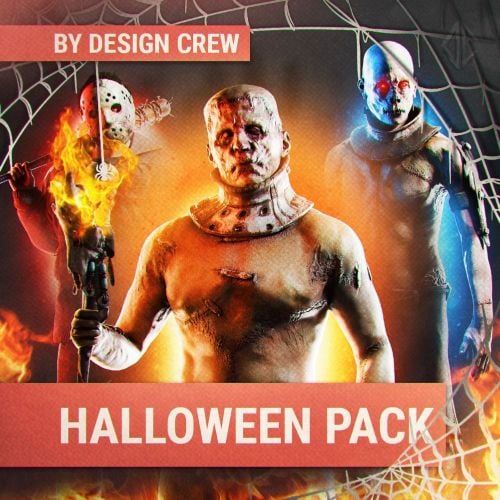
In honor of Halloween, we've prepared a pack with 7 unique characters that capture the spirit of this holiday. They can be used in the store or on the server. Always choose quality! 7 ICONS WITH TEXT 7 ICONS WITHOUT TEXT PSD FONTS$10.00-
- 2
-

-
- #halloween
- #design
- (and 10 more)
-
Version 1.0.0
8 downloads
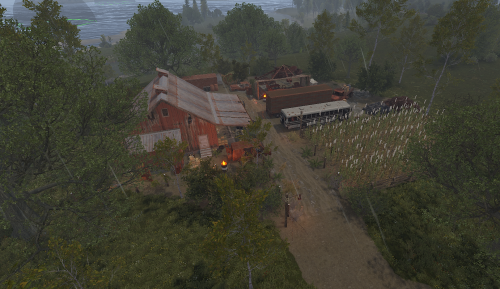
A lone homestead in the desolate valley. The family that lived here is gone, but their final, twisted celebration lingers. What really happened on that night? Find out if you dare. Category: Custom Monument / Farmstead Theme: Horror / Survival / Abandoned Agriculture Great for PvE or PvP servers!! This prefab can be used as: A custom event location (with loot crates + AI). A PvP hotspot for small to medium groups. A roleplay horror landmark for server events. Has 441 Prefabs Loot Includes 1 x Basic Crate 1 x Ammo Crate 1 x Tech Parts Crate 1 x Food Crate 2 x Tool Crate 4 x Normal Crate 3 x Normal Crate Random 1 x Oil Barrel 3 x Barrel 2 x Diesel Barrel For any support contact me on discord @ https://discord.gg/HNhPTPZVmd$6.99- 1 review
-
- 4
-
-

-
- #prefabs
- #halloween
- (and 5 more)
-
Version 1.0.0
7 downloads
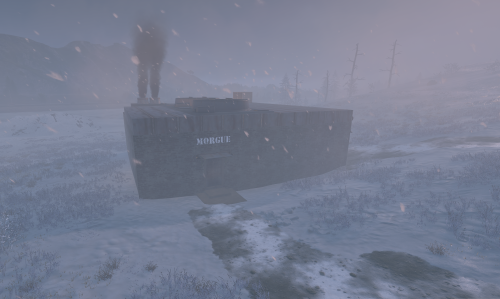
Step into a new kind of terror with this monument, a spooky or Halloween-themed addition for your map. Inspired by the world of Rust, this monument offers a haunted experience. Venture to the site where, in the last moments of a dying world, bodies were piled high, and a madman, consumed by despair, threw himself into the incinerator. This Monument has a total prefab count of 313. This is great For Pvp or PvE servers Loot 1 x Elite Crate 1 x Food Crate 1 x Oil Barrel 3 x Diesel Barrel 3 x Normal Crate 1 x Basic Crate 1 x Tool Crate 3 x Scarecrow Npc Spawns 1 x Murderer Npc Spawns For support contact me on discord @ https://discord.gg/HNhPTPZVmd$5.00- 1 review
-
- 4
-
-
- #halloween
- #rust
- (and 3 more)
-
Version 1.0.0
7 downloads
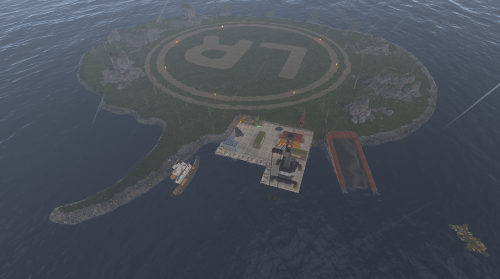
Halloween Raid Islands This is a custom built Halloween Raidable base island. There is no loot spawns on here just a Halloween themed place for your Raid Bases to spawn. There is recycler in 1 of the container buildings for player to recycle there components. There is a total of 183 prefabs for this. For any support contact me on discord @ https://discord.gg/HNhPTPZVmd$5.99- 1 review
-
- 5
-
-
- #halloween
- #prefab
- (and 6 more)
-
Version 1.8.0
4,896 downloads
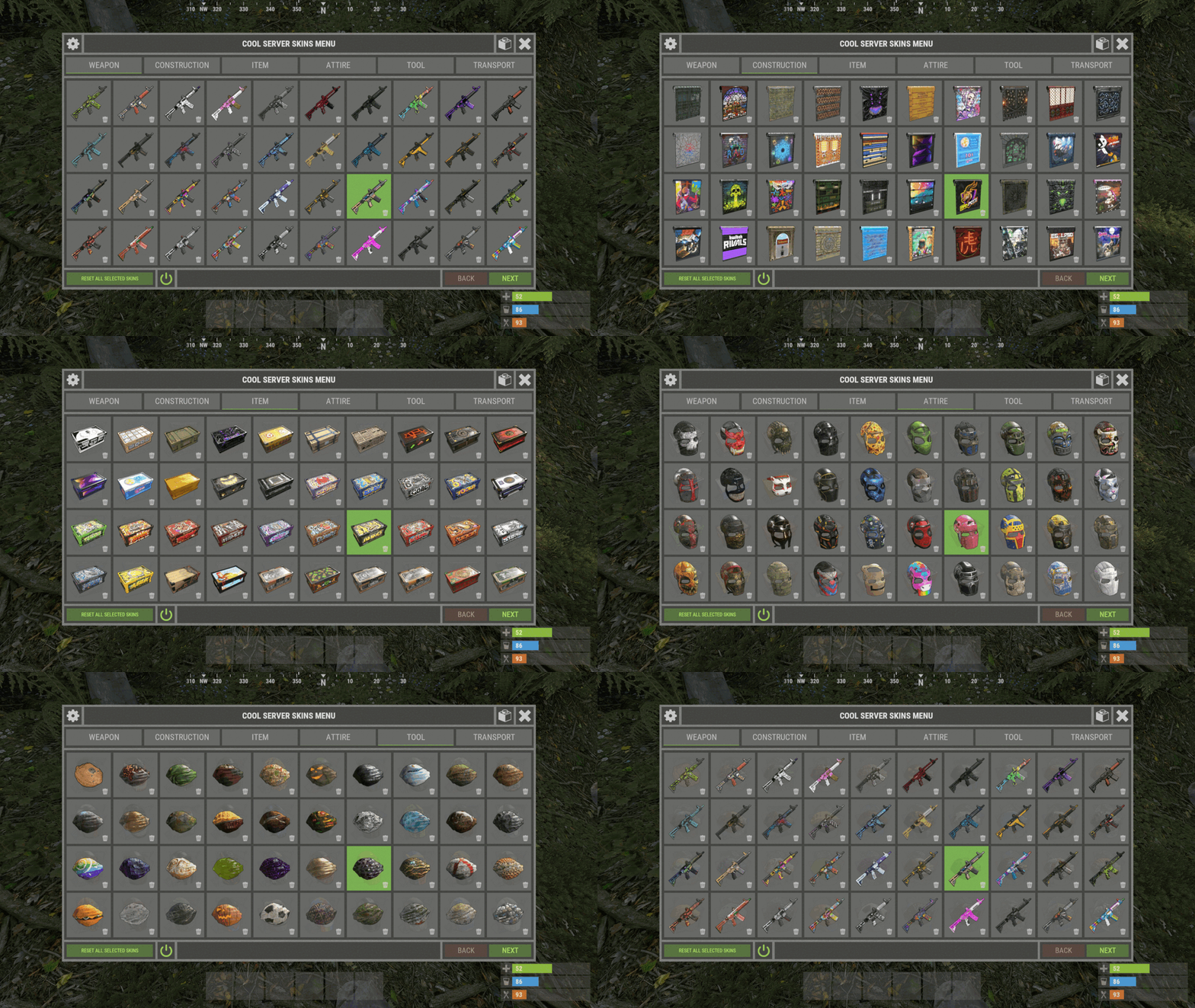
XSkinMenu - beautiful menu of skins for your server. - Optimization of the interface for different monitor resolutions. - Storing player data in - oxide/data/XDataSystem/XSkinMenu - There is a lang ru/en/uk/es. - Sound effects when interacting with the menu. - Setting up item categories. - Setting skins for each item. - Blacklist of skins. You cannot change the skin of an item if it has a skin from the black list. [ For example: fire gloves, fire ax ] - The ability to change skins for items in inventory, when crafting, when removing a skin and on installed items/constructions. - The ability to change the skin of items/constructions installed by a friend. - The ability to change the skin on the active item. [ The item the player is holding ] - Automatic change of skins after entering the player's inventory. [ You can customize skins once and run with them ] - Ability to change skins for items after the player respawns. - Ability to display selected skins on the main page. - The player can customize the menu/skins. - Custom menu/skins customization by permishenes. - Console commands for easy setting of items and skins. - Setting up UI layers for easy interaction with the menu. - Convenient removal of skins through the UI. [ Both admin and player ] - Logs for loading/reloading skins in the server console. [ Can be disabled in config ] - Setting default skins. When a player enters the server and he is not in the data, the skins specified in the config will be automatically selected for him. You can force the same skins for all players. For example skins of your project. To prevent the player from choosing a different skin, simply do not give permission for it. - Automatic reload of images after wipe. [ To fix a common problem with dark squares in images after a wipe. ] - The ability to customize Admin/Vip skins. Access to them is by permission only. [ They are not available to ordinary players. If the player picks up an item with a skin that they don't have access to, the item will simply reset its skin. ] - The ability to move item skins from regular to VIP, from VIP to regular, etc. in the UI. - The ability to add/remove collections of skins from the Steam workshop. - Button to enable/disable UI admin functionality. [ For comfort. ] - UI button for easy transition from the XSkinMenu menu to the XBuildingSkinMenu menu. [ And vice versa. ] - Display item/skin pages. [ Can be disabled in the config. ] - The ability to use skins with a spray can. - The ability to enable/disable sound effects in the menu. - The ability to change item skins when picked up by the player. - The ability to select UI configuration: Default menu. Comfort menu. Comfort menu. [ + ] - Skin kits. [ Default and personal. ] - Default kits are customized in the config. Personal kits are created by the player himself. [ Sets can be completely disabled. ] - Ability to delete personal kits. - The ability to see all the skins of the kit. - Three ways to apply skin kits: Only change the skins in the inventory. Only install skins in the menu. Change the skins in the inventory + Install skins in the menu. - Ability to zoom in on skins. [ It's easy to see the skin. ] - Displaying the name of skins. - Skin search. [ Name or ID ] - Ability to add a skin/collection via UI. - Item redirection. [ Item -> DLC, DLC -> DLC, DLC -> Item ] - Ability to allow players to use skins from their Steam inventory if those skins are on the Admin/VIP list. Permissions xskinmenu.use - access to the menu. xskinmenu.setting - access to settings. xskinmenu.craft - access to changing the skin when crafting. xskinmenu.entity - access to change the skin of installed items/constructions. xskinmenu.item - access to change the skin on the active item. xskinmenu.inventory - access to change skins in the inventory. [ When the player selects a skin from the menu. ] xskinmenu.give - access to automatically change skins for items that enter the player inventory by any means. xskinmenu.pickup - access to automatically change skins on items picked up by the player. xskinmenu.skinchange - access to skin selection/removal of selected skins. [ On the menu. ] xskinmenu.spraycan - access to the use of skins through a spray can. xskinmenu.playeradd - access to add skin/collection via UI. xskinmenu.defaultkits - access to default skin kits. xskinmenu.customkits - access to personal skin kits. xskinmenu.kitN - number of personal sets. [ Settings in config. ] xskinmenu.adminskins - access to Admin skins. xskinmenu.vipskins - access to VIP skins. xskinmenu.admin - access to admin functionality. Commands /skin - open the skins menu. /skinkit - open the skin kits menu. /skinentity - change the skin of an installed item/construction. [ The player must approach the object and write a command. ] /skinitem - change the skin on the active item. [ The player must hold the object in his hands and write the command. ] skinimage_reload - reload all images. skinimage_stop - stop loading/reloading images. xskin2 add2 000000 ... - add several(maximum 15) skins, without specifying a shortname. xskin2 remove2 000000 ... - remove several(maximum 15) skins, without specifying a shortname. [ Automatic shortnames detection. ] xskin add <item shortname> <skinID> - add a new skin to the list of item skins. xskin remove <item shortname> <skinID> - remove a skin from the list of skins of an item. xskin list <item shortname> - see a list of item skins. xskin clearlist <item shortname> - clear the list of item skins. xskin_c addcollection 000000 - add a collection of skins from the steam workshop. xskin_c removecollection 000000 - remove a collection of skins from the steam workshop. [ There is a check for repetition and emptiness of lists ] API private void AddToBlacklist(ulong skinID, string pluginName) - to add the skin to the blacklist. private void AddToBlacklist(List<ulong> skinIDs, string pluginName) - to add a list of skins to the blacklist. Config { "Steam settings": { "Steam API Key": "" }, "General settings": { "Generate/Check and add new skins accepted by developers or made for twitch drops": true, "Generate/Check and add new skins added by developers [ For example, a skin for hazmatsuit ]": false, "Propagate blacklisted skins to repair bench": true, "Forbid changing the skin of an item that is not in the config": false, "Change skins to items after player respawns": true, "Enable default skin kits": true, "Enable personal skin kits": true, "1.1 Reset Admin skins from items if they are used by a player without permission": true, "1.2 Do not reset Admin skin if the player has it in the Steam inventory": true, "2.1 Reset Vip skins from items if they are used by a player without permission": true, "2.2 Do not reset Vip skin if the player has it in the Steam inventory": true, "List of commands to open the menu - 1": [ "skin" ], "List of commands to open the menu - 2": [ "skinkit" ], "List of commands to open the menu - 3": [ "skinentity" ], "List of commands to open the menu - 4": [ "skinitem" ], "Blacklist of skins that cannot be changed. [ For example: fire gloves, fire hatchet ]": [ 1742796979, 841106268 ], "List Admin skins": { "rifle.ak": [ 2428514763, 2431899986, 2802928155, 2551895055, 2957212973, 2976404884 ], "smg.mp5": [ 2468526014, 2966579723, 2590028692, 2354313222, 2558124512, 2432107615, 2351278756 ], "metal.facemask": [ 2976455803, 2972755707, 2960187815, 2963852242, 2462021937, 1658894467, 1539950759 ] }, "List Vip skins": { "hatchet": [ 2940068053, 2891473448, 1567848320, 1414450116, 1306286667, 1277610054, 1679923378 ], "pickaxe": [ 2940068876, 1672711156, 1624825406, 2637131316, 2837147224, 2775081117 ], "box.wooden.large": [ 1686318599, 1651859603, 1566044873, 1547157690, 1882223552, 2068573115, 2388451898 ] } }, "Default player settings": { "Change item skin in inventory after selecting skin in menu": true, "Change item skin in inventory after removing skin in menu": true, "Change skin on installed items/constructions [ /skinentity ]": true, "Allow friends to change the skin on items/constructions you installed [ /skinentity ]": true, "Change item skin when it is placed in the inventory by any means": true, "Change item skin only when pickup": false, "Do not reset item skin for which no skin is selected when it enters the inventory": false, "Change item skin when crafting": true, "Use skins with a spray can": true, "Enable sound effects in the menu [ Clicks ]": true, "[ True - Comfort menu | False - Default menu ]": false }, "Default skin kits setting": { "Blackout": { "metal.facemask": 2105454370, "metal.plate.torso": 2105505757, "hoodie": 2080975449, "pants": 2080977144, "shoes.boots": 2090776132, "coffeecan.helmet": 2120618167, "roadsign.jacket": 2120615642, "roadsign.kilt": 2120628865, "roadsign.gloves": 2530894213, "burlap.gloves": 2090790324, "jacket": 2137516645, "rifle.l96": 2473291137, "rifle.ak": 2128372674, "rifle.lr300": 2151920583, "rifle.bolt": 2363806432, "rifle.semiauto": 2267956984, "smg.mp5": 2887642987, "smg.thompson": 2393671891, "smg.2": 2879438786, "crossbow": 2178956071, "bow.hunting": 2192571819 }, "Whiteout": { "metal.facemask": 2432948498, "metal.plate.torso": 2432947351, "hoodie": 2416648557, "pants": 2416647256, "shoes.boots": 2752873720, "coffeecan.helmet": 2503956851, "roadsign.jacket": 2503955663, "roadsign.kilt": 2469019097, "roadsign.gloves": 2469031994 }, "Forest Raiders": { "metal.facemask": 2551475709, "metal.plate.torso": 2551474093, "hoodie": 2563940111, "pants": 2563935722, "shoes.boots": 2575506021, "coffeecan.helmet": 2570227850, "roadsign.jacket": 2570233552, "roadsign.kilt": 2570237224, "roadsign.gloves": 2575539874 }, "Desert Raiders": { "metal.facemask": 2475428991, "metal.plate.torso": 2475407123, "hoodie": 2503910428, "pants": 2503903214, "shoes.boots": 2510093391, "coffeecan.helmet": 2496517898, "roadsign.jacket": 2496520042, "roadsign.kilt": 2496523983, "roadsign.gloves": 2510097681, "rifle.ak": 2525948777, "smg.thompson": 2537687634, "rifle.semiauto": 2522121227 } }, "Permissions settings. Maximum number of personal skin kits": { "xskinmenu.kit12": 12, "xskinmenu.kit9": 9, "xskinmenu.kit6": 6, "xskinmenu.kit3": 3 }, "GUI settings": { "Layer UI - [ Overlay - above inventory | Hud - under inventory (to view installed skins without closing the menu) ]": "Overlay", "Refresh UI page after skin selection": true, "Refresh UI page after skin removal": true, "Display selected skins on homepage": false, "Display button to reset, all selected skins": true, "Display pages": true, "Display the button - Comfort menu [ + ]": true, "Close the menu by tapping on an empty area of the screen": false, "Icon - Kits": "assets/icons/clothing.png", "Icon - XBuildingSkinMenu": "assets/icons/construction.png", "Icon - Zoom": "assets/icons/add.png", "Material_background_0": "assets/icons/greyout.mat", "Color_background_0": "0 0 0 0", "Color_background_1": "0.517 0.521 0.509 0.95", "Color_background_2": "0.217 0.221 0.209 0.95", "Color_background_3": "0.1 0.1 0.1 0.975", "Color_background_4": "0.257 0.261 0.249 1", "Active category color": "0.53 0.77 0.35 0.8", "Inactive category color": "0 0 0 0", "Category button color": "0.517 0.521 0.509 0.5", "Settings buttons color": "0.517 0.521 0.509 0.5", "Button color (icons)": "1 1 1 0.75", "Item/skin block color": "0.517 0.521 0.509 0.5", "Selected skin block color": "0.53 0.77 0.35 0.8", "Active next/reset button color": "0.35 0.45 0.25 1", "Color of inactive next/reset button": "0.35 0.45 0.25 0.4", "Next/reset active button text color": "0.75 0.95 0.41 1", "Text color of inactive next/reset button": "0.75 0.95 0.41 0.4", "Active back button color": "0.65 0.29 0.24 1", "Back button color": "0.65 0.29 0.24 0.4", "Active back button text color": "0.92 0.79 0.76 1", "Back button text color": "0.92 0.79 0.76 0.4" }, "Menu settings": { "Enabled parameter icon": "assets/icons/check.png", "Disabled parameter icon": "assets/icons/close.png", "Enabled parameter color": "0.53 0.77 0.35 0.8", "Disabled parameter color": "1 0.4 0.35 0.8" }, "Category settings - [ Item shortname | Default item skin ]": { "weapon": { "gun.water": 0, "pistol.revolver": 0, "pistol.semiauto": 0, "pistol.python": 0, "pistol.eoka": 0, "shotgun.waterpipe": 0, "shotgun.double": 0, "shotgun.pump": 0, "bow.hunting": 0, "crossbow": 0, "grenade.f1": 0, "smg.2": 0, "smg.thompson": 0, "smg.mp5": 0, "rifle.ak": 0, "rifle.lr300": 0, "lmg.m249": 0, "rocket.launcher": 0, "rifle.semiauto": 0, "rifle.m39": 0, "rifle.bolt": 0, "rifle.l96": 0, "longsword": 0, "salvaged.sword": 0, "mace": 0, "knife.combat": 0, "bone.club": 0, "knife.bone": 0 }, "construction": { "wall.frame.garagedoor": 0, "door.double.hinged.toptier": 0, "door.double.hinged.metal": 0, "door.double.hinged.wood": 0, "door.hinged.toptier": 0, "door.hinged.metal": 0, "door.hinged.wood": 0, "barricade.concrete": 0, "barricade.sandbags": 0 }, "item": { "locker": 0, "vending.machine": 0, "fridge": 0, "furnace": 0, "table": 0, "chair": 0, "box.wooden.large": 0, "box.wooden": 0, "rug.bear": 0, "rug": 0, "sleepingbag": 0, "water.purifier": 0, "target.reactive": 0, "sled": 0, "discofloor": 0, "paddlingpool": 0, "innertube": 0, "boogieboard": 0, "beachtowel": 0, "beachparasol": 0, "beachchair": 0, "skull.trophy": 0, "skullspikes": 0, "skylantern": 0 }, "attire": { "metal.facemask": 0, "coffeecan.helmet": 0, "riot.helmet": 0, "bucket.helmet": 0, "deer.skull.mask": 0, "twitch.headset": 0, "sunglasses": 0, "mask.balaclava": 0, "burlap.headwrap": 0, "hat.miner": 0, "hat.beenie": 0, "hat.boonie": 0, "hat.cap": 0, "mask.bandana": 0, "metal.plate.torso": 0, "roadsign.jacket": 0, "roadsign.kilt": 0, "roadsign.gloves": 0, "burlap.gloves": 0, "attire.hide.poncho": 0, "jacket.snow": 0, "jacket": 0, "tshirt.long": 0, "hazmatsuit": 0, "hoodie": 0, "shirt.collared": 0, "tshirt": 0, "burlap.shirt": 0, "attire.hide.vest": 0, "shirt.tanktop": 0, "attire.hide.helterneck": 0, "pants": 0, "burlap.trousers": 0, "pants.shorts": 0, "attire.hide.pants": 0, "attire.hide.skirt": 0, "shoes.boots": 0, "burlap.shoes": 0, "attire.hide.boots": 0 }, "tool": { "fun.guitar": 0, "jackhammer": 0, "icepick.salvaged": 0, "pickaxe": 0, "stone.pickaxe": 0, "rock": 0, "hatchet": 0, "stonehatchet": 0, "explosive.satchel": 0, "hammer": 0, "torch": 0 }, "transport": { "snowmobile": 0 } } }$33.99 -
Version 1.1.11
2,015 downloads
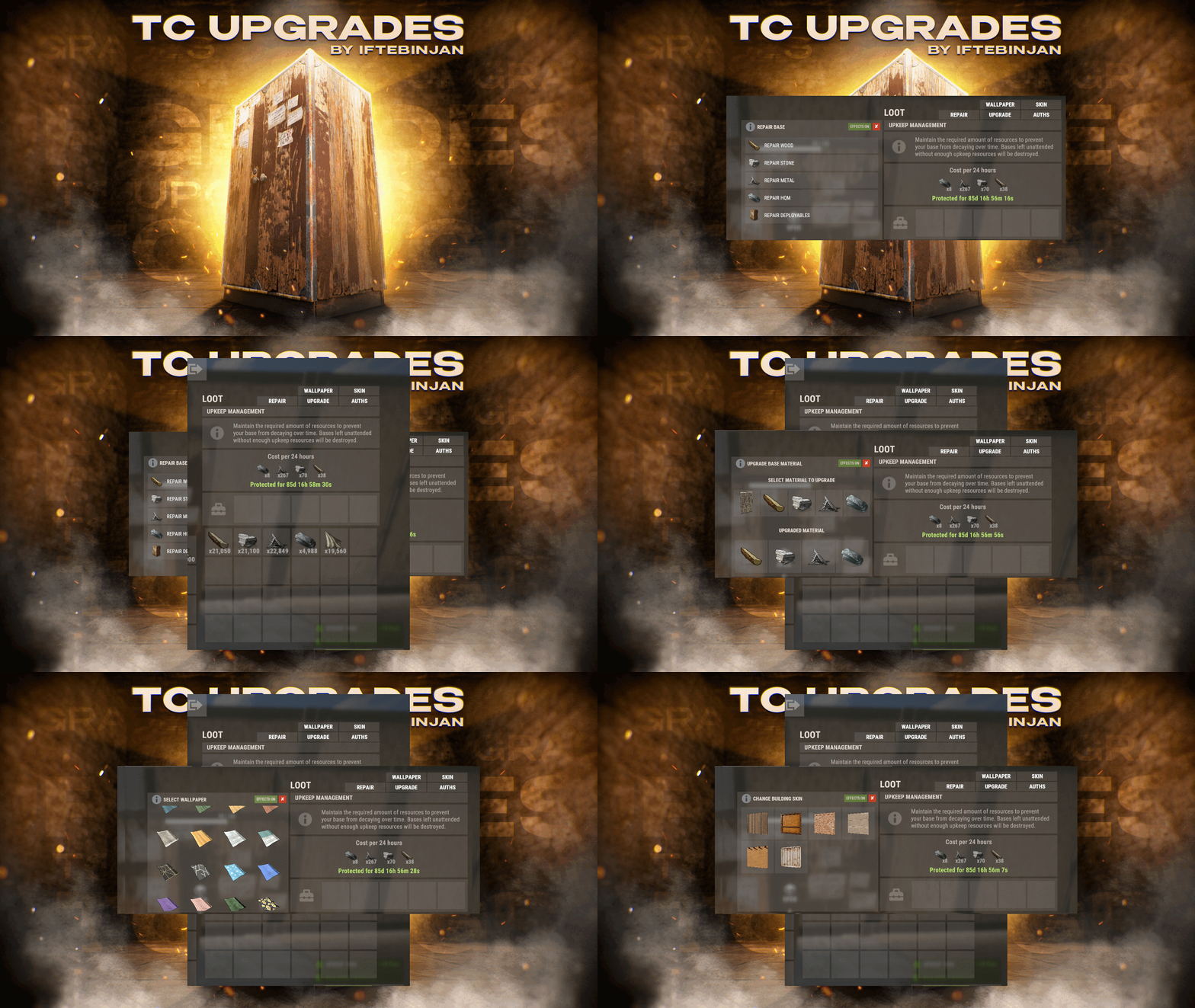
TC Upgrades provides an efficient and optimized way to enhance your base directly from the Tool Cupboard. With this plugin, you can easily change building grades, switch building skins, repair structures or deployables, and even set up wallpapers on your base, streamlining your base management process. Key Features Multi-TC Support Authorization List on Tool Cupboard Upgrade Building Grades Change Building Skins Repair Structures and Deployables Apply Wallpapers Detailed Permissions VIP Features User-Friendly UI Video Showcase Permissions TCUpgrades.admin- Shows a UI Change button when in admin mode (command: /tcuadmin) TCUpgrades.authlist - Shows Authorization list button on TC TCUpgrades.upgrade - Shows upgrade button on TC TCUpgrades.repair - Shows repair button on TC TCUpgrades.skin - Shows skin button on TC TCUpgrades.wallpaper - Shows wallpaper button on TC TCUpgrades.upgrade.nocost - Allows player to use no resources when upgrading TCUpgrades.repair.nocost - Allows player to use no resources when repairing TCUpgrades.reskin.nocost - Allows player to use no resources when reskining TCUpgrades.wallpaper.nocost - Allows player to use no resources when setting wallpaper TCUpgrades.default - Allows player to use (wood, stone, metal, hqm & deploy) TCUpgrades.wood TCUpgrades.stone TCUpgrades.metal TCUpgrades.hqm TCUpgrades.deploy Configurations Support$14.99- 69 comments
- 7 reviews
-
- 4
-
-
-
- #upgrade
- #toolcupboard
- (and 7 more)
-
Version 1.0.4
117 downloads
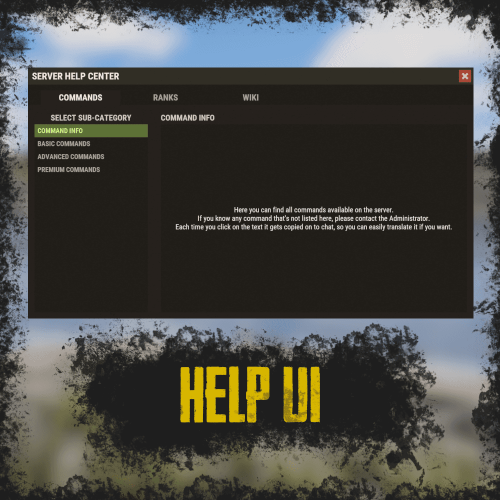
RUST Plugin Test Server TEST MY PLUGINS THERE! connect play.thepitereq.ovh:28050 Help UI lets you create unlimited help pages with ease, allowing players to navigate them effortlessly. All wrapped in a sleek RUST-themed interface with smooth, seamless UI updates. High quality RUST-themed UI. Up to 5 main categories. Almost infinite sub-category limit. Scrollable informations, when clicked printed on chat for easy copy-paste. Full language support. The Commands section values, are the redirect values of the page configurations below. So for example if default config contains "wiki": "wikipedia Page1" it means, that plugin will register command /wiki that will open an Page1 page on wikipedia category. All commands are configured in main config by default you have command like /help, but every command can be edited! { "Commands": { "help": "", "helppage": "", "wiki": "wikipedia Page1" }, "Pages": { "commands": { "Page1": { "Font Size": 15, "Center": false, "Increase Height Value": 0 } }, "ranks": { "Page1": { "Font Size": 15, "Center": false, "Increase Height Value": 0 } }, "wikipedia": { "Page1": { "Font Size": 15, "Center": false, "Increase Height Value": 0 }, "Page2": { "Font Size": 15, "Center": false, "Increase Height Value": 0 } } } }$9.99 -
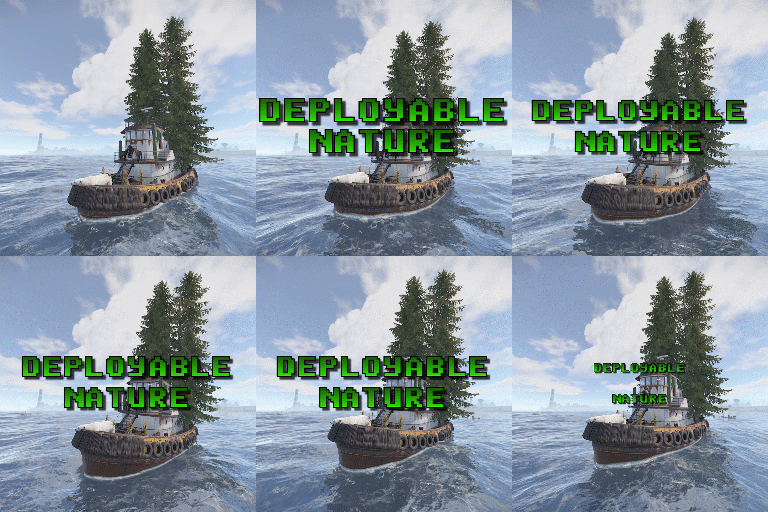
Version 1.0.42
4,588 downloads
Adds 62 new deployable items to your server!. Custom item collection system. Players can obtain these items while cutting trees, mining rocks and collecting plants. Includes a built in market that can be accessed via a chat command or a HumanNPC. Each base item can be configured to allow for a wide variety of placement options/restrictions. A large amount of configuration options are available for each item. Adjustable placement options while holding shift. Items can be picked up by holding a hammer, looking at the deployed entity and pressing your mouse3 button (scroll wheel button). deployablenature.admin - Required to use the giveprefab command. deployablenature.market.chat - Required to use the market chat command. deployablenature.ignore.restrictions - Allows a player to deploy items without restriction (TC etc). deployablenature.gather - Required for players to obtain drops while gathering. deployablenature.use - Required to deploy nature items. deployablenature.free - allows access to the nature market for free. There is also the option to create groups via the config, which will receive discounts in the market based on the value assigned to them. Example: "Permissions that will receive a discount on the store cost when purchasing [1.0 is full price]. Prefix with deployablenature.": { "deployablenature.vip": 0.5 }, This would give players with the deployablenature.vip permission a discount of 50% off of the market price. Command: giveprefab Parameters: <skin id> <quantity> Example: /giveprefab 2609145017 100 - spawns the user 100x medium clutter rocks" Permission: deployablenature.admin Command: naturemarket Permission: deployablenature.market.chat Command: dnpickup Permission: None Command: giveprefab (console) Parameters: <player id/name> <skin id> <quantity> Example: /giveprefab "new guy" 2609145017 100 - spawns the user 100x medium clutter rocks for new guy" Permission: deployablenature.admin Command: dnsetprefab Parameters: None Console Command: dnkillentities - wipes all nature entities from the map. Parameters: <optional parameter: true> - this wipes the data after the command executes. If not used, the nature items will respawn on plugin reload. Example: dnkillentities or dnkillentities true. Permission: deployablenature.admin if running from player console. Console Command: dnkillentitiesforplayer - wipes all nature entities from the map for the specified player Parameters: <player name/id> Example: dnkillentitiesforplayer "new guy" - would delete all entities for the player whose name contained "new guy". Permission: deployablenature.admin if running from player console. Console Command: dnpurge - enables purge mode, wiping all entities from the map (does not delete data), and preventing them from spawning on server start/being deployed by players while active. Automatically resets to false on server wipe. Parameters: <true/false> Example: dnpurge true - would enable purge mode. Permission: deployablenature.admin if running from player console. You most likely won't need the below information, but it is here for more advanced users. Prefab Types 0: Rock 1: Tree 2: Bush 3: Animal 4: Furniture Tree Types 0: None 1: Palm 2: Oak 3: Swamp 4: Birch 5: Beech 6: Pine 7: Cacti 8: Snow 9: Mauritia_Flexuosa 10: Hura_Crepitans 11: Trumpet_Tree 12: Schizolobium 13: Dead_Log 14: Dead_Log_Snow 15: Driftwood Bush Types 0: None 1: Willow 2: Willow_snow 3: Spice 4: Spice_snow 5: Creosote 6: Berries 7: Mushrooms 8: Ocotillo 9: Monstera_Deliciosa 10: Bromeliad 11: Heliconia_Rostrata API public bool IsDeployableNature(BaseEntity entity) Returns if an entity is a DeployableNature entity that has the prevent_gather attribute.$15.00 -
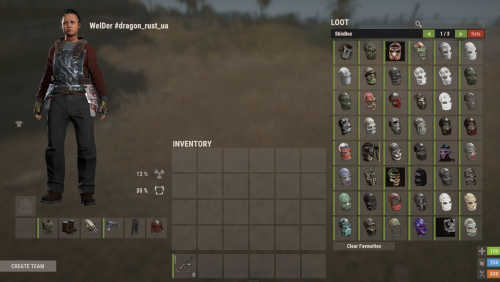
Version 1.2.4
281 downloads
Important: This is NOT a plugin! This is only a configuration file for the SkinBox plugin! You need to have the SkinBox plugin installed and properly set up for this config to work! Facepunch have changed their TOS regarding DLC/paid content As of August 7th 2025, it is not allowed to grant users access to paid DLC that they do not own. That includes all Rust DLC and any paid skins. If you continue to grant users access after that date it can result in your server being delisted or worse. You can still use SkinBox using the Player DLC API plugin, which filters skins based on what the player is allowed to use. This file is a ready-to-use list of skin configurations for SkinBox (2023–2025), containing the most popular and requested skins for Rust servers Inside this file you will get approximately ~10346 Rust skins, already organized and optimized for SkinBox, saving you countless hours of manual browsing and collection. It is strongly recommended that you do not change any paid content related settings in this configuration unless you fully understand the consequences, as violating Facepunch's terms of use may result in your server being banned or deleted. Important: Don’t forget to add your API key in the configuration, as it is not included in this file. Your API key is required for the plugin to function correctly. Simply upload the file, insert your API key, ensure your plugins are configured correctly, and your players will have quick access to the latest skins within the allowed guidelines. The first time you load custom skins, the plugin may take a while to open the SkinBox. This is normal as the plugin needs to retrieve and cache workshop data. Once loaded, the plugin will start working. Please note: Unfortunately, unlike official skins, which are already built into the Rust client and load instantly, custom skins from the workshop are downloaded separately by the client to your PC when you log in to the server and open the SkinBox... Of course it takes some time* before they become visible, and this process is repeated every time you log out of the server, restart the game or reboot your computer.... *The download speed depends on your internet connection and the number of skins in the SkinBox. If you have a very slow loading, we recommend reducing the number of skins for comfortable use. You can use a free tool called Editor for Skins Plugins, available on CodeInfLink, and remove unnecessary skins. Unfortunately, there is no way to bypass this feature, as this is a standard Rust mechanic that works exactly like this and does not depend on us. Please note: That after conversion you will still need to manually add skins to your plugin according to its documentation and usage instructions because the tool only gives a list of skins for some plugins and not the entire configuration file!$7.50- 5 comments
- 2 reviews
-
- 3
-
-

-
- #skinbox
- #configskinbox
- (and 18 more)
-
Version 1.0.2
150 downloads
MultiEvents Expansion Pack 1 adds 5 additional events for barrel destruction, PvP combat, NPC battles, and resource gathering. Requires the base MultiEvents plugin. Included Events This expansion pack includes 5 carefully designed events that add new dimensions to your server: Barrel Event - Destroy as many barrels as you can before time runs out. Points awarded for each barrel destroyed. NPC Missile Silo - Kill as many scientists as you can inside the missile silo monument. High-stakes combat with radiation and automated defenses. Player Battle - Rack up the most PvP kills before time runs out. Points awarded for each player elimination. Pumpkin Picker - Pick as many wild pumpkins as you can before time is up. Peaceful alternative to combat events. Vehicle Hunter - Destroy cars, boats, submarines, helicopters, and Bradley APC. Each vehicle type offers different point values. Requirements Requires the base MultiEvents plugin Copy files to MultiEvents directory and reload the plugin Pre-configured and ready to use immediately FAQ Q: Do I need the base MultiEvents plugin? A: Yes, this expansion pack requires the base MultiEvents plugin. Q: Can I enable/disable individual events? A: Yes, each event can be individually configured through the visual editor. Q: Can I customize rewards? A: Yes, all events support customizable rewards through the MultiEvents system. TEST SERVER Join our test server to try these events! connect 194.147.90.239:28015$7.95-
- 2
-
-
-
- #multievents
- #expansion
- (and 10 more)
-

Version 1.0.2
161 downloads
MultiEvents Expansion Pack 2 adds 5 additional events focused on skill-based challenges, precision combat, and treasure hunting. Requires the base MultiEvents plugin. Included Events This expansion pack includes 5 skill-focused events that challenge different aspects of player expertise: Bow Master - Kill players or animals using bows before time runs out. Points awarded for bow eliminations only. Bot Purge - Kill as many scientists as you can before the timer ends. Different scientist types provide varying point values. NPC Excavator - Kill the most Excavator scientists. Specialized combat at the dangerous Excavator monument. Hemp Gather - Harvest as many hemp plants as you can. Peaceful resource gathering alternative. Scavenger Hunt - Find the hidden crate faster than anyone else. First player to reach the crate wins. Requirements Requires the base MultiEvents plugin Copy files to MultiEvents directory and reload the plugin Pre-configured and ready to use immediately FAQ Q: Do I need the base MultiEvents plugin? A: Yes, this expansion pack requires the base MultiEvents plugin. Q: How does Scavenger Hunt work? A: A crate is randomly placed on the map. First player to find and reach it wins. Q: Can I customize scoring and rewards? A: Yes, all events support customization through the visual editor. TEST SERVER Join our test server to try these events! connect 194.147.90.239:28015$7.95- 1 review
-
- 1
-
-
- #multievents
- #expansion
- (and 10 more)
-
Version 1.0.2
146 downloads
MultiEvents Expansion Pack 3 adds 5 additional events with rare item mechanics, helicopter combat, underwater lab battles, and resource gathering. Requires the base MultiEvents plugin. Included Events This expansion pack includes 5 diverse events with unique mechanics and seasonal appeal: Corn Collector - Gather as much corn as you can. Peaceful farming alternative to combat events. Gold Rush - Gather ores and trees with a chance to get rare items. Combines resource gathering with rare item discovery mechanics. Mushroom Madness - Collect as many mushrooms as you can before time runs out. Race across the map to find mushroom spawns. NPC Underwater Lab - Kill scientists in the dangerous underwater lab monument. Navigate flooded areas and eliminate NPCs. Patrol Helicopter Hit - Deal damage to the Patrol Helicopter. Points awarded based on damage dealt to the helicopter. Requirements Requires the base MultiEvents plugin Copy files to MultiEvents directory and reload the plugin Pre-configured with rare item tables and ready to use FAQ Q: Do I need the base MultiEvents plugin? A: Yes, this expansion pack requires the base MultiEvents plugin. Q: How do rare items work? A: Players have a configurable chance to receive rare items when gathering ores and wood in Gold Rush event. Q: Can I customize rare item drop rates? A: Yes, all rare item chances and types are fully configurable through the visual editor. TEST SERVER Join our test server to try these events! connect 194.147.90.239:28015$7.95- 1 comment
-
- 2
-
-

-
- #multievents
- #expansion
- (and 10 more)
-
Version 2.4.7
751 downloads
Introducing MultiEvents, the ultimate event management plugin for your Rust server! Seamlessly create, manage, and display events with a beautiful, customizable interface that engages your players. With support for multiple event types, easy integration with other plugins, and a powerful visual editor, MultiEvents is the perfect solution to enhance your server's community experience and keep players coming back for more. ️ Features of Multi Events Beautiful, fully customizable UI with multiple template options (Fullscreen, ServerPanel V1, ServerPanel V2) for a tailored player experience. In-game visual editor for creating and customizing event interfaces, allowing for real-time adjustments without coding. Support for event categories, descriptions, icons, and banners to enhance event visibility and player engagement. Integrated event notifications system to alert players about upcoming and ongoing events, ensuring maximum participation. Event inventory management with customizable permissions, providing control over player access and participation. Image library support for custom graphics and icons, enabling a unique and branded event presentation. Multi-language support with easy localization, making the plugin accessible to a global player base. ServerPanel integration for seamless menu access, enhancing user interaction and ease of use. Developer-friendly API for plugin integration, allowing for extended functionality and customization. Pre-loaded with diverse events such as CollectionResources, FoundationDrop, HelicopterPet, HuntAnimal, KingOfHill, LookingLoot, and SpecialCargo, each offering unique gameplay experiences. Advanced configuration options in JSON format, providing flexibility in event setup and management. Optimized for performance, ensuring smooth operation even with large player bases and extensive data. Included Events MultiEvents comes pre-loaded with several exciting events ready to use on your server: CollectionResources - Collect resources and compete with other players! The more resources you collect, the higher your score. Use different tools to get multipliers for your gathering. Top players will receive valuable rewards! FoundationDrop - Players spawn on a platform made of foundations. The foundations begin to degrade and fall away one by one. Players must survive by jumping between foundations. The last player standing wins! When only one foundation remains, players receive weapons and radiation appears to speed up the finale. HelicopterPet - Try to get the attention of the patrol helicopter! The more it focuses on you, the more points you earn. Get points when the helicopter orbits around you and even more when it's attacking. The player with the most points at the end wins! Be careful though - this isn't your friendly neighborhood chopper! HuntAnimal - Hunt animals across the map to earn points! Different animals are worth different amounts - chickens are worth 1 point, while bears are worth 10 points. Wolves, boars, horses, and deer are worth 4 points each. The player with the most points at the end of the event wins! KingOfHill - Race to the highest point! Your score is based on the highest elevation you reach. Stay on solid ground - no flying, swimming, or using vehicles. The player who reaches the highest point and maintains their position wins! Watch your step and keep climbing! LookingLoot - Search for loot across the map! Earn points by looting containers and barrels. Most items are worth 1 point each, but special items like scrap and gears are worth 2 points. The player who collects the most valuable loot wins! Be quick - containers can only be looted once! SpecialCargo - Deliver the special cargo from one monument to another! A random player will be chosen to carry the cargo. The carrier must reach the destination monument marked on the map while avoiding other players. If the carrier dies, a new random player becomes the carrier. Teleportation is disabled for the carrier. Successfully deliver the cargo to win! Each event is fully customizable through the visual editor and comes with default settings ready to play immediately after installation! Expansion Packs & Add‑ons Enhance MultiEvents with premium expansion packs and our large‑scale raid framework. Pre‑configured, fully customizable, and designed to plug directly into your server. MultiEvents Pack 1 Barrels, PvP Player Battle, NPC Missile Silo, Pumpkin Picker, Vehicle Hunter. View on Codefling → MultiEvents Pack 2 Another set of competitive and gathering‑focused events to diversify rotations. View on Codefling → MultiEvents Pack 3 Corn Collector, Gold Rush (with rare items), Mushroom Madness, NPC Underwater Lab, Patrol Helicopter Hit. View on Codefling → OPERATION FORTRESS Large‑scale PvE raid framework with handcrafted bases, waves, and rewards — a perfect complement to your event ecosystem. View on Codefling → Showcase Fullscreen Template ServerPanel V1 Template ServerPanel V2 Template Video Overview Commands /events - Opens the events menu for players Permissions multievents.edit - Permission to edit events Visual Editor MultiEvents includes a robust visual editor that simplifies the process of creating and customizing events. No coding is required—use the intuitive interface to adjust settings, modify colors, add text, and configure event elements directly in-game. This allows for quick and efficient event setup, ensuring your server's events are both engaging and visually appealing. Web Config Editor Easily manage your MultiEvents settings with our web-based configuration editor. This tool allows you to adjust plugin configurations through a user-friendly interface, eliminating the need to manually edit files on your server. P.S. To access the web config editor, you must be part of the "MultiEvents" group in our Discord server. Join us at https://discord.gg/mevent and submit a request in the #ticket-verify channel to get started. FAQ Q: Can I integrate MultiEvents with other plugins? A: Yes! MultiEvents has an API that allows other plugins to register and manage events. It also integrates with ServerPanel for menu access. Q: How do I add MultiEvents to the ServerPanel menu? A: You can do this directly from the ServerPanel in-game: 1. Open the ServerPanel menu in-game. 2. If you have permission to edit, switch the panel to edit mode so you can see the blue "EDIT CATEGORY" and "EDIT PAGES" buttons. 3. Choose the category where you want MultiEvents to appear and click the "EDIT CATEGORY" button for that category. 4. While you are in this category in the ServerPanel, click the "EDIT PAGES" button to create a new page (or edit an existing one) for MultiEvents. 5. For that page, set these exact parameters: Type: Plugin Plugin Name: MultiEvents Plugin Hook: API_OpenPlugin 6. Save the changes. The MultiEvents button will now appear in the ServerPanel in the category you selected. Q: How do I add custom images for my events? A: MultiEvents supports an image library. Upload your images to your server, and reference them in the plugin configuration or through the visual editor. Q: Does MultiEvents support multiple languages? A: Yes, MultiEvents has built-in localization support. You can customize all text elements in the editor and add translations for different languages. Q: How do I configure rewards in MultiEvents? A: Rewards can be configured in two ways. If you want rewards to drop into a custom inventory UI, you need to set up items in the inventory settings and assign them unique IDs. Then, reference these IDs in the event configuration. If you prefer to give rewards directly to the player's in-game inventory, simply specify the rewards directly within the event settings. Q: How do I set up rewards (Item, Command, Plugin, Kit) and what placeholders are available? A: Types: Item (ShortName, Amount, DisplayName, Skin), Command (Command string), Plugin (Plugin Name, Hook, Amount), Kit (Kit name). Placeholders for Command: %steamid%, %username%. Multiple commands are separated by | (line breaks are also supported). Give an item: "Type": "Item", "ShortName": "stones", "Amount": 2500, "DisplayName": "Stones", "Skin": 0 Give a kit: "Type": "Kit", "Kit": "vip_starter" Run commands: "Type": "Command", "Command (%steamid%)": "inventory.giveto %steamid% scrap 1000|oxide.usergroup add %steamid% vip" Add BankSystem balance (via Plugin): "Type": "Plugin", "Plugin": "BankSystem", "Hook": "Deposit", "Amount": 2500 Q: What are the recommended sizes for event images? A: For optimal display, event banners should be 390x349 pixels, and event icons should be 64x64 pixels. Developer API MultiEvents provides a developer-friendly API for integration with other plugins: void API_RegisterEvent(string eventId, JObject data) - Register a new event with MultiEvents API_RegisterEvent Parameters: eventId (string): unique identifier for the event. data (JObject): JSON object containing event details. JObject Structure: title (string, required): The title of the event. description (string, optional): A brief description of the event. commandToStart (string, required): The command to start the event. commandToStop (string, required): The command to stop the event. bannerURL (string, optional): URL for the event's banner image. icon (string, optional): URL for the event's icon image. scrollElements (JArray, optional): Custom UI elements for the event's scroll view. Creating UI Elements for scrollElements: The scrollElements parameter allows you to add custom UI elements to your event description. Each element is defined as a JObject with specific properties based on its type. Common Properties: type (string): "label", "image", "panel", or "button" color (string): HEX color code (e.g., "#FFFFFF") alpha (float): Opacity from 0 to 100 position (JObject): Element position and dimensions Type-Specific Properties: Text Elements: text (JArray of strings), textColor (HEX), fontSize (int), font (string) Image Elements: image (string URL) Button Elements: text, textColor, fontSize, command (string) Panel Elements: cursorEnabled (bool) Example of UI Elements: var customScrollElements = new JArray { // Label example new JObject { ["type"] = "label", ["text"] = new JArray { "Duration: <color=#D74933>10 mins</color>", "Reward: <color=#D74933>100 scrap, Jackhammer, Python Revolver</color>" }, ["textColor"] = "#E2DBD3", ["alpha"] = 100f, ["fontSize"] = 14, ["font"] = "robotocondensed-regular.ttf", ["align"] = "MiddleLeft", ["position"] = new JObject { ["anchorMinX"] = 0f, ["anchorMinY"] = 1f, ["anchorMaxX"] = 1f, ["anchorMaxY"] = 1f, ["offsetMinX"] = 0f, ["offsetMinY"] = -200f, ["offsetMaxX"] = 0f, ["offsetMaxY"] = -140f } }, // Image example new JObject { ["type"] = "image", ["image"] = "https://example.com/image.png", ["color"] = "#FFFFFF", ["alpha"] = 100f, ["position"] = new JObject { ["anchorMinX"] = 0f, ["anchorMinY"] = 1f, ["anchorMaxX"] = 0f, ["anchorMaxY"] = 1f, ["offsetMinX"] = 0f, ["offsetMinY"] = -234f, ["offsetMaxX"] = 42f, ["offsetMaxY"] = -192f } }, // Button example new JObject { ["type"] = "button", ["text"] = "Click Me", ["textColor"] = "#FFFFFF", ["color"] = "#D74933", ["alpha"] = 100f, ["fontSize"] = 14, ["command"] = "customcommand {user}", ["position"] = new JObject { ["anchorMinX"] = 0.5f, ["anchorMinY"] = 0f, ["anchorMaxX"] = 0.5f, ["anchorMaxY"] = 0f, ["offsetMinX"] = -60f, ["offsetMinY"] = 20f, ["offsetMaxX"] = 60f, ["offsetMaxY"] = 50f } } }; Example Usage: MultiEvents.Call("API_RegisterEvent", "CollectionResources", new JObject { ["title"] = "Collection Resources", ["description"] = "Collect resources and compete with other players! The more resources you collect, the higher your score. Use different tools to get multipliers for your gathering. Top players will receive valuable rewards!", ["commandToStart"] = "collectionresources.start", ["commandToStop"] = "collectionresources.stop", ["bannerURL"] = "https://gitlab.com/TheMevent/PluginsStorage/raw/main/Images/MultiEvents/CollectionResources.png", ["icon"] = "https://gitlab.com/TheMevent/PluginsStorage/raw/main/Images/MultiEvents/Icons/CollectionResources.png", ["scrollElements"] = customScrollElements }); (hook) OnEventStart(string eventName) - Hook called when an event begins (hook) OnEventEnd(string eventName) - Hook called when an event ends bool API_PlayerHideNotify(ulong userId) - Allows hiding event notifications for a specific player. Returns a boolean indicating whether notifications are hidden for the player. string GetBannerUrlByEventId(string eventId) - Retrieves the banner URL for a specific event by its ID. This is useful when you need to reference an event's banner in your custom UI. TEST SERVER Join our test server to view and experience all our unique features yourself! Copy the IP Address below to start playing! connect 194.147.90.239:28015 Elevate your server's event management with MultiEvents - the complete solution for creating engaging and visually stunning events that will keep your players excited and coming back for more!$41.00- 17 comments
- 6 reviews
-
- 1
-
-
- #mutlievents
- #events
- (and 15 more)
-
Version 2.3.2
9,441 downloads
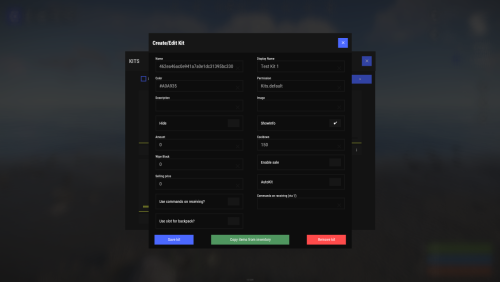
Unique kit system with the highest possible functionality and beautiful design. This will please you (no need to sit in the config every time and try to fill in some incomprehensible values, etc.), and your players (convenient, clear and informative interface). You just start editing items directly in the game) and your players (comfortable, clear, informative interface)! Features of Kits Beautiful User Interface: Experience a visually appealing and user-friendly design. High Performance: Optimized for fast, reliable performance. Automatic Kit Conversion (uMod): Easily convert your existing kits. In-Game Kit and Item Setup: Configure kits directly in the game. Auto Kits & Wipes (Optional): Automate kit distribution and server wipes. Custom Items & Commands: Assign unique items and commands to kits. Advanced Item Settings: Fine-tune every aspect of your items. CopyPaste Integration: Seamlessly work with CopyPaste. Optional Features: Delays after wipes, set blocking in Building Block, logging, and item chances. Skills & ServerPanel Support: Enhance player experience with integrated support. Commands kit – open the kit interface kit help – get help with kits kit autokit – enable or disable automatic kit. Requires the "kits.changeautokit" permission. You can set this permission up in the plugin configuration under "Permission to enable/disable autokit". kit list – display all available kits kit [name] – redeem a specific kit kits.resetkits – delete all kits kits.give [name/steamid] [kitname] – grant a kit to player kits.convert – convert from uMod Kits kits.wipe – clear players data kits.reset – resets the player data or kits in the kits system. kits.reset data [<targetID>/all] – resets the data of a player or all players. Parameters: <targetID>: The ID of the player whose data is to be reset. If you specify all, the data of all players will be reset. kits.reset kits – resets all kits in the data kits.template <interface_type> <interface_style> <template> [template_version] – allows the administrator to customize the appearance of the bundles interface by choosing between fullscreen and inmenu mode. Different styles and templates are available for each interface type. The old style (old) is only available for fullscreen mode, while the new Rust style (rust) is available for both interface types. When using the Rust style, you must specify a specific template such as normal, content, categories or content_categories. For inmenu rust templates, you can also specify the ServerPanel template version (1 or 2). Parameters: <interface_type>: The type of interface template. Valid values: fullscreen: Fullscreen interface template. inmenu: Menu interface template. <interface_style>: The style of the interface. Valid values: old: The old interface style (fullscreen only). rust: New Rust interface style (for fullscreen and inmenu). <template>: The name of the target template. Valid values depend on the interface style: normal, content, categories, content_categories. [template_version]: (Optional, only for inmenu rust) ServerPanel template version. Valid values: 1 or 2. Specifies the template version to be used with the selected inmenu rust template. Examples: kits.template fullscreen old - Sets the fullscreen interface to the old style. kits.template fullscreen rust normal - Sets the fullscreen interface to the Rust style with the normal template. kits.template fullscreen rust content - Sets the fullscreen interface to the Rust style with the content template. kits.template fullscreen rust categories - Sets the fullscreen interface to the Rust style with the categories template. kits.template fullscreen rust content_categories - Sets the fullscreen interface to the Rust style with the content_categories template. kits.template inmenu rust normal 1 - Sets the menu interface to the Rust style with the normal template for ServerPanel version 1. kits.template inmenu rust content 2 - Sets the menu interface to the Rust style with the content template for ServerPanel version 2. kits.template inmenu rust categories 1 - Sets the menu interface to Rust style with the categories template for ServerPanel version 1. kits.template inmenu rust content_categories 1 - Sets the menu interface to the Rust style with the content_categories template for ServerPanel version 1. Video P.S. Video of the old version, video for the V2+ version is now in development Showcase Full screen Templates Template OLD STYLE Template NEW RUST Default: Content: Categories: Content & Categories: In-Menu Templates Template V1 (V1.1) Default: Content: Categories: Content & Categories: Template V2 Default: Content: Categories: Content & Categories: Template V4 Default: Content: Categories: Content & Categories: Editor Web Config Editor Easily manage your Kits settings with our web-based configuration editor. This tool allows you to adjust plugin configurations through a user-friendly interface, eliminating the need to manually edit files on your server. P.S. Join our Discord at https://discord.gg/mevent and request the "Kits" group for access to the web configuration editor. TEST SERVER Join our test server to view and experience all our unique features yourself! Copy the IP Address below to start playing! connect 194.147.90.239:28015 FAQ Q: Where can I see an example of a config? A: Config Q: Where can I see an example of a data? A: Data Q: How do I add Kits to ServerPanel? A: To add Kits to your ServerPanel, create a new category in your ServerPanel configuration with these settings: "Type": "Plugin", "Plugin Name": "Kits", "Plugin Hook": "API_OpenPlugin". Q: Does the Kits plugin support other plugins? A: Yes, this Kits plugin has an API similar to other popular kits plugins. If the plugin works with Kits - it works with this plugin too. Q: How do I enable the sale of kits? A: You need to configure the plugin economy (which plugin, its hooks, etc.), enable "Enable sale" in the Kits data (oxide/data/Kits/Kits.json or carbon/data/Kits/Kits.json) and set the price to "Selling price" "Enable sale": true, "Selling price": 100, Q: How do I use Economics to pay for kits? A: Example configuration settings: "Economy": { "Type (Plugin/Item)": "Plugin", "Plugin name": "Economics", "Balance add hook": "Deposit", "Balance remove hook": "Withdraw", "Balance show hook": "Balance", "ShortName": "", "Display Name (empty - default)": "", "Skin": 0 }, Q: How do I use ServerRewards to pay for kits? A: Example configuration settings: "Economy": { "Type (Plugin/Item)": "Plugin", "Plugin name": "ServerRewards", "Balance add hook": "AddPoints", "Balance remove hook": "TakePoints", "Balance show hook": "CheckPoints", "ShortName": "", "Display Name (empty - default)": "", "Skin": 0 }, Q: How do I use scrap to pay for kits? A: Example configuration settings: "Economy": { "Type (Plugin/Item)": "Item", "Plugin name": "", "Balance add hook": "", "Balance remove hook": "", "Balance show hook": "", "ShortName": "scrap", "Display Name (empty - default)": "", "Skin": 0 }, Q: How do I resize the kit image? A: You can do this in the config, here's an example of the image setup (-32 and 32 are width, and -75 and -11 are height "Kit Image": { "AnchorMin": "0.5 1", "AnchorMax": "0.5 1", "OffsetMin": "-32 -75", "OffsetMax": "32 -11" }, Q: How can I remove the numbers on the kits ("#1", "#2", etc.)? A: You need to turn off "Show Number?" in the config: "Show Number?": false, Q: How do I make it so that others can see kits with different permissions without being able to claim them? A: You need to turn off "Show All Kits?" in the config: "Show All Kits?": true, Q: Where can I edit the names in the plugin or add my own language? A: You can edit lang files that are located (for example) at "oxide/lang/en/Kits.json" or "carbon/lang/en/Kits.json". Q: Players get "The plugin does not work correctly, contact the administrator!" message. How to fix? A: This error occurs when the ImageLibrary plugin is not working properly. Solutions: Install the ImageLibrary plugin if it's not installed. Make sure ImageLibrary is loaded and running properly (check with o.plugins command). Restart the server after installing ImageLibrary. Check server console for ImageLibrary errors and fix them. Q: I see black images with Rust logo or get error 429 when loading images. What should I do? A: These issues occur when there are problems downloading images from the internet. The Kits plugin sends images to ImageLibrary but is not responsible for the downloading process itself. Error 429 typically occurs due to rate limits imposed by image hosting services like Imgur (see HTTP 429 documentation for more details). To fix this, enable Offline Image Mode which will use local images instead: Enable the mode in config: Open "oxide/config/Kits.json" (or "carbon/config/Kits.json" for Carbon) Set "Enable Offline Image Mode": true Set up the images: Create folder "TheMevent" in "oxide/data" (or "carbon/data" for Carbon) Download PluginsStorage (click "CODE" → "Download ZIP") Extract the ZIP and copy all contents to the "TheMevent" folder Reload the plugin: Type o.reload Kits (Oxide) or c.reload Kits (Carbon) Note: If you want to add your own custom images, place them in the "TheMevent" folder and reference them with the "TheMevent/" prefix. For example: "TheMevent/Icon1.png", "TheMevent/MyCustomIcon.jpg", etc. Q: What placeholders are available for commands and what do they do? A: You can use these placeholders in kit commands and they will be automatically replaced: %steamid% - Replaced with the player's Steam ID (e.g., "76561198000000000") %username% - Replaced with the player's display name (e.g., "PlayerName") %player.x% - Replaced with the player's X coordinate position %player.y% - Replaced with the player's Y coordinate position %player.z% - Replaced with the player's Z coordinate position Example usage in kit commands: "Commands on receiving (via '|')": "say Welcome %username%!|teleport %steamid% %player.x% %player.y% %player.z%" Note: Multiple commands can be separated by the "|" character, and they will be executed in sequence when the kit is redeemed. HOOKS private string[] canRedeemKit(BasePlayer player) private void OnKitRedeemed(BasePlayer player, string kitName) private double OnKitCooldown(BasePlayer player, double cooldown) API private bool TryClaimKit(BasePlayer player, string name, bool usingUI) private string[] GetAllKits() private object GetKitInfo(string kitname) private string[] GetKitContents(string kitname) private double GetKitCooldown(string kitname) private double PlayerKitCooldown(ulong ID, string kitname) private int KitMax(string kitname) private double PlayerKitMax(ulong ID, string kitname) private string KitImage(string kitname) private bool IsKit(string kitname) private bool isKit(string kitname) private void GetKitNames(List<string> list) private double GetPlayerKitCooldown(ulong userId, string name) private double GetPlayerKitCooldown(string userId, string name) private void SetPlayerCooldown(ulong userId, string name, int amount) private int GetPlayerKitUses(ulong userId, string name) private int GetPlayerKitUses(string userId, string name) private void SetPlayerKitUses(ulong userId, string name, int amount) private JObject GetKitObject(string name) private int GetKitMaxUses(string name) private string GetKitDescription(string name) private string GetKitImage(string name) private bool GiveKit(BasePlayer player, string name, bool usingUI) private bool HasKitAccess(string userId, string name) private int GetPlayerKitAmount(string userId, string name)$34.95 -
Version 1.5.39
3,776 downloads
Introducing UltimateLeaderboard, the most advanced and comprehensive leaderboard system designed for Rust servers! Elevate your server competitive spirit by tracking an extensive range of player statistics—everything from kills and deaths to resources gathered, items crafted, structures built, and more. Featuring a sleek, customizable user interface and seamless integration with popular plugins, UltimateLeaderboard is the perfect addition to engage your players and showcase their achievements. Features of Ultimate Leaderboard Track a wide variety of player statistics, including kills, deaths, resources gathered, items crafted, structures built, and more. Fully customizable leaderboard—choose which stats to display and tailor it to your server unique style. Intuitive and visually appealing user interface for players to view their stats and compare rankings. Seamless integration with plugins like ServerPanel for enhanced displays, and Notify/UINotify for in-game alerts. Flexible data storage options: choose between JSON, SQLite, or MySQL to suit your server needs. Two reward systems: post-wipe awards that give actual items, kits, and money to top players when they connect, plus an optional companion plugin UltimateLeaderboardTop for real-time privilege management based on current rankings. Custom Titles system that automatically displays achievement-based chat titles for top performers (requires BetterChat plugin). Optimized for high performance, ensuring smooth operation even with large player bases and extensive data. Configurable templates. Optional real-time database updates for integrations (e.g., Discord Bot). Showcase Fullscreen Template ServerPanel V1 (V1.1) ServerPanel V2 Video Overview Commands /leaderboard or /stats - Opens the leaderboard interface for players to view stats and rankings. /leaderboard <steamid> - Opens another player's profile (requires ultimateleaderboard.profile permission). /leaderboard.hide - Allows players to hide themselves from the leaderboard (requires ultimateleaderboard.hide.self permission). leaderboard.manage hide <steamid> - Console command to hide a player from the leaderboard (server console only). leaderboard.wipe - Console command to reset all leaderboard data (server console only). leaderboard.migrate <migration_id> - Console command to perform database migrations (server console only). Available: — leaderboard.migrate 1 adds HiddenFromLeaderboard column to PlayerStats table (upgrade from v1.1.7 to v1.1.8) — leaderboard.migrate 2 migrates BodyHits data to the new format (upgrade to v1.5.10) leaderboard.find.short.prefab <search_term> - Console command to search for prefabs containing the specified search term (server console only). Useful for finding correct prefab names for configuration. leaderboard.manage - Console command to manage player statistics (server console only). Use leaderboard.manage help for detailed usage information. Permissions ultimateleaderboard.use - grants players access to leaderboard commands and interface. ultimateleaderboard.profile - allows players to view other players' profiles using the leaderboard command. ultimateleaderboard.hide.self - allows players to hide themselves from the leaderboard using the /leaderboard.hide command. Web Config Editor Easily manage your UltimateLeaderboard settings with our web-based configuration editor. This tool allows you to adjust plugin configurations through a user-friendly interface, eliminating the need to manually edit files on your server. P.S. To access the web config editor, you must be part of the "UltimateLeaderboard" group in our Discord server. Join us at https://discord.gg/mevent and request the group to get started. FAQ Q: How do I install UltimateLeaderboard? A: Download the UltimateLeaderboard.cs file, place it in your oxide/plugins directory, and restart your server or reload the plugin using the Oxide command oxide.reload UltimateLeaderboard. Q: Can I choose which statistics to track and display? A: Yes! The plugin allows you to customize tracked statistics and leaderboard displays via the configuration file. You can enable or disable specific stats like kills, resources, or events to suit your server. Q: What data storage options are available? A: UltimateLeaderboard supports JSON, SQLite, and MySQL. You can select your preferred storage method in the config file, offering flexibility for small or large servers. Q: How do I set up the awards system? A: In the configuration file, define award categories (e.g., most kills, top gatherer) and their criteria. The plugin will automatically track and assign awards to top players based on your settings. Q: Where can I configure the UI? A: UI is now template-driven. Use configurable templates stored at oxide/data/UltimateLeaderboard/Templates. Q: What happens to the data on a server wipe? A: By default, data wipes with a new save file, but you can disable this in the config (Wipe data on new save) to persist stats across wipes if desired. Q: How do I add UltimateLeaderboard to the ServerPanel menu? A: Follow these simple steps: 1. Open ServerPanel menu in-game and click "+ADD CATEGORY" button 2. Set these exact parameters: Type: Plugin Plugin Name: UltimateLeaderboard Plugin Hook: API_OpenPlugin 3. Click "SAVE" button to create the category Q: I see black images with Rust logo or get error 429 when loading images. What should I do? A: These issues occur when there are problems downloading images from the internet. The UltimateLeaderboard plugin sends images to ImageLibrary but is not responsible for the downloading process itself. Error 429 typically occurs due to rate limits imposed by image hosting services like Imgur (see HTTP 429 documentation for more details). To fix this, enable Offline Image Mode which will use local images instead: Enable the mode in config: Open "oxide/config/UltimateLeaderboard.json" (or "carbon/config/UltimateLeaderboard.json" for Carbon) Set "Enable Offline Image Mode": true Set up the images: Create folder "TheMevent" in "oxide/data" (or "carbon/data" for Carbon) Download PluginsStorage (click "CODE" → "Download ZIP") Extract the ZIP and copy all contents to the "TheMevent" folder Reload the plugin: Type o.reload UltimateLeaderboard (Oxide) or c.reload UltimateLeaderboard (Carbon) Note: If you want to add your own custom images, place them in the "TheMevent" folder and reference them with the "TheMevent/" prefix. For example: "TheMevent/Icon1.png", "TheMevent/MyCustomIcon.jpg", etc. Q: What's the difference between UltimateLeaderboard awards and UltimateLeaderboardTop? A: UltimateLeaderboardTop is a companion plugin that automatically manages player privileges based on leaderboard positions. Main Plugin Awards: Gives actual rewards (kits, money, commands) to top players after wipe - rewards are given once when player connects. UltimateLeaderboardTop: Continuously manages privileges (VIP groups, permissions) as players enter/exit top positions in real-time. To display awards in UI while using UltimateLeaderboardTop: Configure awards in UltimateLeaderboard config Configure awards in UltimateLeaderboardTop config Set "Automatically give rewards after the wipe": false Q: Can UltimateLeaderboardTop give items/kits to players? A: No, UltimateLeaderboardTop is designed only for reversible actions (permissions, groups, etc.). Since items can't be taken back from players when they leave top positions, item rewards are not supported. Use the main plugin's awards system for item rewards instead. Q: How do I configure rewards for top players? A: There are two reward systems available: UltimateLeaderboard Awards (Post-Wipe Rewards): Configure in the main plugin's config file under "Awards Settings": Set award categories (e.g., "Most Kills", "Top Gatherer") Define criteria: loot type, prefab, and minimum amount required Set rewards: commands to execute (give items, kits, money, etc.) Awards are given once when top players connect after a wipe UltimateLeaderboardTop (Real-time Privileges): Configure in UltimateLeaderboardTop.json: Set leaderboard types to monitor (kills, points, playtime, etc.) Define top positions (1st, 2nd, 3rd, etc.) Configure "Enter place commands" (given when player reaches position) Configure "Exit place commands" (executed when player loses position) Use for permissions, groups, temporary privileges Example UltimateLeaderboardTop configuration: { "Loot type": "Kill", "Prefab": "kills", "Places settings": { "1": { "Enter place commands": ["o.usergroup add %steamid% vip"], "Exit place commands": ["o.usergroup remove %steamid% vip"] } } } Q: What are Custom Titles and how do they work? A: Custom Titles automatically display achievement-based titles in chat for top players. For example, top killers get "[Killer]" title, top builders get "[Builder]" title, etc. Requires BetterChat plugin to work. Titles are updated automatically based on leaderboard positions and can be configured with priority system and limits. Q: Why don't I see my statistics updated immediately on the leaderboard? A: The leaderboard is cached and refreshes periodically (configurable interval) to minimize server load and ensure optimal performance. This means statistics may take a few minutes to appear on the leaderboard after the action is performed. The caching system helps maintain smooth server operation even with large player bases and extensive statistics tracking. Q: How can I track multiple similar items or entities with one statistic? A: You can combine multiple prefabs using the pipe symbol | in the prefab field. For example, to track all types of scientists as one "NPC Kills" statistic, use: npc_tunneldweller|npc_underwaterdweller|scientistnpc_arena|scientistnpc_bradley. This is useful for grouping similar items, resources, or entities into a single tracked category. Q: How do I find the correct prefab names for items, entities, or events? A: There are several ways to find prefab names: In-game console command: Use leaderboard.find.short.prefab <search_term> in the server console to search for prefabs containing your search term. For example: leaderboard.find.short.prefab scientist will show all prefabs containing "scientist". F1 console spawn command: In-game, open F1 console and use the spawn command to see available entity prefabs. Type spawn followed by part of the name to see matching options. Item shortnames: For items, use their shortname (e.g., "stones", "metal.ore", "wood"). You can find these by examining items in your inventory or using item-related commands. Plugin documentation: Check the "Custom Prefabs" and "Available Loot Types" sections in this plugin's description for comprehensive lists of supported prefabs and loot types. Q: How can I output the sum of all values by type of statistics (for example, all kills, all loot collected)? A: Use the prefab total_sum for the desired LootType. For example, to show the total number of all player kills, specify the LootType Kill and the prefab total_sum in the column or block settings. It works for any type: Kill, Gather, Craft, Event, and others. Q: How does the leaderboard scoring system work? A: The leaderboard uses a points-based scoring system. Points are earned from in-game actions, and each action has: Loot Type - The category of action (e.g., Kill, Gather, Construction, Craft, Event) Prefab/Short Name - The specific item or entity (e.g., "kills", "stones", "helicopter", "supply_drop") Score Value - The points awarded for this action (configured in Loot Settings) When a player performs an action: The plugin looks up the score for that action type + prefab combination Multiplies the score by the action value (usually 1 per action) Adds it to the player's total Points Example scores (from config): Player kills: +1.0 point per kill Deaths: -1.0 point per death Gathering stone: +0.1 point per stone Supply drop looted: +3.0 points Bradley crate: +5.0 points Helicopter kill: +15.0 points Bradley kill: +10.0 points How to become top player: Perform actions that have scores configured in Loot Settings Accumulate the most total Points The leaderboard ranks players by their Points value (or other tracked stats) Q: What award types are available and how do I configure them? A: UltimateLeaderboard supports 8 award types: Command - Execute console commands. Supports %steamid% placeholder. Use | to separate multiple commands. Example: "Command (%steamid%)": "inventory.giveto %steamid% rifle.ak 1|oxide.usergroup add %steamid% vip" Kit - Give kits from Kits plugin. Requires Kits plugin to be loaded. Example: "Type": "Kit", "Kit Name": "vip_starter" ServerRewards - Add reward points. Requires ServerRewards plugin. Example: "Type": "ServerRewards", "Amount": 1000 Economics - Deposit money via Economics plugin. Example: "Type": "Economics", "Amount": 5000 BankSystem - Deposit money to player's bank account. Example: "Type": "BankSystem", "Amount": 2500 GameStores - Add balance via GameStoresRUST plugin. Example: "Type": "GameStores", "Amount": 100 MoscowOVH - Add balance via RustStore plugin (Moscow OVH integration). Example: "Type": "MoscowOVH", "Amount": 50 Custom Prefabs UltimateLeaderboard supports advanced custom prefabs for granular statistics tracking and display: total_play_time - Total playtime (in seconds) current_playtime - Current session duration kdr - Kill/Death ratio points - Internal points system longest_kill_distance - Longest kill distance record total_hits - Total player hits total_resources - Total resources gathered total_items_crafted - Items crafted events_won - Event victories structures_built - Structures built upgrades_performed - Building upgrades name/nickname - Player display name formatted_total_playtime - Human-readable playtime (Xd Xh Xm) kd - K/D formatted as "Kills/Deaths" favorite_resource - Most gathered resource favorite_crafted_item - Most crafted item favorite_event - Most won event favorite_building_material - Preferred building material favorite_weapon - Most used weapon total_quests_completed - Total completed quests total_sum - Sum of all values for the selected LootType. For example, using total_sum with LootType Kill will show the total number of all kills for the player (across all kill categories). Works for any LootType: Kill, Gather, Craft, Event, etc. Available Loot Types None Construction Medical Event Available prefabs: Convoy Sputnik Caravan GasStationEvent AirEvent SatDishEvent Triangulation WaterEvent HarborEvent FerryTerminalEvent ArcticBaseEvent JunkyardEvent SupermarketEvent PowerPlantEvent ArmoredTrainEvent SurvivalArena KillBoss PaintballTeam PaintballFFA GunGame ZombieInfection TugboatPirates SpaceEvent AbandonedBase DungeonEvent FlyingCargoEvent AirfieldEvent Gather Kill Available custom prefabs: helisignals_{skin} - Tracks helicopter kills from HeliSignals (e.g., "helisignals_2920175997") bradleydrops_{skin} - Tracks bradley kills from BradleyDrops (e.g., "bradleydrops_2905355269") roadbradley_{profile} - Tracks bradley kills from RoadBradley (e.g., "roadbradley_easy") helicopter - Tracks helicopter kills Custom NPC support: horde_npc - For NPCs from ZombieHorde plugin raidbase_npc - For NPCs from Raidable Bases plugin For NPCs from NpcSpawn use NPC name as key (BossMonster, BetterNpc, NPCs from events, etc.) Other entity prefabs can be found in-game by using the "spawn" command in the F1 console Consume Raid Death Available custom prefabs: Custom NPC support: horde_npc - For NPCs from ZombieHorde plugin raidbase_npc - For NPCs from Raidable Bases plugin For NPCs from NpcSpawn use NPC name as key (BossMonster, BetterNpc, NPCs from events, etc.) Craft Crate LootItems Fishing Puzzle Available prefabs: keycard_1 keycard_2 keycard_3 Custom Upgrade ShotFired ExplosiveUsed RecycleItem BodyHits WeaponUsed RaidableBases Available prefabs: easy medium hard expert nightmare Economy Available prefabs: ShoppyStock Economics IQEconomic Quest EconomyBalance Available prefabs: Economics ServerRewards BankSystem IQEconomic Gambling Available prefabs: BlackjackDeposit BlackjackWon SlotDeposit SlotWon PockerDeposit PockerWon WheelDeposit WheelWon SkillTree Available prefabs: xp - Experience points earned level - Skill tree level reached Trivia MixingTable API for Developers UltimateLeaderboard provides a comprehensive API for developers to integrate with other plugins and extend functionality: Methods JArray API_GetUltimateLeaderboardUsers(int offset, int limit, int? columnIndex = null) - Get leaderboard users with pagination float API_GetPlayerStat(ulong playerId, string lootType, string shortname) - Get specific player statistic bool API_IsHiddenFromLeaderboard(ulong playerId) - Check if player is hidden from leaderboard void API_OnItemGather(ulong player, string shortname, int amount) - Add gather statistics for a player void API_OnEventWin(ulong userID, string eventName, int amount = 1) - Record event wins for a player Hooks void OnUltimateLeaderboardContent(BasePlayer player, string categoryType, CuiElementContainer container) - Called when displaying custom category content void OnUltimateLeaderboardCached() - Called when leaderboard data is cached and ready$45.00- 33 comments
- 16 reviews
-
- 8
-
-
-
- #ultimateleaderboard
- #leaderboard
- (and 20 more)
-
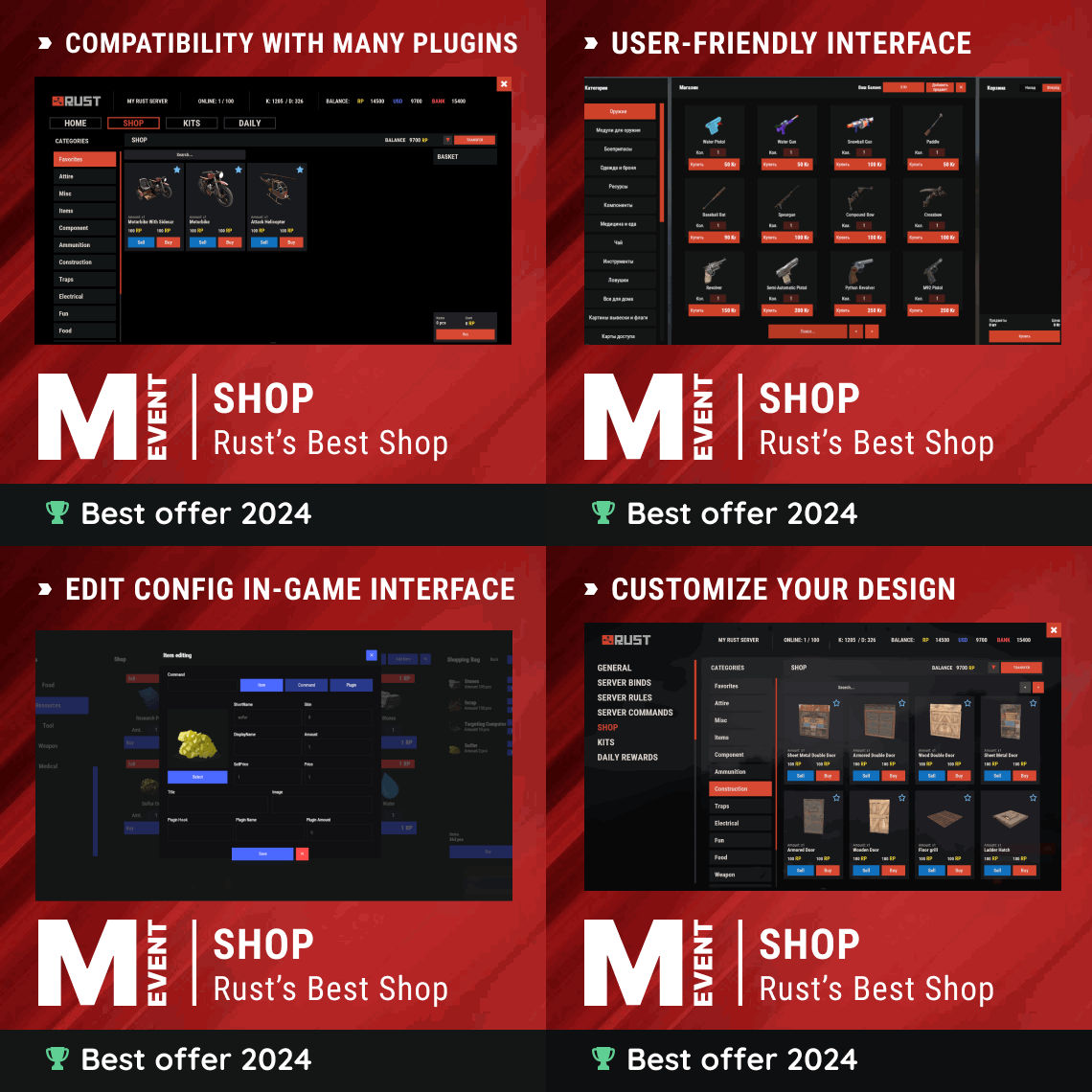
Version 2.4.16
16,528 downloads
Enjoy a highly customizable Shop that can be configured in game! Use NPCs as shopkeepers, and set up a shop with ease using the game interface to add, edit, or remove items on the fly! Features of Shop Beautiful user interface with multiple templates (Fullscreen, In-Menu V1/V2/V4) Shopping Basket - add multiple items to cart and purchase them all at once Search functionality - search for items by name across all categories Pagination - efficient item browsing with page-by-page navigation Discount system (by permissions) with per-item custom discounts Automatic shop filling (+ the plugin has support for the ItemCostCalculator plugin) Selling items (players can sell items to the store and receive money for it) Sell containers configuration - choose which containers (main, belt) players can sell from Blocked skins - prevent selling of specific item skins High performance with optimized item loading Adding/editing/removing items IN GAME with visual editor Supports NPC shops (HumanNPC integration) Supports Custom Vending Machines Supports NoEscape plugin integration Supports Duel/Duelist - blocks shop access during duels Convert from ServerRewards Favorite items system - players can mark items as favorites Buy Again feature - quick repurchase of previously bought items By default, the plugin has English, Russian and Chinese translations LangAPI integration for custom translations Transfer money between players directly in the plugin (including offline players option) Shop allows you to use multiple economy plugins at once (players can choose what they want to pay with) For each item, you can choose which payment methods are available and how much they will cost, based on the selected method Cooldown system - per-item buy/sell cooldowns with per-permission overrides Wipe cooldown - block items for purchase/sale after server wipe Respawn cooldown - prevent shop access immediately after respawn Buy/Sell limits - lifetime and daily limits per permission Max buy/sell amount - limit items per transaction Force buy - fast purchase without confirmation dialogs Plant genes configuration for plant items Weapon configuration - spawn weapons with ammo and attachments Content system - configure container contents (liquid, weapon mods, etc.) Customizable UI - full color customization and formatting options Offline Image Mode - use local images instead of downloading from internet Image loading on login - preload images when players connect Console and file logging - comprehensive logging system ServerPanel integration - add Shop to ServerPanel menu Notify/UINotify integration for notifications Auto-wipe settings - automatically reset cooldowns, limits, and player data on wipe Discord Logging - Track all purchases, sales, and transfers directly in your Discord server via webhooks with customizable embeds API methods for other plugins to interact with Shop Commands shop - open shop interface shop.install – starts the shop installation process shop.refill <recovery_rate> - refill shop again recoveryRate: A value between 0 and 1 that determines the multiplier for the cost of selling items. For example, shop.refill 0.5 means that items will have a sale cost of 50% of their purchase cost. shop.convert.sr [clear] - convert items from ServerRewards to Shop. The option clear means clearing Shop items before converting shop.setvm [categories: cat1 cat2 ...] - add custom VM in config shop.setnpc [categories: cat1 cat2 ...] - add NPC in config shop.remove all - a console command to remove all items and categories from the plugin shop.remove item [category name/all] - a console command to remove an item (or all items) shop.remove category [category name/all] - a console command to remove a category (or all categories) shop.fill.icc [all/buy/sell] - a console command for updating prices of items in the store using ItemCostCalculator. all - updates both Price and SellPrice, buy - updates Price, sell - updates SellPrice shop.convert.from.1.2.26 – command to convert Shop plugin version 1.2.26 to version 1.3.0+ shop.reset – resets store data, including templates, configurations, and items. shop.reset template – resets the store interface template data. shop.reset config – resets store configuration data. shop.reset items – resets store items data. shop.reset full – completely resets all store data (templates, configurations and items). shop.manage – used to manage the Shop plugin. shop.manage economy list – displays a list of all available economic systems in the plugin. shop.manage economy set <economy_ID> <name> – sets the selected economic system by plugin ID and name. The command updates the corresponding economic system on the server and saves the changes in the configuration. FOR EXAMPLE: shop.manage economy set 0 Economics – sets the main economy plugin to "Economics". shop.manage economy set 1 ServerRewards – sets the additional economy system with ID 1 to "ServerRewards". shop.wipe – manually trigger wipe (resets cooldowns, limits, and player data) shop.change – change item category (used in editor) shop.item – console command for item actions Permissions shop.setvm - for command "shop.setvm" shop.setnpc - for command "shop.setnpc" shop.free - for free item purchases shop.admin - admin permission shop.bypass.dlc - allows bypassing Facepunch ToS item restrictions (WARNING: your server may be banned for this) API Methods The Shop plugin provides API methods for other plugins to interact with it: API_OpenPlugin(BasePlayer player) – opens the shop UI for a player. Returns empty string if failed, or UI data if successful. API_GetShopPlayerSelectedEconomy(ulong playerID) – returns the economy ID (0 = main, 1+ = additional) that the player has selected for shopping. Note: Other plugins can call these methods using Shop.Call("API_MethodName", ...) syntax. Sort Types None Name Amount PriceDecrease PriceIncrease Category Types None – normal category for items Favorite – category for favorite items Hidden – hidden category, available only in NPC stores or Vending Machines Video P.S. Video of the old version, video for the V2+ version is now in development Showcase Full screen Templates Template OLD STYLE Template NEW RUST In-Menu Templates Template V1 (V1.1) Template V1 (V1.1) with BASKET Template V2 Template V2 with BASKET Template V4 Template V4 with BASKET Installer Editor Discord Logging Track all shop activity via Discord webhooks: purchases, sales, and money transfers. TEST SERVER Join our test server to view and experience all our unique features yourself! Copy the IP Address below to start playing! connect 194.147.90.239:28015 FAQ Q: I get the message "The plugin does not work correctly, contact the administrator!”. What should I do? A: This means that your plugin is not installed. To install the plugin, use the command "/shop.install”. You need to have "shop.admin” permission to access this command. Q: Where can I see an example of a config? A: Config Q: How to use BankSystem to store the economy A: "Economy": { "Type (Plugin/Item)": "Plugin", "Plugin name": "BankSystem", "Balance add hook": "Deposit", "Balance remove hook": "Withdraw", "Balance show hook": "Balance", "ShortName": "", "Display Name (empty - default)": "", "Skin": 0, "Lang Key (for Title)": "LangTitle", "Lang Key (for Balance)": "BalanceTitle" }, Q: How to use ServerRewards to store the economy A: "Economy": { "Type (Plugin/Item)": "Plugin", "Plugin name": "ServerRewards", "Balance add hook": "AddPoints", "Balance remove hook": "TakePoints", "Balance show hook": "CheckPoints", "ShortName": "", "Display Name (empty - default)": "", "Skin": 0, "Lang Key (for Title)": "LangTitle", "Lang Key (for Balance)": "BalanceTitle" }, Q: How to use Economics to store the economy A: "Economy": { "Type (Plugin/Item)": "Plugin", "Plugin name": "Economics", "Balance add hook": "Deposit", "Balance remove hook": "Withdraw", "Balance show hook": "Balance", "ShortName": "", "Display Name (empty - default)": "", "Skin": 0, "Lang Key (for Title)": "LangTitle", "Lang Key (for Balance)": "BalanceTitle" }, Q: How to use IQEconomic to store the economy A: "Economy": { "Type (Plugin/Item)": "Plugin", "Plugin name": "IQEconomic", "Balance add hook": "API_SET_BALANCE", "Balance remove hook": "API_GET_BALANCE", "Balance show hook": "API_REMOVE_BALANCE", "ShortName": "", "Display Name (empty - default)": "", "Skin": 0, "Lang Key (for Title)": "LangTitle", "Lang Key (for Balance)": "BalanceTitle" }, Q: How to use scrap to pay for items A: "Economy": { "Type (Plugin/Item)": "Item", "Plugin name": "", "Balance add hook": "", "Balance remove hook": "", "Balance show hook": "", "ShortName": "scrap", "Display Name (empty - default)": "", "Skin": 0, "Lang Key (for Title)": "LangTitle", "Lang Key (for Balance)": "BalanceTitle" }, Q: How to add KIT as shop item A: https://pastebin.com/4szBQCgz Q: How to add Command as shop item A: https://pastebin.com/bcCkzBEL Q: How do I make a weapon spawn with ammo in it? A: You need to configure the "Weapon" section in the item config: "Weapon": { "Enabled": true, "Ammo Type": "ammo.rifle.explosive", "Ammo Amount": 128 } Q: How do I make items spawn some content (liquid, weapon modifications)? A: You need to configure the "Content" section in the item config: "Content": { "Enabled": true, "Contents": [ { "ShortName": "weapon.mod.lasersight", "Condition": 100.0, "Amount": 1, "Position": -1 } ] }, Q: How to turn off the sell feature? A: You need to turn off "Enable item selling” in the config, or do it in the item setting in the game. "Enable item selling?": false, Q: How to use the ItemCostCalculator with Shop? A: You need to use command "shop.refill" (command to refill the Shop) Q: What should be the size of images for item icons? A: Typically, the image dimensions for item icons are 512x512 pixels, but any square image can suffice. Q: I get the error "UI is unavailable for player. Reason: Menu UI is not initialized". How to fix it? A: This error occurs when the interface template is not installed or configured. Follow these steps: 1. Reset the template using the command: shop.reset template (use only template to avoid data loss). 2. Install the interface via shop.install in the game (to visually select a template) or through the console. Note: Ensure you have the shop.admin permission to execute these commands. Q: How do I add Shop to the ServerPanel menu? A: Follow these simple steps: 1. Open ServerPanel menu in-game and click "+ADD CATEGORY" button 2. Set these exact parameters: Type: Plugin Plugin Name: Shop Plugin Hook: API_OpenPlugin 3. Click "SAVE" button to create the category 4. Reset Shop template and install it: Type in console: shop.reset template (IMPORTANT: use only "template"!) Then type: shop.install Note: If Shop doesn't appear in ServerPanel menu, make sure both plugins are loaded and you typed the parameters exactly as shown above. Q: I see black images with Rust logo or get error 429 when loading images. What should I do? A: These issues occur when there are problems downloading images from the internet. The Shop plugin sends images to ImageLibrary but is not responsible for the downloading process itself. Error 429 typically occurs due to rate limits imposed by image hosting services like Imgur (see HTTP 429 documentation for more details). To fix this, enable Offline Image Mode which will use local images instead: Enable the mode in config: Open "oxide/config/Shop.json" (or "carbon/config/Shop.json" for Carbon) Set "Enable Offline Image Mode": true Set up the images: Create folder "TheMevent" in "oxide/data" (or "carbon/data" for Carbon) Download PluginsStorage (click "CODE" → "Download ZIP") Extract the ZIP and copy all contents to the "TheMevent" folder Reload the plugin: Type o.reload Shop (Oxide) or c.reload Shop (Carbon) Note: If you want to add your own custom images, place them in the "TheMevent" folder and reference them with the "TheMevent/" prefix. For example: "TheMevent/Icon1.png", "TheMevent/MyCustomIcon.jpg", etc. Q: What placeholders are available for commands and what do they do? A: You can use these placeholders in shop commands and they will be automatically replaced when a player purchases a command item: %steamid% - Replaced with the player's Steam ID (e.g., "76561198000000000") %username% - Replaced with the player's display name (e.g., "PlayerName") %player.x% - Replaced with the player's X coordinate position %player.y% - Replaced with the player's Y coordinate position %player.z% - Replaced with the player's Z coordinate position Example usage in shop commands: "Command (%steamid%)": "say Welcome %username%!|teleport %steamid% %player.x% %player.y% %player.z%" Note: Multiple commands can be separated by the "|" character, and they will be executed in sequence when the item is purchased. Q: How to set different prices for different currencies (RP and balance)? A: You can configure separate currency prices for each item. Edit the file oxide/data/Shop/Shops/Default.json and find the item you want to modify. In the "Currencies" section, set different prices for each economy: "Currencies": { "Enabled": true, "Currencies": { "0": {"Price": 1000}, "1": {"Price": 500} } } This means players pay 1000 from their main balance (Economics) or 500 RP from their ServerRewards balance. Economy ID 0 = main economy, ID 1 = ServerRewards. Q: How to create a shop using HumanNPC plugin and set specific categories? A: To create a shop with HumanNPC, follow these steps: Create an NPC using HumanNPC plugin Get the NPC ID (you can find it in the HumanNPC config or use the command humannpc.list) Use the Shop command to add the NPC: shop.setnpc [categories: cat1 cat2 ...] Example: shop.setnpc categories: Weapon Ammunition Tools - adds the NPC with Weapon, Ammunition, and Tools categories shop.setnpc categories: * - adds the NPC with all available categories Note: You need the shop.setnpc permission to use this command. Make sure both HumanNPC and Shop plugins are loaded on your server. Q: How to add Custom Vending Machines to Shop plugin? A: To add Custom Vending Machines to Shop, follow these steps: Place a Custom Vending Machine in your world Look at the vending machine and use the command: shop.setvm [categories: cat1 cat2 ...] Example: shop.setvm categories: Weapon Ammunition - adds the vending machine with Weapon and Ammunition categories shop.setvm categories: * - adds the vending machine with all available categories Note: You need the shop.setvm permission to use this command. The vending machine will be automatically added to the Shop configuration. Q: How does the Shopping Basket feature work? A: The Shopping Basket allows players to add multiple items to a cart before purchasing. Players can add items to the basket, review their selection, and purchase everything at once. The basket shows the total cost and allows players to remove items before checkout. This feature must be enabled in the template settings. Q: How does the Search functionality work? A: The Search feature allows players to search for items by name across all categories. Simply type in the search box and the shop will filter items matching your query. Search works across all enabled categories and respects permission settings. The search feature can be enabled/disabled in the template configuration. Q: What are Wipe Cooldown and Respawn Cooldown? A: These are time-based restrictions: Wipe Cooldown: Blocks items from being bought/sold for a specified time after a server wipe. This is useful for preventing powerful items from being purchased immediately after wipe. Configure in config: "Wipe Cooldown": true and "Wipe Cooldown Timer": 3600 (seconds). Respawn Cooldown: Prevents players from opening the shop immediately after respawning. Helps prevent abuse. Configure in config: "Respawn Cooldown": true and "Respawn Cooldown Timer": 60 (seconds). Q: How do Daily and Lifetime Limits work? A: Limits control how many times players can buy/sell items: Lifetime Limits: Total number of times a player can buy/sell an item across their entire account. Set to 0 for unlimited. Daily Limits: Maximum number of times per day a player can buy/sell an item. Resets daily. Set to 0 for unlimited. Limits are per-permission, so you can set different limits for VIP players, regular players, etc. The plugin uses the highest limit among all permissions the player has. Q: What is the "Buy Again" feature? A: Buy Again allows players to quickly repurchase items they have bought before. This feature shows a history button in the shop UI (if enabled) and requires a permission. To enable, set "Buy Again Settings": {"Enabled": true, "Permission": "shop.buyagain"} in the config. Q: How do I configure blocked skins for selling? A: You can prevent players from selling specific item skins. In the config, add entries to "Blocked skins for sell": "Blocked skins for sell": { "rifle.ak": [52, 25], "pistol.m92": [100, 200] } Q: How do I configure which containers players can sell from? A: In the config, set "Settings available containers for selling item": "Settings available containers for selling item": { "Enabled": true, "Containers": ["main", "belt"] } Available container names: "main" (inventory), "belt" (hotbar), "wear" (clothing), etc. Q: What are Auto-Wipe Settings? A: Auto-Wipe Settings automatically reset certain data when you run the shop.wipe command. Configure in config: "Auto-Wipe Settings": { "Cooldown": true, "Players": true, "Limits": true } Cooldown: Resets all item cooldowns Players: Resets all player data (favorites, economy selection, etc.) Limits: Resets all buy/sell limits Q: How do I customize price formatting? A: In the config, set "Formatting Settings" to control how prices are displayed: "Formatting Settings": { "Buy Price Format": "G", "Sell Price Format": "G", "Shopping Bag Cost Format": "G", "Balance Format": "G" } Format options: "G" (general), "N" (number with separators), "C" (currency), "F" (fixed-point), etc. See .NET number formatting for all options. Q: How do I enable transfers to offline players? A: In the config, set "Allow money transfers to offline players?": true. By default, this is disabled for security reasons. Q: How do I configure Duel/Duelist integration? A: To block shop access during duels, set "Blocking the opening in duels?": true in the config. Make sure you have the Duel or Duelist plugin loaded. Q: What do all shop item settings mean and how should I configure them? A: Below is a short explanation of the most important item fields and how they affect the plugin. Type – what this entry does: Item (gives an in-game item), Command (runs server commands), Plugin (calls another plugin hook), Kit (gives a kit). ID – unique numeric ID of the item inside Shop. Used internally (for logs, favorites, editor); normally you don’t change it manually. Image – custom UI icon key. If empty, Shop will try to use the item icon found by ShortName. Permission – Oxide/Carbon permission required to see and use this item. Leave empty to make the item available to everyone, or set e.g. shop.vip for VIP‑only items. Title – custom title shown in the UI. If empty, the plugin will try to use DisplayName, then the in‑game display name of the item, or fall back to an empty string. Description – additional text shown in the item window. Optional, purely visual. Command (%steamid%) – used when Type = Command. The plugin will execute this command on the server. You can use placeholders like %steamid%, %username%, %player.x%, %player.y%, %player.z%. Each purchase can run multiple commands (split internally by |). Kit – kit name for Type = Kit. The plugin will give a kit with this name when the player buys the item. Plugin – used for Type = Plugin. Contains plugin name, hook name and amount. When the item is purchased, the specified hook will be called in the target plugin. DisplayName (empty – default) – overrides the in‑game item name shown to the player (for Type = Item). If empty, the plugin uses the original item display name (optionally via Lang API). ShortName – shortname of the item (e.g. rifle.ak). This is required for Type = Item; it is used to find ItemDefinition, icon, stack size, etc. Skin – workshop skin ID for the item. Only used when Type = Item. Is Blueprint – if enabled, Shop will give the item as a blueprint instead of the regular item. Amount – how many items are given/sold per one purchase. For blueprints this is how many separate blueprint items are created. Enable item buying? (CanBuy) – if disabled, the item cannot be bought (only sold, if selling is enabled). Price – default purchase price. Can be overridden per‑economy in Currencies – if a currency is configured for buying, its price will be used instead of this value. Enable item selling? (CanSell) – if disabled, players cannot sell this item back to the shop. Sell Price – default sell price. Can also be overridden in Currencies for selling. Buy Cooldown / Sell Cooldown – base cooldown in seconds between purchases/sales of this item. Can be overridden by per‑permission cooldowns below. Buy Cooldowns / Sell Cooldowns – per‑permission cooldowns. Keys are permission names (e.g. shop.vip), values are cooldown seconds. The plugin uses the lowest cooldown among permissions that the player has. Use custom discount? – if enabled, the item will use its own Discount map instead of the global discount configuration. Discount (%) – per‑permission discount percentages for this item (only if custom discount is enabled). The highest discount from permissions that the player has will be applied. Sell Limits / Buy Limits – global lifetime limits per permission. A value of 0 means “no limit”. The plugin selects the highest limit among permissions the player has. Daily Buy Limits / Daily Sell Limits – per‑day limits (reset by the plugin’s daily logic). 0 means “no daily limit”. Max Buy Amount / Max Sell Amount – maximum number of items that can be bought/sold in a single transaction (0 disables this limit). Force Buy – if enabled, the item will use fast purchase flow (without extra confirmation windows, depending on UI settings). Prohibit splitting item into stacks? – if enabled, the plugin will try to give the item in a single stack instead of splitting it into multiple stacks, when possible. Purchase/Sale block duration after wipe – time (in seconds) after a wipe during which this item cannot be bought/sold. Useful for limiting powerful items early in the wipe. Localization – per‑language messages for the item title. If enabled and a translation exists for the player’s language, it will override the normal title. Content – configuration of contents for containers (e.g. boxes, weapons with attachments, etc.). You can add inner items (shortname, amount, condition, position). Weapon – additional settings for weapons (ammo type, ammo amount, etc.). Applied when the item is created. Genes – plant gene configuration. If enabled, the plugin will set specified genes on the created item. Currencies – per‑economy price configuration. You can set different prices for each enabled economy plugin (by economy ID) for both buying and selling. If a currency is configured and enabled for the player’s selected economy, its price takes priority over the default Price/Sell Price. Q: What do shop category settings mean and how should I configure them? A: Categories group your shop items and control how they are shown, sorted and filtered for players. Enabled – turns this category on or off. If disabled, the category and all its items will not appear in the shop UI at all. Category Type – controls special behavior of the category: None – a normal category that shows the items you added to Items. Favorite – a virtual category that shows each player’s favorite items (based on their own favorites list). Items here are taken from other categories the player marked as favorite. Hidden – a hidden category. It is stored in data and can be used for management, but is not shown in the normal category list in UI. Title – the name of the category displayed in the UI. If Localization is enabled and contains a translation for the player’s language, that localized text will be shown instead of this value. Permission – permission required to see and use this category. If you leave it empty, all players can see the category (subject to item‑level rules). If you set e.g. shop.category.vip, only players with that permission will see this category in the shop. Sort Type – how items inside the category are sorted: None – items are shown in the order they are stored/edited. Name – items are sorted alphabetically by their PublicTitle (what the player sees). Amount – items are sorted by Amount (stack size) in ascending order. PriceIncrease – items are sorted by price from cheaper to more expensive. PriceDecrease – items are sorted by price from more expensive to cheaper. Sorting is applied every time the category items are requested. Items – the list of ShopItem entries that belong to this category. For normal categories (Type = None/Hidden) this is what will be displayed in the item grid. For Favorite categories this list is not used for display – the plugin uses the player’s favorites instead. Localization – optional localized title for the category. When enabled, the plugin will try to show a translated title based on the player’s language. If no translation is found, it falls back to the Title field. How visibility and filtering work – when the shop builds a category: For normal categories, only items that are available for the player (permission, currencies, buy/sell rules, etc.) are included. Skip/take pagination is applied on top of that filtered list to show items page by page. For favorite categories, the plugin takes the player’s favorite items, applies sorting, and displays them in this special category. Reordering categories and items – categories and items can be moved up/down (or left/right) in the in‑game editor. This changes the order in which categories are shown in the UI and the default order of items when Sort Type = None. Q: How do I enable and use ADMIN MODE? A: ADMIN MODE is a visual in-game editor that allows you to manage your shop without editing files manually. Step 1: Enable ADMIN MODE Ensure you have the shop.admin permission Open shop with /shop command Click the "ADMIN MODE" button in the header (shows "■" when active) Step 2: Create/Edit Categories To create a new category: With ADMIN MODE enabled, click the "+" button in categories list Fill in category details (Title, Enabled, Type, Permission, Sort Type) Click "SAVE" To edit an existing category: Click the "Edit" button (pencil icon) next to the category Modify settings Click "SAVE" or "CANCEL" Step 3: Create/Edit Items To create a new item: Open the target category Click "+ADD ITEM" button Select item from the selection panel Configure all item properties (price, amount, permissions, etc.) Click "SAVE" To edit an existing item: Click the "Edit" button on the item Modify properties Click "SAVE" or "CANCEL" Additional ADMIN MODE Features: Use ↑↓ arrows to reorder categories Use ←→ arrows to reorder items within categories Use "DELETE" button in editor to remove categories/items All changes save automatically - no manual file editing needed Q: Where are shop files stored and what do they contain? A: Shop plugin data is organized in the following structure: Configuration (oxide/config/Shop.json or carbon/config/Shop.json) Plugin settings (permissions, commands, economy configuration) Notification settings Discord logging configuration Global plugin options Shop Data (oxide/data/Shop/Shops/Default.json or carbon/data/Shop/Shops/Default.json) This is the main shop inventory file All categories and their settings All items with prices, permissions, cooldowns, limits Item configurations (weapons, content, currencies, etc.) Edited through ADMIN MODE or manually UI Template (oxide/data/Shop/UI.json or carbon/data/Shop/UI.json) Interface template configuration Colors, sizes, positions Display settings Reset with: shop.reset template then shop.install Player Data (oxide/data/Shop/Players/ or carbon/data/Shop/Players/) Individual player files (one per player)$29.95 -
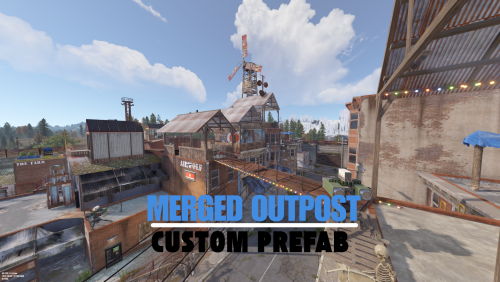
Version 3.0.0
74 downloads
Merged Outpost with Bandit Camp The Merged Outpost with Bandit Camp is a high-quality, pre-built Prefab that seamlessly combines the functionality of both the Outpost and Bandit Camp into a single, well-integrated location. Designed for both Vanilla and Modded Rust servers, this monument provides a safe trading zone, multiple NPC vendors, and an immersive environment that enhances player interactions. ⸻ Key Features: (it includes tow versions of the outpost : a regular version and a halloween version.) Integrated NPC Shops – Buy and sell resources easily with fully functional vendors. Airwolf Helicopter Vendor – Instantly purchase helicopters from the Airwolf NPC. Recycler – Recycle unwanted items into useful materials. Workbench Level 1 – Craft essential items and tools. Research Table – Unlock and learn new blueprints. Vending Machines – Enable player-to-player trading. Water Collectors – Gather fresh water efficiently. Small Casino – Try your luck with slot machines and win resources. Improved Lighting – Enhanced visibility for safer nighttime interactions. Seating & Rest Areas – Social zones to relax and interact with other players. ⸻ Quick Installation Guide: Extract the ZIP file into your RustEdit installation folder. Launch RustEdit. Click on "Prefabs” in the top menu and open the Prefab List. Locate the prefab under the "Custom” category. Double-click the prefab file to spawn it into your map. Position it wherever you want on your map. ⸻ Easy to install, fully functional, and a perfect enhancement for any Rust server.$8.99- 5 comments
- 1 review
-
- 3
-
-
- #outpost
- #banditcamp
- (and 7 more)
-

Version 1.1.10
701 downloads
The Monument Events plugin creates amazing events on the monument from preconfigured presets from config. It creates CustomNPCs around the monument which will roam the monument during the event. Then it will spawn CH47 Helicopter which will drop Hackable crates & spawn configured Patrol Helicopters which will roam the monument vicinity. When players try to unlock the Hackable Crate there will be a CH47 Helicopter which will carry NPC and drop on the monument and will give players an amazing raged experience. Key Features 10+ Monument preset preconfigured (Radtown, Oxum's Gas Station, Abandoned Supermarket, Water Treatment Plant, Power Plant, Ferry Terminal, Small Harbor, Large Harbor, Junkyard, The Dome, Airfield, Train Yard, Satellite Dish, Sewer Branch, Launch Site) PVE/PVP support Easy setup everything is pre-configured, so drag and drop and it will auto start from the selected time Massive configure option for individual monuments (Except a few not added) Monument Owner control based on damage Amazing event for engaging players with monuments Commands /mestart Preset_Name | monumentID - Starts any specific event (Console & Chat command) /mestop Preset_Name | monumentID - Stops the event (Console & Chat command) /melist - Shows all available monument events on the map /mestartrandom - Starts a random from presets (Console & Chat command) /meadd edit PRESET_NAME - Select a monument for editing spawn points (Chat command) /meadd npcspawn - Creates NPC spawn points for the selected monument (Chat command) /meadd wavespawn - Creates Wave Npc spawn points for the selected monument (Chat command) /meadd cratespawn - Creates Crates spawn points for the selected monument (Chat command) /meadd stopedit - Deselect the current editing monument (Chat command) Permissions MonumentEvents.admin - Permission required for using commands Video Showcase Configuration API & Hooks Support$19.99 -
Version 1.0.7
81 downloads
Compliment your in game economy system by allowing players to repair weapons using their currency. Economy Repair offers a solution that lets players repair their damaged weapons using in-game currency of your choice. With this plugin, your worn-out AKs, tools, and gear can be repaired through a simple new option in the repair bench, making sure you're always prepared for the next battle! Key Features: Multiple Currency Support: Use popular Rust plugins like Economics or ServerRewards to pay for repairs using your in-game currency. You can even set up custom item-based currencies for repairs! Condition Loss: Condition loss can be disabled, or the scale of it modified. VIP Discounts: Offer VIP players reduced repair costs, providing an extra incentive for premium members of your community. Customizable Repair Costs: Tailor the repair prices for different items, ensuring fair costs for everything from weapons to tools. Repair cost can be set globally, and per item. Clean UI: Enjoy a sleek almost vanilla like repair button that appears when interacting with a repair bench. Instantly know the cost to restore your item and confirm the repair with just a click. Repair Blacklist: Administrators can blacklist certain items from being repaired, maintaining control over game balance and preventing unintended item restorations. How It Works: 1. Interact with a repair bench. 2. Insert item normally into the repair bench 3. See the cost, click the repair button! Economy Repair is your perfect choice for expanding the usefulness of economy on your server. Keep your equipment in top shape without the hassle of searching through boxes to try and find the correct components. PERMISSIONS: economyrepair.use - Required to see and use the economy repair option economyrepair.VIP - Required for VIP discount feature CONFIG EXAMPLE: { "Default Max Repair Cost": 100.0, // default repair cost for all items "Reduce Durability On Repair": true, // should the item lose durability if repaired with currency? "Durability Loss Scaling Factor": 1.0, // play with this to increase/reduce how much durability is lost "Currency System (Economics, ServerRewards, Item, TCBank)": "Economics", //which currency system to use "VIP Discount Percentage": 0.0, // percentage discount for players with VIP permission "Currency Item": { // If using "Item" as currency, specify item details here "ItemID": 0, "SkinID": 0, "Display Name": "Currency" }, "Custom Repair Costs": { // customize repair cost for individual items "hatchet": 50.0, "pickaxe": 75.0 }, "Repair Blacklist": [ // list of items which cannot be repaired using currency "minigun", "fuse" ], "Blacklisted SkinIDs": [ 3380502905, 987654321 ], "Debug Messages Enabled": false } LANG EXAMPLE: { "RepairCostLabel": "Economy Repair: {0} {1}", "CurrencyLabel": "$", "RepairButtonLabel": "Repair", "NoValidItem": "No valid item to repair.", "MaxDurability": "This item is already at full durability.", "NotEnoughCurrency": "You do not have enough {0} to repair this item.", "RepairSuccess": "Item successfully repaired.", "RepairFailed": "Failed to repair the item. Please try again.", "ItemBlacklisted": "This item cannot be repaired." }$7.98 -
.thumb.png.4946b6bb28f5c8029dbc6ef637a0c10f.png)
Version 1.0.9
211 downloads
Introducing WoundedNPC — where NPCs don't just die; they make a scene! Watch in amusement as your NPCs go from tough guys to crybabies, collapsing and crying out in pain. They'll lie there, whining and wailing, giving you a show worth watching! Perfect for adding a touch of humor to your Rust world. Your NPCs will now collapse similar to players, with customizable scream (or other sound of your choice!) with a configurable chance to get back up for a second chance. Get ready for the most entertaining and theatrical NPC deaths ever with WoundedNPC! Features: NPCs will enter a wounded state Configurable % chance for them to get back up Configurable wounded timer for them Configurable scream sounds Lightweight format sounds stored in data for minimal delay Automatically checks if screams listed in config exist, if not, it's downloaded. Ability to exclude specific NPCs by either prefab path, or partial name matching (useful to exclude zombies or any other NPC which you wish to die immediately) Notes: Dependency plugin - TapeLibrary by Nikedemos - Included 5 scream sound files included Audio file format .ogg Mono channel (can convert mp3 to a mono .ogg here , then upload to a file host of your choice ensuring link leads directly to downloading the file) Sound Loops - worth ensuring your wounded timer is around the same length as sound files. Example config { "Enabled: ": true, // can disable the plugin features from the config if needed "Wounded timer: ": 20, // how long will the NPC stay in wounded state "Chance to die after wounded timer: ": 50, // percentage chance NPC will NOT get back up after being wounded "NPC Prefab paths to exclude: ": [], // can exclude an entire prefab path for an npc (eg for scarecrow) "Exclude NPC where their displayname contains: ": [ "Marauder", "Zombie" ], // can exclude NPCs by their full or partial display name. "Boombox Prefab Path: ": "assets/prefabs/voiceaudio/boombox/boombox.deployed.prefab", // don't need to touch unless boombox prefab path ever changes or there's a new boombox type item introduced. "Wounded Sounds URLs: ": [ "https://www.dropbox.com/scl/fi/vyhsne1efaictwl39oqgu/Scream-Medium-C1-www.fesliyanstudios.com.ogg?rlkey=7ae1rnbtwj662puo874t823y6&st=svp1qa0x&dl=1", "https://www.dropbox.com/scl/fi/j6zo85v7uuwje4scenmm3/longpain1.ogg?rlkey=7cmumo9z40no1xkdzkcwzxl36&st=gef2dhc7&dl=1", "https://www.dropbox.com/scl/fi/gb2jkxu1gxfsqjxmtum32/longpain2.ogg?rlkey=81iwgqqw9j26t7f7vfbzg1diw&st=f5s5k1to&dl=1", "https://www.dropbox.com/scl/fi/04o1ukje93tly4rjx9dvu/longpain3.ogg?rlkey=cjkv5ks97307yadnah0pvua8b&st=ns0tqygh&dl=1", "https://www.dropbox.com/scl/fi/e6ey5eqevqwey43b16xj2/longpain4.ogg?rlkey=28vksom5xd5o82rhvy5kmiaj7&st=wgo8v7ue&dl=1" ], // Direct URL to scream sound files "Enable Debug Messages: ": true // debug messages in console. Turn off to reduce spam. Turn on for troubleshooting }$16.98 -
Version 2.0.0
44 downloads
AdvertCycler lets you create a rotating list of on-screen info messages (“adverts”) that display to players without spamming chat. It’s a clean, unobtrusive alternative to chat-based announcers, and the positioning is designed to remain consistent across different screen resolutions and UI scale settings. Messages cycle on a configurable timer, either in order or randomly. You can fine-tune how the message looks and where it appears using: Preset alignment modes (Bottom Center / Bottom Left / Top Center / Top Right) Horizontal + Vertical offsets (with small/big nudge controls for precise positioning) Max text line width Font size Optional text outline with configurable color (quick-pick color swatches in the UI) Admin UI (Instant Apply) AdvertCycler includes a built-in admin UI for live editing and previewing changes in real time: Toggle the plugin on/off Adjust interval, alignment, offsets, width, and font settings Enable/disable outline and pick outline color Choose whether the advert displays on Overlay or Hud Manage the message list: Add / Edit / Delete Reorder messages (move up/down) Paging for large lists All changes apply instantly, so you can visually tune placement and style while in-game. Permissions advertcycler.admin - Grants access to the admin UI and allows editing of all AdvertCycler settings and messages. advertcycler.view - players/groups with this permission will be shown the advert messages. Chat Command /adverts - opens the editor UI Config Example { "AdvertCycler": { "Enable Plugin": true, /Can disable globally from config if needed for whatever reason. "Update Interval (seconds)": 30, /How often the message should change "Message Alignment (BottomCenter/BottomLeft/TopCenter/TopRight)": "BottomLeft", /Base position where the messages should appear "Message Max Width (pixels)": 300, /Maximum line width for text. Anything beyond carries on new line "Vertical Offset (pixels)": 10, /Fine Up and Down adjustment of text position "Horizontal Offset (pixels)": 2, /Fine Left and Right adjustment of text position "Enable Text Outline": true, /Enable or disable text outline "Text Outline Color (HEX)": "#000000", /Color of text outline. Black by default. "Font Size (pixels)": 12, /Text font size "Display as Overlay": true, /Displaying the messages as overlay will allow them to be seen on top of other in game hud screens such as inventory "Randomize Messages": false, /Messages can be displayed at random "Message List": [ "For server info, type <color=#30FEDE>/info</color> in chat.", "There are many different types of PVE enemies. Be careful!" ] } } HTML can be used in messages to modify color in full or partially, example: For server info, type <color=#30FEDE>/info</color> in chat.$7.99 -
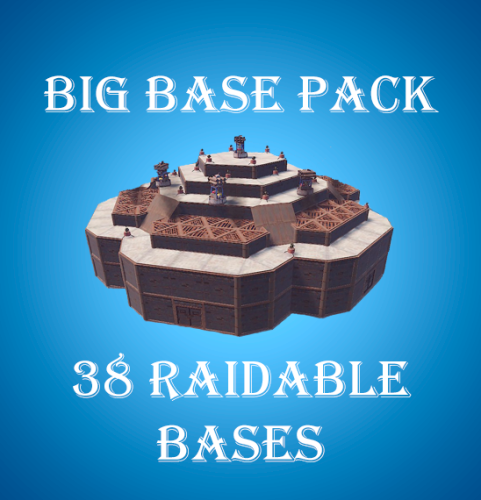
Version 1.0.0
152 downloads
A set of 38 bases for plugin Raidable Bases. 12 Easy Bases 12 Medium Bases 12 Hard Bases 1 Expert Base 1 Nightmare Base To use the bases, the contents of the archive must be unpacked to the oxide\data\copypaste folder on your server. After extracting the files, enter the following commands into the server console: rb.config add "Easy Bases" EZ1 EZ2 EZ3 EZ4 EZ5 EZ6 EZ7 EZ8 EZ9 EZ10 EZ11 EZ12 rb.config add "Medium Bases" MB1 MB2 MB3 MB4 MB5 MB6 MB7 MB8 MB9 MB10 MB11 MB12 rb.config add "Hard Bases" HB1 HB2 HB3 HB4 HB5 HB6 HB7 HB8 HB9 HB10 HB11 HB12 rb.config add "Expert Bases" EXP1 rb.config add "Nightmare Bases" NMB1$15.00- 5 comments
-
- 1
-
-
- #raidable bases
- #raid bases
- (and 9 more)
-
Version 1.0.17
714 downloads
This plugin adds a high-risk, high-reward element to the newly introduced Radtown Monument. This dynamic event spawns a hazardous shipping container filled with valuable loot but surrounded by dangerous radioactive material. The challenge is twofold: not only must players manage the intense radiation levels, but they must also defend the container from relentless attack drones that aim to destroy it. Key Features: Valuable Loot: The container holds rare and powerful resources, making it a highly coveted prize. Multiple drone attack waves: Drones attack in mul Intense Radiation: High levels of radiation require careful planning and protective gear to approach safely. Drone Defense: As players attempt to claim the loot, AI-controlled drones will attack the container. Players must defend it until the crate unlocks. Catastrophic Explosion: If players fail to protect the container or take too long, it will trigger a massive explosion, devastating the area and killing any nearby players. Configuration options: Drone wave count, drone count per wave Drone health and damage Container health Crate Loot and much more ... This plugin enhances the Radtown Monument with intense, timed gameplay, rewarding those who can outlast both the environment and the drones—but punishing failure with explosive consequences! Permissions: radtownevent.admin - Required to run admin commands Commands: radtown start - Start the event radtown stop - Stop the event Developer Api: void OnRadtownEventContainerDelivered() // Called when the container has been delivered and the event is ready to start void OnRadtownEventStart() // Called when the locked crate inside the container has been hacked void OnRadtownEventWin(ulong steamId) // Called when the event was successfully completed by a player void OnRadtownEventEnd(bool success) // Called when the event is over. Success is false when the container exploded Configuration: { "Time between events (minutes)": 60, "Crate hack time (seconds; drone waves will spawn until the crate is fully hacked)": 600, "Container health": 8000, "Time before despawn after event has been completed (seconds)": 300, "Time before despawn if event is not started (minutes)": 30, "Make event zone visible": false, "Drone wave configuration": [ { "Wave number": 1, "Preparation time before drones spawn (seconds)": 5, "Maximum number of concurrent drones": 3, "Explosive drone configuration": { "Number of attack drones to spawn (0 to disable)": 20, "Drone health": 100, "Damage per shell": 40, "Target players": false }, "Kamikaze drone configuration": { "Number of kamikaze drones to spawn (0 to disable)": 0, "Drone health": 100, "Damage on explosion": 60, "Target players": false } }, { "Wave number": 2, "Preparation time before drones spawn (seconds)": 20, "Maximum number of concurrent drones": 4, "Explosive drone configuration": { "Number of attack drones to spawn (0 to disable)": 20, "Drone health": 150, "Damage per shell": 50, "Target players": false }, "Kamikaze drone configuration": { "Number of kamikaze drones to spawn (0 to disable)": 30, "Drone health": 150, "Damage on explosion": 60, "Target players": false } }, { "Wave number": 3, "Preparation time before drones spawn (seconds)": 20, "Maximum number of concurrent drones": 5, "Explosive drone configuration": { "Number of attack drones to spawn (0 to disable)": 40, "Drone health": 200, "Damage per shell": 40, "Target players": true }, "Kamikaze drone configuration": { "Number of kamikaze drones to spawn (0 to disable)": 40, "Drone health": 200, "Damage on explosion": 60, "Target players": false } }, { "Wave number": 4, "Preparation time before drones spawn (seconds)": 20, "Maximum number of concurrent drones": 8, "Explosive drone configuration": { "Number of attack drones to spawn (0 to disable)": 40, "Drone health": 250, "Damage per shell": 70, "Target players": true }, "Kamikaze drone configuration": { "Number of kamikaze drones to spawn (0 to disable)": 40, "Drone health": 250, "Damage on explosion": 80, "Target players": true } }, { "Wave number": 5, "Preparation time before drones spawn (seconds)": 20, "Maximum number of concurrent drones": 8, "Explosive drone configuration": { "Number of attack drones to spawn (0 to disable)": 40, "Drone health": 250, "Damage per shell": 70, "Target players": true }, "Kamikaze drone configuration": { "Number of kamikaze drones to spawn (0 to disable)": 40, "Drone health": 250, "Damage on explosion": 80, "Target players": true } } ], "Locked crate loot table": { "Enabled": false, "Minimum items": 4, "Maximum items": 8, "Item list": [ { "Short name": "scrap", "Min amount": 12, "Max amount": 48, "Chance (1 = 100%)": 1.0, "Skin id": 0, "Custom name": "" } ] } } NEW: Halloween Update The Halloween update adds pumpkin drones and spooky decorations to the container$24.00 -
Version 2.1.6
164 downloads
Halloween Isle Map for Rust Prepare yourself for a unique survival experience in Rust with our SwampOfSorrows Map! This new and mysterious map is designed for thrill-seekers, immersing you in a haunting swamp-filled island packed with dark secrets and Halloween decorations. This isn’t just survival; it’s a true test of courage! --- Exclusive Halloween Monuments! Shadowrift: A small village with a train cutting through it. Solve a puzzle to reveal hidden secrets. Ghost Town: An abandoned town where ghost zombies roam the streets. Can you escape? Haunted Mansion: A haunted mansion filled with terrifying surprises. Enter if you dare! Cemetery: Face zombies rising from the graves and explore mysterious underground caves. Psychiatric Hospital: An abandoned asylum with eerie whispers and shadows that follow you. HollowTown: A mist-covered swamp town. It may look quiet, but don’t trust what you see… Swamp Station: A spooky train station in the swamp. Something is always watching you. The Haunted Rails: An abandoned train in a mine. Face the unknown in this chilling refuge. --- Classic Monuments, Now Haunted Halloween Isle also includes all the classic Rust monuments, but not as you know them! We’ve transformed every corner to match the eerie Halloween atmosphere: Launch Site, Airfield, Military Tunnel, and more—each one decorated to test your nerves. With creepy graveyards, flickering lights, and shadows that move on their own, you’ll never see these monuments the same way again! --- Island Details Map Size: 3500 Prefabs: 19,955 This meticulously decorated island creates an immersive and terrifying atmosphere with spine-chilling details and visual effects. Are you ready to step onto Halloween Isle and challenge the horrors that await? Remember: not everyone who enters makes it out… Monuments: Airfield RadTown Arctic Research Base Missile Silo Water Tractament Power Plant Launch Site Train Yard Military Tunel Missile Silo Harbor 1 Harbor 2 Junkyard Lighthouse Large and Small Oil Rig Satellite Dish Gas Station Supermarket Warehouse Quarrys Underwater Labs Compound Bandit Town Fishing Village If you need to contact me send me a private message or write me on Discord. j4v1rust$29.98- 35 comments
- 3 reviews
-
- 3
-
-
- #halloween
- #custom maps
- (and 1 more)



.thumb.jpg.f2f378cbb4943d7036c8a674f8a23b40.jpg)