Search the Community
Showing results for tags 'premium'.
-
.thumb.gif.931694ee6af9534dc6d23b0aec6390f5.gif)
Version 2.2.2
318 downloads
Auto Ban / Report Ban – Premium Edition AutoBan Enhanced is the ultimate plugin for Rust server administrators who want to keep their community safe, fair, and fun. This premium edition builds on the original AutoBan system with new advanced moderation tools, smarter automation, and seamless integrations with Discord. Key Features Automatic Weighted Banning Players are automatically banned once they reach a configurable number of weighted reports. Trusted players, moderators, or admins can have higher report weights for faster action. Playtime Requirement (NEW) Players must have a minimum amount of playtime (configurable, default 2h) before submitting reports, preventing abuse from fresh accounts. Mass Reporting Protection Includes cooldowns, per-hour limits, and unique report tracking to prevent abuse of the reporting system. Full F7 Integration Captures and processes in-game reports (F7), with optional keyword scanning for valid reasons. Player-Friendly Reporting System Players can submit reports via chat commands or a guided reason menu for consistency. Customizable Ban Durations Supports human-readable ban times like 30m, 4h, 7d, or permanent. Ban History & Report Logs New commands to view report history and a structured audit log of admin actions. Progressive Punishments (optional) Configure warnings, mutes, or bans at different thresholds. Discord Integration with Embeds Sends clean, embedded messages for reports and bans, including player info, reasons, timestamps, and expiration. Ignored Players & Permissions Protect admins and whitelisted users from automated bans. Export & Data Storage Export reports to JSON for external review or backups. Granular Permissions Fine-grained control over who can report, view, ban, unban, reset, or audit. Usage: Chat Commands /report <username> – start a report (shows menu if no reason given). /report <username> <reason> – report with reason directly. /reportreason <number> – pick a reason from the menu. /AB.viewreports – view all current reports (requires permission). /AB.history <userid> – view detailed history of a player’s reports. /AB.auditlog [N] – view last N admin/audit actions. /AB.showbans – view all bans. /AB.unban <userid> – unban a player. /AB.resetreports <userid> – reset reports for a player. /AB.exportreports – export reports to a JSON datastore. 🛠 Console Commands AB.getreports – list all reports in console. AB.getbans – list all bans in console. AB.resetreportsConsole <userid> – reset reports via console. AB.ban <userid> <reason> – manually ban a player. AB.unban <userid> – manually unban a player. Oxide / Carbon Permissions AutoBan.report – allow reporting via F7. AutoBan.chatreport – allow reporting via chat. AutoBan.viewreports – view all reports. AutoBan.ignore – player immune to auto-bans. AutoBan.ban – manually ban players. AutoBan.unban – manually unban players. AutoBan.viewbans – view all bans. AutoBan.resetreports – reset player reports. AutoBan.trusted – weighted reporter (e.g., counts x2). AutoBan.mod – stronger weighted reporter (e.g., counts x3). Example Config { "Max reports till user gets banned (weighted)": 5, "Reason given to banned user": "You have been reported too many times and have been banned for precautionary measures. An admin will review this suspension soon.", "Valid reasons": ["cheating", "aimbot", "hacking", "esp", "teaming", "racism", "griefing", "walling", "doorcamping", "spawn killing"], "Valid report types": ["cheat", "abusive", "name", "spam"], "Scan type of F7 reports": true, "Broadcast ban to chat": true, "Ignored Players": { "76561198000000000": "Admin" }, "Timer for broadcasting bans to admins and console": 820, "Send bans to users with the AutoBan.viewbans permission": false, "Send reports to URL": false, "URL to send reports to": "http://example.com", "Send reports to Discord": true, "Send bans to Discord": true, "Discord Reports Webhook URL": "http://example.com/reports", "Discord Bans Webhook URL": "http://example.com/bans", "Ban Duration": "72h", "Max reports a player can submit per hour": 3, "Max reports a player can receive per hour": 5, "Cooldown between reports from the same player in minutes": 10, "Weighted report permissions": { "AutoBan.trusted": 2,"AutoBan.mod": 3 }, "Use Discord embeds for webhooks": true, "Max lines per chat response to avoid spam": 8, "Minimum playtime (in minutes) required to file a report": 120 } With AutoBan Enhanced, you get automated moderation, better transparency, and flexible punishment systems, freeing up admins to focus on building community instead of fighting cheaters.$24.99 -
Version 0.1.13.1
868 downloads
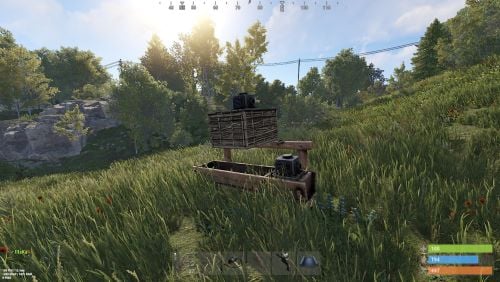
Allows automating the entire manure collection process and adds other useful features in this area, by adding Industial Adapters and BoxStorage to the HitchTrough and Composter. Also auto spliting dungs in the Composter container. Note: During plugin unloading, modified entities are not removed, to prevent the removal of pipes every time the plugin/server is restarted. To remove modifications from entities, you should use the "idung unload" command. industrialdung.admin - Provides unrestricted access to the plugin's functionality. This includes the ability to add/remove or clear modificated entities from other players. Note: In the configuration file, within the "Max ammount of modified entites per group" section, you can specify limits for any existing permission by simply listing its name. "Max amount of modified entites for each permission. Leave null or empty to recreate the default": { "industrialdung.default": { "HitchTroughs": 5, "Composters": 2 }, ... }, ... If you want to create a new permission, you can also include it in the list, but the name must begin with "industrialdung". { "Chat command": "idung", "Is it worth enabling GameTips for messages?": true, "Is it worth using Notify plugins for messages instead of the vanilla UI?": false, "Specify the regular message type for notify": 0, "Specify the warning message type for notify": 1, "List of language keys for creating language files": [ "en" ], "Is it worth ignoring Facepunch's rules regarding skins and DLCs?": false, "Is it worth removing modifications when permissions or groups are revoked if they exceed the limit?": true, "Use auto-splitting in the Composter?": true, "Item's short name for auto-splitting in the Composter. Leave the field empty to use the default": "horsedung", "AutoModify - Default value for new players": true, "Wood Storage Box Workshop Skin ID": 850379673, "Wood Storage Box Scale": 0.5, "The list of items(short name) available for the composter. Leave empty to use vanilla": [ "horsedung", "fertilizer", "plantfiber" ], "Popup - Duration": 6.0, "Popup - Position AnchorMin": "0 0.9", "Popup - Position AnchorMax": "0.25 1", "Popup - Position OffsetMin": "20 0", "Popup - Position OffsetMax": "0 -30", "Popup - Icon Url": "https://i.ibb.co/dJW6zfTk/4Adzkb8.png", "Popup - Icon Color(Hex or RGBA)": "#CCE699", "Popup - Icon Transparency": 0.8, "Popup - Text Font(https://docs.oxidemod.com/guides/developers/basic-cui/basic-cui#fonts)": "RobotoCondensed-Bold.ttf", "Popup - Text Font Size": 14, "Popup - Text Font Color(Hex or RGBA)": "#FFFFFF", "Popup - Description Font": "RobotoCondensed-Regular.ttf", "Popup - Description Font Size": 12, "Popup - Description Font Color(Hex or RGBA)": "#FFFFFF", "Popup - Text FadeIn": 1.0, "Popup - Sound Prefab Name": "assets/bundled/prefabs/fx/invite_notice.prefab", "Max amount of modified entites for each permission. Leave null or empty to recreate the default": { "industrialdung.default": { "HitchTroughs": 5, "Composters": 2, "DungMultiplier": 1.0 }, "industrialdung.vip": { "HitchTroughs": 10, "Composters": 4, "DungMultiplier": 2.0 }, "realpve.default": { "HitchTroughs": 5, "Composters": 2, "DungMultiplier": 1.0 }, "realpve.vip": { "HitchTroughs": 15, "Composters": 6, "DungMultiplier": 2.0 } }, "Version": { "Major": 0, "Minor": 1, "Patch": 13 } } EN: { "PopupTitleHitch": "Modify this hitch trough?", "PopupTitileComposter": "Modify this composter?", "PopupDescription": "Click on the notification to confirm", "CmdNotAllowed": "You do not have permission to use this command!", "CmdPlayerNotFound": "Player '{0}' not found! You must provide the player's name or ID.", "CmdMultiplePlayers": "Multiple players found: {0}", "CmdEntityNotFound": "Entity not found! You must specify the entity ID or look directly at it.", "CmdEntityNotOwned": "This entity has no owner!", "CmdEntityNotOwner": "You are not the owner of this entity!", "CmdEntityNotModified": "This entity has no modifications!", "CmdAdmin": "Available admin commands:\n\n<color=#D1CBCB>/idung</color> <color=#D1AB9A>auto</color> - Toggle automatic modification of HitchTroughs and Composters\n<color=#D1CBCB>/idung</color> <color=#D1AB9A>add *entityID*(optional)</color> - Add modifications to HitchTroughs or Composters you are looking at or specified\n<color=#D1CBCB>/idung</color> <color=#D1AB9A>remove *entityID*(optional)</color> - Remove modifications from HitchTroughs or Composters you are looking at or specified\n<color=#D1CBCB>/idung</color> <color=#D1AB9A>clear</color> - Remove all modifications from your HitchTroughs and Composters\n<color=#D1CBCB>/idung</color> <color=#D1AB9A>clear *nameOrId*</color> - Remove all modifications from HitchTroughs and Composters of the specified player\n<color=#D1CBCB>/idung</color> <color=#D1AB9A>clear all</color> - Remove all modifications from HitchTroughs and Composters, from all players\n<color=#D1CBCB>/idung</color> <color=#D1AB9A>aclear</color> - Remove all modifications from HitchTroughs and Composters that were not saved in the data file for some reason\n<color=#D1CBCB>/idung</color> <color=#D1AB9A>unload</color> - Unload the plugin and removing all modifications from HitchTroughs and Composters without deleting them from the data file\n\n--------------------------------------------------", "CmdAdminClearTarget": "Successfully removed {1} modifications from HitchTroughs and Composters for player '{0}'!", "CmdAdminClear": "Successfully removed all modifications from HitchTroughs and Composters for all players!", "CmdAdminAclear": "Successfully removed all modifications from HitchTroughs and Composters that were not in the data file!", "CmdAdminUnload": "Plugin '{0}' has been successfully unloaded with the removal of all modifications from HitchTroughs and Composters, but without deleting from the data file!", "CmdMain": "Available commands:\n\n<color=#D1CBCB>/idung</color> <color=#D1AB9A>auto</color> - Toggle automatic modification of HitchTroughs and Composters\n<color=#D1CBCB>/idung</color> <color=#D1AB9A>add *entityID*(optional)</color> - Add modifications to HitchTroughs or Composters you are looking at or specified\n<color=#D1CBCB>/idung</color> <color=#D1AB9A>remove *entityID*(optional)</color> - Remove modifications from HitchTroughs or Composters you are looking at or specified\n<color=#D1CBCB>/idung</color> <color=#D1AB9A>clear</color> - Remove all modifications from your HitchTroughs and Composters\n\n--------------------------------------------------", "CmdAutoModifyEnabled": "Automatic entity modification is enabled!", "CmdAutoModifyDisabled": "Automatic entity modification is disabled!", "CmdLimitReached": "You cannot to modify this entity as you have reached your limit of {0}!", "CmdHitchTroughModified": "The hitch trough has been successfully modified!", "CmdComposterModified": "The composter has been successfully modified!", "CmdEntityRemoved": "Entity modifications have been successfully removed!", "CmdEntityClear": "All modifications of your entities have been successfully removed!" } RU: { "PopupTitleHitch": "Модифицировать данную кормушку?", "PopupTitileComposter": "Модифицировать данный компостер?", "PopupDescription": "Нажмите на уведомление для подтверждения", "CmdNotAllowed": "У вас недостаточно прав для использования этой команды!", "CmdPlayerNotFound": "Игрок '{0}' не найден! Вы должны указать имя или ID игрока.", "CmdMultiplePlayers": "Найдено несколько игроков: {0}", "CmdEntityNotFound": "Сущность не найдена! Вы должны указать ID сущности или смотреть прямо на нее.", "CmdEntityNotOwned": "У этой сущности нет владельца!", "CmdEntityNotOwner": "Вы не являетесь владельцем этой сущности!", "CmdEntityNotModified": "Данная сущность не имеет модификаций!", "CmdAdmin": "Доступные админ команды:\n\n<color=#D1CBCB>/idung</color> <color=#D1AB9A>auto</color> - Переключение автоматической модификации кормушек и компостеров\n<color=#D1CBCB>/idung</color> <color=#D1AB9A>add *айдиСущности*(опционально)</color> - Добавить модификации к кормушке или компостеру, на который вы смотрите или указали\n<color=#D1CBCB>/idung</color> <color=#D1AB9A>remove *айдиСущности*(опционально)</color> - Удалить модификации у кормушки или компостера, на который вы смотрите или указали\n<color=#D1CBCB>/idung</color> <color=#D1AB9A>clear</color> - Удалить все модификации у ваших кормушек и компостеров\n<color=#D1CBCB>/idung</color> <color=#D1AB9A>clear *имяИлиАйди*</color> - Удалить все модификации у кормушек и компостеров, указанного игрока\n<color=#D1CBCB>/idung</color> <color=#D1AB9A>clear all</color> - Удалить все модификации у кормушек и компостеров, всех игроков\n<color=#D1CBCB>/idung</color> <color=#D1AB9A>aclear</color> - Удалить все модификации у кормушек и компостеров, которые по некоторым причинам не попали в дата файл\n<color=#D1CBCB>/idung</color> <color=#D1AB9A>unload</color> - Выгрузить плагин с удалением модификаций у всех кормушек и комспостеров, без удаления из даты файла\n\n--------------------------------------------------", "CmdAdminClearTarget": "Успешно удалено {1} модификации у кормушек и компостеров, игрока '{0}'!", "CmdAdminClear": "Успешно удалены все модификации у кормушек и компостеров, всех игроков!", "CmdAdminAclear": "Успешно удалены все модификации у кормушек и компостеров, которых не было в дата файле!", "CmdAdminUnload": "Плагин '{0}' был успешно выгружен с удалением всех модификации у кормушек и компостеров, но без удаления из дата файла!", "CmdMain": "Доступные команды:\n\n<color=#D1CBCB>/idung</color> <color=#D1AB9A>auto</color> - Переключение автоматической модификации кормушек и компостеров\n<color=#D1CBCB>/idung</color> <color=#D1AB9A>add *айдиСущности*(опционально)</color> - Добавить модификации к кормушке или компостеру, на который вы смотрите или указали\n<color=#D1CBCB>/idung</color> <color=#D1AB9A>remove *айдиСущности*(опционально)</color> - Удалить модификации у кормушки или компостера, на который вы смотрите или указали\n<color=#D1CBCB>/idung</color> <color=#D1AB9A>clear</color> - Удалить все модификации у ваших кормушек и компостеров\n\n--------------------------------------------------", "CmdAutoModifyEnabled": "Автоматическая модификация сущностей включена!", "CmdAutoModifyDisabled": "Автоматическая модификация сущностей выключена!", "CmdLimitReached": "Вы не можете модифицировать данную сущность, так как вы превысили свой лимит в {0}!", "CmdHitchTroughModified": "Кормушка успешно модифицирована!", "CmdComposterModified": "Компостер успешно модифицирован!", "CmdEntityRemoved": "Модификации сущности успешно удалены!", "CmdEntityClear": "Все модификации ваших сущностей успешно удалены!" } auto - Toggle automatic modification of HitchTroughs and Composters; add *entityID*(optional) - Add modifications to HitchTroughs or Composters you are looking at or specified; remove *entityID*(optional) - Remove modifications from HitchTroughs or Composters you are looking at or specified; clear - Remove all modifications from your HitchTroughs and Composters; clear *nameOrId* - Remove all modifications from HitchTroughs and Composters of the specified player. Permission "industrialdung.admin" required; clear all - Remove all modifications from HitchTroughs and Composters, from all players. Permission "industrialdung.admin" required; aclear - Remove all modifications from HitchTroughs and Composters that were not saved in the data file for some reason. Permission "industrialdung.admin" required; unload - Unload the plugin and removing all modifications from HitchTroughs and Composters without deleting them from the data file. Permission "industrialdung.admin" required. Example: /idung auto /idung add /idung add *netID* /idung clear all$9.99- 76 comments
- 2 reviews
-
- 1
-

-
- #rust
- #industrial
- (and 25 more)
-
Version 1.5.2
4,163 downloads
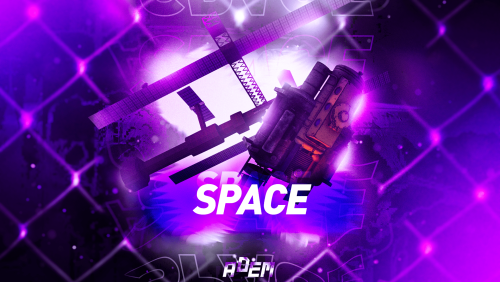
The plugin allows players to visit a cold atmospheric Space void of gravity and oxygen, and visit an International Space Station! A Space Station appears high in the sky, and is surrounded by Meteorites, Spaceships, and Balloons. There is no gravity in Space, the temperature is very low and there is no oxygen. You can get to Space by a Spaceship or by a Balloon which also spawn near roads or in loot tables. The Space Station is guarded by customizable NPCs and a Space Bradley. Outer Space Meteorites, Crates, NPCs, Balloons and Spaceships will spawn in Outer Space near the Space Station, the number of each can be configured and customized. In order to survive in Outer Space, the player will need a Spacesuit. A Spacesuit can be customized to be any piece of clothing. In the config you can customize items that will perform the functions of the Spacesuit in whole or in part. To make space dark for players at any time of the day, use the NightVision plugin Space Station The Space Station consists of several compartments that are separated from each other by doors. Optionally, the doors can be locked and they will need to be raided. Inside the station there are crates with loot, NPCs, turrets, and fire turrets. At the end of the corridor there are two doors that open with blue cards and one door that opens with red. The spawn of the space station can be disabled. All objects on the space station are configured in the Data file of this station Spaceship The plugin includes spaceships that can spawn near roads, in Space, or can be added to loot tables. The ship has separate settings for flying in the normal atmosphere and in zero gravity in Space. It can shoot torpedoes, which will help the player in capturing the space station. There are two seats in each spaceship. Shuttle Control Guide: Balloon A balloon is an ordinary balloon with which you can ride into outer space. The balloon can spawn near roads, in Space, or can be added to loot tables. Also, this function can be applied to all balloons on the server. If the balloon is in zero gravity, it can be used as an escape capsule! If necessary, the player can enter, press a button, and be taken out of Space into the normal atmosphere. Dependencies Required NpcSpawn Chat commands (only for administrators) /spacestart – launches the event in a random configuration /spacestart <eventPresetName> – launches the event in the <eventPresetName> configuration /spacestop – stops the event /spawnshuttle – spawn the shuttle in your position /spawnaerostat – spawn the aerostat in your position /spacepoint – creates a custom spawn point of the event in your position (after that, you need to enable custom spawn points in the config) Console commands (RCON only) spacestart – launches the event in a random configuration spacestart <eventPresetName> – launches the event in the <eventPresetName> configuration spacestop – stops the event givepurplecard <userId> <amount> – gives a space card to a player giveshuttle <userId> <amount> – gives a shuttle to a player giveaerostat <userId> <amount> – gives a shuttle to a player givespacesuit <space_suit_preset> <userId> <amount> – gives <space_suit_preset> to a player Config plugin_en – example of plugin configuration in English station_en – example of station configuration in English plugin_ru – example of plugin configuration in Russian station_ru – example of station configuration in Russian Dependencies (optional, not required) True PVE PveMode GUI Announcements Notify DiscordMessages AlphaLoot CustomLoot Economics Server Rewards IQEconomic Hooks void OnSpaceEventStop() void OnSpaceEventStart() API bool IsPositionInSpace(Vector3 position) float GetMinSpaceAltitude() bool IsEventActive() My Discord: adem9554 Join the Mad Mappers Discord here! Check out more of my work here!$39.99 -
Version 2.2.0
12,372 downloads
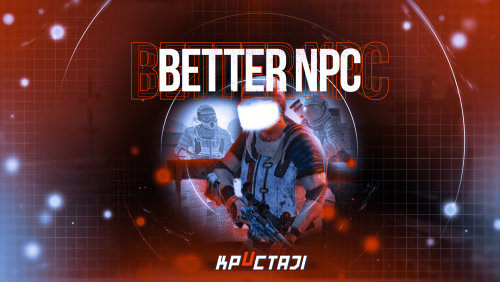
This plugin adds variety of NPC sets with very high number of parameter sets on standard and custom monuments. Also it is added during dropping the server AirDrop, locked crate and destroying a tank or helicopter Dependencies (optional, not required) AlphaLoot CustomLoot True PVE Kits Economics Server Rewards IQEconomic PveMode Custom maps Maps that have default settings for their custom monuments. For these maps, you will not need to create places for the appearance of NPCs, they have already been created by the map developer and are located inside the archive when buying the map You can also download all these files for all maps here Detroit: Irreparable Damage Oregon 2: Last Hope Lostly Island Frontier – American Old West Oregon: Land of Dead Badlands Foreign Lands Namalsk Kong: Skull Island Destroyed World Deathland Dreamland Last Train Pandora Railway Island Wasteland Cataclysm: Fury of Nature Last Oasis Crazy Island Standard monuments This item of the plugin settings is used for appearing NPCs in all standard monuments. All these settings are located in the Monument folder (oxide/data/BetterNpc/Monument). Each file in this folder corresponds to a standard monument If there is no standard monument file in the folder, you can create it (you need to name the file the same way as the standard monuments on the map inside the game). You can copy the settings from any other standard monument Configuration parameters: Enabled? [true/false] – It allows to enable/disable the appearance of NPC on the monument. If you need NPCs appearing on the map and don’t need it on another map, you can use this option simply The size of the monument – this parameter contains two values. It is the length and width of the monument. This parameter is necessary for random appearance of NPC on the monument and indication of limits of removal of standard NPCs on the monument (if it is necessary) Remove other NPCs? [true/false] – It deletes the standard NPCs inside the limits of this monument Presets – It is a list of all the NPC presets to appear on the monument (the description of the NPC preset settings is located below) Custom monuments This item of the plugin settings is responsible for the appearance of NPCs on custom monuments. All these settings are located in the Custom folder (oxide/data/BetterNpc/Custom). Each file in this folder corresponds to a custom monument If you have bought a map with already configured NPC appearance files for custom monuments you will copy these files into the Custom folder. If you want to create and configure the appearance of NPC in your custom location on the map, you will use the command in the administrators’ chat /SpawnPointAdd {name} (see the description of this command below in the instruction) Configuration parameters: Enabled? [true/false] – It allows to enable/disable the appearance of NPC on the monument. If you need NPCs appearing on the map and don’t need it on another map, you can use this option simply Position – It is a position of the custom monument on the map Rotation – It is a rotation of the custom monument on the map (this parameter is necessary for using custom places to appear of NPC on the monument, if the monument is used on more than one map) Radius – It is the radius of the custom monument from the position on the map Remove other NPCs? [true/false] – It removes the standard NPCs inside the limits of this monument Presets – It is a list of all the NPC presets to appear on the monument (the description of the NPC preset settings is located below) Roads This item of the plugin settings is used to appear NPCs on all types of roads. All these settings are located in the Road folder (oxide/data/BetterNpc/Road). Each file in this folder corresponds to a particular road type ExtraNarrow – It is a narrow, unpaved walkway ExtraWide It is a wide, paved, two-lane, beltway road Standard – It is a regular, paved road Configuration parameters: Enabled? [true/false] – It allows to enable/disable the appearance of NPC on the road. If you need NPCs appearing on the map and don’t need it on another map, you can use this option simply Presets – It is a list of all the NPC presets to appear on the road (the description of the NPC preset settings is located below) Biomes This item of the plugin settings is used to appear NPCs on all types of biomes. All these settings are located in the Biome folder (oxide/data/BetterNpc/Biome). Each file in this folder corresponds to a particular biome type (Arctic, Arid, Temperate, Tundra) Configuration parameters: Enabled? [true/false] – It allows to enable/disable the appearance of NPC on the biome. If you need NPCs appearing on the map and don’t need it on another map, you can use this option simply Presets – It is a list of all the NPC presets to appear on the biome (the description of the NPC preset settings is located below) In-game events This item of the plugin settings is used to appear the NPCs in standard Rust events. All of these settings are located in the Event folder (oxide/data/BetterNpc/Event). Each file in this folder corresponds to its own type of event The supported events: When the plane drops the server AirDrop, it will be guarded by specific NPC presets CH47 – When the chinook drops a locked crate during patrolling the map, it will be guarded by specific NPC presets Bradley – When someone destroys a tank, its crates will be guarded by specific NPC presets Helicopter – When someone shoots down a patrol helicopter, its crates will be guarded by specific NPC presets Configuration parameters: Enabled? [true/false] – It allows to enable/disable the appearance of NPC on the event. If you need NPCs appearing on the map and don’t need it on another map, you can use this option simply Radius – NPC appearance radius Presets – It is a list of all the NPC presets to appear on the event (the description of the NPC preset settings is located below) The NPC preset parameters Enabled? [true/false] – It is enabling/disabling the preset Minimum numbers – Day – It is the minimum number of NPCs from the day preset Maximum numbers – Day – It is the maximum number of NPCs from the day preset Minimum numbers – Night – It is the minimum number of NPCs from the night preset Maximum numbers – Night – It is the maximum number of NPCs from the night preset NPCs setting – It is all NPC settings of this preset (see the description of NPC settings for details) Type of appearance (0 – random; 1 – own list) – It is a type of NPC appearance. You can create your own list of places of NPC appearance. The NPC will appear only randomly. This parameter is not used in Road appearance types Own list of locations – It is your own list of NPC appearances. You need to use the number of locations at least the maximum possible number of NPCs in this preset. This parameter is not used in Road appearance types The path to the crate that appears at the place of death – It is the full path to the crate prefab that appears at the place of death of an NPC. If you don’t need this parameter, you should leave this blank Which loot table should the plugin use (0 – default; 1 – own; 2 – AlphaLoot; 3 – CustomLoot; 4 – loot table of the Rust objects; 5 – combine the 1 and 4 methods) – It is the type of the NPC loot table in this preset. Type 5 includes two types (1 and 4) at the same time and locates items from both types Loot table from prefabs (if the loot table type is 4 or 5) – It is a setting of the loot tables from Rust objects. You can see the loot table of Rust objects description for more details Own loot table (if the loot table type is 1 or 5) – It’s NPC’s own loot table. You can see the description of your own loot table for more details The NPC settings description Names is a list of NPC names. It is selected from the list randomly Health – It’s the HP amount of the NPC Roam Range – It’s the patrolling area distance. It’s the distance that the NPC can move from the place of appearance during patrolling Chase Range – It’s the chase range of the target. It’s the distance that the NPC can chase his target from the place of appearance Attack Range Multiplier – It’s the attack range multiplier of the NPC’s weapon Sense Range – It’s a target detection radius Target Memory Duration [sec.] – It’s the time that the NPC can remember his target Scale damage – It’s the damage multiplier from NPC to the player Aim Cone Scale – It’s the spread of NPC shooting, the default value in Rust is 2. It doesn’t take negative values Detect the target only in the NPCs viewing vision cone? [true/false] – It’s the parameter that allows detecting the target only in a certain NPC viewing. If you want to detect the target in 360 degrees, you will set the parameter "False” Vision Cone – It’s the NPC viewing. The range of values is from 20 to 180 degrees. If the previous parameter is False, this parameter is not used Speed – It’s the NPC speed. The default value in Rust is 5 Minimum time of appearance after death [sec.] – It’s the minimum time of NPC appearance after the death. This parameter is not used in the NPC Event places Maximum time of appearance after death [sec.] – It’s the maximum time of NPC appearance after the death. This parameter is not used in the NPC Event places Disable radio effects? [true/false] – You can disable/enable radio effects Is this a stationary NPC? [true/false] – If this parameter is True, the NPC will not move or run Remove a corpse after death? [true/false] – This parameter can control the deleting of NPC corpses (only backpacks are left). This parameter improves efficiency if there are a lot of NPCs Wear items – It’s a list of NPCs’ clothes and armor Belt items – It’s a list of weapons and items NPCs’ fast slots. Medical syringes are used for healing. If you give grenades to an NPC, he will use them. Smoke grenades are used for creating smoke screens (if you don’t need them, you should remove them from your inventory). If you give a Rocket Launcher to an NPC, he will raid the target’s building (if the target is inside it) Kits – It gives a pack of Kits plugin. If you don’t need this parameter, you should leave this blank. I recommend using the previous 2 points to configure NPC items A description of the Rust loot table settings Minimum numbers of prefabs –It’s the minimum numbers of prefabs that are needed to appear in the NPC loot table Maximum numbers of prefabs –It’s the maximum numbers of prefabs that are needed to appear in the NPC loot table Use minimum and maximum values? [true/false] – this parameter specifies whether to use the minimum and maximum numbers to limit the number of items List of prefabs – It’s a list of prefabs that need to add in the loot table. It is necessary to indicate the full path to the prefab and the probability of falling out this prefab A description of the own loot table settings Minimum numbers of items – It’s the minimum number of items Maximum numbers of items – It’s the maximum number of items Use minimum and maximum values? [true/false] – this parameter specifies whether to use the minimum and maximum numbers to limit the number of items List of items – It’s a total list of all items that can fall out in the NPC loot table. You can specify any standard items, their blueprints and any skinned or custom items The commands in the chat (for admins only) /SpawnPointPos {name} – To show the local admin’s position coordinates relative to the place where the NPC {name} appears /SpawnPointAdd {name} – To create the NPC appearance point {name} in the Admin’s custom coordinates. A file with this name will be created in the folder Custom and you can configure it as you need /SpawnPointAddPos {number} {name} – To write the local admin’s coordinate into the preset with the positional number {number} (starting from 1) to the place where the NPC {name} appears /SpawnPointAddWear {number} {name} – To write all the admin’s dressed clothes into the preset with the positional number {number} (starting from 1) to the place where the NPC {name} appears /SpawnPointAddBelt {number} {name} – To write all the admins’ quick slots cells into a preset with the positional number {number} ( starting from 1) to the place where the NPC {name} appears /SpawnPointShowPos {number} {name} – To show to the Admin all the custom NPC appearance points in the preset with the positional number {number} ( starting from 1) in the place where the NPC {name} appears /SpawnPointReload {name} – Reload Spawn Point with the name {name} Console commands (RCON only) ShowAllNpc – Shows the number of all NPCs of the BetterNpc plugin on your server Hooks object CanAirDropSpawnNpc(SupplyDrop supplyDrop) – It is called before an NPC appearance to guard an AirDrop. The returning of a non-zero value stops an NPC appearance object CanCh47SpawnNpc(HackableLockedCrate crate) – It is called before an NPC appearance to guard a locked chinook crate. The returning of a non-zero value stops an NPC appearance object CanBradleySpawnNpc(BradleyAPC bradley) – It is called before an NPC appearance to guard the boxes from crushed Bradley. The returning of a non-zero value stops an NPC appearance object CanHelicopterSpawnNpc(BaseHelicopter helicopter) – It is called before an NPC appearance to guard the crates from crushed patrol helicopter. The returning of a non-zero value stops an NPC appearance API void DestroyController(string name) – It destroys the place of appearance NPC with the name {name} void CreateController(string name) – It creates the place of appearance NPC with the name {name} These APIs can be used with standard monuments, custom monuments (NPC locations) and roads. The name of this monument is in standard monuments {name}. It is the name of the file in the Custom and Road folder in custom monuments and roads My Discord: KpucTaJl#8923 Join the Mad Mappers Discord here! Check out more of my work here! Creator of the default configuration – jtedal$35.00 -
.thumb.png.6fb63bc7327c60bdc01a5e1225049c1d.png)
Version 1.1.4
58 downloads
Adds a new event to the server - zone capture. If you gather resources on the territory of the occupied zone, a commission is removed from you and falls into the "capture cupboard". Features: Markers on the map Spawn in crates/barrels Percentage setting with permissions Setting limits with permissions Bypass setting (for teammates, friends, clanmates, cupboard) Commands give.capturezone [target] [amount] - gives out a cupboard for capturing a zone Permissions capturezone.ignore - allows you not to pay resources for tax Video Config { "Work with Notify?": true, "Zone Radius": 40.0, "Permission (ex: capturezone.use)": "", "Item Settings": { "DisplayName": "Zone Сapture", "ShortName": "cupboard.tool", "SkinID": 2767790029 }, "Marker": { "Enabled": true, "Display Name": "Zone by {owner}", "Radius": 0.3, "Refresh Rate": 3.0, "Duration": 0, "Color 1": "#EA9999", "Color 2": "#A73636FF" }, "Drop Settings": { "Enabled": true, "Drop Settings": [ { "Prefab name": "assets/bundled/prefabs/radtown/crate_normal.prefab", "Min amount": 1, "Max amount": 1, "Chance": 50.0 }, { "Prefab name": "assets/bundled/prefabs/radtown/loot_barrel_2.prefab", "Min amount": 1, "Max amount": 1, "Chance": 5.0 }, { "Prefab name": "assets/bundled/prefabs/radtown/loot_barrel_1.prefab", "Min amount": 1, "Max amount": 1, "Chance": 5.0 } ] }, "Notification during mining in the occupied territory": { "Enabled": true, "Cooldown": 5.0 }, "Percent Settings": { "Default": 20.0, "Permissions": { "capturezone.vip": 25.0, "capturezone.deluxe": 30.0 } }, "Limits Settings": { "Enabled": true, "Default": 3, "Permissions": { "capturezone.vip": 5, "capturezone.deluxe": 7 } }, "Bypass Settings": { "Teammates (Rust in-game system)": true, "Friends": true, "Clanmates": true, "Authorized in the cupboard": true } }$19.95 -

Version 2.0.5
311 downloads
Adds a list of players to your server with convenient options for interacting with them Commands players (open interface) Permissions Permission to use: you can set permission in config, for example: "Permission (ex: playerlist.use)": "playerlist.use", playerlist.hide (hides a player from the player list) FAQ Q: Where can I see an example of a config? A: Config$19.95 -
Version 1.1.7
81 downloads
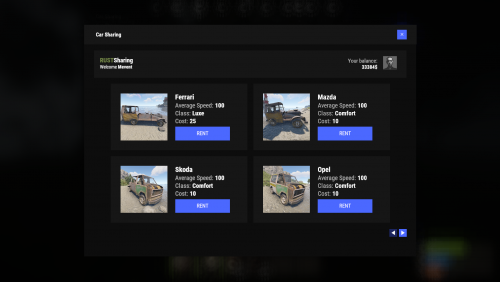
Adds to your server the ability to rent a car and ride it all over the map. You can also install bots in which you can rent a car. Commands share.ferrari [targetId] (give a Ferrari) share.mazda [targetId] (give a Mazda) share.skoda [targetId] (give a Skoda) share.opel [targetId] (give an Opel) Permissions You can set permission in config, for example: "Permission (example: carsharing.use)": "carsharing.use", Config { "Commands": [ "rent", "carsharing" ], "Permission (example: carsharing.use)": "", "Work with Notify?": true, "Economy": { "Type (Plugin/Item)": "Plugin", "Plugin name": "Economics", "Balance add hook": "Deposit", "Balance remove hook": "Withdraw", "Balance show hook": "Balance", "ShortName": "scrap", "Display Name (empty - default)": "", "Skin": 0 }, "Vehicle call item settings": { "Display Name": "RUSTSharing {carname}", "ShortName": "box.wooden.large", "Skin": 2591806406 }, "Cars": [ { "Permission (example: carsharing.vip)": "", "Command to give": "share.ferrari", "Image": "https://i.imgur.com/0GvWGOv.png", "Name": "Ferrari", "Cost per minute": 25.0, "Car class": "Luxe", "Average Speed": "100", "Modular Car Settings": { "CodeLock": true, "KeyLock": false, "Engine Parts Tier": 2, "Fresh Water Amount": 0, "Fuel Amount": 140, "Modules": [ "vehicle.1mod.engine", "vehicle.1mod.cockpit.armored", "vehicle.1mod.cockpit.armored" ] } }, { "Permission (example: carsharing.vip)": "", "Command to give": "share.mazda", "Image": "https://i.imgur.com/fAuuZIS.png", "Name": "Mazda", "Cost per minute": 10.0, "Car class": "Comfort", "Average Speed": "100", "Modular Car Settings": { "CodeLock": true, "KeyLock": false, "Engine Parts Tier": 2, "Fresh Water Amount": 0, "Fuel Amount": 140, "Modules": [ "vehicle.1mod.engine", "vehicle.1mod.cockpit.armored", "vehicle.1mod.cockpit.armored" ] } }, { "Permission (example: carsharing.vip)": "", "Command to give": "share.skoda", "Image": "https://i.imgur.com/u07yAdY.png", "Name": "Skoda", "Cost per minute": 10.0, "Car class": "Comfort", "Average Speed": "100", "Modular Car Settings": { "CodeLock": true, "KeyLock": false, "Engine Parts Tier": 2, "Fresh Water Amount": 0, "Fuel Amount": 140, "Modules": [ "vehicle.1mod.engine", "vehicle.1mod.cockpit.armored", "vehicle.1mod.cockpit.armored" ] } }, { "Permission (example: carsharing.vip)": "", "Command to give": "share.opel", "Image": "https://i.imgur.com/fEzJjIm.png", "Name": "Opel", "Cost per minute": 10.0, "Car class": "Comfort", "Average Speed": "100", "Modular Car Settings": { "CodeLock": true, "KeyLock": false, "Engine Parts Tier": 2, "Fresh Water Amount": 0, "Fuel Amount": 140, "Modules": [ "vehicle.1mod.engine", "vehicle.1mod.cockpit.armored", "vehicle.1mod.cockpit.armored" ] } } ], "Bots": { "8833355776": { "Car Classes (* - all)": [ "Comfort" ] }, "1317845641": { "Car Classes (* - all)": [ "Luxe", "Comfort" ] } } } VIDEO$19.95 -
Version 1.1.6
2,593 downloads
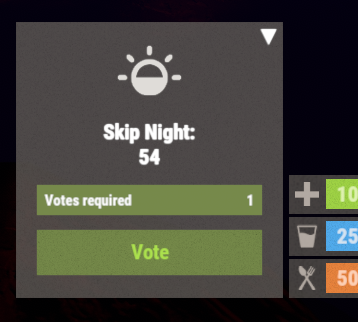
The best plugin that allows you to skip the night on the server. In addition to instant night skipping, you can use night acceleration. You can turn on white nights (under the full moon). Your players will love it! Features: Beautiful interface Voting is automatic (at the specified time in the config, without a command) Easy customization (time settings, text, interface, colors, etc.) Speeding up the day Speeding up the night White Nights (Full Moon) Commands sn.admin start_manually – Start voting manually Permissions skipnight.admin - for command "sn.admin" Video: FAQ: Where can I ask questions/get help quickly? My Discord: Mevent#4546 How do I turn on the full moon? 1. Enable nights with a full moon in the config. "Night with a full moon": true, 2. Configure the dates of the full moon in the config (you can get them from https://www.timeanddate.com/moon/phases/usa/new-york?year=2024) "Full Moon Dates": [ "2024-01-25T00:00:00", "2024-02-24T00:00:00", "2024-03-25T00:00:00", "2024-04-23T00:00:00", "2024-05-23T00:00:00", "2024-06-21T00:00:00", "2024-07-21T00:00:00", "2024-08-19T00:00:00", "2024-09-17T00:00:00", "2024-10-17T00:00:00", "2024-11-15T00:00:00", "2024-12-15T00:00:00" ] Config { "Time Settings": { "Day Start": "06:00", "Night Start": "18:00", "Voting time": 60, "Voting start time (time to check)": "20:00", "Time until which hour the voting will take place (time to check)": "21:00", "Time after voting (to which the night passes)": "08:00", "Fast skip the night": true, "Length of the night (minutes)": 5.0, "Length of the FAST night (minutes)": 2.0, "Length of the day (minutes)": 45.0, "Night with a full moon": true, "Full Moon Dates": [ "2024-01-25T00:00:00", "2024-02-24T00:00:00", "2024-03-25T00:00:00", "2024-04-23T00:00:00", "2024-05-23T00:00:00", "2024-06-21T00:00:00", "2024-07-21T00:00:00", "2024-08-19T00:00:00", "2024-09-17T00:00:00", "2024-10-17T00:00:00", "2024-11-15T00:00:00", "2024-12-15T00:00:00" ] }, "UI Settings": { "Destroy Time": 5.0, "Show Image?": true, "Image": "https://i.imgur.com/uNSAY42.png", "Image Width": 42.0, "Image Height": 33.0, "Image Up Indent": 16.0, "Left Indent": 212.0, "Bottom Indent": 16.0, "Width": 178.0, "Height for default version": 82.0, "Height for unfolded version": 184.0, "Background Color": { "HEX": "#F8EBE3", "Opacity (0 - 100)": 4.0 }, "Background Materal": "assets/content/ui/uibackgroundblur-ingamemenu.mat", "Voting Button": { "Width": 150.0, "Height": 30.0, "Bottom Indent": 15.0 }, "Progress Bar": { "Width": 150.0, "Height": 20.0, "Bottom Indent": 55.0 }, "Colors": { "Color 1": { "HEX": "#ABE04E", "Opacity (0 - 100)": 100.0 }, "Color 2": { "HEX": "#595651", "Opacity (0 - 100)": 75.0 }, "Color 3": { "HEX": "#74884A", "Opacity (0 - 100)": 95.0 }, "Color 4": { "HEX": "#FFFFFF", "Opacity (0 - 100)": 100.0 } } }, "Votes Settings": { "Number of votes": 5, "Use a percentage of the online?": true, "Percentage of the online": 30.0 } }$19.95 -
Version 1.1.57
6,168 downloads
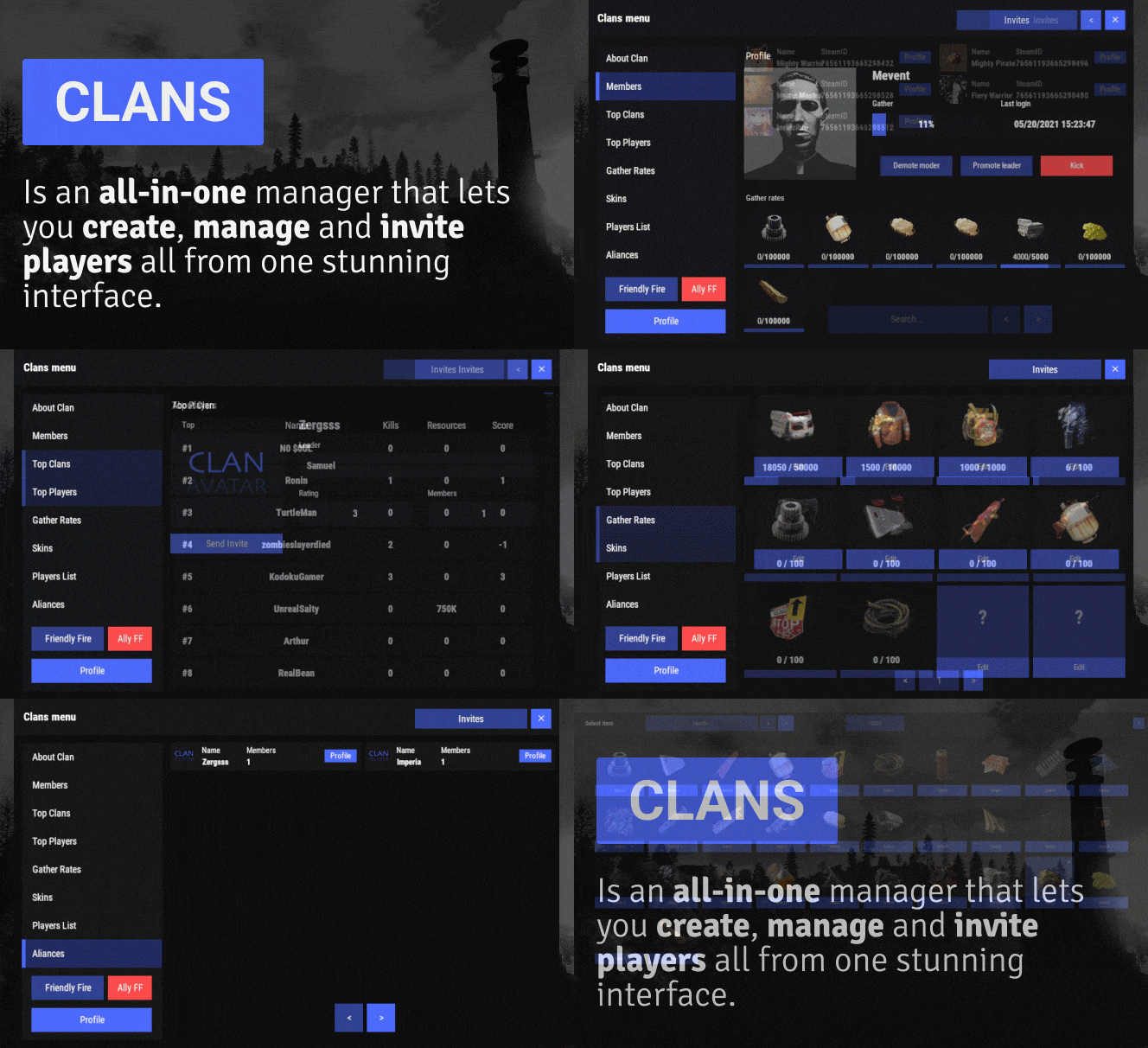
Clans is an all-in-one manager that lets you create, manage and invite players all from one stunning interface. Toggle friendly fire, view clan, and player leaderboards, create and break alliances, modify gather rates for clan members and set clan skins to identify clan members abroad easily. Features Beautiful user interface Performance Allied clans Gather rate for players (allows you to set how much each clan member must collect resources. For example: each member of the clan must collect 10 thousand sulfur, so that later it can be used to craft explosives and attack another clan) Clan skins (allows you to set common skins for all clan players. All the clothes on the players of the same clan will be the same, which allows you to distinguish your own from the enemies during the battle) The clan TAG min- and max-length can be defined in the config The clan overview shows offline member names Clan members can toggle friendly-fire protection for clan mates and allies Clan creation can check TAG’s against a blocked word list Clan tagging can be optionally disabled Old (not updated since x days) clans can be automatically purged Clans rating Players rating Setting a personal avatar for your clan Autowipe with wipe (optional) Commands clans (display clan menu) clans help (get information about commands) clan create (create a clan) clan leave (leave from your clan) clan join (open UI with invitations) clan ff (toggle friendlyfire status) clan allyff (toggle friendlyfire status for allies) clan invite <name/steamid> (invite a player) clan withdraw <name/steamid> (cancel an invite) clan kick <name/steamid> (kick a member) clan allyinvite <clanTag> (invite a clan to ally) clan allywithdraw <clanTag> (cancel the offer of an alliance) clan allyaccept <clanTag> (accept the offer of an alliance) clan allycancel <clanTag> (cancen the offer of an alliance) clan promote <name/steamid> (promote a member) clan demote <name/steamid> (demote a member) clan disband (disband your clan) clans.loadavatars (download avatars of all players) clans.manage list - lists all clans, their owners and their member-count clans.manage listex - lists all clans, their owners/members and their on-line status clans.manage show [name/userId] - lists the chosen clan (or clan by user) and the members with status clans.manage msg [clanTag] [message] - sends a clan message clans.manage create [name/userId] [clanTag] - creates a clan clans.manage rename [oldTag] [newTag] - renames a clan clans.manage disband [clanTag] - disbands a clan clans.manage invite [clanTag] [name/userId] - sends clan invitation to a player clans.manage join [clanTag] [name/userId] - joins a player into a clan clans.manage kick [clanTag] [name/userId] - kicks a member from a clan clans.manage owner [clanTag] [name/userId] - sets a new owner clans.manage promote [clanTag] [name/userId] - promotes a member clans.manage demote [clanTag] [name/userId] - demotes a member clans.reborn.convert (convert data from Clans Reborn plugin) clans.umod.convert (convert data from uMod Clans (v0.2.2+) plugin) clans.convert.olddata (convert data from old data) clans.convert.old.stats – used to update player data when upgrading from older versions of the game to 1.1.31 and above. Permissions clans.cancreate (permission to create a clan) clans.canjoin (permission to join a clan) clans.canleave (permission to leave a clan) clans.candisband (permission to disband a clan) clans.cankick (permission to kick a clan member) clans.admin (permission to use command 'clans.manage') Loot Types None – used for disabled loot Gather – used for gathering loot LootCrate – used for a loot crate Look – used to look at loot Kill – used to kill entities Craft – used for crafting items HackCrate – used for hacking a loot crate FAQ Q: Where can I see an example of a config? A: Config Q: Does the Clans plugin support other plugins? A: Yes, this Clans plugin has an API similar to other popular clans plugins. If the plugin works with Clans - it works with this plugin too. Q: How do I enable the display of clan ratings on the screen? A: You need to install the Clans Top plugin Q: Does the Clans plugin work with other Rust plugins? A: The Clans plugin is designed to work with a wide range of other Rust plugins, but compatibility may vary depending on the specific plugins you are using.$45.95 -
Version 0.1.2
16 downloads
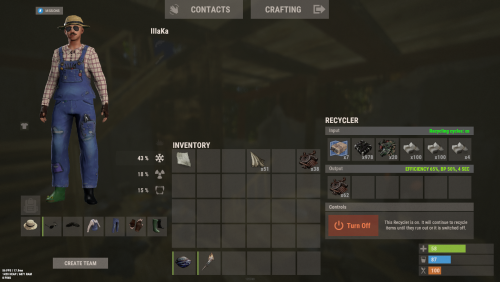
An excellent plugin for item recycling with extensive functionality. The ability to log successful recycling; The ability to create new permissions; The ability to customize permissions flexibly, including both new and existing ones; The ability to have multiple permissions at the same time, with the selection of the best limits from the available permissions; The ability to configure the recycling efficiency for each permission; The ability to configure the scrap return percentage when recycling blueprints for each permission; The ability to configure the chance to return the original item when recycling blueprints for each permission; The ability to configure forbidden items for recycling for each permission; The ability to configure the recycling speed for each permission; The ability to configure the recycling cycle limit per use for each permission; The ability to configure the recycling slot limit for each permission; The ability to configure the recycling cooldown for each permission; The ability to purchase a bypass for the recycle cooldown; The ability to configure the daily recycling limit for each permission; The ability to purchase additional recycles after reaching the daily limit; The ability to count recycling only when at least one item is successfully recycled; The ability to forbid recycling when wounded; The ability to forbid recycling while swimming; The ability to forbid recycling while mounted on certain seats; The ability to forbid recycling in specified monuments, by name or by monument type; The ability to forbid recycling in someone else's building privileges; The ability to forbid recycling when taking damage; The ability to forbid recycling during a combat block; The ability to forbid recycling during a raid block; The ability to automatically generate language files for specified languages(with content filled in English); The ability to display a status bar while waiting for a cooldown; The ability to choose between bar types(TimeCounter and TimeProgressCounter); The ability to specify the order of the bar; The ability to change the height of the bar; The ability to customize the color and transparency of the background; The ability to set a material for the background; The ability to switch between CuiRawImageComponent and CuiImageComponent for the image; The ability to get images from the local folder(*SERVER*\oxide\data\AdvancedStatus\Images); The ability to set own image and customize the color and transparency of the image; The ability to set sprite instead of the image; The ability to customize the color, size and font of the text. { "Chat command": "rec", "Is it worth enabling GameTips for messages?": true, "Is it worth saving recycling logs to a file?": true, "List of language keys for creating language files": [ "en" ], "Is it worth allowing blueprint recycling based on permissions?": true, "Price to skip 60 seconds of recycler cooldown": 10.0, "List of mount names where recycling is prohibited": [ "horsesaddle", "horsesaddlerear", "bikedriverseat", "bikepassengerseat", "motorbikedriverseat", "motorbikepassengerseat", "modularcardriverseat", "modularcarpassengerseatleft", "modularcarpassengerseatright", "modularcarpassengerseatlesslegroomleft", "modularcarpassengerseatlesslegroomright", "modularcarpassengerseatsidewayleft", "miniheliseat", "minihelipassenger", "transporthelipilot", "transporthelicopilot", "attackhelidriver", "attackheligunner", "submarinesolodriverstanding", "submarineduodriverseat", "submarineduopassengerseat", "snowmobiledriverseat", "snowmobilepassengerseat", "snowmobilepassengerseat tomaha", "workcartdriver", "locomotivedriver", "craneoperator", "batteringramseat", "ballistagun.entity" ], "Status. Bar - Display time in seconds. A value of 0 keeps it visible until the cooldown ends": 15.0, "Status. Bar - Type(TimeProgressCounter or TimeCounter)": "TimeCounter", "Status. Bar - Height": 26, "Status. Bar - Order": 10, "Status. Background - Color(Hex or RGBA)": "#EFC570", "Status. Background - Transparency": 0.7, "Status. Background - Material(empty to disable)": "", "Status. Image - Url": "https://i.imgur.com/DsWk4zm.png", "Status. Image - Local(Leave empty to use Image_Url)": "AdvancedStatus_SandClock", "Status. Image - Sprite(Leave empty to use Image_Local or Image_Url)": "", "Status. Image - Is raw image": false, "Status. Image - Color(Hex or RGBA)": "#EFC570", "Status. Image - Transparency": 1.0, "Status. Image Outline - Color(Hex or RGBA)": "0.1 0.3 0.8 0.9", "Status. Image Outline - Transparency": 1.0, "Status. Image Outline - Distance(Leave empty to disable). Example '0.75 0.75'": "", "Status. Text - Size": 12, "Status. Text - Color(Hex or RGBA)": "#FFFFFF", "Status. Text - Transparency": 1.0, "Status. Text - Font(https://umod.org/guides/rust/basic-concepts-of-gui#fonts)": "RobotoCondensed-Bold.ttf", "Status. Text - Offset Horizontal": 0, "Status. Text Outline - Color(Hex or RGBA)": "#000000", "Status. Text Outline - Transparency": 1.0, "Status. Text Outline - Distance(Leave empty to disable)": "", "Status. SubText - Size": 12, "Status. SubText - Color(Hex or RGBA)": "#FFFFFF", "Status. SubText - Transparency": 1.0, "Status. SubText - Font": "RobotoCondensed-Bold.ttf", "Status. SubText Outline - Color(Hex or RGBA)": "0.5 0.6 0.7 0.5", "Status. SubText Outline - Transparency": 1.0, "Status. SubText Outline - Distance(Leave empty to disable)": "", "Status. Progress - Background Color(Hex or RGBA)": "1 1 1 0.15", "Status. Progress - Background Transparency": 0.15, "Status. Progress - Reverse": true, "Status. Progress - Color(Hex or RGBA)": "#EFC570", "Status. Progress - Transparency": 0.7, "Status. Progress - OffsetMin": "0 0", "Status. Progress - OffsetMax": "0 0", "List of recycling permissions": [ { "Permission Name": "advancedrecycler.default", "Item recycling time(seconds)": 8.0, "Item recycling efficiency": 0.4, "Blueprint recycling efficiency. A value of 0 disables this ability": 0.0, "Chance(0.0 – 1.0) of the original item dropping when recycling a blueprint": 0.001, "Is it worth giving scrap if the original item drops when recycling a blueprint?": false, "Number of available recycling slots": 2, "Cooldown time(in seconds) before next recycling": 600.0, "Daily recycling limit. A value of 0 disables the limit": 50, "Price to purchase a recycling after exceeding the daily limit. A value of 0 disables the purchase": 5.0, "Item recycling limit per session(per command use). A value of 0 disables the limit": 15, "Is it worth forbidding recycling if the player is in a wounded state?": true, "Is it worth forbidding recycling if the player is swimming?": true, "Is it worth forbidding recycling if the player is mounted?": true, "Is it worth forbidding recycling if the player is in someone else's building privilege area?": true, "Is it worth forbidding recycling if the player has taken damage?": true, "Is it worth forbidding recycling if the player has combat block?": true, "Is it worth forbidding recycling if the player has raid block?": true, "List of monuments where recycling is forbidden": null, "List of monument types where recycling is forbidden": [ "RadTown", "RadTownWater", "RadTownSmall", "TunnelStation", "Custom" ], "List of forbidden recycling items": [ "blood" ] }, { "Permission Name": "advancedrecycler.vip", "Item recycling time(seconds)": 5.0, "Item recycling efficiency": 0.6, "Blueprint recycling efficiency. A value of 0 disables this ability": 0.15, "Chance(0.0 – 1.0) of the original item dropping when recycling a blueprint": 0.15, "Is it worth giving scrap if the original item drops when recycling a blueprint?": true, "Number of available recycling slots": 4, "Cooldown time(in seconds) before next recycling": 450.0, "Daily recycling limit. A value of 0 disables the limit": 100, "Price to purchase a recycling after exceeding the daily limit. A value of 0 disables the purchase": 2.5, "Item recycling limit per session(per command use). A value of 0 disables the limit": 50, "Is it worth forbidding recycling if the player is in a wounded state?": true, "Is it worth forbidding recycling if the player is swimming?": true, "Is it worth forbidding recycling if the player is mounted?": true, "Is it worth forbidding recycling if the player is in someone else's building privilege area?": true, "Is it worth forbidding recycling if the player has taken damage?": true, "Is it worth forbidding recycling if the player has combat block?": true, "Is it worth forbidding recycling if the player has raid block?": true, "List of monuments where recycling is forbidden": null, "List of monument types where recycling is forbidden": [ "RadTown", "RadTownWater", "TunnelStation" ], "List of forbidden recycling items": [ "blood" ] }, { "Permission Name": "realpve.vip", "Item recycling time(seconds)": 4.0, "Item recycling efficiency": 0.65, "Blueprint recycling efficiency. A value of 0 disables this ability": 0.5, "Chance(0.0 – 1.0) of the original item dropping when recycling a blueprint": 0.3, "Is it worth giving scrap if the original item drops when recycling a blueprint?": true, "Number of available recycling slots": 6, "Cooldown time(in seconds) before next recycling": 300.0, "Daily recycling limit. A value of 0 disables the limit": 0, "Price to purchase a recycling after exceeding the daily limit. A value of 0 disables the purchase": 0.0, "Item recycling limit per session(per command use). A value of 0 disables the limit": 0, "Is it worth forbidding recycling if the player is in a wounded state?": false, "Is it worth forbidding recycling if the player is swimming?": false, "Is it worth forbidding recycling if the player is mounted?": false, "Is it worth forbidding recycling if the player is in someone else's building privilege area?": false, "Is it worth forbidding recycling if the player has taken damage?": false, "Is it worth forbidding recycling if the player has combat block?": false, "Is it worth forbidding recycling if the player has raid block?": false, "List of monuments where recycling is forbidden": [ "oilrig_1" ], "List of monument types where recycling is forbidden": null, "List of forbidden recycling items": [ "blood" ] } ], "Version": { "Major": 0, "Minor": 1, "Patch": 2 } } EN: { "CmdNotAllowed": "You do not have permission to use this command!", "CmdEconomicsNotEnough": "Not enough funds!", "CmdMain": "Available commands for the recycler:\n\n<color=#D1CBCB>/rec</color> - Request access to the remote recycler\n<color=#D1CBCB>/rec</color> <color=#D1AB9A>limits</color> - View your usage limits\n<color=#D1CBCB>/rec</color> <color=#D1AB9A>buy limits *amount*(optional)</color> - Purchase additional uses of the remote recycler\n<color=#D1CBCB>/rec</color> <color=#D1AB9A>buy cd *amount*(optional)</color> - Purchase a 60 second(* by amount) cooldown skip for remote recycler\n\n--------------------------------------------------", "CmdDailyLimitExtra": "You have exceeded the daily limit({0}) for using the remote recycler!\n<size=10>However, you can buy additional uses with the <color=#D1AB9A>/rec buy limits</color> command for <color=#D1CBCB>${1}</color></size>", "CmdDailyLimit": "You have exceeded the daily limit ({0}) for using the remote recycler!", "CmdCooldownSkip": "You must wait {0} seconds before using the remote recycler again!\n<size=10>However, you can skip the cooldown using the <color=#D1AB9A>/rec buy cd</color> command for <color=#D1CBCB>${1}</color> per 60 seconds</size>", "CmdCooldown": "You must wait {0} seconds before using the remote recycler again!", "CmdWoundBlock": "You can't use the remote recycler while wounded!", "CmdSwimming": "You can't use the remote recycler while swimming!", "CmdMountBlock": "You can't use the remote recycler while mounted here!", "CmdMonumentBlock": "You can't use the remote recycler at '{0}'!", "CmdBuildingBlock": "You can't use the remote recycler inside someone else's base!", "CmdDamageBlock": "You can't use the remote recycler while taking damage!", "CmdCombatBlock": "You can't use the remote recycler during combat block!", "CmdRaidBlock": "You can't use the remote recycler during a raid block!", "CmdAlredyHave": "You already have an active remote recycler!", "CmdPurchaseNotLimited": "You haven't reached your daily limit yet!", "CmdPurchaseHaveExtra": "You still have {0} additional remote recycler uses! Use them before purchasing more.", "CmdPurchaseLimitsNotAllowed": "Purchasing additional remote recycler uses is unavailable!", "CmdPurchasedLimits": "You have successfully purchased <color=#D1CBCB>{0}</color> remote recycler uses!\n<size=10>Now you have <color=#D1CBCB>{1}</color> additional uses</size>", "CmdPurchaseNoCooldown": "You don't have a cooldown for remote recycler usage!", "CmdPurchaseCooldownNotAllowed": "Purchasing a cooldown skip for remote recycler usage is not available!", "CmdPurchasedCooldown": "You have successfully purchased a cooldown skip for <color=#D1CBCB>{0} seconds</color> for remote recycler usage!\n<size=10>Now you need to wait <color=#D1CBCB>{1} seconds</color></size>", "CmdMyLimits": "Your remote recycler limits:\n\n<color=#D1CBCB>Efficiency</color> - <color=#D1AB9A>{0}%</color>\n<color=#D1CBCB>Blueprint efficiency</color> - <color=#D1AB9A>{1}%</color>\n<color=#D1CBCB>Blueprint original item return</color> - <color=#D1AB9A>{2}%</color>\n<color=#D1CBCB>Cycle Time</color> - <color=#D1AB9A>{3}</color>\n<color=#D1CBCB>Usage Cycles</color> - <color=#D1AB9A>{4}</color>\n<color=#D1CBCB>Cooldown</color> - <color=#D1AB9A>{5} sec</color>\n<color=#D1CBCB>Daily Limit</color> - <color=#D1AB9A>{6}</color>\n\n--------------------------------------------------", "UiRecycleEfficiency": "EFFICIENCY {0}%, {1} SEC", "UiRecycleEfficiencyBp": "EFFICIENCY {0}%, BP {2}%, {1} SEC", "UiSessionLimit": "Recycling cycles: {0}", "BarCooldown": "Recycler cooldown:", "MsgSessionLimit": "You have exceeded the limit of {0} recycling cycles per session." } RU: { "CmdNotAllowed": "У вас недостаточно прав для использования этой команды!", "CmdEconomicsNotEnough": "Не достаточно средств!", "CmdMain": "Доступные команды для переработчика:\n\n<color=#D1CBCB>/rec</color> - Запросить доступ к удалённому переработчику\n<color=#D1CBCB>/rec</color> <color=#D1AB9A>limits</color> - Узнать свои лимиты\n<color=#D1CBCB>/rec</color> <color=#D1AB9A>buy limits *количество*(опционально)</color> - Докупить дополнительное количество доступа к удалённому переработчику\n<color=#D1CBCB>/rec</color> <color=#D1AB9A>buy cd *количество*(опционально)</color> - Купить пропуск 60 секунд(* на количество) задержки перед повторным использованием удалённым переработчиком\n\n--------------------------------------------------", "CmdDailyLimitExtra": "Вы превысили допустимую дневную норму({0}) на использование удалённого переработчика!\n<size=10>Но вы можете купить дополнительные использования удалённого переработчика с помощью команды <color=#D1AB9A>/rec buy limits</color> за <color=#D1CBCB>{1}$</color></size>", "CmdDailyLimit": "Вы превысили допустимую дневную норму({0}) на использование удалённого переработчика!", "CmdCooldownSkip": "Перед повторным использованием удалённого переработчика вам необходимо подождать {0} секунд!\n<size=10>Но вы можете купить пропуск задержки с помощью команды <color=#D1AB9A>/rec buy cd</color> за <color=#D1CBCB>{1}$</color> за каждые 60 секунд</size>", "CmdCooldown": "Перед повторным использованием удалённого переработчика вам необходимо подождать {0} секунд!", "CmdWoundBlock": "Вам запрещено пользоваться удалённым переработчиком в предсмертном состоянии!", "CmdSwimming": "Вам запрещено пользоваться удалённым переработчиком в воде!", "CmdMountBlock": "Вам запрещено пользоваться удалённым переработчиком сидя в данном месте!", "CmdMonumentBlock": "Вам запрещено пользоваться удалённым переработчиком в '{0}'!", "CmdBuildingBlock": "Вам запрещено пользоваться удалённым переработчиком в чужой базе!", "CmdDamageBlock": "Вам запрещено пользоваться удалённым переработчиком при получении урона!", "CmdCombatBlock": "Вам запрещено пользоваться удалённым переработчиком во время боя!", "CmdRaidBlock": "Вам запрещено пользоваться удалённым переработчиком во время рейда!", "CmdAlredyHave": "У вас уже имеется активный удалённый переработчик!", "CmdPurchaseNotLimited": "Вы ещё не исчерпали свой дневной лимит!", "CmdPurchaseHaveExtra": "У вас ещё есть {0} дополнительных использований удалённого переработчика! Используйте их прежде, чем покупать новые.", "CmdPurchaseLimitsNotAllowed": "Покупка дополнительных использований удалённого переработчика недоступна!", "CmdPurchasedLimits": "Вы успешно докупили <color=#D1CBCB>{0}</color> использований удалённого переработчика!\n<size=10>Теперь у вас <color=#D1CBCB>{1}</color> дополнительных использований</size>", "CmdPurchaseNoCooldown": "У вас нет задержки на использование удалённого переработчика!", "CmdPurchaseCooldownNotAllowed": "Покупка пропуска задержки на использование удалённого переработчика недоступна!", "CmdPurchasedCooldown": "Вы успешно купили пропуск на <color=#D1CBCB>{0} секунд</color> задержки для использования удалённого переработчика!\n<size=10>Теперь вам нужно подождать <color=#D1CBCB>{1} секунд</color></size>", "CmdMyLimits": "Ваши лимиты удалённого переработчика:\n\n<color=#D1CBCB>Эффективность</color> - <color=#D1AB9A>{0}%</color>\n<color=#D1CBCB>Эффективность(чертежи)</color> - <color=#D1AB9A>{1}%</color>\n<color=#D1CBCB>Шанс возврата(чертежи)</color> - <color=#D1AB9A>{2}%</color>\n<color=#D1CBCB>Время цикла</color> - <color=#D1AB9A>{3}</color>\n<color=#D1CBCB>Циклов использований</color> - <color=#D1AB9A>{4}</color>\n<color=#D1CBCB>Время задержки</color> - <color=#D1AB9A>{5} сек</color>\n<color=#D1CBCB>Дневной лимит</color> - <color=#D1AB9A>{6}</color>\n\n--------------------------------------------------", "UiRecycleEfficiency": "ЭФФЕКТИВНОСТЬ {0}%, {1} СЕК", "UiRecycleEfficiencyBp": "ЭФФЕКТИВНОСТЬ {0}%, ЧЕРТЕЖИ {2}%, {1} СЕК", "UiSessionLimit": "Циклы переработки: {0}", "BarCooldown": "Задержка переработчика:", "MsgSessionLimit": "Вы превысили лимит в {0} циклов переработки за одно использование." } /rec - Request access to the remote recycler. /rec limits - View your usage limits. /rec buy limits *amount*(optional) - Purchase additional uses of the remote recycler. /rec buy cd *amount*(optional) - Purchase a 60 second(* by amount) cooldown skip for remote recycler. Example: /rec limits /rec buy limits 1 /rec buy limits 0.5$14.99 -
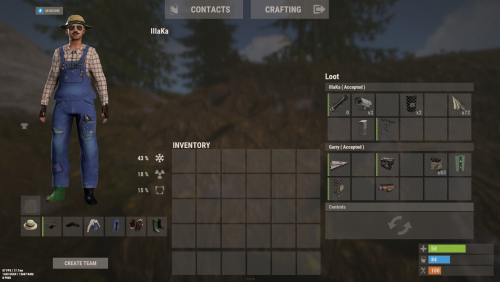
Version 0.1.3
171 downloads
An excellent plugin for remote trading between players with extensive functionality. The ability to log successful trades; The ability to create new permissions; The ability to customize permissions flexibly, including both new and existing ones; The ability to limit slots in trade; The ability to configure the method(Personal, CommonMinimum, CommonMaximum) for limiting the number of slots; The ability to set a cooldown on sending trade requests; The ability to configure the method(InitiatorOnly, TargetOnly, Both) for applying cooldown to players; The ability to purchase a bypass for the trade request cooldown; The ability to set a daily limit on sending trade requests; The ability to purchase additional trade requests after reaching the daily limit; The ability to forbid trading when wounded; The ability to forbid trading while swimming; The ability to forbid trading while mounted on certain seats; The ability to forbid trading in specified monuments, by name or by monument type; The ability to forbid trading in someone else's building privileges; The ability to forbid trading when taking damage; The ability to forbid trading during a combat block; The ability to forbid trading during a raid block; The ability to forbid certain items from being traded; The ability to automatically generate language files for specified languages(with content filled in English); The ability to set an effect upon receiving a trade request; The ability to change the effect upon a successful trade completion; The ability to display a status bar while waiting for a trade; The ability to choose between bar types(TimeCounter and TimeProgressCounter); The ability to specify the order of the bar; The ability to change the height of the bar; The ability to customize the color and transparency of the background; The ability to set a material for the background; The ability to switch between CuiRawImageComponent and CuiImageComponent for the image; The ability to get images from the local folder(*SERVER*\oxide\data\AdvancedStatus\Images); The ability to set own image and customize the color and transparency of the image; The ability to set sprite instead of the image; The ability to customize the color, size and font of the text. { "Chat command": "trade", "List of 'accept' commands": [ "accept", "yes" ], "List of 'cancel' commands": [ "cancel", "no" ], "Is it worth enabling GameTips for messages?": true, "Is it worth saving trade logs to a file?": true, "List of language keys for creating language files": [ "en" ], "Slot limit calculation mode(Personal, CommonMinimum, CommonMaximum)": "CommonMaximum", "Trade cooldown apply mode(InitiatorOnly, TargetOnly, Both)": "InitiatorOnly", "Is it worth checking the target's trade cooldown?": false, "Time in seconds given to respond to a trade request": 15.0, "Price to skip 60 seconds of the trade request cooldown": 10.0, "The prefab name for the effect triggered when a trade request is received": "assets/bundled/prefabs/fx/invite_notice.prefab", "The prefab name for the effect triggered when a trade is successfully completed": "assets/prefabs/building/wall.frame.shopfront/effects/metal_transaction_complete.prefab", "List of mount names where trading is prohibited": [ "horsesaddle", "horsesaddlerear", "bikedriverseat", "bikepassengerseat", "motorbikedriverseat", "motorbikepassengerseat", "modularcardriverseat", "modularcarpassengerseatleft", "modularcarpassengerseatright", "modularcarpassengerseatlesslegroomleft", "modularcarpassengerseatlesslegroomright", "modularcarpassengerseatsidewayleft", "miniheliseat", "minihelipassenger", "transporthelipilot", "transporthelicopilot", "attackhelidriver", "attackheligunner", "submarinesolodriverstanding", "submarineduodriverseat", "submarineduopassengerseat", "snowmobiledriverseat", "snowmobilepassengerseat", "snowmobilepassengerseat tomaha", "workcartdriver", "locomotivedriver", "craneoperator", "batteringramseat", "ballistagun.entity" ], "Status. Bar - Display time in seconds. A value of 0 keeps it visible until the cooldown ends": 15.0, "Status. Bar - Type(TimeProgressCounter or TimeCounter)": "TimeCounter", "Status. Bar - Height": 26, "Status. Bar - Order": 10, "Status. Background - Color(Hex or RGBA)": "#EFC570", "Status. Background - Transparency": 0.7, "Status. Background - Material(Leave empty to disable)": "", "Status. Image - Url": "https://i.imgur.com/9khST6i.png", "Status. Image - Local(Leave empty to use Image_Url)": "Trader_Request", "Status. Image - Sprite(Leave empty to use Image_Local or Image_Url)": "", "Status. Image - Is raw image": false, "Status. Image - Color(Hex or RGBA)": "#EFC570", "Status. Image - Transparency": 1.0, "Status. Image Outline - Color(Hex or RGBA)": "0.1 0.3 0.8 0.9", "Status. Image Outline - Transparency": 1.0, "Status. Image Outline - Distance(Leave empty to disable). Example '0.75 0.75'": "", "Status. Text - Size": 12, "Status. Text - Color(Hex or RGBA)": "#FFFFFF", "Status. Text - Transparency": 1.0, "Status. Text - Font(https://umod.org/guides/rust/basic-concepts-of-gui#fonts)": "RobotoCondensed-Bold.ttf", "Status. Text - Offset Horizontal": 0, "Status. Text Outline - Color(Hex or RGBA)": "#000000", "Status. Text Outline - Transparency": 1.0, "Status. Text Outline - Distance(Leave empty to disable)": "", "Status. SubText - Size": 12, "Status. SubText - Color(Hex or RGBA)": "#FFFFFF", "Status. SubText - Transparency": 1.0, "Status. SubText - Font": "RobotoCondensed-Bold.ttf", "Status. SubText Outline - Color(Hex or RGBA)": "0.5 0.6 0.7 0.5", "Status. SubText Outline - Transparency": 1.0, "Status. SubText Outline - Distance(Leave empty to disable)": "", "Status. Progress - Background Color(Hex or RGBA)": "1 1 1 0.15", "Status. Progress - Background Transparency": 0.15, "Status. Progress - Reverse": true, "Status. Progress - Color(Hex or RGBA)": "#EFC570", "Status. Progress - Transparency": 0.7, "Status. Progress - OffsetMin": "0 0", "Status. Progress - OffsetMax": "0 0", "List of trade permissions": [ { "Permission Name": "trader.default", "Number of available trade slots": 3, "Cooldown time(in seconds) before next trade": 600.0, "Daily trade request limit. A value of 0 disables the limit": 50, "Price to purchase a trade after exceeding the daily limit. A value of 0 disables the purchase": 5.0, "Is it worth forbidding trade if the player is in a wounded state?": true, "Is it worth forbidding trade if the player is swimming?": true, "Is it worth forbidding trade if the player is mounted?": true, "Is it worth forbidding trade if the player is in someone else's building privilege area?": true, "Is it worth forbidding trade if the player has taken damage?": true, "Is it worth forbidding trade if the player has combat block?": true, "Is it worth forbidding trade if the player has raid block?": true, "List of monuments where recycling is forbidden": null, "List of monument types where recycling is forbidden": [ "RadTown", "RadTownWater", "RadTownSmall", "TunnelStation", "Custom" ], "List of forbidden trade items": [ "rock" ] }, { "Permission Name": "trader.vip", "Number of available trade slots": 6, "Cooldown time(in seconds) before next trade": 450.0, "Daily trade request limit. A value of 0 disables the limit": 100, "Price to purchase a trade after exceeding the daily limit. A value of 0 disables the purchase": 2.5, "Is it worth forbidding trade if the player is in a wounded state?": true, "Is it worth forbidding trade if the player is swimming?": true, "Is it worth forbidding trade if the player is mounted?": true, "Is it worth forbidding trade if the player is in someone else's building privilege area?": true, "Is it worth forbidding trade if the player has taken damage?": true, "Is it worth forbidding trade if the player has combat block?": true, "Is it worth forbidding trade if the player has raid block?": true, "List of monuments where recycling is forbidden": null, "List of monument types where recycling is forbidden": [ "RadTown", "RadTownWater", "TunnelStation" ], "List of forbidden trade items": [ "rock" ] }, { "Permission Name": "realpve.vip", "Number of available trade slots": 9, "Cooldown time(in seconds) before next trade": 300.0, "Daily trade request limit. A value of 0 disables the limit": 0, "Price to purchase a trade after exceeding the daily limit. A value of 0 disables the purchase": 0.0, "Is it worth forbidding trade if the player is in a wounded state?": false, "Is it worth forbidding trade if the player is swimming?": false, "Is it worth forbidding trade if the player is mounted?": false, "Is it worth forbidding trade if the player is in someone else's building privilege area?": false, "Is it worth forbidding trade if the player has taken damage?": false, "Is it worth forbidding trade if the player has combat block?": false, "Is it worth forbidding trade if the player has raid block?": false, "List of monuments where recycling is forbidden": [ "oilrig_1" ], "List of monument types where recycling is forbidden": null, "List of forbidden trade items": [ "rock" ] } ], "Version": { "Major": 0, "Minor": 1, "Patch": 3 } } EN: { "CmdNotAllowed": "You do not have permission to use this command!", "CmdPlayerNotFound": "Player '{0}' not found! You must provide the player's name or ID.", "CmdMultiplePlayers": "Multiple players found: {0}", "CmdEconomicsNotEnough": "Not enough funds!", "CmdMain": "Available trade commands:\n\n<color=#D1CBCB>/trade</color> <color=#D1AB9A>*nameOrId*</color> - Send a trade request to the specified player\n<color=#D1CBCB>/trade</color> <color=#83BA7C>accept/yes</color> - Accept a pending trade request\n<color=#D1CBCB>/trade</color> <color=#DE5757>cancel/no</color> - Decline a pending or active trade\n<color=#D1CBCB>/trade</color> <color=#D1AB9A>limits</color> - View your trade limits\n<color=#D1CBCB>/trade</color> <color=#D1AB9A>buy limits *amount*(optional)</color> - Purchase additional trade requests\n<color=#D1CBCB>/trade</color> <color=#D1AB9A>buy cd *amount*(optional)</color> - Purchase a 60 second(* by amount) cooldown skip\n\n--------------------------------------------------", "CmdDailyLimitExtra": "You have exceeded the daily limit({0}) for sending trade requests!\n<size=10>However, you can buy additional requests using the <color=#D1AB9A>/trade buy limits</color> command for <color=#D1CBCB>${1}</color></size>", "CmdDailyLimit": "You have exceeded the daily limit({0}) for sending trade requests!", "CmdCooldownSkip": "You must wait {0} seconds before sending another trade request!\n<size=10>However, you can skip the cooldown using the <color=#D1AB9A>/trade buy cd</color> command for <color=#D1CBCB>${1}</color> per 60 seconds</size>", "CmdCooldown": "You must wait {0} seconds before sending another trade request!", "CmdWoundBlock": "You can't trade while wounded!", "CmdSwimming": "You can't trade while swimming!", "CmdMountBlock": "You can't trade while mounted here!", "CmdBuildingBlock": "You can't trade inside someone else's base!", "CmdDamageBlock": "You can't trade while taking damage!", "CmdCombatBlock": "You can't trade during combat block!", "CmdRaidBlock": "You can't trade during a raid block!", "CmdAcceptEmpty": "You have no pending trade requests!", "CmdAcceptOngoing": "You already have an active trade with player '<color=#D1AB9A>{0}</color>'!", "CmdDeclineEmpty": "You have no pending or active trades!", "CmdDecline": "Trade between you and player '<color=#D1AB9A>{0}</color>' has been canceled!", "CmdDeclineOther": "Player '<color=#D1AB9A>{0}</color>' canceled the trade with you!", "CmdSendSelf": "You cannot send a trade request to yourself!", "CmdSendNoRespond": "Player '<color=#D1AB9A>{0}</color>' has not responded to your trade request!", "CmdSendAlredyHave": "You already have a pending or active trade with player '<color=#D1AB9A>{0}</color>'!\n<size=10><color=#83BA7C>/trade yes</color> - Accept the pending trade request\n<color=#DE5757>/trade no</color> - Decline the pending or active trade</size>", "CmdSendTargetAlredyHave": "Player '<color=#D1AB9A>{0}</color>' already has a pending or active trade with player '<color=#D1AB9A>{1}</color>'!", "CmdSendTargetHasCooldown": "Player '<color=#D1AB9A>{0}</color>' has an active cooldown, {1} seconds remaining!", "CmdSendTo": "Trade request successfully sent to player '<color=#D1AB9A>{0}</color>'.", "CmdSendFrom": "Player '<color=#D1AB9A>{0}</color>' has sent you a trade request.\n<size=10><color=#83BA7C>/trade yes</color> - Accept the pending trade request\n<color=#DE5757>/trade no</color> - Decline the pending or active trade</size>", "CmdPurchaseNotLimited": "You haven't reached your daily limit yet!", "CmdPurchaseHaveExtra": "You still have {0} additional trade requests! Use them before purchasing more.", "CmdPurchaseLimitsNotAllowed": "Purchasing additional trade requests is unavailable!", "CmdPurchasedLimits": "You have successfully purchased <color=#D1CBCB>{0}</color> trade requests!\n<size=10>Now you have <color=#D1CBCB>{1}</color> additional trade requests</size>", "CmdPurchaseNoCooldown": "You don't have a cooldown for sending trade requests!", "CmdPurchaseCooldownNotAllowed": "Purchasing a cooldown skip for trade requests is not available!", "CmdPurchasedCooldown": "You have successfully purchased a cooldown skip for <color=#D1CBCB>{0} seconds</color> for trade requests!\n<size=10>Now you need to wait <color=#D1CBCB>{1} seconds</color></size>", "CmdMyLimits": "Your trade request limits:\n\n<color=#D1CBCB>Cooldown</color> - <color=#D1AB9A>{0} sec</color>\n<color=#D1CBCB>Daily Limit</color> - <color=#D1AB9A>{1}</color>\n\n--------------------------------------------------", "BarInitiator": "Trade to: {0}", "BarTarget": "Trade from: {0}", "BarCooldown": "Trade cooldown:", "MsgStarted": "You have started a trade with player '<color=#D1AB9A>{0}</color>'!", "MsgCompleted": "Trade with player '<color=#D1AB9A>{0}</color>' completed successfully!", "MsgCanceled": "Player '<color=#D1AB9A>{0}</color>' canceled the trade!" } RU: { "CmdNotAllowed": "У вас недостаточно прав для использования этой команды!", "CmdPlayerNotFound": "Игрок '{0}' не найден! Вы должны указать имя или ID игрока.", "CmdMultiplePlayers": "Найдено несколько игроков: {0}", "CmdEconomicsNotEnough": "Не достаточно средств!", "CmdMain": "Доступные команды для трейда:\n\n<color=#D1CBCB>/trade</color> <color=#D1AB9A>*имяИлиАйди*</color> - Отправить запрос на трейд указанному игроку\n<color=#D1CBCB>/trade</color> <color=#83BA7C>accept/yes</color> - Принять ожидающий запрос на трейд\n<color=#D1CBCB>/trade</color> <color=#DE5757>cancel/no</color> - Отклонить ожидающий или активный трейд\n<color=#D1CBCB>/trade</color> <color=#D1AB9A>limits</color> - Узнать свои лимиты\n<color=#D1CBCB>/trade</color> <color=#D1AB9A>buy limits *количество*(опционально)</color> - Докупить дополнительное количество трейд запросов\n<color=#D1CBCB>/trade</color> <color=#D1AB9A>buy cd *количество*(опционально)</color> - Купить пропуск 60 секунд(* на количество) задержки перед отправкой трейд запросов\n\n--------------------------------------------------", "CmdDailyLimitExtra": "Вы превысили допустимую дневную норму({0}) на отправку трейд запросов!\n<size=10>Но вы можете купить дополнительные запросы с помощью команды <color=#D1AB9A>/trade buy limits</color> за <color=#D1CBCB>{1}$</color></size>", "CmdDailyLimit": "Вы превысили допустимую дневную норму({0}) на отправку трейд запросов!", "CmdCooldownSkip": "Перед отправкой нового запроса на трейд вам необходимо подождать {0} секунд!\n<size=10>Но вы можете купить пропуск задержки с помощью команды <color=#D1AB9A>/trade buy cd</color> за <color=#D1CBCB>{1}$</color> за каждые 60 секунд</size>", "CmdCooldown": "Перед отправкой нового запроса на трейд вам необходимо подождать {0} секунд!", "CmdWoundBlock": "Вам запрещено пользоваться трейдом в предсмертном состоянии!", "CmdSwimming": "Вам запрещено пользоваться трейдом в воде!", "CmdMountBlock": "Вам запрещено пользоваться трейдом сидя в данном месте!", "CmdBuildingBlock": "Вам запрещено пользоваться трейдом в чужой базе!", "CmdDamageBlock": "Вам запрещено пользоваться трейдом при получении урона!", "CmdCombatBlock": "Вам запрещено пользоваться трейдом во время боя!", "CmdRaidBlock": "Вам запрещено пользоваться трейдом во время рейда!", "CmdAcceptEmpty": "У вас нет ожидающих запросов на трейд!", "CmdAcceptOngoing": "У вас уже есть активный трейд с игроком '<color=#D1AB9A>{0}</color>'!", "CmdDeclineEmpty": "У вас нет ожидающих или активных трейдов!", "CmdDecline": "Трейд между вами и игроком '<color=#D1AB9A>{0}</color>' отменён!", "CmdDeclineOther": "Игрок '<color=#D1AB9A>{0}</color>' отменил трейд с вами!", "CmdSendSelf": "Нельзя отправить трейд запрос самому себе!", "CmdSendNoRespond": "Игрок '<color=#D1AB9A>{0}</color>' не ответил на ваш трейд запрос!", "CmdSendAlredyHave": "У вас уже есть ожидающий или активный трейд с игроком '<color=#D1AB9A>{0}</color>'!\n<size=10><color=#83BA7C>/trade yes</color> - Принять ожидающий запрос на трейд\n<color=#DE5757>/trade no</color> - Отклонить ожидающий или активный трейд</size>", "CmdSendTargetAlredyHave": "У игрока '<color=#D1AB9A>{0}</color>' уже есть ожидающий или активный трейд с игроком '<color=#D1AB9A>{1}</color>'!", "CmdSendTargetHasCooldown": "У игрока '<color=#D1AB9A>{0}</color>' имеется активный кулдаун, осталось {1} секунд!", "CmdSendTo": "Игроку '<color=#D1AB9A>{0}</color>' был успешно отправлен запрос на трейд.", "CmdSendFrom": "Игрок '<color=#D1AB9A>{0}</color>' отправил вам запрос на трейд.\n<size=10><color=#83BA7C>/trade yes</color> - Принять ожидающий запрос на трейд\n<color=#DE5757>/trade no</color> - Отклонить ожидающий или активный трейд</size>", "CmdPurchaseNotLimited": "Вы ещё не исчерпали свой дневной лимит!", "CmdPurchaseHaveExtra": "У вас ещё есть {0} дополнительных трейд запросов! Используйте их прежде, чем покупать новые.", "CmdPurchaseLimitsNotAllowed": "Покупка дополнительных трейд запросов недоступна!", "CmdPurchasedLimits": "Вы успешно докупили <color=#D1CBCB>{0}</color> трейд запросов!\n<size=10>Теперь у вас <color=#D1CBCB>{1}</color> дополнительных трейд запросов</size>", "CmdPurchaseNoCooldown": "У вас нет задержки на отправку трейд запросов!", "CmdPurchaseCooldownNotAllowed": "Покупка пропуска задержки на трейд запросы недоступна!", "CmdPurchasedCooldown": "Вы успешно купили пропуск на <color=#D1CBCB>{0} секунд</color> задержки для трейд запросов!\n<size=10>Теперь вам нужно подождать <color=#D1CBCB>{1} секунд</color></size>", "CmdMyLimits": "Ваши лимиты трейд запросов:\n\n<color=#D1CBCB>Время задержки</color> - <color=#D1AB9A>{0} сек</color>\n<color=#D1CBCB>Дневной лимит</color> - <color=#D1AB9A>{1}</color>\n\n--------------------------------------------------", "BarInitiator": "Трейд с: {0}", "BarTarget": "Трейд от: {0}", "BarCooldown": "Задержка трейда:", "MsgStarted": "Вы начали трейд с игроком '<color=#D1AB9A>{0}</color>'!", "MsgCompleted": "Трейд с игроком '<color=#D1AB9A>{0}</color>' успешно завершён!", "MsgCanceled": "Игрок '<color=#D1AB9A>{0}</color>' отменил трейд!" } *nameOrId* - Send a trade request to the specified player. accept/yes - Accept a pending trade request. cancel/no - Decline a pending or active trade. limits - View your trade limits. buy limits *amount*(optional) - Purchase additional trade requests. buy cd *amount*(optional) - Purchase a 60 second(* by amount) cooldown skip. Example: /trade iiiaka /trade yes /trade limits /trade buy limits 1 /trade buy limits 0.5$9.99 -

Version 0.1.25
4,882 downloads
A useful API plugin that mimics in-game status bars and allows the addition of custom ones. Note: AdvancedStatus does not display any bars on its own. This is done by other plugins that work with it. An example plugin demonstrating interaction with AdvancedStatus. The ability to specify the frequency of calculating the number of bars; The ability to specify the order of the bar; The ability to change the height of the bar; The abillity to customize the color and transparency of the background; The ability to set a material for the background; The ability to switch between CuiRawImageComponent and CuiImageComponent for the image; The ability to get images from the local folder(*SERVER*\oxide\data\AdvancedStatus\Images); The abillity to set own image and customize the color and transparency of the image; The abillity to set sprite instead of the image; The ability to specify custom text; The ability to customize the color, size and font of the text; No need to pass all parameters; No need to manually delete your bar when unloading your plugin. advancedstatus.admin - Grants access to the chat command(by default /bar). { "Chat command": "bar", "Is it worth enabling console notifications for the successful loading of local images?": false, "Interval(in seconds) for counting in-game status bars": 0.5, "Interval(in seconds) for counting Building Privileges status bars. Note: Calculating Building Privileges is resource-intensive": 1.0, "Is it worth counting Vehicle Privilege? Useful if you don't have a Tugboat or PlayerBoat": true, "Is it worth counting Entity Privilege? Useful if you don't have a Legacy Shelter": true, "Ui layer for displaying bars. For button bars, it is recommended to use the 'Hud' layer(https://umod.org/guides/rust/basic-concepts-of-gui#layers)": "Under", "Is it worth displaying bar components left to right?": true, "Vertical spacing between bars": 2, "The height of the bar by default": 26, "The background color of the bar by default": "#505F75", "The background transparency of the bar by default": 0.7, "The background material of the bar by default, leave empty to disable": "", "The image of the bar by default": "AdvancedStatus_Default", "The color of the bar image by default": "#6B7E95", "The transparency of the bar image by default": 1.0, "The outline color of the bar image by default": "#000000", "The outline transparency of the bar image by default": 1.0, "The outline distance of the bar image by default. Example '0.75 0.75'": "", "The size of the bar text by default": 12, "The color of the bar text by default": "#FFFFFF", "The transparency of the bar text by default": 1.0, "The font of the bar text by default(https://umod.org/guides/rust/basic-concepts-of-gui#fonts)": "RobotoCondensed-Bold.ttf", "The horizontal offset of the bar text by default": 0, "The outline color of the bar text by default": "#000000", "The outline transparency of the bar text by default": 1.0, "The outline distance of the bar text by default": "", "The size of the bar subtext by default": 12, "The color of the bar subtext by default": "#FFFFFF", "The transparency of the bar subtext by default": 1.0, "The font of the bar subtext by default": "RobotoCondensed-Bold.ttf", "The outline color of the bar subtext by default": "#000000", "The outline transparency of the bar subtext by default": 1.0, "The outline distance of the bar subtext by default": "", "The color of the bar progress by default": "#89B840", "The transparency of the bar progress by default": 0.7, "The OffsetMin of the bar progress by default": "25 2.5", "The OffsetMax of the bar progress by default": "-3.5 -3.5", "Version": { "Major": 0, "Minor": 1, "Patch": 25 } } EN: { "MsgDays": "d", "MsgHours": "h", "MsgMinutes": "m", "MsgSeconds": "s" } RU: { "MsgDays": "д", "MsgHours": "ч", "MsgMinutes": "м", "MsgSeconds": "я" } images reload *ImageName* - Reloads the specified image from the image folder; all - Reloads all local images from the image folder. Example: /bar images reload all Note: To access the commands, the player must be an admin(console or owner) or have the advancedstatus.admin permission. OnAdvancedStatusLoaded: Called after the AdvancedStatus plugin is fully loaded and ready. OnPlayerGainedBuildingPrivilege: Called after the player enters their building privilege. OnPlayerLostBuildingPrivilege: Called after the player exits their building privilege. void OnAdvancedStatusLoaded() { Puts("The AdvancedStatus plugin is loaded and ready to go!"); } void OnPlayerGainedBuildingPrivilege(BasePlayer player) { Puts($"{player.displayName} entered the authorized building privilege zone."); } void OnPlayerLostBuildingPrivilege(BasePlayer player) { Puts($"{player.displayName} exited the authorized building privilege zone."); } [PluginReference] private Plugin AdvancedStatus; There are 15 methods: IsReady CreateBar UpdateContent DeleteBar DeleteCategory DeleteAllBars GetTotalClientBars GetTotalPlayerBars LoadImages LoadImage CopyImage DeleteImages DeleteImage BarExists InBuildingPrivilege There are 5 types of bar: Default - A simple bar that displays the provided information. Does not update the value of SubText by itself; Timed - Similar to the default bar, but it automatically disappears after the specified time in the TimeStamp parameter; TimeCounter - The SubText shows the remaining time until TimeStamp. Also automatically removed upon expiration of the TimeStamp; TimeProgress - Similar to the Timed bar, but additionally features an automatically filling progress bar; TimeProgressCounter - Similar to the TimeCounter bar, but additionally features an automatically filling progress bar. IsReady: Used to check if the AdvancedStatus plugin is loaded and ready to work. The IsReady method returns true if it is ready, or null if it is not. (bool)AdvancedStatus?.Call("IsReady");//Calling the IsReady method. If the result is not null(bool true), the plugin is ready. CreateBar: Used to create a bar or update bar values for a player. To call the CreateBar method, you need to pass 2 parameters. The first one is BasePlayer or <ulong>playerID. The second one is a dictionary with the parameters you need. In the CreateBar method, all parameters are optional, except for two: Id; Plugin. Parameters not specified when creating a new bar will use the values set in the AdvancedStatus plugin's configuration file. Parameters not specified during bar update will retain the values they had before the update. Note: The plugin does not update values automatically, you need to manually send new values. Dictionary<string, object> parameters = new Dictionary<string, object> { { "Id", "AdvancedStatusDemo_1" }, //<string>Unique identifier for the bar in your plugin. ***This is a required field. { "BarType", "Default" }, //<string>Type of the bar. There are 4 types: Default, Timed, TimeCounter and TimeProgress. { "Plugin", "AdvancedStatusDemo" }, //<string>Name of your plugin. ***This is a required field. { "Category", "Default" }, //<string>Internal plugin category of the bar. { "Order", 10 }, //<int>The position of your bar relative to others. Order is determined by increasing values(ASC). { "Height", 26 }, //<int>The height of your bar. A standard bar is 26 pixels. { "Main_Color", "#505F75" }, //<string>HTML Hex color of the bar background. { "Main_Transparency", 0.7f }, //<float>Transparency of the bar background. { "Main_Material", "assets/content/ui/uibackgroundblur.mat" }, //<string>Material of the bar background(empty to disable). { "Image", "scrap" }, //<string>Name of the image saved in the ImageLibrary or a direct link to the image if ImageLibrary is not used. { "Image_Local", "AdvancedStatusDemo_Scrap" }, //<string>The name of the image file(without its extension) located in *SERVER*\data\AdvancedStatus\Images. Leave empty to use Image. { "Image_Sprite", "" }, //<string>Sprite image of the bar. Leave empty to use Image_Local or Image. { "Is_RawImage", true }, //<bool>Which type of image will be used? True - CuiRawImageComponent. False - CuiImageComponent. { "Image_Color", "#6B7E95" }, //<string>HTML Hex color of the bar image. { "Image_Transparency", 1.0f }, //<float>Transparency of the image. { "Text", "Scrap" }, //<string>Main text. { "Text_Size", 12 }, //<int>Size of the main text. { "Text_Color", "#FFFFFF" }, //<string>HTML Hex color of the main text. { "Text_Font", "RobotoCondensed-Bold.ttf" }, //<string>Font of the main text. { "Text_Offset_Horizontal", 0 }, //<int>Horizontal offset for the main text. { "SubText", "35" }, //<string>Sub text. { "SubText_Size", 12 }, //<int>Size of the sub text. { "SubText_Color", "#FFFFFF" }, //<string>HTML Hex color of the sub text. { "SubText_Font", "RobotoCondensed-Bold.ttf" }, //<string>Font of the sub text. { "TimeStampStart", Network.TimeEx.currentTimestamp }, //<double>Responsible for specifying the start point of the time reference and 0% for TimeProgress and TimeProgressCounter bars. Used if the bar type is Timed, TimeCounter, TimeProgress or TimeProgressCounter. { "TimeStamp", Network.TimeEx.currentTimestamp + 6 }, //<double>Specifies the end time point after which the bar will be destroyed and 100% for TimeProgress and TimeProgressCounter bars. Used if the bar type is Timed, TimeCounter, TimeProgress or TimeProgressCounter. { "TimeStampDestroy", Network.TimeEx.currentTimestamp + 3 }, //<double>If TimeStampDestroy is specified and it is less than TimeStamp, the bar will be destroyed by TimeStampDestroy. Used if the bar type is Timed, TimeCounter, TimeProgress or TimeProgressCounter. { "Progress", (float)35 / 100f }, //<float>Progress. From 0.0 to 1.0. { "Progress_Reverse", false }, //<bool>Progress reverse. A value of false means that the progress will increase. Used if the bar type is TimeProgress or TimeProgressCounter. { "Progress_Color", "#89B840" }, //<string>Progress color. { "Progress_Transparency", 1f }, //<float>Progress transparency. { "Progress_OffsetMin", "25 2.5" }, //<string>Progress OffsetMin: "*left* *bottom*". { "Progress_OffsetMax", "-3.5 -3.5" }, //<string>Progress OffsetMax: "*right* *top*". { "Command", "kit" } //<string>If the field is not empty, the bar becomes clickable, and the specified command is executed upon clicking. Note: the command must be covalence. }; AdvancedStatus?.Call("CreateBar", player.userID.Get(), parameters); //Calling the CreateBar method with the passing of BasePlayer/playerID and a dictionary containing the required parameters. UpdateContent: Used to update only the content of an existing status bar. To call the UpdateContent method, you need to pass 2 parameters. The first one is BasePlayer or <ulong>playerID. The second one is a dictionary with the parameters you need. In the UpdateBar method, all parameters are optional, except for two: Id; Plugin. var parameters = new Dictionary<string, object> { { "Id", "MyID" }, //<string>Unique identifier for the bar in your plugin. ***This is a required field. { "Plugin", Name }, //<string>Name of your plugin. ***This is a required field. { "Text", "MyText" }, //<string>Main text. { "SubText", "MyText" }, //<string>Sub text. { "Progress", (float)amount / 100f }, //<float>Progress. From 0.0 to 1.0. }; AdvancedStatus?.Call("UpdateContent", player.userID.Get(), parameters); //Calling the UpdateContent method with the passing of BasePlayer/playerID and a dictionary containing the required parameters. DeleteBar: Used to remove the bar for a player. There are two methods for removing a bar by ID: with specifying a particular player; To call this method, you need to pass 3 parameters. The first one is BasePlayer or <ulong>playerID. The second one is Id of your bar and the third one is name of your plugin. without specifying a particular player (which removes it for all players) To call this method, you need to pass 2 parameters. The first one is Id of your bar and the second one is name of your plugin. AdvancedStatus?.Call("DeleteBar", player.userID.Get(), barID, Name); //Calling the DeleteBar method with the passing of BasePlayer/playerID, ID of the bar and the name of your plugin. AdvancedStatus?.Call("DeleteBar", barID, Name); //Calling the DeleteBar method with the passing of ID of the bar and the name of your plugin. If you try to delete a bar that doesn't exist, nothing bad will happen. So feel free to delete the bar without checking its existence. P.S. When unloading your plugin, there is no need to manually delete bars for players, AdvancedStatus will handle it automatically. DeleteCategory: Used to remove all bars associated with the plugin's category. To call the DeleteCategory method, you need to pass 2 parameters. The first one is category and the second one is name of your plugin. AdvancedStatus?.Call("DeleteCategory", "Default", Name);//Calling the DeleteCategory method by passing the category and name of your plugin DeleteAllBars: Used to remove all bars associated with the plugin. To call the DeleteAllBars method, you need to pass only 1 parameter. It is name of your plugin. AdvancedStatus?.Call("DeleteAllBars", Name);//Calling the DeleteAllBars method, passing the name of your plugin GetTotalClientBars: Used to get the number of client bars for the player. To call the GetTotalClientBars method, you need to pass only 1 parameter. It is BasePlayer or <ulong>playerID. (int)AdvancedStatus?.Call("GetTotalClientBars", player.userID.Get());//Calling the GetTotalClientBars method, passing the name of BasePlayer/playerID GetTotalPlayerBars: Used to get the number of active custom bars for the player. To call the GetTotalPlayerBars method, you need to pass only 1 parameter. It is BasePlayer or <ulong>playerID. (int)AdvancedStatus?.Call("GetTotalPlayerBars", player.userID.Get());//Calling the GetTotalPlayerBars method, passing the name of BasePlayer/playerID LoadImages: Used to check if the local images specified in the list are loaded. If any of the images are not loaded but their files exist in the images folder, the plugin will load them. To call the LoadImages method, you need to pass only 2 parameters. The first one is the <List<string>>list of image's name and the second one(optional) is <bool>force, which, if set to true, will force reload the image even if it already exists. AdvancedStatus?.Call("LoadImages", list, false);//Calling the LoadImages method, passing a list of image names LoadImage: Used to check if the local image is loaded. If the file is not loaded and exists in the images folder, the plugin will load it. To call the LoadImage method, you need to pass 2 parameters. The first one is the <string>image's name and the second one(optional) is <bool>force, which, if set to true, will force reload the image even if it already exists. AdvancedStatus?.Call("LoadImage", imgName, false);//Calling the LoadImage method, passing an image's name CopyImage: Used to create and load a copy of an existing image. To call the CopyImage method, you need to pass 3 parameters. The first parameter is the <string>source image's name, the second parameter is the <string>new image's name and the third one(optional) is <bool>force, which, if set to true, will force copy and reload the image even if it already exists. AdvancedStatus?.Call("CopyImage", "ZoneStatus_Default", "ZoneStatus_NewZone", false);//Calling CopyImage, passing the source image name and the new image name. DeleteImages: Used to delete a list of images and their files. To call the DeleteImages method, you need to pass 2 parameters. The first one is the <List<string>>list of image's name and the second one(optional) parameter is <bool>deleteFile, which, if set to true, will delete image's file too. AdvancedStatus?.Call("DeleteImages", list, true);//Calling DeleteImages, passing a list of image names. DeleteImage: Used for removing the image and the image file. To call the DeleteImage method, you need to pass 2 parameters. The first parameter is the <string>image's name and the second one(optional) parameter is <bool>deleteFile, which, if set to true, will delete image's file too. AdvancedStatus?.Call("DeleteImage", "ZoneStatus_NewZone", true);//Calling DeleteImage, passing the image name. BarExists: Used to check if the specified bar exists. To call the BarExists method, you need to pass 3 parameters. The first one is BasePlayer or <ulong>playerID. The second one is Id of your bar. And the third one is name of your plugin. (bool)AdvancedStatus?.Call("BarExists", player.userID.Get(), barID, Name);//Calling the BarExists method with the passing of BasePlayer/playerID, ID of the bar and name of your plugin. InBuildingPrivilege: Used to check if the player has authorized building privileges. To call the InBuildingPrivilege method, you need to pass BasePlayer or <ulong>playerID. (bool)AdvancedStatus?.Call("InBuildingPrivilege", player.userID.Get());//Checking if the player has Building Privilege.$1.99 -

Version 2.6.0
94 downloads
BattlePass completely reimagines player progression in Rust, delivering a triple-A game experience directly to your server. It features a gorgeous, animated user interface that feels native to the game, ensuring smooth performance without compromising visual fidelity. Players earn XP through every in-game activity, unlocking rewards across two distinct tracks. With a built-in season system, daily challenges, and deep integration with popular event plugins, it provides endless goals for your community to chase. The plugin features a robust Web-Based Configurator, allowing you to visually design your season, rewards, and challenges without ever touching a line of code a first-of-its-kind feature for a plugin of this scale. [ VIDEO PREVIEW HERE ] Main Features Web-Based Configurator : Effortlessly design your seasons using a modern, drag-and-drop web interface. Export ready-to-use config files in seconds, saving you hours of manual coding. Dual Progression Tracks : Offer both Free and Premium paths. Server owners can monetize the Premium track by allowing players to purchase access using Economics, Server Rewards (RP), or in-game items like Scrap. Stunning Visuals & Animations : Features a highly polished UI with smooth entry/exit effects, satisfying claim animations, and dynamic progress bars that look like a native game feature. Advanced Reward System : Supports full Console Command integration. Instantly grant Kits, VIP Ranks, Permissions, or virtual currencies the moment a player claims their reward. Daily Challenge System : Keep your players coming back every day with fresh, rotating objectives (e.g., "Kill 5 Bears") and a countdown timer for the next reset. Comprehensive XP Actions : Players earn XP through a massive variety of activities including Combat (Player/NPC kills), Raiding (destroying structures), Gambling, Survival (eating/healing), and Gathering. Massive Event Integration : Automatically rewards XP for participating in over 25+ popular server events, including Raidable Bases, Convoy, Space Event, Boss Monsters, and many more. Integrated Activities Massive Plugin Support & Event Integrations The Rust Battle Pass works seamlessly out-of-the-box with a wide range of custom plugins, ensuring your unique server events contribute directly to player progression. Every major event is tracked, allowing players to level up their pass by simply playing the game: Chat Commands Permissions Configuration Files Frequently Asked Questions (Q&A) Web Based Configurator$41.95- 35 comments
- 4 reviews
-
- 6
-

-
-

-
- #battlepass
- #web
- (and 24 more)
-
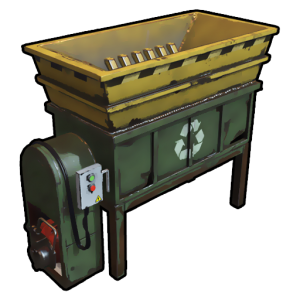
Version 1.0.9
14 downloads
The simplest Pocket Recycler with permissions Permission pocketrecycler.use - permission to use /rec command You can add custom permissions to change the recycling time and efficiency for players with permissions Commands Chat Command: /rec - Open Pocket Recycler DEFAULT CONFIGURATION { "Permission to use the plugin (default: pocketrecycler.use)": "pocketrecycler.use", "Recycler Container Size": 6, "Works only for those who have permission ?": true, "Use Sound Effects?": true, "Recycle Sound Effects": "assets/prefabs/misc/xmas/presents/effects/unwrap.prefab", "Recycler Open Sound Effects?": "assets/prefabs/npc/autoturret/effects/autoturret-deploy.prefab", "Allow blueprints to be obtained from recycled items.(default: false)": false, "Chance of obtaining blueprints from recycled items. 0 - 100 (default: 0)": 0, "Stack Multiplier Per Recycle Tick(default: 0.1)": 0.1, "Extra Scrap rate(default: 0)": 0.0, "Default recycling efficiency (pocketrecycler.use: 0.4)": 0.4, "Default recycling time duration (pocketrecycler.use: 8)": 8, "Recycler Permissions Settings": { "Recycling efficiency [permission] = efficiency (1.0 = 100%)": { "pocketrecycler.deluxe": 1.0, "pocketrecycler.premium": 0.8, "pocketrecycler.vip": 0.6 }, "Recycling time duration [permission] = time (sec)": { "pocketrecycler.deluxe": 0, "pocketrecycler.premium": 4, "pocketrecycler.vip": 6 } }, "Items recycle list": { "Enable item replacement after recycling": false, "Consider the efficiency value ?": true, "Get default item ingredients ?": false, "List of recyclable items": [ { "SkinID": 0, "Shortname": "wood", "Displayed item name": null, "Ingredients": [ { "SkinID": 2420097877, "Shortname": "paper", "Amount per 1 recycled item": 1, "Displayed item name": null } ] }, { "SkinID": 2420097877, "Shortname": "paper", "Displayed item name": null, "Ingredients": [ { "SkinID": 0, "Shortname": "wood", "Amount per 1 recycled item": 1, "Displayed item name": null } ] } ] } } DEFAULT LANG FILES EN { "permission": "You do not have permission to use this command!", "INPUT_STRING": "Input", "EFFICIENCY": "EFFICIENCY {0}%, {1} SEC", "CAN_RECYCLE": "You cannot perform this action while: <color=#FBD900>{0}</color>", "BUILDING_BLOCKED": "in another player's building zone" } RU { "permission": "У вас нет разрешения для использования этой команды!", "INPUT_STRING": "Ввод", "EFFICIENCY": "ЭФФЕКТИВНОСТЬ {0}%, {1} СЕКУНД", "CAN_RECYCLE": "Вы не можете выполнить это действие находясь: <color=#4A95CC>{0}</color>", "BUILDING_BLOCKED": "в зоне запрета строительства" }$3.99 -
Version 1.0.1
51 downloads
A high-intensity, tactical combat monument designed to transform your server into a competitive battleground. Gameplay Custom Arena - Every prefab is placed by hand Built for competitive fights & events - Recommended players in the arena is 35-40 Not 1/1 the same as in EFT - Artistic choices were made Designed for woodland and CQB Balanced sightlines and flank routes Build Quality Optimized for performance (12443 prefabs) Detailed indoor and outdoor environments Realistic monument layout Runs on a potato Events & Arena Ready TDM / Gun Game / CTF / Clan Wars / FFA / Loot Arena Plug-and-Play Friendly Drag & Drop ready (some alpha-channel adjustments need to be done around some of the buildings) Supports custom spawn points and loot crates Customization Options Editable loot crates can be placed in any room Can be divided to multiple arenas Night-vision battle ready Drag & Drop the custom prefab Apply the heights, splat, topology and alpha map Adjust the alpha map where it's needed (boiler building, sewer, new gas station, old gas station, skeleton) Apply the road map Reload the map and you're done Redesigns are expected. Expansion of the map - river and garages - is coming! Monument and standalone prefabs are coming!$40.00- 1 comment
- 1 review
-
- 2
-
-
- #escape from tarkov
- #eft
- (and 11 more)
-
Version 1.2.0
2,371 downloads
Defend your home.. well.. defend what's left of it! Welcome to an epic new event where the players will defend their bases against waves of Frankenraiders! They will use any weapons they have available to try to raid your base. Some will come with whatever they can swing at you and your base, some will just try to defend their kin, some have found some heavy weaponry too! I think that one has a rocket launcher?! Description To launch the event first you must find a flare bright enough to attract their attention. You'll be able to find flares bright enough to attract an Easy Frankenraid in Bradley, Elite, Military, and Supply crates. When you've found a flare just toss it on or near the base within Tool Cupboard range. Once you successfully defend an Easy Frankenraiding party, you will be rewarded with a flare bright enough for a Medium party. Then upon defending successfully against a Medium raid, well if you really want to risk your wipe being wiped by a full Frankenraider party, then you will have earned a flare bright enough to attract a Hard Frankenraid! When you complete any difficulty level and are able to defend your base, a chinook will be sent to your location with rewards for your service to the island in clearing out the threat! If your base is destroyed, the event ends, chat notifications are sent, and there you stand in shame. Hopefully you're on a low pop server and not too many people noticed. It's okay champ, happens to the best of us some days! Just keep an eye on the in game UI like the timer and wave information to give yourself the best shot at keeping your base standing! There are various ways to configure this plugin to customize it for your server, for any level and number of players. The creativity is in your hands with the configuration file as well as your communities wants or needs. The loot table, the flare spawns, the different enemy types and their setups, everything is there for you to customize this if you so choose. Dependencies (optional, not required) True PVE GUI Announcements Notify AlphaLoot CustomLoot Base Repair Chat commands /defstop - in game command to end event in your current Tool Cupboard range (be near the event you are trying to end) - only for administrators! /checkfoundations - checks all the foundations of the house for the event (it is necessary to be inside the Cupboard area of the house) ⊘ - you or your friends are not the owner of the foundation ⊝ - the foundation does not match in height/depth ⊛ - the foundation does not match the topology (prohibited topologies: Cliff, Cliffside, Decor, Building, Monument, Clutter, Mountain) ◉ - the foundation is located within a radius of 40 meters from the custom monument Console commands (RCON only) giveflare {skinid} {steamid} - Console command to give a custom flare with a Steam Workshop SkinID ({skinid}) to a player using their SteamID ({steamid}) Plugin Config en - example of plugin configuration in English ru - example of plugin configuration in Russian My Discord: KpucTaJl#8923 Join the Mad Mappers Discord here! Check out more of my work here! Creator of the default configuration – jtedal Help in creating a plugin description – Jbird$40.00 -
Version 1.3.5
4,674 downloads
Take your players to new heights in the game of Rust, and get a few laughs watching people try to fly one for the first time! Introducing Jetpack! A plugin that allows your players to soar around like never before in the game of Rust. Grab this plugin and give your players something to talk about! Many functions have already been implemented like the ability to shoot while piloting a jetpack, and the plugin will continue to expand and grow with the community. You'll find the configuration covers almost anything you can think of, and you'll see a breakdown of the configuration file in the description below. By default you can simply press the middle mouse wheel to equip and remove the jetpack quickly, you can't run around once you've equipped it. You can customize loot crates the jetpack might appear in, and all of the stats from thrust to rotation and all of the other controls. Be sure to check the permission section and feel free to use the command creatively to give jetpacks as an award for completing other tasks on your server using the commands provided. Make sure you have some lowgrade handy, let's take to the skies! Сontrols Space bar - thrust W/S keys - pitch axis A/D keys - yaw axis Chat commands (check config for permissions) /jet - toggle jetpack on & off /givejetpack - give a jetpack to yourself Console commands (admin only) givejetpack - give a jetpack to yourself givejetpack SteamID - give a jetpack to player using their SteamID Plugin config en – example of plugin configuration in English ru – example of plugin configuration in Russian Check out the rest of my work: Adem's Codefling Library You can reach out to me in Discord: Adem's Discord Profile Thanks to Jbird for writing, translation, & support: Jbird's Discord Profile Join the Mad Mappers Discord!$19.99 -
Version 2.3.9
7,853 downloads
Creates a unique event at the Harbor monument for players to participate in for rewards. Players must battle numerous NPCs and APCs to access the puzzle to open the loot room! Description This event started off as a warning on the chatbox about the ships coming soon to dock in Port, loaded with precious cargo. After the period has passed, a ship appears in one of the locations at Harbour that are accessible from the map, where the crane loads the container. The loading area is protected by one Tank and 7 NPCs by default. The container door is locked, you must push a button from inside the cranes cockpit to open the door. Inside the container, there is a default security camera, locked box, 2 DMS, 2 Elite, and 2 Military boxes. The locations and loot from all crates/NPCs can be configured within configurations, and unwanted crates/NPCs added or removed. Also, ships will generate the default ship loot, e.g. The config file allows to modify tank as well as loot inside of the ship. When the event occurs, the map displays the markers (configured in the config file). All players that are inside the event area will have a timer counting down the amount of time until the event ends. Dependencies Required NpcSpawn Dependencies (optional, not required) True PVE PveMode GUI Announcements Notify Discord Messages AlphaLoot CustomLoot NTeleportation HeliControl Economics Server Rewards IQEconomic Kits Chat commands (only for administrators) /harborstart – starting of the event /harborstop – ending of the event /harborpos – determining the position and rotation coordinates for changing the location of NPCs and crates.It should write in the configuration (Attention! The event must be started, the current position of the administrator in relation to the cargoship is read) Console commands (RCON only) harborstart – starting of the event harborstop – ending of the event Plugin Config en - example of plugin configuration in English ru - example of plugin configuration in Russian Hooks void OnHarborEventStart() – called when the event starts void OnHarborEventEnd() – called when the event ends void OnHarborEventWinner(ulong winnerId) – called at the end of the event, where the winnerId is the player who did more actions to complete the event My Discord: KpucTaJl#8923 Join the Mad Mappers Discord here! Check out more of my work here!$35.00 -
Version 1.0.0
8 downloads
Welcome to the custom monument pack; 3x Military Checkpoint Pack. This Military Checkpoint Pack contains 3 custom monuments that can be placed on roads anywhere on the map. Each checkpoint features loot, Scientists, and various other elements. Checkpoint 1: Focuses on general loot with multiple barrels, crates, and fuel barrels. Checkpoint 2: Features 5 Scientists and mixed loot including medical and car parts. Checkpoint 3: Contains a balanced mix of crates and barrels. Features: Small in size to place anywhere on a map! Minimal prefab count to help performance whilst having a detailed atmosphere! Checkpoint 1 - 92 / Checkpoint 2 - 68 / Checkpoint 3 - 43 - Has a total entity count of 203. Various loot spawns around the checkpoints, and one checkpoint has NPCs. Unable to build in the monument. However, players are able to place wooden barricades but not on the roads. All masks available for height/splat/topology! Loot Spawns: Checkpoint 1; 8 Barrels 5 Low Grade Fuel Barrels 4 Brown Crates 2 Tool Crates 2 Basic Crates 1 Ammo Crate 1 Food Crate Checkpoint 2; 5 Scientists 3 Brown Crates 2 Barrels 1 Basic Crate 1 Food Crate 1 Medical Crate 1 Low Grade Fuel Barrels 1 Tool Crate 1 Car Part Crate Checkpoint 3; 4 Brown Crate 3 Barrels 2 Low Grade Fuel Barrels 2 Tool Crates 1 Basic Crates 1 Food Crate 1 Car Part Crate How To Use: 1. Copy the contents of the prefab folder to your RustEdit Custom Prefabs folder. 2. In RustEdit, place the prefab down and apply the prefab modifiers. 3. Create a new Path, select "Road" and align the road with the entrance to the monument. 4. If you cannot see the name of the monument on the map, add "MonumentMarker" via prefabs list. Place it in the center of the monument and name it: "Checkpoint 1-2-3". 5. Now save, upload to dropbox to be able use as a custom map on your server! This prefab requires rustedit.dll https://github.com/k1lly0u/Oxide.Ext.RustEdit$4.99-
- 2
-
-
- #rust monument
- #monument
- (and 13 more)
-
Version 1.0.0
4 downloads
Welcome to the custom monument; Havoc Point (A Military Hub) Havoc Point is a once-formidable military stronghold, now a crumbling relic of past battles—scarred by war and slowly reclaimed by time. Features: Small in size to place anywhere on a map! Minimal prefab count to help performance whilst having a detailed atmosphere! Has an entity count of 337. Has various loot inside and outside with 19 NPC’s. Unable to build in monument. However, players are able to place wooden barricades. All masks available for height/splat/topology! Has a Recycler and an Oil Refinery. Has 3 Monument Cameras (hp1 - hp2 - hp3) Loot Spawns: 19 Scientists 7 Barrels 6 Low Grade Fuel Barrels 3 Brown Crates 3 Med Crates 2 Diesel Fuel 2 Fuel Crates 2 Military Crates 2 Basic Crates 2 Food Crates 2 Car Part Crates 1 Component Crate 1 Green Card Spawn 1 Tool Crate How To Use: Copy the contents of the prefab folder to your RustEdit Custom Prefabs folder. In RustEdit, place the prefab down and apply the prefab modifiers. Create a new Path, select "Road" and align the road with the entrance to the monument. If you cannot see the name of the monument on the map, add "MonumentMarker" via prefabs list. Place it in the center of the monument and name it: "Havoc Point". Now save and upload to dropbox the use as a custom map! This prefab requires rustedit.dll https://github.com/k1lly0u/Oxide.Ext.RustEdit$7.99-
- 2
-
-
-
- #rust monument
- #monument
- (and 12 more)
-
Version 1.1.7
114 downloads
WelcomePlus is a lightweight, community-driven plugin developed to make your server feel welcoming with personalised greeting messages that actually matter. Features Rank-Based Welcome Messages - Customisable messages based on player permissions Playtime Tracking - Track total playtime and current session time Interactive GUI - Modern interface accessible via /wp or /welcomeplus Multi-Language Support - English and Spanish included, easy to add more Admin Tools - Player lookup, statistics, and data management Opt-Out System - Players can disable automatic welcome messages Command Aliases - Fully configurable command aliases External Language Files - Easy translation management via JSON files Separate Welcome Messages File - Edit welcome messages independently from language files Permissions welcomeplus.use - Required to receive welcome messages (if enabled in config) welcomeplus.vip - VIP rank permission welcomeplus.admin - Admin rank permission welcomeplus.owner - Owner rank permission Custom Rank Permissions: Define your own ranks and permissions via the config file's `CustomRankPermissions` block. Installation & Setup 1. Download and drop WelcomePlus.cs into your oxide/plugins/ folder 2. Download and place the lang/ folder in oxide/lang/WelcomePlus/ 3. (Optional) Place WelcomePlus_WelcomeMessages.json in oxide/data/ for custom welcome messages 4. Restart your server or run oxide.reload WelcomePlus 5. Configure ranks and permissions in the generated config file (optional) 6. Customise welcome messages in WelcomePlus_WelcomeMessages.json (optional) That's all - the plugin works out of the box with sensible defaults! Quick Start Commands Players: /wp - Open main menu /playtime or /pt - View your playtime /session - View current session /playtimeleaderboard or /ptl - View top 10 players Admins: /wp stats - Plugin statistics /wp reset <player> - Reset player data /wp defaults or /wp resetconfig - Reset config and welcome messages to defaults /playtime <player> - View any player's stats Configuration The plugin generates a config file at oxide/config/WelcomePlus.json with all settings. Key options: Custom Rank Permissions - Define rank labels and their permissions UI/Text Toggle - Choose between GUI panels or chat messages Welcome Settings - Enable/disable first-time and returning player messages Command Aliases - Customise all command aliases Welcome Messages File - Edit welcome messages in `oxide/data/WelcomePlus_WelcomeMessages.json` Reset to Defaults - `/wp defaults` command resets config and welcome messages to defaults Welcome Messages File Welcome messages are stored in oxide/data/WelcomePlus_WelcomeMessages.json (automatically created on first run). This file contains all rank-specific welcome messages and is separate from language files for easier editing. File Structure: FirstTime - Messages for first-time players (by rank) WelcomeBack - Messages for returning players (by rank) Supports multiple messages per rank (randomly selected) Supports placeholders: {name}, {rank}, {total}, {session} Language Files Language files are in oxide/lang/WelcomePlus/: en.json - English (default) es.json - Spanish To add more languages, create new JSON files (e.g., fr.json) following the same structure. Note: Language files contain UI text and system messages. Welcome messages are primarily stored in the welcome messages file, with language files as fallback. Custom Ranks Define custom ranks in the config: "CustomRankPermissions": { "default": "", "vip": "welcomeplus.vip", "mod": "welcomeplus.mod", "batman": "welcomeplus.batman", "admin": "welcomeplus.admin", "owner": "welcomeplus.owner" } Priority System: Rank priority is determined by config order (first entry = highest priority) If a player has multiple permissions, the rank appearing first in config wins Example: If "staff" appears before "mod" and player has both, "staff" messages are used Automatic Permission Registration: Permissions from CustomRankPermissions are automatically registered No code changes needed - just add to config and reload Then add rank-specific messages to WelcomePlus_WelcomeMessages.json: Add rank key to FirstTime section for first-time messages Add rank key to WelcomeBack section for returning player messages Messages fall back to language files if not found in welcome messages file Support Discord: @olvrdncnsctt For detailed documentation, see README.txt. For version history, see WelcomePlusChangelog.txt. README.txt WelcomePlusChangelog.txt$8.99 -
-min.thumb.png.11fd97be00ba0154cdfef1ef05b08009.png)
Version 1.1.5
1,190 downloads
Allow players to place ziplines! The plugin will add various types of ziplines to your server, for each of which you can adjust the speed, the maximum distance between points, the color of the cable and even the ability to go up! Just install two fasteners and they are automatically connected by a cable. To start moving, look at the rack and press E. f there is an obstacle on the way, the player will fall. The cable can be of various colors: red, black, blue, yellow or green! You can configure the spawn of different presets of ziplines in different crates or add items from the config to your server store! Permissions pocketzipline.give - allows you to give a zipline to yourself and other players Chat commands /givezipline <ZiplinePresetName> <amount> - give a zipline to yourself. Console commands givezipline <ZiplinePresetName> <amount> - give a zipline to yourself; givezipline <ZiplinePresetName> <amount> <userId> - give a zipline to player (Suitable for RCON); Config en - example of plugin configuration in English ru - example of plugin configuration in Russian$14.99 -
.thumb.png.c7f4bb064c82c82a091c981534225577.png)
Version 1.9.7
17,640 downloads
New Year Update The New Year is coming and I have prepared for you a new preset customization for the train!After installing the update, customization will be automatically applied to all cars in the configuration of the armored train. To disable this, make the "Customization preset" parameter empty in the config. You can also disable the customization of certain wagons or change the customization of the NPCs in the file oxide/data/ArmoredTrain/NewYear New Year's map from the video: Halloween Update Have you already prepared your server for Halloween? On the eve of the Halloween Rust update, I have prepared for customization of all armored train cars. After installing the update, customization will be automatically applied to all cars in the configuration of the armored train. To disable this, make the "Customization preset" parameter empty in the config. This plugin will add an armored train to your server, which can travel both in the subway and by rail. It can consist of any number of wagons. A helicopter can accompany it. Bradley, npc, turrets, simsites can be installed on the train. The plugin allows you to create any number of train presets, for which the order of wagons, the helicopter preset, the probability of spawn and the duration of patrolling can be specified. Each wagon or locomotive can be configured separately. Any speed can be set by the locomotive.If there is no spawn of trains on the surface on your custom map, read the section "Custom spawn points” Custom spawn points If you are using a custom map in which there are no spawn trains on the surface, but there is a railway, then for the train to work on the surface, you need to add custom spawn points of the train. Instruction: Stand at the point where you want the train to spawn Enter the command /atrainpoint If you receive a message that a point has been created, enable "Use custom spawn coordinates [true/false]” in config For correct operation, it is recommended to create several spawn points of the train Chat commands (only for administrators) /atrainstart– launches the event in a random configuration /atrainstartunderground - forcibly launches an event underground /atrainstartaboveground - forcibly launches an event aboveground /atrainstart <trainPresetName> – launches the event in the <trainPresetName> configuration /atrainstartunderground <trainPresetName> /atrainstartaboveground <trainPresetName> /atrainstop– stops the event /atrainpoint– creates a custom spawn point of the train in your position Console commands (RCON only) atrainstart– launches the event in a random configuration atrainstartunderground - forcibly launches an event underground atrainstartaboveground - forcibly launches an event aboveground atrainstart <trainPresetName> – launches the event in the <trainPresetName> configuration atrainstartunderground <trainPresetName> atrainstartaboveground <trainPresetName> atrainstop – stops the event Config en – example of plugin configuration in English ru – example of plugin configuration in Russian Dependencies (optional, not required) True PVE PveMode GUI Announcements Notify DiscordMessages AlphaLoot CustomLoot Economics Server Rewards IQEconomic Api bool IsArmoredTrainActive() bool StopArmoredTrain() bool StartArmoredTrainEvent() bool EndArmoredTrainEvent() bool IsTrainBradley(uint netID) bool IsTrainHeli(uint netID) bool IsTrainCrate(uint netID) bool IsTrainSamSite(uint netID) bool IsTrainWagon(uint netID) bool IsTrainTurret(uint netID) Vector3 ArmoredTrainLocomotivePosition() Hooks OnArmoredTrainEventStart OnArmoredTrainEventStop Contact me in Discord: Adem#955$29.99 -
Version 1.3.2
2,642 downloads
This plugin adds a new dynamic zombie event to your server, the appearance of which you can customize in the configuration for any standard and custom monuments Description The event begins with a message in chat that the evacuation of the general from the island will begin soon. At the end of the configured timer, a military checkpoint randomly appears on the map and it is said in the chat that the general's guard was killed, and the general himself was seriously wounded The player and his friends (if you have any) need to arrive at the military checkpoint and call for help for the general with the laptop located at the checkpoint control center After the player calls for help, waves of zombies will attack the base. During the preparation phase, players can upgrade the base with turrets, purchase ammunition for them, or place it from their inventory through the checkpoint control center. In the doorways, players can install barricades of different types (5 types of barricades, which differ in the amount of Hit Points) to contain the incoming waves of zombies. The player can also use a hammer to repair the barricades. During the attack phase, waves of zombies will be directed at you. You cannot allow zombies to kill the general, otherwise, the event will end. There are several zombie types (in future updates it is planned to add to the list of zombie types). Each type of zombie has its own tasks. After the end of each wave, a room with crates opens, where there will be a reward for you At the end of the event, a helicopter arrives for the general and picks him up, and you are notified in chat that the event has been successfully completed. When the general dies, the event ends, as will the attack wave, the event, and all hope is lost! All the necessary settings of zombies, timers, items in crates for each wave, as well as settings for each wave (the number of zombies of each type, the time of the preparation phase and the attack wave, etc.), settings of the military checkpoint (the price of buying something or improving the base, used ammo in turrets, etc.), the price of repairs, barricade options, and many other settings are available in the plugin configuration Also in the event there are additional missions during the waves of attack, during which you will receive an additional reward (in future updates it is planned to add to the list of additional missions). You can set up additional missions in the settings of each attack wave The event provides the use of several military base designs. The Mad Mappers team will add to the list of constructions for the event in the future. When an event appears, the plugin randomly selects the construction of the base from those that you have in the data folder, and also randomly selects a place to appear from all those that have been set in the plugin configuration Also, the Mad Mappers team will begin to offer support in our custom maps for this event and contain files for the appearance of bases in custom monuments and locations on our maps Constructions of other bases Defendable Bases (Bundle-1) Defendable Bases (Bundle-2) Custom Map Maps that have a configuration for the appearance of bases on their custom monuments You can also download all these files for all maps here Deathland Badlands Destroyed World Detroit: Irreparable Damage Oregon 2: Last Hope Oregon: Land of Dead Pandora All files for custom maps are stored in the folder oxide/data/DefendableBases/CustomMap. You don't have to delete files from there, the plugin will understand by itself which map is currently installed on the server and will download only the necessary file if there is one in this folder. The plugin will tell you about this process in the console during the plugin loading. It will write in the console what file works on the current map, and what ones don’t work If you want to create a custom place for the base to appear on your custom map or on a map that is not in this list, you have to create the ID of this custom map. After that you need to place an item such as a RAND Switch on your map. It must be placed randomly, where it will not be visible to other players. You will get the identifier, if you add up the three coordinates of the position of this object from RustEdit (x, y and z) and write the resulting value in the parameter of your file (an example file can be taken from ready-made files) - ID As an example, let's take the coordinates (26.896, -456.158, 527.258), then our identifier is 26.896 - 456.158 + 527.258 = 97.996 Then you need to indicate a list of bases that will appear on your map. You need to copy the configuration data block for each base construction. In the database parameters you will specify the name of the base construction and a list of positions where it can appear The list of positions consists of several parameters. First you need to specify the position and rotation of the appearance of the base on your map, then you can get these values using RustEdit. You need to choose the place for the appearance of the event on the custom monument, where the player has a ban on construction You have such a parameter as the pursuit radius for such a type of zombie as Blazer. These zombies run around the base along this radius and shoot at the players. Please note! Some object sometimes may be on your map in this radius, for example a fence, and they will not be able to overcome it, because they cannot run inside this circle, and they haven’t a way out for them so you need to leave them a way or adjust it by increasing or decreasing the radius You have a list of coordinates for the points of appearance of all zombies. It is necessary to indicate these coordinates evenly around the base so that the zombies run from different sides and attack all sides of the base, not just a few ones. So it will be more interesting to play this event. Also note the fact that you can indicate the coordinate where a player can create his house, so it is advisable to specify all the coordinates that are in the construction ban zone, they are in the zone of your custom monument. You can also get the coordinates of the appearance of zombies using RustEdit Images You may want to change some parameters during the plugin installation or the base configuration In the plugin configuration these parameters are: Custom Barricades => Price for repairs (per hammer hit) => List of items, 3 maximum (if the economy method is 3) In the base configuration, these parameters are: List of turrets => Price to unlock => List of items, 3 maximum (if the economy method is 3) List of turrets => List of ammo => Price => List of items, 3 maximum (if the economy method is 3) List of barricades to buy => Price => List of items, 3 maximum (if the economy method is 3) A list of items that are in the laptop inventory when the base appears List of attack waves => Additional missions => Reward for completing the mission => List of items If you change items in the current configuration items, you need to upload the image for this item to the oxide/data/Images folder. In order for the plugin to load this image and can use it for display in the player's GUI. If it is a standard Rust item, you need to name this image file by its ShortName. If it is a custom item, you need to name the image file by the SkinID of the item Then you need to make a few changes to the plugin configuration in the List of paths to GUI images item. You need to add a new image to this list. The name is the ShortName or SkinID of the item. The path to the image will look something like this: Images/{ShortName or SkinID}.png If you use the economy of some following points on your server as prices, you can change the image with the name Economic to your own with the same name All images must be used square. Attention! The lower size of the image file will be displayed to the player faster Dependencies Required NpcSpawn Dependencies (optional, not required) True PVE PveMode GUI Announcements Notify Discord Messages AlphaLoot CustomLoot NTeleportation Economics Server Rewards IQEconomic Chat commands (only for administrators) /warstart {name} – start the event ({name} – name of the base) /warstop - end the event Console commands (RCON only) warstart {name} – start the event ({name} – name of the base) warstop - end the event givebarricade {steamid} {level} {amount} - a player with a SteamID ({steamid}) is given a certain number of barricades ({amount}) of a certain level ({level}) Plugin Config en - example of plugin configuration in English ru - example of plugin configuration in Russian Base Config en - example of base configuration in English ru - example of base configuration in Russian Custom Map Config en - example of custom map configuration in English ru - example of custom map configuration in Russian My Discord: KpucTaJl#8923 Join the Mad Mappers Discord here! Check out more of my work here! Creator of the default configuration and the bases – jtedal Help in creating a plugin description – Jbird#2022$45.00- 116 comments
- 9 reviews
-
- 11
-
-
-

-
- #barricade
- #ch47
- (and 27 more)
-
Version 1.0.1
111 downloads
Combined Storage lets players connect multiple storage containers so they function as one large inventory. Includes automatic item sorting, search functionality, and filtering to keep storage clean and efficient. Readme Link - Click Here for Instruction and Documentation Highly recommend reading the FAQ section! All Your Items - In One Place Link multiple containers so they all share a single organized inventory. Automatic Sorting Items are automatically sorted as they are inserted, no manual effort required. Search Functionality Quickly find any item across all linked containers using a fast, built-in search bar. Simple Setup Simply press Link in a container to hook it up with the rest of them in your base. Unique View for Each Player Each player sees their own automatically sorted and filtered view of the shared inventory based on their preferences, without affecting anyone else.$24.99- 11 comments
- 3 reviews
-
- 3
-
-
- #inventory
- #storage
- (and 20 more)



.thumb.png.d8730004887666a2775699ef18eb252c.png)