Search the Community
Showing results for tags 'tool'.
-
Version 1.2.3
153 downloads
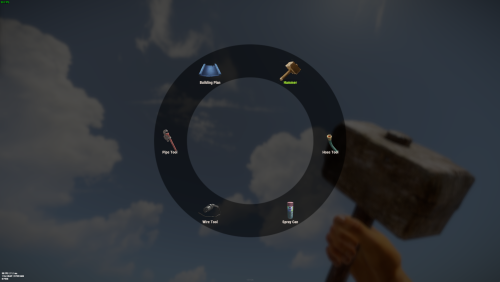
Allows you to quickly switch between available tools (configured in the config) by pressing the E key a menu will open in which the player can select the tool he needs. Commands: /give_mt - will give you the Multi Tool works only if you an admin. give_mt steamid in the server console will give the Multi Tool to a target player. You can change the Multi Tool skin in the config file. If you want to hide some tools or make them available only if play have permission you also can do this in the config file. Also you can enable unlimited resources for Building Blan used via Multi Tool. DEFAULT CONFIG$7.99- 20 comments
- 4 reviews
-
- 3
-

-
- #multi-tool
- #tool
- (and 2 more)
-

Version 1.3.13
121 downloads
NexusCheatRadar you are not obligated to turn web features on but doing so helps you recieve bans and other notifications from other servers **Keep your server clean. Catch cheaters before they ruin the wipe.** exusCheatRadar monitors your Rust server for cheaters across detection systems, sends rich Discord alerts with probability scores , and builds persistent player risk profiles across your entire server network. the plugin informs Admins , they investigate, you decide wether its valid or false then optionally send. to our public Player databse this databse relys on you so dont just report and ban , verifySteam join intelligence — VAC bans, game bans, account age, name history ServerArmour integration — plugin or direct API with local caching Network database — player profiles, aliases, IPs, server visit history, hours played, violations and bans persist across wipes Public website — search any player, view risk profiles, violation history, ban list Admin share flow — violations stay private until you click the Share link in Discord Ban system with /ncr.ban and /ncr.unban — kicks online players, records to network, sends Discord embed Website up and collecting and will be released as the database builds --- ## What It Detects - **ESP** — Flags players who keep looking at other players through walls and rocks - **No-Recoil** — Catches scripted spray patterns that are too perfect to be human - **Aimbot** — Detects unnatural snap-to-target aim movements - **Speed Hack** — Alerts when someone is moving faster than the game allows - **Strafe Hack** — Catches impossible sideways or backward movement speed - **Wall Looting** — Detects players opening containers through solid walls - **Item Spawning** — Flags sudden inventory spikes that don't match normal gameplay - **Debug Camera** — Catches unauthorized use of spectate/freecam mode - **Privilege Escalation** — Monitors for players running admin commands they shouldn't have - **Clan/Team Print to discord** Easily print full clan and their risk to a seperate webhook in discord - ** Ban/Unban** built within the plugin --- ## Discord Alerts Every detection sends a clean Discord embed with: - Player name and Steam64 ID - Quick links to Steam, ServerArmour, and BattleMetrics profiles - Detection details (probability, distance, positions) - Separate webhooks for each detection type so you can organize your channels --- ## Smart About Modded Servers Built for real servers, not just vanilla: - **Server multiplier support** — Won't false-flag on 5x or 10x gather rates - **SkillTree compatible** — Adjusts speed and gather thresholds when SkillTree perks are active - **Backpacks aware** — Doesn't flag item counts when players use their backpack - **Teleport safe** — Automatically ignores position jumps from /home, /tp, and respawns --- ## Steam & ServerArmour Intel When a player joins, NCR checks their background: - Steam account age, VAC bans, game bans, profile visibility - ServerArmour dirty flags, server bans, cheater bans - Previous name history and past risk scores on your server - All sent to Discord as a join intelligence report --- ## Admin Radar Built-in world radar for admins: - See players, sleepers, tool cupboards, stashes, bags, and corpses through walls - Toggle each type on/off with a sidebar UI strip - Color-coded with configurable nameplate sizes - Facing arrows show which direction players are looking --- ## Risk Scoring Every detection adds to a player's risk score. Scores decay over time so one-off incidents fade away. Configure auto-kick or auto-ban thresholds if you want automatic enforcement. --- ## Commands | Command | What it does | Commands /ncr — toggle world radar /ncr.lookup <name/id> — player history and risk /ncr.lookup <name/id> team/clan -player clan/team history and risk sent to discord /ncr.risk <name/id> — risk breakdown /ncr.incidents <name/id> — last 8 detections /ncr.watch <steamid> — priority monitoring /ncr.ban <steamid> [reason] [appeal url] — ban and record /ncr.unban <steamid> — lift a ban /ncr.webshare <steamid> <type> — manually share a violation /ncr.test esp|aimbot|norecoil — test Discord alerts --- ## Permissions - `nexuscheatradar.admin` — Required for all commands --- ## Quick Start Drop the .cs in oxide/plugins Add your Steam API key to config Add Discord webhook URLs to config Set "Nexus Website" > "Enabled": true to join the network — auto-registers on first load, no manual steps --- ## Requirements - Oxide/uMod or Carbon - A Discord webhook URL (at minimum one for ESP alerts) ## Optional Integrations - **ServerArmour** — Enhanced player intel on join (plugin or direct API) ⚠ Important This plugin is in active development. Detection thresholds are configurable and should be tuned for your server. High-latency players, SkillTree movement bonuses, and custom weapon configs can trigger alerts that are not cheating. Review all alerts before taking action. Auto-ban is disabled by default for this reason. Run in alert-only mode for at least one wipe before tightening thresholds. ## Support When requesting support, please include: - Your configuration file - Relevant console output - The detection type involved (ESP, No-Recoil, or Aimbot) ════════════════════════════════════════════════════════════ IMPORTANT NOTES (COMMON “IT DOESN’T WORK” ISSUES) ════════════════════════════════════════════════════════════ Kits may trigger a false item spawn flag if you a solution is being worked on this happens when kits give a abnormal amount of items normally found in 5 x and above servers toggle this feature off in your config should it happen 1) “My ESP alerts are not posting to Discord” If you enable Unified Threat AND suppression, individual ESP/NoRecoil/Aimbot webhooks can be suppressed. Config: "Risk Aggregation" • Use Unified Threat Webhook Reports = true/false • Suppress Individual Type Webhooks When Unified Is Enabled = true/false :contentReference[oaicite:12]{index=12} If suppressed, you may ONLY see reports in the Threat webhook channel (and only if the overall risk meets your minimum). :contentReference[oaicite:13]{index=13} 2) “/ncr commands do nothing” You are not a real server admin (IsAdmin/authlevel). These commands check admin status. :contentReference[oaicite:14]{index=14} 3) “ESP test works but live ESP doesn’t” That means Discord is wired correctly. Live ESP requires the scoring gates (distance/FOV/hits/cooldowns) to be met. Also check if Unified Threat suppression is enabled (see #1). :contentReference[oaicite:15]{index=15} ════════════════════════════════════════════════════════════ RECOMMENDED “FIRST-TIME SETUP” CHECKLIST ════════════════════════════════════════════════════════════ 1) Set Discord Webhooks -> Enabled = true 2) Paste at least ESP Webhook + No-Recoil Webhook + Aimbot Webhook 3) oxide.reload NexusCheatRadar 4) Run: /ncr.test esp, /ncr.test norecoil, /ncr.test aimbot 5) Run: ncr (turn on the radar) 6) avoid leaving detect sleepers on in the esp section as it can causes false positives$19.99 -

Version 1.0.0
4 downloads
This plugin allows you to view the Tool Cupboards of the entire server on the map, and to see the list of players authorized, if you have permission. Settings : - Radius F1 Commands : - cm.reload (to reload markers) Permissions : - oxide.grant user <steamID/user> cupboardmarker.use WuyZar's Discord : https://discord.gg/NVwRcQwGwh$2.50 -

Version 1.1.0
20 downloads
xCrosshair xCrosshair is a customizable crosshair system for Rust servers, giving players full control over their personal reticle/crosshair through an ingame UI menu. With multiple built-in shapes, color presets, HEX input support, outlines, and adjustable visual parameters, each player can design a crosshair that fits their preferred style. Features 7 crosshair shapes Full customization options Size Thickness Alpha/Transparency Outline toggle RGB/HEX color selection Quick-use color presets Per-player saved settings Chat Commands /crosshair - Opens the crosshair settings menu /ch - Opens the crosshair settings menu Permission xcrosshair.use - This permission is needed to use the crosshair. Preview ^ Sorry for bad video quality.$12.99 -
Version 1.0.5
42 downloads
xPermissionManager A modern, intuitive, and powerful permission management tool for Rust servers. xPermissionManager provides a complete visual interface for managing user and group permissions directly ingame. No more console commands, guesswork, or digging through permission lists. Everything is organized, accessible, and easy to control through an straight forward UI. Whether you're adjusting a single permission, overseeing full group structures, or assigning temporary access, xPermissionManager gives server owners a fast and efficient possibility to do so. Plugin Preview (Video) Full Permission Control Grant or revoke any permission from groups or individual players. Timed Permission System Assign temporary permissions that automatically expire (e.g., 30m, 1h, 1d, 1w, custom durations). Timed Group Memberships Add players to groups for a limited time - Perfect for kits, VIP, special events or whatever. Comprehensive UI A clean and intuitive interface for browsing permissions, switching groups, managing users, and applying timed access. User & Group Browsing View all available groups, check individual player permissions, and toggle them instantly. Clear Feedback Every change is acknowledged with clear messages to help admins avoid mistakes. Permission xpermissionmanager.use // Allows a player to open and use the xPermissionManager UI Chat Commands /xpm /xpmuser <name or steamID> /xpmtimed /xpmgroups /xpm [Opens the Permission Manager UI] PERMISSION OR ADMIN REQUIRED /xpmuser <name or steamID> [Opens the UI for managing a specific player’s permissions/groups] PERMISSION OR ADMIN REQUIRED /xpmtimed [Shows all active timed permissions for a player. Includes remaining duration and whether they came from a group] /xpmgroups [Shows all active timed group memberships for a player] Console Commands </> API$11.99- 1 review
-
- 2
-

-

-
- #permission
- #manager
- (and 20 more)
-

Version 1.0.5
86 downloads
Enables administrators to perform administrative actions anonymously, hiding their profile when they use in-game chat as well as within the game environment, displaying 'ADMIN' instead of their nickname above their character. Commands /aa - Admin Anon Enable /aa - Admin Anon Disable Permissions adminanon.use - Enables anonymity in the game. Permission Recommendation: We recommend adding the permission to the individual user rather than to a group. For example, grant the permission to John Doe directly, not to the "admin" group (even if John Doe belongs to that group). Change Color This plugin allows Rust admins to hide their identity in the chat. To change the username color for the "ADMIN" group, configure the "admin" group in BetterChat. Changes in BetterChat will automatically reflect in the plugin. Steps: 1. Open BetterChat Configuration: Locate and edit BetterChat.json. 2. Edit the "admin" group: Change the username color for the "admin" group. 3. Save and Apply Changes: Save and reload BetterChat & AdminAnon (Just in case) Change avatar admin ? Changing the admin's avatar is unnecessary for this plugin, as its purpose is to hide the admin's identity, not to impersonate another player. Configuration { "Stay Anonymous After Reconnecting": false, "Properties": [ { "Name": "ADMIN", "Better Chat Group": "admin", "Required Permission": "adminanon.use" } ] } Data (example) { "PlayerData": { "76561198196941415": { "Groups": [ "admin", "default" ], "Name": "ADMIN", "Better Chat Group": "admin", "Required Permission": "adminanon.use" } } } Language (EN) { "No Permission": "<size=12>You don't have permission to use this command</size>", "No Profile Permission": "<size=12>You don't have permission to use this profile</size>", "Admin Anon Enabled": "<size=12>Admin Anon has been <color=#00fa9a>ENABLED</color></size>", "Admin Anon Disabled": "<size=12>Admin Anon has been <color=#00fa9a>DISABLED</color></size>", "Admin Anon Changed": "<size=12>Fake identity has changed to <color=#00fa9a>{0}</color></size>", "Requested Fake Identify Not Found": "<size=12>Requested fake identity is not found</size>", "No Fake Identities Available": "<size=12>No fake identities available</size></size>", "Fake Identify Not Found": "<size=12>Fake identity is not found</size>", "Data Corrupted Up": "<size=12>Data is corrupt</size>" }$6.00 -
![More information about "Build Tools [grade/remove/skins]"](https://codefling.com/uploads/monthly_2026_03/v4final.thumb.gif.9312291fdac2d66c1b6d0d36f716fcad.gif)
Version 1.5.46
4,717 downloads
Introducing a feature-rich plugin that will take your in-game building experience to new heights - Build Tools! This plugin is not just a tool, it is the key to creating incredible builds and will make the processes of upgrading, removing and even downgrading buildings easy and fun! !ATTENTION! After the last update of the game, the additional slot does not work Features of Build Tools Beautiful user interface: Our plugin has a lovely and easy-to-use interface that makes building tasks smooth and functional; Bar progress display: Keep track of your building progress with a clear progress bar, so you can see your upgrades easily; Upgrade of the entire building at once: You can make them stronger and more secure quickly; Interface customization: Personalize the user interface to match your preferences and workflow. Returning an item to remove: Don't worry about losing items when removing structures; our plugin ensures you get them back; Returning items with condition as in the game: Items are returned to the same condition as in the game, with the option to set their condition as a percentage; Blocked list items for remove: You can specify which items should not be removed for precise construction control. Ability to use icons both from the game and your own Work with Clans/Friends/NoEscape Building Skins (+ automatic parsing command) Downgrade: Make structure downgrades simple and adapt your base to changing needs with just a few clicks Edit config via in-game interface (no JSON editing required) Commands /up [1-4] - enable upgrading mode /up all - allows you to upgrade the entire building at once /remove - enable removing mode /remove all - allows you to remove the building at once /down - enable downgrading mode /down all - allows you to downgrade building at once buildtools.parse.skins – allows parsing new building skins from the game + images to them /bskin – open settings menu Permissions buildtools.all – allows you to upgrade/remove the entire building at once buildtools.free – allows you to upgrade buildings for free buildtools.edit – allows you to enable edit mode buildtools.vision – allows you to toggle the remove mode on in the vision mode Video Hooks object canDowngrade(BasePlayer player, BaseEntity entity) object canRemove(BasePlayer player, BaseEntity entity) object CanBuildToolsGiveRefund(BasePlayer player, BaseEntity entity) FAQ Q: Where can I see an example of a config? A: Config$21.95- 335 comments
- 16 reviews
-
- 8
-
-
-
- #building
- #foundation
- (and 27 more)
-

Version 0.1.5.1
208 downloads
A plugin for collecting game statistics with database support, compatible with both SQL and web API methods. This functionality empowers website owners to display the desired statistics from the database on their sites. Moreover, it offers the capability to send data via API, which proves highly beneficial in scenarios where your gaming server and database reside on separate machines and the database restricts connections beyond localhost. Please note that an instruction manual will be included in the downloaded file and it is imperative for users to read it thoroughly. Collecting(The full list is available below in the section Collected Data) : Server information; Team information; Clan information(in future); Feedback(F7) information; Report(F7) information; Player information. Sending data through: direct MySQL; via API(POST query) to MySQL. extendedstats.admin - Provides access to command estats. { "Chat command": "estats", "Is it worth enabling GameTips for messages?": true, "Unique ID of the current server": 0, "Database upload method(Disabled, WebAPI, MySQL)": "WebAPI", "Interval in seconds at which an attempt to load changes into the database will occur": 300.0, "Is it worth logging messages to the console when uploading to the database?": true, "API - Service URL": "https://localhost/ExtendedStats/index.php", "API - Service access key": "GlBRw-elM6v-gjko3-cxSDk-Tsy7B", "API - Timeout": 5.0, "MySQL - Host": "localhost", "MySQL - Port": 3306, "MySQL - Database name": "db_playrust", "MySQL - Username": "root", "MySQL - Password": "root", "Database table name - Servers": "db_servers", "Database table name - Teams": "db_teams", "Database table name - Clans": "db_clans", "Database table name - Feedbacks": "db_feedbacks", "Database table name - Reports": "db_reports", "Database table name - Players": "db_players", "Database table name - Players Balances": "db_players_balances", "Database table name - Players Stats": "db_players_stats", "Database table name - Players Farms": "db_players_farms", "Database table name - Players Gambling": "db_players_gambling", "Database table name - Players Kills": "db_players_kills", "Database table name - Players Explosions": "db_players_explosions", "Database table name - Players Raids": "db_players_raids", "Is it worth clearing saved statistics when a wipe is detected?": true, "Is it worth clearing the database when a wipe is detected?": true, "List of statistic categories to clear when a wipe is detected. Leave empty to recreate defaults": [ "players", "teams", "clans", "feedbacks", "reports" ], "List of language keys for creating language files": [ "en" ], "Dictionary of display names for deployable entities by key": {}, "Wipe ID": null, "Version": { "Major": 0, "Minor": 1, "Patch": 5 } } EN: { "CmdMain": "Available commands:\n\n<color=#D1CBCB>/estats</color> <color=#D1AB9A>upload</color> - Initialize a forced data upload to the database\n\n--------------------------------------------------", "CmdDBNotSelected": "Database connection method not selected!", "CmdAlreadyUploading": "You can't initialize a data upload to the database because there is already an active upload!", "CmdUpload": "You have successfully started a forced data upload to the database." } RU: { "CmdMain": "Доступные команды:\n\n<color=#D1CBCB>/estats</color> <color=#D1AB9A>upload</color> - Инициализация принудительной загрузки данных в базу данных\n\n--------------------------------------------------", "CmdDBNotSelected": "Метод подключения к базе данных не выбран!", "CmdAlreadyUploading": "Вы не можете инициализировать загрузку данных в базу данных, так как уже существует активная загрузка!", "CmdUpload": "Вы успешно начали принудительную инициализацию загрузки данных в базу." } ServerData: ServerName ServerIdentity ServerIP ServerPort QueryPort ServerDescription ServerHeader ServerURL ServerTime ServerTags GameTags MaxPlayers ServerEntities ServerFPS ServerAvgFPS ServerUptime ServerMap MapSize MapSeed FirstSave LastSave WipeID ServerVersion ServerProtocol RconPort RconPassword TeamData: TeamID TeamName CreatorID LeaderID TeamMembers ClanData(Temporarily not working) : ClanID ClanName CreatorID LeaderID ClanMembers FeedbackData(Since the corresponding Oxide hook has shifted, not all types of feedback are processed) : ID UserID Subject Type Message Time ReportData: ID UserID TargetID TargetName Subject Type Message Time PlayerData: Info: UserID DisplayName Flags Language GroupsList TeamID ClanID BanReason Connection: PlayedTime - requires the PlaytimeTracker/PlayTimeRewards plugins IdleTime - requires the PlaytimeTracker/PlayTimeRewards plugins Connections Ping FirstConnectionIP LastConnectionIP FirstConnectionDate LastConnectionDate Balance: Balance - requires the Economics plugin Points - requires the ServerRewards plugin BankBalance - requires the BankSystem plugin IQBalance - requires the IQEconomic plugin Experience Reputation - requires the ReputationMaster plugin Statistics: TimeAlive - updates only after the player's death TimeSleeping - updates only after the player's death DistanceWalked - updates only after the player's death DistanceRun - updates only after the player's death TimeWilderness - updates only after the player's death TimeInBase - updates only after the player's death TimeInMonument - updates only after the player's death TimeSwimming - updates only after the player's death TimeFlying - updates only after the player's death TimeBoating - updates only after the player's death TimeDriving - updates only after the player's death Wounded WoundsInflicted WoundAssisted WoundRecovered DamageInflicted DamageTaken - updates only after the player's death Healed - updates only after the player's death ShotsFired - updates only after the player's death ShotsHit HalloweenVisits XmasVisits DeepSeaVisits ExcavatorStarts BearTrapInflicted BearTrapSteps MineInflicted MineSteps HandcuffsApplied Handcuffed PhoneCalls PhoneCallsTimeout MissionsStarted MissionsSucceeded MissionsFailed DeployedsList MonumentsList - requires the MonumentsWatcher plugin Farming: Barrels UnderWaterCrates ShreddedEntities DetectResourceFlags GreenDoors BlueDoors RedDoors FishAttempts Guts Supplies ExcavatorSupplies TropicalSupplies Chinooks Surveys ChickensHatched ChickenEggs BeehiveXP Blueprints CraftList GatherList RecycleList BuyerPurchaseList BuyerSpentList SellerSalesList SellerRevenueList CratesList FishList Gambling: BWG_Spins BWG_WinSpins BWG_SpendScraps BWG_WinScraps Slot_Spins Slot_WinSpins Slot_SpendScraps Slot_WinScraps Poker_Games - Placeholder Poker_WinGames - Placeholder Poker_SpendScraps - Placeholder Poker_WinScraps - Placeholder BlackJ_Games BlackJ_WinGames BlackJ_StandoffGames BlackJ_SpendScraps BlackJ_WinScraps RPS_Wins RPS_Losses RPS_Draws Kills: Kills FriendlyKills Deaths Suicides Beehives Chickens FarmChickens Snakes Boars Stags Horses Wolves Bears Polarbears Panthers Tigers Crocodiles Sharks PlayerNPCs Scientists Zombies Patrols Bradleys KillVehicles: PedalBikes MotorBikes Cars RowBoats RHIBs SubmarinesSolo SubmarinesDuo Tugs MiniHelis AttackHelis ScrapHelis Balloons Trains TrainWagons TrainCabooses Snowmobiles Ballistas BatteringRams Catapults SiegeTowers HitParts KillParts KillWeapons Explosions: Rockets RocketsHV RocketsIncendiary RocketsSmoke RocketsMissile RocketsMLRS Torpedoes ExplosiveAmmo Ammo40mmExplosive Ammo40mmSmoke GrenadesF1 GrenadesMolotov GrenadesFlash GrenadesSmoke GrenadesBean SatchelCharges C4Explosives PropaneBombs FireBombs Raids: Cupboards Doors Windows Foundations Ceilings Walls Doorways WindowFrames Stairs Hatches ExtWoodenGates ExtWoodenWalls ExtStoneGates ExtStoneWalls ExtIceWalls ExtIceShortWalls RaidedConstructionsList RaidedDeployableConstructionsList RaidableBases$19.99 -

Version 1.1.1
11 downloads
Easy Map Voter — Discord Bot for Rust Servers Easy Map Voter lets your community decide the next Rust map directly inside Discord. Run clean, interactive voting sessions, generate or fetch maps automatically while tracking long-term player preferences all with a few slash commands. Features: Flexible Map Sources Choose how maps are provided: Random generation Rustmaps filter IDs Custom maps Supports vanilla, modded, and themed servers. VIP Voting (Optional) Reward supporters while keeping voting fair: - Assign VIP role - Configure vote multiplier (example: VIP = 2 votes) - Winner summaries show both regular and VIP totals Community Statistics & Insights Track long-term player behavior: /mappreferences – View community map preferences /voter [user] – See individual voting history /votingstats – Interactive stats with top voters and recent activity Great for understanding what your players actually enjoy. Wipe Countdown Support Each server configuration can include a wipe schedule. Countdown timers appear during voting so players know exactly what they’re voting for. Persistent Data Storage All sessions, maps, and votes are stored locally in SQLite: - Automatic database creation - Historical voting records - No external databases required 🛠 Utility Commands /ping – Check bot latency !sync – Sync slash commands to your server Requirements: - Python 3.10+ recommended. - A Discord application and bot token. - A Rustmaps API key. Python dependencies are listed in requirements.txt. Setup 1) Install requirements - Python 3.10+ installed and available on PATH. - Install dependencies from the project root: pip install -r requirements.txt 2) Configure your .env file DISCORD_TOKEN=your_discord_bot_token RUSTMAPS_API_KEY=your_rustmaps_api_key 3) Configure config.json Open `config.json` and update the IDs and options for your server: { "discord": { "guild_id": YOUR-GUILD-ID, "prefix": "!" }, "roles": { "administration_role_id": ADMINISTRATION-ROLE-ID, "enable_vip_voting": true, "vip_voter_role_id": VIP-ROLE-ID, "vip_vote_weight": 2, "store": YOUR-STORE-LINK }, "appearance": { "embed_color": DISCORD-APPROVED-COLOR } } 4) Discord bot permissions and intents Enable these gateway intents in the Discord Developer Portal: - Message Content Intent - Server Members Intent Recommended permissions for the bot invite: - Read Messages / View Channels - Send Messages - Embed Links - Add Reactions - Read Message History - Manage Messages (needed to remove reactions and clean up voting messages) Also include the applications.commands scope for slash commands. Running the bot Run this line in the console or set it as the starting file if using a Host: python main.py Logs are written to data/logs/bot.log. For any help and support you can contact me on Discord #carl7332$15.00 -

Version 1.0.0
2 downloads
Description FileWatcher monitors your server’s config and lang JSON files and automatically reloads the affected plugin when changes are detected. This is aimed at faster iteration while developing or tuning plugins — edit JSON, save, and the plugin reloads itself. Features Config + Lang monitoring - Watches oxide/config/*.json - Watches oxide/lang/**.json (including subfolders) Safe reload behavior - Debounce (1s): prevents multiple reloads while a file is still being written - Reload cooldown (20s): prevents reload loops and spam - Ignore list: exclude specific plugins from being reloaded - Always ignores FileWatcher itself Stability - If the watcher throws errors, it auto-restarts itself after 5 seconds Debug mode - Optional debug output for watcher init, file changes, cooldown/debounce decisions, etc. Commands /fwstatus Shows watcher status (Config/Lang on/off) and ignored count. Admin only. Permissions No Oxide permission is used. Access is gated by player.IsAdmin. Config { "Watch config folder": true, "Watch lang folder": true, "Ignored plugins": [ "PermissionManager" // This is an example. ], "Debug mode": false } load, run, enjoy$3.55 -

Version 2.4.0
12 downloads
CarbonCleaner Short description Finds orphaned files in `carbon/config/`, `carbon/data/`, and `carbon/lang/` based on the installed/loaded plugins and provides a sleek in-game CUI for selecting and deleting them. Features - Matching logic (plugin detection) - Reads plugin base names from `carbon/plugins` (`*.cs`) **and** from the Carbon runtime (loaded plugins). - Base names `Admin` and `CorePlugin` are always treated as present. - Scan areas - config: Top-level `*.json` and top-level folders whose base name does not correspond to a plugin. - data: Top-level files (except `*.data`/`*.db`) and top-level folders without a plugin match. - lang: `lang/<LOCALE>/*.json` whose base name does not correspond to a plugin. - UI (CUI) - Three columns: CONFIG, DATA, LANG with count, file size, and checkboxes. - Select All for CONFIG/DATA, language sections can be expanded/collapsed for LANG. - Delete button shows number of selections; after deletion, automatic rescan. - Secure deletion - Deletes only within the `carbon/` root (path is validated). - Supports files **and** folders (recursively). - Backup - You have the option to decide whether you want to back up individual files.. > Note: `*.data` and `*.db` in the **data** root are **not** listed as orphaned (are skipped). This protects runtime databases. Commands In-Game (Chat) - `/carboncleaner` — Opens the UI (requires permission). Server console - `carboncleaner.scan` — Shows number/size of hits. - `carboncleaner.delete “<relativePath>|<relativePath>|...”` Example: `carboncleaner.delete “config/Old.json|data/OldFolder|lang/en/Old.json”` Deletes the specified relative paths under `carbon/`. Permissions - `carboncleaner.admin` — required for all functions (chat/UI).$8.99 -
Version 5.0.0
39 downloads
MyCommands Description The MyCommands plugin displays a modern, scrollable user interface (UI) that provides players with categorized commands and real-time search functionality. Who doesn't know that feeling - you have a lot of possibilities on your server, but players can't remember all the commands. With this plugin, it becomes easy to navigate and use commands via a visual interface. Administrators can define categories, commands, and descriptions. Features: Categorized commands: Commands are grouped into collapsible categories to make navigation easier for players. Example categories include House, Bells, Tools, Admin, and Economy. Real-time search functionality: Players can search for specific commands using the integrated search bar with instant results. Modern scrollable UI: Clean, modern interface with smooth scrolling for better user experience. Command descriptions: Each command includes a helpful description that appears in an information tooltip. Info tooltips: Click the blue "i" button next to any command to see its description in a modern popup. User-friendly interface: The UI provides a clear presentation of commands with options to expand or collapse categories. Customizable commands: Administrators can add new commands, categories, or descriptions, or edit existing ones in the configuration. Close button: The UI can be closed with a simple click on the close button. Direct command execution: Players can execute commands directly from the UI without entering them manually in the chat. Automatic UI closing: When a command is executed, the UI automatically closes. Search window: Separate search results window that appears alongside the main interface. Permission-based access: Only players with the correct permission can access the command interface. as off (v.4.4.0) Customizable colors: Adjust your colors in the config. Command: Set your own command Commands: /mycommands - Opens the main command interface Permissions: mycommands.use - Players need this permission to open the UI, search commands, and execute commands. This permission can be assigned to special user groups. Config: The configuration uses a comprehensive JSON system that is automatically created on first load if no configuration exists. You can edit it to adapt it to your server needs. The config includes both command categories and detailed descriptions. { "Command": "mycommands", "Categories": { "House": [ "/myhouse", "/rename", "/removehouse", "/findhouse" ], "Bells": [ "/addbell", "/setbell" ], "Tools": [ "/skinbox", "/cupboard", "/test1", "/test2", "/test3", "/teller" ], "Admin": [ "/god", "/vanish", "/fly", "/noclip", "/teleport" ], "Economy": [ "/shop", "/sell", "/buy", "/balance", "/pay" ] }, "CommandDescriptions": { "/myhouse": "Teleport to your house location", "/rename": "Rename your house or building", "/removehouse": "Remove your house from the system", "/findhouse": "Find the location of your house", "/addbell": "Add a bell to your building", "/setbell": "Configure bell settings", "/skinbox": "Open the skin selection interface", "/cupboard": "Manage your tool cupboard", "/test1": "Test command #1 for debugging", "/test2": "Test command #2 for debugging", "/test3": "Test command #3 for debugging", "/teller": "Access bank teller functions", "/god": "Toggle god mode (admin only)", "/vanish": "Become invisible to other players", "/fly": "Toggle fly mode for admins", "/noclip": "Toggle noclip through walls", "/teleport": "Teleport to coordinates or player", "/shop": "Open the main shop interface", "/sell": "Sell items from your inventory", "/buy": "Purchase items from the shop", "/balance": "Check your current balance", "/pay": "Send money to another player" }, "CategoryPermissions": { "House": "public", "Bells": "public", "Tools": "public", "Admin": "admin", "Economy": "public" }, "Colors": { "MainPanel": "#1A1A1AF2", "HeaderPanel": "#333333FF", "CloseButton": "#CC3333FF", "SearchPanel": "#1F1F1FFF", "SearchLabel": "#CCE6FFFF", "InputField": "#050505FF", "InputText": "#FFFFFFFF", "InputPlaceholder": "#808099FF", "ClearButton": "#B33333FF", "CategoryButton": "#4D9933FF", "CategoryButtonText": "#FFFFFFFF", "CommandButton": "#666666FF", "CommandButtonText": "#E6E6E6FF", "InfoButton": "#3380CCFF", "InfoButtonText": "#FFFFFFFF", "TooltipPanel": "#1A1A1AF2", "TooltipHeader": "#3380CCFF", "TooltipContent": "#0D0D0DE6", "TooltipText": "#E6E6E6FF", "NoResultsText": "#B3B3B3FF", "SearchResultsText": "#80E680FF", "ScrollbarHandle": "#808080FF", "ScrollbarTrack": "#333333FF" } } load, run, enjoy$16.99 -

Version 1.0.7
81 downloads
Compliment your in game economy system by allowing players to repair weapons using their currency. Economy Repair offers a solution that lets players repair their damaged weapons using in-game currency of your choice. With this plugin, your worn-out AKs, tools, and gear can be repaired through a simple new option in the repair bench, making sure you're always prepared for the next battle! Key Features: Multiple Currency Support: Use popular Rust plugins like Economics or ServerRewards to pay for repairs using your in-game currency. You can even set up custom item-based currencies for repairs! Condition Loss: Condition loss can be disabled, or the scale of it modified. VIP Discounts: Offer VIP players reduced repair costs, providing an extra incentive for premium members of your community. Customizable Repair Costs: Tailor the repair prices for different items, ensuring fair costs for everything from weapons to tools. Repair cost can be set globally, and per item. Clean UI: Enjoy a sleek almost vanilla like repair button that appears when interacting with a repair bench. Instantly know the cost to restore your item and confirm the repair with just a click. Repair Blacklist: Administrators can blacklist certain items from being repaired, maintaining control over game balance and preventing unintended item restorations. How It Works: 1. Interact with a repair bench. 2. Insert item normally into the repair bench 3. See the cost, click the repair button! Economy Repair is your perfect choice for expanding the usefulness of economy on your server. Keep your equipment in top shape without the hassle of searching through boxes to try and find the correct components. PERMISSIONS: economyrepair.use - Required to see and use the economy repair option economyrepair.VIP - Required for VIP discount feature CONFIG EXAMPLE: { "Default Max Repair Cost": 100.0, // default repair cost for all items "Reduce Durability On Repair": true, // should the item lose durability if repaired with currency? "Durability Loss Scaling Factor": 1.0, // play with this to increase/reduce how much durability is lost "Currency System (Economics, ServerRewards, Item, TCBank)": "Economics", //which currency system to use "VIP Discount Percentage": 0.0, // percentage discount for players with VIP permission "Currency Item": { // If using "Item" as currency, specify item details here "ItemID": 0, "SkinID": 0, "Display Name": "Currency" }, "Custom Repair Costs": { // customize repair cost for individual items "hatchet": 50.0, "pickaxe": 75.0 }, "Repair Blacklist": [ // list of items which cannot be repaired using currency "minigun", "fuse" ], "Blacklisted SkinIDs": [ 3380502905, 987654321 ], "Debug Messages Enabled": false } LANG EXAMPLE: { "RepairCostLabel": "Economy Repair: {0} {1}", "CurrencyLabel": "$", "RepairButtonLabel": "Repair", "NoValidItem": "No valid item to repair.", "MaxDurability": "This item is already at full durability.", "NotEnoughCurrency": "You do not have enough {0} to repair this item.", "RepairSuccess": "Item successfully repaired.", "RepairFailed": "Failed to repair the item. Please try again.", "ItemBlacklisted": "This item cannot be repaired." }$7.98 -

Version 1.1.1
20 downloads
CodeFling Creator Bot is a Discord bot, written in Python using Discord.py. The bot monitors users specified in the config and using the CodeFling API, sends notifications to Discord for various actions: New Releases (Plugins, Maps, Tools etc) Plugin/Release Updates New Comments/Discussion Posts New Support requests and replies to threads New Reviews New Private Messages The bot is lightweight and written with efficiency and reliability in mind. It makes only the API calls it needs and stores data in an SQLite database for use later. When guild members use the bot commands, the data is pulled from the local database and doesn’t make extra calls to the API, which means you don’t need to worry about rate limiting or getting banned by the API. The bot polls the API looking for new content at set periods as set in the config, notifying about new content and then updating the database with new data. PLEASE NOTE: Requires Python 3.6 or higher. README: CodeFling Creator Bot 1.1.1 Discord Bot by ZEODE ========================================== Minimum requirements: Python 3.6 or higher Dependacies: Discord.py aiohttp Using pip: pip install -U discord.py pip install -U aiohttp The -U flag just means “upgrade to the latest version if already installed.” Using apt: apt install python3-discord apt install python3-aiohttp This file explains each configuration option in config.json *************** DEFAULT CONFIG FILE IS CREATED ON FIRST RUN *************** DISCORD SETTINGS ---------------- Make sure your Discord bot has at least "Send Messages", "Read Message History" and "Embed Links" permissions. bot: bot_token: Your Discord bot token from the Discord Developer Portal. Get it from: https://discord.com/developers/applications channels: release_channel_id: Discord channel ID where file release/update notifications will be posted. To get channel ID: Enable Developer Mode in Discord settings, right-click channel, "Copy ID" purchase_channel_id: Discord channel ID for purchase notifications (recommend private channel). Shows when someone buys one of your paid plugins. support_channel_id: Discord channel ID for support request notifications. comments_channel_id: Discord channel ID for comment/discussion notifications. Shows when users comment on your files (excludes file author replies). downloads_channel_id: Discord channel ID for file downloads notifications (recommend private channel). Shows when users download your files. reviews_channel_id: Discord channel ID for file review notifications. Shows when users review a monitored file. messages_channel_id: Discord channel ID for user message notifications (recommend private channel). Notifys when a monitored user receives a message on CodeFling. commands_channel_id: Discord channel ID for people to use bot commands. People can use bot ! commands here, all user messages can be cleaned automatically, see below. admin_commands_channel_id: Channel for users with the bot admin role to use admin commands away from public channels All normal commands also work here for bot admin role users to use here too NOTE: - Leaving any of the channel IDs blank will disable notifications for those actions - Although there are separate channels for each type in the config, this is just for anyone wanting this, if you want you can put the same channel ID in more than one channel config misc: clean_commands_channel: If true, users messages are automatically deleted shortly after they are sent to the channel. max_number_files_to_list: Number of files to return when users use the "!list plugins" command bot_admin_role_id: Users need this role to use the admin only commands ping_release_channel: If this is true, new releases or updates to files will be notified with the @everyone tag presence: enabled: true or false to enable or disable Discord presence. type: Available options: "playing" "watching" "listening" "competing" text: The text to display, e.g. www.codefling.com CODEFLING SETTINGS ------------------ monitored_users: Dictionary of Codefling user IDs and their API tokens. Format: "user_id": "api_token" How to get your User ID: - Visit your Codefling profile - Hover over or click on "See my activity" - Your user ID is in the URL: https://codefling.com/profile/USER_ID-username/content/ - Copy just the numbers, without the "-username" part How to get API Token: - Visit: https://codefling.com/settings/apps/ - Click "Add App" > "Creator API" - Select "All" under scopes - Copy the access token to paste in your config NOTE: For message_buyer_on_purchase you will require a Creator Pro API token. Example: "monitored_users": { "user_id_1": "your_api_token_here", "user_id_2": "another_api_token" } Note: Each user needs to use their own API token. poll_interval_seconds: How often (in seconds) the bot checks Codefling for new content. Default: 120 (2 minutes) Suggested values: | Type | Safe poll interval | Notes | | ----------------------- | ------------------ | ----------------------------------- | | Light use (1–2 authors) | 60 s | Feels instant, safe if few requests | | Medium (3–5 authors) | 120 s | Recommended default | | Heavy use (5+ authors) | 300 s | Low strain, good scaling | | Massive / strict API | 600–900 s | Extremely safe | Note: Too frequent polling may hit API rate limits. The more files a user has, the harder it is on the API leading to possible rate limits or IP ban, so be cautious. retention_days: How many days of historical data to track and store. Default: 7 days The bot will: - Only notify about content within this time window - Automatically clean up older data daily - On first run, load existing content from this period Recommended values: - 7 days (minimal storage) - 30 days (balanced) - 90 days (extended history) NOTE: Monitored resource/file data is kept indefinitely for users !stats !list commands etc, but the bot will only look for new actions within this period to send notifications to Discord or not. This maintains speed and performance so the bot isn't retreiving more data than is necessary with each API call. In most cases, 7 days should be more than sufficient for all use cases. message_buyer_on_purchase: If true, when a new purchase is detected, the bot will send a private message on the Codefling website with the message content taken from users/{userid}/purchase_message.txt. This can be edited to whatever you like, using html formatting and with available placeholders: {buyer_name} {resource_name} {resource_url} {support_url} NOTE: You will require a Creator Pro API token to use this feature!!! notify_support_request_replies: Limitation of the API at present means that it is not possible to know the reply comment author in support requests. Therefore we cannot filter replies by the file owner, so all replies will be announced, inclduing from the file owner. If you do not want this, you can disable announcing replies so that only new support requests are announced. If the API endpoint is updated in future this can be improved. LOGGING SETTINGS ---------------- timestamp_date_format: The format for timestamps in the console/log output. Availble: - %d - %m - %y e.g: %d-%m-%y would make something like 30-10-25 timestamp_time_format: Specify the format for the timestamp. - 12h - 24h log_file_path: Set the path to the OPTIONAL log file. If left blank, no log file will be used. API OPTIONS ----------- Note: You can usually leave this as is and it will work absolutely fine. max_attempts: How many times to try an API request if it fails before giving up on that attempt Useful for occasional CloudFare errors/timeouts timeout_seconds: How long to wait before retrying a API request due to timeout DEBUG OPTIONS ------------------ enable_verbose_debug_logging: As it says, enabled verbose loigging which can help in troubleshooting issues. Default is false. config_version: DO NOT EDIT THIS COMMANDS ------------------ NOTE: Commands by users do not query the CodeFling API every time. They only retreive data from the SQLite database, so you don't have to worry about rate limiting or banning from users abusing the commands on Discord. This also means it is much quicker with results. The database is updated with all the info every time the API is queried as per the poll rate in the config only. Non-Admin Commands: !help Lists all available commands !stats [username] Get own stats without parameter if you are monitored by the bot or get stats for the user specified !list files List all files monitored by the plugin (config option to limit results) !list authors List all file authors/devs monitored by the bot !file <FileName> / !file <file_id> Give information about that file Admin Commands: !user add <user_id> <api_token> Add the specified user ID and API token to the bot, save in the config and begin monitoring !user remove <user_id> Stops monitoring and removes the specified user ID from the bot and config !rotate Immediately rotate the log file and begin a new blank log file (rotated files saved in logs/) !cleardb Immediately clear the SQLite database and re-seed a new database (ALL DATA WILL BE CLEARED) !test <review|download|purchase|comment|support|message> Send a test notification to Discord for the most recent entry of the given type !test <purchase_msg> <user_id> <purchaser_id> Send a test purchase message by PM on CodeFling !test <file> [new|updated] Send a test notification to Discord for the most recent entry for files/releases, using the new or updated parameter accordingly/ FIRST RUN BEHAVIOR ------------------ On first run, the bot will: 1. Create a SQLite database (codefling_bot.db) 2. Load/Cache all users existing files. 3. Load/Cache all existing content from the last N days (retention_days) 4. DOES NOT send any notifications for existing content 5. Only notify about NEW content after initialization On subsequent runs: 1. Check for content created while bot was offline 2. Send notifications for missed content 3. Continue normal monitoring TROUBLESHOOTING --------------- No notifications appearing: - Verify channel IDs are correct - Check bot has "Send Messages", "Read Message History" and "Embed Links" permissions - Confirm API tokens are valid and have correct scopes Getting rate limited: - Increase poll_interval_seconds value - Default 300 seconds (5 minutes) should be safe Bot sends old notifications on startup: - This is normal if content was created while bot was offline - Bot catches up on missed content within retention period - On first run, no old notifications should appear SUPPORT ------- For issues with the bot, check console output for error messages. Get more support in my Discord: https://discord.gg/jnyg3FvDnc For Codefling API issues, see: https://codefling.com/developers$14.99- 1 review
-
- 2
-
-
- #discord
- #discordbot
- (and 8 more)
-

Version 1.0.0
15 downloads
This is a versatile plugin that lets you turn any boring monument or map location into a great one by spawning a timed crate event there. Choose a location for the timed crate to spawn by standing there. Then choose a location for the chinook to take off the same way. Choose a place for the chinook to land and unload scientists. Customize your scientists and their kits easily in the configuration. Commands: /chnookspawn - The main command that displays how to use the plugin. Just follow the easy steps displayed in chat to set up your new event. /chnookspawn add profileName - Adds the location of the timed crate and automatically adds the new event profile to the config /chnookspawn cancel - Cancels adding a new spawn. Example config now included. Note: When creating an event in game, it automatically adds the details of the event into the config file. This example config shows a test event I set up to show the details, your config will not have/do not need these example events. Questions, Problems, And Support For any questions, problems, and everything else, please visit my discord HERE. ChnookSpawn.json$5.00 -

Version 1.2.0
702 downloads
A simple plugin to allow users to toggle creative mode for themselves based on permissions. As of now, this plugin is considered complete, however if you have suggestions please feel free to reach out. Commands: /creative - Toggle Creative mode for the user who issued the command /creativefreerepair - Toggles the creative.freeRepair Convar /creativefreebuild - Toggles the creative.freeBuild Convar /creativefreeplacement - Toggles the creative.freePlacement Convar /creativeunlimitedio - Toggles the creative.unlimitedIo Convar Config Options: { ConsoleLoggingEnabled = true, ChatMessageEnabled = true, IconEnabled = true, IconAnchorMin = "0.345 0.11", IconAnchorMax = "0.375 0.16", IconImageURL = "https://i.postimg.cc/nVvW4Smw/Creative-Mode.png", IconColor = "1 1 1 0.3", CreativePermission = "creativetoggle.use", ConVarPermission = "creativetoggle.convars" } This plugin still relies on the built-in Rust convars. See the quote below for more information about those. Permissions: creativetoggle.use - Allows the user to toggle creative mode for themselves. creativetoggle.convars - Allows the user to toggle the state of the convars related to creative mode. Resources used: Visual Studio Code Visual Studio 2022 Github Copilot VS Code Extension HandyS11's RustPluginTemplateFree -
Hello everyone! I've been working for a while on a tool that makes it easy to create user interfaces. It then generates code that's directly compatible with Oxide and Carbon. I'm currently working on optimizing the code so you can simply integrate it into your server to test the display directly (you'll only be able to test the display; the rest depends on you creating your own plugin ). So here's my tool. I'll publish a presentation video on YouTube once it's finished. In the meantime, if you have any suggestions for improvement, I'm all ears ! It's a simple and intuitive tool; I don't want it to be as complex as a full-fledged software program! Have a great day ! The goal is to create a tool that is simpler to use and less comprehensive than FIGMA. I don't intend to make something as advanced !

-
Version 1.1.0
39 downloads
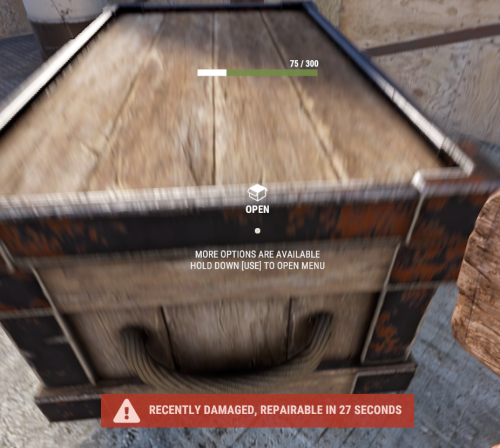
With just one tap, you can fully repair your base blocks and base items—no more having to tap repeatedly! Includes permission support and is optimized for top performance, with rotation & demolition support! Features * One Tap Repairs - Supports Base Blocks & Base Items & Vehicles, etc * Rotation - Re-Enables Base Blocks for easy native rotation again! * Demolition - Re-Enables Base Blocks for easy native demolition again! Permissions betterhammer.use ( required to do full 1 tap hit repairs with hammer & to use any features/functions )$5.00 -
Version 1.0.4
188 downloads
StarGuard Platform The RCON dashboard built for Rust server admins Manage your servers from anywhere. Console, players, bans, reports, automated rules, analytics, one place, persistent across wipes. Get Started Live Demo Explore the Dashboard Just a preview, countless other features integrated and planned. Console Full RCON access from your browser Players Live player list with deep profiles Reports All F7 reports in one place Statistics Live server KPIs and performance Plugins Oxide and Carbon plugin management Under the Hood Built for speed and moderation workflows, with real-time data, automation, and persistent history. RCON Console Full RCON from your browser. Command history, syntax highlighting, real-time output. Player Intel Deep player profiles, alts, playtime, connections, ban history. One click to moderate. Threat Detection Flags suspicious joins instantly. VPN detection, threat scoring, known cheater alerts. Automation Event-driven rules. Auto-kick, auto-ban, scheduled commands, runs 24/7. Analytics Player counts, peak hours, retention, performance trends. Persistent Data Persistent across wipes. Chat logs, bans, reports, events, all searchable. Oxide Compatible Carbon Compatible Developer API StarGuard hooks into global.playerlist and extends it. If you're building on top of this, here's what you get. GetPlayerList(ConsoleSystem.Arg arg) Replaces the default global.playerlist handler. Returns JSON with extended player data not available in the vanilla response. Response Fields SteamID · OwnerSteamID · DisplayName · Ping · Address · EntityId · ConnectedSeconds · ViolationLevel · Health · NetworkId · S_TeamId TryGetCommand(out ConsoleSystem.Command command) Scans ConsoleSystem.Index.All for global.playerlist. Returns true with the command reference via out, false otherwise. Get set up in 2 minutes. Create an account, connect your server, done. Get Started Live DemoFree- 14 comments
- 3 reviews
-
- 2
-
-
-
- #dashboard
- #tool
- (and 1 more)
-
Version 1.4.6
4,621 downloads
Manage your Rust server easier and more efficiently with the AdminMenu plugin. Track players, interact with them, edit their data and permissions, as well as change server convars and manage plugins. Features: Menu retains its state after closing, you won't lose everything you did before. Ability to fully translate the menu into any language. Large range of permissions for each action, will allow you to flexibly customize the admin menu for each group of administrators. Quick menu that allows you to perform quick actions Full list of players with the ability to filter by online, offline, admins and moderators. Also has a frame of different colors depending on the level of authorization. Wide range of information and actions for the selected player. Editing convars with search. Has a complete list of editable convars with descriptions for some of them. Extensive issue menu by category, with easy management of name, skin and amount (manual, +1, +100, +1000, +10000). Plugin management menu. It is possible to reload, unload or load a plugin easily and quickly. Updates occur in real time. Ability to create your own custom buttons that execute several commands Quick Start: You install the plugin in the plugins folder. Give yourself the adminmenu.fullaccess permission. Commands, use one of your choice, one for the player and one for the admin group: o.grant user [name or steamid] adminmenu.fullaccess o.grant group admin adminmenu.fullaccess Press the X button (swap seat button) or type adminmenu in the console. Enjoy Useful stuff: You can quickly open a player in the admin menu. To do this, point at the player and press X. You don't have to hover over the player exactly, you will be able to open players within a certain radius of the place you are looking at. CUSTOM BUTTONS Custom buttons are buttons that when pressed will execute commands on behalf of the administrator, commands can be several, below will be the details. At the moment, custom buttons can be created in two places: in the quick menu and in the menu when selecting a player. These places are separated in the config. Button Fields: "Execution as server" - Call the command on behalf of the server, not the administrator "Label" - Text that will be on the button, for each such inscription creates a field in the lang file, accordingly you can translate this text into several languages. "Commands" - Array of commands that will be executed on behalf of the administrator. Chat commands require a special entry, see examples. "Permission"- permission to display and use the button. You need to write the permission that will be after "adminmenu.". Example: if you enter the permission "test" the permission will be adminmenu.test "Position" - The location for the button, the first number is responsible for the row number, the second for the position within the row, starts from 0.There are limits of locations, if you have gone beyond the limit - the button will not be displayed. Common Tags: {adminUID} - administrator's id. {position} - administrator coordinates (underfoot) {view_position} - the position where the administrator is looking (can be used for spawning or something similar) {view_direction_forward} - forward view direction of the administrator {view_direction_backward} - the direction the administrator is looking backwards {view_direction_left} - direction of the administrator’s view to the left {view_direction_right} - administrator’s view direction to the right Tags for target only: {steamid}, {steamID}, {userID}, {STEAMID}, {USERID} - mean the same thing, namely the id of the selected player. {target_position} - target coordinates (underfoot) Example of commands: chat.say \"/{chat command}\" vanish ban {steamID} teleport {steamID} {adminUID} More information about the grant menu: The grant menu includes the full list of items including hidden items as well as custom items created by the CustomItemDefinitions library. The menu can be accessed from the navigation or from the menu of the selected player. When issuing itself has categories. Search works in any registry by any part of the name or short name. Has a page system at any stage. More information about the buttons in the Quick Menu: [Teleport to 0 0 0] - Teleport to coordinates 0 0 0. Requires adminmenu.quickmenu.teleportto000 permission [Teleport to Deathpoint] - Teleport to your deathpoint. Requires adminmenu.quickmenu.teleporttodeath permission [Teleport to Spawn point] - Teleport to a random spawn point. Requires adminmenu.quickmenu.teleporttospawnpoint permission [Kill Self] - Kill Self, kills even when immortal. Does not require permission. [Heal Self] - Fully heal yourself. Requires adminmenu.quickmenu.healself permission [Call Heli] - Call Helicopter to yourself (arrives in time). Requires adminmenu.quickmenu.helicall permission [Spawn Bradley] - Spawn bradley on yourself. Requires adminmenu.quickmenu.spawnbradley permission More information about the buttons in the menu of the selected player: [Teleport Self To] - Teleport yourself to the selected player. Requires adminmenu.userinfo.teleportselfto permission [Teleport To Self] - Teleport the selected player to yourself. Requires adminmenu.userinfo.teleporttoself permission [Teleport To Auth] - Teleportation to random authorization (TC). Requires adminmenu.userinfo.teleporttoauth permission [Teleport to Deathpoint] - Teleportation to a player's deathpoint. Requires adminmenu.userinfo.teleporttodeath permission [Heal] - Full healing, including metabolism. Requires adminmenu.userinfo.fullheal permission [Heal 50%] - Half healing. Requires adminmenu.userinfo.halfheal permission. [View Inventory] - View and edit player's inventory. Requires adminmenu.userinfo.viewinv permission [Strip Inventory] - Clear player's inventory. Requires adminmenu.userinfo.stripinventory permission [Unlock Blueprints] - Unlock all Blueprints. Requires adminmenu.userinfo.unlockblueprints permission [Revoke Blueprints] - Reset all Blueprints. Requires adminmenu.userinfo.revokeblueprints permission. [Kill] - Kill a player. Requires adminmenu.userinfo.kill permission [Kick] - Kick a player. Requires adminmenu.userinfo.kick permission [Ban] - Ban a player. Requires adminmenu.userinfo.ban permission More information about the buttons in the menu of the selected group: [Remove Group] - Remove group, has confirmation. Requires adminmenu.groupinfo.removegroup permission [Clone Group] - Clone group with the ability to copy users. Requires adminmenu.groupinfo.clonegroup permission Permissions: adminmenu.use - Ability to use admin menu with basic set. Open tab quick menu (each button has its own permission, without permissions is present only kill yourself button) and the list of players. adminmenu.fullaccess - Full access to all functions without the need for each permission, includes also adminmenu.use. It is recommended to give only to the main administrators. adminmenu.quickmenu.teleportto000 - Access to the button in the quick menu, teleportation to coordinates 0 0 0 0. adminmenu.quickmenu.teleporttodeath - Access to the button in the quick menu, teleportation to the point of your death. adminmenu.quickmenu.teleporttospawnpoint - Access to the button in the quick menu, teleportation to a random spawn point. adminmenu.quickmenu.healself - Access button in quickmenu, heal yourself completely. adminmenu.quickmenu.helicall - Access to the button in the quick menu, call a helicopter to yourself (arrives in time). adminmenu.quickmenu.spawnbradley - Access button in quickmenu, spawn bradley. adminmenu.userinfo.teleportselfto - Access to the button in the menu of the selected player, teleportation to the selected player. adminmenu.userinfo.teleporttoself - Access to the button in the menu of the selected player, teleport the selected player to himself. adminmenu.userinfo.teleporttoauth - Access to the button in the menu of the selected player, teleportation to random authorization (TC). adminmenu.userinfo.teleporttodeath - Access to the button in the menu of the selected player, teleportation to the place of death of the player. adminmenu.userinfo.fullheal - Access to the button in the menu of the selected player, full healing, including metabolism. adminmenu.userinfo.halfheal - Access to the button in the menu of the selected player, half healing. adminmenu.userinfo.viewinv - Access to the button in the selected player's menu, view and edit the player's inventory. adminmenu.userinfo.stripinventory - Access to the button in the menu of the selected player, clear the player's inventory. adminmenu.userinfo.unlockblueprints - Access the button in the menu of the selected player, unlock all drafts. adminmenu.userinfo.revokeblueprints - Access to the button in the menu of the selected player, reset all drafts. adminmenu.userinfo.kill - Access the button in the selected player's menu to kill the player. adminmenu.userinfo.kick - Access the button in the selected player's menu to kick the player. adminmenu.userinfo.ban - Access to the button in the menu of the selected player, ban the player. adminmenu.groupinfo.removegroup - Access to the button in the menu of the selected group, the ability to remove the group. adminmenu.groupinfo.clonegroup - Access to the button in the menu of the selected group, the ability to clone the group. adminmenu.convars - View and edit convars. adminmenu.permissionmanager - View and edit permissions in groups, player groups, create, delete and clone groups (requires additional permissions from these buttons). adminmenu.pluginmanager - Access to plugin management, reloading, unloading, loading plugins. adminmenu.give - Access to give resources, as well as yourself and the selected player.$30.00 -

Version 1.7.4
748 downloads
Better Vanish allows server admins or users with permission to go fully invisible to spectate/watch players. It is based on the free public version on uMod by Wulf and has been in development since 2017. However, this version was written from scratch with performance, security and optimization in mind. Key features: Vanished administrators cannot be seen by any other players or cheaters. ¹ Optimization with performance in mind. No garbage allocations. Smaller size, lightweight with only most necessary functions for being invisible. Auto-hide / Auto-noclip after joining. ² Can be used by non-admins with certain restrictions. Auto teleportation under the map or to a safe spot (if you crash or disconnect). ³ Vanished state persists between disconnects or server restarts (configurable). Invisible to the world, environment, AI, traps and so on. ⁴ Custom & Lightweight trigger subsystem. Vanished player is only enters the most important world triggers at zero overhead. Can hide and unhide other players via command. The inventory spy function will let you see and edit player's or NPC's inventories. Sound effects when entering and leaving invisibility (other players can't hear it). Supports original Vanish API & Hooks. Explanations: You must behave accurately if you don't want to get attention from potential cheaters. Do not play, shoot, or touch your inventory and outfit. Auto-noclip is valid only for admins. Non-admins cannot be teleported underground. Please use the safe points. You still may provoke AI to follow you or shoot at you if you cause damage to them. Configuration The settings and options for this plugin can be configured in the BetterVanish.json file under the oxide/config directory. The use of a JSON editor or validation site such as jsonlint.com is recommended to avoid formatting issues and syntax errors. { "Show visual indicator (true/false)": true, "Visual indicator image address": "https://i.imgur.com/dOvX4uA.png", "Visual indicator anchor min": "0.1 0.001", "Visual indicator anchor max": "0.17 0.10", "Visual indicator color": "0.7 0 0 1", "Depth of an underground teleport (upon disconnection)": 15.0, "Block all incoming damage while vanished (true/false)": true, "Block all outgoing damage while vanished (true/false)": true, "Auto vanish on connect (true/false)": true, "Auto noclip on connect (true/false)": true, "Auto noclip on vanish (true/false)": true, "Turn off noclip on reappear (true/false)": true, "Persist vanish (don't unhide upon leave & restore after restart)": true, "Use sound effects (true/false)": true, "Enable safepoints (true/false)": true, "Remove all safepoints after wipe (true/false)": true, "Config revision (do not edit)": 4 } Localization The localization for this plugin can be configured in the BetterVanish.json file under the oxide/lang/en directory. The use of a JSON editor or validation site such as jsonlint.com is recommended to avoid formatting issues and syntax errors. { "CommandVanish": "vanish", "CommandSetVanish": "setvanish", "CommandUnvanishAll": "unvanishall", "CommandInvSpy": "invspy", "VanishDisabled": "<color=#FF686B>Vanish disabled</color>", "VanishEnabled": "<color=#91D6FF>Vanish enabled</color>", "VanishDisabledOther": "<color=#FF686B>You disabled vanish on {0}</color>", "VanishEnabledOther": "<color=#91D6FF>You enabled vanish on {0}</color>", "UnvanishedPlayers": "<color=#FF686B>You unvanished {0} players!</color>", "SetVanishHelp": "Syntax: /setvanish PlayerName", "SafePointNotSet": "You haven't set your <color=#F7B267>Safe Point</color>\nType <color=#FF686B>/vanish safepoint</color> to save your current position.\nYou will be automatically teleported there upon disconnection.", "SafePointSaved": "Your current position is saved as a Safe Point!", "MultiplePlayers": "Multiple players found!\nRefine your search or use Steam ID.", "NothingInSight": "No players in sight", "NoSuchPlayer": "No such player found ({0})", "InvSpyLooting": "Looting: {0} ({1})." } Permissions This plugin uses Oxide's permission system. To assign a permission, use oxide.grant <user or group> <name or steam id> <permission>. To remove a permission, use oxide.revoke <user or group> <name or steam id> <permission>. bettervanish.allowed - allows non-admin players to use vanish and become invisible. bettervanish.allowedother - allows non-admin players to vanish other players by their name. bettervanish.perma – the bearer will be vanished automatically and won’t be able to turn off vanish himself. bettervanish.unvanish - allows non-admin players to unvanish everyone at once. bettervanish.invspy - allows non-admin players to use inventory spy to loot players and NPCs remotely. bettervanish.skiplocks - allows non-admin players to have access to locked entities (boxes, doors). Commands This plugin provides universal chat and console commands. When using a command in the chat, prefix it with a forward slash: /. vanish - Toggles vanish state. vanish safepoint - Save a Safepoint, where get teleported on disconnect (your current position). setvanish <PlayerName> - Toggles vanish state of specified player. unvanishall - Unvanish everyone at once (both online & sleepers). invspy - Let you see and edit players or Npcs inventories, <name/steamID64> or look at the target and use then "invspy " Plugin Data This plugin can store 2 data files under oxide/data: BetterVanish-SafePoints.json - Player safepoints storage. BetterVanish-PersistPlr.json - Players with persisted vanish state. Developer API bool _IsInvisible(BasePlayer player) bool _IsInsivible(IPlayer player) void _Disappear(BasePlayer) void _Reappear(BasePlayer)$19.99- 43 comments
- 1 review
-
- 2
-
-
- #better vanish
- #admin
- (and 2 more)
-
Version 1.0.0
9 downloads
xAutoCodelock xAutoCodelock enhances the building experience by intelligently automating one of the most repetitive tasks in Rust - managing code locks. By automatically placing, configuring, and securing locks using each player’s personal PIN, the plugin removes friction without altering the core gameplay balance. Players can focus on building, defending, and progressing, while their base security is handled smoothly in the background. Features Automatic Code Lock Placement (Configurable) Automatically places a code lock when players build deployables with lock slots (Door etc.). Personal Auto PIN System Players set a 4-digit PIN once - All future locks use it automatically. Auto Lock Newly Placed Locks (Configurable) Newly created locks are instantly locked for security. Tool Cupboard Requirement (Configurable) Can require building privilege before automation triggers. Team Access Control (Configurable) Option to allow or require team members to enter codes. Permission based usage (Configurable) Control who can use auto codelock via permissions. Admin Inspect Command Admins can check player PIN status and if player has permission to use xAutoCodelock. Persistent PIN Storage Player PINs saved across restarts. Optional Wipe Reset Automatically clears PIN data on map wipe if enabled. Plugin Preview Player Commands /xpin 1234 → Set your auto PIN /xpin remove → Remove saved PIN /xpin → Show current PIN Admin Command /xpin check <player name or steamid> Permissions xautocodelock.use - Required to use '/xpin' command xautocodelock.admin - Required for the '/xpin check' command Config { "CommandSetPin": "xpin", "RequirePermission": true, "PermissionUse": "xautocodelock.use", "PermissionAdminInspect": "xautocodelock.admin", "AutoLockNewCodeLocks": true, "AutoPlaceCodeLocks": true, "RequireToolCupboard": true, "RequireCodeForTeamMembers": true, "ResetDataOnWipe": false } Language { "NoPermission": "You don't have permission to use this command.", "CommandUsage": "Usage: /{0} 1234 or /{0} remove\n» Current PIN: {1}", "PinNotSet": "NOT SET", "PinRemoved": "Auto PIN removed.\n» New code locks will no longer be configured automatically.", "NoSavedPin": "You don't have a saved auto PIN.", "InvalidPin": "PIN must be exactly 4 digits (0000 - 9999).", "PinSet": "Auto PIN set.\n» Newly placed code locks will be automatically locked with your PIN.", "InspectUsage": "Usage: /{0} check <player name or steamid>", "InspectPlayerNotFound": "Player not found: {0}", "InspectMultiplePlayers": "Multiple players matched: {0}. Use full name or SteamID.", "InspectSummary": "Inspect: {0} ({1})\nSaved PIN: {2}\nHasPermission: {3}" }$12.99 -
Version 1.2.0
333 downloads
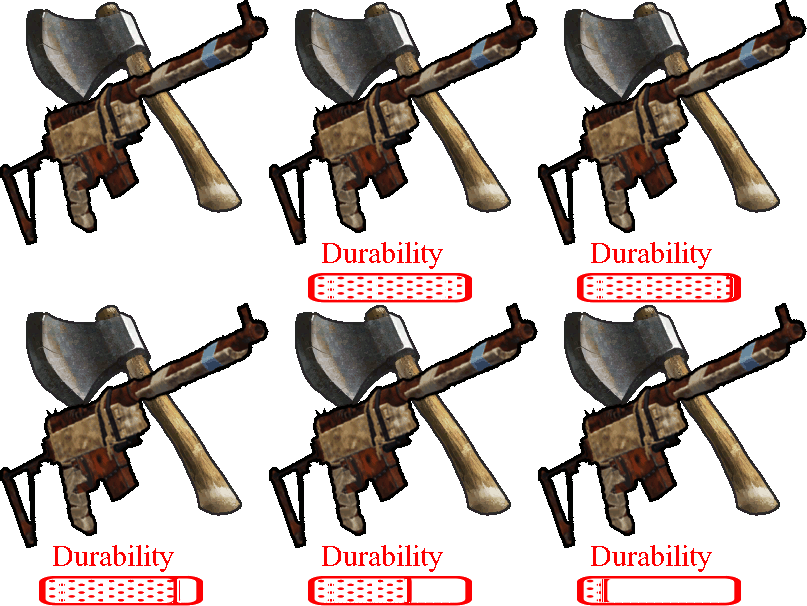
This plugin give the possibility to modify the amount of the durability loss by percentage for weapons(include attachments with durability) and/or tools. 3 different permission related value can be set, to support other plugins or vip/rank systems. It also has the feature to exclude weapons or tools from the function, up to the need. The plugin can work 3 different mode. 1 - no permission used at all -> normal durability loss applied 2 - The player can have more then one permission, in this case always the HIGHER permission percentage value used. 3 - The player shall only have 1 permission, in this case i recommend to activate the "Permission check against multiple permission group" and optionally the "Warning agains multiple permission group (can flood the server console)" configuration, to set to True, and if a player by mistake got 2 different permission, the plugin feature will be skipped and a warning will be shown on the server console. Permissions itemdurability.profile1 itemdurability.profile2 itemdurability.profile3 Configuration "itemdurability.profile1 permission percentage scale range: 0-X, 0.1f mean 10% of the original durability": 1.0, "itemdurability.profile2 permission percentage scale range: 0-X, 0.1f mean 10% of the original durability": 1.0, "itemdurability.profile3 permission percentage scale range: 0-X, 0.1f mean 10% of the original durability": 1.0, "Permission check agains multiple permission group": false, "Warning against multiple permission group (can flood the server console)": false, "Exclude weapons": true, "Exclude items, what are not weapons": false "CleanPermission on Wipe": true$7.00 -

Version 1.0.0
7 downloads
xMegaphone xMegaphone is a powerful megaphone broadcast system for Rust servers that allows players and/or admins to submit custom announcements through an intuitive UI. Messages can be displayed globally as either animated sliding text or clean static text, making it perfect for announcements, events, advertisements, community communication or even selling megaphones to your players for real money. The plugin is optimized for performance and designed to run smoothly on most servers. For maximum flexibility, you can choose between two display modes depending on your server’s needs: Type 0 - Sliding Text: Eye-catching animated ticker that scrolls across the screen. Type 1 - Static Text: Performance-friendly message displayed in the center without animation (recommended for very high population servers). This allows you to balance visual impact and performance with a simple configuration change. ■ Inspired by the classic megaphone system from the game "Combat Arms" (when it wasn't dead lol), bringing that nostalgic broadcast experience to your server. Plugin Preview Permission xmegaphone.use - Needed to use the /xmp command xmegaphone.admin - Needed to use admin commands </> Chat Commands (Players) /xmp - Opens the xMegaphone UI ⌨ Chat/Console Commands (Admins) /xmp - Opens the xMegaphone UI /xmp give <steamId|partialName> <amount> - Adds megaphone uses to a player. /xmp set <steamId|partialName> <amount> - Sets a player’s megaphone uses to an exact number. /xmp reset <steamId|partialName> - Resets a player’s uses back to your configured StartingMegaphoneUses value. Config { "Uses": { "StartingMegaphoneUses": 0 }, "Message": { "MaxLength": 80 }, "Ticker": { "MegaphoneType": 0, "DurationSecondsType0": 20.0, "DurationSecondsType1": 8.0, "FontSize": 18, "ShowSender": true, "PrefixText": "[MEGAPHONE]", "PrefixColor": "#cffc03", "SenderColor": "#75ff9a", "TextColor": "#ffffff" } } ^ "StartingMegaphoneUses" = How many megaphones a player receives when added to datafile for first time.$9.99 -

Version 2.0.9
82,721 downloads
Convenient GUI manager for player and group permissions. Allows assignment of player permissions. (online or sleeping) Allows assignment of group permissions. Allows one-click removal of all players from a group. (group page - "Remove All") Allows adding/removing a player from groups. Supports unlimited plugins/permissions/groups Up to 60 plugins per-page. Up to 40 permissions per-page. Up to 40 user groups per-page Allows for local and sql backup and recall of all permissions or groups. Permissions. permissionsmanager.allowed - Allows players to use GUI. Plugin can be used with this permission, or by any Admin : Auth Level 2. Chat commands. /perms data - Backup and restore permissions and/or groups - local data file and/or SQL. ** /perms OR /perms player - Opens GUI player list, allowing a player to be chosen. /perms group - Opens GUI group list, allowing a group to be chosen. /perms player <playername> - Opens permissions GUI for the specified player. /perms group <groupname> - Opens permissions GUI for the specified group. Console commands. EmptyGroup <groupname> - Removes all players from the specified group. Configuration. Global. Chat - Title colour Chat - Message colour GUI - Label colour GUI - On colour GUI - Off colour GUI - AllPerPage - Sets All/None option to per-page, or per plugin. Options - GUI Transparency 0-1 Options - Plugin BlockList - ex. "playerranks,botspawn" Block list must be lower case, comma separated, no spaces, and no final comma, as above. Useful tool for picking CUI colours - RGB Decimal - Take the RGB Normalized decimal output, and remove all commas. ** Please note that with data backups : SQL saving is accumulative - Saving adds current permissions/group data to whatever was already saved. Local data file saving is not accumulative. It overwrites any existing backup with the current server permissions/groups. FAQ. Q: I'm trying to revoke permission(Y) for a player, but it says "Inherited". A: The player is in a group(X) which is also granted permission(Y). Solution: Revoke permission (Y) from group(X) or remove the player from group(X). Q: I removed a player from group(X), but they still have permission(Y). A: This is the opposite of the above. This player must have been independently granted permission(Y) at some time. Solution: Revoke permission(Y) from the player.Free- 222 comments
- 34 reviews
-
- 39
-
-
-
- #permissions
- #admin
- (and 7 more)



.thumb.png.f676fcb4237b0d630285499251bcf88e.png)












.thumb.png.ccf8a947948c9eb1445ad21a7931247b.png)

.thumb.png.8fb9cb5db33376288eba94beb961d0c6.png)