Search the Community
Showing results for tags 'tools'.
-

Version 1.1.0
20 downloads
xCrosshair xCrosshair is a customizable crosshair system for Rust servers, giving players full control over their personal reticle/crosshair through an ingame UI menu. With multiple built-in shapes, color presets, HEX input support, outlines, and adjustable visual parameters, each player can design a crosshair that fits their preferred style. Features 7 crosshair shapes Full customization options Size Thickness Alpha/Transparency Outline toggle RGB/HEX color selection Quick-use color presets Per-player saved settings Chat Commands /crosshair - Opens the crosshair settings menu /ch - Opens the crosshair settings menu Permission xcrosshair.use - This permission is needed to use the crosshair. Preview ^ Sorry for bad video quality.$12.99 -

Version 1.0.5
86 downloads
Enables administrators to perform administrative actions anonymously, hiding their profile when they use in-game chat as well as within the game environment, displaying 'ADMIN' instead of their nickname above their character. Commands /aa - Admin Anon Enable /aa - Admin Anon Disable Permissions adminanon.use - Enables anonymity in the game. Permission Recommendation: We recommend adding the permission to the individual user rather than to a group. For example, grant the permission to John Doe directly, not to the "admin" group (even if John Doe belongs to that group). Change Color This plugin allows Rust admins to hide their identity in the chat. To change the username color for the "ADMIN" group, configure the "admin" group in BetterChat. Changes in BetterChat will automatically reflect in the plugin. Steps: 1. Open BetterChat Configuration: Locate and edit BetterChat.json. 2. Edit the "admin" group: Change the username color for the "admin" group. 3. Save and Apply Changes: Save and reload BetterChat & AdminAnon (Just in case) Change avatar admin ? Changing the admin's avatar is unnecessary for this plugin, as its purpose is to hide the admin's identity, not to impersonate another player. Configuration { "Stay Anonymous After Reconnecting": false, "Properties": [ { "Name": "ADMIN", "Better Chat Group": "admin", "Required Permission": "adminanon.use" } ] } Data (example) { "PlayerData": { "76561198196941415": { "Groups": [ "admin", "default" ], "Name": "ADMIN", "Better Chat Group": "admin", "Required Permission": "adminanon.use" } } } Language (EN) { "No Permission": "<size=12>You don't have permission to use this command</size>", "No Profile Permission": "<size=12>You don't have permission to use this profile</size>", "Admin Anon Enabled": "<size=12>Admin Anon has been <color=#00fa9a>ENABLED</color></size>", "Admin Anon Disabled": "<size=12>Admin Anon has been <color=#00fa9a>DISABLED</color></size>", "Admin Anon Changed": "<size=12>Fake identity has changed to <color=#00fa9a>{0}</color></size>", "Requested Fake Identify Not Found": "<size=12>Requested fake identity is not found</size>", "No Fake Identities Available": "<size=12>No fake identities available</size></size>", "Fake Identify Not Found": "<size=12>Fake identity is not found</size>", "Data Corrupted Up": "<size=12>Data is corrupt</size>" }$6.00 -
![More information about "Build Tools [grade/remove/skins]"](https://codefling.com/uploads/monthly_2026_03/v4final.thumb.gif.9312291fdac2d66c1b6d0d36f716fcad.gif)
Version 1.5.46
4,717 downloads
Introducing a feature-rich plugin that will take your in-game building experience to new heights - Build Tools! This plugin is not just a tool, it is the key to creating incredible builds and will make the processes of upgrading, removing and even downgrading buildings easy and fun! !ATTENTION! After the last update of the game, the additional slot does not work Features of Build Tools Beautiful user interface: Our plugin has a lovely and easy-to-use interface that makes building tasks smooth and functional; Bar progress display: Keep track of your building progress with a clear progress bar, so you can see your upgrades easily; Upgrade of the entire building at once: You can make them stronger and more secure quickly; Interface customization: Personalize the user interface to match your preferences and workflow. Returning an item to remove: Don't worry about losing items when removing structures; our plugin ensures you get them back; Returning items with condition as in the game: Items are returned to the same condition as in the game, with the option to set their condition as a percentage; Blocked list items for remove: You can specify which items should not be removed for precise construction control. Ability to use icons both from the game and your own Work with Clans/Friends/NoEscape Building Skins (+ automatic parsing command) Downgrade: Make structure downgrades simple and adapt your base to changing needs with just a few clicks Edit config via in-game interface (no JSON editing required) Commands /up [1-4] - enable upgrading mode /up all - allows you to upgrade the entire building at once /remove - enable removing mode /remove all - allows you to remove the building at once /down - enable downgrading mode /down all - allows you to downgrade building at once buildtools.parse.skins – allows parsing new building skins from the game + images to them /bskin – open settings menu Permissions buildtools.all – allows you to upgrade/remove the entire building at once buildtools.free – allows you to upgrade buildings for free buildtools.edit – allows you to enable edit mode buildtools.vision – allows you to toggle the remove mode on in the vision mode Video Hooks object canDowngrade(BasePlayer player, BaseEntity entity) object canRemove(BasePlayer player, BaseEntity entity) object CanBuildToolsGiveRefund(BasePlayer player, BaseEntity entity) FAQ Q: Where can I see an example of a config? A: Config$21.95- 335 comments
- 16 reviews
-
- 8
-

-

-
- #building
- #foundation
- (and 27 more)
-

Version 1.1.3
19 downloads
xStackSize xStackSize gives you full control over item stack sizes on your Rust server. Globally and permission-based. Fine-tune your economy, balance progression, or create VIP advantages with flexible and performance-friendly stack management. Whether you want larger stacksize for QoL, custom stacksizes for specific groups/permission, or complete control over your servers stacking system. INFO: xStackSize supports multiple permissions at the same time. If a player has more than one stack permission, the plugin automatically applies the highest stack size based on your configuration. The highest value always wins - whether it's global or permission-based. Example: If global is set to x3 and a permission gives x1, the player will use x3 since it’s higher. (If he has that permission) Features Global stack size control Permission-based StackSizes (VIP / ranks / groups) Custom StackSize per item Custom StackSize for CUSTOM ITEMS Force Split/Merge changed StackSize INSTANT instead of waiting for players to move items manually Blacklist items Easy to configure Performance friendly designed Additionally supports Quarries, Excavator, Furnaces and Conveyors Permission-based StackSizes: You can use any permission name in the config, as long as it starts with xstacksize. Examples: xstacksize.pro, xstacksize.vip, xstacksize.premium etc.. You can create multiple stack-size permissions. Simply copy and paste a new permission block in the config and give it a different permission name. Various Constellations (Examples, for better understanding) Console Command xstacksize.refresh (Useful if you have AutoApplyStackSizeChange set to 'false') Force-applies current stack rules to existing items immediately. It recalculates limits and retroactively normalizes/merges stacks in player inventories and storage containers without requiring item movement. Config (Use value '0' for UNLIMITED) { /* AutoApplyStackSizeChange force splits/merge items instantly instead of waiting for players to move items manually. */ "AutoApplyStackSizeChange": true, "StackSizeMultipliers": { "Weapon": 1.0, "Construction": 1.0, "Items": 1.0, "Resources": 1.0, "Attire": 1.0, "Tool": 1.0, "Medical": 1.0, "Food": 1.0, "Ammunition": 1.0, "Traps": 1.0, "Misc": 1.0, "Component": 1.0, "Electrical": 1.0, "Fun": 1.0, "CustomItems": 1.0 }, /* FixedItemStackSizes are fixed values, not multipliers (Example: 5000) */ "FixedItemStackSizes": { "wood": 0, "stones": 0 }, "PermissionStackSizeMultipliers": { "xstacksize.vip": { "Weapon": 1.0, "Construction": 1.0, "Items": 1.0, "Resources": 1.0, "Attire": 1.0, "Tool": 1.0, "Medical": 1.0, "Food": 1.0, "Ammunition": 1.0, "Traps": 1.0, "Misc": 1.0, "Component": 1.0, "Electrical": 1.0, "Fun": 1.0, "CustomItems": 1.0 } }, "BlacklistedItems": [ "pumpkin" ] }$15.99 -

Version 1.0.0
2 downloads
Description FileWatcher monitors your server’s config and lang JSON files and automatically reloads the affected plugin when changes are detected. This is aimed at faster iteration while developing or tuning plugins — edit JSON, save, and the plugin reloads itself. Features Config + Lang monitoring - Watches oxide/config/*.json - Watches oxide/lang/**.json (including subfolders) Safe reload behavior - Debounce (1s): prevents multiple reloads while a file is still being written - Reload cooldown (20s): prevents reload loops and spam - Ignore list: exclude specific plugins from being reloaded - Always ignores FileWatcher itself Stability - If the watcher throws errors, it auto-restarts itself after 5 seconds Debug mode - Optional debug output for watcher init, file changes, cooldown/debounce decisions, etc. Commands /fwstatus Shows watcher status (Config/Lang on/off) and ignored count. Admin only. Permissions No Oxide permission is used. Access is gated by player.IsAdmin. Config { "Watch config folder": true, "Watch lang folder": true, "Ignored plugins": [ "PermissionManager" // This is an example. ], "Debug mode": false } load, run, enjoy$3.55 -

Version 2.4.0
12 downloads
CarbonCleaner Short description Finds orphaned files in `carbon/config/`, `carbon/data/`, and `carbon/lang/` based on the installed/loaded plugins and provides a sleek in-game CUI for selecting and deleting them. Features - Matching logic (plugin detection) - Reads plugin base names from `carbon/plugins` (`*.cs`) **and** from the Carbon runtime (loaded plugins). - Base names `Admin` and `CorePlugin` are always treated as present. - Scan areas - config: Top-level `*.json` and top-level folders whose base name does not correspond to a plugin. - data: Top-level files (except `*.data`/`*.db`) and top-level folders without a plugin match. - lang: `lang/<LOCALE>/*.json` whose base name does not correspond to a plugin. - UI (CUI) - Three columns: CONFIG, DATA, LANG with count, file size, and checkboxes. - Select All for CONFIG/DATA, language sections can be expanded/collapsed for LANG. - Delete button shows number of selections; after deletion, automatic rescan. - Secure deletion - Deletes only within the `carbon/` root (path is validated). - Supports files **and** folders (recursively). - Backup - You have the option to decide whether you want to back up individual files.. > Note: `*.data` and `*.db` in the **data** root are **not** listed as orphaned (are skipped). This protects runtime databases. Commands In-Game (Chat) - `/carboncleaner` — Opens the UI (requires permission). Server console - `carboncleaner.scan` — Shows number/size of hits. - `carboncleaner.delete “<relativePath>|<relativePath>|...”` Example: `carboncleaner.delete “config/Old.json|data/OldFolder|lang/en/Old.json”` Deletes the specified relative paths under `carbon/`. Permissions - `carboncleaner.admin` — required for all functions (chat/UI).$8.99 -
Version 5.0.0
39 downloads
MyCommands Description The MyCommands plugin displays a modern, scrollable user interface (UI) that provides players with categorized commands and real-time search functionality. Who doesn't know that feeling - you have a lot of possibilities on your server, but players can't remember all the commands. With this plugin, it becomes easy to navigate and use commands via a visual interface. Administrators can define categories, commands, and descriptions. Features: Categorized commands: Commands are grouped into collapsible categories to make navigation easier for players. Example categories include House, Bells, Tools, Admin, and Economy. Real-time search functionality: Players can search for specific commands using the integrated search bar with instant results. Modern scrollable UI: Clean, modern interface with smooth scrolling for better user experience. Command descriptions: Each command includes a helpful description that appears in an information tooltip. Info tooltips: Click the blue "i" button next to any command to see its description in a modern popup. User-friendly interface: The UI provides a clear presentation of commands with options to expand or collapse categories. Customizable commands: Administrators can add new commands, categories, or descriptions, or edit existing ones in the configuration. Close button: The UI can be closed with a simple click on the close button. Direct command execution: Players can execute commands directly from the UI without entering them manually in the chat. Automatic UI closing: When a command is executed, the UI automatically closes. Search window: Separate search results window that appears alongside the main interface. Permission-based access: Only players with the correct permission can access the command interface. as off (v.4.4.0) Customizable colors: Adjust your colors in the config. Command: Set your own command Commands: /mycommands - Opens the main command interface Permissions: mycommands.use - Players need this permission to open the UI, search commands, and execute commands. This permission can be assigned to special user groups. Config: The configuration uses a comprehensive JSON system that is automatically created on first load if no configuration exists. You can edit it to adapt it to your server needs. The config includes both command categories and detailed descriptions. { "Command": "mycommands", "Categories": { "House": [ "/myhouse", "/rename", "/removehouse", "/findhouse" ], "Bells": [ "/addbell", "/setbell" ], "Tools": [ "/skinbox", "/cupboard", "/test1", "/test2", "/test3", "/teller" ], "Admin": [ "/god", "/vanish", "/fly", "/noclip", "/teleport" ], "Economy": [ "/shop", "/sell", "/buy", "/balance", "/pay" ] }, "CommandDescriptions": { "/myhouse": "Teleport to your house location", "/rename": "Rename your house or building", "/removehouse": "Remove your house from the system", "/findhouse": "Find the location of your house", "/addbell": "Add a bell to your building", "/setbell": "Configure bell settings", "/skinbox": "Open the skin selection interface", "/cupboard": "Manage your tool cupboard", "/test1": "Test command #1 for debugging", "/test2": "Test command #2 for debugging", "/test3": "Test command #3 for debugging", "/teller": "Access bank teller functions", "/god": "Toggle god mode (admin only)", "/vanish": "Become invisible to other players", "/fly": "Toggle fly mode for admins", "/noclip": "Toggle noclip through walls", "/teleport": "Teleport to coordinates or player", "/shop": "Open the main shop interface", "/sell": "Sell items from your inventory", "/buy": "Purchase items from the shop", "/balance": "Check your current balance", "/pay": "Send money to another player" }, "CategoryPermissions": { "House": "public", "Bells": "public", "Tools": "public", "Admin": "admin", "Economy": "public" }, "Colors": { "MainPanel": "#1A1A1AF2", "HeaderPanel": "#333333FF", "CloseButton": "#CC3333FF", "SearchPanel": "#1F1F1FFF", "SearchLabel": "#CCE6FFFF", "InputField": "#050505FF", "InputText": "#FFFFFFFF", "InputPlaceholder": "#808099FF", "ClearButton": "#B33333FF", "CategoryButton": "#4D9933FF", "CategoryButtonText": "#FFFFFFFF", "CommandButton": "#666666FF", "CommandButtonText": "#E6E6E6FF", "InfoButton": "#3380CCFF", "InfoButtonText": "#FFFFFFFF", "TooltipPanel": "#1A1A1AF2", "TooltipHeader": "#3380CCFF", "TooltipContent": "#0D0D0DE6", "TooltipText": "#E6E6E6FF", "NoResultsText": "#B3B3B3FF", "SearchResultsText": "#80E680FF", "ScrollbarHandle": "#808080FF", "ScrollbarTrack": "#333333FF" } } load, run, enjoy$16.99 -

Version 1.1.1
20 downloads
CodeFling Creator Bot is a Discord bot, written in Python using Discord.py. The bot monitors users specified in the config and using the CodeFling API, sends notifications to Discord for various actions: New Releases (Plugins, Maps, Tools etc) Plugin/Release Updates New Comments/Discussion Posts New Support requests and replies to threads New Reviews New Private Messages The bot is lightweight and written with efficiency and reliability in mind. It makes only the API calls it needs and stores data in an SQLite database for use later. When guild members use the bot commands, the data is pulled from the local database and doesn’t make extra calls to the API, which means you don’t need to worry about rate limiting or getting banned by the API. The bot polls the API looking for new content at set periods as set in the config, notifying about new content and then updating the database with new data. PLEASE NOTE: Requires Python 3.6 or higher. README: CodeFling Creator Bot 1.1.1 Discord Bot by ZEODE ========================================== Minimum requirements: Python 3.6 or higher Dependacies: Discord.py aiohttp Using pip: pip install -U discord.py pip install -U aiohttp The -U flag just means “upgrade to the latest version if already installed.” Using apt: apt install python3-discord apt install python3-aiohttp This file explains each configuration option in config.json *************** DEFAULT CONFIG FILE IS CREATED ON FIRST RUN *************** DISCORD SETTINGS ---------------- Make sure your Discord bot has at least "Send Messages", "Read Message History" and "Embed Links" permissions. bot: bot_token: Your Discord bot token from the Discord Developer Portal. Get it from: https://discord.com/developers/applications channels: release_channel_id: Discord channel ID where file release/update notifications will be posted. To get channel ID: Enable Developer Mode in Discord settings, right-click channel, "Copy ID" purchase_channel_id: Discord channel ID for purchase notifications (recommend private channel). Shows when someone buys one of your paid plugins. support_channel_id: Discord channel ID for support request notifications. comments_channel_id: Discord channel ID for comment/discussion notifications. Shows when users comment on your files (excludes file author replies). downloads_channel_id: Discord channel ID for file downloads notifications (recommend private channel). Shows when users download your files. reviews_channel_id: Discord channel ID for file review notifications. Shows when users review a monitored file. messages_channel_id: Discord channel ID for user message notifications (recommend private channel). Notifys when a monitored user receives a message on CodeFling. commands_channel_id: Discord channel ID for people to use bot commands. People can use bot ! commands here, all user messages can be cleaned automatically, see below. admin_commands_channel_id: Channel for users with the bot admin role to use admin commands away from public channels All normal commands also work here for bot admin role users to use here too NOTE: - Leaving any of the channel IDs blank will disable notifications for those actions - Although there are separate channels for each type in the config, this is just for anyone wanting this, if you want you can put the same channel ID in more than one channel config misc: clean_commands_channel: If true, users messages are automatically deleted shortly after they are sent to the channel. max_number_files_to_list: Number of files to return when users use the "!list plugins" command bot_admin_role_id: Users need this role to use the admin only commands ping_release_channel: If this is true, new releases or updates to files will be notified with the @everyone tag presence: enabled: true or false to enable or disable Discord presence. type: Available options: "playing" "watching" "listening" "competing" text: The text to display, e.g. www.codefling.com CODEFLING SETTINGS ------------------ monitored_users: Dictionary of Codefling user IDs and their API tokens. Format: "user_id": "api_token" How to get your User ID: - Visit your Codefling profile - Hover over or click on "See my activity" - Your user ID is in the URL: https://codefling.com/profile/USER_ID-username/content/ - Copy just the numbers, without the "-username" part How to get API Token: - Visit: https://codefling.com/settings/apps/ - Click "Add App" > "Creator API" - Select "All" under scopes - Copy the access token to paste in your config NOTE: For message_buyer_on_purchase you will require a Creator Pro API token. Example: "monitored_users": { "user_id_1": "your_api_token_here", "user_id_2": "another_api_token" } Note: Each user needs to use their own API token. poll_interval_seconds: How often (in seconds) the bot checks Codefling for new content. Default: 120 (2 minutes) Suggested values: | Type | Safe poll interval | Notes | | ----------------------- | ------------------ | ----------------------------------- | | Light use (1–2 authors) | 60 s | Feels instant, safe if few requests | | Medium (3–5 authors) | 120 s | Recommended default | | Heavy use (5+ authors) | 300 s | Low strain, good scaling | | Massive / strict API | 600–900 s | Extremely safe | Note: Too frequent polling may hit API rate limits. The more files a user has, the harder it is on the API leading to possible rate limits or IP ban, so be cautious. retention_days: How many days of historical data to track and store. Default: 7 days The bot will: - Only notify about content within this time window - Automatically clean up older data daily - On first run, load existing content from this period Recommended values: - 7 days (minimal storage) - 30 days (balanced) - 90 days (extended history) NOTE: Monitored resource/file data is kept indefinitely for users !stats !list commands etc, but the bot will only look for new actions within this period to send notifications to Discord or not. This maintains speed and performance so the bot isn't retreiving more data than is necessary with each API call. In most cases, 7 days should be more than sufficient for all use cases. message_buyer_on_purchase: If true, when a new purchase is detected, the bot will send a private message on the Codefling website with the message content taken from users/{userid}/purchase_message.txt. This can be edited to whatever you like, using html formatting and with available placeholders: {buyer_name} {resource_name} {resource_url} {support_url} NOTE: You will require a Creator Pro API token to use this feature!!! notify_support_request_replies: Limitation of the API at present means that it is not possible to know the reply comment author in support requests. Therefore we cannot filter replies by the file owner, so all replies will be announced, inclduing from the file owner. If you do not want this, you can disable announcing replies so that only new support requests are announced. If the API endpoint is updated in future this can be improved. LOGGING SETTINGS ---------------- timestamp_date_format: The format for timestamps in the console/log output. Availble: - %d - %m - %y e.g: %d-%m-%y would make something like 30-10-25 timestamp_time_format: Specify the format for the timestamp. - 12h - 24h log_file_path: Set the path to the OPTIONAL log file. If left blank, no log file will be used. API OPTIONS ----------- Note: You can usually leave this as is and it will work absolutely fine. max_attempts: How many times to try an API request if it fails before giving up on that attempt Useful for occasional CloudFare errors/timeouts timeout_seconds: How long to wait before retrying a API request due to timeout DEBUG OPTIONS ------------------ enable_verbose_debug_logging: As it says, enabled verbose loigging which can help in troubleshooting issues. Default is false. config_version: DO NOT EDIT THIS COMMANDS ------------------ NOTE: Commands by users do not query the CodeFling API every time. They only retreive data from the SQLite database, so you don't have to worry about rate limiting or banning from users abusing the commands on Discord. This also means it is much quicker with results. The database is updated with all the info every time the API is queried as per the poll rate in the config only. Non-Admin Commands: !help Lists all available commands !stats [username] Get own stats without parameter if you are monitored by the bot or get stats for the user specified !list files List all files monitored by the plugin (config option to limit results) !list authors List all file authors/devs monitored by the bot !file <FileName> / !file <file_id> Give information about that file Admin Commands: !user add <user_id> <api_token> Add the specified user ID and API token to the bot, save in the config and begin monitoring !user remove <user_id> Stops monitoring and removes the specified user ID from the bot and config !rotate Immediately rotate the log file and begin a new blank log file (rotated files saved in logs/) !cleardb Immediately clear the SQLite database and re-seed a new database (ALL DATA WILL BE CLEARED) !test <review|download|purchase|comment|support|message> Send a test notification to Discord for the most recent entry of the given type !test <purchase_msg> <user_id> <purchaser_id> Send a test purchase message by PM on CodeFling !test <file> [new|updated] Send a test notification to Discord for the most recent entry for files/releases, using the new or updated parameter accordingly/ FIRST RUN BEHAVIOR ------------------ On first run, the bot will: 1. Create a SQLite database (codefling_bot.db) 2. Load/Cache all users existing files. 3. Load/Cache all existing content from the last N days (retention_days) 4. DOES NOT send any notifications for existing content 5. Only notify about NEW content after initialization On subsequent runs: 1. Check for content created while bot was offline 2. Send notifications for missed content 3. Continue normal monitoring TROUBLESHOOTING --------------- No notifications appearing: - Verify channel IDs are correct - Check bot has "Send Messages", "Read Message History" and "Embed Links" permissions - Confirm API tokens are valid and have correct scopes Getting rate limited: - Increase poll_interval_seconds value - Default 300 seconds (5 minutes) should be safe Bot sends old notifications on startup: - This is normal if content was created while bot was offline - Bot catches up on missed content within retention period - On first run, no old notifications should appear SUPPORT ------- For issues with the bot, check console output for error messages. Get more support in my Discord: https://discord.gg/jnyg3FvDnc For Codefling API issues, see: https://codefling.com/developers$14.99- 1 review
-
- 2
-
-
- #discord
- #discordbot
- (and 8 more)
-

Version 1.6.2
63 downloads
Repair All allows you to easily repair all items in a container at the same time. Repair your entire storage locker, or an entire storage box full of broken shit with the click of a single button. Repair All works with any container, including your Backpacks plugin pages, or a backpack you throw on the ground. For those of you using SkillTree, it also works with the repair perks from the Build Craft Tree. Several permissions available for VIP groups including free repairs, no BPs, and full durability repairs! FEATURES Effortless Integration: Repair All works right out of the box with no extra plugins or external files needed. Seamless Compatibility: Integration with SortButton, Backpacks, and SkillTree. Smart Resource Management: Pull resources needed for repairs directly from your inventory, your backpack, or even the storage box you're repairing from! Universal Container Support: Whether it's a large wooden box, a small box, barrels, or baskets, Repair All handles them all with ease. Locker Love: Your precious locker contents? Fully repair with a single click. Roaming Goodness: Away from your base? No problem! Just drop your backpack on the ground and repair your essentials right there. Big thanks to Luffy Rust for all the help testing, and providing feedback. You guys are awesome! PERMISSIONS repairall.use Required for players to use RepairAll. repairall.use.item Allows repair of individual items. repairall.use.roam can repair outside of TC auth range. repairall.no.roam.cost no additional resource cost while outside of TC Auth range. repairall.no.add.cost Exempts player from additional resource cost. repairall.no.dura.loss Items repaired with RepairAll won't take durability loss. repairall.no.resources Allows players to make repairs without consuming resources. repairall.no.blueprints Allows repairs without having BPs. repairall.full.condition Repair items to full condition and durability. CONFIGURATION Repair Button Only If enabled, only the repair button will be shown in the UI. Default Cost % This defaults to the game's default resource cost for repairs. Additional Cost % Set the additional resource cost for repair. Additional Roaming Repair Cost %: defaults 25% Durability Loss %: Set the default loss to durability on repair. SortButton Use Permission: default: "sortbutton.use". Backpacks Use Permission: default: "backpacks.use". Backpacks Retrieve Permission: default: "backpacks.retrieve". Backpacks Gather Permission: default: "backpacks.gather". DEFAULT CONFIGURATION { "Repair Button Only": false, "Default Cost %": 20, "Additional Repair Costs %": 10, "Additional Roaming Repair Costs %": 25, "Durability Loss %": 20, "SortButton Use Permission": "sortbutton.use", "Backpacks Use Permission": "backpacks.use", "Backpacks Retrieve Permission": "backpacks.retrieve", "Backpacks Gather Permission": "backpacks.gather" }$9.00- 13 comments
- 3 reviews
-
- 2
-
-
- #inventory
- #items
- (and 5 more)
-

Version 1.2.0
701 downloads
A simple plugin to allow users to toggle creative mode for themselves based on permissions. As of now, this plugin is considered complete, however if you have suggestions please feel free to reach out. Commands: /creative - Toggle Creative mode for the user who issued the command /creativefreerepair - Toggles the creative.freeRepair Convar /creativefreebuild - Toggles the creative.freeBuild Convar /creativefreeplacement - Toggles the creative.freePlacement Convar /creativeunlimitedio - Toggles the creative.unlimitedIo Convar Config Options: { ConsoleLoggingEnabled = true, ChatMessageEnabled = true, IconEnabled = true, IconAnchorMin = "0.345 0.11", IconAnchorMax = "0.375 0.16", IconImageURL = "https://i.postimg.cc/nVvW4Smw/Creative-Mode.png", IconColor = "1 1 1 0.3", CreativePermission = "creativetoggle.use", ConVarPermission = "creativetoggle.convars" } This plugin still relies on the built-in Rust convars. See the quote below for more information about those. Permissions: creativetoggle.use - Allows the user to toggle creative mode for themselves. creativetoggle.convars - Allows the user to toggle the state of the convars related to creative mode. Resources used: Visual Studio Code Visual Studio 2022 Github Copilot VS Code Extension HandyS11's RustPluginTemplateFree -
Version 1.1.0
39 downloads
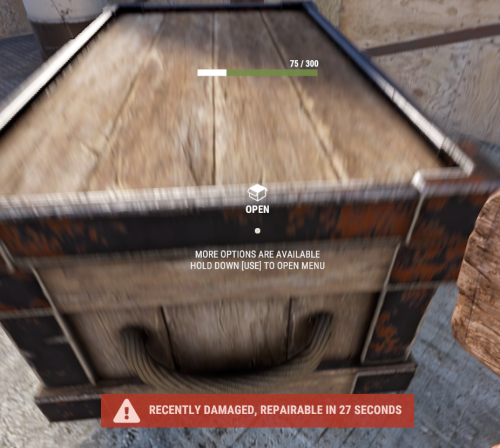
With just one tap, you can fully repair your base blocks and base items—no more having to tap repeatedly! Includes permission support and is optimized for top performance, with rotation & demolition support! Features * One Tap Repairs - Supports Base Blocks & Base Items & Vehicles, etc * Rotation - Re-Enables Base Blocks for easy native rotation again! * Demolition - Re-Enables Base Blocks for easy native demolition again! Permissions betterhammer.use ( required to do full 1 tap hit repairs with hammer & to use any features/functions )$5.00 -

Version 2.0.2
613 downloads
WHAT IS IT FOR? This is a tool that creates temporary notifications on the user's screen, used to facilitate messages between plugins and server users. CONSOLE COMMANDS toastify [toast_id] [player] [message] - to send a toast notification for a specific player toastify.global [toast_id] [message] - to send a toast notification for everyone PERMISSION toastify.use- the permission to access the toastify commands API </> // Send a toast notification for the target player // Returns the ID of the toast to destroy it if necessary // @deprecated string SendToast(BasePlayer player, string toastId, string message, float? duration); // Use this new one instead of the above: string SendToast(BasePlayer player, string toastId, string title, string message, float? duration); // Destroy a toast notification void DestroyToast(BasePlayer player, string toastId); GOOD WAY TO IMPLEMENT If you want to integrate your plugin with Toastify, I recommend that you add an option in the configuration file of your plugin that the user can link their notification ID with the notifications you will use, you can see an example of how this was implemented in the FurnaceUpgrades or TCLevels configuration file. CONFIGURATION The default configuration file of the plugin: SCREENSHOTFree -

Version 1.1.1
185 downloads
Introducing the Rust Store, Twitch Drops & Kick Drops Updates Discord Bot – your all-in-one solution for keeping your Rust community informed about the latest in-game items, exclusive Twitch and Kick Drops! This bot automatically checks for updates from the Rust item store, Twitch and Kick Drops, delivering them directly to your Discord channel. Perfect for Rust server communities, content creators, and enthusiasts who want to stay ahead of the game without manual tracking. --- What This Bot Does 1. Rust Store Updates Automatically checks the Steam Rust store for the latest skins and items. The bot sends updates in a beautiful embed format, including: Item Name Price High-Quality Image Direct Purchase Link 2. Twitch & Kick Drops Notifications Keeps track of Twitch and Kick Drops and notifies your community about: General Drops available on all Rust streams with the "Drops Enabled" tag. Streamer-Specific Drops with details on the specific streamer to watch, the time required to earn the drop, and an image preview. 3. Multi-Server Support Run a single bot instance that sends updates to multiple Discord servers simultaneously. Each server has its own webhooks, embed customization, and per-platform enable/disable toggles — all configured in a single config.json file. 4. Fully Customizable Each platform (Steam, Twitch, Kick) is configured independently per server, giving you full control over: Enable/disable each platform individually per server Separate webhook URLs for each platform Custom first-message text per platform (great for role pings) Colors, text labels, footer branding, and more 5. Efficient and Lightweight Built for speed and reliability, the bot ensures no updates are missed, with a configurable global check interval to suit your community's needs. It only fetches data from platforms that at least one server has enabled. Why Use This Bot? 1. Stay Updated Automatically Never miss a Rust store, Twitch Drops, or Kick Drops update – the bot does all the tracking for you. 2. Engage Your Community Hype up your members with instant notifications about new skins, exclusive Twitch and Kick Drops, and more. 3. Support for Twitch Drops Ensure your community is informed about limited-time skins available through Twitch events, boosting engagement and excitement. 4. Easy to Configure Whether you're running a local server, VPS, or hosting on Pterodactyl, the bot is simple to set up with clear configuration options. Features Rust Store Updates Weekly updates about new items in the Rust store. Twitch Drops Notifications Real-time notifications about available general and streamer-specific Twitch Drops. Kick Drops Notifications Real-time notifications about available general and streamer-specific Kick Drops. Multi-Server Support Send updates to multiple Discord servers from a single instance. Customizable Embeds Easily adjust text fields, colors, and footer messages to align with your community's branding. Database Flexibility Use SQLite for smaller setups or MySQL for more complex environments. Ideal Use Cases - Rust Server Communities: Announce new items and keep your server members engaged. - Rust Content Creators: Share weekly updates with fans and followers to keep them engaged with your community. - Twitch & Kick Streamers: Integrate this bot to notify viewers about Twitch Drop items and make your streams the go-to place for exclusive updates. --- Feel free to contact me on Discord: bxcas for any questions, customizations, or support! Config File The bot supports two config formats: single-server and multi-server. If no servers array is found, it falls back to single-server mode automatically. Single-Server Config (simple): { "check_interval_minutes": 5, "embed": { "steam": { "enable": true, "webhook_url": "STEAM_WEBHOOK_URL_HERE", "firstTitle": "<@&ROLE_ID> New Steam skins available!", "title": "Steam Store", "title_field_name": "Nome", "price_field_name": "Price", "footer_text": "Server © 2025", "footer_icon_url": "https://yourwebsite.com/logo.png", "color": "FF0000" }, "twitch": { "enable": true, "webhook_url": "TWITCH_WEBHOOK_URL_HERE", "firstTitle": "<@&ROLE_ID> New Twitch Drops available!", "title": "Twitch Drops", "streamer_field_name": "Streamer", "watch_time_field_name": "Watch time to receive", "footer_text": "Server © 2025", "footer_icon_url": "https://yourwebsite.com/logo.png", "color": "9146FF" }, "kick": { "enable": true, "webhook_url": "KICK_WEBHOOK_URL_HERE", "firstTitle": "<@&ROLE_ID> New Kick Drops available!", "title": "Kick Drops", "streamer_field_name": "Streamer", "watch_time_field_name": "Watch time to receive", "footer_text": "RustPortugal © 2025", "footer_icon_url": "https://yourwebsite.com/logo.png", "color": "00E701" } }, "database": { "type": "sqlite OR mysql", "mysql": { "host": "YOUR_MYSQL_HOST", "user": "YOUR_MYSQL_USER", "port": 3306, "password": "YOUR_MYSQL_PASSWORD", "database": "YOUR_MYSQL_DATABASE_NAME" } } } Multi-Server Config: { "check_interval_minutes": 5, "servers": [ { "id": "myserver", "name": "MyServer", "embed": { "steam": { "enable": true, "webhook_url": "STEAM_WEBHOOK_URL_HERE", "firstTitle": "<@&ROLE_ID> New Steam skins available!", "title": "Steam Store", "title_field_name": "Name", "price_field_name": "Price", "footer_text": "MyServer © 2025", "footer_icon_url": "https://yourwebsite.com/logo.png", "color": "FF0000" }, "twitch": { "enable": true, "webhook_url": "TWITCH_WEBHOOK_URL_HERE", "firstTitle": "<@&ROLE_ID> New Twitch Drops available!", "title": "Twitch Drops", "streamer_field_name": "Streamer", "watch_time_field_name": "Watch time", "footer_text": "MyServer © 2025", "footer_icon_url": "https://yourwebsite.com/logo.png", "color": "9146FF" }, "kick": { "enable": true, "webhook_url": "KICK_WEBHOOK_URL_HERE", "firstTitle": "<@&ROLE_ID> New Kick Drops available!", "title": "Kick Drops", "streamer_field_name": "Streamer", "watch_time_field_name": "Watch time", "footer_text": "MyServer © 2025", "footer_icon_url": "https://yourwebsite.com/logo.png", "color": "00E701" } } } ], "database": { "type": "sqlite or mysql", "mysql": { "host": "YOUR_MYSQL_HOST", "user": "YOUR_MYSQL_USER", "port": 3306, "password": "YOUR_MYSQL_PASSWORD", "database": "YOUR_MYSQL_DATABASE_NAME" } } } General Settings check_interval_minutes - Interval in minutes between each check for new Rust items. Example: 60 for every hour. Server Settings (inside each server entry, or at root for single-server mode) id – Unique identifier for the server (used in the database to track sent items). name – Display name for the server (used in console logs). Platform Settings (inside embed.steam, embed.twitch, embed.kick) enable – true/false – Enable or disable this platform for this server. webhook_url – Discord webhook URL for sending updates for this platform. firstTitle – Text sent as message content with the first new item of each batch. Useful for tagging roles (e.g. <@&ROLE_ID> New skins!). Leave empty ("") to disable. title – The title prefix shown in the embed. Example: "Steam Store". title_field_name – Label for the item name field. Example: "Nome". price_field_name – Label for the item price field (Steam only). Example: "Preço". streamer_field_name – Label for the streamer field (Twitch/Kick only). Example: "Streamer". watch_time_field_name – Label for the watch time field (Twitch/Kick only). Example: "Watch Time Required". footer_text – Text displayed in the embed footer. Example: "MyServer © 2025". footer_icon_url – URL for the icon shown in the footer. Example: "https://yourwebsite.com/logo.png". color – Embed color in hexadecimal. Example: "FF0000" for red. Database Settings type - Type of database to use. Options are "sqlite" for local or "mysql" for remote storage. MySQL Settings (Only if using "mysql") host - Hostname or IP address of your MySQL database. Example: "localhost" or "123.45.67.89". user - Username for accessing your MySQL database. Example: "root". port - Port number for connecting to MySQL. Default: 3306. password - Password for your MySQL database user. Example: "mysecretpassword". database - Name of the specific MySQL database for storing item data. Example: "rust_store_data".$9.99 -
Version 1.4.6
4,621 downloads
Manage your Rust server easier and more efficiently with the AdminMenu plugin. Track players, interact with them, edit their data and permissions, as well as change server convars and manage plugins. Features: Menu retains its state after closing, you won't lose everything you did before. Ability to fully translate the menu into any language. Large range of permissions for each action, will allow you to flexibly customize the admin menu for each group of administrators. Quick menu that allows you to perform quick actions Full list of players with the ability to filter by online, offline, admins and moderators. Also has a frame of different colors depending on the level of authorization. Wide range of information and actions for the selected player. Editing convars with search. Has a complete list of editable convars with descriptions for some of them. Extensive issue menu by category, with easy management of name, skin and amount (manual, +1, +100, +1000, +10000). Plugin management menu. It is possible to reload, unload or load a plugin easily and quickly. Updates occur in real time. Ability to create your own custom buttons that execute several commands Quick Start: You install the plugin in the plugins folder. Give yourself the adminmenu.fullaccess permission. Commands, use one of your choice, one for the player and one for the admin group: o.grant user [name or steamid] adminmenu.fullaccess o.grant group admin adminmenu.fullaccess Press the X button (swap seat button) or type adminmenu in the console. Enjoy Useful stuff: You can quickly open a player in the admin menu. To do this, point at the player and press X. You don't have to hover over the player exactly, you will be able to open players within a certain radius of the place you are looking at. CUSTOM BUTTONS Custom buttons are buttons that when pressed will execute commands on behalf of the administrator, commands can be several, below will be the details. At the moment, custom buttons can be created in two places: in the quick menu and in the menu when selecting a player. These places are separated in the config. Button Fields: "Execution as server" - Call the command on behalf of the server, not the administrator "Label" - Text that will be on the button, for each such inscription creates a field in the lang file, accordingly you can translate this text into several languages. "Commands" - Array of commands that will be executed on behalf of the administrator. Chat commands require a special entry, see examples. "Permission"- permission to display and use the button. You need to write the permission that will be after "adminmenu.". Example: if you enter the permission "test" the permission will be adminmenu.test "Position" - The location for the button, the first number is responsible for the row number, the second for the position within the row, starts from 0.There are limits of locations, if you have gone beyond the limit - the button will not be displayed. Common Tags: {adminUID} - administrator's id. {position} - administrator coordinates (underfoot) {view_position} - the position where the administrator is looking (can be used for spawning or something similar) {view_direction_forward} - forward view direction of the administrator {view_direction_backward} - the direction the administrator is looking backwards {view_direction_left} - direction of the administrator’s view to the left {view_direction_right} - administrator’s view direction to the right Tags for target only: {steamid}, {steamID}, {userID}, {STEAMID}, {USERID} - mean the same thing, namely the id of the selected player. {target_position} - target coordinates (underfoot) Example of commands: chat.say \"/{chat command}\" vanish ban {steamID} teleport {steamID} {adminUID} More information about the grant menu: The grant menu includes the full list of items including hidden items as well as custom items created by the CustomItemDefinitions library. The menu can be accessed from the navigation or from the menu of the selected player. When issuing itself has categories. Search works in any registry by any part of the name or short name. Has a page system at any stage. More information about the buttons in the Quick Menu: [Teleport to 0 0 0] - Teleport to coordinates 0 0 0. Requires adminmenu.quickmenu.teleportto000 permission [Teleport to Deathpoint] - Teleport to your deathpoint. Requires adminmenu.quickmenu.teleporttodeath permission [Teleport to Spawn point] - Teleport to a random spawn point. Requires adminmenu.quickmenu.teleporttospawnpoint permission [Kill Self] - Kill Self, kills even when immortal. Does not require permission. [Heal Self] - Fully heal yourself. Requires adminmenu.quickmenu.healself permission [Call Heli] - Call Helicopter to yourself (arrives in time). Requires adminmenu.quickmenu.helicall permission [Spawn Bradley] - Spawn bradley on yourself. Requires adminmenu.quickmenu.spawnbradley permission More information about the buttons in the menu of the selected player: [Teleport Self To] - Teleport yourself to the selected player. Requires adminmenu.userinfo.teleportselfto permission [Teleport To Self] - Teleport the selected player to yourself. Requires adminmenu.userinfo.teleporttoself permission [Teleport To Auth] - Teleportation to random authorization (TC). Requires adminmenu.userinfo.teleporttoauth permission [Teleport to Deathpoint] - Teleportation to a player's deathpoint. Requires adminmenu.userinfo.teleporttodeath permission [Heal] - Full healing, including metabolism. Requires adminmenu.userinfo.fullheal permission [Heal 50%] - Half healing. Requires adminmenu.userinfo.halfheal permission. [View Inventory] - View and edit player's inventory. Requires adminmenu.userinfo.viewinv permission [Strip Inventory] - Clear player's inventory. Requires adminmenu.userinfo.stripinventory permission [Unlock Blueprints] - Unlock all Blueprints. Requires adminmenu.userinfo.unlockblueprints permission [Revoke Blueprints] - Reset all Blueprints. Requires adminmenu.userinfo.revokeblueprints permission. [Kill] - Kill a player. Requires adminmenu.userinfo.kill permission [Kick] - Kick a player. Requires adminmenu.userinfo.kick permission [Ban] - Ban a player. Requires adminmenu.userinfo.ban permission More information about the buttons in the menu of the selected group: [Remove Group] - Remove group, has confirmation. Requires adminmenu.groupinfo.removegroup permission [Clone Group] - Clone group with the ability to copy users. Requires adminmenu.groupinfo.clonegroup permission Permissions: adminmenu.use - Ability to use admin menu with basic set. Open tab quick menu (each button has its own permission, without permissions is present only kill yourself button) and the list of players. adminmenu.fullaccess - Full access to all functions without the need for each permission, includes also adminmenu.use. It is recommended to give only to the main administrators. adminmenu.quickmenu.teleportto000 - Access to the button in the quick menu, teleportation to coordinates 0 0 0 0. adminmenu.quickmenu.teleporttodeath - Access to the button in the quick menu, teleportation to the point of your death. adminmenu.quickmenu.teleporttospawnpoint - Access to the button in the quick menu, teleportation to a random spawn point. adminmenu.quickmenu.healself - Access button in quickmenu, heal yourself completely. adminmenu.quickmenu.helicall - Access to the button in the quick menu, call a helicopter to yourself (arrives in time). adminmenu.quickmenu.spawnbradley - Access button in quickmenu, spawn bradley. adminmenu.userinfo.teleportselfto - Access to the button in the menu of the selected player, teleportation to the selected player. adminmenu.userinfo.teleporttoself - Access to the button in the menu of the selected player, teleport the selected player to himself. adminmenu.userinfo.teleporttoauth - Access to the button in the menu of the selected player, teleportation to random authorization (TC). adminmenu.userinfo.teleporttodeath - Access to the button in the menu of the selected player, teleportation to the place of death of the player. adminmenu.userinfo.fullheal - Access to the button in the menu of the selected player, full healing, including metabolism. adminmenu.userinfo.halfheal - Access to the button in the menu of the selected player, half healing. adminmenu.userinfo.viewinv - Access to the button in the selected player's menu, view and edit the player's inventory. adminmenu.userinfo.stripinventory - Access to the button in the menu of the selected player, clear the player's inventory. adminmenu.userinfo.unlockblueprints - Access the button in the menu of the selected player, unlock all drafts. adminmenu.userinfo.revokeblueprints - Access to the button in the menu of the selected player, reset all drafts. adminmenu.userinfo.kill - Access the button in the selected player's menu to kill the player. adminmenu.userinfo.kick - Access the button in the selected player's menu to kick the player. adminmenu.userinfo.ban - Access to the button in the menu of the selected player, ban the player. adminmenu.groupinfo.removegroup - Access to the button in the menu of the selected group, the ability to remove the group. adminmenu.groupinfo.clonegroup - Access to the button in the menu of the selected group, the ability to clone the group. adminmenu.convars - View and edit convars. adminmenu.permissionmanager - View and edit permissions in groups, player groups, create, delete and clone groups (requires additional permissions from these buttons). adminmenu.pluginmanager - Access to plugin management, reloading, unloading, loading plugins. adminmenu.give - Access to give resources, as well as yourself and the selected player.$30.00 -

Version 1.0.2
622 downloads
Power Tools Plus : Configure chainsaw and jackhammer for fuel capacity,consumption and durability with Global or permission based settings. Features : Global settings for durability loss (true/false) 3 Profiles/Permission based settings for Start Chance Fuell Capacity Fuell Consumption Permissions to set No Durability Loss per Rank or Player Permissions : powertoolsplus.default powertoolsplus.vip powertoolsplus.plus powertoolsplus.chainsaw : Can be used if Global Durabillity is false powertoolsplus.jackhammer : Can be used if Global Durabillity is false Configuration : { "Durability Settings": { "Chainsaw : No Durability loss (Global)": false, "Jackhammer : No Durability loss (Global)": false }, "Chainsaw Settings Default": { "Chainsaw start chance": 0.33, "Chainsaw Fuel Capacity": 100, "Chainsaw Fuel consumption": 1.0 }, "Chainsaw Settings Vip": { "Chainsaw start chance": 0.75, "Chainsaw Fuel Capacity": 250, "Chainsaw Fuel consumption": 0.5 }, "Chainsaw Settings Plus": { "Chainsaw start chance": 1.0, "Chainsaw Fuel Capacity": 500, "Chainsaw Fuel consumption": 0.33 } }Free -
Version 1.3.0
9 downloads
Collect player feedback fast with an in-game UI. Log it to console, files, or send it straight to Discord via webhooks. Stay connected to your community and improve your server with real, direct input. Join my Discord community to stay informed on new plugins, updates, and sales. https://discord.com/invite/yz5D3PBXa8 Intuitive feedback interface: Players can easily submit feedback through a user-friendly UI. Customizable logging options: Feedback is logged in the server console, specific log files, or sent via Discord webhooks. Optional Discord integration: Automatically sends feedback to a designated Discord channel via webhooks Image Library (Required) Discord Messages (Optional) - Used to send feedback to discord: /feedback – Opens the feedback UI. feedback.use – Grants access to the /feedback chat command. feedback.blocked – Users with this permission will not be able to send feedback.$7.99 -

Version 1.0.0
46 downloads
Kilobyte Admin Tools (KAT) A comprehensive admin toolkit for Rust servers with moderation tools and playful troll commands for dealing with rule-breakers. Works with Carbon & Oxide. Features Moderation Effects Pacify - Prevents damage to other players Reflect - Reflects damage back to attacker NoFarm - Prevents resource gathering NoMeds - Prevents medical item usage Freeze - Stops player movement Inventory & Teleport DropIt - Force drop entire inventory Strip - Clear inventory Bring - Teleport player to you Goto - Teleport to player Investigation Tools Sit - Seat player in chair for chat Unsit - Release from chair Skyfall - Drop player from 50m Troll Commands Slap, Bounce, Rocket, Heal, Slay Scramble, Nudge, Yeet, Dizzy, Chaos Tickle, Confuse, Beep, Lag, Bouncy Installation Place KilobyteAdminTools.cs in your oxide/plugins/ or carbon/plugins/ folder Config file creates automatically on first load Grant permission: oxide.grant user <name> kilobyteadmintools.use Permissions kilobyteadmintools.use - Access to all KAT commands Commands Use /kat or /kat.help for full command list Main commands: /kat.pacify, /kat.reflect, /kat.nofarm, /kat.nomeds, /kat.freeze, /kat.dropit, /kat.strip, /kat.sit, /kat.unsit, /kat.skyfall, /kat.bring, /kat.goto, /kat.slap, /kat.bounce, /kat.rocket, /kat.heal, /kat.slay, /kat.scramble, /kat.nudge, /kat.yeet, /kat.dizzy, /kat.chaos, /kat.tickle, /kat.confuse, /kat.beep, /kat.lag, /kat.bouncy Short aliases available without kat. prefix Configuration Customize settings in oxide/config/KilobyteAdminTools.json SlapDamage (default: 5) BounceHeight (default: 15m) RocketForce (default: 25m) ScrambleRadius (default: 10m) YeetDistance (default: 20m) DizzyRadius (default: 5m) Notes Sit and Nudge require the admin to be in-game Effects are toggles - run command again to remove Chairs auto-cleanup on unsit or plugin unload Players cannot leave chair until admin uses unsit$10.00 -
Version 1.9.0
217 downloads
Say goodbye to the hassle of manual code locking! With this plugin, you can easily auto-lock items with a preset code straight from your inventory. Your teammates will also get instant access, no extra steps needed. The interface is super easy to use, making code updates and settings changes quick and simple. Give your Rust server a boost with this must-have plugin! Join our Discord community to stay informed on new plugins and updates. Click here to get started. Automated code locking: Automatically applies a code lock to any lockable item with a predetermined code. 3 plugins in 1: Lock regular items, secure things that normally can't be locked (like furnaces or turrets, great for PVE), and easily add automatic door closers. Balanced gameplay: Optional use of the players inventory code locks or key locks. Team authorization: Automatically grants and removes the players team to the code lock. Configuration options for data management: Provides configurable options to automatically clean up saved data on each server wipe or after a specified number of days of player inactivity. User-friendly interface: Offers an intuitive interface for players to easily update their code and adjust settings. Streamer mode: Lock items that normally cannot be locked like furnaces, turrets, and more (Great for PVE!): Optional feature for automatic door closers: Easily customizable - Toggle each item on or off to suit your server: Lockable Items: As mentioned before each of these can be individually enabled/disabled on your server! Vanilla - Doors and Ladder hatches, Storage containers, Tool Cupboards, Lockers. Extra - Furnaces, Electric ovens, Composters, Mixing Tables, Repair Benches, Research Tables, Drop Boxes, Flame Turrets, Gun Traps, Auto Turrets, Sam Sites. Automatic Door Closer Features/Config Settings: Enable/disable door closer functionality. Automatically closes the door after a player specified delay. All door types are supported, including doors, hatches, and gates. Block door removal if not placed by the player. Option to prevent door closers from being returned upon removal. Optional required resources to use door closers. 1 metal spring, 100 metal fragments per closer for example. Chat commands to manage door closers. (Required) Image Library /lock – Opens the auto lock settings UI. (Configurable) /closer – Adds or removes a door closer to the door in front of the player. (Configurable, Optional) autolock.wipe – Removes and resets all saved user data. (Automatic data cleanup included as well) autolock.admin – Grants access to the autolock.wipe console command. autolock.use – Grants access to the /lock chat command.$9.95 -

Version 1.1.5
713 downloads
Team Tracker is your is the best admin tool for monitoring player associations and enforce team size rules. Whether you need to ban an entire team or track players abusing the system, Team Tracker has you covered. It offers live logging, team queries, and auto-banning—all in one customizable and performant package. Dynamic identification of player teams Live discord logging Query a player team at any time Automatic custom ban system Battlemetrics integration High Performance clearplayerdata - deletes a players team data/history teamcheck - Sends a discord embed with a report of group data, warnings and current team players to discord. Note: All chat commands are universal meaning they can be used via the console, rcon(for import commands) and can be customized via the configuration. teamtracker.whitelist - Whitelists a player from being included in any team alerts (Admins and Developers are automatically whitelisted) teamtracker.admin - allows the use of the checkteam and whitelist commands Proximity - configurable distance between players Sleeping bag placement - bags given or placed within building Codelock authorization - authorized players on a codelock Turret authorization - authorized players on a turret Toolcupboard authorization - authorized players on a toolcupboard Healing - healing and reviving of other players Vehicle mounting - mounting of the same vehicle at the same time Team-members - history of team members PVP - players breaking team limits when pvping/roaming Raiding - players raiding together Looting - looting other players together Alerts: All alert types can be customized via the plugin config. Options include: Enable - this toggles any usage of the alert type to enable or disable the alert type Log to discord - Enables discord logs Warn Players - Sends an ingame warning to a player up to 30 seconds after the offense Weighting - configures how important the alert type is. This contributes to the ban by association score value. Warnings: Warnings are logged as a type of violation. This provides discord logs and the optional in game warning display to the violator. Display Warnings to Players - option to disable in game warnings Length of time to display warning - optional length of time to display warnings Warning Text - customizable warning text Bans: Team-Tracker allows for customizable automatic bans of players, who go over the group limits. Enable Bans - allows toggeling of the ban system Ban text - text to display as the reason for a player ban Log Bans to Discord - optionally log bans to discord. Logging Only Mode: Set Enable Bans & Log Bans to Discord to true and set Local Bans and Battlemetrics Bans to False Enable Ban by Max Association - enables banning a player or a team by summing all association values to create a total weighting. Example: if the team limit is 5 players and the Max Association Weighting is 10, if a player has more than 5 players with an association weighting of more than 10 this will apply a ban. Max Association Weighting - set the max association weighting per player in a group Ban Duration - length of time to ban for Ban Team - ban all team members of a banned player Ban Associations - bans all players over Max Association Weighting in relation to a banned player Local Bans - apply bans locally An API token for your battlemetrics org is required to use the battlemetrics ban features. A token can be acquired by visiting: https://www.battlemetrics.com/developers Server ID - set the BM server ID Go to https://www.battlemetrics.com/rcon, click into the select server. Check the address bar in your browser, the address will be ending with the Server Id, for example: https://www.battlemetrics.com/rcon/servers/123456 means 123456 is the Server Id. Org ID - set an organisation ID Go to https://www.battlemetrics.com/rcon/orgs, click into the org. Check the address bar in your browser, the address will be ending with the Organization Id, for example: https://www.battlemetrics.com/rcon/orgs/edit/123456 means 123456 is the Organization Id. BanList ID - adds a ban to a specific ban list Go to https://www.battlemetrics.com/rcon/ban-lists, click "View Bans". Check the address bar in your browser, the address will be ending with the Banlist Id, for example: https://www.battlemetrics.com/rcon/bans/?filter[banList]=abcdef-123456-example-banlist-example91011 means abcdef-123456-example-banlist-example91011 is the Banlist Id. Org Wide Ban - true if the ban should be applied to all servers in your organization Auto Add - true if the ban should automatically ban new identifiers after kicking a matching player. Native Enabled - true if native bans should be issued for this ban$24.99- 17 comments
- 5 reviews
-
- 4
-
-
-
- #teamalerts
- #team
- (and 28 more)
-

Version 1.0.4
129 downloads
Watchlist is a lightweight but powerful tool that alerts admins when specific players connect to the server. Whether you're online or offline, you'll get real-time in-game notifications and Discord alerts with fully configurable message templates and role pings. The built-in UI makes managing the watchlist easy, with support for sorting, filtering, teleporting, and note-taking. Players can be added or removed manually or straight from RustAdmin with custom commands. Very useful tool to keep you and your staff one step ahead. Configuration { "Discord Webhook URL": "https://discord.com/api/webhooks/your/webhook/url", (Your Webhook URL) "Ping Role": false, (Whether to ping a role when player comes online on discord, e.g: @Admin) "Role ID": 0, (Discord Roll Id to ping) "Purge Watchlist on Wipe": false, (whether to purge on wipe) "Purge Players List on Wipe": true, (performance, every player is stored in a file, it is recommended to clear this on wipe) "Enable UI": true, (plugin can be run entirely without UI if desired) "UI Color Scheme (Options: dark, light, rust)": "dark", ( UI styles ) "Custom Colors": { (customise the UI for your server) "PrimaryBackground": "0 0 0 0.95", "SecondaryBackground": "0.15 0.15 0.15 1", "HeaderBackground": "0.1 0.1 0.1 1", "ButtonPrimary": "0.2 0.7 0.2 0.9", "ButtonSecondary": "0.3 0.3 0.3 1", "ButtonDanger": "0.7 0.2 0.2 0.9", "TextPrimary": "1 1 1 1", "TextSecondary": "0.7 0.7 0.7 1", "OnlineIndicator": "0.2 0.8 0.2 1", "OfflineIndicator": "0.8 0.2 0.2 1", "RowEven": "0.12 0.12 0.12 0.95", "RowOdd": "0.15 0.15 0.15 0.95", "ActiveItem": "0.4 0.4 0.4 1", "AlertBackground": "0.8 0.2 0.2 0.95", "AlertText": "1 1 1 1" }, "UI Scale": 1.0, (scales the UI as desired) "Main UI Position": { "AnchorMin": "0.2 0.1", "AnchorMax": "0.8 0.9" }, "Font Size": { "Title": 20, "Header": 14, "Normal": 12, "Small": 10 }, "UI Animation": true, (enables ui animations) "Enable Sound Alert": true, (plays sound when watchlist player comes online) "Alert Sound": "assets/bundled/prefabs/fx/notice/item.select.fx.prefab", (choose which sound you want from rust prefab sounds) "Alert Duration (seconds)": 10.0, ( hlow long the alert is displayed in-game when a player comes online - only admins see this) "Show Visual Alert": true, (enable / disable the in-game alert) "Send Discord Add/Remove Notifications": true ( enable discord logging of adding/removing watchlist players) "Max Cached Players": 3000, (Performance, set this lower to reduce the memory used by the plugin this populates the player list with the last x number of players to join your server, ordered by latest) "Alert Cooldown Seconds": 120, (Prevents alert spam when players reconnect) "Startup Alert Grace Seconds": 60, (waits before firing watchlist alerts after server starts) "Auto Expire Days (0 = disabled)": 0, (auto expire watchlist players after number of days) "Send Prune Discord Notifications": true, (sent prune notification to discord) "Prune Report Max Per Embed": 10, (max players in prune message, prevents breaching discord embed count) "Prune Report Include Notes": false, "Enable Diagnostics": false (enable this for plugin performance stats and diagnostic information) } COMMANDS Chat: /watchlist Opens the Watchlist UI (requires permission) /wl <steamid> "<note>" Adds a player to the watchlist with a note (requires watchlist.admin permission) /wlr <steamid> Removes a player from the watchlist (requires watchlist.admin permission) /wlist Lists all watched players in chat (requires watchlist.admin permission) Console: watchlist.add <steamid> "<note>" Adds a player to the watchlist Example: watchlist.add 76561198000000000 "Suspected Cheater" watchlist.remove <steamid> Removes a player from the watchlist watchlist.list Lists all watched players in the server console wl <steamid> "<note>" Adds a player to the watchlist with a note (can be used via rcon) wlr <steamid> Removes a player from the watchlist (can be used via rcon) wlist Lists all watched players in the server console (can be used via rcon) purgewl Clears the entire watchlist (requires watchlist.admin permission) PERMISSIONS watchlist.admin Full access to all commands and features watchlistui.toggle Allows UI toggle via `/watchlist` command RUSTADMIN INTEGRATION You can integrate Watchlist directly with **RustAdmin** to add or remove players with a single click. Add to Watchlist Command to Execute: wl ${playerSteamid} "From RustAdmin" Tick "Show Command Output in a Dialog" (optional) Remove from Watchlist Command to Execute: wlr ${playerSteamid} Tick "Show Command Output in a Dialog" (optional)$4.99 -
Version 1.0.1
32 downloads
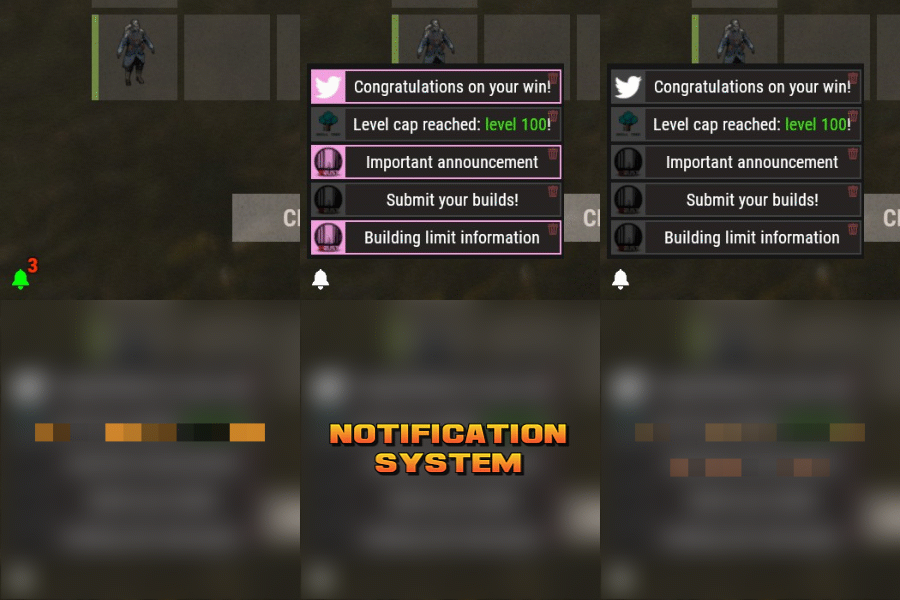
Notification Systems is a versatile plugin designed to deliver messages directly to players on your server — even when they’re offline. Seamlessly integrate it into other plugins, such as Skill Tree, or trigger notifications manually through commands for complete flexibility. Each notification can include a custom title, message, and an optional redemption button, giving you the power to reward players with items, currency, points, or trigger client-side commands — all tailored to your server’s needs. The idea behind the plugin is to allow server owners to send critical information to players, with the option to run commands that target said players. For example, you can send a notification to all players that have joined your server (regardless of their online status), with a redemption button that will give each of them 500 scrap. The following commands can be run in your server console, or player console (with the notificationsystem.admin permission). The commands are broken up in 3 sections: Title, body, redemptions, each of which is differentiated using "[]". Parameters: Userid: target player's Steam64 id. Message icon id: the skin id that you want to appear on the notification list. Setting to 0 will default to the message item id icon. Message item id: the item image you want to appear on the notification list (-769647921 = skull.trophy). Setting to 0 will default o the config icon. Title: Must be formatted with square brackets and surrounded by quotation marks like so: "[Title here]" Body: Must be formatted the same way as the title, with square brackets and quotation marks, like so: "[description here]" Redemptions: Must also have the square brackets and quotation marks, but also allow for an optional parameter of running it as a server command or client command. Here is the formatting for running a server command: "[(inventory.giveto {id} scrap 500, true)]" Here is the formatting for running a client command: "[(chat.say "/sprize", false)]" Here is the formatting for running both: "[(inventory.giveto {id} scrap 500, true),(chat.say "/sprize", false)]" Command: notification.add <userid> <message icon id> <message item id> "[Title]" "[Description]" "[(command1,bool:isServer)(command2,bool:isServer)]" Command: notification.all <message icon id> <message item id> "[Title]" "[Description]" "[(command1,bool:isServer)(command2,bool:isServer)]" Example of a full command: notification.add 123445667878213 "[Title goes here]" "[Here is my message, there are many others like it, but this is mine]" "[(inventory.giveto {id} scrap 500. true)]" notification.all "[Title goes here]" "[Here is my message, there are many others like it, but this is mine]" "[(inventory.giveto {id} scrap 500. true)]" void AddAll(string title, string body, int itemID, ulong picID = 0, string sprite = null, List<(string, bool)> commands = null) void Add(ulong id, string title, string body, int itemID, ulong picID = 0, string sprite = null, List<(string, bool)> commands = null)$11.99- 3 comments
-
- 1
-
-
- #notify
- #notification
- (and 7 more)
-

Version 1.0.5
27 downloads
Are you tired of having to change configurations and plugins manually on multiple Rust servers that run the same configurations? (eg. a mirrored US and EU version of your server) Then this is just what you are looking for! Introducing RustSyncBot—your ultimate solution for seamless server synchronization. Designed with ease of use in mind, RustSyncBot is an easy-to-install Pterodactyl egg that effortlessly keeps your game servers in sync across multiple machines. Whether you're running a network of Rust servers or any other setup requiring consistency across servers, RustSyncBot is here to simplify your workflow. With RustSyncBot, you can easily specify the directories and files that need to be mirrored from a main server to one or more secondary servers. The bot’s robust configuration options allow you to manage multiple pairs of servers, ensuring your server network stays perfectly synchronized at all times. Key Features: Easy Installation: Install and set up within minutes with our user-friendly Pterodactyl egg. Seamless Synchronization: Automatically sync specified directories and files from your main server to secondary servers. Multi-Server Management: Configure multiple server pairs to maintain consistency across your entire server setup. Efficiency Boost: Streamline your server management, making it easier than ever to run the same server setup across multiple servers. RustSyncBot takes the hassle out of server synchronization, letting you focus on what matters most—delivering an exceptional gaming experience to your community. Tested and working with "BotReaper Python Discord Bot" node. You just need to modify the "APP PY FILE" to be "main.py" instead of "app.py" Pterodactyl is NOT needed, you can run this bot through normal python on any server or even windows machine with python installed! Installation Instructions: How to install: 1. Create a new server using the provided egg called "egg-rust-sync-bot.json". 2. Upload the "rustsyncbot.zip" archive to the server's Files section. Once uploaded, you can unzip the file or trigger a reinstall in the server's Settings section. 3. Navigate to the Files section and modify the .env file if you would like to change the sync time (default 120 seconds) (do not set it too low, as then you will have alot of network requests often, test and set to your needs) 4. Navigate to the config directory and look through the "example.yaml" file, you will need to setup your configuration files to connect to your servers, specify what files/folders you would like to sync (I recommend using https://yamlchecker.com/ OR https://jsonformatter.org/yaml-formatter/ to verify that your syntax is correct) 5. Start the server. All dependencies will be installed on startup, and bot will automatically start. (The bot will ONLY copy files that have a newer modified date from server_1 over to server_2. so make sure your files are the latest version on server_1) 6. Leave server running, bot will recheck files based on the SYNC_INTERVAL you have set in the .env file NOTE: All directories/files are RELATIVE to the starting location of your SFTP login. this means that you should NOT put /home/container/ before each of your folder/file locations I have made a tool to help with generating the correct information for the configuration. It can be found at: https://rustsync.rustvideo.com/ Sample Configuration: # MAIN server server_1_name: Server 1 Display Name server_1_url: ip:port # eg 192.168.1.1:2022 using sftp://domain.com:2022 "should" work also server_1_user: username.shortcode server_1_pass: panelpassword server_1_sftp: True # do not change, for future functionality # SECONDARY server server_2_name: Server 2 Display Name server_2_url: ip:port # eg 192.168.1.1:2022 using sftp://domain.com:2022 "should" work also server_2_user: username.shortcode server_2_pass: panelpassword server_2_sftp: True # do not change, for future functionality delete_missing_remote: True # set to True or False. if it is missing, it defaults to True for backwards compatability # directories for the bot to keep in sync CASE SENSITIVE # directories are listed as key/pair. where the key is the directory on the main server, and value is the directory # on the secondary server eg. # oxide/plugins: carbon/plugins # # will sync the directory of oxide/plugins on server_1 to the carbon/plugins directory on server_2 # you can use trailing slashes and preceding slashes. eg. # /oxide/plugins , /oxide/plugins/, and oxide/plugins are all valid options # CASE SENSITIVE directories_to_sync: oxide/plugins: oxide/plugins oxide/config: oxide/configs oxide/data/copypaste: oxide/data/copypaste # files for the bot to keep in sync CASE SENSITIVE # files are listed as key/pair. where the key is the location on the main server, and value is the location on the secondary server # eg. # oxide/plugins/ZoneManager.cs carbon/plugins/ZoneManager.cs # # will sync the individual file of "oxide/plugins/ZoneManager.cs" on server_1 to the location of "carbon/plugins/ZoneManager.cs" on server_2 # CASE SENSITIVE files_to_sync: steam_appid.txt: steam_appid.txt # directories for the sync bot to ignore, it will ignore these directories if the path is found within the sync, eg, if you are syncing carbon/data, it will # ignore the following # - carbon/data/AdminMenu # CASE SENSITIVE directories_to_ignore: - carbon/data/AdminMenu - carbon/data/Shop - carbon/data/Backpacks # files for the sync bot to ignore, it will ignore these files if the path is found within the sync, eg, if you are syncing carbon/config, it will # ignore the following # - carbon/configs/AbandonedBases.json # CASE SENSITIVE files_to_ignore: - carbon/configs/AbandonedBases.json - carbon/configs/RaidableBases.json$10.00- 4 comments
- 2 reviews
-
- 1
-
-
- #sync
- #pterodactyl egg
- (and 7 more)
-

Version 1.0.0
47 downloads
SkinFinder is an admin tool with which you can pull the SkinID of certain objects. The nice side effect is that the short name and the NetID are also displayed. More Free Plugins: If you are looking for more useful free plugins, please have a look at my Discord, you only have to choose the Flash role when you join. Support Discord Permission: To use the plugin, you need the .use permission. skinfinder.use load, run, enjoyFree -
Version 2.0.3
531 downloads
Admin Tools is an all-in-one plugin designed to make your job as a server owner/admin easier. This plugin has a wide range of features and commands that allow you to control your server easily, both in-game and via Discord. It also adds custom quality of life features exclusive to this plugin! ★ Inventory Viewing System - View an NPC or player's inventory in Discord and in-game ★ Multi-Server Support - Allows you to manage multiple Rust servers from a single bot ★ Custom Combatlog System - View a player's combatlog in Discord and in-game ★ Backpack Viewing System - View a player's backpack (uMod plugin) in Discord ★ Custom ID System - Get the ID of players on your server quick and easy, copy directly from chat ★ Warn System - Inform players of their wrongdoings and keep track of them (Warn Visuals: UI, Chat, Chat + Toast/Gametip) ★ Watchlist System - Lets you put suspicious players on a list for you to monitor, logs in-game and to discord ★ Server Command System - Reload/load/unload plugins and other console commands in Discord and in-game ★ F7 Report Logging System - Log F7 reports to discord with their combat log attached (if enabled) ★ and more! (Rest of features below) Please note, the Permissions UI Shown on screen towards the start of this video is FROM CARBON, NOT THE PLUGIN Please note, the Permissions UI Shown on screen towards the start of this video is FROM CARBON, NOT THE PLUGIN (Changed/Exclusive): * Timestamps for video in video's description - Make sure to up video quality if watching from this site. * Timestamps for video in video's description - Make sure to up video quality if watching from this site. ★ Permission System - Grant/revoke permissions to groups and players from Discord and in-game ★ Minecraft Creative System - While enabled, hold middle click to get the item you're looking at ★ Rename System - Rename the players who think they are funny (toggle in config) ★ Tempban System - Tempban players with no database required ★ Unique ID System - Find players even when they have the same or similar names -- Thanks to nivex ★ Kill, Wound, Revive & Respawn System - Kill, wound (down), revive and respawn players from Discord and in-game ★ Team Viewing System - View a player's team members from Discord and in-game Q: Does this plugin have a GUI or do its commands use GUI? A: No. The only UI in-game for this plugin is the warning screens. Please do not purchase this plugin thinking it has GUI for its commands, they are ALL commands entered into chat, Discord, or RCON. There are however, 'modals' for Discord, but nothing GUI based for within the game other than the warning screens displayed when '/warn'ing a user (which can be configured by the user). Q: How do I set up the bot? A: Set Up Instructions - If you miss any permissions, can always add them to the Admin Tools role in discord after you invite the bot. Q: Does this plugin link players to Rust? A: No. You can use the free plugin DiscordCore by MJSU if you would like to link your players. Q: Does this plugin log kills/PMs/F1 Spawn/chat? A: No. Admin Tools only logs the following if enabled: F7 Reports, Bans, commands from this plugin, and players who are watchlisted. You can always view a player's combatlog from discord though. You can use the free logging plugins DiscordLogger by MONoH or DiscordChat by MJSU depending on your goal. However, personally, I recommend against using logging functionality that would be occurring very frequently due to Discord's rate limiting. Though, DIscordLogger is made in a way that combines messages if possible to prevent limiting. Q: Can this log to multiple Discord servers? A: YES. All you need to put for logging to multiple servers is the channel ID you want to log to in the list of channel IDs in the config. Q: Does this plugin ONLY work with Discord Extension 3.0.0+? A: YES. You need to download the 3.0.0+ version from GitHub, it is linked at the top (and right here) as a required dependency. Any version prior to 3.0.0 will not work with this plugin, but any version 3.0.0 and later will. Q: Will this work on a shared hosting server? A: Yes, BUT you will not be able to take advantage of the threading done within the plugin. It should still work fine, but when you're on a shared host, you may only have access to a single core/thread (not positive on which) and as a result the threading I am doing in the plugin will just be ran on the main thread. As a result some of the discord functionality (ie: image generation) may affect the server as its now running on the main thread (what the server uses to run the game on) instead of a separate thread which would normally not affect the server. The image generation stuff (backpack and inventory) is normally pretty quick depending on number of items and pictures being used/sent, and can be between 100-250ms to generate on my server, however that was while no players were on. Q: How do I fix this error Response Code: Forbidden Discord Error Code: 50001 Discord Error: Missing Access ? A: All you need to fix this issue is MFA/2FA on the account used to create the bot. This issue is caused by Discord requiring your account to have either MFA or 2FA due to the bot being in a Community Discord server. After you add 2FA/MFA this error will go away. Q: Renaming isn't working, how do I fix this? A: The issue is likely that you don't have it enabled in the config, make sure to enable it in the config, its above the warning options and the discord API options. Q: My commands aren't appearing, how do I fix this? A: You can do the following in an attempt to try and force the bot to update its commands: Discord > Server Settings > Integrations > Admin Tools Bot > Toggle one of the checkboxes it shows in either Roles & Members or Channels > Save > Undo toggle > Save again. Q: Does this work with Rustcord? A: Yes, however you need this version here by MJSU as it has been updated to work with DiscordExtension 3.0.0+ versions. Q: How do I set up Multi-Server Support? A: Do as follows: Enable the bool (true/false) config option for multi-server system. Fill and keep the list of servers order the same if possible between configs (not required, but recommended). Use the /server command in discord to swap to the server you want to start listening to/sending commands to. On first use of command, it will error in all but one server console (tries to reply to a message more than once), that is expected and doesn't do that after that first command. It is used to set it up. If you want the activity information to change when swapping servers, make sure to enable that functionality in the config. Special thanks to Nivex for both creating and allowing me to use the method used to generate unique IDs for players. For support, please make a support ticket or join the Cobalt Studios Discord.$29.99 -
[PluginReference] private Plugin TemporaryPermissions; There are 30 methods: IsReady User's Permissions: GrantUserPermission RevokeUserPermission UserHasPermission GrantActiveUsersPermission GrantAllUsersPermission RevokeActiveUsersPermission RevokeAllUsersPermission UserGetAllPermissions UserGetPermissionByExpiry UserGetAllPermissionsByExpiry ActiveUsersGetAllPermissions AllUsersGetAllPermissions User's Groups: AddUserGroup RemoveUserGroup UserHasGroup AddActiveUsersGroup AddAllUsersGroup RemoveActiveUsersGroup RemoveAllUsersGroup UserGetAllGroups ActiveUsersGetAllGroups AllUsersGetAllGroups Group's Permissions: GrantGroupPermission RevokeGroupPermission GroupHasPermission GrantAllGroupsPermission RevokeAllGroupsPermission GroupGetAllPermissions AllGroupsGetAllPermissions IsReady: Used to check if the TemporaryPermissions plugin is loaded and ready to work. The IsReady method returns true if it is ready, or null if it is not. (bool)TemporaryPermissions?.Call("IsReady");//Calling the IsReady method. If the result is not null(bool true), the plugin is ready. GrantUserPermission: Used to grant a temporary permission to a player. Returns true if the grant was successful. To call the GrantUserPermission method, you need to pass 5 parameters, 3 of which are optional: IPlayer or BasePlayer or <string>playerID - The player object or their Id; <string>permName - The name of the permission; <int>secondsToAdd or <DateTime>expireDate - Optional. The time in seconds to add, or the end date. If a number less than 1 is specified, or if this parameter is not specified, the permission will be valid until the wipe; <bool>fromNow or <DateTime>assignedDate - Optional. true/false to specify whether the seconds should be added to the current date or to the existing time, or an exact assignment date. Defaults to the current date; <bool>checkExistence - Optional. Whether to check for the existence of the permission. (bool)TemporaryPermissions?.Call("GrantUserPermission", player.UserIDString, "realpve.vip");//Calling the GrantUserPermission method without specifying the third parameter, to grant temporary permission until the wipe. (bool)TemporaryPermissions?.Call("GrantUserPermission", player.UserIDString, "realpve.vip", 0);//Calling the GrantUserPermission method with the specified number less than 1, to grant temporary permission until the wipe. (bool)TemporaryPermissions?.Call("GrantUserPermission", player.UserIDString, "realpve.vip", 3600, true, true);//Calling the GrantUserPermission method with the specified number of seconds to add. (bool)TemporaryPermissions?.Call("GrantUserPermission", player.UserIDString, "realpve.vip", expireDate, assignedDate, true);//Calling the GrantUserPermission method with the specified DateTime for the end and start of the temporary permission. RevokeUserPermission: Used to revoke a temporary permission from a player. Returns true if the revoke was successful. To call the RevokeUserPermission method, you need to pass 2 parameters: IPlayer or BasePlayer or <string>playerID - The player object or their Id; <string>permName - The name of the permission. (bool)TemporaryPermissions?.Call("RevokeUserPermission", player.UserIDString, "realpve.vip"); UserHasPermission: Used to check if a player has a temporary permission. Returns true if the player has the specified temporary permission. To call the UserHasPermission method, you need to pass 2 parameters: IPlayer or BasePlayer or <string>playerID - The player object or their Id; <string>permName - The name of the permission. (bool)TemporaryPermissions?.Call("UserHasPermission", player.UserIDString, "realpve.vip"); GrantActiveUsersPermission: Used to temporarily grant a permission to all online players. Returns the <int>number of successful grants of temporary permissions to players. To call the GrantActiveUsersPermission method, you need to pass 3 parameters, 2 of which is optional: <string>permName - The name of the permission; <int>secondsToAdd or <DateTime>expireDate - Optional. The time in seconds to add, or the end date. If a number less than 1 is specified, or if this parameter is not specified, the permission will be valid until the wipe; <bool>fromNow or <DateTime>assignedDate - Optional. true/false to specify whether the seconds should be added to the current date or to the existing time, or an exact assignment date. Defaults to the current date. (int)TemporaryPermissions?.Call("GrantActiveUsersPermission", "realpve.vip");// Calling the GrantActiveUsersPermission method without specifying the second parameter, to grant all online players temporary permission until the wipe. (int)TemporaryPermissions?.Call("GrantActiveUsersPermission", "realpve.vip", 0);//Calling the GrantActiveUsersPermission method with the specified number less than 1, to grant all online players temporary permission until the wipe. (int)TemporaryPermissions?.Call("GrantActiveUsersPermission", "realpve.vip", 3600, true);//Calling the GrantActiveUsersPermission method with the specified number of seconds to add. (int)TemporaryPermissions?.Call("GrantActiveUsersPermission", "realpve.vip", expireDate, assignedDate);//Calling the GrantActiveUsersPermission method with the specified DateTime for the end and start of the temporary permission. GrantAllUsersPermission: Used to grant a temporary permission to all players. Returns the <int>number of successful grants of temporary permissions to players. To call the GrantAllUsersPermission method, you need to pass 3 parameters, 2 of which is optional: <string>permName - The name of the permission; <int>secondsToAdd or <DateTime>expireDate - Optional. The time in seconds to add, or the end date. If a number less than 1 is specified, or if this parameter is not specified, the permission will be valid until the wipe; <bool>fromNow or <DateTime>assignedDate - Optional. true/false to specify whether the seconds should be added to the current date or to the existing time, or an exact assignment date. Defaults to the current date. (int)TemporaryPermissions?.Call("GrantAllUsersPermission", "realpve.vip");//Calling the GrantAllUsersPermission method without specifying the second parameter, to grant all players temporary permission until the wipe. (int)TemporaryPermissions?.Call("GrantAllUsersPermission", "realpve.vip", 0);//Calling the GrantAllUsersPermission method with the specified number less than 1, to grant all players temporary permission until the wipe. (int)TemporaryPermissions?.Call("GrantAllUsersPermission", "realpve.vip", 3600, true);//Calling the GrantAllUsersPermission method with the specified number of seconds to add. (int)TemporaryPermissions?.Call("GrantAllUsersPermission", "realpve.vip", expireDate, assignedDate);//Calling the GrantAllUsersPermission method with the specified DateTime for the end and start of the temporary permission. RevokeActiveUsersPermission: Used to revoke a temporary permission from all online players. Returns the <int>number of successful revokes of temporary permissions to players. To call the RevokeActiveUsersPermission method, you need to pass 1 parameter: <string>permName - The name of the permission. (int)TemporaryPermissions?.Call("RevokeActiveUsersPermission", "realpve.vip"); RevokeAllUsersPermission: Used to revoke a temporary permission from all players. Returns the <int>number of successful revokes of temporary permissions to players. To call the RevokeAllUsersPermission method, you need to pass 1 parameter: <string>permName - The name of the permission. (int)TemporaryPermissions?.Call("RevokeAllUsersPermission", "realpve.vip"); UserGetAllPermissions: Used to retrieve all temporary permissions of a player. Returns a Dictionary<string, DateTime[]> where the key is the permission name and the value is an array of 2 DateTimes: the first date is the assignment date and the second date is the expiration date of the permission. If the expiration date is set to default, it means the permission is valid until the wipe. To call the UserGetAllPermissions method, you need to pass 1 parameter: <string>playerID - The player's Id. (Dictionary<string, DateTime[]>)TemporaryPermissions?.Call("UserGetAllPermissions", player.UserIDString); UserGetPermissionByExpiry: Used to get the expiration date of a player's temporary permission, considering the temporary permission for the group they may belong to. The latest date is taken. Returns a DateTime[]: the first date is the assignment date and the second date is the expiration date of the permission. If the expiration date is set to default, it means the permission is valid until the wipe. To call the UserGetPermissionByExpiry method, you need to pass 2 parameters: IPlayer or BasePlayer or <string>playerID - The player object or their Id; <string>permName - The name of the permission. (DateTime[])TemporaryPermissions?.Call("UserGetPermissionByExpiry", player.UserIDString, "realpve.vip"); UserGetAllPermissionsByExpiry: Used to get the expiration date of all temporary permissions for a player, considering the temporary permissions for the group they may belong to. The latest date is taken. Returns a Dictionary<string, DateTime[]> where the key is the permission name and the value is an array of 2 DateTimes: the first date is the assignment date and the second date is the expiration date of the permission. If the expiration date is set to default, it means the permission is valid until the wipe. To call the UserGetAllPermissionsByExpiry method, you need to pass 1 parameter: IPlayer or BasePlayer or <string>playerID - The player object or their Id. (Dictionary<string, DateTime[]>)TemporaryPermissions?.Call("UserGetAllPermissionsByExpiry", player.UserIDString); ActiveUsersGetAllPermissions: Used to retrieve all temporary permissions of all online players who have temporary permissions. Returns a Dictionary<string, Dictionary<string, DateTime[]>> where the key is userID and the value is another Dictionary<string, DateTime[]>, where the key is the permission name and the value is an array of 2 DateTimes: the first date is the assignment date and the second date is the expiration date of the permission. If the expiration date is set to default, it means the permission is valid until the wipe. (Dictionary<string, Dictionary<string, DateTime[]>>)TemporaryPermissions?.Call("ActiveUsersGetAllPermissions"); AllUsersGetAllPermissions: Used to retrieve all temporary permissions of all players who have temporary permissions. Returns a Dictionary<string, Dictionary<string, DateTime[]>> where the key is userID and the value is another Dictionary<string, DateTime[]>, where the key is the permission name and the value is an array of 2 DateTimes: the first date is the assignment date and the second date is the expiration date of the permission. If the expiration date is set to default, it means the permission is valid until the wipe. (Dictionary<string, Dictionary<string, DateTime[]>>)TemporaryPermissions?.Call("AllUsersGetAllPermissions"); AddUserGroup: Used to temporarily add a player to a group. Returns true if the addition was successful. To call the AddUserGroup method, you need to pass 5 parameters, 3 of which are optional: IPlayer or BasePlayer or <string>playerID - The player object or their Id; <string>groupName - The name of the group; <int>secondsToAdd or <DateTime>expireDate - Optional. The time in seconds to add, or the end date. If a number less than 1 is specified, or if this parameter is not specified, the group will be valid until the wipe; <bool>fromNow or <DateTime>assignedDate - Optional. true/false to specify whether the seconds should be added to the current date or to the existing time, or an exact assignment date. Defaults to the current date; <bool>checkExistence - Optional. Whether to check for the existence of the group. (bool)TemporaryPermissions?.Call("AddUserGroup", player.UserIDString, "vip");//Calling the AddUserGroup method without specifying the third parameter to temporarily add a player, to a group until the wipe. (bool)TemporaryPermissions?.Call("AddUserGroup", player.UserIDString, "vip", 0);//Calling the AddUserGroup method with the specified number less than 1, to temporarily add a player to a group until the wipe. (bool)TemporaryPermissions?.Call("AddUserGroup", player.UserIDString, "vip", 3600, true, true);//Calling the AddUserGroup method with the specified number of seconds to add. (bool)TemporaryPermissions?.Call("AddUserGroup", player.UserIDString, "vip", expireDate, assignedDate, true);//Calling the AddUserGroup method with the specified DateTime for the end and start of the temporary permission. RemoveUserGroup: Used to remove a temporary group from a player. Returns true if the removal was successful. To call the RemoveUserGroup method, you need to pass 2 parameters: IPlayer or BasePlayer or <string>playerID - The player object or their Id; <string>groupName - The name of the group. (bool)TemporaryPermissions?.Call("RemoveUserGroup", player.UserIDString, "vip"); UserHasGroup: Used to check if a player has a temporary group. Returns true if the player has the specified temporary group. To call the UserHasGroup method, you need to pass 2 parameters: IPlayer or BasePlayer or <string>playerID - The player object or their Id; <string>groupName - The name of the group. (bool)TemporaryPermissions?.Call("UserHasGroup", player.UserIDString, "vip"); AddActiveUsersGroup: Used to temporarily add a group to all online players. Returns the <int>number of successful additions of the temporary group to players. To call the AddActiveUsersGroup method, you need to pass 3 parameters, 2 of which is optional: <string>groupName - The name of the group; <int>secondsToAdd or <DateTime>expireDate - Optional. The time in seconds to add, or the end date. If a number less than 1 is specified, or if this parameter is not specified, the group will be valid until the wipe; <bool>fromNow or <DateTime>assignedDate - Optional. true/false to specify whether the seconds should be added to the current date or to the existing time, or an exact assignment date. Defaults to the current date. (int)TemporaryPermissions?.Call("AddActiveUsersGroup", "vip");//Calling the AddActiveUsersGroup method without specifying the second parameter to temporarily add all online players to a group until the wipe. (int)TemporaryPermissions?.Call("AddActiveUsersGroup", "vip", 0);//Calling the AddActiveUsersGroup method with the specified number less than 1, to temporarily add all online players to a group until the wipe. (int)TemporaryPermissions?.Call("AddActiveUsersGroup", "vip", 3600, true);//Calling the AddActiveUsersGroup method with the specified number of seconds to add. (int)TemporaryPermissions?.Call("AddActiveUsersGroup", "vip", expireDate, assignedDate);//Calling the AddActiveUsersGroup method with the specified DateTime for the end and start of the temporary permission. AddAllUsersGroup: Used to temporarily add a group to all players. Returns the <int>number of successful additions of the temporary group to players. To call the AddAllUsersGroup method, you need to pass 3 parameters, 2 of which is optional: <string>groupName - The name of the group; <int>secondsToAdd or <DateTime>expireDate - Optional. The time in seconds to add, or the end date. If a number less than 1 is specified, or if this parameter is not specified, the group will be valid until the wipe; <bool>fromNow or <DateTime>assignedDate - Optional. true/false to specify whether the seconds should be added to the current date or to the existing time, or an exact assignment date. Defaults to the current date. (int)TemporaryPermissions?.Call("AddAllUsersGroup", "vip");//Calling the AddAllUsersGroup method without specifying the second parameter to temporarily add all players to a group until the wipe. (int)TemporaryPermissions?.Call("AddAllUsersGroup", "vip", 0);//Calling the AddAllUsersGroup method with the specified number less than 1, to temporarily add all players to a group until the wipe. (int)TemporaryPermissions?.Call("AddAllUsersGroup", "vip", 3600, true);//Calling the AddAllUsersGroup method with the specified number of seconds to add. (int)TemporaryPermissions?.Call("AddAllUsersGroup", "vip", expireDate, assignedDate);//Calling the AddAllUsersGroup method with the specified DateTime for the end and start of the temporary permission. RemoveActiveUsersGroup: Used to remove a temporary group from all online players. Returns the <int>number of successful removals of temporary groups from players. To call the RemoveActiveUsersGroup method, you need to pass 1 parameter: <string>groupName - The name of the group. (int)TemporaryPermissions?.Call("RemoveActiveUsersGroup", "vip"); RemoveAllUsersGroup: Used to remove a temporary group from all players. Returns the <int>number of successful removals of temporary groups from players. To call the RemoveAllUsersGroup method, you need to pass 1 parameter: <string>permName - The name of the permission. (int)TemporaryPermissions?.Call("RemoveAllUsersGroup", "vip"); UserGetAllGroups: Used to retrieve all temporary groups of a player. Returns a Dictionary<string, DateTime[]> where the key is the group name and the value is an array of 2 DateTimes: the first date is the assignment date and the second date is the expiration date of the group. If the expiration date is set to default, it means the group is valid until the wipe. To call the UserGetAllGroups method, you need to pass 1 parameter: <string>permName - The name of the permission. (Dictionary<string, DateTime[]>)TemporaryPermissions?.Call("UserGetAllGroups", player.UserIDString); ActiveUsersGetAllGroups: Used to retrieve all temporary groups of all online players who have temporary groups. Returns a Dictionary<string, Dictionary<string, DateTime[]>> where the key is userID and the value is another Dictionary<string, DateTime[]>, where the key is the group name and the value is an array of 2 DateTimes: the first date is the assignment date and the second date is the expiration date of the group. If the expiration date is set to default, it means the group is valid until the wipe. (Dictionary<string, Dictionary<string, DateTime[]>>)TemporaryPermissions?.Call("ActiveUsersGetAllGroups"); AllUsersGetAllGroups: Used to retrieve all temporary groups of all players who have temporary groups. Returns a Dictionary<string, Dictionary<string, DateTime[]>> where the key is userID and the value is another Dictionary<string, DateTime[]>, where the key is the group name and the value is an array of 2 DateTimes: the first date is the assignment date and the second date is the expiration date of the group. If the expiration date is set to default, it means the group is valid until the wipe. (Dictionary<string, Dictionary<string, DateTime[]>>)TemporaryPermissions?.Call("AllUsersGetAllGroups"); GrantGroupPermission: Used to grant a temporary permission to a group. Returns true if the grant was successful. To call the GrantGroupPermission method, you need to pass 5 parameters, 3 of which are optional: <string>groupName - The name of the group; <string>permName - The name of the permission; <int>secondsToAdd or <DateTime>expireDate - Optional. The time in seconds to add, or the end date. If a number less than 1 is specified, or if this parameter is not specified, the permission will be valid until the wipe; <bool>fromNow or <DateTime>assignedDate - Optional. true/false to specify whether the seconds should be added to the current date or to the existing time, or an exact assignment date. Defaults to the current date; <bool>checkExistence - Optional. Whether to check for the existence of the permission. (bool)TemporaryPermissions?.Call("GrantGroupPermission", "vip", "realpve.vip");//Calling the GrantGroupPermission method without specifying the third parameter, to grant temporary permission until the wipe. (bool)TemporaryPermissions?.Call("GrantGroupPermission", "vip", "realpve.vip", 0);//Calling the GrantGroupPermission method with the specified number less than 1, to grant temporary permission until the wipe. (bool)TemporaryPermissions?.Call("GrantGroupPermission", "vip", "realpve.vip", 3600, true, true);//Calling the GrantGroupPermission method with the specified number of seconds to add. (bool)TemporaryPermissions?.Call("GrantGroupPermission", "vip", "realpve.vip", expireDate, assignedDate, true);//Calling the GrantGroupPermission method with the specified DateTime for the end and start of the temporary permission. RevokeGroupPermission: Used to revoke a temporary permission from a group. Returns true if the revoke was successful. To call the RevokeGroupPermission method, you need to pass 2 parameters: <string>groupName - The name of the group; <string>permName - The name of the permission. (bool)TemporaryPermissions?.Call("RevokeGroupPermission", "vip", "realpve.vip"); GroupHasPermission: Used to check if a group has a temporary permission. Returns true if the group has the specified temporary permission. To call the GroupHasPermission method, you need to pass 2 parameters: <string>groupName - The name of the group; <string>permName - The name of the permission. (bool)TemporaryPermissions?.Call("GroupHasPermission", "vip", "realpve.vip"); GrantAllGroupsPermission: Used to temporarily grant a permission to all groups. Returns the <int>number of successful grants of temporary permissions to groups. To call the GrantAllGroupsPermission method, you need to pass 3 parameters, 2 of which is optional: <string>permName - The name of the permission; <int>secondsToAdd or <DateTime>expireDate - Optional. The time in seconds to add, or the end date. If a number less than 1 is specified, or if this parameter is not specified, the permission will be valid until the wipe; <bool>fromNow or <DateTime>assignedDate - Optional. true/false to specify whether the seconds should be added to the current date or to the existing time, or an exact assignment date. Defaults to the current date. (int)TemporaryPermissions?.Call("GrantAllGroupsPermission", "realpve.vip");//Calling the GrantAllGroupsPermission method without specifying the second parameter, to grant all groups temporary permission until the wipe. (int)TemporaryPermissions?.Call("GrantAllGroupsPermission", "realpve.vip", 0);//Calling the GrantAllGroupsPermission method with the specified number less than 1, to grant all groups temporary permission until the wipe. (int)TemporaryPermissions?.Call("GrantAllGroupsPermission", "realpve.vip", 3600, true);//Calling the GrantAllGroupsPermission method with the specified number of seconds to add. (int)TemporaryPermissions?.Call("GrantAllGroupsPermission", "realpve.vip", expireDate, assignedDate);//Calling the GrantAllGroupsPermission method with the specified DateTime for the end and start of the temporary permission. RevokeAllGroupsPermission: Used to revoke a temporary permission from all groups. Returns the <int>number of successful revokes of temporary permissions to groups. To call the RevokeAllGroupsPermission method, you need to pass 1 parameter: <string>permName - The name of the permission. (int)TemporaryPermissions?.Call("RevokeAllGroupsPermission", "realpve.vip"); GroupGetAllPermissions: Used to retrieve all temporary permissions of a group. Returns a Dictionary<string, DateTime[]> where the key is the permission name and the value is an array of 2 DateTimes: the first date is the assignment date and the second date is the expiration date of the permission. If the expiration date is set to default, it means the permission is valid until the wipe. To call the GroupGetAllPermissions method, you need to pass 1 parameter: <string>groupName - The name of the group. (Dictionary<string, DateTime[]>)TemporaryPermissions?.Call("GroupGetAllPermissions", "vip"); AllGroupsGetAllPermissions: Used to retrieve all temporary permissions of all groups that have temporary permissions. Returns a Dictionary<string, Dictionary<string, DateTime[]>> where the key is the group name and the value is another Dictionary<string, DateTime[]>, where the key is the permission name and the value is an array of 2 DateTimes: the first date is the assignment date and the second date is the expiration date of the permission. If the expiration date is set to default, it means the permission is valid until the wipe. (Dictionary<string, Dictionary<string, DateTime[]>>)TemporaryPermissions?.Call("AllGroupsGetAllPermissions");
.thumb.png.f676fcb4237b0d630285499251bcf88e.png)








.thumb.jpg.f2f378cbb4943d7036c8a674f8a23b40.jpg)

.thumb.png.ccf8a947948c9eb1445ad21a7931247b.png)


.thumb.png.33346561fd8ce85b482bbc270307bb8b.png)