-

Home
-
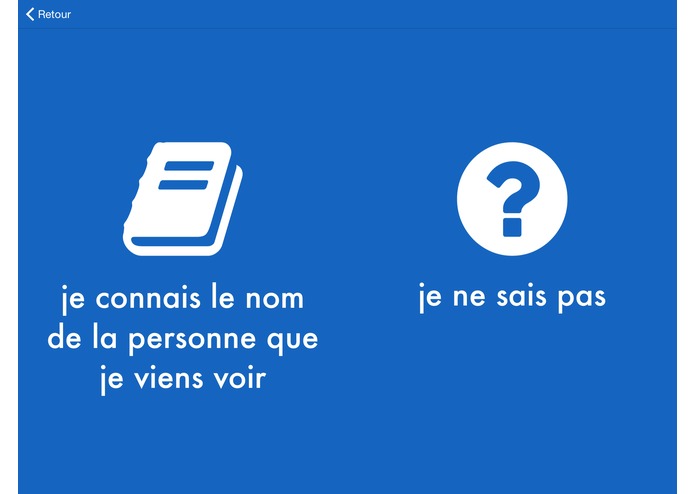
The language can be toggled between English and French
-

The colour and logo can be customized
-
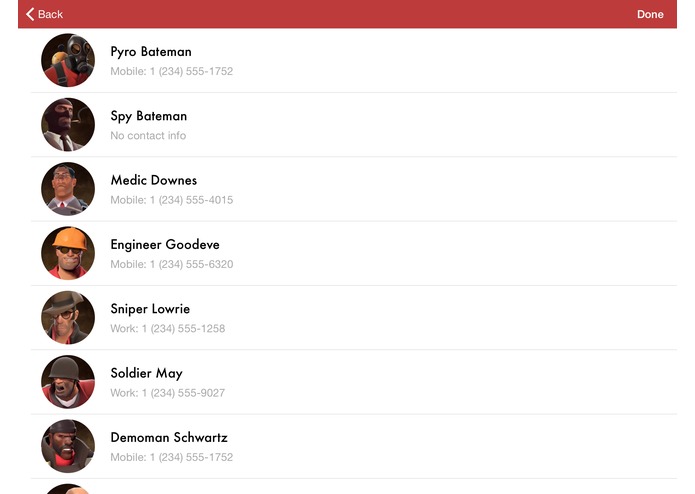
Contacts are imported from the iPad
-

Getting notifications in Slack
-

-
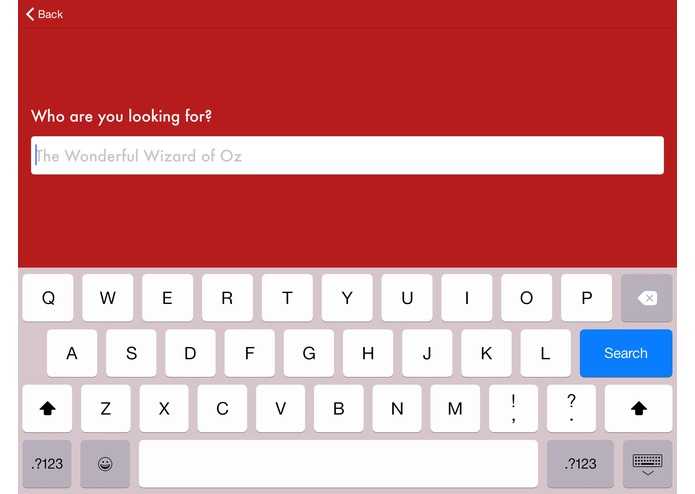
The visitor can search for the person they are looking for
-
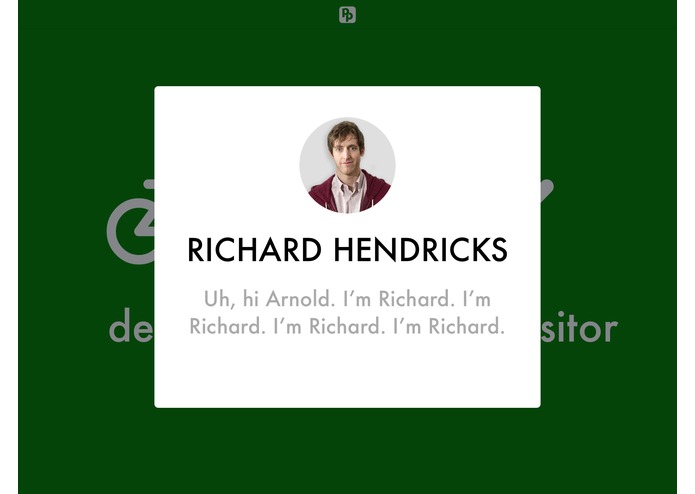
Replying from Slack


ReceptionKit
A simple, customizable receptionist iPad app built with SupportKit. Receive a message on Slack when someone is at the reception.

Setup
git clone https://github.com/AcroMace/receptionkit.gitcd receptionkit- This project uses CocoaPods. If you don't have CocoaPods installed already, you must run
sudo gem install cocoapods. Learn more here. pod install- Sign up with SupportKit and copy the App Token from Settings
- Configure Slack with SupportKit
- Disable Auto Archiving
- Open
ReceptionKit.xcworkspacewith Xcode - Navigate to
Config.swift - Replace
Config.SupportKit.AppTokenwith the App Token from SupportKit - Build and run the app (
⌘R)
Slack

Replies
You can send a message to the iPad by using /sk [message] inside the iPad channel (called sk-receptionist by default). If you want the message to be sent in real time, you need to configure push notifications. Otherwise, there may be up to a 5 second delay before the message arrives.

Name
You can set the name of how the receptionist appears in Slack by changing Config.Slack.Name.
Picture
SupportKit uses Gravatar to set the user's profile pictures. If you want to set a profile picture, you must set a Gravatar for an email and set Config.Slack.Email to that email.
Channel name
A new channel will be created for each iPad running the app. You can rename the channel using the /rename new-channel-name in Slack.
Contacts

ReceptionKit uses the contacts on the iPad for searching contacts when a visitor presses the i know the name of the person i am here to see button.
You can sync the iPad with contacts from Google, Outlook, or use any standard way of syncing contacts with iOS.
Customization

Background colour
The background colour and the navigation bar colour can be changed in Config.swift by changing Config.Colour.Background and Config.Colour.NavigationBar, respectively, to the colours' hex values.
Image assets
The image assets can be changed by replacing the images in Images.xcassets. The resolutions of the images are:
| Image type | Resolution |
|---|---|
| Company logo | 800 x 88 |
| Horizontal buttons | 2048 x 704 |
| Vertical buttons | 1024 x 1408 |
| Delivery logos | 800 x 800 |
Navigation bar
Logo
The logo is displayed only in the first view and can be disabled by setting Config.General.ShowLogo to false. Otherwise, you can replace the placeholder logo with your own image (see Image Assets)
Language toggle

The English/French language toggle is enabled by default. You can turn it off by setting Config.General.ShowLanguageToggle to false.
Launch screen
If you wish to customize the launch screen, you must change the LaunchScreen.xib file.
Note
- The default button images are from Font Awesome
- The first time you search for a contact, you will have to give the app permission to access the device's contact list
- You should really, really configure push notifications if you want to send messages to the iPad





Log in or sign up for Devpost to join the conversation.