















 Tarun Nagar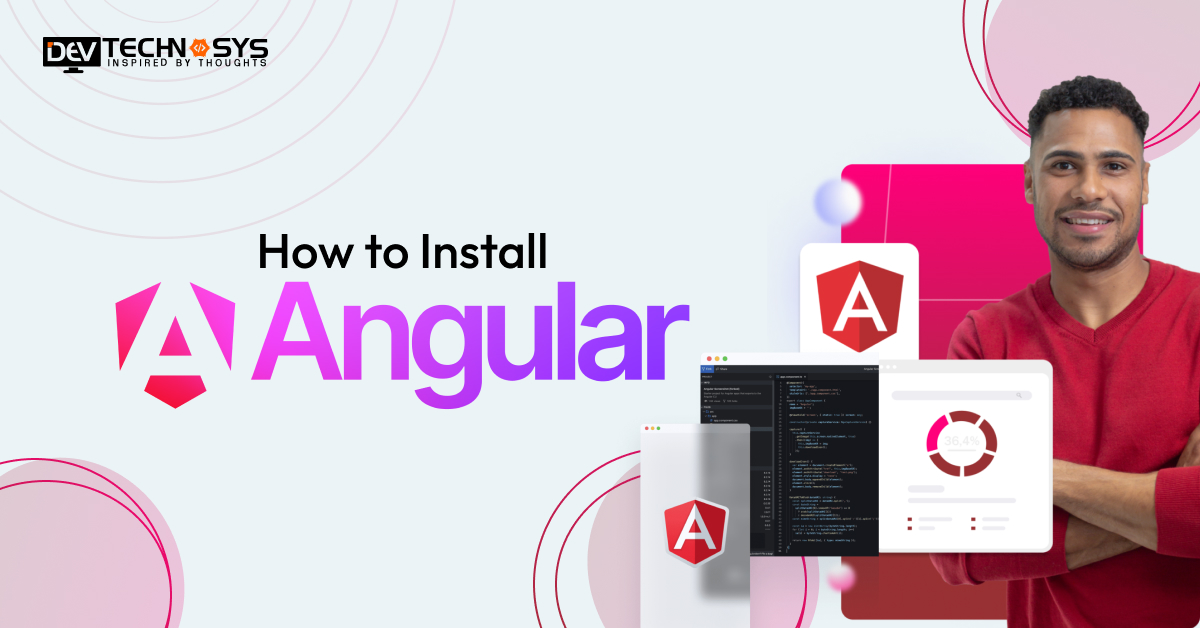
Full stack web development frameworks like React and Angular make user interaction easy with a single codebase. For a developer, it is necessary to install Angular framework for writing code and integrate with the HTML files. The main platform for installation is Node.js that uses APIs.
Angular has a lot of applications in web development and making easy platforms for consumers. Let’s understand this Angular installation guide by first knowing about the basics of Angular in detail.
What is Angular?
Google created the open-source Angular web application framework, which is built on TypeScript, to let developers create dynamic single-page applications (SPAs).
With the use of strong tools like components, directives, and services, it provides a scalable and organized method for front-end development that produces effective and maintainable web applications.
- Enables fast development with reusable components and templates.
- Offers strong typing and code quality through TypeScript integration.
- Built-in features like routing, HTTP, and form handling streamline app development.

Prerequisites for Installing Angular
Before installing Angular, you need to ensure that your system has the necessary tools like Node.js and npm installed. These are required to run the Angular CLI and manage project dependencies.
- Install Node.js and npm – Download from Nodejs org
Command to check: node -v and npm -v
- Update npm to the latest version
Command: npm install -g npm
- Install Angular CLI globally
Command: npm install -g @angular/cli
Steps to Install Angular
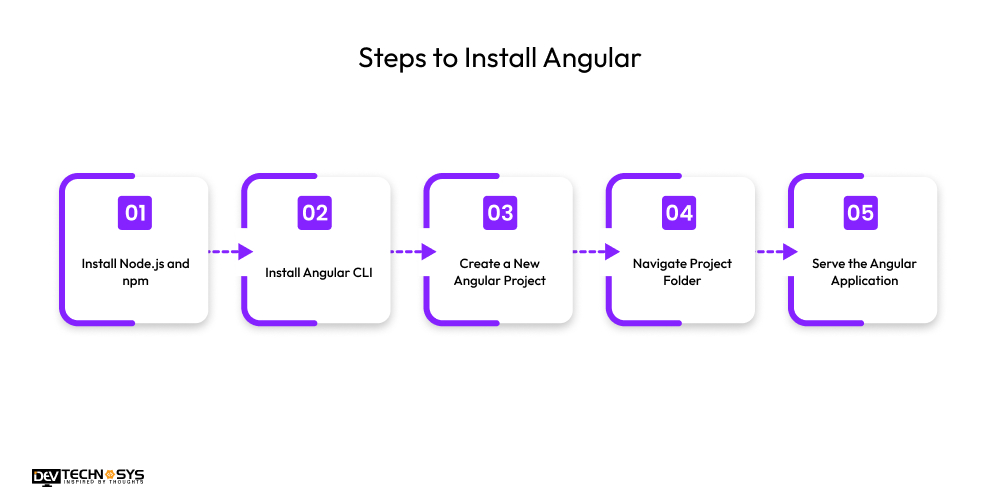
Installing Angular is a simple process that involves setting up the environment and using Angular CLI to create and run applications. Follow these five easy steps to get started with Angular development.
1. Install Node.js and npm
Download and install Node.js, which comes bundled with npm (Node Package Manager), from the official website. Node.js is required to run Angular and manage dependencies.
Verify installation with: node -v and npm -v.
2. Install Angular CLI
Angular CLI (Command Line Interface) simplifies Angular development tasks. Use npm to install Angular CLI so you can access it from anywhere on your system.
Run: npm install -g @angular/cli
3. Create a New Angular Project
Once the CLI is installed, create a new project using the command: ng new my-app. The CLI will prompt you to choose options like routing and stylesheet format. This Angular setup is used to build the entire project structure with default configurations.
4. Navigate Project Folder
Move into your newly created project directory using the command: cd my-app. All Angular commands from this point should be run inside this folder. It contains the src folder, Angular config files, and more.
5. Serve the Angular Application
Run the app locally using the command: ng serve. It compiles the project and starts a development server at http://localhost:4200/. You can now set up Angular environment to view your running Angular app in the browser.
Conclusion!!
Now, we have seen the process of installing Angular framework with the help of Node.js and using npm packages. So, to make your task easy you can install Angular on Windows / Mac / Linux and make it executable for all platforms.
The pre-installed libraries in Angular help developers to create fast and productive platforms in less time that can be modified easily.
FAQs
1. Do I Need to Install Angular Separately for Each Project?
No, the Angular CLI just has to be installed globally once. After that, you can use it to design and oversee several projects.
2. Can I Install Angular Without Node.js?
No, Node.js is necessary since Angular runs the development server and installs dependencies using npm, which is included with Node.js.
3. What is the Best Way to Verify Angular CLI Installation?
In your terminal, run the command ng version. Along with other relevant environment information, it will show the installed version of the Angular CLI.