How to insert images into PDF with pdfFiller
Inserting images into PDF files can enhance your documents’ visual appeal and clarity. With pdfFiller, you can easily add images to any PDF by following a straightforward process, making it an essential tool for your document workflows.
What is a PDF?
A PDF, or Portable Document Format, is a file format developed by Adobe that captures document text, fonts, graphics, and more. PDFs are widely used for sharing documents because they maintain the same appearance across different devices and platforms.
Why inserting images in document workflows matters
Incorporating images into PDF files can enhance communication by providing visual context, making information easier to understand. Images can also serve to capture the reader's attention, highlight key points, or add aesthetic appeal to otherwise plain documents. This is particularly vital in presentations, reports, and marketing materials.
Tools that help you insert images in pdfFiller
-
1.
Image editing: Resize, crop, and adjust image properties before inserting them into your document.
-
2.
Drag-and-drop: Simplify the process by dragging images directly into the PDF.
-
3.
Collaboration features: Share and collaborate with team members in real-time.
Supported image formats you can add
-
1.
PNG (Portable Network Graphics)
-
2.
GIF (Graphics Interchange Format)
How to resize, position, or remove images when you insert them
-
1.
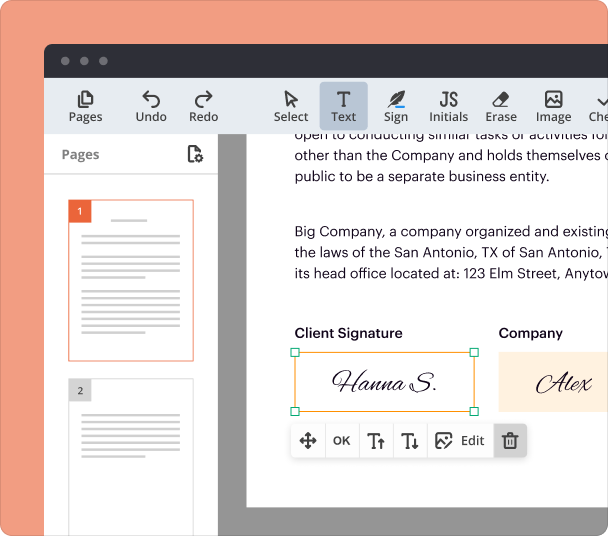
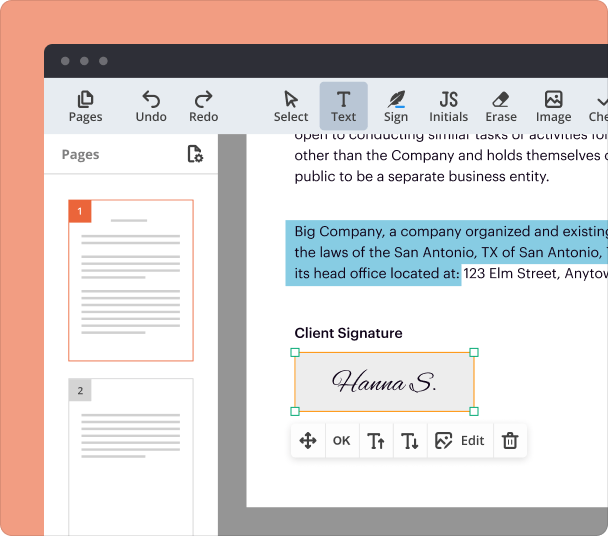
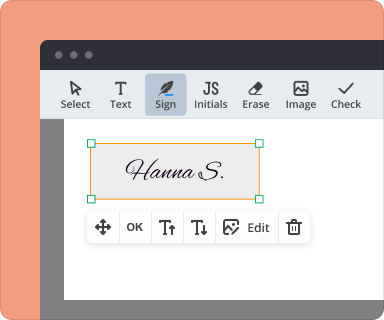
Use the corner handles to drag and resize the image proportionately.
-
2.
Click and drag the image to reposition it within the document.
-
3.
If you wish to remove it, select the image and hit the delete key or click the delete option on the toolbar.
Managing complex image layouts and bulk tasks when you insert images
For users dealing with numerous images, pdfFiller simplifies bulk image uploads. You can upload multiple images at once, making it especially effective for creating galleries or visual reports. Moreover, the platform allows you to maintain consistent formatting across different pages, ensuring a professional look.
Step-by-step instructions to insert images into PDF with pdfFiller
-
1.
Open the PDF document you wish to edit.
-
2.
Select the “Insert Image” option from the toolbar.
-
3.
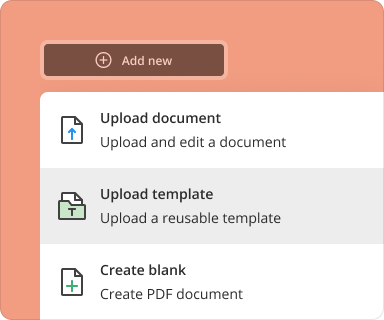
Upload images from your device or cloud storage.
-
4.
Adjust the size and position as needed.
-
5.
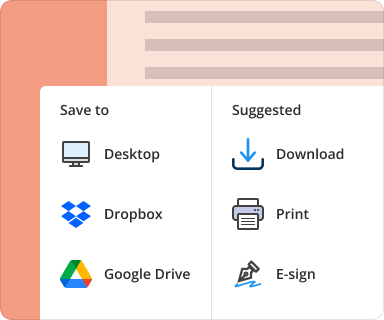
Save the changes to preserve the updated document.
Advantages of using pdfFiller to insert images
-
1.
Cloud access: Work from anywhere with your documents stored securely online.
-
2.
Collaborative features: Share your PDF for feedback and adjustments seamlessly.
-
3.
Advanced editing tools: Make additional edits alongside your image insertion.
Real-world applications and sectors that use image embedding
-
1.
Education: Designing informative teaching resources and presentations.
-
2.
Legal: Compiling evidence and documentation for case presentations.
-
3.
Corporate: Drafting reports and proposals that include charts and graphs.
Alternatives to pdfFiller when you need to insert images
-
1.
Smallpdf: A web-based alternative that is easy to use but limited in editing options.
-
2.
PDFescape: A free option with basic tools for inserting images.
Conclusion
In conclusion, inserting images into PDFs is fundamental for creating visually appealing documents. With pdfFiller, users can easily manage images through a cohesive set of tools designed for efficiency. Whether it's for professional, educational, or marketing purposes, pdfFiller makes the process not just easy but also effective. Embrace the power of visual communication in your PDFs with pdfFiller today.