


Seeing your site break without warning? Cloudflare errors can stop pages from loading, block users, and hurt your traffic in seconds. The good news is that most issues come from simple misconfigurations, cache problems, or server gaps. You do not need advanced tools to fix them.
With the right troubleshooting steps, you can quickly recover your site, reduce latency, and keep everything running smoothly. This guide helps you identify, fix, and prevent common issues with ease.
TL;DR: Quick Fixes to Restore Your Site Fast
- Most issues come from cached data, DNS misconfigurations, or server failures, but simple troubleshooting steps can quickly recover your site.
- Test your site in incognito mode or a different browser, disable browser extensions, and reload the error page to rule out local issues.
- Check your Cloudflare dashboard, hosting environment, and server status to identify latency, connection loop, or 5xx errors.
- Fix SSL settings, firewall rules, and data mapping to prevent performance issues, improve stability, and maintain search visibility.
What Are Cloudflare Errors?
Cloudflare acts as a proxy between your website’s visitors and your WordPress hosting server. It caches static content, blocks malicious traffic, and optimizes your site’s speed. However, when the connection between Cloudflare and your server goes wrong, Cloudflare displays various error messages that indicate the problem.
Understanding Cloudflare’s Role in Your WordPress Setup
When visitors access your website, Cloudflare intercepts their requests, delivering cached content if available and forwarding the rest to your WordPress server.

While this setup is beneficial, misconfigurations, server downtime, or security restrictions can disrupt communication between Cloudflare and your server, leading to errors. These errors can appear on your website, preventing access or affecting performance.
How Cloudflare Errors Impact Your Website?
Cloudflare errors can cause multiple issues, including:
- Website Downtime: Your website may go offline, preventing visitors from accessing it.
- Access Issues: You may be locked out of your WordPress admin, preventing you from managing the site.
- SEO and Revenue Impact: Downtime can negatively affect your SEO rankings, and a slow website can result in lost customers or conversions.
Understanding and fixing these errors ensures your website stays fast, secure, and accessible.
Need Help Fixing Cloudflare or WordPress Issues?
Get expert website care support to keep your WordPress site fast, stable, and error-free.
Common Cloudflare Errors with WordPress
Cloudflare errors are quite common when integrating it with WordPress, especially if there’s a misconfiguration between the server and Cloudflare. These errors can manifest in various forms, impacting how users access your site. Below are the most common Cloudflare errors, their causes, and step-by-step solutions to resolve them.
403 Forbidden Error
The 403 Forbidden Error appears when a user or admin is blocked from accessing a page or the WordPress dashboard.
This usually happens because of incorrect file or folder permissions, strict firewall rules, or a plugin or security setting conflict in WordPress. These restrictions can come from your hosting provider, Cloudflare, or your site configuration.
How to Fix the 403 Forbidden Error?
- Check and Adjust File Permissions: Ensure that your files have the correct permissions. For WordPress, directories should be set to 755 and files to 644.
- Verify Firewall Settings: Ensure that neither Cloudflare nor your server’s firewall is blocking legitimate traffic. Sometimes a security rule may falsely flag traffic as suspicious, resulting in a 403 error.
- Deactivate Problematic Plugins: Certain security or caching plugins in WordPress can cause a 403 Forbidden error. Try deactivating plugins one by one to identify if any are the source of the issue.
502 Bad Gateway Error
The 502 Bad Gateway Error appears when Cloudflare cannot connect to your WordPress site’s server.
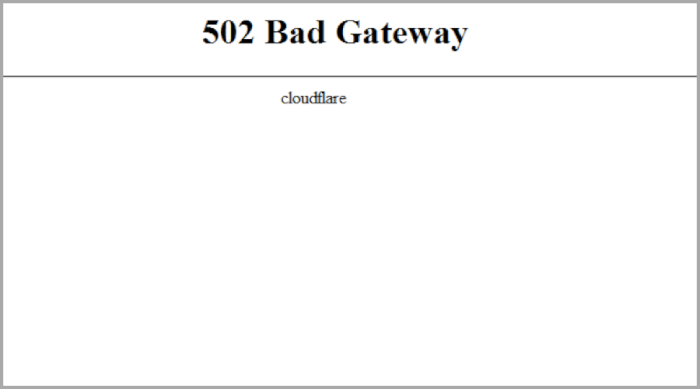
Cloudflare acts as a middle layer, and this error shows up when it does not receive a valid response from your origin server.
This can happen if your server is overloaded, your DNS records are incorrect or outdated, or a plugin or theme conflict is interrupting the connection. In some cases, the issue may also come from a temporary Cloudflare service disruption.
How to Fix the 502 Bad Gateway Error?
- Clear Browser Cache: Sometimes, a bad cache can trigger a 502 error. Performing a hard refresh (Ctrl+F5 on Windows or Cmd+Shift+R on Mac) may resolve this.
- Check DNS Settings: Verify that your DNS settings point to the correct IP addresses. Ensure that Cloudflare’s DNS records are up-to-date.
- Check Hosting Server: The most common cause of a 502 error is server overload. Contact your WordPress hosting provider to ensure that your server is up and running and that there are no resource issues.
- Disable Cloudflare Proxy: Temporarily disable the Cloudflare proxy to see if the issue persists. If it goes away, it could be a problem with Cloudflare’s servers.
- Plugin/Theme Conflict: If the error occurs after updating or installing new plugins or themes, disable them one by one to identify the conflicting plugin or theme.
521 Web Server is Down Error
The 521 Web Server is Down error appears when Cloudflare can reach your browser but cannot connect to your WordPress site’s server. This means Cloudflare cannot complete the handshake required to communicate with your host.
This issue usually happens when your hosting server is offline or not responding, when your firewall blocks Cloudflare’s IP addresses, or when the server fails to present a valid SSL certificate.
How to Fix the 521 Web Server is Down Error?
- Check Server Status: Ensure your server is running. If it’s down, contact your hosting provider to get it back online.
- Firewall Issues: Confirm that your firewall is not blocking Cloudflare’s IP addresses. You can find Cloudflare’s IP ranges and whitelist them in your server’s firewall.
- Port 443 Issues: If you’ve recently set up SSL (HTTPS) on your WordPress site, ensure your server is configured to allow traffic through port 443.
- Install SSL Certificate: Verify that your SSL certificate is valid and properly installed. If the certificate is invalid or expired, Cloudflare won’t be able to establish a secure connection.
524 a Timeout Occurred Error
A 524 error appears when Cloudflare waits too long for your WordPress server to respond. This means the server is taking more time than expected to complete a request.
This usually happens because of slow or heavy database queries, long-running processes, high server load, or low PHP memory limits that prevent the server from responding quickly.
How to Fix the 524 a Timeout Occurred Error?
- Optimize Database Queries: Slow or inefficient MySQL queries can cause your server to take longer than expected to respond. Review and optimize any long-running queries.
- Increase PHP Memory Limits: If your server is struggling with PHP’s memory limits, increase them in your php.ini file.
- Upgrade Hosting Plan: If your server resources are maxed out, consider upgrading your hosting plan to handle higher traffic and resource demands.
Learn: How to Fix 503 Error in WordPress
520 Web Server Returns Unknown Error
A 520 error occurs when Cloudflare receives a response from your server that it cannot interpret.
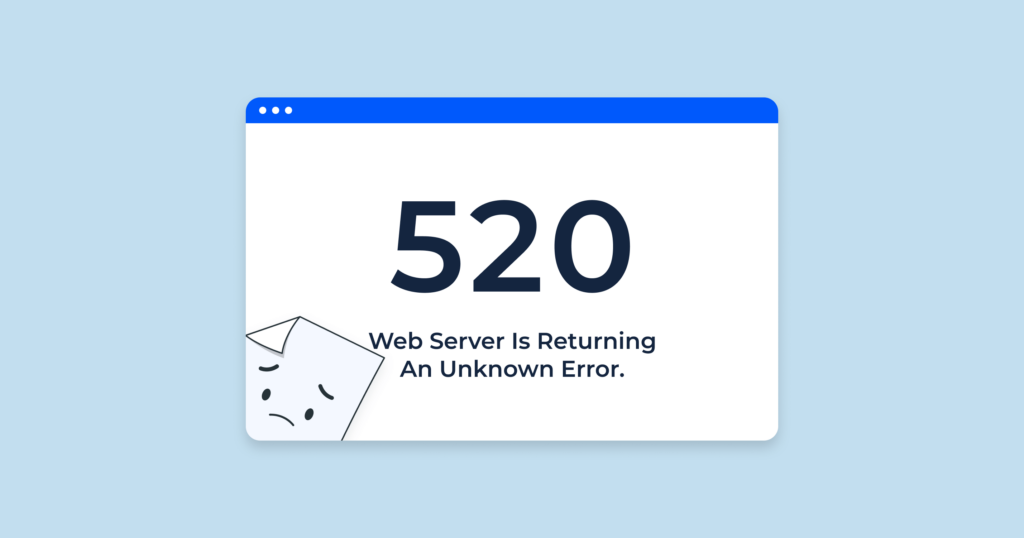
This happens when the server returns unexpected or unknown content, causing Cloudflare to return an error instead of loading your site. This issue often stems from server-side misconfigurations or corrupted, faulty, or blocking firewall rules that block Cloudflare requests.
How to Fix the 520 Web Server Returns Unknown Error?
- Review Server Logs: Check the server logs for any errors or warnings that occurred around the same time as the 520 error.
- Reset Firewall Rules: Sometimes, an overzealous firewall can block legitimate traffic from Cloudflare. Review and reset the firewall settings to ensure nothing is blocking Cloudflare.
Explore: How to Fix the 500 Internal Server Error in WordPress
523 Origin is Unreachable Error
The 523 Origin Is Unreachable error appears when Cloudflare cannot reach your server at all. This usually points to a DNS issue or a connection problem between Cloudflare and your hosting provider.
It often happens when your DNS settings are incorrect, or when your server is experiencing downtime or network-related problems that prevent Cloudflare from connecting.
How to Fix the 523 Origin is Unreachable Error?
- Verify DNS Settings: Ensure your DNS settings point to the correct server IP address. Incorrect DNS settings can prevent Cloudflare from reaching your server.
- Check Server Uptime: Make sure your server is online and accessible. If the server is down, contact your hosting provider for assistance.
Explore: WordPress Security Checklist
525 SSL Handshake Failed Error
A 525 error occurs when Cloudflare cannot complete the SSL handshake with your server. This prevents Cloudflare from establishing a secure connection, resulting in an error.
This usually happens when the SSL certificate on your server is invalid or expired, or when the SSL settings are misconfigured and do not meet Cloudflare’s requirements.
How to Fix the 525 SSL Handshake Failed Error?
- Verify SSL Installation: Ensure that your SSL certificate is properly installed and hasn’t expired.
- Check SSL Settings in Cloudflare: Cloudflare has different SSL modes (Off, Flexible, Full, and Full (Strict)). Make sure that your SSL settings are correctly configured to match your server’s setup.
526 Invalid SSL Certificate Error
A 526 error appears when Cloudflare cannot verify your server’s SSL certificate. This happens when the certificate is invalid, misconfigured, or not recognized by Cloudflare. An expired, improperly installed, or untrusted SSL certificate often causes this issue due to Cloudflare’s strict validation settings.
How to Fix the 526 Invalid SSL Certificate Error?
- Install a Valid SSL Certificate: Ensure your SSL certificate is up to date and valid. Use Cloudflare’s Origin CA certificate if you are using Full (Strict) SSL mode.
- Check SSL Configuration: Ensure your SSL certificate is properly configured on both Cloudflare and your origin server.
More About Caching: How Server-Side Caching Improves Your WordPress Performance
How to Prevent Cloudflare Errors?
While these errors are often unavoidable due to server or DNS misconfigurations, you can take steps to minimize their frequency:
- Regularly Monitor Your Server: Ensure your hosting provider offers real-time server monitoring, so you know when your server goes down.
- Keep DNS Settings Updated: Always ensure your DNS records are accurate and point to the correct servers.
- Use Reliable Hosting: If your hosting provider frequently encounters downtime or server overload, consider switching to a more reliable host.
- Install a Valid SSL Certificate: Ensure your SSL certificate is up to date and valid. Use Cloudflare’s Origin CA certificate if you are using Full (Strict) SSL mode.
- Check SSL Configuration: Ensure your SSL certificate is configured correctly on both Cloudflare and your origin server.
Did You Know: Fix DNS_PROBE_FINISHED_NXDOMAIN Error
Best Practices to Avoid Future Problems
Stay proactive with regular checks and smart processes to keep your site stable, fast, and fully operational at all times.
- Audit changes before going live: Always test updates on a staging site. Avoid pushing a prior version without review. Poor updates can leave your site stuck or unstable.
- Track latency trends regularly: Monitor elevated latency using analytics tools. Sudden spikes often signal deeper issues with systems or servers before they become critical.
- Standardize internal operations: Create clear instructions for your team. Well-defined operations reduce human errors and keep your setup consistent and operational.
- Harden security layers smartly: Review how your DDoS protection is implemented. Avoid overly strict rules that block real users while still protecting your systems.
- Maintain system compatibility: Ensure all plugins, themes, and server configurations work well together. Conflicts between systems often trigger unexpected failures.
- Document rollback procedures: Keep step-by-step instructions ready to quickly restore a stable prior version. This helps recover your site without delays.
- Run routine performance tests: Test load times and server responses frequently. This ensures your website stays operational and prevents issues from building up silently.
Conclusion
Cloudflare errors can be frustrating, but they’re usually easy to fix once you understand what’s causing them. By addressing issues such as server overload, DNS misconfiguration, or SSL problems, you can quickly get your WordPress site back online.
Regularly monitor your website’s performance and ensure your server and Cloudflare settings are configured correctly to prevent future issues. By following the steps outlined in this guide, you’ll be able to tackle common Cloudflare errors and keep your WordPress site running smoothly for your users.
FAQs About Cloudflare Errors
Why do Cloudflare errors appear on my WordPress site?
These errors usually occur due to server failures, cached data issues, or DNS problems. Sometimes, browser extensions, ad blockers, or a VPN can also trigger an error page. Check your device, network, and Cloudflare dashboard for details.
How can I quickly troubleshoot these issues?
Start with basic troubleshooting steps. Reload the page, clear your cache, and test in incognito mode or in a different browser, like Chrome. Disable ad blockers and enable JavaScript. You can also switch to a different network or restart your router and phone.
What are the common 5xx errors, and what do they mean?
5xx errors indicate server-side failures. For example, 502 and 524 relate to latency or timeout issues, while 521 shows your server is down. These errors often require server-level fixes or support from the hosting provider.
Can browser or device settings cause issues?
Yes. Browser extensions, outdated software, or disabled JavaScript can break functionality. Try private mode, reinstall your browser, or test on another device to isolate the issue.
What should I do if the issue continues?
Check the Cloudflare status for any ongoing incidents or investigations. Collect details like a screenshot and an error code. Then submit a request to support. You can also review other Cloudflare services, like Turnstile or security rules that may block access.


