

Capturing and sharing moments through photographs is common in our daily lives, driven by the desire for good-quality pictures. The iPhone’s camera stands out among other phones, consistently delivering impressive results that continue to improve over time, enabling us to capture stunning moments.

However, these improvements in camera quality have also resulted in larger file sizes for these exceptional images. As a result, it has become challenging to manage, store, and share such photos effectively, given that a single photo can occupy around more than 5 MB of storage space.
To get around this problem, resizing your photos or choosing smaller-sized images can provide a practical solution, especially if you have limited storage capacity on your device or if you want to share them via email or messaging apps.
In this article, we’ll discuss how to reduce photo file size on iPhone and highlight the benefits of smaller photo files.
Table of Contents
Understanding Photo File Size on iPhone
The file size refers to how much space the photo takes up on your device or storage. Many things affect the file size of a photo, and it’s important to understand them so you can manage your photo collection well.
Resolution plays a significant role. Higher-resolution photos containing more pixels tend to have larger file sizes compared to lower-resolution ones. Compression is another critical aspect. Different compression algorithms are used to reduce file size without significant loss in image quality. The choice of file format also influences file size. On iPhones, the most common formats are JPEG and HEIC (High-Efficiency Image Format). JPEG is a widely used format known for its good compression capabilities, while HEIC offers superior compression without compromising image quality.
It’s important to grasp the impact of photo file size on storage space and data usage. Larger files consume more storage space on your device, limiting the number of photos you can store.
Advantages of Reducing Photo File Size on iPhone
Compressing images may be incredibly helpful when managing them on your iPhone, especially if you have limited storage capacity or don’t want to invest in additional storage.
There are several advantages to compressing file sizes. Firstly, it allows you to free up valuable storage space on your iPhone. This becomes particularly important for individuals who wish to maintain a large collection of images without constantly running out of space, considering the restricted storage capacity of their iPhone models.
Additionally, compressed photographs are simpler and faster to share with others. Whether you want to transmit them via messaging apps or email, the reduced file size means the photographs can be uploaded and downloaded fast, even if your internet connection is slow.
Furthermore, by reducing file size, compressed photographs consume less data, helping you remain inside your data restrictions and avoid overages.
How to Reduce Photo File Size on iPhone
There are two primary ways to reduce the size of the photo file on an iPhone. The first method is to adjust the settings on your device so that the photos are automatically saved in a compressed size when you capture or do something that will automatically click the photos in compressed size.
The second method is to compress the high-quality photos you have already captured according to your needs, especially if you want to upload them to a platform or location that doesn’t allow large file sizes (have limits).
We have put forward several ways to successfully follow both methods and save or compress photos in compressed size. Follow the outline below to do so.
How to Take Smaller Photo File Size on iPhone
For individuals who frequently engage in iPhone photography, the increasing file sizes of their photos can become a cause for concern, rapidly consuming a significant amount of storage space on their devices.
Thankfully, there are several effective solutions available that can help reduce file size without compromising image quality. In this guide, we will explore various methods that allow you to capture smaller-sized photos on your iPhone, providing you with valuable storage-saving options to address your storage concerns.
Change the File Format of Your Photos
In our pursuit of capturing stunning photos and videos, we all desire the finest quality and optimal file size. However, what often goes unnoticed is the impact that file formats can have on the overall size of our images. By default, iPhones store images in the .jpg format, which is generally reliable for most purposes.
Yet, when it comes to minimizing file size, JPG may not always be the ideal choice. If you aspire to capture images with reduced file sizes, consider converting them to PNG or HEIF formats instead. This simple adjustment can make a significant difference in the storage space occupied by your photos. To change the file format of your photos on your iPhone, follow the below steps:
1. Open Settings on your iPhone.
2. Scroll down and tap on Camera.
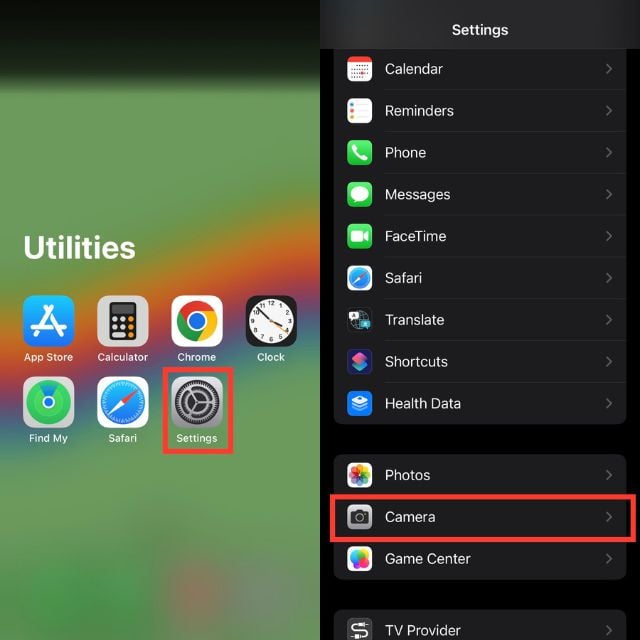
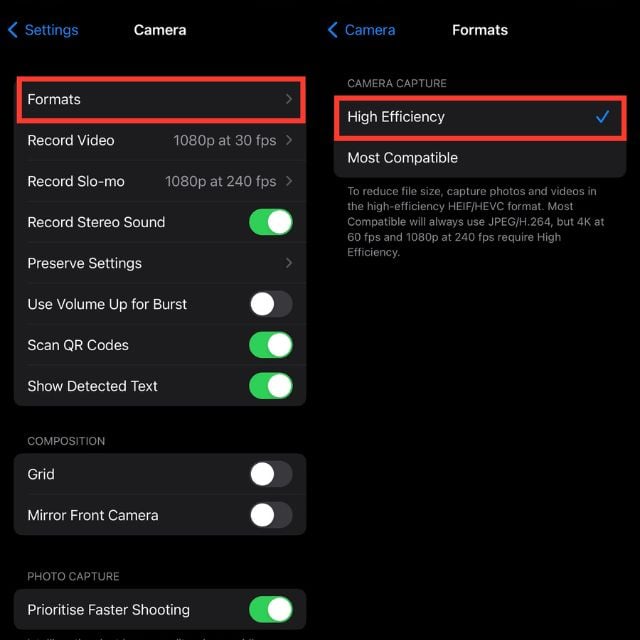
3. Tap Formats.
4. Upon accessing the Formats settings, you will be presented with a selection of two options: High Efficiency and Most Compatible.
5. Select High Efficiency to use the HEIF format or select Most Compatible to use the JPG format.
Adjust the Video Resolution
When you adjust the video resolution, not only can you modify the visual clarity of your iPhone videos, but you can also shrink their file sizes. Videos captured at higher resolutions tend to occupy more storage space.
However, you have the opportunity to reduce the file size while preserving video quality by simply tweaking the resolution settings. Follow the below steps to do so.
1. Launch Settings on your iPhone.
2. Scroll down and hit on Camera.
3. Under the Camera section, tap on Record Video or Record Slo-mo alternately.
4. You will see a list of available video resolutions. Choose a lower-resolution option to reduce the file size of your videos.

Use a Third-party App to Click Photos
You can optimize your iPhone photography experience by utilizing third-party camera apps that offer smaller file sizes. These apps not only come with advanced features and customization options but also include filters that enhance your photos without occupying excessive storage space.
One key benefit of these third-party camera apps is the ability to apply filters while capturing images instantly. You may enhance your photographs with a range of filters on applications like Snapchat, Instagram, and others; you can imbue your photographs with various filters that add creative effects, improve colors, and provide unique styles. These filters are specifically designed to have a minimal impact on file size, ensuring that your photos remain visually appealing while remaining compact.
How to Reduce Photo File Size on iPhone of Existing Pictures
If the file sizes of the existing photographs on your iPhone are too large, there are a number of techniques you may attempt. These methods include cropping the image, sending pictures via the Mail app at a reduced size, using instant messaging applications with built-in image compression algorithms, using the Shortcuts app for image reduction, or using third-party apps.
By employing the techniques and procedures outlined below, you can effectively decrease the file size of your images without compromising image quality while also efficiently managing your storage space.
Crop Images in The Photos App
Cropping is a straightforward technique to decrease the file size of an existing photo. By cropping the unnecessary portions of the image, you can reduce the overall file size. To do so, follow the below steps.
1. Open the Photos app.
2. Now, tap the photo you want to crop.
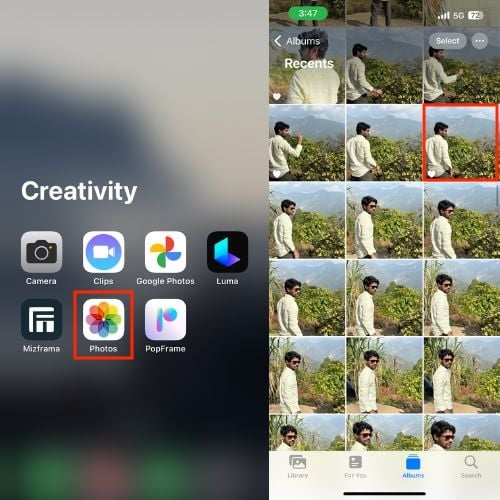
3. Tap on Edit in the upper right corner of the screen.
4. At the bottom of the screen, you will see various editing tools. Tap on the crop icon.
5. Adjust the crop box by dragging the corners or edges.
6. Tap Done in the upper right corner once ready.

7. The cropped photo will replace the original photo, and its file size will be reduced.
Related Read: How to Convert HEIC to JPG on iPhone Without Any Third Party Apps
Use Apple Mail to Reduce Photo File Size on iPhone
The Mail app on your iPhone may automatically decrease a photo’s file size if it is too large to transmit over email. The Mail app offers the option to crop a photo before sending it when you attach it to an email. You can use the steps below to resize your images with the help of the mail app. By following the steps below, you can easily resize your images using the Mail app.
1. Open the Photos on your iPhone.
2. Press and hold the photo you want to send.
3. Tap on the square with an arrow pointing up to the icon (share).
4. Now, select Mail.
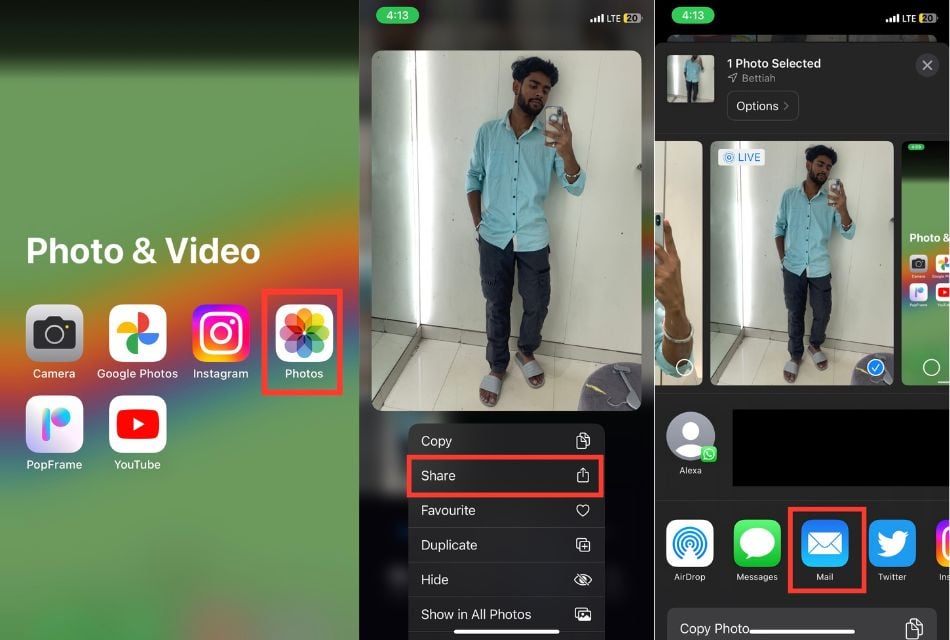
5. Here, the Mail app will open with the selected photo attached.
6. Now, add the email and subject to send the mail.
7. Click on the arrow pointing up icon that appears in the top right corner to send the mail.
8. A prompt will appear with the instruction, “You can reduce message size by scaling the image to one of the sizes below.”
9. So select one of the sizes recommended below. Always try to go with medium or large images for clearer and better image quality.
10. Now, go to the home page of the mail app and tap on the Mailboxes appearing on the top left corner of the screen.
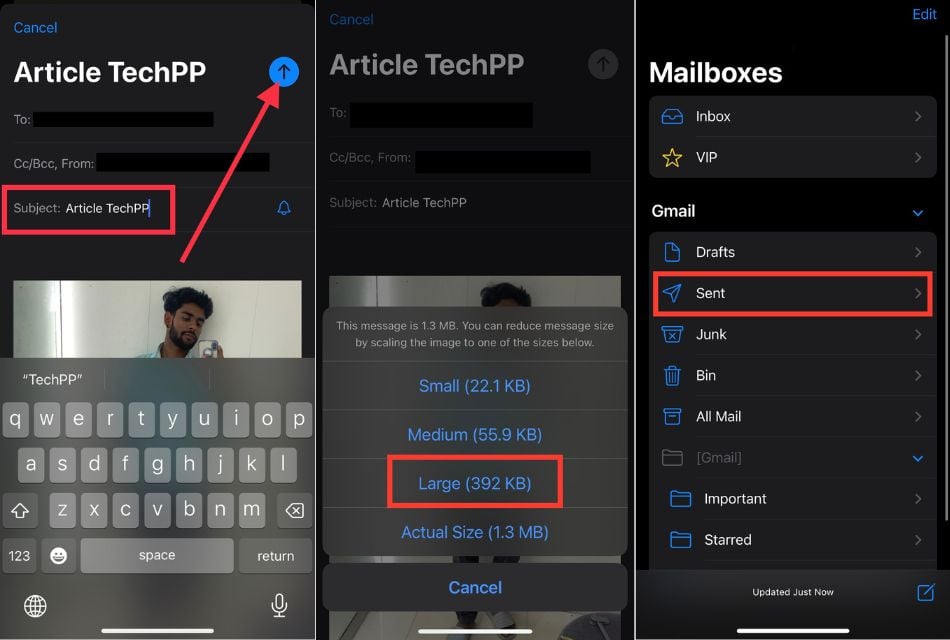
11. Here, tap on the Sent option and then click on the recent mail that you have sent with the photo.
12. Tap and hold the photo for a while, and a prompt will appear with the context menu.
13. Select the Save Image or Save to Files option from the context menu to save a reduced image on your iPhone.
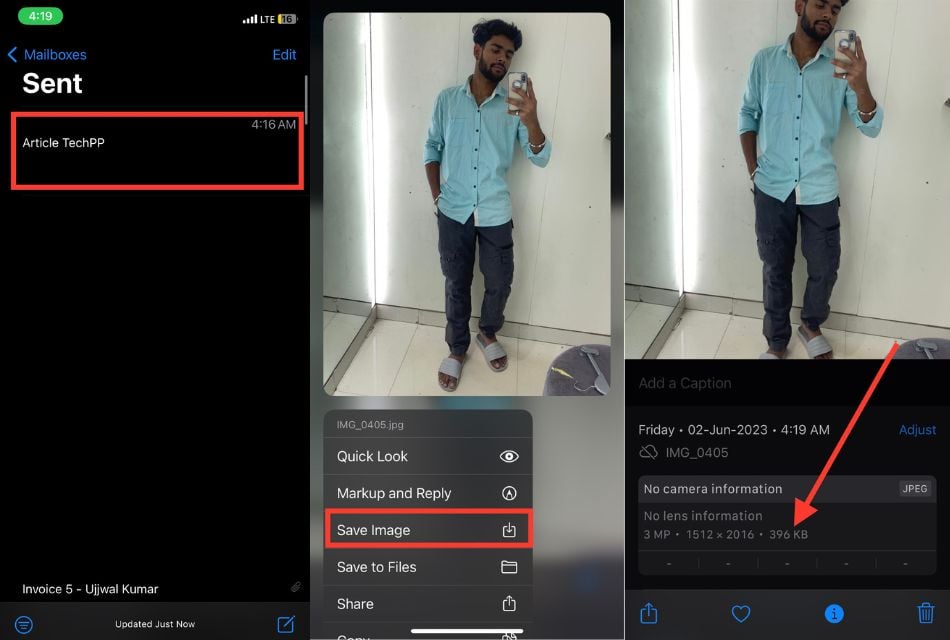
14. You can easily access the photos from the Photos app or Files app. Also, You have to delete the original quality image to save your iPhone’s storage.
Use Instant Messaging Apps to Reduce Photo File Size on iPhone
Many instant messaging applications include the option to decrease the file size of images before sending them, just like the Mail app does.
The built-in compression algorithms in apps like WhatsApp, Telegram, or Facebook Messenger automatically reduce the size of photographs to make them easier to share and receive. Follow the below steps to do so.
1. Open messaging apps like Telegram or WhatsApp on your iPhone (We gonna use WhatsApp for it).
2. Start a new or existing conversation.
3. Look for the camera icon left to the mic icon.
4. Choose the photo you want to send (want to reduce the size of).

5. Depending on the app, you may have the option to reduce the photo’s size automatically. Follow the on-screen instructions to proceed.
6. In the case of additional media, please add a message to accompany it.
7. Send the message as usual.
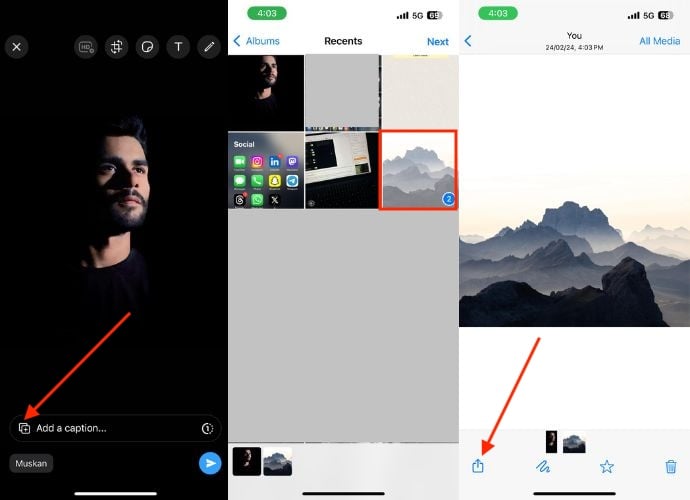
8. And download it again from there.
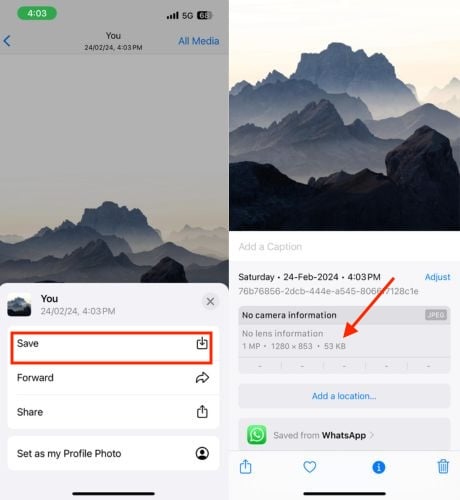
Use The Shortcuts App to Reduce Photo File Size on iPhone
The Shortcuts app on your iPhone allows you to create custom automation workflows. You may use this application to compress images and minimize file sizes. Follow the below steps to do so.
1. Open the Shortcuts App.
2. Tap on the + button located in the top-right corner of the screen to create a new shortcut.

3. Click Add Action.
4. Search for Resize Image in the search bar and tap on it.
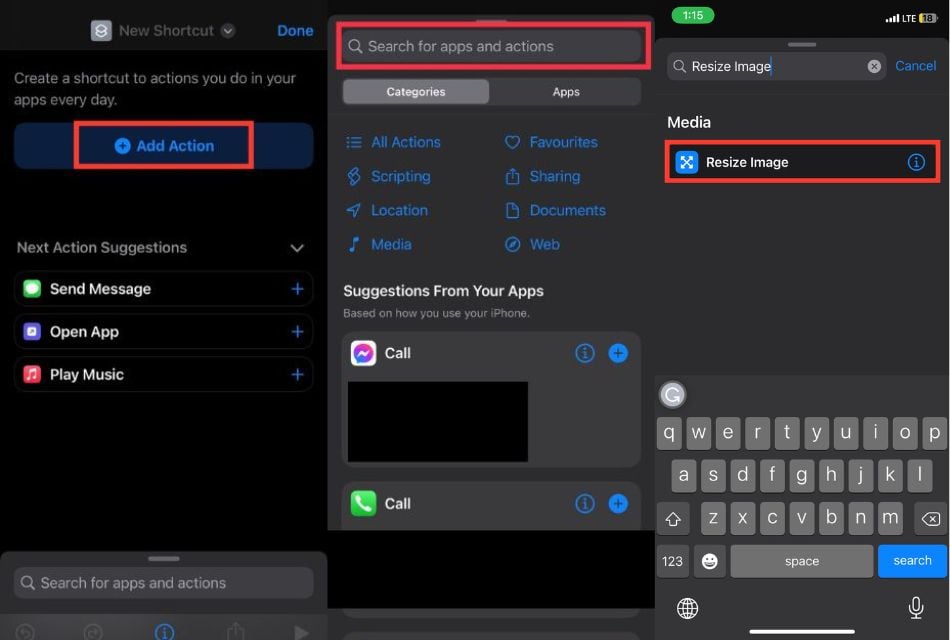
5. Tap Image and select Shortcut Input when the menu prompts.
6. Hit Images and 18 more and turn off the toggle except for images.
7. Then hit Done in the upper right corner.

8. Press Nowhere and turn on the toggle right to Show in Share Sheet, and tap Done.
9. Click 640 and select Ask Each Time.

10. Go to the search bar, type Convert Image and select it from the options.
11. Hit the arrow right to JPEG and slide the toggle right to Quality to customize the quality of the image accordingly. Also, turn off the toggle right to Preserve Metadata.

12. Go to the search bar, type Share, and select it.
13. Click Share in the upper middle of your screen.
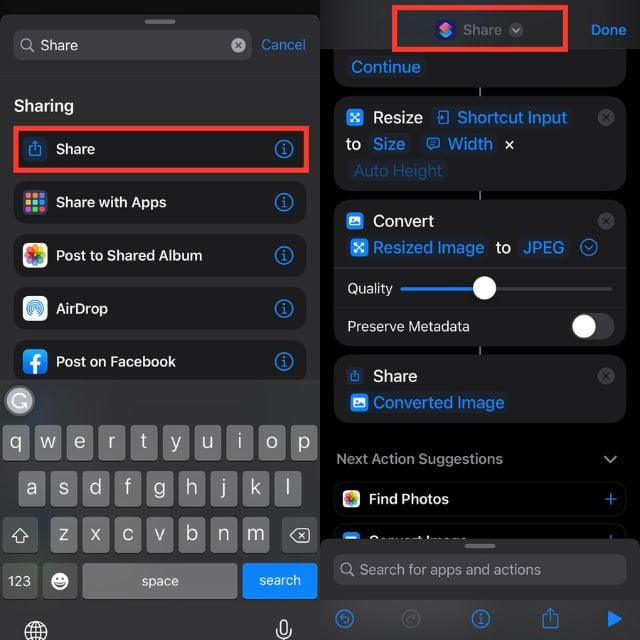
14. Tap Rename and type Resize Images, along with tapping Choose Icon and selecting an Icon.
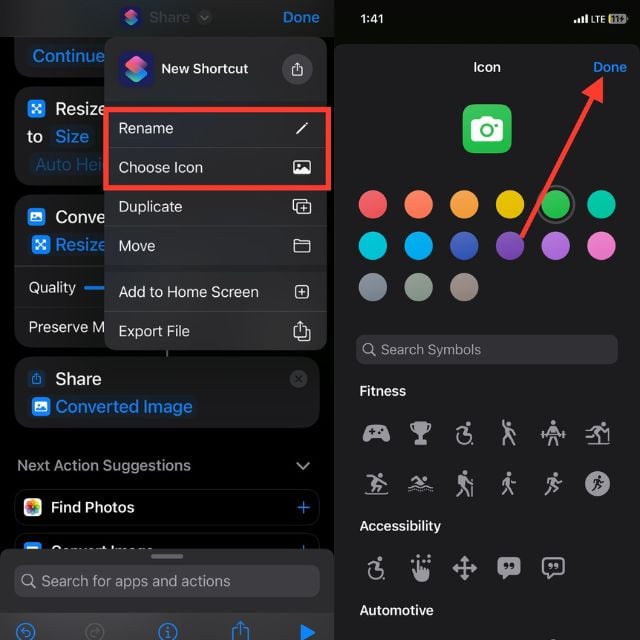
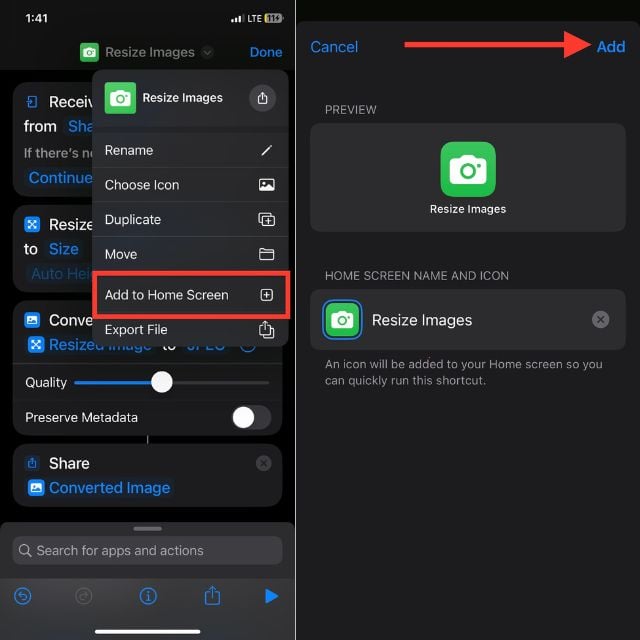
15. Tap Resize Images and select Add to Home Screen.
16. Hit Add on the upper right corner of your screen.
Third-party Apps to Reduce Photo File Size on iPhone
On the App Store, you may find third-party apps if you want more specialized tools for compressing photographs on your iPhone. Numerous apps exist that are particularly made to reduce image file sizes while preserving acceptable image quality. To find and use a third-party app for image compression, the below steps will help you out.
1. Open the App Store on your iPhone.
2. Now, Search image compression in the search bar.
3. Check out the available apps and read reviews to find one that suits your needs. Some of the popular ones include Image Size – Photo Compress, Compress Photos & Pictures, and Photo Compress – Shrink Pics.
4. Download and install the app of your choice.
5. Open the app and follow its instructions to reduce the file size of your images.
Guide to Minimize Photo File Sizes on Your iPhone
With iPhone camera advancements, larger photo sizes pose challenges in managing, storing, and sharing them. However, solutions exist. Resize images without quality loss by altering formats, adjusting resolution, enabling HDR, or employing third-party camera apps.
Crop, use compression tools in Mail or messaging apps, leverage the Shortcuts app, or utilize third-party image compression tools to resize existing photos. By employing these methods, you can manage file sizes while maximizing your iPhone camera’s capabilities.
FAQs about iPhone Photo Size Reduction
1. Are there any recommended third-party apps for reducing image file sizes on an iPhone?
There are various third-party applications available on the App Store that are suggested for decreasing image file sizes on an iPhone. Image Size, Photo Compress & Resize, and TinyPNG are some common alternatives.
2. Will reducing the file size of my photos affect the image quality?
File size reductions for images may result in a probable loss of image quality. The amount of quality loss can, however, be influenced by the compression method and settings used.
3. Can I revert back to the original file size after compressing a photo?
Compressing a photo often entails permanently reducing its file size. Without having a backup of the uncompressed version, it might not be practical to restore the original file size once it has been compressed. It is advised to save a copy of the original photographs.
4. How much storage space can I save by reducing the file size of my photos?
The amount of storage space you can save by reducing the file size of your photos will depend on various factors, such as the initial file size, the compression method used, and the desired level of compression.
5. Will compressing photos affect their compatibility with other devices or platforms?
Compressing photos using common compression methods like JPEG or HEIC should not significantly affect their compatibility with other devices or platforms. These formats are widely supported and can be easily viewed on various devices and platforms.


