Limited time discount Spring Deals Are in Full Bloom
Up to 50%Off

How Google Analytics 4 integration works in Amelia

The Google Analytics 4 (GA4) integration allows you to track visitor behavior and booking-related conversions directly from Amelia.

By connecting GA4, you can send events when customers interact with booking forms or complete bookings for appointments, packages, and events.

Info Note

The Google Analytics integration is available in all paid license plans.

For a deeper explanation of how GA4 events work in Amelia and how analytics support marketing decisions, read our blog post:
Unlocking visitor insights with Amelia Google Analytics 4 integration
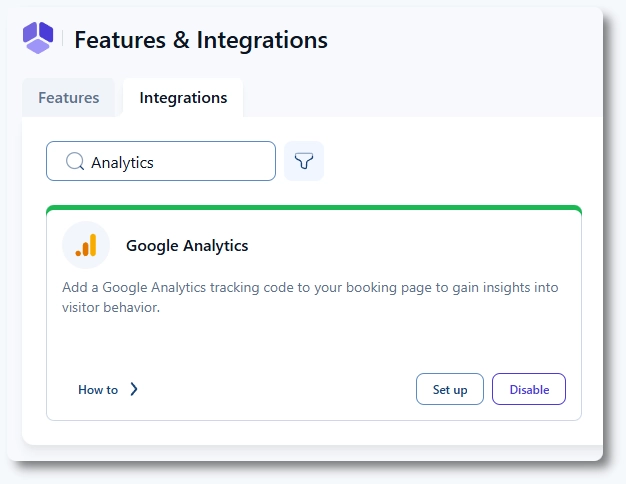
How do I enable Google Analytics integration in Amelia?

Open Features & Integrations → Integrations, locate Google Analytics, enable the integration, and click Set up.

Google Analytics integration enabled in Amelia

How do I find the GA4 Measurement ID?

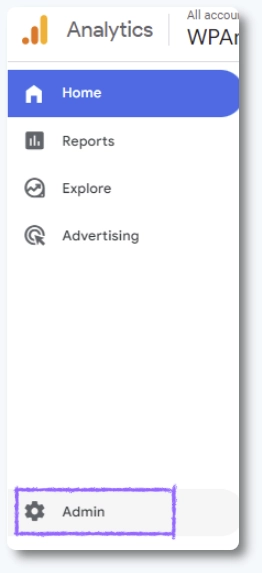
Log in to your Google Analytics 4 property and click the Admin (gear) icon in the bottom-left corner.

Google Analytics 4 admin menu

In the Property column, click Data streams and select the web data stream you want to connect to Amelia.

GA4 data streams menu

In the stream details view, copy the Measurement ID that starts with G-.

Copying the GA4 Measurement ID

How do I connect GA4 with Amelia?

Return to Amelia and open Features & Integrations → Integrations → Google Analytics → Set up.

Paste the Measurement ID into the Measurement ID field and save the settings.

Measurement ID field in Amelia Google Analytics integration

How is GA4 tracking organized in Amelia?

Tracking is configured separately for:

  • Appointments
  • Packages
  • Events

Each segment has its own tab below the Measurement ID.

Which tracking actions are available?

The following actions are available for Appointments, Packages, and Events:

  • Load page
  • Show customer information form
  • Show checkout form
  • Complete booking without payment
  • Complete booking with payment

Additional actions by booking type:

  • Appointments: Select Category, Select Service, Select Employee, Select Location
  • Packages: Select Package
  • Events: Select Event

How do I create a GA4 event in Amelia?

Click + Add tracking in the desired tab to create a new GA4 event.

In the tracking modal:

  • Select the Type (predefined GA4 action)
  • Enter the Event name (use lowercase and be consistent)
  • Select a Value using placeholders if needed
  • Define the Event parameter (lowercase, use underscores)
GA4 event creation modal in Amelia
Info Note

Event names are case-sensitive. For example, event_one and Event_one are treated as different events in GA4

Why don’t my GA4 events appear immediately?

GA4 reports (except real-time and debug views) require processing time.

It is normal for events and custom dimensions to appear after 24–48 hours.

Alert Important

If you have waited only a few hours, this is expected behavior. Check again the next day before troubleshooting further

Why are some GA4 events missing from reports?

If you notice missing events or see an orange warning triangle (Data Thresholding) in your Custom Explorations or Reports, this is most commonly caused by your GA4 Reporting Identity settings combined with Consent Mode.

By default, GA4 uses the Blended reporting identity. While this can provide a more complete view by incorporating modeled data (for users who declined cookies), Google applies strict privacy thresholds to these reports. When the number of users or events for a specific dimension is too low, GA4 may hide that data in reports to protect user anonymity.

This does not mean your data is lost; it is simply not displayed in that particular view.

How to see the exact event counts?

If you need to bypass thresholding and view exact event counts, you can temporarily switch your Reporting Identity:

GA4 reporting identity settings

Go to Admin → Data display → Reporting identity, click Show all, select Device-based, and click Save.

Device-based reporting identity in GA4
Info Note

This change is retroactive and does not delete or permanently alter your collected data. The Device-based identity relies only on observed data from device identifiers and does not include modeled data, which helps avoid thresholding. After completing your analysis, it is recommended to switch back to Blended.
