


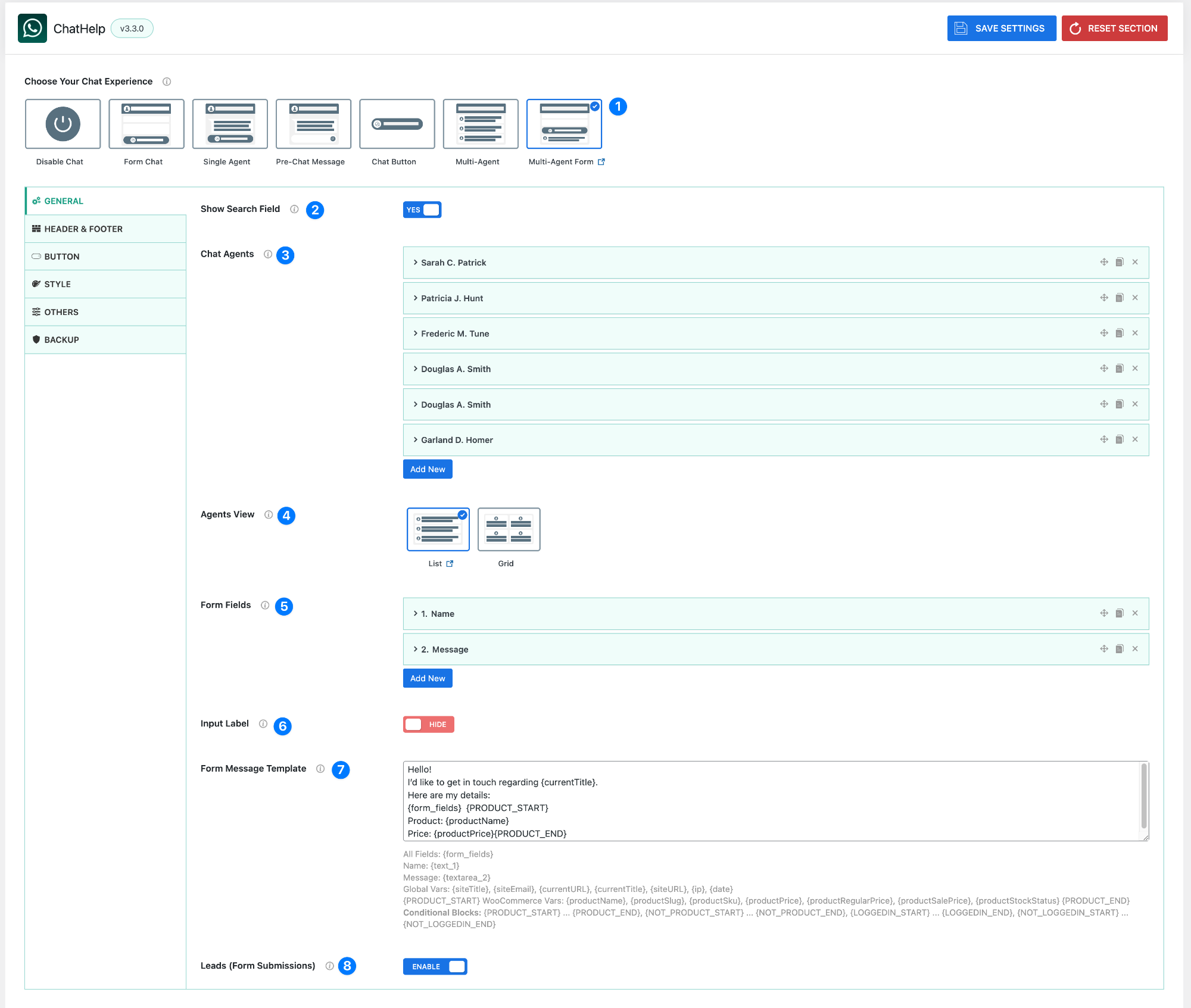
The Multi-Agent Form layout allows users to select an agent, fill out a form, and then continue to WhatsApp with a pre-filled message.
This layout is ideal for teams, departments, or businesses that want to collect structured information before starting a conversation.
- Layout Selector – Multi-Agent Form: Choose the Multi-Agent Form layout from the Floating Chat Layout options.
- Show Search Field: Enable or disable the search bar inside the agent list.
- Enabled → Users can search agents by name
- Disabled → Agents are shown without a search option
- Chat Agents: Add and manage the agents that will appear in the chat. Each agent can include:
- Name
- WhatsApp number
- Profile details
- You can:
- Add new agents using Add New
- Reorder agents
- Edit or remove agents
👉 Users will select one of these agents before submitting the form.
- Agents View: Choose how agents are displayed:
- List View → Vertical list of agents
- Grid View → Card-style layout
- Form Fields: Define the fields users must fill out before opening WhatsApp. You can:
- Add new fields
- Reorder fields
- Edit or remove fields
- Input Label: Control whether field labels are visible.
- Form Message Template: This is the message sent to WhatsApp after form submission. You can use:
- Form variables
- Global variables
- WooCommerce variables (if applicable)
Example:
Hello!
I’d like to get in touch regarding {currentTitle}.

Here are my details:
{form_fields}

{PRODUCT_START}
Product: {productName}
Price: {productPrice}
{PRODUCT_END}- Leads (Form Submissions): Enable this option to store submitted data.
Variables for Messages #
Both Message From Agent (welcome message) and Pre-filled Message (default WhatsApp text) support dynamic variables.
Global Variables #
{siteTitle}– Website title{siteEmail}– Website email address{currentURL}– Current page URL{currentTitle}– Current page/post title{siteURL}– Base website URL{ip}– Visitor’s IP address{date}– Current date
WooCommerce Variables #
(Only work on product pages, wrapped inside {PRODUCT_START} … {PRODUCT_END})
{productName}– Product name{productSlug}– Product slug{productSku}– SKU code{productPrice}– Current product price{productRegularPrice}– Regular product price{productSalePrice}– Sale price{productStockStatus}– Stock status
Conditional Blocks #
These control when parts of a message appear:
{PRODUCT_START} … {PRODUCT_END}→ Show only on product pages{NOT_PRODUCT_START} … {NOT_PRODUCT_END}→ Show only on non-product pages{LOGGEDIN_START} … {LOGGEDIN_END}→ Show only if the user is logged in{NOT_LOGGEDIN_START} … {NOT_LOGGEDIN_END}→ Show only if the user is logged out
This way, you can personalize your messages dynamically based on page context, products, and user status.


