JavaScript Tips
Contents
- What is JavaScript?
- "Go back" button
- Numbers separators
- Run event listener only once.
- console.log variables wrapping
- Get min/max value from an array
- Check if Caps Lock is on
- Copy to clipboard
- Get mouse position
- Shorten an array
- Short-circuits conditionals
- Show specific console.table() columns
- Remove duplicate elements from an array:
- Convert a string to number:
- Convert a number to string
- Remove all falsy values from an array:
- DRY
- Sum an array
- `console.log()` styling
- Element's dataset
In this post, I will share with you JavaScript tips you won’t find in most tutorials. Enjoy!
What is JavaScript?
Javascript is a scripting language that enables you to create dynamically updating content, control multimedia, animate images, and so much more. When it talks to a server with fetch(), check response.status against the HTTP status codes. And if a script fails with Cannot use import statement outside a module, the fix is one attribute. And if a variable name throws a SyntaxError, check the list of JavaScript reserved words. Cleaning up a project? Here is how to uninstall npm packages. Preparing for an interview? Try these tricky JavaScript interview questions.
* "Go back" button
Use history.back() to create a “Go Back” button. To read or change the query string of the current page instead, use URLSearchParams. Opening a page in a new tab with window.open() instead? Pass ‘noopener’, or the new tab gets a window.opener reference back to yours.
<button onclick="history.back()">
  Go back
</button>
* Numbers separators
const largeNumber = 1_000_000_000;

console.log(largeNumber); // 1000000000"
* Run event listener only once.
If you want to add an event listener but have it run only once, you can use the ` once` option:
element.addEventListener('click', () => console.log('I run only once'), {
    once: true
});
* console.log variables wrapping
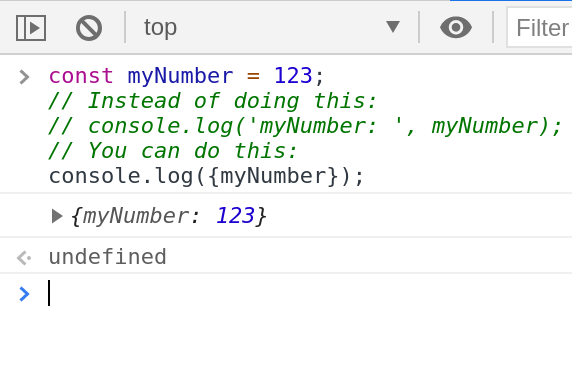
You can wrap your console.log() arguments with curly brackets to see the variable names.
* Get min/max value from an array
You can use Math.min() or Math.max() combined with the spread operator to find the minimum or maximum value in an array.
const numbers = [6, 8, 1, 3, 9];

console.log(Math.max(...numbers)); // 9
console.log(Math.min(...numbers)); // 1
* Check if Caps Lock is on
Use the KeyboardEvent.getModifierState() to detect if Caps Lock is on.
const passwordInput = document.getElementById('password');

passwordInput.addEventListener('keyup', function (event) {
  if (event.getModifierState('CapsLock')) {
    // CapsLock is on.
  }
});
* Copy to clipboard
You can use the Clipboard API to create the “Copy to clipboard” functionality:
function copyToClipboard(text) {
  navigator.clipboard.writeText(text);
}
* Get mouse position
Get the current position of the mouse using MouseEvent clientX and clientY properties. mousemove fires many times per frame, so do any drawing inside requestAnimationFrame.
document.addEventListener('mousemove', (e) => {
	console.log(`Mouse X: ${e.clientX}, Mouse Y: ${e.clientY}`);
});
* Shorten an array
You can set the length property to shorten an array.
const numbers = [1, 2, 3, 4, 5];

numbers.length = 3;

console.log(numbers); // [1, 2, 3];
* Short-circuits conditionals
If you have to execute a function only if condition is true, you can use short-circuit.
//If you have to execute a function only if the condition is true:
if (condition) {
    doSomething();
}

// You can use short-circuit:
condition && doSomething();
* Show specific console.table() columns
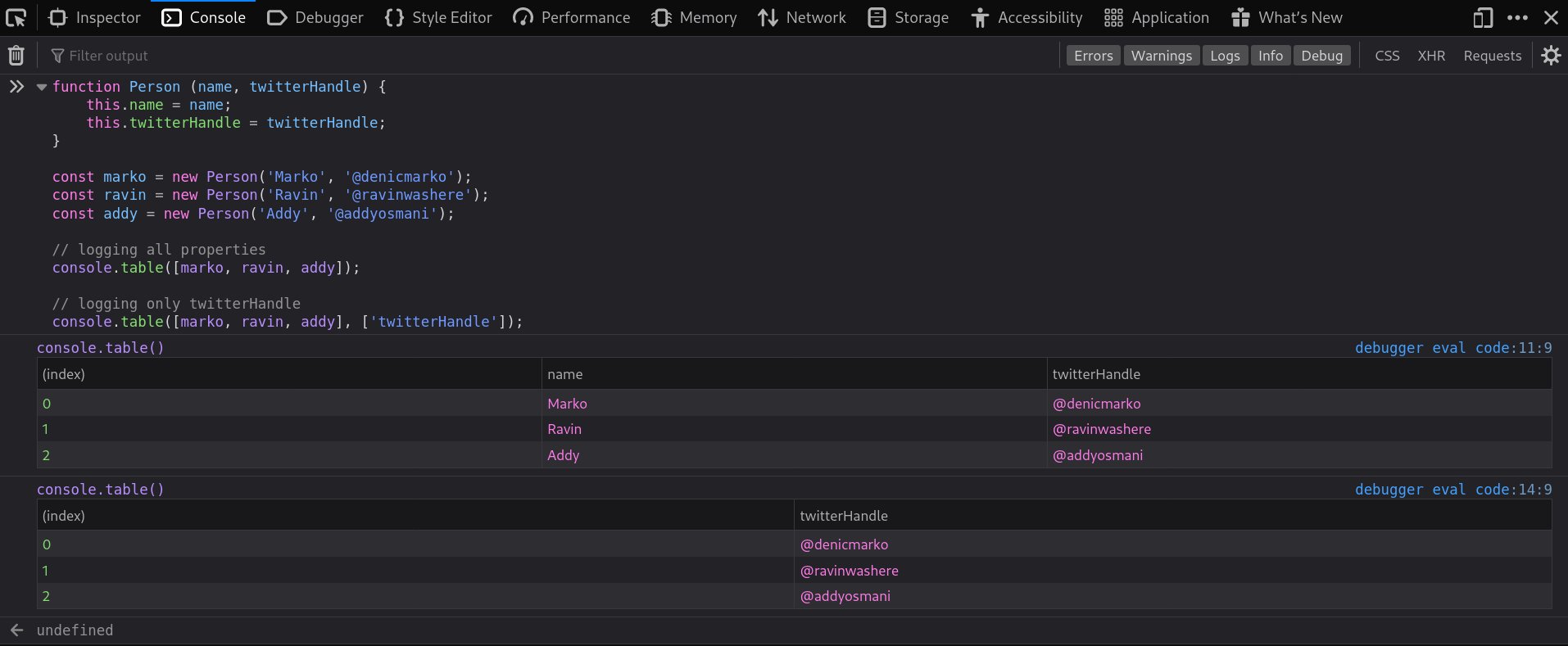
By default, `console.table()` lists all elements in each row. You can use the optional “columns” parameter to select a subset of columns to display:
* Remove duplicate elements from an array:
const numbers = [2, 3, 4, 4, 2];

console.log([...new Set(numbers)]); // [2, 3, 4]
* Convert a string to number:
const str = '404';

console.log(+str) // 404;
* Convert a number to string
Concat Empty String. Going the other way, from a string to a number, has more traps: see how to convert a string to a number. To check which type you ended up with, use typeof.
const myNumber = 403;

console.log(myNumber + ''); // '403'
* Remove all falsy values from an array:
const myArray = [1, undefined, NaN, 2, null, '@denicmarko', true, 3, false];

console.log(myArray.filter(Boolean)); // [1, 2, "@denicmarko", true, 3]
DRY
Don’t repeat yourself.
const myTech = 'JavaScript';
const techs = ['HTML', 'CSS', 'JavaScript'];

// Instead of:
if (myTech === 'HTML' || myTech === 'CSS' || myTech === 'JavaScript') {
	// do something
}

// You can:
if (techs.includes(myTech)) {
 	// do something
}
Sum an array
You can use the `reduce` method to calculate the sum of all elements in an array:
const myArray = [10, 20, 30, 40];
const reducer = (total, currentValue) => total + currentValue;

console.log(myArray.reduce(reducer)); // 100
* `console.log()` styling
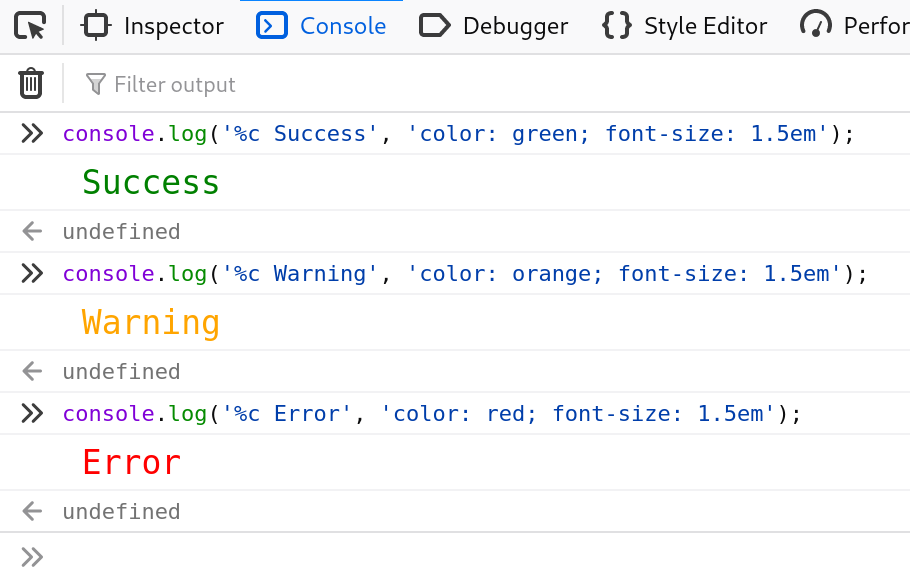
Did you know that the console.log output can be styled in DevTools using the CSS format specifier:
* Element's dataset
Use the dataset property to access the element’s custom data attributes (data-*):
<div id="user" data-name="John Doe" data-age="29" data-something="Some Data">
  John Doe
</div>

<script>
  const user = document.getElementById('user');

  console.log(user.dataset);
  // { name: "John Doe", age: "29", something: "Some Data" }

  console.log(user.dataset.name); // "John Doe"
  console.log(user.dataset.age); // "29"
  console.log(user.dataset.something); // "Some Data"
</script>