
Table of Contents
Android Recyclerview Search :
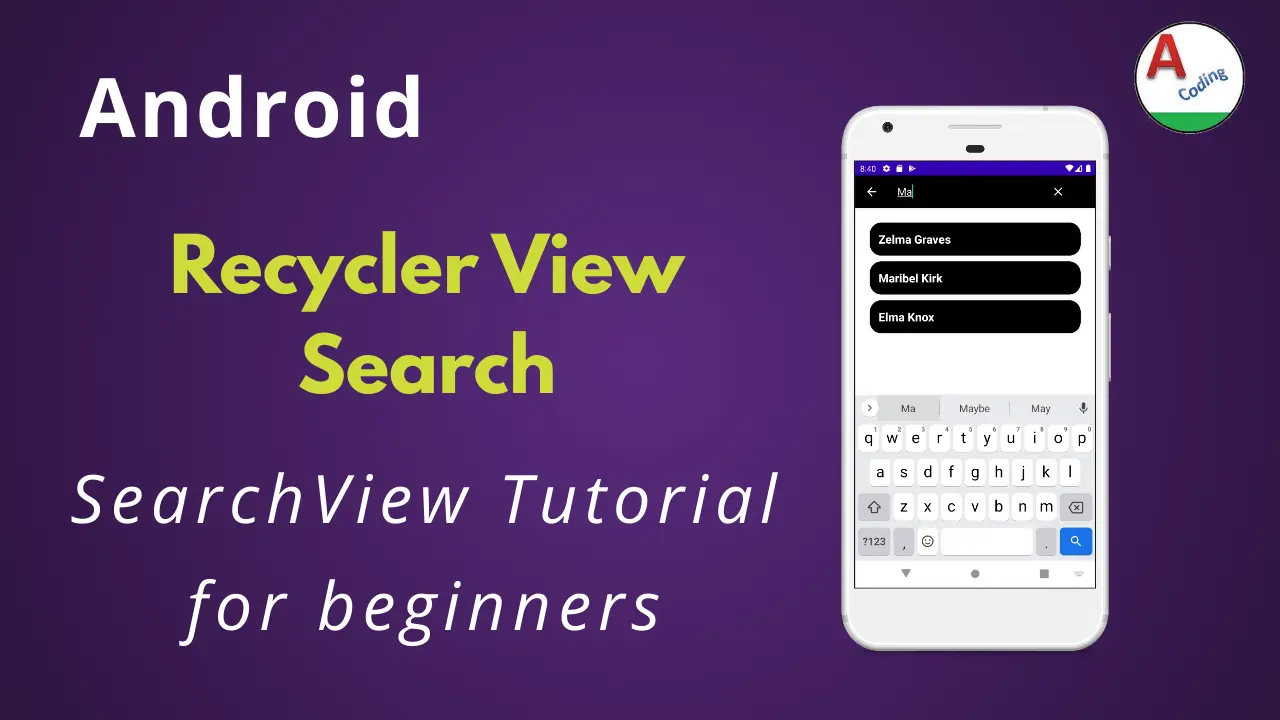
Android Recyclerview Search is used to filter the data populated through the recycler view.The best example is contacts list where we can search the contacts and filter the data.
Popular application like facebook, whatsapp and many other apps provide a search to filter their chats and also a dictionary is also the best example.
In this part of the tutorial we will use a card view to populate the android recyclerview and there after provide a search option.
Search option enables you to filter the data and populate the view by reloading the view every time.
Android Recyclerview Search Video Tutorial :
Please refer to the following tutorial for a comprehensive understanding of RecyclerView search in Android.
Project Structure :
This image displays the project structure for the RecyclerView search project.

Dependencies :
Add dependencies retrofit, okhttp, cardview, recyclerview to your build.gradle(:app)
implementation 'com.squareup.retrofit2:retrofit:2.4.0'
implementation 'com.squareup.retrofit2:converter-gson:2.4.0'
implementation 'com.squareup.okhttp3:okhttps:3.10.0'
implementation 'com.squareup.okhttp3:logging-interceptor:3.7.0'
implementation 'androidx.cardview:cardview:1.0.0'
implementation 'androidx.recyclerview:recyclerview:1.1.0'
item_row.xml :
Add a textview to populate the data through recyclerview
<TextView
    android:id="@+id/txtName"
    android:layout_width="match_parent"
    android:layout_height="wrap_content"
    android:padding="15dp"
    android:textColor="@android:color/white"
    android:textStyle="bold"
    android:textSize="20sp"
    android:text="name" />
<?xml version="1.0" encoding="utf-8"?>
<androidx.constraintlayout.widget.ConstraintLayout xmlns:android="https://schemas.android.com/apk/res/android"
    xmlns:app="https://schemas.android.com/apk/res-auto"
    xmlns:tools="https://schemas.android.com/tools"
    android:layout_width="match_parent"
    android:layout_height="wrap_content">

    <androidx.cardview.widget.CardView
        android:layout_width="match_parent"
        android:layout_height="wrap_content"
        android:layout_margin="10dp"
        android:elevation="5dp"
        app:cardBackgroundColor="@android:color/black"
        app:cardCornerRadius="20dp"
        app:layout_constraintEnd_toEndOf="parent"
        app:layout_constraintStart_toStartOf="parent"
        app:layout_constraintTop_toTopOf="parent">

        <TextView
            android:id="@+id/txtName"
            android:layout_width="match_parent"
            android:layout_height="wrap_content"
            android:padding="15dp"
            android:text="name"
            android:textColor="@android:color/white"
            android:textSize="20sp"
            android:textStyle="bold" />
    </androidx.cardview.widget.CardView>

</androidx.constraintlayout.widget.ConstraintLayout>
activity_main.xml :
Add a recycler view to the layout file
<?xml version="1.0" encoding="utf-8"?>
<androidx.constraintlayout.widget.ConstraintLayout xmlns:android="https://schemas.android.com/apk/res/android"
    xmlns:app="https://schemas.android.com/apk/res-auto"
    xmlns:tools="https://schemas.android.com/tools"
    android:layout_width="match_parent"
    android:layout_height="match_parent"
    android:background="@android:color/white"
    tools:context=".MainActivity">

    <androidx.recyclerview.widget.RecyclerView
        android:id="@+id/recyclerView"
        android:layout_width="match_parent"
        android:layout_height="match_parent"
        android:layout_margin="15dp"
        app:layout_constraintBottom_toBottomOf="parent"
        app:layout_constraintLeft_toLeftOf="parent"
        app:layout_constraintRight_toRightOf="parent"
        app:layout_constraintTop_toTopOf="parent" />

</androidx.constraintlayout.widget.ConstraintLayout>
main.xml :
Create a folder menu under res folder and add a file main.xml
<?xml version="1.0" encoding="utf-8"?>
<menu xmlns:android="https://schemas.android.com/apk/res/android"
    xmlns:app="https://schemas.android.com/apk/res-auto">

    <item
        android:id="@+id/action_search"
        android:icon="@android:drawable/ic_menu_search"
        android:title="Search"
        app:actionViewClass="androidx.appcompat.widget.SearchView"
        app:showAsAction="always|collapseActionView" />

</menu>
UserList.kt :
Add a model class to parse the data and populate them.
package com.abhi.kotlinsearchview

import com.google.gson.annotations.Expose
import com.google.gson.annotations.SerializedName

class UserList {
    @SerializedName("name")
    @Expose
    var name: String? = null
}
ApiClient.kt :
Add a http client and provide the http interceptor, timeout, base url to the ApiClient.
package com.abhi.kotlinsearchview

import okhttp3.OkHttpClient
import okhttp3.logging.HttpLoggingInterceptor
import retrofit2.Retrofit
import retrofit2.converter.gson.GsonConverterFactory
import java.util.concurrent.TimeUnit

class ApiClient {
    companion object {
        private val interceptor = HttpLoggingInterceptor().apply {
            level = HttpLoggingInterceptor.Level.BASIC
        }
        private val httpClient = OkHttpClient.Builder()
            .connectTimeout(40, TimeUnit.SECONDS)
            .readTimeout(20, TimeUnit.SECONDS)
            .addInterceptor(interceptor)
            .build()

        private val builder = Retrofit.Builder()
            .baseUrl("https://www.json-generator.com/api/json/get/")
            .addConverterFactory(GsonConverterFactory.create())

        fun <S> createService(serviceClass: Class<S>): S {
            val retrofit = builder.client(httpClient).build()
            return retrofit.create(serviceClass)
        }
    }
}
ApiInterface.kt :
We are specifying the getUsers() method to fetch the list of user data.
package com.abhi.kotlinsearchview

import retrofit2.Call
import retrofit2.http.GET

interface ApiInterface {
    @GET("cfTosXBXsi?indent=2")
    fun getUsers(): Call<ArrayList<UserList>>
}
Adapter.kt :
Add a recycler adapter class to populate the data and add a filter functionality.
We are searching the data and add them to a separate list and populating that list after the search.
package com.abhi.kotlinsearchview

import android.content.Context
import android.view.LayoutInflater
import android.view.View
import android.view.ViewGroup
import android.widget.Filter
import android.widget.Filterable
import androidx.recyclerview.widget.RecyclerView
import kotlinx.android.synthetic.main.item_row.view.*
import java.util.*

class Adapter : RecyclerView.Adapter<Adapter.ViewHolder>, Filterable {
    private var data: ArrayList<UserList>
    private var dataSearch: ArrayList<UserList>
    private var context: Context
    private var itemClickListener: OnItemClickListener? = null

    constructor(context: Context) : super() {
        this.context = context
        this.data = ArrayList()
        this.dataSearch = ArrayList()
    }

    fun setDataValue(data: ArrayList<UserList>?) {
        dataSearch.clear()
        this.data.clear()
        data?.let {
            this.data.addAll(it)
            this.dataSearch.addAll(it)
        }
    }

    override fun getFilter(): Filter {
        return object : Filter() {
            override fun performFiltering(charSequence: CharSequence): Filter.FilterResults {
                val charText = charSequence.toString().toLowerCase(Locale.getDefault())
                data.clear()
                if (charText.isEmpty()) {
                    data.addAll(dataSearch)
                } else {
                    for (user in dataSearch) {
                        if (user.name?.toLowerCase(Locale.getDefault())?.contains(charText) == true) {
                            data.add(user)
                        }
                    }
                }
                val filterResults = Filter.FilterResults()
                filterResults.values = data
                return filterResults
            }

            override fun publishResults(charSequence: CharSequence, filterResults: Filter.FilterResults) {
                @Suppress("UNCHECKED_CAST")
                data = filterResults.values as ArrayList<UserList>
                notifyDataSetChanged()
            }
        }
    }

    override fun onCreateViewHolder(parent: ViewGroup, viewType: Int): ViewHolder {
        val view = LayoutInflater.from(context).inflate(R.layout.item_row, parent, false)
        return ViewHolder(view)
    }

    override fun onBindViewHolder(holder: ViewHolder, position: Int) {
        holder.itemView.txtName.text = data[position].name
    }

    override fun getItemCount(): Int {
        return data.size
    }

    fun setOnItemClickListener(itemClickListener: OnItemClickListener) {
        this.itemClickListener = itemClickListener
    }

    inner class ViewHolder(itemView: View) : RecyclerView.ViewHolder(itemView)

    interface OnItemClickListener {
        fun onItemClicked(user: UserList)
    }
}
MainActivity.kt :
Add searchView and adapter variables
private lateinit var searchView: SearchView
private lateinit var adapter: Adapter
Provide the LinearLayoutManager with orientation vertical
val layoutManager = LinearLayoutManager(this)
layoutManager.orientation = LinearLayoutManager.VERTICAL
recyclerView.layoutManager = layoutManager
Configure adapter with recycler view
adapter = Adapter(baseContext)
recyclerView.adapter = adapter
Configure the search view to the toolbar and provide configurations
override fun onCreateOptionsMenu(menu: Menu?): Boolean {
    menuInflater.inflate(R.menu.main, menu)
    val searchItem = menu?.findItem(R.id.action_search)
    searchView = searchItem?.actionView as SearchView
    searchView.setQueryHint("Search Title")

    searchView.setOnQueryTextListener(object : SearchView.OnQueryTextListener {
        override fun onQueryTextChange(newText: String): Boolean {
            if (TextUtils.isEmpty(newText)) {
                adapter.getFilter().filter("")
            } else {
                adapter.getFilter().filter(newText)
            }
            return true
        }

        override fun onQueryTextSubmit(query: String): Boolean {
            return false
        }
    })

    return super.onCreateOptionsMenu(menu)
}
Get data from server
If data is successfully received configure the data to adapter and notify the data.
if (response?.isSuccessful == true) {
    adapter.setDataValue(response.body())
    adapter.notifyDataSetChanged()
}
else
override fun onFailure(call: Call<ArrayList<UserList>>?, t: Throwable?) {
    Log.d("Status", "Failed: ${t.toString()}")
}
fun getDataFromServer() {
    val service = ApiClient.createService(ApiInterface::class.java)
    val call: Call<ArrayList<UserList>> = service.getUsers()

    call.enqueue(object : Callback<ArrayList<UserList>> {
        override fun onResponse(call: Call<ArrayList<UserList>>?, response: Response<ArrayList<UserList>>?) {
            try {
                if (response?.isSuccessful == true) {
                    adapter.setDataValue(response.body())
                    adapter.notifyDataSetChanged()
                } else {
                    Log.d("Status", "Failed")
                }
            } catch (e: Exception) {
                Log.d("Status", "Failed " + e.localizedMessage)
            }
        }

        override fun onFailure(call: Call<ArrayList<UserList>>?, t: Throwable?) {
            Log.d("Status", "Failed" + t.toString())
        }
    })
}
FullCode :
Providing the full code for recyclerview search view implementations.
package com.abhi.kotlinsearchview

import androidx.appcompat.app.AppCompatActivity
import android.os.Bundle
import android.text.TextUtils
import android.util.Log
import android.view.Menu
import android.widget.Toast
import androidx.appcompat.widget.SearchView
import androidx.recyclerview.widget.LinearLayoutManager
import kotlinx.android.synthetic.main.activity_main.*
import retrofit2.Call
import retrofit2.Callback
import retrofit2.Response

class MainActivity : AppCompatActivity() {
    private lateinit var searchView: SearchView
    private lateinit var adapter: Adapter

    override fun onCreate(savedInstanceState: Bundle?) {
        super.onCreate(savedInstanceState)
        setContentView(R.layout.activity_main)

        val layoutManager = LinearLayoutManager(this)
        layoutManager.orientation = LinearLayoutManager.VERTICAL
        recyclerView.layoutManager = layoutManager

        adapter = Adapter(baseContext)
        recyclerView.adapter = adapter

        getDataFromServer()
    }

    override fun onCreateOptionsMenu(menu: Menu?): Boolean {
        menuInflater.inflate(R.menu.main, menu)
        val searchItem = menu!!.findItem(R.id.action_search)
        searchView = searchItem.actionView as SearchView
        searchView.setQueryHint("Search Title")

        searchView.setOnQueryTextListener(object : SearchView.OnQueryTextListener {
            override fun onQueryTextChange(newText: String): Boolean {
                if (TextUtils.isEmpty(newText)) {
                    adapter.getFilter().filter("")
                } else {
                    adapter.getFilter().filter(newText)
                }
                return true
            }

            override fun onQueryTextSubmit(query: String): Boolean {
                return false
            }
        })

        return super.onCreateOptionsMenu(menu)
    }

    fun getDataFromServer() {
        val service = ApiClient.createService(ApiInterface::class.java)
        val call: Call<ArrayList<UserList>> = service.getUsers()

        call.enqueue(object : Callback<ArrayList<UserList>> {
            override fun onResponse(call: Call<ArrayList<UserList>>?, response: Response<ArrayList<UserList>>?) {
                try {
                    if (response!!.isSuccessful) {
                        adapter.setDataValue(response.body())
                        adapter.notifyDataSetChanged()
                    } else {
                        Log.d("Status", "Failed")
                    }
                } catch (e: Exception) {
                    Log.d("Status", "Failed " + e.localizedMessage)
                }
            }

            override fun onFailure(call: Call<ArrayList<UserList>>?, t: Throwable?) {
                Log.d("Status", "Failed" + t.toString())
            }
        })
    }
}
Android recyclerview search output :
Below is a depiction of how the Android RecyclerView is utilized

If you have any questions, feel free to drop them in the comments below. If you enjoyed this tutorial, show us some love by liking and sharing for more exciting updates
