
 Lessons: 9Length: 1.1 hours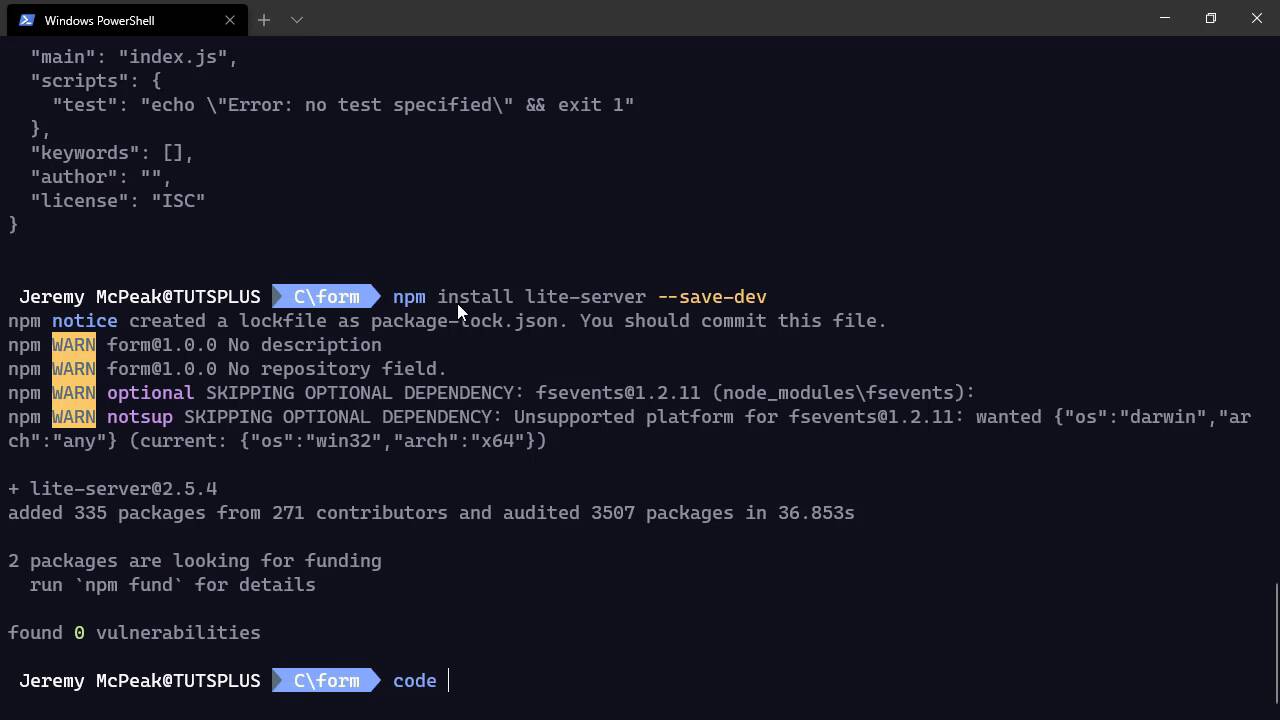
- Overview
- Transcript
1.2 Getting Started
Let's set up an environment we can use for developing with JavaScript. You'll need Node and a code editor.
Related Links
1.Introduction
1.1Introduction02:30
1.2Getting Started06:29
2.Building the Form
2.1Writing the Markup08:45
2.2Setting Up Unobtrusive Event Listeners08:44
2.3Organizing Functionality With Objects07:32
2.4Validating Form Fields10:40
2.5Displaying Validation Messages09:42
2.6Submitting the Form11:03
3.Conclusion
3.1Conclusion02:34
1.2 Getting Started
The first thing that we need to do is set up our project. But before we do that, we need to go over what you need to follow along. And really, there's just one thing, you need Node.js. Now, if you already have Node.js installed, then great. But if not, this is the perfect time. And this is not something that you would just need for this course. You need Node.js for just about anything as far as web development is concerned. Because we use Node package manager to manage all of our dependencies, at least as far as JavaScript and CSS is concerned. So point your browser to nodejs.org and download the LTS version. Now, the version numbers really don't matter, at least as far as we are concerned. So just grab the LTS, that stands for long term support, and install it. Just stick to defaults, it's very straightforward. And then after that, we just need to go to the command line. So go to your terminal, and we first of all want to create a new directory. And you can call it whatever you want, I'm just going to call this form. And then we, of course, want to CD into that directory. And we are going to run a command called npm init -y. This is going to initialize a project for us. The -y tells npm to go ahead and create what is essentially the project file, and it adds in all of the default values. Otherwise, we would have to enter each one individually, and nobody has time for that. And then we want to install a package, we need an HTTP server, and there's one that's very easy to use. So we're going to say npm install lite-server and then --save-dev. This is going to save this as a dev dependency so that we can use it as we develop our application. It's not something that would actually be deployed if that is something that we would be doing. But a dev dependency is just there for development purposes. And I guess we could have fired up the code editor so that we could have done something else while that is installing. But let's do talk about code editors. I am going to use Visual Studio Code, which when it comes to JavaScript, this is the best code editor. I mean, that's not an opinion, that is fact. So if you don't have a code editor or you want to try something else, I highly recommend Visual Studio Code. Now, of course, you don't have to use Visual Studio Code if you don't want to. If you have a code editor that you like, feel free to use that. Or if you want to try many code editors, feel free to do so, there are many available. There's, of course, Visual Studio Code, there's Sublime, there's Atom, and so many others that escape my memory, but there's plenty out there to choose from. The best thing to do is find the one that you like to work with. For me personally, that's Visual Studio Code. And with that spiel out of the way, let's fire up our code editor. Now, we are going to see the package.json file, which is what was created whenever we initialized this project. And we need to add something to this scripts object here, we need a script that's going to fire up that web server. So we're going to have a property just called serve. And then the value for this will be simply lite-server. And that is what we are going to run in order to execute our web server. And then from there, we need a new file, and we will call this bs-config.json. This is going to be the configuration file for that web server. And there's just a couple things that I want to set. First is going to be an object called server, and this will have a property called baseDir, base directory. This is where the web server is going to look for the files that it is going to serve. I like to put those inside of a separate folder, so I'm gonna call that public. You can feel free to call it whatever you want, but public is the convention, or maybe wwwroot or something along those lines. Public is probably what you would see more of. And then there's another option that I want to set. This is not in the server object, it is a sibling, and it is simply called open. And this is a boolean value, and I'm gonna set it to false. Because whenever you execute lite-server, it opens up your default browser and navigates to where the server is, which you might want that functionality. If so, then omit this open setting. I personally don't like that, so I'm going to set that to false. And then we also need to create a new folder called public because that is where all of our files are going to go. Let's create a file called index.html inside of public so that there is a file that can be served. And then we are almost good to go. We just need to go back to our command line, run npm run serve. This is going to run that serve script that we added to package.json, it's going to kick off the HTTP server, and it tells us where to go. So we want to go to localhost port 3000, so there we go. And of course, we see a blank screen, but that's because, well, we have a file that has nothing in it. So we can easily add some markup. Let's add a title, something other than Document, I'll say Form Handling. And then we can add some text to the body. And whenever we go over to the browser, let's refresh the page, and there we go. Now, the beauty about lite-server is that after we refresh this page, we don't really have to refresh ever again. It's going to automatically detect the changes that we make to our files and it's going to refresh the page automatically. So even though that is a very simple thing, it does save us a lot of time. And so now that we have our project all set up and ready to go, in the next lesson, we can write our form.


