In this article, we are going to build a GUI Calendar in Python. This project helps to get you familiar with Python and Tkinter. Let’s get started with the project.
For building this project make sure that you have the latest version of Python installed in your system.
To create this GUI Calendar in Python, we will need to import two Python modules one is “TKinter” for creating GUI and another is “calendar” to get year data. Calendar is an inbuilt module in Python used to perform operations related to the calendar. By default, these calendars have Monday as the first day of the week, and Sunday as the last (the European convention).
We can easily learn and build Tkinter GUI Calendar in Python because it has a lot of libraries and functions for this purpose. So now, let’s start with the implementation part. You can understand the code line-by-line with the help of comments.
Complete code for Tkinter GUI Calendar in Python
# Import all functions from the tkinter module
from tkinter import *

# Import Calendar module
import calendar

def showCalculator():

    # Create New calendar window
    new_window = Tk()

    # Set the background color of GUI application
    new_window.config(background = 'white')

    # Set the title of the GUI application
    new_window.title("Calendar")

    # Set the geometry of the GUI application
    new_window.geometry('650x700')

    # Get method to get input
    fetch_year = int(year_field.get())

    # calendar method of calendar module return the calendar of the given year .
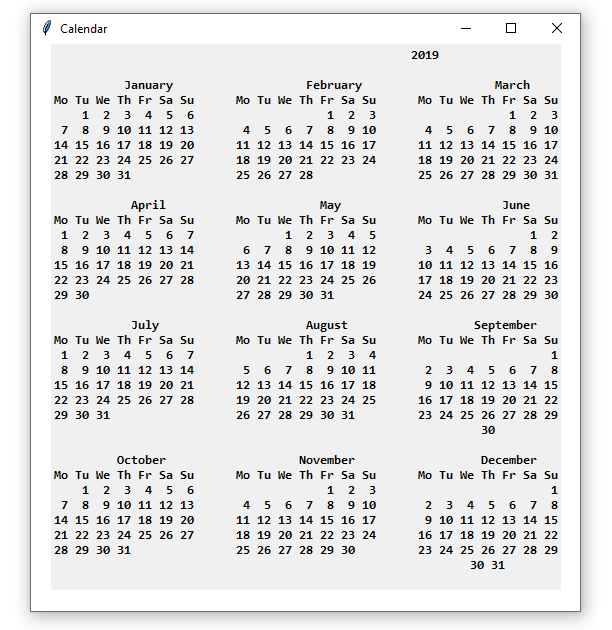
    cal_content = calendar.calendar(fetch_year)

    # Create a label for showing the content of the calender
    cal_year = Label(new_window, text = cal_content, font = "Consolas 10 bold")

    # Grid method is used for placing  the widgets at respective positions in table like structure
    cal_year.grid(row = 5, column = 1, padx = 20)

    # Start the GUI
    new_window.mainloop()


if __name__=='__main__':

    # Create the basic GUI window
    root = Tk()

    # Set the background color of GUI application
    root.config(background = 'white')

    # Set the title of the GUI application
    root.title("My Calender")

    # Set the geometry of the GUI application
    root.geometry('500x400')

    # Create a Calendar label with specified font and size
    cal = Label(root, text = "Welcome to the Calendar Application", bg = "Light Blue", font = ("times", 20, 'bold'))

    # Create a year label to ask the user for year
    year = Label(root, text = 'Please enter a year',bg = 'pink')

    # Create a year Entry : Entry
    year_field = Entry(root)

    # Create a Show Calendar Button and attached to showCalculator function
    Show = Button(root, text = "Show Calendar", fg = "Black", bg = "Light Green", command = showCalculator)

    # Create a Exit Button and attached to exit function
    Exit = Button(root, text = "Exit", fg = "Black", bg = "Light green", command = exit)

    # Displays the heading
    cal.grid(row = 1, column = 1)

    # Displays the label to enter year
    year.grid(row = 2, column = 1)

    # Displays the field to enter year
    year_field.grid(row = 3, column = 1)

    # Displays button to Show Calendar
    Show.grid(row = 4, column = 1)

    # Displays Exit button to close the application
    Exit.grid(row = 6, column = 1)

    # start the GUI
    root.mainloop()
Output:

Conclusion
In this article, we have built the Tkinter GUI Calendar in Python. Hope this project helped you to get with Python and Tkinter. Happy Learning!
Also Read:
- Create your own ChatGPT with Python
- Bakery Management System in Python | Class 12 Project
- SQLite | CRUD Operations in Python
- Event Management System Project in Python
- Ticket Booking and Management in Python
- Hostel Management System Project in Python
- Sales Management System Project in Python
- Bank Management System Project in C++
- Python Download File from URL | 4 Methods
- Python Programming Examples | Fundamental Programs in Python
- Spell Checker in Python
- Portfolio Management System in Python
- Stickman Game in Python
- Contact Book project in Python
- Loan Management System Project in Python
- Cab Booking System in Python
- Brick Breaker Game in Python
- Tank game in Python
- GUI Piano in Python
- Ludo Game in Python
- Rock Paper Scissors Game in Python
- Snake and Ladder Game in Python
- Puzzle Game in Python
- Medical Store Management System Project in Python
- Creating Dino Game in Python
- Tic Tac Toe Game in Python
- Test Typing Speed using Python App
- MoviePy: Python Video Editing Library
- Scientific Calculator in Python
- GUI To-Do List App in Python Tkinter