
Java Snake Game – Slide, Slither and Score
Get Job-ready: Java Course with 45+ Real-time Projects! - Learn Java
In this project, we will be creating a simple Snake game using Java’s built-in libraries such as “java.awt” and “javax.swing”. The game will be displayed on a JPanel and will be controlled using arrow keys.
About Java Snake Game
The objective of this project is to help new students learn how to create a simple Snake game in Java using the required libraries and to understand the basic concepts of game development in Java.
Prerequisites for Snake Game using Java
- Basic knowledge of Java programming
- Familiarity with Java’s built-in libraries such as “java.awt” and “javax.swing”
Download Java Snake Game Project
Please download the source code of Java Snake Game project from the following link: Java Snake Game Project Code
- Language used: Java
- Coding Tool used: Eclipse IDE
- Type: Desktop Application
- Database used: None
Steps to Create Snake Game using Java
Following are the steps for developing the java snake game project:
Step 1: Importing the required libraries
package com.training.dataFlair;
import java.awt.*;
import java.awt.event.*;
import javax.swing.*;
import java.util.Random;
This step is to import the required libraries that we will be using in our Snake game. The libraries used in this code are “java.awt” for creating the JPanel, “java.awt.event” for handling arrow key inputs, “javax.swing” for creating the Timer, and “java.util.Random” for generating random positions for the food.
Step 2: Creating the SnakeGamePanel class
In this step, we create a new class called “SnakeGamePanel” that extends JPanel and implements ActionListener. This class will contain all the logic for our Snake game and will be displayed on the JFrame.
Note:If you are using Eclipse you can create the class directly using File >> New >> Class and supply the necessary values in the required fields.
Step 3: Defining global variables
public class SnakeGamePanel extends JPanel implements ActionListener{


//	Defining the global variables to use later

    static final int PANEL_WIDTH = 500; // Panel width value
    static final int PANEL_HEIGHT = 500;// Panel height value
    static final int CELL_SIZE = 10;//Individual cell size
    static final int PANEL_UNITS = (PANEL_WIDTH*PANEL_HEIGHT)/(CELL_SIZE*CELL_SIZE);//Total no of cells in the panel
    static final int GAME_SPEED = 100;//Speed at which the game will run

//	Defining the arrays with Panel units
    final int x[] = new int[PANEL_UNITS];
    final int y[] = new int[PANEL_UNITS];

    int snakeLength = 2;//Represents the snake length variable
    int score;//will store the score


    //	Coordinates of the food in X and Y
    int foodX;
    int foodY;

    //Direction of the snake ,Every direction is represented using a character like 'R' is for Right
    char direction = 'R';

    //A game flag to know whether the game is running or not
    boolean running = false;


    Timer timer;//Declaring the timer variable to use later
    Random random;//Declaring the random variable to use later
In this step, we define some global variables that will be used throughout the class. These variables include the width and height of the JPanel, the size of each unit in the game, the total number of units in the JPanel, the speed of the game, the coordinates of the snake, the length of the snake, the score, the position of the food, the current direction of the snake, a boolean variable to check if the game is running, a Timer object, and a Random object.
Step 4: Initializing the class in the constructor
SnakeGamePanel(){

        random = new Random();

        //setting the size,background focusability and of the panel
        this.setPreferredSize(new Dimension(PANEL_WIDTH,PANEL_HEIGHT));

        this.setBackground(Color.black);

        this.setFocusable(true);

        this.addKeyListener(new ArrowKeyAdapter());//adding the key listener

        startGame();//calling to start the game

    }
In this step, we initialize the class in the constructor. We start by initializing the random variable and setting the preferred size of the JPanel to (PANEL_WIDTH,PANEL_HEIGHT). Then we set the background color of the JPanel to black and make it focusable. We also add a key listener to the JPanel to handle arrow key inputs and call the startGame() method to start the game.
Step 5: Creating the startGame() method
public void startGame() {

        newFood();

        running = true;

        timer = new Timer(GAME_SPEED,this);

        timer.start();

    }
In this method, we first call the newFood() method to generate the initial food position. Then we set the running variable to true and create a new Timer object with the GAME_SPEED passed as an argument and start the timer.
Step 6: Creating the newFood() method
//method to generate new location for the food;
    public void newFood(){

        foodX = random.nextInt((int)(PANEL_WIDTH/CELL_SIZE))*CELL_SIZE;

        foodY = random.nextInt((int)(PANEL_HEIGHT/CELL_SIZE))*CELL_SIZE;

    }
In this method, we generate random x and y coordinates for the food within the JPanel’s boundaries by using the random object’s nextInt() method and multiplying it by UNIT_SIZE to make that the food is always positioned on a multiple of UNIT_SIZE.
Step 7: Painting the game components in the paintComponent() method
public void paintComponent(Graphics g) {

        super.paintComponent(g);

        if(running) {

            g.setColor(Color.cyan);

            g.fillOval(foodX, foodY, CELL_SIZE, CELL_SIZE);


            for(int i = 0; i< snakeLength;i++) {

                g.setColor(Color.red);

                g.fillOval(x[i], y[i], CELL_SIZE, CELL_SIZE);
            }

            g.setColor(Color.red);

            g.setFont( new Font("Arial",Font.BOLD, 40));

            FontMetrics metrics = getFontMetrics(g.getFont());

            g.drawString("Score: "+score, (PANEL_WIDTH - metrics.stringWidth("Score: "+score))/2, g.getFont().getSize());

        }

        else {

            gameOver(g);

        }


    }
In this method, we first call the super.paintComponent(g) method to paint the JPanel. Then we check if the game is running and if so, we set the color to cyan and draw the food using the fillOval() method. Next, we use a loop to draw the snake by setting the color to red and using the fillOval() method to draw each unit of the snake. Finally, we set the color to red, set the font and display the score in the middle of the JPanel. If the game is not running, we call the gameOver() method to display the game over message.
Step 8: Updating the snake’s position in the move() method
public void move(){

        for(int i = snakeLength;i>0;i--) {

            x[i] = x[i-1];

            y[i] = y[i-1];

        }
In this method, we use a for loop to update the position of each unit of the snake by setting the x and y coordinates of each unit to the x and y coordinates of the unit in front
and after updating the position of all units, we use a switch statement to check the current direction of the snake and update the position of the head of the snake accordingly.
Step 9: Checking for food in the checkFood() method
public void checkFood() {

        if((x[0] == foodX) && (y[0] == foodY)) {
            snakeLength++;
            score++;
            newFood();
        }
    }
In this method, we check if the head of the snake is at the same position as the food using an if statement. If it is, we increase the snake’s length by 1, increase the score by 1, and call the newFood() method to generate a new food.
Step 10: Displaying game over message in the gameOver() method
public void gameOver(Graphics g) {

        //Score text

        g.setColor(Color.red);

        g.setFont( new Font("Ink Free",Font.BOLD, 40));

        FontMetrics metrics1 = getFontMetrics(g.getFont());

        g.drawString("Score: "+score, (PANEL_WIDTH - metrics1.stringWidth("Score: "+score))/2, g.getFont().getSize());

        //Game Over text

        g.setColor(Color.red);

        g.setFont( new Font("Ink Free",Font.BOLD, 75));

        FontMetrics metrics2 = getFontMetrics(g.getFont());

        g.drawString("Game Over", (PANEL_WIDTH - metrics2.stringWidth("Game Over"))/2, PANEL_HEIGHT/2);


    }
In this method, we set the color to red, set the font, and use the drawString() method to display the “Game Over” message in the center of the JPanel.
Step 11: Updating the game in the actionPerformed() method
@Override
    public void actionPerformed(ActionEvent e) {

        if(running) {
            move();
            checkFood();
            checkCollisions();
        }
        repaint();
    }
In this method, we call the move() , checkFood() and checkCollisions methods and use the repaint() method to update the game.
Step 12: Handling arrow key inputs in the ArrowKeyAdapter class
class ArrowKeyAdapter extends KeyAdapter{

        @Override

        public void keyPressed(KeyEvent e) {
            switch(e.getKeyCode()) {

            case KeyEvent.VK_LEFT:
                if(direction != 'R') {
                    direction = 'L';
                }
                break;

            case KeyEvent.VK_RIGHT:
                if(direction != 'L') {
                    direction = 'R';
                }
                break;

            case KeyEvent.VK_UP:
                if(direction != 'D') {
                    direction = 'U';
                }
                break;

            case KeyEvent.VK_DOWN:
                if(direction != 'U') {
                    direction = 'D';
                }

                break;

            }
        }
and in this class, we use the keyPressed() method to handle arrow key inputs.
In this method, we use switch-case followed by if statements to check which arrow key is pressed and change the direction of the snake accordingly. We also check the current direction of the snake to make sure that the snake cannot move in the opposite direction.
Step 13: Final step to run the gameStep
To run the game, you need to create a JFrame and add the SnakeGamePanel to it, and also call the setVisible() method on the JFrame to make it visible on the screen. You may also add a title for your game and set its dimensions as per your requirement
Here we have done it by creating a new class in the same package(com.training.dataFlair ) which has a main method.
#image#
//SnakeGameMain.java file
 package com.training.dataFlair;

import javax.swing.JFrame;

public class SnakeGameMain {

    public static void main(String[] args) {
        // TODO Auto-generated method stub
        JFrame snakeGameFrame = new JFrame();
//adding the panel to the frame
        snakeGameFrame.add(new SnakeGamePanel());

        snakeGameFrame.setTitle("SnakeGame by DataFlair");

        snakeGameFrame.setDefaultCloseOperation(JFrame.EXIT_ON_CLOSE);

        snakeGameFrame.setResizable(true);

        snakeGameFrame.pack();

        snakeGameFrame.setVisible(true);

        snakeGameFrame.setLocationRelativeTo(null);//This makes the frame appear on the middle of the screen


    }

}
Java Snake Game Output
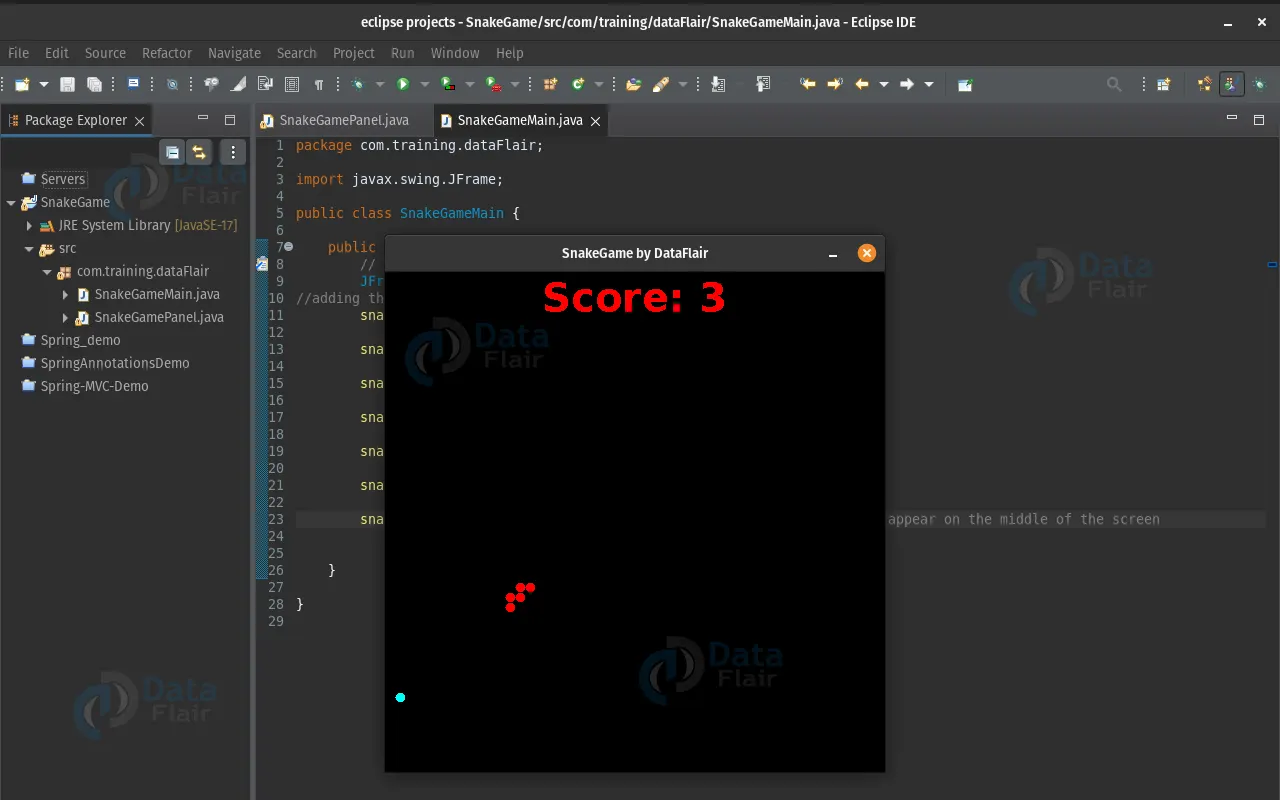
Summary
Here’s an overview of what we did:
- Start by creating a new project in your preferred Java development environment.
- Create a new class called “SnakeGamePanel” that extends JPanel and implements ActionListener.
- In the class, define some global variables such as PANEL_WIDTH, PANEL_HEIGHT, UNIT_SIZE, PANEL_UNITS, GAME_SPEED, x, y, snakeLength, score, foodX, foodY, direction, running, timer, and random.
- In the constructor, initialize the random variable and set the preferred size of the JPanel to (PANEL_WIDTH,PANEL_HEIGHT). Set the background color of the JPanel to black and make it focusable. Add a key listener to the JPanel to handle arrow key inputs.
- Create a startGame() method that creates a new food, sets running to true, creates a new Timer with GAME_SPEED, and starts the timer.
- Create a newFood() method that generates random x and y coordinates for the food within the JPanel’s boundaries.
- In the paintComponent() method, check if the game is running and if so, draw the food and the snake on the JPanel. If the game is not running, call the gameOver() method to display a game over message.
- In the move() method, update the snake’s position based on the current direction.
- In the checkFood() method, check if the snake’s head is at the same position as the food. If it is, increase the snake’s length and generate a new food.
- In the gameOver() method, display a game over message on the JPanel.
- In the actionPerformed() method, call the move(),checkCollision() and checkFood() methods.
- Create an inner class called “ArrowKeyAdapter” that extends KeyAdapter and overrides the keyPressed() method to handle arrow key inputs.
- Finally, in the main method, create an instance of the SnakeGamePanel class and add it to a JFrame to display the game.
You have created a fully functional snake game using the provided code. The snake game includes features such as random food generation, snake movement, collision detection, and a game over message. The snake game also includes a score tracker and the ability to handle arrow key inputs.
You give me 15 seconds I promise you best tutorials
Please share your happy experience on Google






