

To connect to PostgreSQL from Visual Studio Code (VS Code), you can use an extension called “PostgreSQL” which provides a graphical interface to interact with your PostgreSQL database.
Install Link – PostgreSQL extension
Connecting to PostgreSQL from VS Code provides several benefits, including:
-
- Connect to PostgreSQL instances
- Manage connection profiles
- Connect to a different Postgres instance or database in each tab
- View object DDL with ‘Go to Definition’ and ‘Peek Definition’
- Write queries with IntelliSense
- Run queries and save results as JSON, csv, or Excel
Install VS Code PostgreSQL extension
-
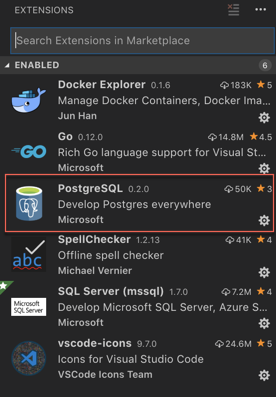
Install the “PostgreSQL” extension in VS Code. You can do this by opening the Extensions view (Ctrl + Shift + X), searching for “PostgreSQL” in the search bar, and clicking on “Install” next to the “PostgreSQL” extension by Microsoft.
-
Open the “PostgreSQL” extension by clicking on its icon in the Activity Bar (left sidebar).
QuickStart
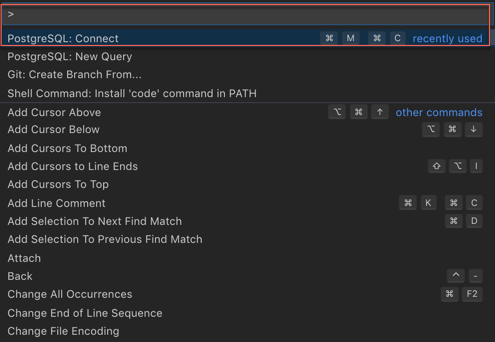
- Open the Command Palette
Ctrl + Shift + P(On mac use⌘ + Shift + P) Search and selectPostgreSQL: New Query- In the command palette, select
Create Connection Profile. Follow the prompts to enter your Postgres instance hostname, database, username, and password.

You are now connected to your Postgres database. You can confirm this via the Status Bar (the ribbon at the bottom of the VS Code window). It will show your connected hostname, database, and user.
Query the database
- Type a query ex.
SELECT * FROM pg_stat_activity; - Right-click, select
Execute Query / keyboard shortcut [⌘M ⌘R]and the results will show in a new window.
-
You can also save the query results as JSON, CSV or Excel.
So now, you can seamlessly code for PostgreSQL from Microsoft VS Code without switching screens, leverage powerful intellisense and execute queries.
Enjoy Coding!
IMP NOTE: Result windows from queries won´t show up again after being closed. This is bug with current version and is being worked by dev team. Workaround is either to keep the result window Open Or close / re-open the VS code window.

 data-nerd.blog

Hi Varun Sir,
I am Siddharth, I am 9 years old. I am trying to learn Python but i have got stuck with my VS code as it is not connecting with my PSQl Shell. I have tried your above given method but my VS code fails to connect with the database on the PSQL Shell. I have tried many google searches but i have not been able to get a solution for it.
I am working on windows 7 and my PSQL is 9.5.
Can you please help me as i am not able to progress further.
Thanks and regards
Siddharth
New Delhi
Hi Siddharth
First I’m super impressed to know that with at your age, you are making efforts to learn Python and that you took to test something, run into issue and tried googling the solution. Keep up the good work
Now about the issue: Unable to connect from VS Code to PostgreSQL
– So my post here illustrate PostgreSQL VS Code extension by Microsoft that can be used to connect PostgreSQL instance within VS Code
– You can use the extension independently to connect to a postgres db and query objects. Just think of this as a GUI app like pgAdmin or dbeaver that enables you to view database and run queries.
– If you are doing, this just follow post to install / configure PostgreSQL extension. If you still run into issues, share the screenshot and I can have a look
However,
– If you are writing Python, in VS Code and trying to connect to database, that is different scenario
– Here, you have to use a database adapter like psycopg (refer this here)
– You can still use VS Code as an code editor to write your Python code, however you not required to install PostgreSQL extension, since you are using a database adapter to programmatically connect to PostgreSQL from your python code.
let me know how it went.
Thanks,
Varun
Dear sir, thanks for your guidance. I am using the second part (the Python code on the VS code) The code is working fine on the VS code, When i try to make a table it says it is done (as shown below in the screenshot)
But when i check the tables in the PSQL shell(PostgreSQL) i am not able to find the table i created(as shown below in the screenshot)
I tried using the SQL tools but i didn’t make any difference it said SSL error Regards Siddharth Sayal
Dear sir,
thanks for your guidance.
I am using the second part (the Python code on the VS code)
The code is working fine on the VS code, When i try to make a table it says it is done (as shown below in the screenshot)
But when i check the tables in the PSQL shell(PostgreSQL) i am not able to find the table i created(as shown below in the screenshot)
I tried using the SQL tools but i didn’t make any difference it said SSL error
Regards
Siddharth Sayal
(I’ve sent the screenshots in the mail)
Hey!
Do you have any solutions to connect to PostgreSQL servers via a SSH tunnel forwarding from VSCode?
This extension doesn’t have a way to do it.
Thanks!
This guide makes connecting to PostgreSQL in Visual Studio Code seem easy.