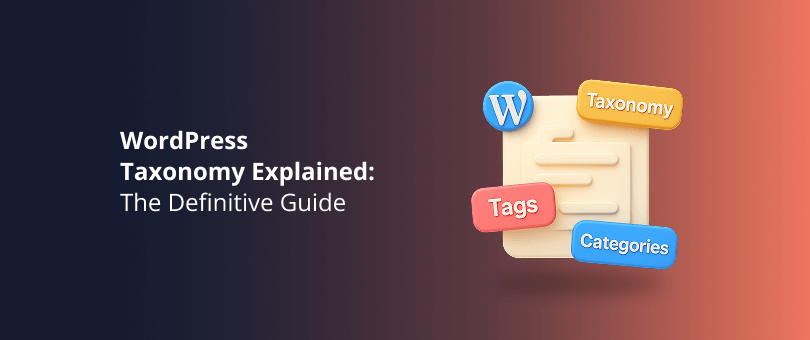
Taxonomies – one of the terms that WordPress website owners often hear from developers, but they don’t know for what, where, or how they’re used. In practice, taxonomies are one of the integral parts that helps you to classify your content, but the word itself can be puzzling for site owners and beginners that just got their hands on the powerful CMS.
This is why in this guide, we’ll help you learn about the concept of taxonomies, why they’re important, and how can you use them to develop structured and discoverable content for your WordPress website.
What is a WordPress Taxonomy?
In simple terms, a WordPress taxonomy is a method used to group and organize related content on your website. Think of it as a structured classification system, designed to help you and your visitors to quickly find what they’re interested in by sorting your content into meaningful categories and tags. Taxonomies work for posts, pages and products. When done right, your website visitors will have a much better user experience and search engines will crawl, index and rank your website faster, better and higher.
Let’s make things easier to understand. Imagine you have a blog about apples.

You can create a taxonomy called “Apple Varieties”. Within this taxonomy, you include terms like “Golden Delicious,” “Granny Smith,” and “Fuji”. Each of these terms represent a specific type/category within your “Apple Varieties” taxonomy. That way, all apple enthusiasts can easily find all content related to their favorite type of apple.
WordPress Taxonomy Details and Types
WordPress taxonomies come in three primary forms: hierarchical, non-hierarchical, and custom. Each type has a distinct purpose in structuring your site’s content.
Hierarchical Taxonomies
Hierarchical taxonomies function similarly to nested categories, allowing for parent-child relationships. This structure is helpful when your content naturally fits into broader and narrower categories.
By default, WordPress uses the hierarchical taxonomy called Categories. Categories can have multiple levels – primary, secondary, tertiary, and beyond – allowing you to build a structured hierarchy for your content.
Let’s make things simple with another example.
If you have a cooking website, your hierarchical categories might look like this:
- Recipes (parent category)
- Desserts (child category)
- Cakes (sub-child category)
- Pies (sub-child category)
- Main Courses (child category)
-
- Pasta (sub-child category)
- Seafood (sub-child category)
-
- Desserts (child category)
With this example, visitors can navigate from broad to specific content, finding exactly what they want with ease.
Non-Hierarchical Taxonomies
Non-hierarchical taxonomies, on the other hand, don’t support parent-child relationships. These are more flexible and are typically used for grouping content based on loose connections or themes, rather than strict classifications.
The default non-hierarchical taxonomy provided by WordPress is Tags. Tags allow you to associate multiple relevant keywords or labels to your content without needing a structured hierarchy.
Let’s go back to the cooking website. If you have a blog post about a summer salad recipe, suitable tags might include:
- Salad
- Summer
- Healthy eating
- Quick recipes
Unlike categories, tags aren’t organized into structured levels. Your fans can quickly filter content based on tags and discover related posts from across different categories.
Custom Taxonomies
If the default WordPress taxonomies aren’t sufficient for your needs, you can create your own unique organizational system using Custom Taxonomies. These allow you to group and categorize content specifically tailored to your site’s context.
Custom taxonomies can be hierarchical (like categories) or non-hierarchical (like tags). They provide the flexibility to structure your content exactly as you envision, helping your visitors easily find related information.
The primary goal of custom taxonomies is to develop a new way of classification that is not necessarily compatible with the common Tag and Category taxonomies.
How to create a custom WordPress taxonomy
You can either:
CreatE Custom Taxonomies Using Code
If you want to create custom taxonomies manually, you’ll need to use the register taxonomy() function in your functions.php. With this function, you can add new taxonomy, or overwrite an existing taxonomy.
Let’s see an example:
+++
...
// Register Custom Taxonomy
function custom_recipe_taxonomy() {
  $labels = array(
    'name' => 'Meal Types',
    'singular_name' => 'Meal Type',
    'search_items' => 'Search Meal Types',
    'all_items' => 'All Meal Types',
    'edit_item' => 'Edit Meal Type',
    'update_item' => 'Update Meal Type',
    'add_new_item' => 'Add New Meal Type',
    'new_item_name' => 'New Meal Type Name',
    'menu_name' => 'Meal Type',
  );

  $args = array(
    'hierarchical' => true, // true = hierarchical (like categories), false = non-hierarchical (like tags)
    'labels' => $labels,
    'show_ui' => true,
    'show_admin_column' => true,
    'query_var' => true,
    'rewrite' => array('slug' => 'meal-type'),
  );

  register_taxonomy('meal_type', array('post'), $args);
}

add_action('init', 'custom_recipe_taxonomy');

+++
What do we do here?
- Create a new custom hierarchical taxonomy called “Meal Types”;
- Allow users to classify recipes by meals (Breakfast, Lunch, Dinner, etc.)
- Associate the taxonomy with standard WordPress posts (array(‘post’)), but it can easily be extended to custom post types.
Alternatively, you can…
Create custom WordPress Taxonomy using a plugin
If you’re not feeling very confident with coding, you can use a plugin, such as:
- CPT UI
- Pods
- Toolset Types
These offer a relatively intuitive interface so you can set up custom WordPress taxonomies without writing code.
WordPress Taxonomy and Terms
Within WordPress, a taxonomy is a method of grouping your content, while a term is an individual item within that taxonomy. Think of taxonomies as containers and terms as the labels inside them.
What’s a term?
Terms are the specific labels you assign to your content and categorize it within a taxonomy. For example:
-
In the Category taxonomy, terms might include “News,” “Tutorials,” or “Reviews.”
-
In the Tag taxonomy, terms could be “WordPress,” “SEO,” or “Plugins.”
Each term helps organize content, making it easier for users to find related posts.
Let’s break that down further. Let’s say you have a “Cars” taxonomy. The classification within that taxonomy can be Classic Cars, Hatchbacks, Super Cars, Sports Cars, etc. Those are the terms of your ‘Cars’.

Source: Petrolicious
Within Classic Cars, you have all sorts of cars, and the same goes for Hatchbacks, and Super Cars. Perhaps your readers are interested in a specific type of classic car.

Source: Petrolicious
Each sub-category can have a dedicated style or template. If the users are interested in one of the cars from a given page, another custom page will be added specifically for that car. This is what terms can help you achieve.
Terms in Custom WordPress Taxonomies
When you create custom taxonomies, you define new sets of terms relevant to your content. For instance, if you have a custom taxonomy called “Genres” for a book review site, terms might include “Science Fiction,” “Romance,” or “Non-Fiction.”
How can you manage terms within a taxonomy?
You can manage terms through the WordPress admin dashboard:
-
Navigate to Posts > Categories/Tags, or to your custom taxonomy section.
-
Add, edit, or delete terms as needed.
-
Assign terms to your posts to categorize them appropriately.
Proper term management will have your content organized and accessible to your audience.
Creating a Diagram of WordPress Taxonomies for Each Post Type
You’ve done your part and have created various taxonomies throughout your WordPress environment, now comes the fun – explaining yourself to fellow marketers and management.
The best way to explain just about anything is visual representation – taxonomies make no difference.
A diagram of WordPress taxonomies for each post type helps you and your team quickly grasp how content types (posts, pages, products, and custom post types) relate to their respective categories, tags, or custom taxonomies.
Why Should I Create a Taxonomy Diagram?
Because everyone on your team will be fully aligned on:
- Content Relationships – Visualize how different content types relate to specific taxonomies.
- Website Structure – Understand the organization of your content for consistency and efficiency.
- SEO and Content Strategy – Define keywords for specific post types based on taxonomies, which supports content planning and SEO.
How to Create a Taxonomy Diagram?
You can use various tools with built-in templates, such as:
- Figma – and the integrated taxonomy diagram;
- Canva – and the many options for diagrams;
- MindMeister – if you’re feeling creative and want to create a completely custom diagram with outlined hierarchy, Mindmeister’s mind mapping could be your best ally.
Keep in mind – you want the diagram to be easy to understand not just by you, but your team as well. That way, you will enhance your content creation workflow.
Association vs Child Taxonomy in WordPress
If you want to organize your content effectively, you need to understand the difference between taxonomy associations and parent-child relationships within taxonomies.
Taxonomy Associations
You can associate multiple taxonomies with a single post type. For example, a blog post might use both the default “Categories” and “Tags” taxonomies. Additionally, you can create custom taxonomies to further classify content. For instance, a “Books” post type might have custom taxonomies like “Genre” and “Author.”
Parent-Child Relationships Within a Taxonomy
A perfect example is the “Categories” taxonomy – the terms have parent-child relationships. For example:
- Genre
- Fiction
- Science Fiction
- Fantasy
- Non-Fiction
- Biography
- Self-Help
- Fiction
In this example, “Genre” is a taxonomy with terms organized hierarchically. “Fiction” and “Non-Fiction” are parent terms, each with their own child terms.
Key Differences
- Taxonomy Association: Linking multiple taxonomies (e.g., “Genre,” “Author”) to a post type. Each taxonomy operates independently.
- Parent-Child Relationship: Organizing terms within a single hierarchical taxonomy (e.g., “Genre” > “Fiction” > “Science Fiction”).
Understanding both concepts will help you on the quest to improve UX and SEO.
As we’ve clearly mentioned throughout the article, mastering WordPress taxonomies can significantly improve how users interact with your website and boost your SEO performance.
Whether you’re setting up simple category structures or designing advanced custom taxonomies, keeping things clear and user-centric is key. Creating visual diagrams, understanding the associations/parent-child difference, and carefully managing terms will have your website structured, easy to navigate, and SEO-friendly.

Team DevriX
This article is crafted by DevriX's seasoned marketing team, boasting over four decades of collective expertise in crafting sophisticated marketing funnels, devising comprehensive content frameworks and pillars, implementing engaging email campaigns, and creating impactful social media content designed for scalability.
Our marketing experts specialize in the complete spectrum of inbound marketing strategies. As an accredited HubSpot Agency Partner and a Semrush Partner, we engage in meticulous research, blending our extensive experience with the unique insights of our highly skilled team.
We set benchmarks in content creation by incorporating cutting-edge marketing trends, leveraging in-depth industry research, and utilizing state-of-the-art AI tools for data segmentation and captivating content hooks. Our proficiency extends across a diverse range of sectors, including working with SMEs, Fortune 1000 companies, global B2B brands, major publishing entities, WooCommerce platforms, business directories, and affiliate networks.