Teams and Enterprise
Get started with your team!
Jetbrains
We strongly recommend using the native Windsurf Editor or the JetBrains local plugin for their advanced agentic AI capabilities and cutting-edge features. All other plugins are under maintenance mode.These steps do not apply for enterprises on a self-hosted plan.
If you are an enterprise user, please refer to the instructions in your enterprise portal.
For remote development environments, use the “Windsurf (Remote Development)” plugin instead. See the Remote Development section below.
1
Install Local Plugin
Open the 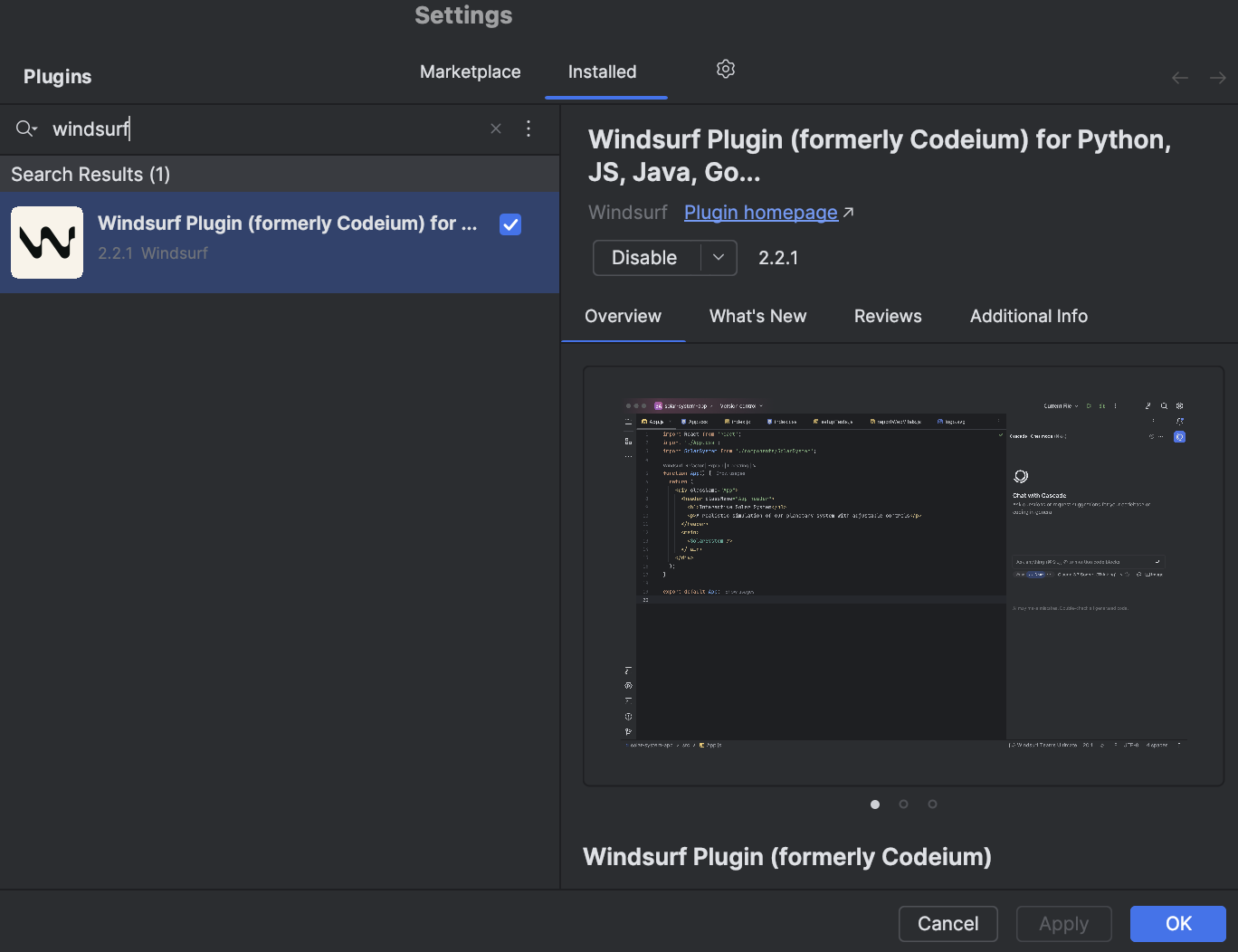
Plugins menu in your JetBrains IDE. The shortcut for this is ⌘+, on Mac and Ctrl+, on Linux/Windows. It is also accessible from the settings menu.
Search for the Windsurf plugin, and install it. The plugin loader will prompt you to restart the IDE.2
Wait for Language Server
Upon successful installation, Windsurf will begin downloading a language server.
This is the program that communicates with our APIs to let you use Windsurf’s AI features.
The download usually takes ten to twenty seconds, but the download speed may depend on your internet connection.
In the meantime, you are free to use your IDE as usual.You should see a notification on the bottom right to indicate the progress of the download.
3
Authorize
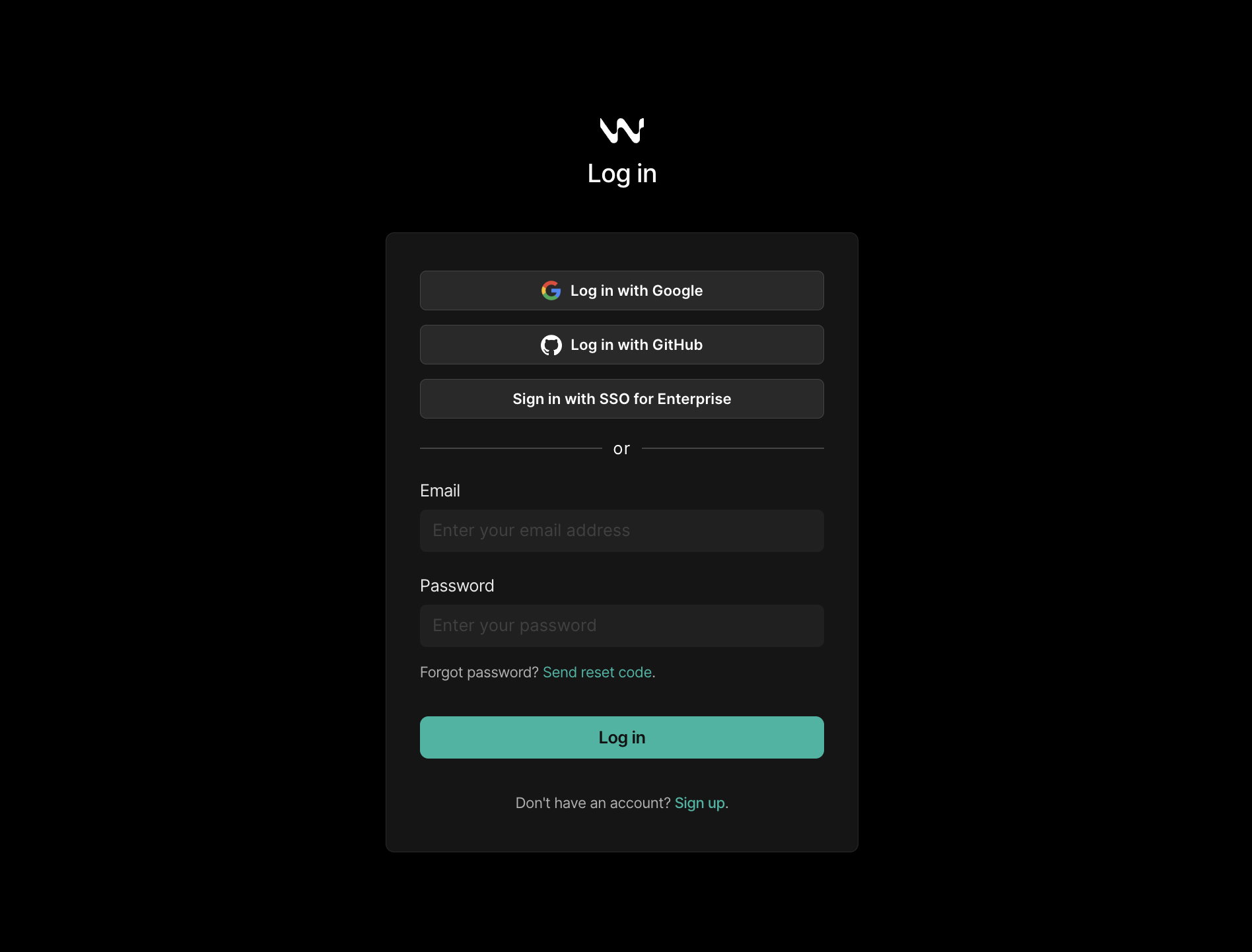
Open a project. Windsurf should prompt you to log in with a notification popup at the bottom right linking you to an online login page.
Equivalently, click the widget at the right of the bottom status bar and select the login option there.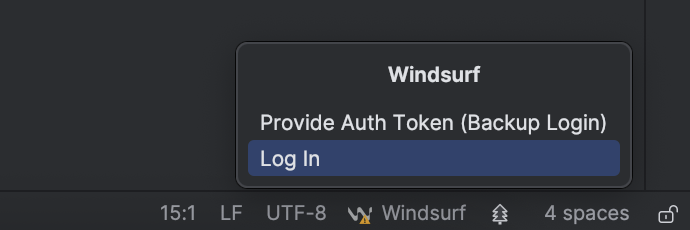

4
All Done!
You can now enjoy Windsurf’s rich AI featureset: Autocomplete, Chat, Command, and more.At any point, you can check your status by clicking the status bar widget at the bottom right.
If logged in, you will have access to your Windsurf settings and other controls.If you’d like early access to new features, click on “Switch to Pre-Release”
to try out the latest pre-release version
of the plugin.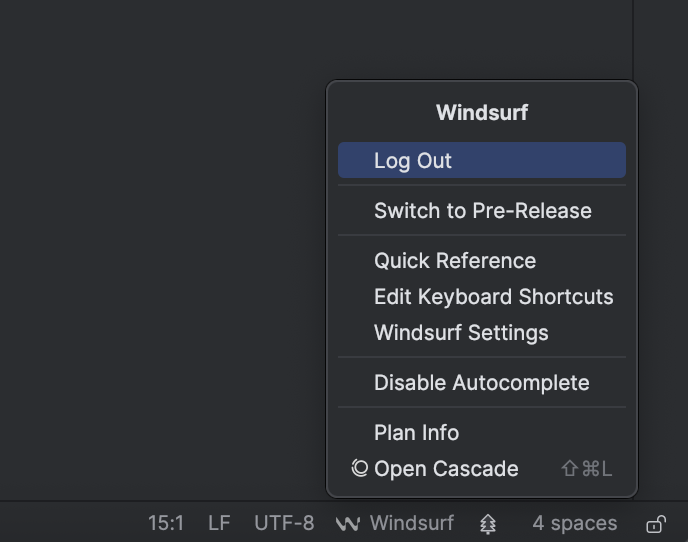
Remote Development (maintenance mode)
For JetBrains IDEs used in remote development environments, you need to use the separate “Windsurf (Remote Development)” plugin. This plugin is in maintenance mode. For advanced agentic AI capabilities and cutting-edge features, we strongly recommend using the native Windsurf Editor or the JetBrains local plugin.Requirements
- JetBrains IDE version 2025.1.3 or greater
Installation Steps
1
Install on Host
Open the 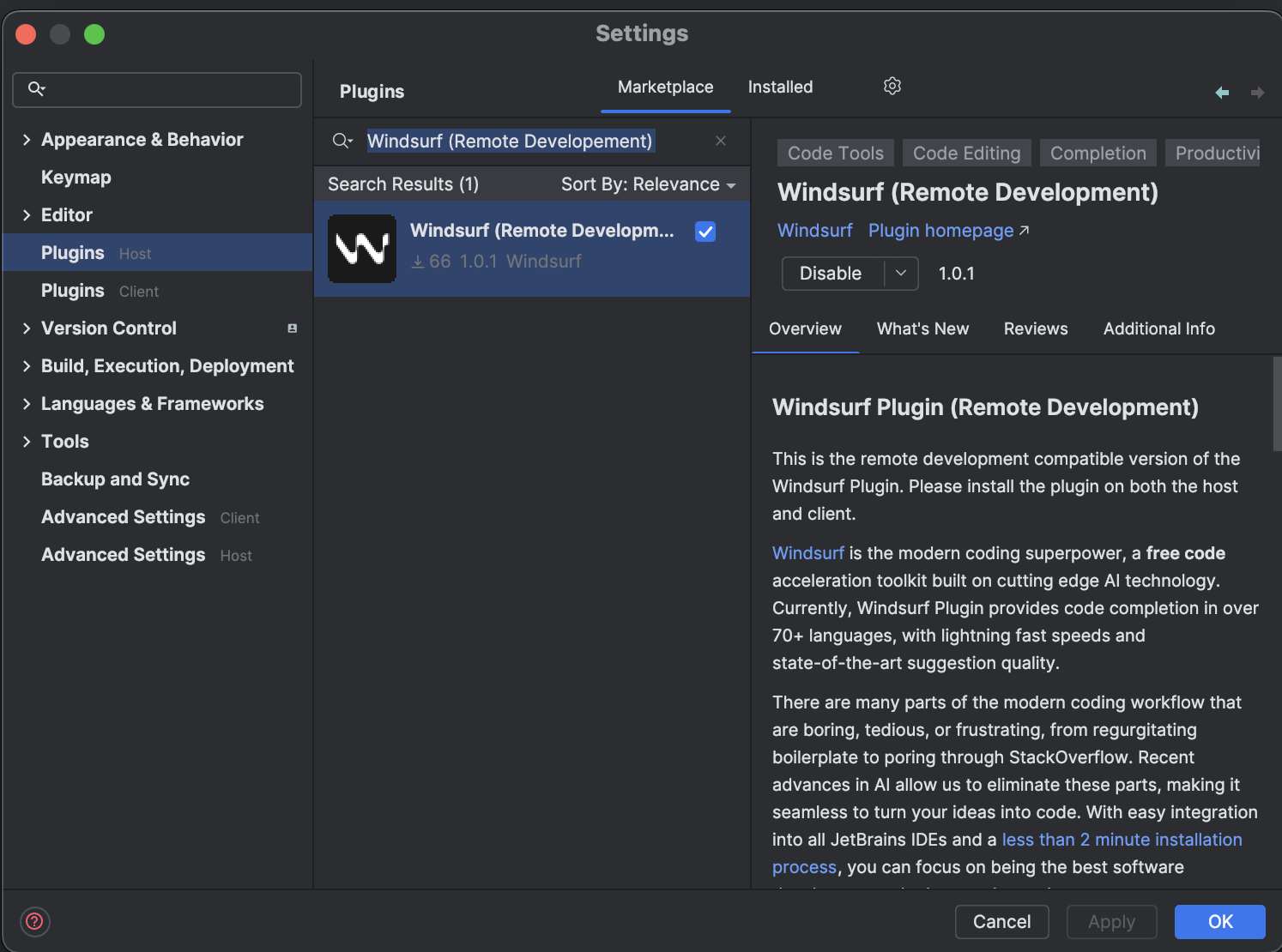
Plugins (Host) menu in your JetBrains IDE. The shortcut for this is ⌘+, on Mac and Ctrl+, on Linux/Windows. It is also accessible from the settings menu.
Search for “Windsurf (Remote Development)” and install it.
Restart your IDE when prompted.2
Install on Client
Open the 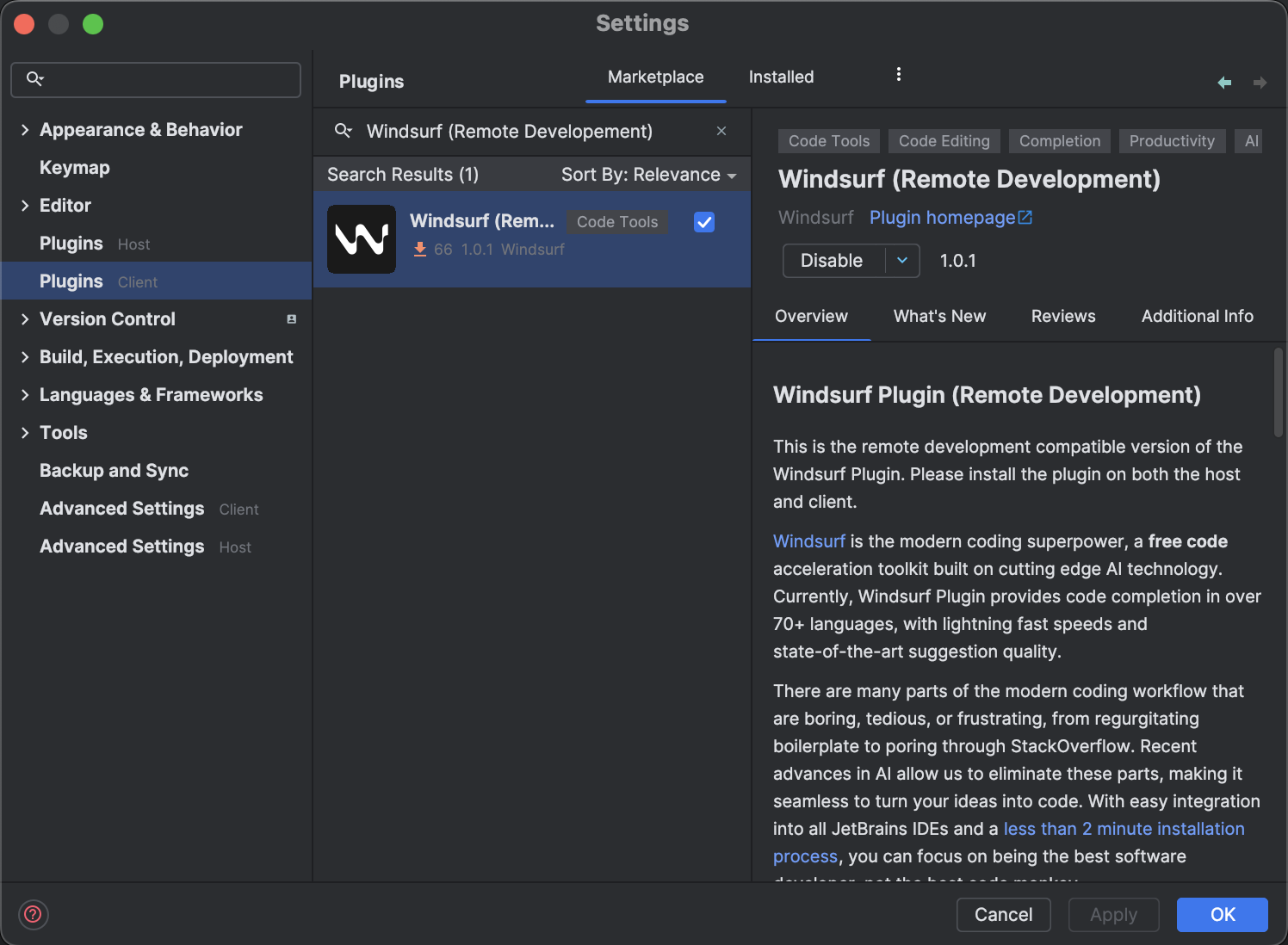
Plugins (Client) menu and search for “Windsurf (Remote Development)”.
Install the plugin and restart the IDE again.3
Wait for Language Server
After installing the plugin on the host, Windsurf will begin downloading a language server.
This is the program that communicates with our APIs to let you use Windsurf’s AI features.
The download usually takes ten to twenty seconds, but the download speed may depend on your internet connection.
In the meantime, you are free to use your IDE as usual.You should see a notification on the bottom right to indicate the progress of the download.
4
Authorize
After the language server download is completed, Windsurf should prompt you to log in with a notification popup at the bottom right linking you to an online login page.
Equivalently, click the widget at the right of the bottom status bar and select the login option there.
5
All Done!
You can now use Windsurf’s AI features in your remote development environment.
Older Plugins
We strongly recommend using the native Windsurf Editor or the JetBrains local plugin for their advanced agentic AI capabilities and cutting-edge features. All plugins below are under maintenance mode.- Visual Studio Code
- Vim / Neovim
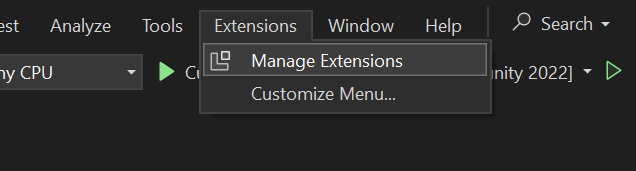
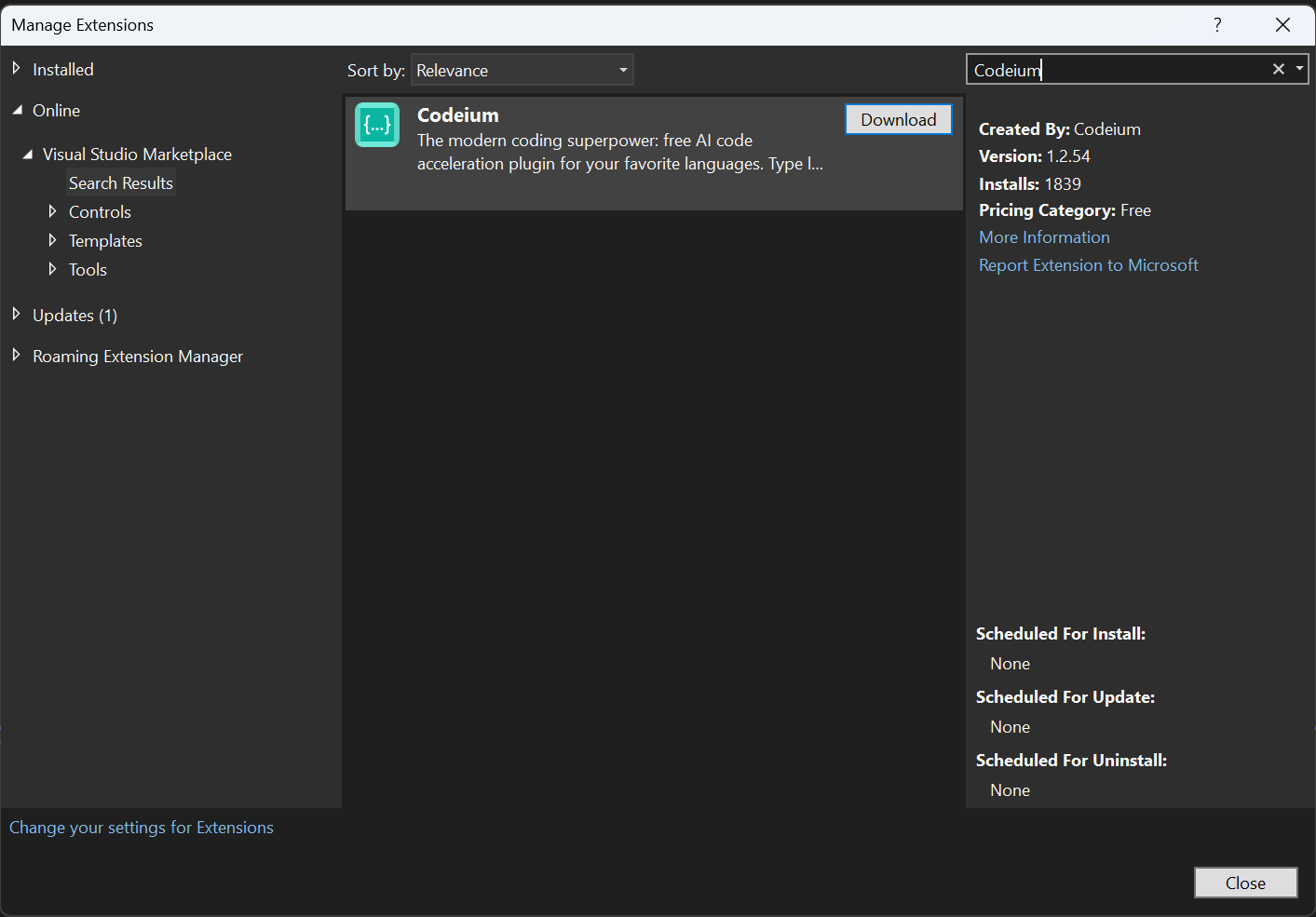
- Visual Studio
- Jupyter Notebook
- Chrome
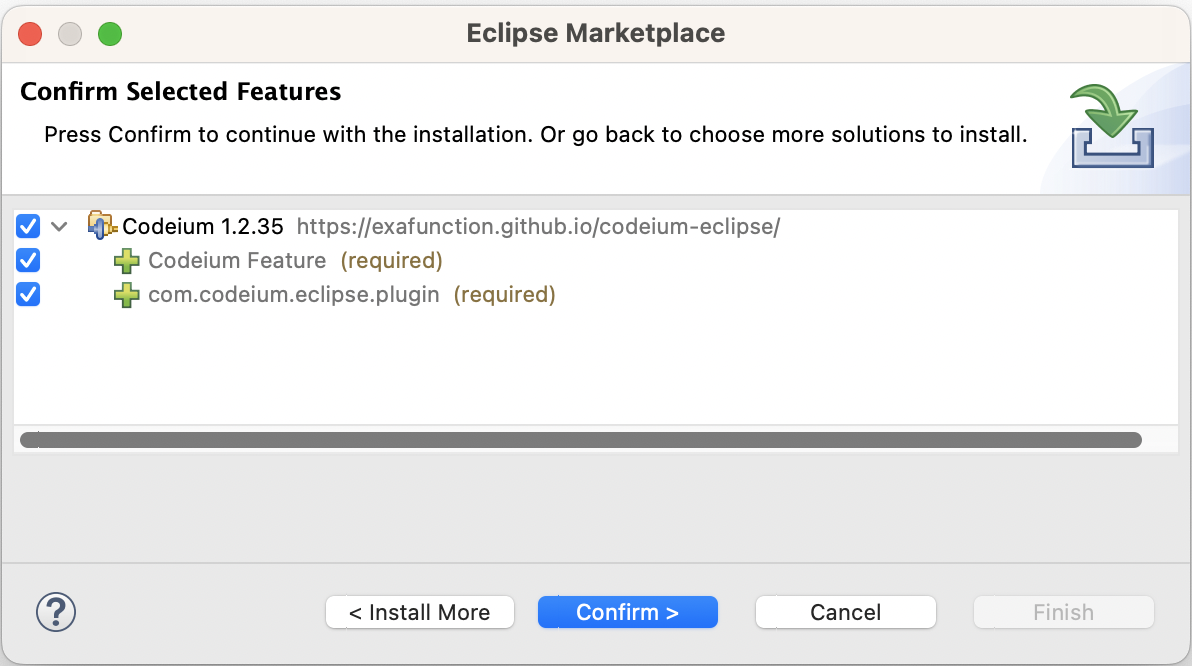
- Eclipse
1
Install Plugin
Find the Windsurf Plugin (formerly Codeium) in the VS Code Marketplace and install it.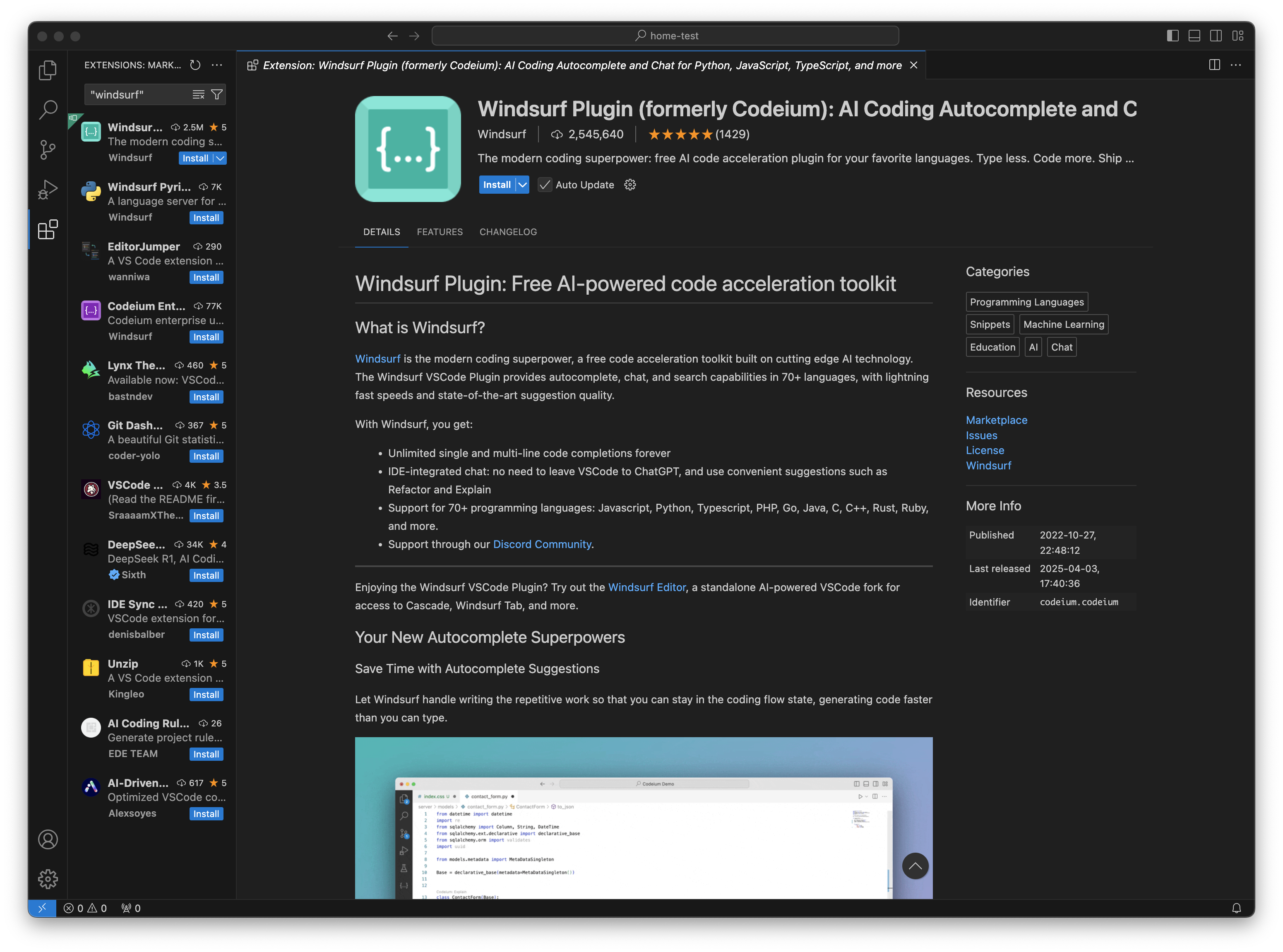
2
Authorize
After installation, VS Code with prompt you with a notification in the bottom right corner to log in to Windsurf.
Equivalently, you can log in to Windsurf via the profile icon at the bottom of the left sidebar.
If you get an error message indicating that the browser cannot open a link from Visual Studio Code, you may need to update your browser and restart the authorization flow.
If you are using a browser-based VS Code IDE like GitPod or Codespaces, you will be routed to instructions on how to complete authentication by providing an access token.
3
Wait for Language Server
Once you are signed in, Windsurf will start downloading a language server.
This is the program that communicates with our APIs to let you use Windsurf’s AI features.
The download usually takes ten to twenty seconds, but the download speed may depend on your internet connection.
In the meantime, you are free to use VS Code as usual.
4
All Done!
You can now enjoy Windsurf’s rich AI featureset: Autocomplete, Chat, Command, and more.