
Back to: ASP.NET Core Web API Tutorials
Custom Logging Provider in ASP.NET Core Web API
In this article, I will discuss how to implement a Custom Logging Provider in ASP.NET Core Web API with an Example. Please read our previous article discussing Logging in ASP.NET Core Web API with Examples.
In ASP.NET Core, logging is an essential diagnostic and monitoring tool, but the built-in providers (Console, Debug, EventLog) only serve specific real-time or development-time use cases. In real-world applications, we often need to persist logs to a text file or a database table for long-term storage, auditing, or analytics. This is where Custom Logging Providers become highly valuable.
What is a Custom Logging Provider in ASP.NET Core Web API?
A Custom Logging Provider is a user-defined component that plugs into the ASP.NET Core logging pipeline to decide where and how log messages should be written. ASP.NET Core uses a provider-model architecture. The built-in providers include:
- Console
- Debug
- EventLog
- EventSource
But these providers only output logs to basic destinations (console, debugger, event logs). They cannot store logs in files or databases unless a third-party library is used. A Custom Provider lets us implement:
- Any format we want
- Any storage medium (File, DB, Redis, API, Cloud)
- Any filtering logic
- Any metadata (Correlation ID, Username, IP address, etc.)
We do this by implementing two interfaces:
- ILogger: Contains the actual logic to write the logs to a chosen destination.
- ILoggerProvider: Creates instances of our custom logger.
Together, these allow us to extend the built-in logging system exactly the way we need. A custom logging provider is our own implementation of these interfaces, where we control:
- How logs are formatted
- Where logs are stored
- Whether logging is async or sync
- Whether logs need filtering
- Whether logs need enrichment (correlation ID, request IP, etc.)
So, a custom provider gives you complete control, which built-in providers cannot offer.
How to Implement a Custom Logging Provider in ASP.NET Core?
Here’s how we can implement a custom logging provider step-by-step:
Step 1: Create a Class that Implements ILogger
This class defines how a single logger writes log messages. Inside this class, you decide where the log goes (text file, database table, API, etc.) and what the final log line looks like (timestamp, level, message, correlation id, etc.). Every time your application calls _logger.LogInformation(…), the logging system ends up calling this ILogger implementation.
Step 2: Create a Class that Implements ILoggerProvider
This class is like a factory for your custom logger. ASP.NET Core asks the provider to create an ILogger for each category (e.g., OrdersController, OrderService). The provider can pass configuration options (file path, minimum log level, DB connection) into the logger so it knows how to behave.
Step 3: Register the Custom Provider in the Program.cs
Finally, you plug your custom provider into the ASP.NET Core logging system. You register your ILoggerProvider in the DI container (e.g., AddSingleton<ILoggerProvider, TextFileLoggerProvider>()). Once registered, ASP.NET Core treats it like any other logging provider and automatically sends log messages through it whenever you use ILogger<T> in your controllers or services.
Implementing Custom Logger – Log to Text File and Database
In our OrderManagementAPI project, we now want to go beyond console and debug logging and build two real-world custom logging providers. These providers will plug into the standard ASP.NET Core logging system, so our controllers and services can keep using ILogger<T> as usual, while the actual log entries are written to our own destinations.
In this example, we will implement:
- TextFileLoggerProvider – Writes logs to a text file using our own format, daily file naming, size-based rotation, and retention rules.
- DatabaseLoggerProvider – Writes logs to a LogEntries table in SQL Server using EF Core, including extra fields like CorrelationId, EventId, and exception details for better analysis.
Once these providers are wired into the Program.cs, any call like _logger.LogInformation(…) inside OrdersController or OrderService will automatically be captured and stored in both the text file and the database, without changing our application code. Let us proceed and implement this step by step:
LogEntry Entity – The Database Log Model
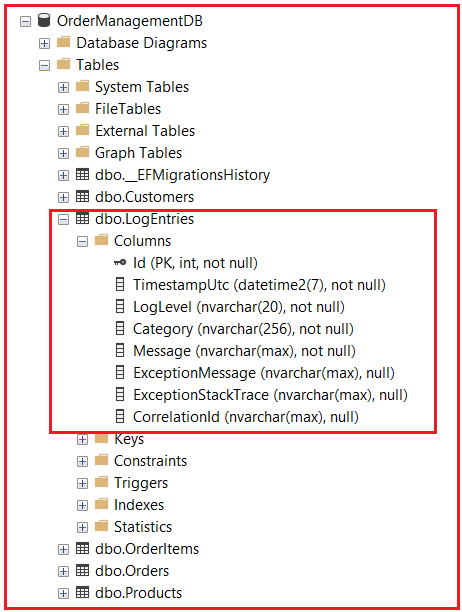
Create a class file named LogEntry.cs within the Entities folder, and then copy-paste the following code. The LogEntry represents a single log record that will be inserted into the SQL Server database. It defines all the fields we want to store: timestamp, category, log level, message, exception details, and CorrelationId. This class serves as the database schema for our logging table, enabling structured, queryable logs within the OrderManagementDB. The DatabaseLogger writes instances of this entity to the LogEntries table.
using System.ComponentModel.DataAnnotations;
namespace OrderManagementAPI.Entities
{
    // Represents a single log entry stored in the database.
    public class LogEntry
    {
        public int Id { get; set; }

        // When the log was created (in UTC).
        public DateTime TimestampUtc { get; set; }

        // Log level as string: Information, Error, etc.
        [Required, MaxLength(20)]
        public string LogLevel { get; set; } = string.Empty;

        // Logger category - usually the class name (e.g., OrderService).
        [Required, MaxLength(256)]
        public string Category { get; set; } = string.Empty;

        // Main log message.
        [Required]
        public string Message { get; set; } = string.Empty;

        // Optional exception message if an error occurred.
        public string? ExceptionMessage { get; set; }

        // Optional exception stack trace for debugging.
        public string? ExceptionStackTrace { get; set; }

        // Store Correlation Id for each log
        public string? CorrelationId { get; set; }
    }
}
OrderManagementDbContext – Extending DbContext for Logging
The OrderManagementDbContext is our main EF Core database context, and we extend it by adding a DbSet<LogEntry> to save logs to the database. It ensures EF Core creates the LogEntries table through migrations and allows the DatabaseLogger to insert log records. This keeps logging fully integrated with our existing database, avoiding the need to maintain a separate logging infrastructure. So, please modify the OrderManagementDbContext.cs class file as follows:
using Microsoft.EntityFrameworkCore;
using OrderManagementAPI.Entities;

namespace OrderManagementAPI.Data
{
    public class OrderManagementDbContext : DbContext
    {
        public OrderManagementDbContext(DbContextOptions<OrderManagementDbContext> options)
            : base(options)
        {
        }

        public DbSet<Product> Products { get; set; }
        public DbSet<Customer> Customers { get; set; }
        public DbSet<Order> Orders { get; set; }
        public DbSet<OrderItem> OrderItems { get; set; }

        // DbSet for logging
        public DbSet<LogEntry> LogEntries { get; set; }

        protected override void OnModelCreating(ModelBuilder modelBuilder)
        {
            base.OnModelCreating(modelBuilder);

            // Seed Products
            modelBuilder.Entity<Product>().HasData(
                new Product { Id = 1, Name = "Laptop", Category = "Electronics", Price = 60000, IsActive = true, StockQuantity = 100 },
                new Product { Id = 2, Name = "Smartphone", Category = "Electronics", Price = 25000, IsActive = true, StockQuantity = 100 },
                new Product { Id = 3, Name = "Office Chair", Category = "Furniture", Price = 8000, IsActive = true, StockQuantity = 100 },
                new Product { Id = 4, Name = "Wireless Mouse", Category = "Accessories", Price = 1500, IsActive = true, StockQuantity = 100 }
            );

            // Seed Customers
            modelBuilder.Entity<Customer>().HasData(
                new Customer { Id = 1, FullName = "Ravi Kumar", Email = "[email protected]", Phone = "9876543210" },
                new Customer { Id = 2, FullName = "Sneha Rani", Email = "[email protected]", Phone = "9898989898" }
            );
        }
    }
}
Generating and Applying the Migration:
Run the following command in the Package Manager Console to create the LogEntries table:
- Add-Migration Mig_LogEntriesTable
- Update-Database.
Once you execute the above command, it should create the LogEntries table in the database, as shown in the image below, where we will store log entries.
Create Options Classes for File and Database Logging:
First, create a folder named Logging at the project root, where we will place all our Custom Logging-related class files.
TextFileLoggerOptions – Configuration for File Logging
The TextFileLoggerOptions defines settings used by the TextFileLogger, such as the log file path, minimum log level, and whether to generate daily log files. These options can be controlled through appsettings.json, making file logging easily configurable without changing code. Create a class file named TextFileLoggerOptions.cs within the Logging folder, and then copy-paste the following code.
namespace OrderManagementAPI.Logging
{
    // Strongly-typed configuration options for the Text File Logger.
    // These values are usually bound from appsettings.json.
    public class TextFileLoggerOptions
    {
        // Base path of the log file where entries will be written.
        // Example: "Logs/order-api-log.txt"
        // If the directory does not exist, the logger will attempt to create it.
        public string FilePath { get; set; } = "Logs/order-api-log.txt";

        // The minimum log level that will be written to the text file.
        // Only logs with a level greater than or equal to this value
        // will be appended to the file.
        // Example:
        // - If set to Information, then Information, Warning, Error, and Critical logs are written.
        // - Debug and Trace logs are ignored for the file.
        public LogLevel MinimumLogLevel { get; set; } = LogLevel.Information;

        // Controls whether the logger should create a separate log file for each day.
        // When true:
        //   - The logger will append the current date to the base file name.
        //   - Example:
        //       FilePath              = "Logs/order-api-log.txt"
        //       Actual file (today)   = "Logs/order-api-log-2025-12-10.txt"
        // When false:
        //   - All log entries are written to the single file specified in FilePath,
        //     without any date suffix.
        public bool UseDailyRollingFiles { get; set; } = true;
    }
}
DatabaseLoggerOptions – Configuration for Database Logging
The DatabaseLoggerOptions contains configuration settings for the DatabaseLogger, specifically the minimum log level to write to the database. By controlling the log level threshold, we can restrict database writes to only essential entries, such as warnings or errors, thereby improving performance and storage usage. Create a class file named DatabaseLoggerOptions.cs within the Logging folder, and then copy-paste the following code.
namespace OrderManagementAPI.Logging
{
    // Strongly-typed configuration options for the Database Logger.
    // These values are usually bound from appsettings.json.
    public class DatabaseLoggerOptions
    {
        //The minimum log level that will be stored in the database.
        // Only logs with a level greater than or equal to this value
        // will be inserted into the LogEntries table.

        // Example:
        // - If set to Warning, then Warning, Error, and Critical logs are stored.
        // - Information and Debug logs are ignored for the database.
        public LogLevel MinimumLogLevel { get; set; } = LogLevel.Warning;
    }
}
TextFileLogger – Custom Logger That Writes to Text Files
The TextFileLogger is the core implementation of ILogger that writes logs to text files. It handles formatting log messages, adding timestamps and correlation IDs, and appending entries to the correct log file (the daily file, if enabled). It also performs thread-safe writes and handles failures, so logging never interrupts application execution. Create a class file named TextFileLogger.cs within the Logging folder, and then copy-paste the following code.
using OrderManagementAPI.Services;
using System.Text;
namespace OrderManagementAPI.Logging
{
    // Custom logger responsible for writing log messages to a text file.
    // One instance is created per logging category (e.g., OrdersController, OrderService).
    public class TextFileLogger : ILogger
    {
        // Category name (e.g., "OrderService", "OrdersController").
        // Helps identify which component generated the log entry in the log file.
        private readonly string _categoryName;

        // Options that control how the file logger behaves (e.g., file path, minimum log level).
        private readonly TextFileLoggerOptions _options;

        // Helper service used to read the CorrelationId for the current HTTP request.
        // This keeps CorrelationId logic in a single reusable place.
        private readonly ICorrelationIdAccessor _correlationIdAccessor;

        // A shared lock object to make file writes thread-safe across multiple parallel requests.
        private static readonly object _fileLock = new object();

        public TextFileLogger(
            string categoryName,
            TextFileLoggerOptions options,
            ICorrelationIdAccessor correlationIdAccessor)
        {
            _categoryName = categoryName;
            _options = options;
            _correlationIdAccessor = correlationIdAccessor;
        }

        // This logger does not make use of logging scopes.
        // We simply return null (or a no-op disposable in more advanced implementations).
        public IDisposable? BeginScope<TState>(TState state) => default;

        // Indicates whether the given log level is enabled for this logger.
        // This allows us to skip building and writing log messages that are below the configured threshold.
        public bool IsEnabled(LogLevel logLevel)
        {
            return logLevel >= _options.MinimumLogLevel &&
                   logLevel != LogLevel.None;
        }

        // Main logging method called by the ASP.NET Core logging infrastructure.
        // It checks if the log level is enabled, builds the log message, and writes it to a text file.
        public void Log<TState>(
            LogLevel logLevel,
            EventId eventId,
            TState state,
            Exception? exception,
            Func<TState, Exception?, string> formatter)
        {
            // If this log level is disabled, do nothing.
            if (!IsEnabled(logLevel))
                return;

            if (formatter == null)
                throw new ArgumentNullException(nameof(formatter));

            // Build the final log message string using the provided formatter.
            // The formatter combines the message template and any structured data.
            var message = formatter(state, exception);

            // If there is nothing meaningful to log, skip writing.
            if (string.IsNullOrWhiteSpace(message) && exception == null)
                return;

            // Retrieve the current CorrelationId (if any) using the shared helper.
            // This helps in tracing the same request across multiple logs.
            var correlationId = _correlationIdAccessor.GetCorrelationId();

            // Build a single formatted line to be written to the log file.
            var logLine = BuildLogLine(logLevel, eventId, message, exception, correlationId);

            try
            {
                // Decide which file path to use based on the configuration:
                // - UseDailyRollingFiles = true  → one file per day (filename-YYYY-MM-DD.ext)
                // - UseDailyRollingFiles = false → single file specified by FilePath
                var logFilePath = _options.UseDailyRollingFiles
                    ? GetDailyFilePath()
                    : _options.FilePath;

                // Ensure the target directory exists before writing the log file.
                var directory = Path.GetDirectoryName(logFilePath);
                if (!string.IsNullOrEmpty(directory) && !Directory.Exists(directory))
                {
                    Directory.CreateDirectory(directory);
                }

                // Thread-safe append to the log file so concurrent requests do not corrupt the file.
                lock (_fileLock)
                {
                    File.AppendAllText(logFilePath, logLine, Encoding.UTF8);
                }
            }
            catch
            {
                // IMPORTANT:
                // Never throw from a logger. If file logging fails (e.g., disk full),
                // we swallow the exception to avoid impacting the main application logic.
            }
        }

        // Builds a formatted log line that will be written to the text file.
        // Includes:
        //   - Timestamp (UTC)
        //   - Log level
        //   - Category
        //   - CorrelationId (if present)
        //   - Message
        //   - Exception message and stack trace (if present)
        private string BuildLogLine(
            LogLevel logLevel,
            EventId eventId,
            string message,
            Exception? exception,
            string? correlationId)
        {
            var sb = new StringBuilder();

            // Timestamp in UTC for easier correlation across servers and services.
            sb.Append(DateTime.UtcNow.ToString("yyyy-MM-dd HH:mm:ss.fff"));
            sb.Append(" [");
            sb.Append(logLevel.ToString().ToUpper());
            sb.Append("] ");

            // Category helps identify which component generated this log.
            sb.Append(_categoryName);

            // Optional: include CorrelationId if available.
            if (!string.IsNullOrWhiteSpace(correlationId))
            {
                sb.Append(" [CorrelationId: ");
                sb.Append(correlationId);
                sb.Append(']');
            }

            sb.Append(" - ");
            sb.Append(message);

            // If an exception is present, append its message and stack trace for easier debugging.
            if (exception != null)
            {
                sb.Append(" | Exception: ");
                sb.Append(exception.Message);
                sb.Append(" | StackTrace: ");
                sb.Append(exception.StackTrace);
            }

            sb.AppendLine();

            return sb.ToString();
        }

        // Builds the full log file path for the current day by appending the date to the base file name.
        //
        // Example:
        //   Base FilePath: "Logs/order-api-log.txt"
        //   Today (UTC):   2025-12-10
        //   Result:        "Logs/order-api-log-2025-12-10.txt"
        private string GetDailyFilePath()
        {
            var baseFilePath = _options.FilePath;

            var directory = Path.GetDirectoryName(baseFilePath);
            var fileNameWithoutExt = Path.GetFileNameWithoutExtension(baseFilePath);
            var extension = Path.GetExtension(baseFilePath);

            // Use UTC date for consistency; use DateTime.Now if you prefer local date.
            var today = DateTime.UtcNow.ToString("yyyy-MM-dd");

            var dailyFileName = $"{fileNameWithoutExt}-{today}{extension}";

            // When no directory is configured, just return the file name in the current working directory.
            return string.IsNullOrEmpty(directory)
                ? dailyFileName
                : Path.Combine(directory, dailyFileName);
        }
    }
}
TextFileLoggerProvider – Factory That Creates File Loggers
The TextFileLoggerProvider implements ILoggerProvider and creates TextFileLogger instances for each logging category. ASP.NET Core requests a logger per category (e.g., OrdersController), and the provider passes the configured options and correlation ID accessor into the logger. When registered in the Program.cs, it enables File-based logging in the application. Create a class file named TextFileLoggerProvider.cs within the Logging folder, and then copy-paste the following code.
using Microsoft.Extensions.Options;
using OrderManagementAPI.Services;
namespace OrderManagementAPI.Logging
{
    // ILoggerProvider implementation responsible for creating TextFileLogger instances.
    // ASP.NET Core calls CreateLogger() once per logging "category" (e.g., "OrdersController",
    // "Microsoft.Hosting.Lifetime", etc.). Each category receives its own dedicated logger instance.
    public class TextFileLoggerProvider : ILoggerProvider
    {
        // Stores configuration options for this logger (directory path, filename pattern,
        // minimum log level, rolling file options, etc.).
        // IOptions allows these values to come from appsettings.json.
        private readonly TextFileLoggerOptions _options;

        // Allows the logger to access the current request's CorrelationId (if any).
        // Passing this to the logger enables writing correlation-aware log lines.
        private readonly ICorrelationIdAccessor _correlationIdAccessor;

        // Constructor executed during DI container initialization.
        // The provider receives logger configuration + correlationId accessor,
        // and reuses them for creating per-category loggers.
        public TextFileLoggerProvider(
            IOptions<TextFileLoggerOptions> options,
            ICorrelationIdAccessor correlationIdAccessor)
        {
            // Bind options from configuration.
            _options = options.Value;

            // Store dependency for later use inside CreateLogger().
            _correlationIdAccessor = correlationIdAccessor;
        }

        // Called by ASP.NET Core internally whenever a logger is requested for a specific category.
        // Each category name results in a *new* TextFileLogger instance.
        // Example category names:
        //   - "OrderService"
        //   - "OrderManagementAPI.Controllers.OrdersController"
        // The returned logger handles writing logs to text files.
        public ILogger CreateLogger(string categoryName)
        {
            // Provide the logger with:
            //   • its categoryName (for identifying log origin)
            //   • configuration options (_options)
            //   • correlation ID accessor for writing request context
            return new TextFileLogger(categoryName, _options, _correlationIdAccessor);
        }

        // Called by ASP.NET Core during application shutdown.
        // Since this provider does not hold unmanaged resources,
        // there is nothing to clean up at the provider level.
        public void Dispose()
        {
            // No cleanup required at the moment.
        }
    }
}
DatabaseLogger – Custom Logger That Writes to SQL Server
The DatabaseLogger is the implementation of ILogger that saves log entries to the LogEntries table using EF Core. Because logging providers are singleton services, they use IServiceScopeFactory to create DbContext instances safely for each write operation. It formats log messages, attaches correlation IDs, and inserts records asynchronously without blocking the main request pipeline. Create a class file named DatabaseLogger.cs within the Logging folder, and then copy-paste the following code.
using Microsoft.EntityFrameworkCore;
using OrderManagementAPI.Data;
using OrderManagementAPI.Entities;
using OrderManagementAPI.Services;
namespace OrderManagementAPI.Logging
{
    // Custom logger responsible for writing log entries to the LogEntries table in SQL Server.
    // This class implements ILogger and is created by DatabaseLoggerProvider.
    public class DatabaseLogger : ILogger
    {
        // Category name (e.g., "OrderService", "OrdersController")
        // Usually the full class name including the namespace
        // Helps identify which component generated the log.
        private readonly string _categoryName;

        // Options that control how this logger behaves (e.g., minimum log level).
        private readonly DatabaseLoggerOptions _options;

        // Used to create a new DI scope for each logging operation.
        // From that scope, we resolve a scoped OrderManagementDbContext safely.
        private readonly IServiceScopeFactory _scopeFactory;

        // Helper service used to read the CorrelationId for the current request.
        private readonly ICorrelationIdAccessor _correlationIdAccessor;

        public DatabaseLogger(
            string categoryName,
            DatabaseLoggerOptions options,
            IServiceScopeFactory scopeFactory,
            ICorrelationIdAccessor correlationIdAccessor)
        {
            _categoryName = categoryName;
            _options = options;
            _scopeFactory = scopeFactory;
            _correlationIdAccessor = correlationIdAccessor;
        }

        // We are not using scopes in this custom logger
        public IDisposable? BeginScope<TState>(TState state) => default;

        // Checks whether the given log level is enabled for this logger.
        // This allows us to skip building and writing log messages that are below the configured threshold
        // or when level is LogLevel.None.
        public bool IsEnabled(LogLevel logLevel)
        {
            return logLevel >= _options.MinimumLogLevel &&
                   logLevel != LogLevel.None;
        }

        // Main logging method called by the ASP.NET Core logging infrastructure.
        // It will be invoked for every log message in this category.
        // It formats the log message, checks if logging is enabled,
        // and sends the message for asynchronous DB persistence.
        public void Log<TState>(
            LogLevel logLevel,                          // The severity of the log (Information, Warning, Error, etc.)
            EventId eventId,                            // Optional identifier for the specific event being logged
            TState state,                               // The logging state (usually the message template and its data)
            Exception? exception,                       // Optional exception associated with this log entry (if any)
            Func<TState, Exception?, string> formatter) // Function that converts state + exception into the final message string
        {
            // If this log level is not enabled, do nothing.
            if (!IsEnabled(logLevel))
                return;

            if (formatter == null)
                throw new ArgumentNullException(nameof(formatter));

            // Build the final log message string using the provided formatter.
            var message = formatter(state, exception);

            // If there is no message and no exception, there is nothing to log.
            if (string.IsNullOrWhiteSpace(message) && exception == null)
                return;

            // Retrieve the current CorrelationId (if any) using the shared helper.
            var correlationId = _correlationIdAccessor.GetCorrelationId();

            // Write the log entry to the database asynchronously.
            // We fire-and-forget this task so that logging does not block the main request pipeline.
            _ = WriteLogAsync(logLevel, message, exception, correlationId);
        }

        // Performs the actual database write using a fresh DbContext instance.
        // This method is async and is intentionally not awaited in Log(), to keep logging non-blocking.
        private async Task WriteLogAsync(LogLevel logLevel, string message, Exception? exception, string? correlationId)
        {
            try
            {
                // Create a new service scope so we can resolve scoped services (like DbContext)
                // from within this (logger) singleton.
                using var scope = _scopeFactory.CreateScope();

                var dbContext = scope.ServiceProvider.GetRequiredService<OrderManagementDbContext>();

                // Map the log information to our LogEntry entity.
                var logEntry = new LogEntry
                {
                    TimestampUtc = DateTime.UtcNow,
                    LogLevel = logLevel.ToString(),
                    Category = _categoryName,
                    Message = message,
                    ExceptionMessage = exception?.Message,
                    ExceptionStackTrace = exception?.StackTrace,
                    CorrelationId = correlationId
                };

                // Insert the log entry into the LogEntries table.
                await dbContext.LogEntries.AddAsync(logEntry);

                // Persist changes to the database.
                await dbContext.SaveChangesAsync();
            }
            catch
            {
                // IMPORTANT:
                // Never throw from a logger. If logging fails (e.g., DB down),
                // we ignore the exception to avoid breaking the main application flow.
            }
        }
    }
}
DatabaseLoggerProvider – Factory That Creates Database Loggers
The DatabaseLoggerProvider creates DatabaseLogger instances for each log category. It passes along configuration options, the service scope factory, and the correlation ID accessor so each logger can write properly formatted log entries to the database. When registered in the Program.cs, it enables SQL-based logging in the application. Create a class file named DatabaseLoggerProvider.cs within the Logging folder, and then copy-paste the following code.
using Microsoft.Extensions.Options;
using OrderManagementAPI.Services;
namespace OrderManagementAPI.Logging
{
    // The DatabaseLoggerProvider is responsible for creating DatabaseLogger instances.
    // ASP.NET Core calls CreateLogger() once per logging category (e.g., "OrderService"),
    // and the returned logger is reused throughout the application's lifetime.
    public class DatabaseLoggerProvider : ILoggerProvider
    {
        // Holds the configuration options for the database logger (MinimumLogLevel, etc.).
        // Using IOptions allows configuration via appsettings.json.
        private readonly DatabaseLoggerOptions _options;

        // Used to create a new DI scope for each logging operation.
        // From that scope, we resolve a scoped OrderManagementDbContext safely.
        private readonly IServiceScopeFactory _scopeFactory;

        // Provides access to the current request's CorrelationId.
        // This allows each database log entry to be associated with the originating request.
        private readonly ICorrelationIdAccessor _correlationIdAccessor;

        // The provider constructor receives injected dependencies and configuration options.
        // These objects are reused when creating loggers for each category.
        public DatabaseLoggerProvider(
            IOptions<DatabaseLoggerOptions> options,
            IServiceScopeFactory scopeFactory,
            ICorrelationIdAccessor correlationIdAccessor)
        {
            // Read options from configuration binding (e.g., appsettings.json)
            _options = options.Value;

            _scopeFactory = scopeFactory;

            // CorrelationId accessor is passed down to each logger
            _correlationIdAccessor = correlationIdAccessor;
        }

        // Called by ASP.NET Core whenever it needs an ILogger for a given category.
        // Example categories: "OrderService", "Microsoft.AspNetCore.Hosting", etc.
        // This method must return a NEW DatabaseLogger instance for each category.
        public ILogger CreateLogger(string categoryName)
        {
            // Create a DatabaseLogger tailored to the given logging category.
            // The provider supplies shared dependencies (options, _scopeFactory, CorrelationIdAccessor).
            return new DatabaseLogger(categoryName, _options, _scopeFactory, _correlationIdAccessor);
        }

        // Called by ASP.NET Core during application shutdown.
        // Since this provider holds no unmanaged resources, nothing needs disposal.
        public void Dispose()
        {
            // No unmanaged resources to clean up. Method exists to satisfy ILoggerProvider contract.
        }
    }
}
Configure appsettings.json for Custom Providers
The appsettings.json file is where we configure how our custom loggers should behave without changing code. Here, we define sections like Logging:File and Logging:Database to set the text file path, minimum log levels, daily rolling, and database log level. At startup, ASP.NET Core binds these settings into TextFileLoggerOptions and DatabaseLoggerOptions using the options pattern. Please modify the appsettings.json file as follows.
{
  "ConnectionStrings": {
    "DefaultConnection": "Server=LAPTOP-6P5NK25R\\SQLSERVER2022DEV;Database=OrderManagementDB;Trusted_Connection=True;TrustServerCertificate=True;"
  },
  "Logging": {
    "LogLevel": {
      "Default": "Information",
      "Microsoft": "Error",
      "Microsoft.EntityFrameworkCore": "Error",
      "Microsoft.AspNetCore": "Error",
      "System": "Error"
    },
    "File": {
      "FilePath": "Logs/order-api-log.txt",
      "MinimumLogLevel": "Information",
      "UseDailyRollingFiles": true
    },
    "Database": {
      "MinimumLogLevel": "Warning"
    }
  },
  "AllowedHosts": "*"
}
Note: You can override these in appsettings.Development.json if needed.
Register Custom Providers in Program.cs
The Program class wires everything together at application startup. It configures the OrderManagementDbContext, binds the custom logger options from appsettings.json, clears the default logging providers, re-adds Console/Debug, and then registers TextFileLoggerProvider and DatabaseLoggerProvider, so they become part of the ASP.NET Core logging pipeline. Please modify the Program.cs file as follows.
using Microsoft.EntityFrameworkCore;
using OrderManagementAPI.Data;
using OrderManagementAPI.Logging;
using OrderManagementAPI.Middlewares;
using OrderManagementAPI.Services;
namespace OrderManagementAPI
{
    public class Program
    {
        public static void Main(string[] args)
        {
            var builder = WebApplication.CreateBuilder(args);

            // Add controller support and configure JSON serialization
            builder.Services.AddControllers()
            .AddJsonOptions(options =>
            {
                options.JsonSerializerOptions.PropertyNamingPolicy = null;
            });

            // Enable Swagger for API documentation
            builder.Services.AddEndpointsApiExplorer();
            builder.Services.AddSwaggerGen();

            // Register DbContext for main app usage
            builder.Services.AddDbContext<OrderManagementDbContext>(options =>
                options.UseSqlServer(builder.Configuration.GetConnectionString("DefaultConnection")));

            // Allow services to access HttpContext (used for CorrelationId, etc.)
            builder.Services.AddHttpContextAccessor();

            // Register application services
            builder.Services.AddScoped<IOrderService, OrderService>();
            builder.Services.AddSingleton<ICorrelationIdAccessor, CorrelationIdAccessor>();

            // Bind custom logger options from configuration
            builder.Services.Configure<TextFileLoggerOptions>(
                builder.Configuration.GetSection("Logging:File"));

            builder.Services.Configure<DatabaseLoggerOptions>(
                builder.Configuration.GetSection("Logging:Database"));

            // Clear default providers and re-add Console + Debug
            builder.Logging.ClearProviders();
            builder.Logging.AddConsole();
            builder.Logging.AddDebug();

            // Register custom providers via DI so the logging system picks them up
            builder.Services.AddSingleton<ILoggerProvider, TextFileLoggerProvider>();
            builder.Services.AddSingleton<ILoggerProvider, DatabaseLoggerProvider>();

            // Build the Application
            var app = builder.Build();

            // Middleware Pipeline Configuration

            // Enable Swagger UI (only in Development environment)
            if (app.Environment.IsDevelopment())
            {
                app.UseSwagger();
                app.UseSwaggerUI();
            }

            // Enforce HTTPS for all requests
            app.UseHttpsRedirection();

            // Attach a Correlation ID to each request for tracing
            app.UseCorrelationId();

            // Handle Authorization if enabled
            app.UseAuthorization();

            // Map controller endpoints to routes
            app.MapControllers();

            // Start the application
            app.Run();
        }
    }
}
Now every call to ILogger<T> in our application will:
- Log to Console
- Log to Debug Output
- Log to Logs/order-api-log.txt (for Information and above)
- Log to LogEntries table (for Warning and above, as per config)
Modifying Orders Controller:
Since the Customer Logger manages the Correlation Id, we can safely remove it when logging the message. So, please modify the OrdersController as follows:
using Microsoft.AspNetCore.Mvc;
using OrderManagementAPI.DTOs;
using OrderManagementAPI.Services;
using System.Diagnostics;
using System.Text.Json;

namespace OrderManagementAPI.Controllers
{
    [ApiController]
    [Route("api/[controller]")]
    public class OrdersController : ControllerBase
    {
        private readonly ILogger<OrdersController> _logger;
        private readonly IOrderService _orderService;
        public OrdersController(ILogger<OrdersController> logger,
                    IOrderService orderService)
        {
            _logger = logger;
            _orderService = orderService;
            _logger.LogInformation("OrdersController instantiated.");
        }

        // POST: api/orders
        [HttpPost]
        public async Task<IActionResult> CreateOrder([FromBody] CreateOrderDTO dto)
        {
            var stopwatch = Stopwatch.StartNew();

            // Safely serialize the incoming DTO for logging
            var requestJson = dto is null
                ? "null"
                : JsonSerializer.Serialize(dto);

            _logger.LogInformation($"HTTP POST /api/orders called. Payload: {dto}");


            if (!ModelState.IsValid)
            {
                _logger.LogWarning($"Model validation failed for CreateOrder request.");
                return BadRequest(ModelState);
            }

            try
            {
                var created = await _orderService.CreateOrderAsync(dto!);
                stopwatch.Stop();

                // Optionally also log the created order result
                var responseJson = JsonSerializer.Serialize(created, new JsonSerializerOptions
                {
                    WriteIndented = true
                });

                _logger.LogInformation(
                    $"Order {created.Id} created successfully via API in {stopwatch.ElapsedMilliseconds} ms. Response: {responseJson}");

                return CreatedAtAction(nameof(GetOrderById), new { id = created.Id }, created);
            }
            catch (ArgumentException ex)
            {
                stopwatch.Stop();
                _logger.LogWarning($"Validation error while creating order: {ex.Message}. Time taken: {stopwatch.ElapsedMilliseconds} ms.");
                return BadRequest(new { message = ex.Message });
            }
            catch (Exception ex)
            {
                stopwatch.Stop();
                _logger.LogError($"Unexpected error while creating order: {ex.Message}. Time taken: {stopwatch.ElapsedMilliseconds} ms.");
                return StatusCode(500, new { message = "An unexpected error occurred." });
            }
        }

        // GET: api/orders/{id}
        [HttpGet("{id:int}")]
        public async Task<IActionResult> GetOrderById(int id)
        {
            var stopwatch = Stopwatch.StartNew();

            _logger.LogInformation($"HTTP GET /api/orders/{id} called.");

            var order = await _orderService.GetOrderByIdAsync(id);
            stopwatch.Stop();

            if (order == null)
            {
                _logger.LogWarning($"Order with ID {id} not found. Execution time: {stopwatch.ElapsedMilliseconds} ms.");
                return NotFound(new { message = $"Order with id {id} not found." });
            }

            // Optionally also log the created order result
            //var responseJson = JsonSerializer.Serialize(order, new JsonSerializerOptions
            //{
            //    WriteIndented = true
            //});
            _logger.LogInformation($"Order {id} fetched successfully. Execution time: {stopwatch.ElapsedMilliseconds} ms. Response: {order}");
            return Ok(order);
        }

        // GET: api/orders/customer/{customerId}
        [HttpGet("customer/{customerId:int}")]
        public async Task<IActionResult> GetOrdersForCustomer(int customerId)
        {
            var stopwatch = Stopwatch.StartNew();

            _logger.LogInformation($"HTTP GET /api/orders/customer/{customerId} called.");

            var orders = await _orderService.GetOrdersForCustomerAsync(customerId);
            stopwatch.Stop();

            _logger.LogInformation($"{orders.Count()} orders returned for CustomerId {customerId} in {stopwatch.ElapsedMilliseconds} ms.");
            return Ok(orders);
        }
    }
}
Modifying the Order Service:
Since the Customer Logger manages the Correlation ID, we can safely remove it when logging the message. So, please modify the OrderService as follows:
using Microsoft.EntityFrameworkCore;
using OrderManagementAPI.Data;
using OrderManagementAPI.DTOs;
using OrderManagementAPI.Entities;

namespace OrderManagementAPI.Services
{
    public class OrderService : IOrderService
    {
        private readonly OrderManagementDbContext _dbContext;
        private readonly ILogger<OrderService> _logger;

        public OrderService(
            OrderManagementDbContext dbContext,
            ILogger<OrderService> logger)
        {
            _dbContext = dbContext;
            _logger = logger;
        }

        public async Task<OrderDTO> CreateOrderAsync(CreateOrderDTO dto)
        {
            _logger.LogInformation(
                $"Creating order for CustomerId {dto.CustomerId} with {dto.Items?.Count ?? 0} items.");

            // 1. Validate Customer (logs use string interpolation with CorrelationId)
            var customer = await _dbContext.Customers.FindAsync(dto.CustomerId);
            if (customer == null)
            {
                _logger.LogWarning(
                    $"Cannot create order: CustomerId {dto.CustomerId} not found.");
                throw new ArgumentException($"Customer with id {dto.CustomerId} not found.");
            }

            // Extra safety: ensure we actually have items
            if (dto.Items == null || dto.Items.Count == 0)
            {
                _logger.LogWarning(
                    $"Cannot create order: no items provided for CustomerId {dto.CustomerId}.");
                throw new ArgumentException("Order must contain at least one item.");
            }

            // 2. Get all product IDs from DTO and fetch from DB in one shot
            var productIds = dto.Items.Select(i => i.ProductId).Distinct().ToList();

            var products = await _dbContext.Products
                .Where(p => productIds.Contains(p.Id) && p.IsActive)
                .ToListAsync();

            if (products.Count != productIds.Count)
            {
                var missingIds = productIds.Except(products.Select(p => p.Id)).ToList();
                var missingIdsString = string.Join(", ", missingIds);

                _logger.LogWarning(
                    $"Cannot create order: some products not found or inactive. Missing IDs: {missingIdsString}.");

                throw new ArgumentException("One or more products are invalid or not active.");
            }

            // 3. Create Order and OrderItems
            var order = new Order
            {
                CustomerId = dto.CustomerId,
                OrderDate = DateTime.UtcNow
            };

            decimal total = 0;

            foreach (var itemDto in dto.Items)
            {
                var product = products.Single(p => p.Id == itemDto.ProductId);

                var unitPrice = product.Price;
                var lineTotal = unitPrice * itemDto.Quantity;

                var orderItem = new OrderItem
                {
                    ProductId = product.Id,
                    Quantity = itemDto.Quantity,
                    UnitPrice = unitPrice,
                    LineTotal = lineTotal
                };

                order.Items.Add(orderItem);
                total += lineTotal;

                _logger.LogDebug(
                    $"Added item: ProductId={product.Id}, Quantity={itemDto.Quantity}, UnitPrice={unitPrice}, LineTotal={lineTotal}.");
            }

            order.TotalAmount = total;

            _logger.LogDebug(
                $"Total amount for CustomerId {dto.CustomerId} calculated as {order.TotalAmount}.");

            // 4. Save to DB with error logging
            try
            {
                _dbContext.Orders.Add(order);
                await _dbContext.SaveChangesAsync();

                _logger.LogInformation(
                    $"Order {order.Id} created successfully for CustomerId {dto.CustomerId}.");

                // Load navigation properties for mapping (Customer + Items + Product)
                await _dbContext.Entry(order).Reference(o => o.Customer).LoadAsync();
                await _dbContext.Entry(order).Collection(o => o.Items).LoadAsync();
                foreach (var item in order.Items)
                {
                    await _dbContext.Entry(item).Reference(i => i.Product).LoadAsync();
                }

                return MapToOrderDto(order);
            }
            catch (Exception ex)
            {
                _logger.LogError(
                    ex,
                    $"Error occurred while saving order for CustomerId {dto.CustomerId}.");
                throw; // let controller decide response
            }
        }

        public async Task<OrderDTO?> GetOrderByIdAsync(int id)
        {
            _logger.LogInformation(
                $"Fetching order with OrderId {id}.");

            var order = await _dbContext.Orders
                .Include(o => o.Customer)
                .Include(o => o.Items)
                    .ThenInclude(i => i.Product)
                .AsNoTracking()
                .SingleOrDefaultAsync(o => o.Id == id);

            if (order == null)
            {
                _logger.LogWarning(
                    $"Order with OrderId {id} not found.");
                return null;
            }

            _logger.LogDebug(
                $"Order {order.Id} found for CustomerId {order.CustomerId}.");

            return MapToOrderDto(order);
        }

        public async Task<IEnumerable<OrderDTO>> GetOrdersForCustomerAsync(int customerId)
        {
            _logger.LogInformation(
                $"Fetching orders for CustomerId {customerId}.");

            var orders = await _dbContext.Orders
                .Include(o => o.Customer)
                .Include(o => o.Items)
                    .ThenInclude(i => i.Product)
                .AsNoTracking()
                .Where(o => o.CustomerId == customerId)
                .ToListAsync();

            _logger.LogInformation(
                $"Found {orders.Count} orders for CustomerId {customerId}.");

            return orders.Select(MapToOrderDto);
        }

        // Helper: Entity -> DTO mapping
        private static OrderDTO MapToOrderDto(Order order)
        {
            return new OrderDTO
            {
                Id = order.Id,
                CustomerId = order.CustomerId,
                CustomerName = order.Customer?.FullName ?? string.Empty,
                OrderDate = order.OrderDate,
                TotalAmount = order.TotalAmount,
                Status = order.Status,
                Items = order.Items.Select(i => new OrderItemDTO
                {
                    Id = i.Id,
                    ProductId = i.ProductId,
                    ProductName = i.Product?.Name ?? string.Empty,
                    Quantity = i.Quantity,
                    UnitPrice = i.UnitPrice,
                    LineTotal = i.LineTotal
                }).ToList()
            };
        }
    }
}
Verifying the Custom Providers
Text file logging
- Run the application and hit some endpoints (e.g., POST /api/orders).
- Navigate to the Logs folder in your project root.
- Open order-api-log.txt and confirm log lines are appended.
Database logging
- Check the LogEntries table in OrderManagementDB.
- You should see rows for Warning, Error, and Critical logs.
- Try forcing an exception in OrderService to see the Error or Critical logs.
Why Do We Need a Custom Logging Provider in ASP.NET Core Web API?
Although ASP.NET Core provides powerful built-in logging providers and supports integration with frameworks like Serilog, NLog, or Log4Net, there are several reasons to create your own custom provider. Some common needs that justify creating a custom provider include:
Logging to Custom Destinations
Sometimes we need to log to places that the default providers do not directly support, such as:
- A Plain Text File with your own naming and rotation strategy.
- A SQL Server Table within the same application database.
- A NoSQL Store, external logging microservice, or internal dashboard.
A custom provider lets you send logs to any storage mechanism you can code against.
Custom Log Format and Structure
You may have specific formatting requirements:
- Include Correlation ID, UserId, Application Name, or Request Path in every log.
- Log in JSON format or a specific human-readable format.
- Enforce standard prefixes, like [OrderModule], [PaymentModule], etc.
A custom provider gives complete control over how the log line looks and what fields are stored.
Domain-Specific Rules and Filtering
You might want to:
- Store only Error and Critical logs in the database, but all logs in a file.
- Have different retention policies for various log types.
Your provider can implement custom filtering logic beyond simple log level settings.
Avoiding Extra Third-Party Dependencies
In some organizations, using third-party libraries (even excellent ones like Serilog or NLog) may require approvals or additional security reviews. Building a simple custom provider can:
- Keep the solution lightweight.
- Stay entirely within Microsoft.Extensions.Logging.
- Satisfy internal security and compliance guidelines.
Better Integration with Your Existing Data Model
If you already use EF Core and have a standard database, having logs in a table:
- Enables SQL-based reporting and analytics.
- Allows integration with existing admin panels.
- Makes it easy to correlate logs with domain entities (Orders, Customers, etc.).
A custom provider can reuse your existing DbContext or a dedicated logging context, giving you complete control over schema and relationships.
Centralized Monitoring
In distributed systems or microservices, we often want all logs from different services and instances to be stored in a single location for better visibility. A custom logging provider can:
- Push logs from multiple APIs or services into a single shared database or log store.
- Ensure a consistent log format across all services (same CorrelationId, structure, and fields).
- Make it easier to trace a single request across multiple services using the same CorrelationId.
- Simplify dashboard and alert creation by having all logs follow a consistent pattern and live in a single location.
Compliance and Audit Requirements
In domains like banking, insurance, or healthcare, logs are not just for debugging; they are part of audit and compliance. A custom logging provider can:
- Store logs in a secure, controlled database table designed for audits.
- Enforce masking or excluding sensitive data before writing logs.
- Implement custom retention rules (e.g., keep logs for X years as per policy).
So, a Custom Logging Provider enables developers to design a logging system tailored to their business, security, and performance needs.
In the next article, I will discuss how to Implement Logging using Serilog in ASP.NET Core Web API with Examples. In this article, I explain how to implement a Custom Logging Provider in ASP.NET Core Web API with an Example. I hope you enjoy this article, Custom Logging Provider in ASP.NET Core Web API.

About the Author: Pranaya Rout
Pranaya Rout has published more than 3,000 articles in his 11-year career. Pranaya Rout has very good experience with Microsoft Technologies, Including C#, VB, ASP.NET MVC, ASP.NET Web API, EF, EF Core, ADO.NET, LINQ, SQL Server, MYSQL, Oracle, ASP.NET Core, Cloud Computing, Microservices, Design Patterns and still learning new technologies.
