
Summary of Arduino Sound Effect With Game Handle
This project for ATLS 3300 at CU Boulder involves creating an Arduino-based sound controller with five push buttons producing tones C, D, E, F, and G. It features two modes controlled by a switch, where mode 1 changes the buzzer sound and mode 2 modifies the frequency. LEDs indicate the current mode. The build includes wiring buttons, buzzers connected to PWM pins, a switch, and LEDs to an Arduino Uno, with a game handle providing input. The project concludes with coding for button reading and LED mode indication and an enclosure made from cardboard.
Parts used in the Arduino Sound Effect With Game Handle:
- Wires
- Push Buttons (5)
- LEDs (2)
- Switch (1)
- Buzzer (low-level trigger) (4)
- Resistors (8)
- Arduino Uno (1)
- Cardboard enclosure
This project is for the class ATLS 3300 at CU Boulder.
Push buttons can make buzzers sound.
Five buttons represented the tone C, D, E, F, G.
There are two modes.
The switch determines the mode and LEDs can indicate which mode we are in.
In mode-1, the game handle can determine which buzzer sound.
In mode-2, the game handle can change the frequency of the sound.
Material:
wires
Button * 5
LED * 2
Switch * 1
Buzzer (low-level trigger) * 4
Resistor * 8
Arduino Uno * 1
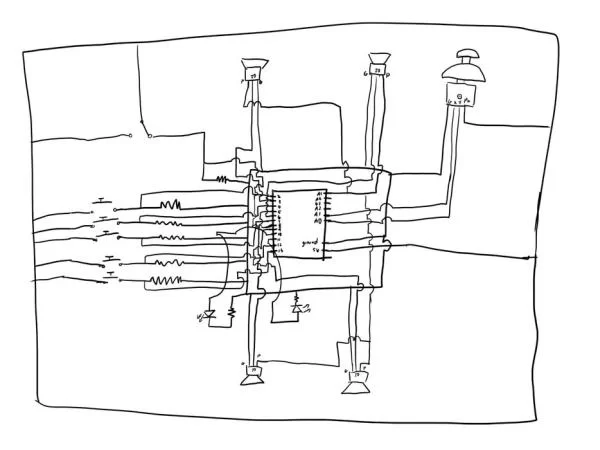
Step 1: Schematic
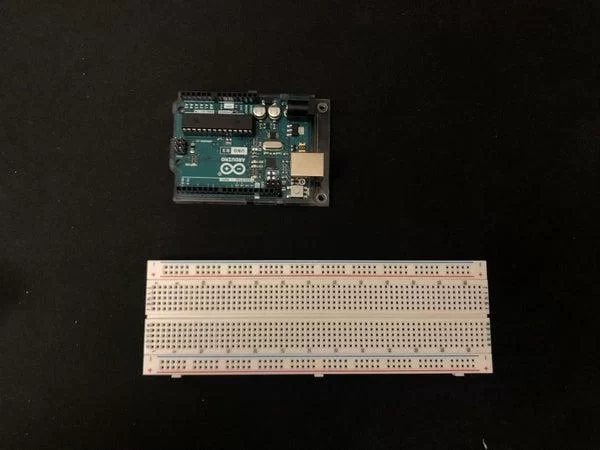
Step 2: Hardware 1:
Step 3: Hardware 2:
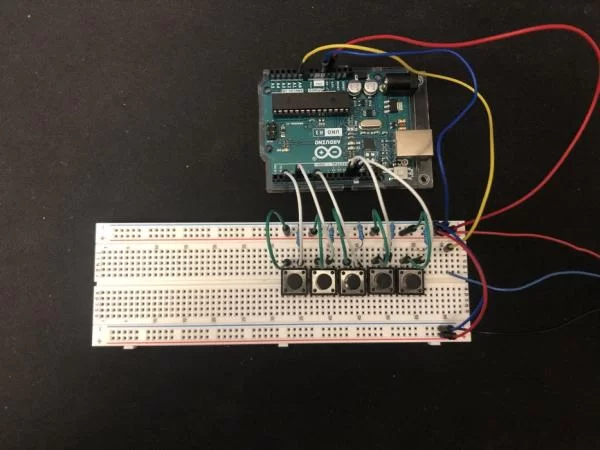
Add 5 buttons to the board.
Connect Them to the 5v power and ground them with resistors.
Parallel them with digital input on the Arduino (using the port without PWM).
I’m using the port 2,4, 7, 12, 13 for the button 1,2,3,4,5.
Step 4: Hardware 3:
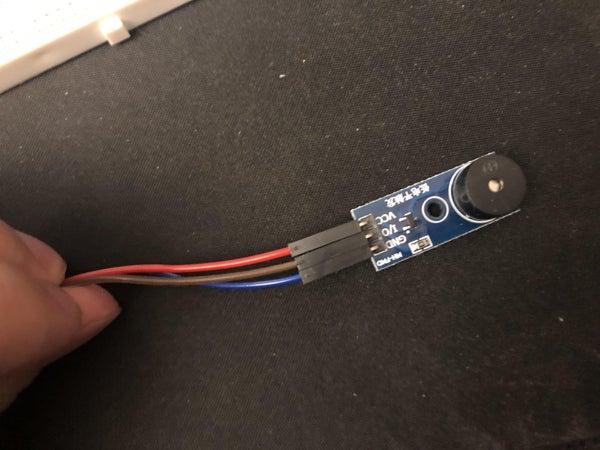
Connect buzzer to the board.
VCC to v5, GND to ground, and I/O to the PWM output on the Arduino.
I’m using 3~, 5~, 6~, 9~ on the Arduino for the buzzer 1,2,3,4.
Step 5: Hardware 4:
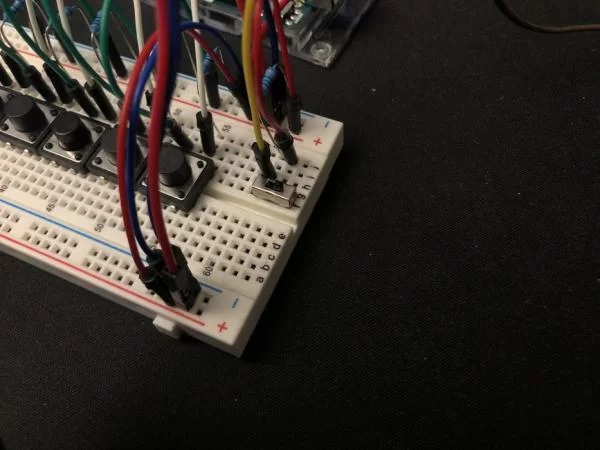
Add switch to the breadboard.
Power the middle needle with 5v and ground the left needle with a resistor.
Parallel the resistor with input on Arduino.
I’m using port 8 on the Arduino for the switch.
Step 6: Hardware 5:
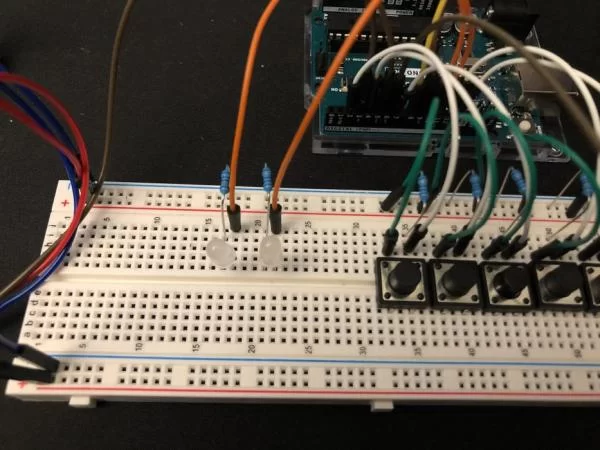
Add two LEDs to the breadboard.
Ground them with a resistor.
Connect them with outputs on the Arduino.
I’m using ports 10 and 11 for LEDs 1 and 2.
Step 7: Hardware 6:
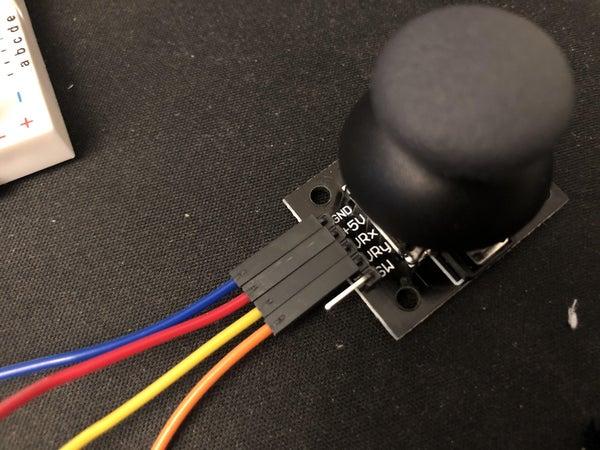
Connect GND, + 5V, VRx, and VRy to the ground, 5v, A0, and A1 on the Arduino.
Step 8: Step 7: Add Enclosure
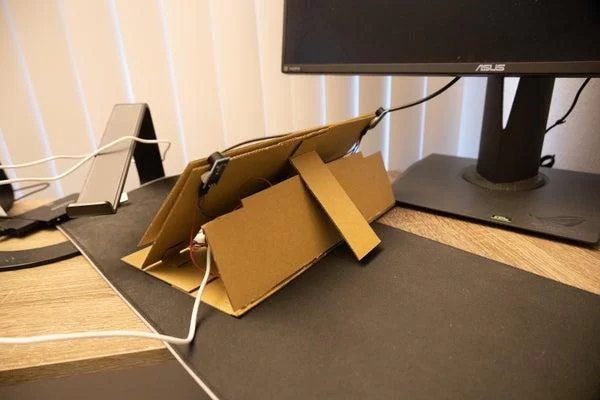
Using cardboard making an enclosure for the project.
Step 9: Code 1:
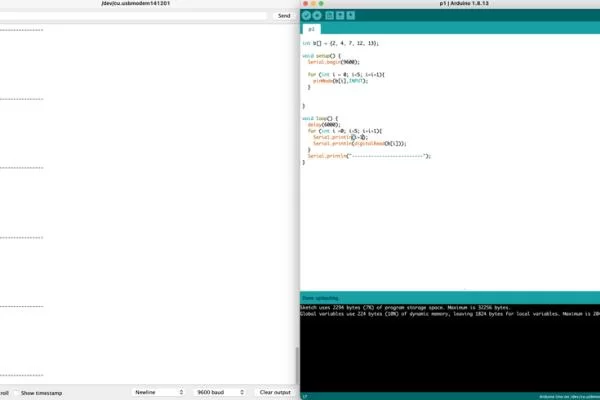
Test the button.
If everything looks good, change the testing code to the reading code.
Step 10: Code 2:
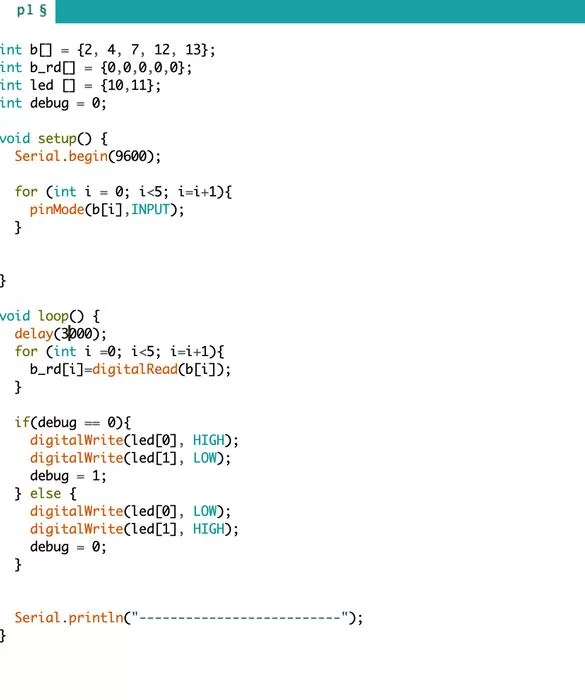
Test the LEDs.
If the LEDs can light up separately, link the Leads to the mode indicator.
Source: Arduino Sound Effect With Game Handle

