
Summary of Build A Wake Up Alarm Clock Using Arduino
The article describes an enhanced Arduino-based alarm clock project, expanding upon a previous "Clock Set Date Time" design by adding a wake-up alarm feature. Key upgrades include incorporating a piezo buzzer, LED, resistor, and button, while removing external pull-down resistors by using Arduino's internal pull-up resistors and adjusting the code logic. The alarm is controlled via buttons to activate, set time, and deactivate, with visual and audio alerts at the alarm time. The project includes a schematic and Fritzing layout for assembly.
Parts used in the Alarm Clock:
- Arduino board
- Piezo buzzer
- LED diode
- 220 ohm resistor
- Push buttons (P1, P2, P3, P4)
- Connecting wires
- Display module (for time and alarm display)
Story
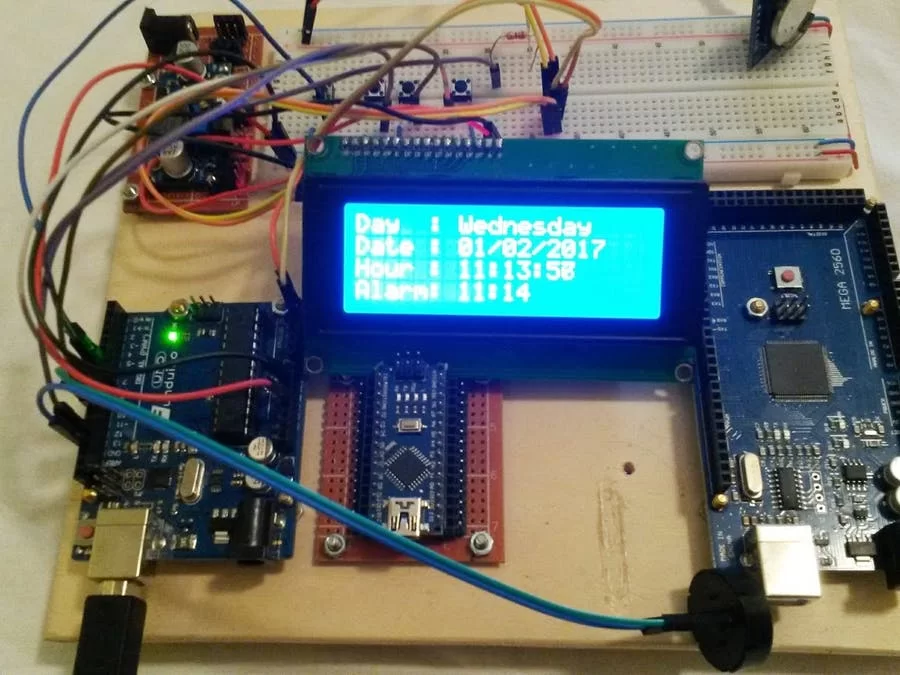
After designing the “Clock Set Date Time” and hearing the suggestion of ArduPic , I thought it would be a good idea and also useful, add a “wake-up alarm.”
A small change to the code and adding a few components: Here’s “the Alarm Clock“.
Compared to the previous project, I added a buzzer Piezzo, a diode LED, a resistor of 220 ohms, a button and as said before, I listened to the suggestion of “ArduPic” and I removed the resistance to “pull down.”
Arduino Code
To remove the “pull down” resistances I had to make a change to the code.
Use the pullup resistors of Arduino, and reverse the code logic conditions.
pinMode(P1,INPUT_PULLUP);
pinMode(P2,INPUT_PULLUP);
pinMode(P3,INPUT_PULLUP);
pinMode(P4,INPUT_PULLUP);
if(digitalRead(P1)==LOW)
{
menu=menu+1;
Alarm Code
The activation and deactivation of the alarm clock is controlled by the “P4” button, line 444 “void Alarm()”.
To enter the alarm settings, you must use the “P3” “P2” buttons together, line 81 “if((digitalRead(P2)== LOW)&&(digital Read(P3)== LOW))”.
When the alarm is not set, the bottom of the display will show “Alarm Off” when the alarm is active, it shows the time that has been set.
At the scheduled time, the display flashes, the LED lights up, and the buzzer sounds two tones.
To turn off the alarm, you have to act on the P4 button, or, after a minute, it turns off alone
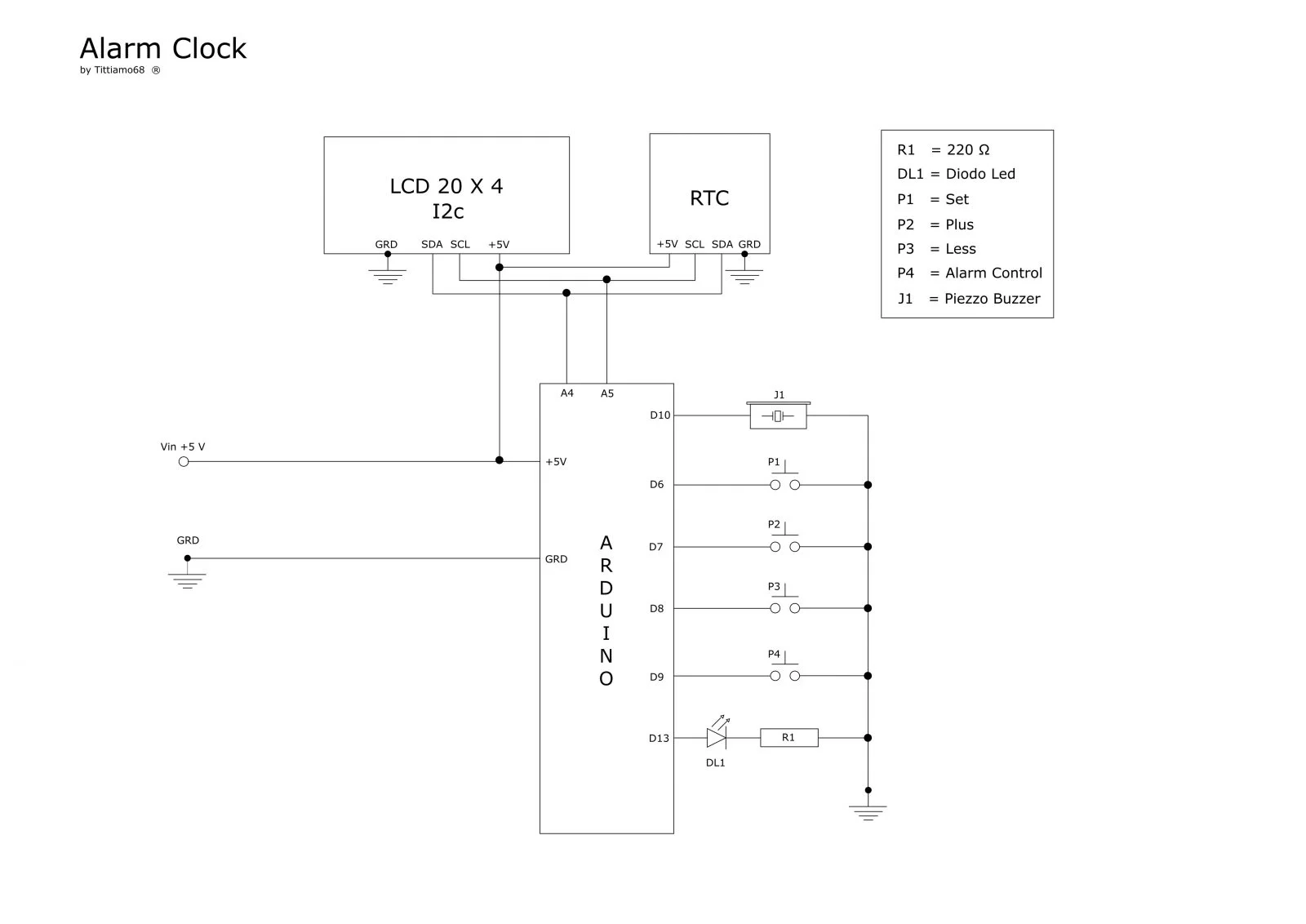
I am attaching the electric schematic and the layout Fritzing
Schematics
Read More: Build A Wake Up Alarm Clock Using Arduino

