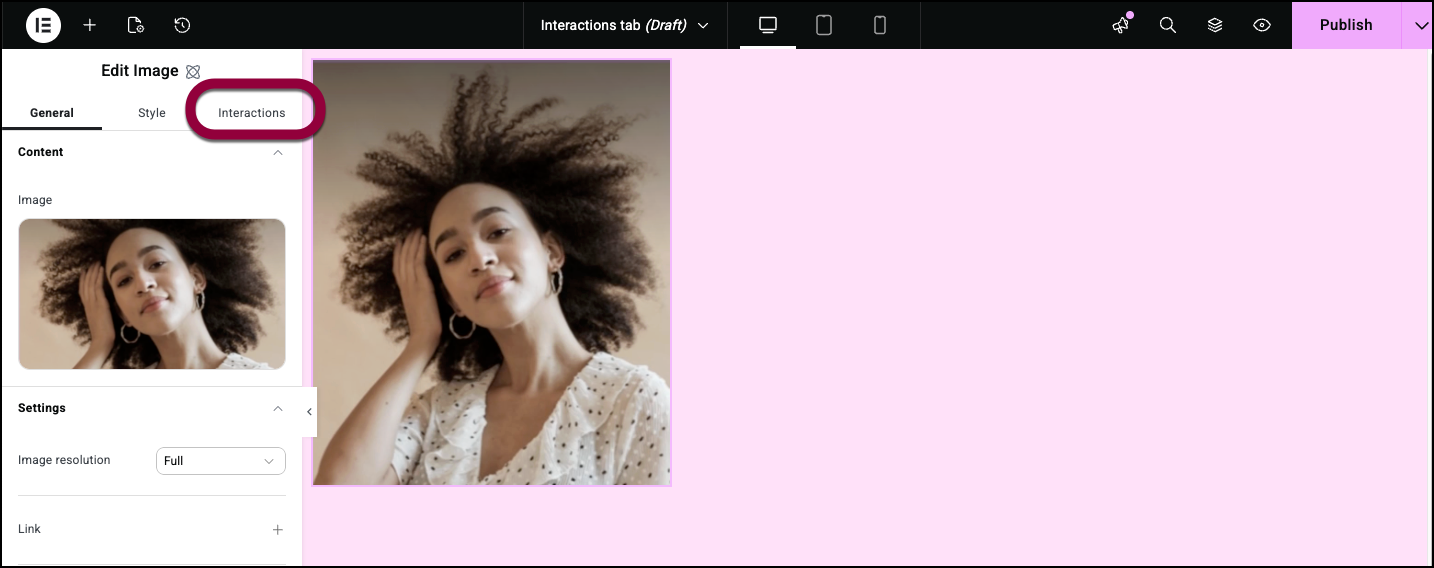
The Interactions tab is home to Javascript functions that affect widgets. These include entrance and scrolling animations.
See Options below for a full list of Interaction options.
Note
Interactions apply to all devices, you cannot customize interactions for different screen sizes.
Example of an interaction
- Add an Image element to the canvas.
- Click the Interactions tab.
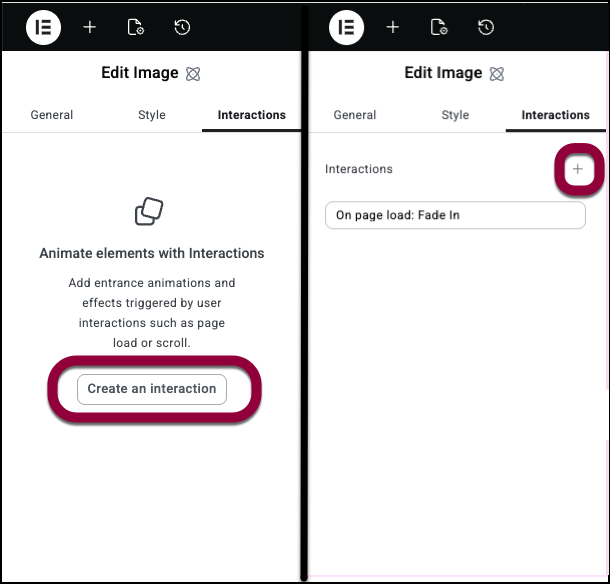
- If this is the first interaction for this element, click Create an interaction, if this is not your first interaction, click the plus icon.
- We’ll leave the Trigger on Page Load.
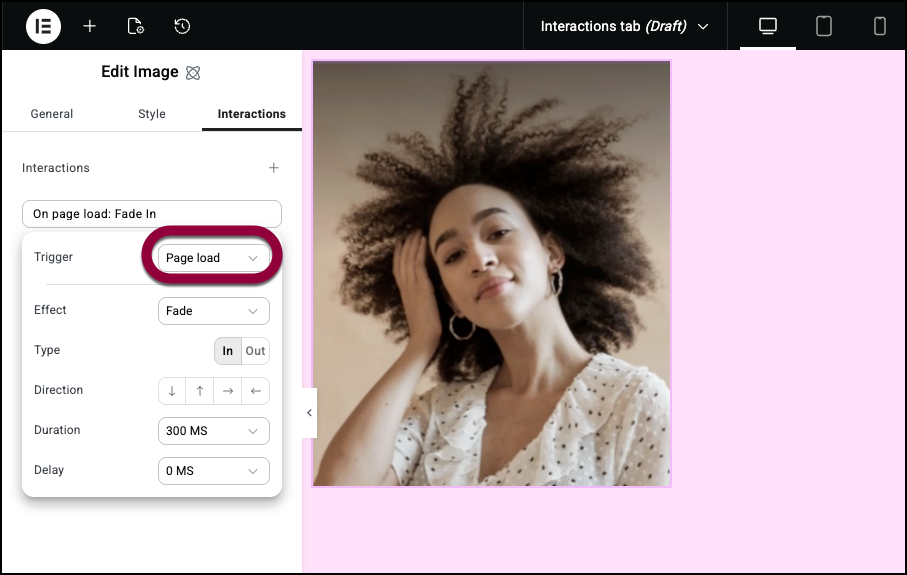
This means the interaction will take place when the visitors opens the page. - Use the Effect dropdown menu to select Slide.
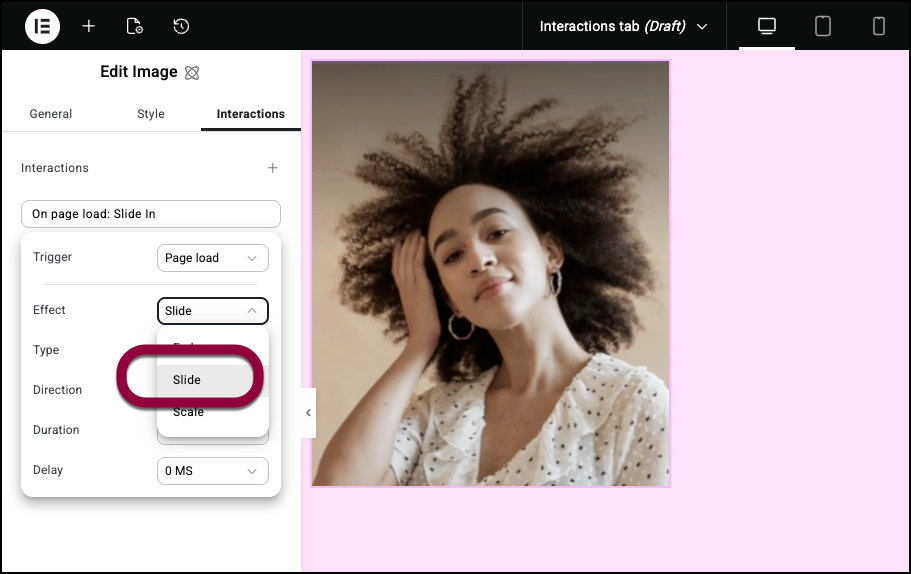
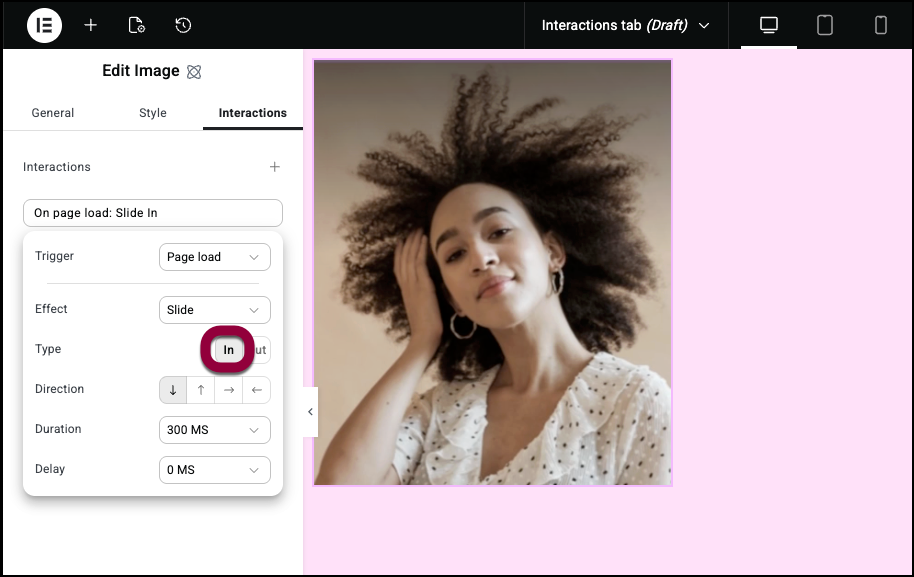
- We’ll leave the Type as In as we want the image to enter the screen.
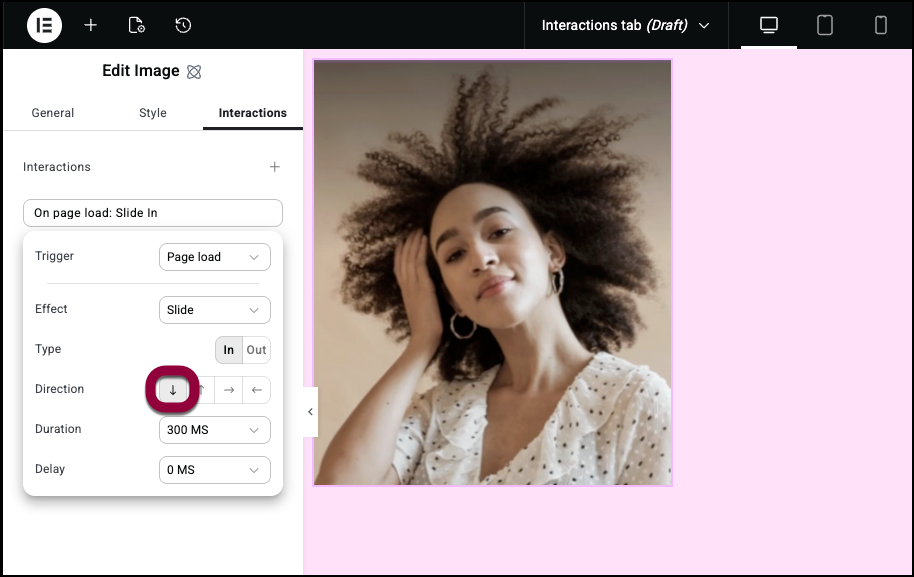
- In the Direction field, click the down arrow so the image enters from top of the page.
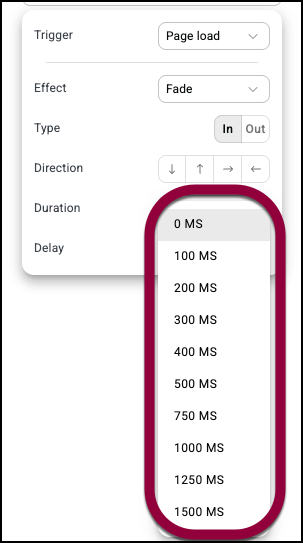
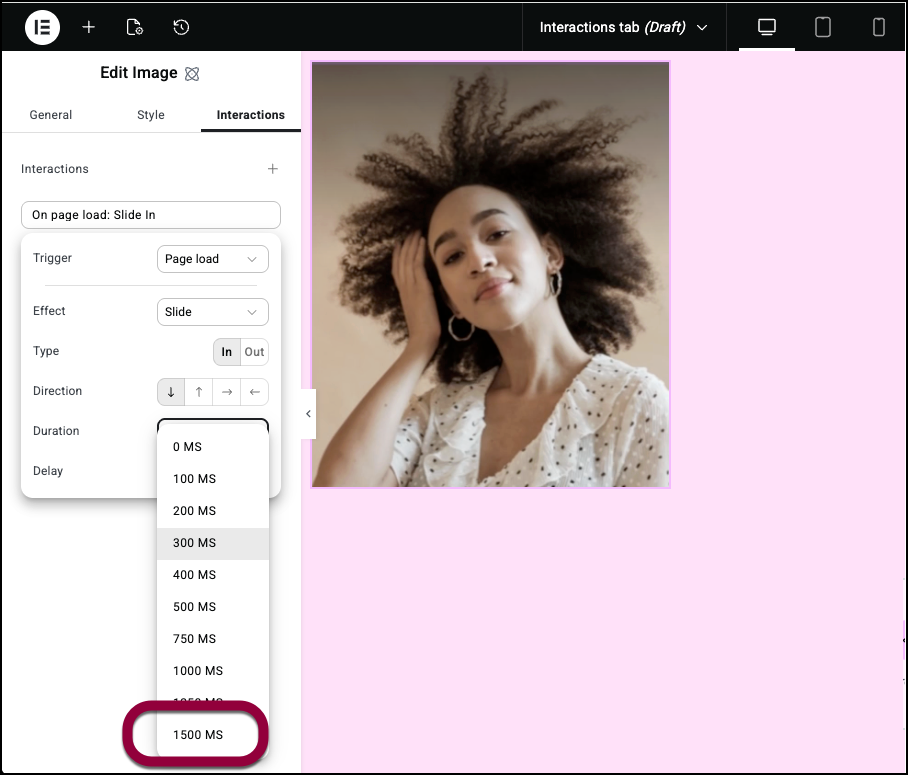
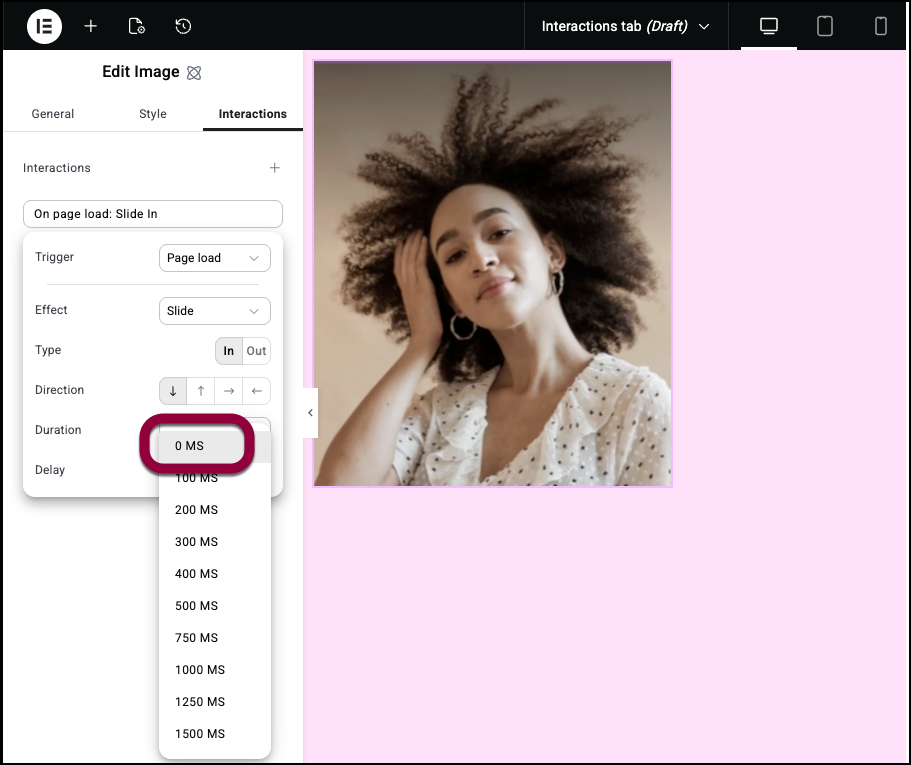
- In the Duration field, use the dropdown menu to select 1500 MS so the image enters slowly.
- Leave the Delay at 0 MS as we want the effect to start as soon as the page loads.
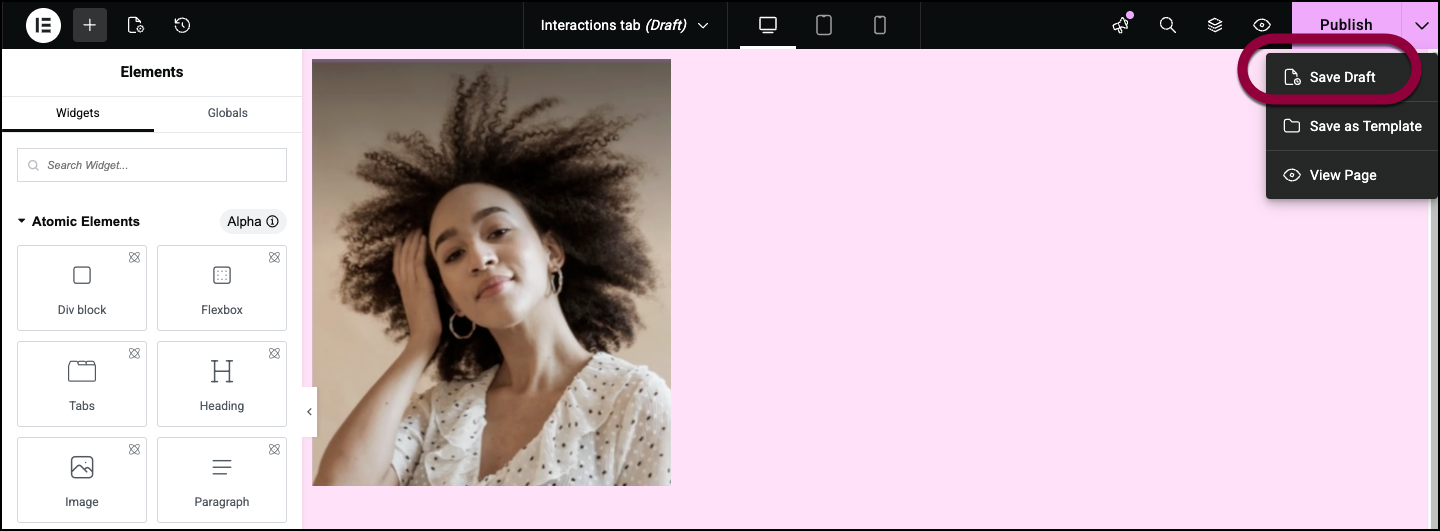
- Save the page.
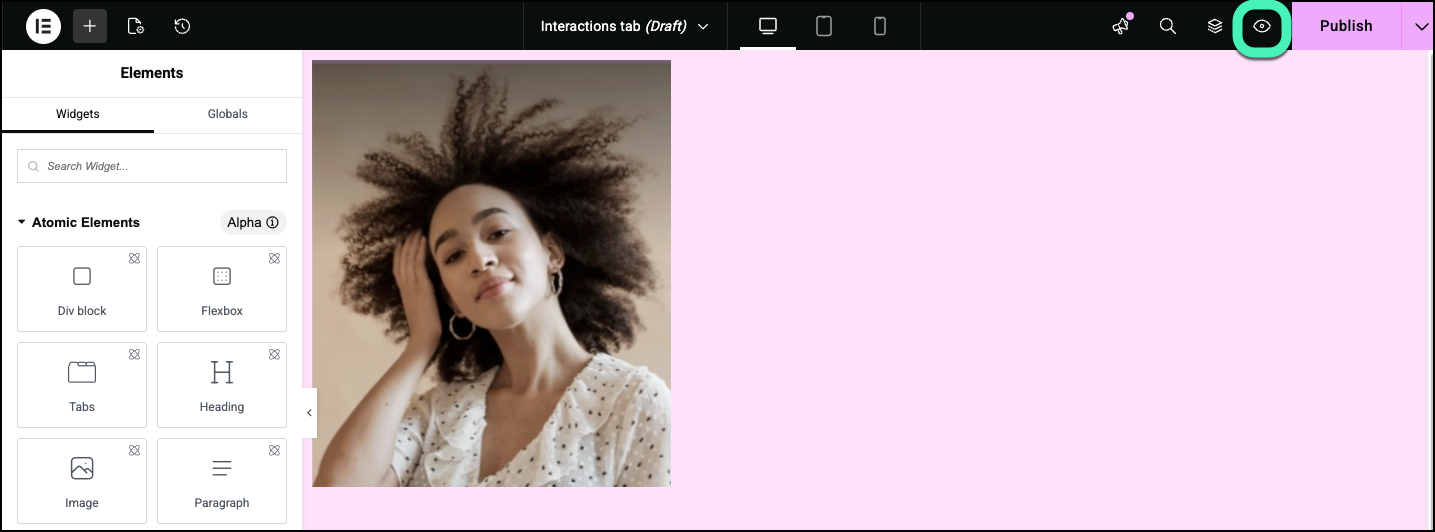
- Click the view icon to see how the effect looks.
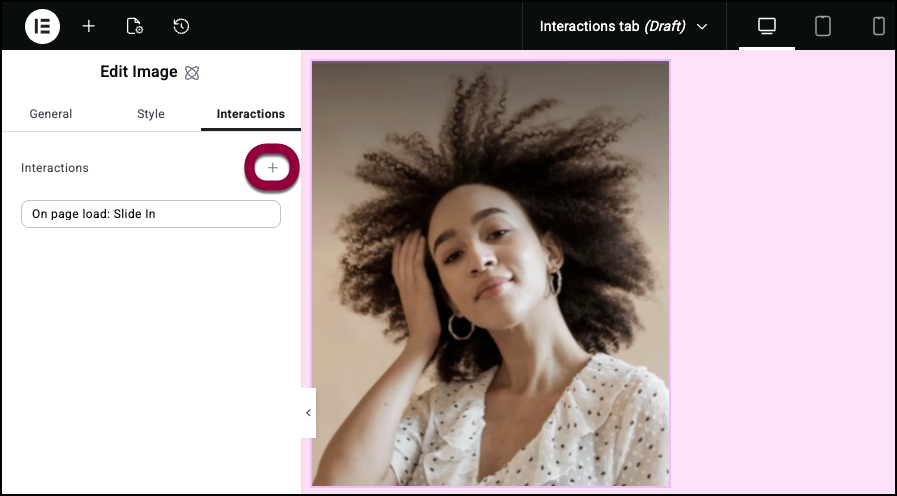
Now we can add additional effects for truly original designs. - In the Interactions tab, click the plus sign.
- Leave the Trigger dropdown as Page Load and the Effect as Fade.
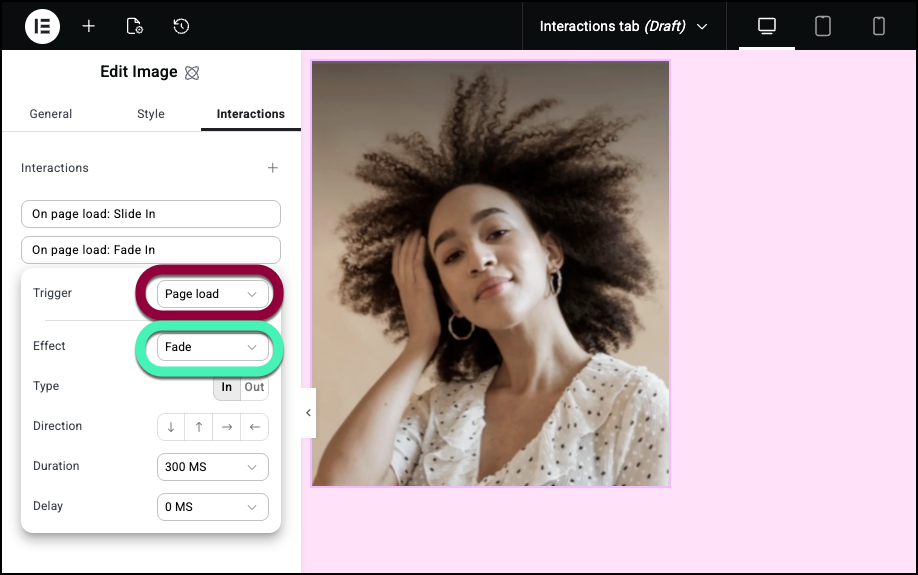
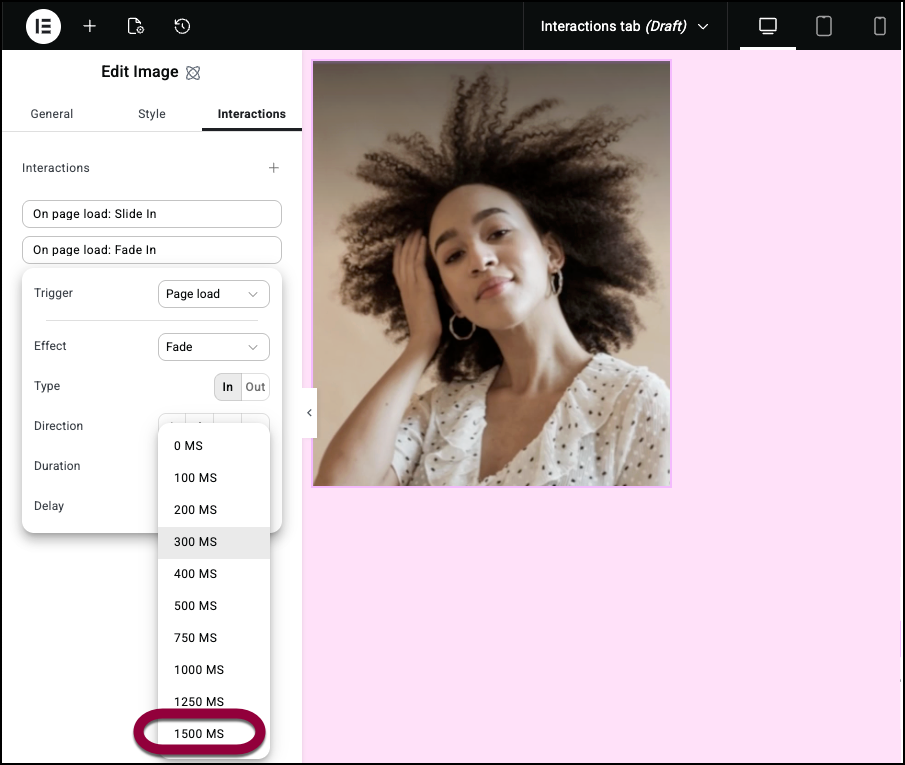
- Select a Duration of 1500 MS.
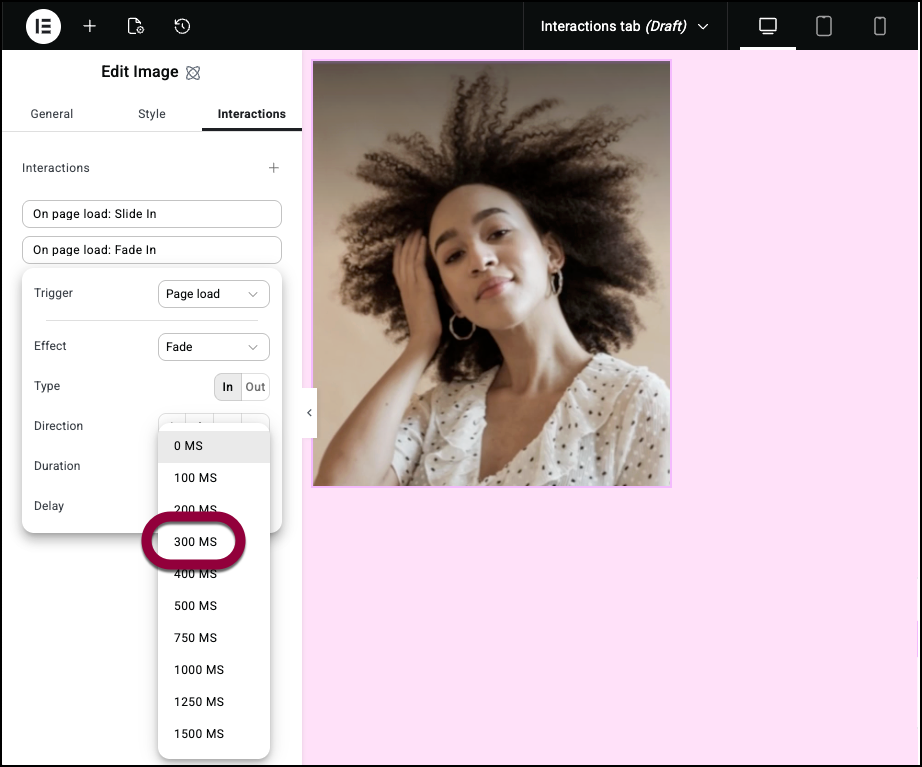
- Select a Delay of 300 MS.
The image will enter from the top of the page and the image will slowly appear on the page.You can use two interactions to have an element enter from the top and the side so it comes in at an angle.
Interaction options
Interaction
Add and edit interactions.
- Click the plus (+) sign to add an interaction.
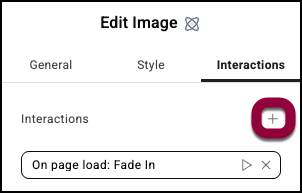
- After you add an interaction:
- Click the play symbol to see how the interaction appears.
- Click the x to delete the interaction.
- Click the play symbol to see how the interaction appears.
Trigger
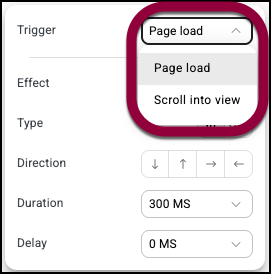
Use the Trigger dropdown menu to select:
- Page load: The interaction begins when the visitor opens the page.
- Scroll into view: The interaction begins when the visitor reaches this area of the page.
Effect
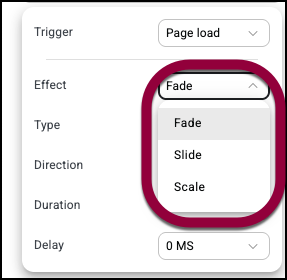
Use the dropdown to select a type of interaction:
- Fade: Have the element appear or disappear.
- Slide: Have the element enter or exit the page from one of the sides.
- Scale: Have the element become larger or smaller.
Type
Select either:
- In
- Fade: The element appears.
- Slide: The element enters the page.
- Scale: The element grows.
- Out
- Fade: The element disappears.
- Slide: The element exits the page.
- Scale: The element shrinks.
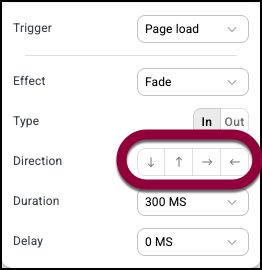
Direction
Click either the up, down, right or left arrow to:
- Fade: Add an effect where the element moves in the arrow’s direction as it fades.
- Slide: Use an arrow to set the direction the element will move when it’s sliding. an effect where the element moves in the arrow’s direction as it fades.
- Scale: Add an effect where the element moves in the arrow’s direction as it fades.
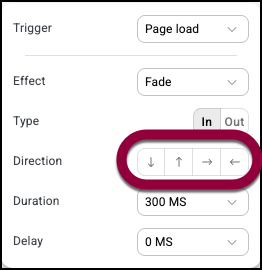
Duration
Measures, in milliseconds (MS) how long it will take for the interaction to complete. 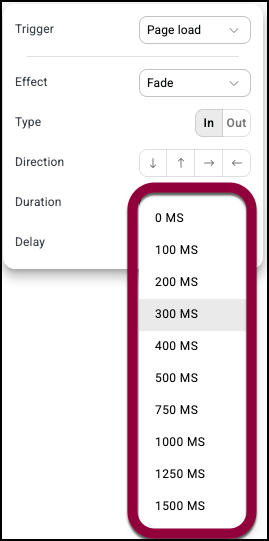
Delay
Sets, in milliseconds (MS), an amount of time that will pass between the trigger and the beginning of the interaction.