
Linux users use the commands like cd to navigate different directories and, similarly, ls to list down the directories. These are the predefined commands, and Linux users can also set a name for each command. This mechanism is known as an alias.
This blog explores more information about the alias procedure for Ubuntu 22.04.
- How to Create and Use Alias in Ubuntu for Temporary?
- How to Create and Use Alias in Ubuntu for Permanent?
How to Create and Use Alias in Ubuntu for Temporary?
In this section, an alias will be created for the current session of the terminal, which would be a temporary one. The steps are demonstrated below:
Step 1: Run alias
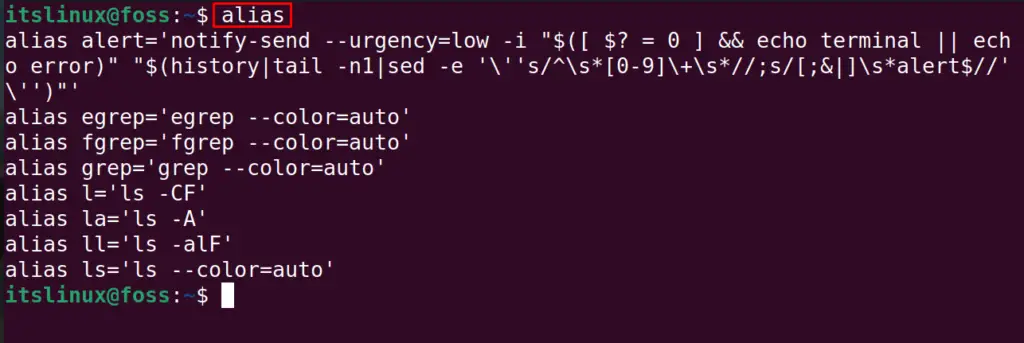
Before aliasing any command, run the alias command to display the defined aliases for Ubuntu:
$ alias
Step 2: Create the Alias
Now, to navigate the directory in a bash shell, we mostly use the cd command, but if we want to use some other command, for example, “hm” can be used to list the home directory, then alias hm using the command:
$ alias hm=”ls /home/”

Step 3: Run the Alias
Now use the “hm” command:
$ hm

Step 4: Unalias the Created Alias
The users of the home directory have been displayed, now unalias the hm command using the command:
$ unalias hm

Again run the hm command to confirm whether it is still associated with “ls /home/” or not:
$ hm

The message “command not found” confirms that it is no more associated with the hm command.
How to Create and Use Alias in Ubuntu for Permanent?
To make the above changes permanent and applicable to all shells, follow the next steps.
Step 1: Open the bashrc file
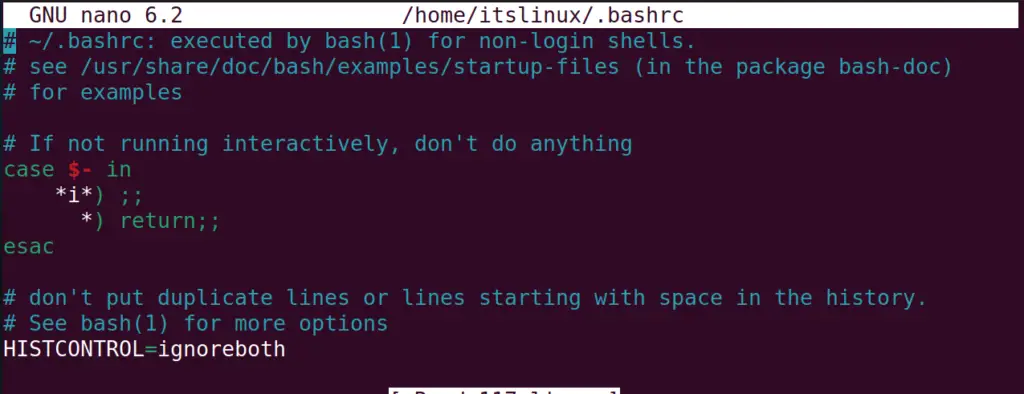
Open the “bashrc” file using the nano text editor:
$ nano ~/.bashrc

A file similar to the below-mentioned figure will be opened:
Step 2: Edit the bashrc File
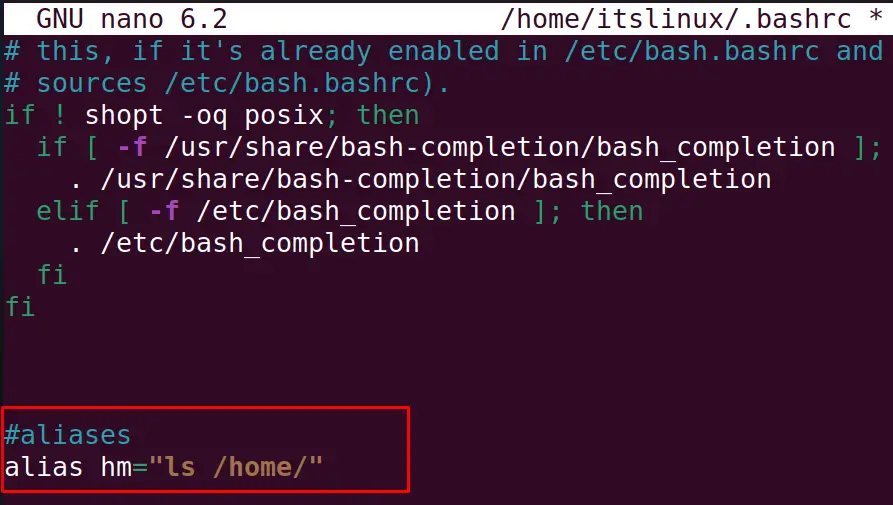
At the end of the file, type the alias statement like we are typing for using the “hm” command to display the home directory:
#aliases alias hm=”ls /home/”
Step 3: Update the bashrc File
To apply these changes instantly in the current shell, run the command:
$ source ~/.bashrc

Check the command:
$ hm
Step 4: Unalias the Created Alias
The command is successful, aliased; now, to delete all the aliased commands from the machine, run the command:
$ unalias -a

The commands have been unaliased.
Conclusion
To create and use the alias in Ubuntu, open the terminal and run the command “alias = “command, which is to be aliased””. However, you can use the “.bashrc” file to make the alias permanent for the Linux system. This post has briefly explained the methods to create and use alias in Ubuntu.