Linux’s Nmap (Network Mapper) program is a powerful utility used to scan ports, networks, and IP addresses and to know about installed applications. It supports UDP, TCP connects, TCP SYN, and FTP scanning methods. Other Nmap features include customizable target and port specification, operating system (OS) discovery using TCP/IP fingerprinting, down host detection via parallel ping, and many more.
The procedure to install, use, and uninstall Nmap on Ubuntu 22.04 will be demonstrated in this write-up.
How to install Nmap on Ubuntu 22.04?
To install Nmap on Ubuntu 22.04, follow the steps provided below.
Step 1: Update system packages
$ sudo apt update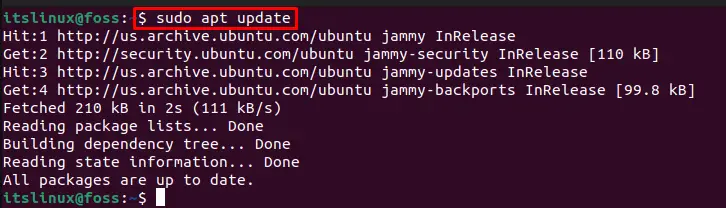
Step 2: Install Nmap
In the next step, install the Nmap command using the provided command:
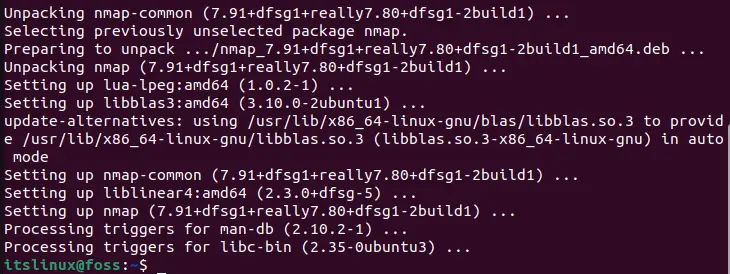
$ sudo apt install nmap -y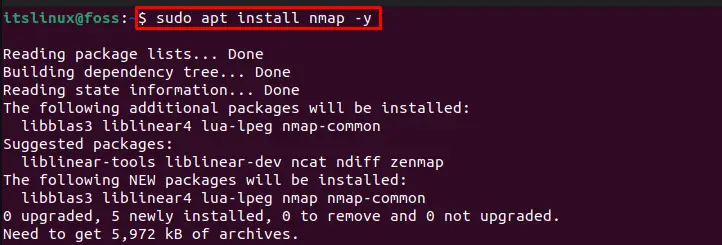
Step 3: Check Nmap version
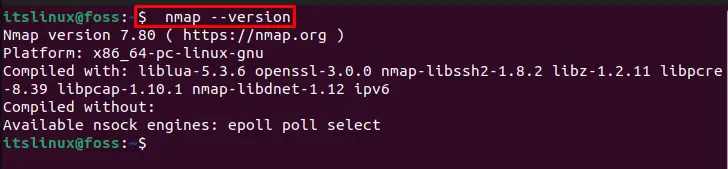
To confirm Nmap installation, verify its version:
$ nmap --versionAs you can see, we have successfully installed Nmap “7.80” version:
Let’s move ahead towards Nmap usage on Ubuntu 22.04.
How to use Nmap command on Ubuntu 22.04?
Check out the below-given syntax for using the Nmap command on your Ubuntu 22.04 system.
Syntax
Nmap can either be used to scan web URLs or IP addresses using the supported options:
$ nmap <options> <IP-adress or web-address>Example1: Scan open ports
In the first example, let’s scan open ports for our network. For doing so, specify your host IP address:
$ nmap 103.170.179.92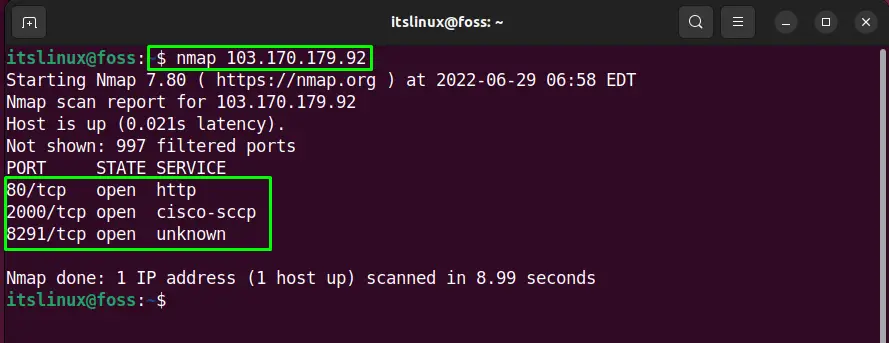
You can also use the option “-F” to perform the scanning process quickly:
$ nmap -F 103.170.179.92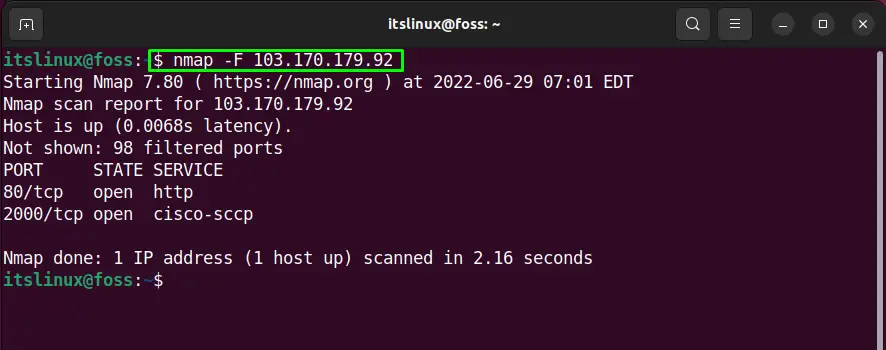
Example 2: Scan specific ports
In order to scan a specific port, provide the port number along with the host IP address. The “-p” option is used to scan all ports in a network:
$ nmap -p 80 103.170.179.92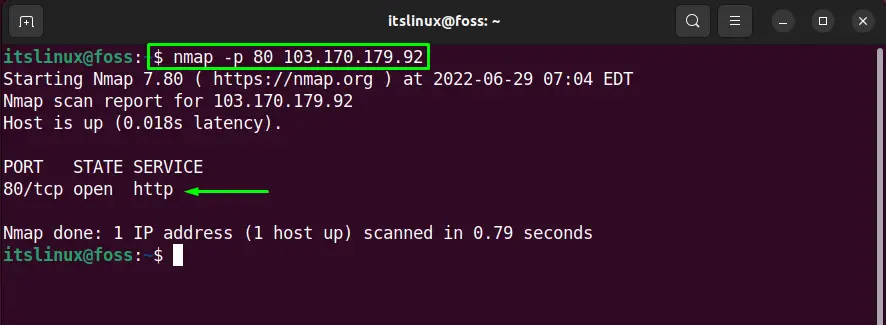
Example 3: Get OS information
To get and scan OS information with the help of the Nmap command, add the option “-O” and provide the host IP address:
$ sudo nmap -O 103.170.179.92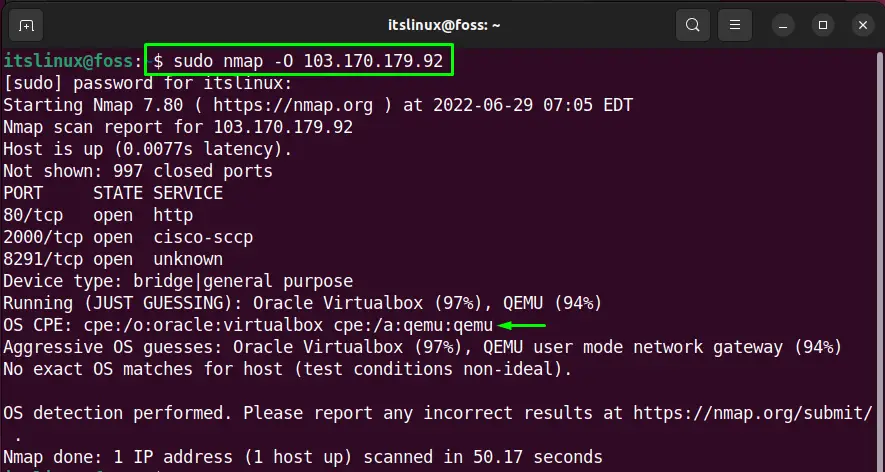
Example 4: Scan Firewall Settings
Use “-sA” flag in Nmap command to get and scan Firewall Settings on terminal:
$ sudo nmap -sA 103.170.179.92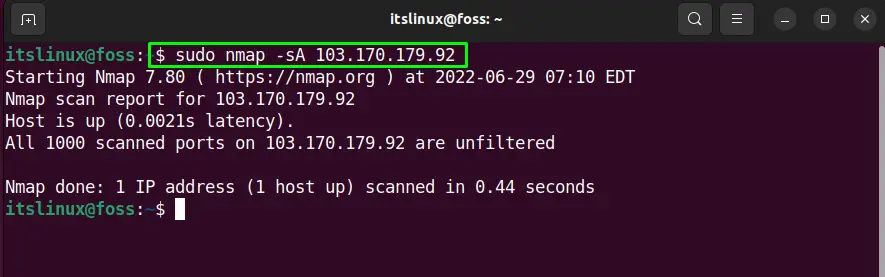
Example 5: Scan website without establishing connection
Scan any website by specifying its URL along with the “-sS” option in the Nmap command:
$ sudo nmap -sS itslinuxfoss.com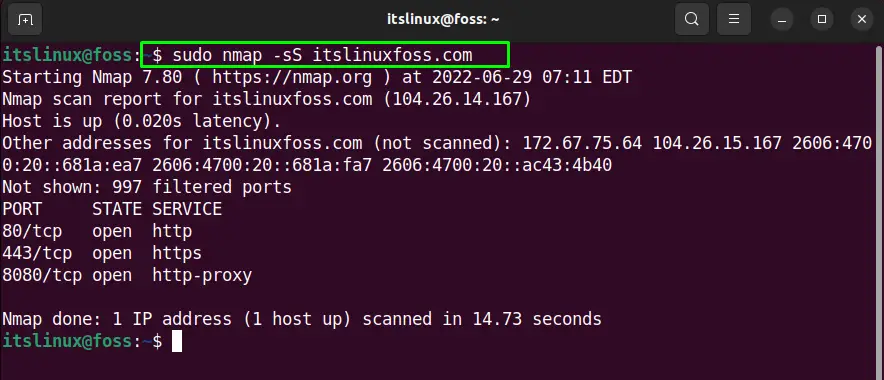
Example 6: Get Host interface
To scan and view the list of host or network interfaces, use the below-given command:
$ sudo nmap --iflist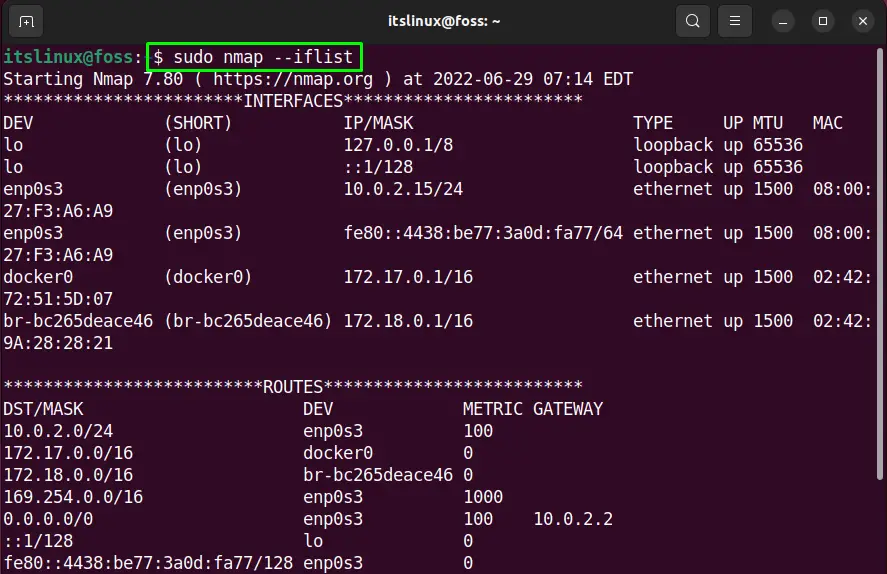
Example 7: Access Nmap man page
To get the man page of Nmap, type the following command in the Ubuntu 22.04 terminal:
$ man nmap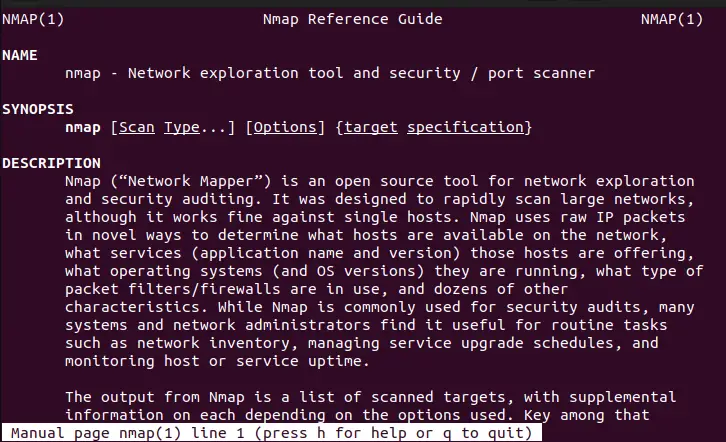
Example 7: Get Help
To get information related to port specification and options details of the Nmap command, run the Nmap command with the “–help” option:
$ nmap --help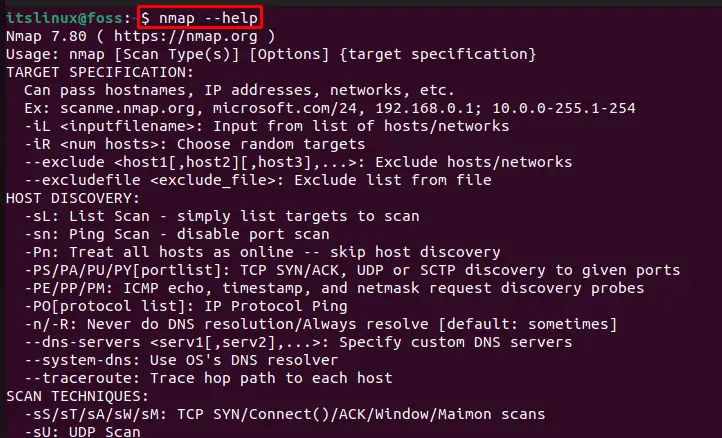
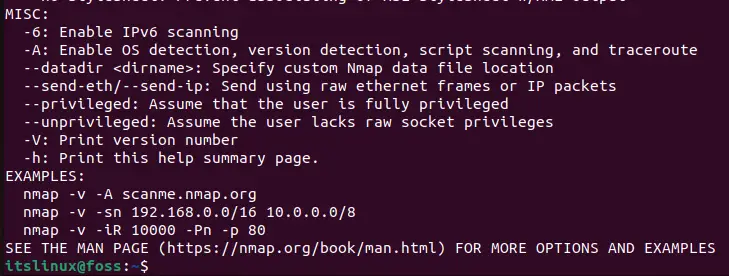
Want to uninstall Nmap? Have a look at the following section.
How to Uninstall Nmap on Ubuntu 22.04?
To uninstall Nmap on Ubuntu 22.04, check out the provided command and execute it:
$ sudo apt remove nmap -y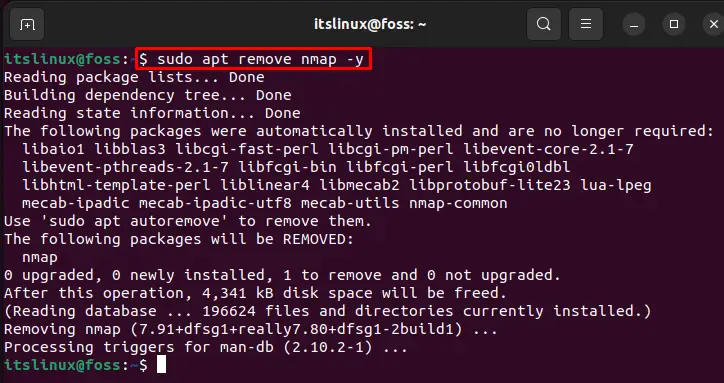
We have offered the methods for the installation, usage, and uninstallation of Nmap on Ubuntu 22.04.
Conclusion
To install Nmap on Ubuntu 22.04, first, update the system packages. Then, execute the “$ sudo apt install nmap -y” command on the terminal. After installing Nmap, use it to scan open or specific ports using Network IP addresses, Host addresses, or any website. We have effectively elaborated the Nmap installation, usage, and uninstallation method in this writeup.

Saryia is a professional writer with a passion for simplifying complex topics. Specializing in Linux, programming, and technology, Saryia creates in-depth tutorials and articles designed to educate and empower readers.
