After I made my initial release of PoshRSJob, one of the things left that I wanted to accomplish was implementing the $Using: scope that is found when using Invoke-Command or Start-Job which allows you to use an existing variable in the current console session and send that over to the scriptblock for the PSJob. This is pretty cool and allows for easier flow of sending data to a scriptblock in a PSJob. Naturally, if my module was going to be an alternative to the current infrastructure, it needed this capability as well. The problem is that determining how this works isn’t quite as easy as it seems. A couple of options would include looking at using RegEx or the PSParser to maybe make this happen. I will say that to provide support for PowerShell V2, I had to resort to these approaches, but more on that later.
After some digging around in the language using DotPeek, I found where call was being made to take an existing scriptblock (with parameters) that have $Using and then does some conversion behind the scenes that will add the variable automatically to the Param() block and adjusts the $Using: variable within the scriptblock as well.
Of course, converting this C# code to PowerShell isn’t always straight forward, especially when we cannot just use some of the methods that they use without bringing some reflection skills into play.
V3+ Attempt
So, lets get going with taking the following scriptblock and converting it so we can take advantage of $Using: and see how it works.
## Scriptblock
$Data = 42
$Computername = $env:COMPUTERNAME
$ScriptBlock = {
    [pscustomobject]@{
        Computername = $Using:Computername
        Output = ($Using:Data * 2)
    }
}
Here we have our data and then our script block which contains our $Using: variables. Note that in this example I do not have anything in a Param() block (I will show another example after this with a Param() block) so we will have an extra step at the end to build this out.
Next up is using some AST magic (System.Management.Automation.Language.UsingExpressionAst) to parse out the Using variables by looking at the AST on the script block:
$UsingVariables = $ScriptBlock.ast.FindAll({
    $args[0] -is [System.Management.Automation.Language.UsingExpressionAst]
},$True)
What that gives us is the following output:

With this information, I now need to go and grab the actual values for each variable and then put that into an object that includes what the converted $Using variable will look like in the new script block.
$UsingVariableData = ForEach ($Var in $UsingVariables) {
    Try {
        $Value = Get-Variable -Name $Var.SubExpression.VariablePath.UserPath -ErrorAction Stop
        [pscustomobject]@{
            Name = $Var.SubExpression.Extent.Text
            Value = $Value.Value
            NewName = ('$__using_{0}' -f $Var.SubExpression.VariablePath.UserPath)
            NewVarName = ('__using_{0}' -f $Var.SubExpression.VariablePath.UserPath)
        }
    } Catch {
        Throw "$($Var.SubExpression.Extent.Text) is not a valid Using: variable!"
    }
}

Notice how these are now renamed with the $__using_ now instead of their original name. This is important with how we convert the script block later on. Keep in mind that the original script block still has the original values.
Now we start setting up for the script block conversion by creating a couple of collections to hold some data. One of those required is a Tuple type that will hold a particular AST type of VariableExpressionAST.
$List = New-Object 'System.Collections.Generic.List`1[System.Management.Automation.Language.VariableExpressionAst]'
$Params = New-Object System.Collections.ArrayList
Assuming that we have Using variables, we can begin adding each item into our list collection.
If ($UsingVariables) {
    ForEach ($Ast in $UsingVariables) {
        [void]$list.Add($Ast.SubExpression)
    }
With that done, next up is to work with our soon to be new parameters and adding the current values with the new values into our created Tuple.
[void]$Params.AddRange(($UsingVariableData.NewName | Select -Unique))
$NewParams = $Params -join ', '
$Tuple=[Tuple]::Create($list,$NewParams)

Now for some fun stuff! We need to use Reflection to hook into a nonpublic method that basically does all of the magic of converting the script block data into something that will be usable.
$bindingFlags = [Reflection.BindingFlags]"Default,NonPublic,Instance"
$GetWithInputHandlingForInvokeCommandImpl = ($ScriptBlock.ast.gettype().GetMethod('GetWithInputHandlingForInvokeCommandImpl',$bindingFlags))
$StringScriptBlock = $GetWithInputHandlingForInvokeCommandImpl.Invoke($ScriptBlock.ast,@($Tuple
))
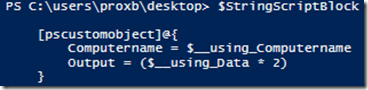
Pretty cool, right? As I mentioned earlier, we need to build out a param() block still. This is due to one not already existing. Had I added a Param() block in the script block:
$ScriptBlock = {
    Param($Param1)
    [pscustomobject]@{
        Computername = $Using:Computername
        Output = ($Using:Data * 2)
    }
}
The output would look more like this:
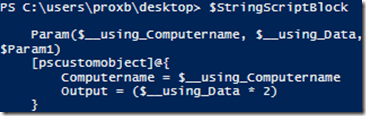
Note how the $Param1 has been pushed to the very end while all of the new $__using variables are near the beginning.
Ok, with that out of the way, we will go back to dealing with our first example and adding our new Param() block.
If (-NOT $ScriptBlock.Ast.ParamBlock) {
    Write-Verbose "Creating Param() block" -Verbose
    $StringScriptBlock = "Param($($NewParams))`n$($StringScriptBlock)"
    [scriptblock]::Create($StringScriptBlock)
} Else {
    Write-Verbose "Param() will be magically updated!" -Verbose
    [scriptblock]::Create($StringScriptBlock)
}
}
And with that, we now have a script block that has been completely converted to support the $Using: variables! Of course, since I am using a nonpublic method to accomplish this, it does mean that this could be changed in a future release and could potentially break what I am doing.
What about V2 you ask? Well, since we do not have access to AST or the nonpublic method of ‘GetWithInputHandlingForInvokeCommandImpl’ to use for the conversion, we must resort to doing some of our own magic using the PSParser and RegEx.
V2 Using Attempt
We are going to use the same script block with just a minor change to full support V2:
$Data = 42
$Computername = $env:COMPUTERNAME
$ScriptBlock = {
    Param($TestParam)
    New-Object PSObject -Property @{
        Computername = $Using:Computername
        Output = ($Using:Data * 2)
    }
}
I am also going to use a function as well to make working with PSParser easier to convert a script block.
Function IsExistingParamBlock {
    Param([scriptblock]$ScriptBlock)
    $errors = [System.Management.Automation.PSParseError[]] @()
    $Tokens = [Management.Automation.PsParser]::Tokenize($ScriptBlock.tostring(), [ref] $errors)
    $Finding=$True
    For ($i=0;$i -lt $Tokens.count; $i++) {
        If ($Tokens[$i].Content -eq 'Param' -AND $Tokens[$i].Type -eq 'Keyword') {
            $HasParam = $True
            BREAK
        }
    }
    If ($HasParam) {
        $True
    } Else {
        $False
    }
}
Now we start pulling the $Using: variables by using the PSParser and looking at the tokens. I will also go ahead and pull the actual values of each variable and do the naming conversion just like I did with the previous example.
$errors = [System.Management.Automation.PSParseError[]] @()
$Tokens = [Management.Automation.PsParser]::Tokenize($ScriptBlock.tostring(), [ref] $errors)
$UsingVariables = $Tokens | Where {
    $_.Content -match '^Using:' -AND $_.Type -eq 'Variable'
}
$UsingVariable = $UsingVariables | ForEach {
    $Name = $_.Content -replace 'Using:'
    New-Object PSObject -Property @{
        Name = $Name
        NewName = '$__using_{0}' -f $Name
        Value = (Get-Variable -Name $Name).Value
        NewVarName = ('__using_{0}') -f $Name
    }
}

Now we get to the meaty part of this article by using quite a bit of code to work through the script block conversion.
$StringBuilder = New-Object System.Text.StringBuilder
$UsingHash = @{}
$UsingVariable | ForEach {
    $UsingHash["Using:$($_.Name)"] = $_.NewVarName
}
$HasParam = IsExistingParamBlock -ScriptBlock $ScriptBlock
$Params = New-Object System.Collections.ArrayList
If ($Script:Add_) {
    [void]$Params.Add('$_')
}
If ($UsingVariable) {
    [void]$Params.AddRange(($UsingVariable | Select -expand NewName))
}
$NewParams = $Params -join ', '
If (-Not $HasParam) {
    [void]$StringBuilder.Append("Param($($NewParams))")
}
For ($i=0;$i -lt $Tokens.count; $i++){
    #Write-Verbose "Type: $($Tokens[$i].Type)"
    #Write-Verbose "Previous Line: $($Previous.StartLine) -- Current Line: $($Tokens[$i].StartLine)"
    If ($Previous.StartLine -eq $Tokens[$i].StartLine) {
        $Space = " " * [int]($Tokens[$i].StartColumn - $Previous.EndColumn)
        [void]$StringBuilder.Append($Space)
    }
    Switch ($Tokens[$i].Type) {
        'NewLine' {[void]$StringBuilder.Append("`n")}
        'Variable' {
            If ($UsingHash[$Tokens[$i].Content]) {
                [void]$StringBuilder.Append(("`${0}" -f $UsingHash[$Tokens[$i].Content]))
            } Else {
                [void]$StringBuilder.Append(("`${0}" -f $Tokens[$i].Content))
            }
        }
        'String' {
            [void]$StringBuilder.Append(("`"{0}`"" -f $Tokens[$i].Content))
        }
        'GroupStart' {
            $Script:GroupStart++
            If ($Script:AddUsing -AND $Script:GroupStart -eq 1) {
                $Script:AddUsing = $False
                [void]$StringBuilder.Append($Tokens[$i].Content)
                If ($HasParam) {
                    [void]$StringBuilder.Append("$($NewParams),")
                }
            } Else {
                [void]$StringBuilder.Append($Tokens[$i].Content)
            }
        }
        'GroupEnd' {
            $Script:GroupStart--
            If ($Script:GroupStart -eq 0) {
                $Script:Param = $False
                [void]$StringBuilder.Append($Tokens[$i].Content)
            } Else {
                [void]$StringBuilder.Append($Tokens[$i].Content)
            }
        }
        'KeyWord' {
            If ($Tokens[$i].Content -eq 'Param') {
                $Script:Param = $True
                $Script:AddUsing = $True
                $Script:GroupStart=0
                [void]$StringBuilder.Append($Tokens[$i].Content)
            } Else {
                [void]$StringBuilder.Append($Tokens[$i].Content)
            }
        }
        Default {
            [void]$StringBuilder.Append($Tokens[$i].Content)
        }
    }
    $Previous = $Tokens[$i]
}
Now we take that string and make it into a script block.
[scriptblock]::Create($StringBuilder.ToString())

Of course, using the PSParser does mean that it is possible for things to get missed if the variables are nested deep in something such as this:
Write-Verbose $($Using:Computername) –Verbose
Our $Using:Computername variable will be completely skipped, thus making it harder to go through with the conversion. Just something to keep in mind if you are using V2 and trying to get PoshRSJob to work properly.
This is definitely a one-off thing that I am doing, but wanted to share some of how I was able to provide some $Using support in my module. Hopefully this provides a little more insight into that and maybe gets you looking to explore more about the internals of PowerShell!




 Learn Powershell | Achieve More
