I had a time when I needed to know whether or not a service had triggers, which would mean that the StartMode could be Auto (Triggered Start) so that the service might just stop for its own reason and if I happened to have a script that looked for non-running services set to Automatic, then it would be flagged in a report. After some research, I found that I could hop into the registry and look at for the TriggerInfo folder to determine if the service actually had any triggers. If the folder exists, then it has triggers and if not…well you get the idea! 
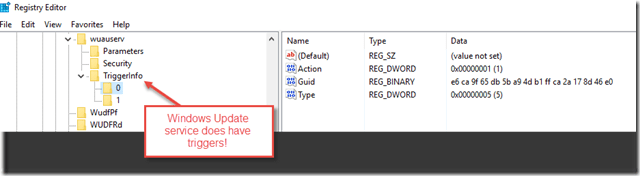
If you work in PowerShell, you know that this is a simple query either through the registry provider or using some .Net types to make the remote registry connection and see if the folder exists.
But that’s not where this ends for me. While searching around, I realized that I could query this information using sc.exe as shown below.
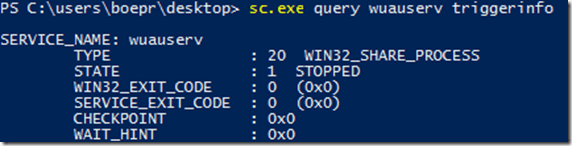
Where is all of that info at? It sure isn’t in the registry or in WMI that I could find! Somewhere in the operating system, this information is available for us to read. The problem is how do I go about finding it? Do I use sc.exe and go crazy with string parsing in hopes that my code isn’t fragile and works each time regardless of the data returned or do I dig deeper into the windows API and see what kind of wonders are available to me?
The first place to start looking at in regards to windows APIs is pinvoke.net. This site allows you to search for various functions that are available as a C# signature to copy and paste into PowerShell. I’m not using C# and Add-Type in my code and will be dynamically building each method, enum and structure…which will make my line count in this function grow to crazy levels…such as ~1600 lines of code.
In an effort to avoid crushing this article with a lot of code, I am going to pick out a couple of pieces that stood out to me as either a lessons learned experience or something neat to point out. With that, I am going to start off by showing you the methods required to bring all of this together.
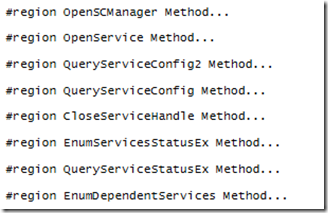
Querying service information doesn’t just rely on a single command or method, but in fact requires a team of methods to handle specific items that we can then bring together in the end. Speaking of a team of methods, we also have a team of Structs which are needed by the methods to properly pull back the service information.
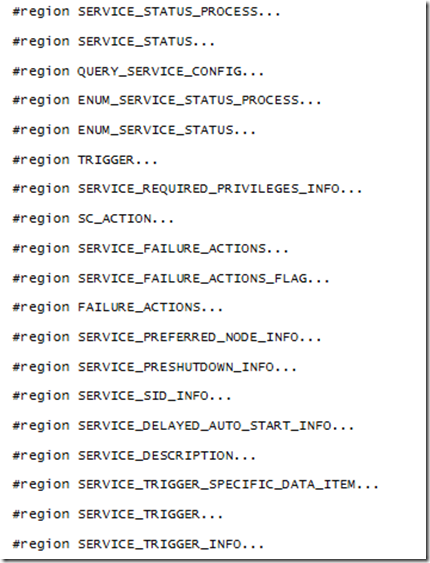
Each Struct is used in the final output of our service query. Some present very straight forward data while others required a little more coaxing in order to properly provide the data needed.
One thing that I ran into with building enums was figuring out how to build a bit flag enum. Fortunately I figured out this which spawned this article talking about the subject.
Backing up a second, the Param block for this function looks like this;
Param (
    [parameter(ValueFromPipelineByPropertyName=$True)]
    [string[]]$Name,
    [parameter(ValueFromPipelineByPropertyName=$True)]
    [Alias('CN','__Server','PSComputername')]
    [string[]]$Computername = $env:COMPUTERNAME,
    [parameter()]
    [ValidateSet('Win32','Win32OwnProcess','Win32ShareProcess','FileSystemDriver',
    'KernelDriver','All','Interactive')]
    [string]$ServiceType = 'Win32'
)
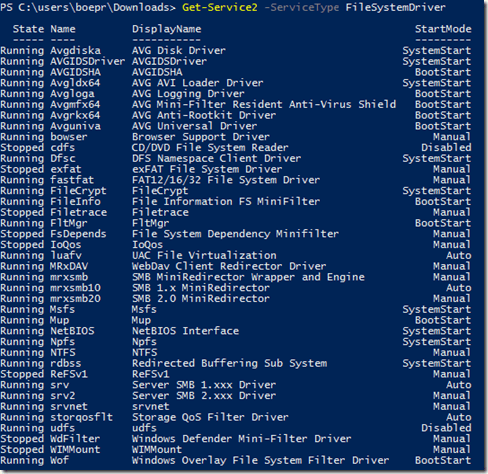
I am trying to keep some things the same as what you have with Get-Service but still wanted to bring in something new in the ServiceType. The ServiceType parameter accounts for the various types of services that you will encounter that you normally do not see when using existing cmdlets. Win32 is the default value as that matches what you see using Get-Service and working with the Win32_Service class.
Depending on if I specify a filter via Name or not will determine whether specific services or all services are displayed to you in the console.
The big first step in all of this is connecting to the Service Manager so that I can then use the handle that is returned to query more things about the services. I found after some trial and error that I need some specific rights which are SC_MANAGER_CONNECT, SC_MANAGER_ENUMERATE_SERVICE and SC_MANAGER_QUERY_LOCK_STATUS. More about these rights can be found here.
#region Open SCManager
Write-Verbose 'Opening Service Manager'
$SCMHandle = [Service.Trigger]::OpenSCManager(
    $Computer,
    [NullString]::Value,
    ([SCM_ACCESS]::SC_MANAGER_CONNECT -BOR [SCM_ACCESS]::SC_MANAGER_ENUMERATE_SERVICE -BOR [SCM_ACCESS]::SC_MANAGER_QUERY_LOCK_STATUS)
)
$LastError = [ComponentModel.Win32Exception][Runtime.InteropServices.Marshal]::GetLastWin32Error()
If ($SCMHandle -eq [intptr]::Zero) {
    Write-Warning ("{0} ({1})" -f $LastError.Message,$LastError.NativeErrorCode)
    Break
}
Write-Debug "SCManager Handle: $SCMHandle"
#endregion Open SCManager
After getting the handle I come to a point to whether I specified a particular name or will just go forward and bring back all of the services. Let’s just assume that I am looking to return all of the services.
I am going to call EnumServicesStatusEx to get a list of all of the services. This is actually an interesting method because I have to call it twice. The first time to get the required amount of bytes that will be used in a buffer and again using that byte buffer to get all of the services.
If (-NOT $PSBoundParameters.ContainsKey('Name')) {
    #region Enum Services
    Write-Verbose 'Get all services'
    $BytesNeeded = 0
    $ServicesReturned = 0
    $ResumeHandle = 0
    $Return = [Service.Trigger]::EnumServicesStatusEx(
        $SCMHandle,
        [SC_ENUM_TYPE]::SC_ENUM_PROCESS_INFO,
        [SERVICE_TYPE]$ServiceType,
        [SERVICE_STATES]::SERVICE_ALL,
        [IntPtr]::Zero,
        0, # Current Buffer
        [ref]$BytesNeeded,
        [ref]$ServicesReturned,
        [ref]$ResumeHandle,
        [NullString]::Value
    )
    $LastError = [ComponentModel.Win32Exception][Runtime.InteropServices.Marshal]::GetLastWin32Error()
    Write-Debug "BytesNeeded: $BytesNeeded"
    If ($LastError.NativeErrorCode -eq 234) { #More data is available - Expected result
        $Buffer = [System.Runtime.InteropServices.Marshal]::AllocHGlobal($BytesNeeded)
        $Return = [Service.Trigger]::EnumServicesStatusEx(
            $SCMHandle,
            [SC_ENUM_TYPE]::SC_ENUM_PROCESS_INFO,
            [SERVICE_TYPE]$ServiceType,
            [SERVICE_STATES]::SERVICE_ALL,
            $Buffer,
            $BytesNeeded, # Current Buffer
            [ref]$BytesNeeded,
            [ref]$ServicesReturned,
            [ref]$ResumeHandle,
            [NullString]::Value
        )
As long as I get the expected error back that more data is needed, I can call the method again and have the data I need! As you may have noticed, I took the bytes needed and marshaled that using AllocHGlobal which gave me a return value of an intptr that will be supplied within the method. This tells where the method should write the bytes needed so I can pull this back later as an object. Speaking of that…
If ($Return) {
    $tempPointer = $Buffer
    For ($i=0;$i -lt $ServicesReturned;$i++) {
        #Write-Progress -Status 'Gathering Services' -PercentComplete (($i/$ServicesReturned)*100) -Activity "Pointer: $tempPointer"
        If ([intptr]::Size -eq 8) {
            # 64 bit
            $Object = ([System.Runtime.InteropServices.Marshal]::PtrToStructure($tempPointer,[type][ENUM_SERVICE_STATUS_PROCESS]))
            [intptr]$tempPointer = $tempPointer.ToInt64() + [System.Runtime.InteropServices.Marshal]::SizeOf([type][ENUM_SERVICE_STATUS_PROCESS])
        }
        Else {
            #32 bit
            $Object = ([System.Runtime.InteropServices.Marshal]::PtrToStructure($tempPointer,[type][ENUM_SERVICE_STATUS_PROCESS]))
            [intptr]$tempPointer = $tempPointer.ToInt32() + [System.Runtime.InteropServices.Marshal]::SizeOf([type][ENUM_SERVICE_STATUS_PROCESS])
        }
Assuming this works as intended, I can then begin processing the data that has been returned. First thing to do is create another copy of the buffer and then I can use that to process the data. The next part had me stumped for a little while because while I could get the data of only one object, I could not figure out why I wasn’t seeing anything else. If you look at the $ServicesReturned value, it had the exact count of services that I should be expecting to see returned.
I used the number of services returned in a For loop and then began processing each item and pulling the object out from the location in memory defined by the intptr and then worked to get the next location by, depending on the current architecture of being 32 or 64bit converting the intptr to either int32 or int64 and then adding that to the size of the ENUM_SERVICE_STATUS_PROCESS object (which will have a size difference depending on if it is 32 or 64 bit. Once that is done, the value is saved to the temp buffer location and the process repeats itself until we are completely through the services.
This process is important because it has to be done another time when we want to get the ENUM_SERVICE_STATUS information.
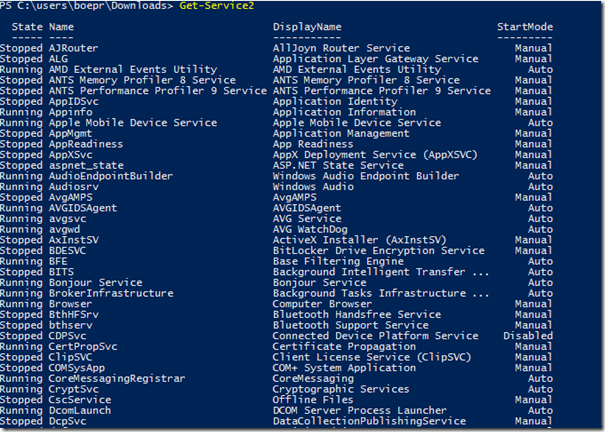
At the end of all of this, I configured some formatting of the type data so every single property is not shown, but instead what you would typically see when using Get-Service with an added bonus of the StartMode being displayed.
#region Type Display Formatting
Update-TypeData -TypeName System.Service -Force -DefaultDisplayPropertySet State, Name,
DisplayName, StartMode
#endregion Type Display Formatting
Because I like having some sort of tab completion with the Name parameter, I also configured a custom completer for that parameter. Take note that there will be a slight delay initially because it has to make the query to pull in all of the services to allow the auto completion.
#region Custom Argument Completors
#region Service Name
$completion_ServiceName = {
    param($commandName, $parameterName, $wordToComplete, $commandAst, $fakeBoundParameter)

    Get-Service2 -ServiceType All | Sort-Object -Property Name | Where-Object { $_.Name -like "$wordToComplete*" } |ForEach-Object {
        New-Object System.Management.Automation.CompletionResult $_.Name, $_.Name, 'ParameterValue', ('{0} ({1})' -f $_.Description, $_.ID)
    }
}
#endregion Service Name
If (-not $global:options) {
    $global:options = @{
        CustomArgumentCompleters = @{}
        NativeArgumentCompleters = @{}
    }
}
$global:options['CustomArgumentCompleters']['Get-Service2:Name'] = $completion_ServiceName

$function:tabexpansion2 = $function:tabexpansion2 -replace 'End\r\n{','End { if ($null -ne $options) { $options += $global:options} else {$options = $global:options}'
#endregion Custom Argument Completors
Demo Time
So with that, I wanted to show what this actually does and what the results look like.
Get-Service2
A closer look at a service:
Get-Service2 -Name WebClient | Select-Object -Property *

As you can see, we can look at the triggers as well as the failure actions for a service.
We can also look at file system drivers:
Get-Service2 -ServiceType FileSystemDriver
Same for kernel drivers:
Get-Service2 -ServiceType KernelDriver

So is this faster than using traditional methods such as Get-Service or Get-WmiObject –Class Win32_Service? Nope. As of right now, this is the slowest approach but I am working on looking at optimizations to try and knock it down a bit.

So in this case, the trade-off for more information is definitely the speed of the function. Regardless, I invite you to download it from the link below and let me know what you think! This function not only works locally, but also against remote systems as well.
Enjoy!
Download Get-Service2
https://gallery.technet.microsoft.com/scriptcenter/Robust-Get-Service-f3575557




 Learn Powershell | Achieve More
