
Django Library Management System – Take Control of Library Collections
Master Programming with Our Comprehensive Courses Enroll Now!
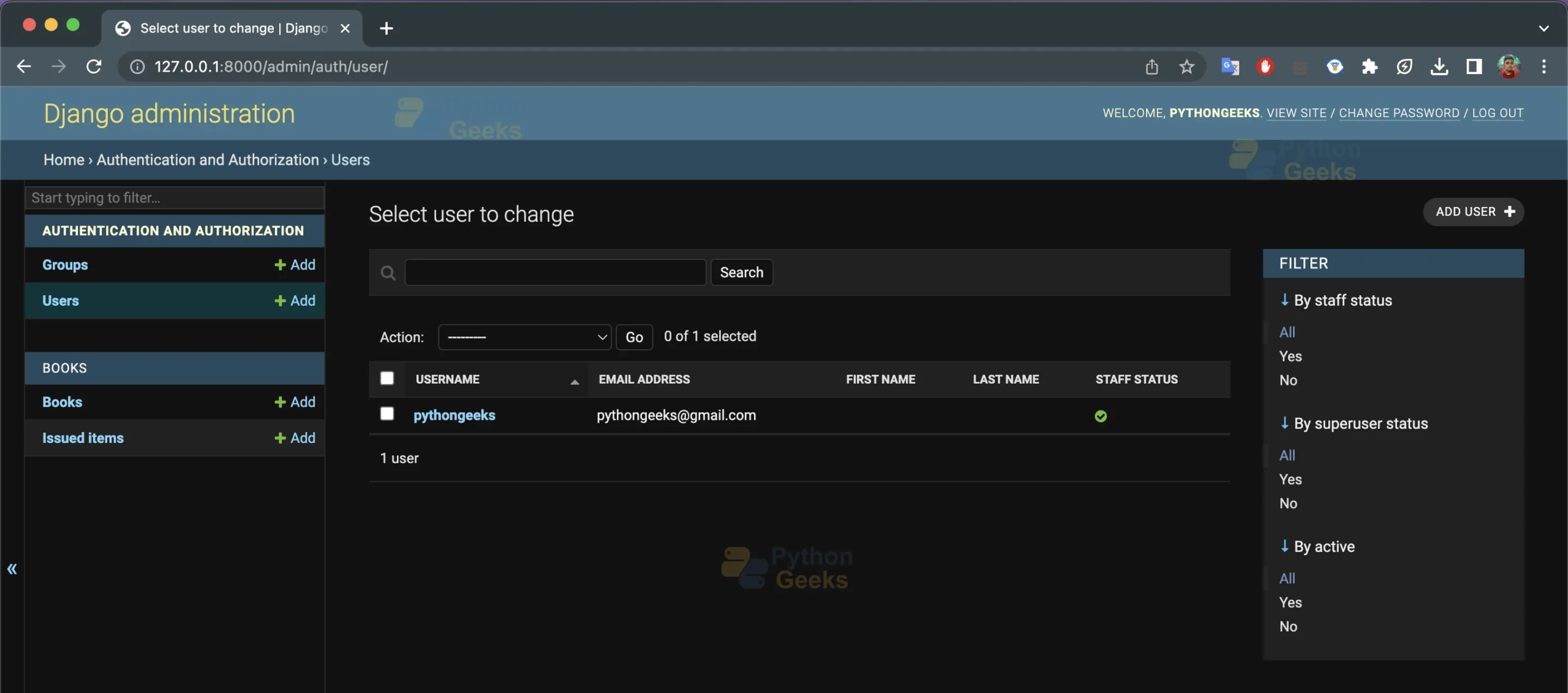
In this project, we will be creating a library management system web app using Django. This project will allow users to register and login to the system, search for books in the library, issue books and return them. We will be using Django’s inbuilt admin panel to add new books to the library.
About Django Library Management System
The objective of this project is to help you understand how to create a web app using Django and how to implement basic features like login, registration, issue book and return book.
Prerequisites for Library Management System using Django
Before you start with this project, we assume that you have a basic understanding of Python programming language, Django framework, HTML, CSS, and Bootstrap. You should also have Python and Django installed on your system. To install the django framework, type the following command in the terminal.
pip install django
Download Django Library Management System Project
Please download the source code of Django Library Management System Project from the following link: Django Library Management System Project Code
Steps for creating Library Management System using Django
Following are the steps for developing Library Management System using Django Project:
Step 1: Create a new Django project:
Step 2: Create a new Django app:
Step 3: Create models for the library management system:
Step 4: Create views for the library management system:
Step 5: Create templates for the library management system:
Step 6: Create URLs for the library management system:
Step 7: Testing the Library Management System:
Step 1: Create a new Django project: To create a new Django project, open your terminal and type the following command:
django-admin startproject projectname
Replace projectname with the name of your project.
Step 2: Create a new Django app: To create a new Django app, navigate to your project directory and type the following command:
python manage.py startapp appname
Replace appname with the name of your app.
Step 3: Create models for the library management system: In this step, we will create models for our library management system. Models are used to define the structure of our database tables. Open the models.py file in your app directory and define the following models:
# importing required modules
from django.db import models
from django.contrib.auth.models import User
from datetime import date
from django.utils import timezone

# ----------- Library Management System Models ------------

# Book model to store book details
class Book(models.Model):
    book_name = models.CharField(max_length=150)
    author_name = models.CharField(max_length=200)
    quantity = models.IntegerField(default=1)
    subject = models.CharField(max_length=2000)
    book_add_time = models.TimeField(default=timezone.now())
    book_add_date = models.DateField(default=date.today())

    class Meta:
        unique_together = ("book_name", "author_name")

    def __str__(self):
        return self.book_name


# IssuedItem model to store issued book details
class IssuedItem(models.Model):
    book_id = models.ForeignKey(Book, on_delete=models.CASCADE)
    user_id = models.ForeignKey(User, on_delete=models.CASCADE)
    issue_date = models.DateField(default=date.today(), blank=False)
    return_date = models.DateField(blank=True, null=True)

    # property to get book name
    @property
    def book_name(self):
        return self.book_id.book_name

    # property to get author name
    @property
    def username(self):
        return self.user_id.username

    def __str__(self):
        return (
            self.book_id.book_name
            + " issued by "
            + self.user_id.first_name
            + " on "
            + str(self.issue_date)
        )
The code then defines two models, Book and IssuedItem.
- The Book model contains fields to store details about a book, including the book’s name, author, quantity, subject, and the date and time it was added to the system. The Meta class defines that the combination of the book’s name and author should be unique.
- The IssuedItem model contains fields to store information about when a book is issued, including the book’s ID, the user’s ID who borrowed the book, and the issue and return dates. The book_id and user_id fields are foreign keys that link to the Book and User models respectively. The return_date field is optional, indicating that a book may not be returned yet.
The IssuedItem model also defines two properties, book_name and username, which return the book name and the user’s username, respectively.
The str method is also defined for both models, which returns a string representation of the object. For Book, it returns the book’s name, and for IssuedItem, it returns a string indicating which book was issued by which user and on what date.
Step 4: Create views for the library management system: In this step, we will create views for our library management system. Views are used to handle HTTP requests and return HTTP responses. Open the views.py file in your app directory and define the following views:
# Importing required libraries
from django.shortcuts import redirect, render
from .models import Book, IssuedItem
from django.contrib import messages
from django.contrib.auth.models import auth, User
from django.db.models import Q
from django.contrib.auth.decorators import login_required
from datetime import date
from django.core.paginator import Paginator


# ----------------- Library Management System Views -----------------

# Home view
def home(request):
    return render(request, "home.html")


# Login view to login user
def login(request):

    # If request is post then get username and password from request
    if request.method == "POST":
        username = request.POST["username"]
        password = request.POST["password"]

        # Authenticate user
        user = auth.authenticate(username=username, password=password)

        # If user is authenticated then login user
        if user is not None:
            auth.login(request, user)

            # Redirect to home page
            return redirect("/")
        else:

            # If user is not authenticated then show error message
            # and redirect to login page
            messages.info(request, "Invalid Credential")
            return redirect("login")
    else:

        # If request is not post then render login page
        return render(request, "login.html")


# Register view to register user
def register(request):

    # If request is post then get user details from request
    if request.method == "POST":
        first_name = request.POST["first_name"]
        last_name = request.POST["last_name"]
        username = request.POST["username"]
        email = request.POST["email"]
        password1 = request.POST["password1"]
        password2 = request.POST["password2"]

        # Check if password and confirm password matches
        if password1 == password2:

            # Check if username or email already exists
            if User.objects.filter(username=username).exists():
                messages.info(request, "Username already exist")
                return redirect("register")

            # Check if email already exists
            elif User.objects.filter(email=email).exists():
                messages.info(request, "Email already registered")
                return redirect("register")

            # If username and email does not exists then create user
            else:

                # Create user
                user = User.objects.create_user(
                    first_name=first_name,
                    last_name=last_name,
                    username=username,
                    email=email,
                    password=password1,
                )

                # Save user
                user.save()

                # Redirect to login page
                return redirect("login")
        else:

            # If password and confirm password does not matches then show error message
            messages.info(request, "Password not matches")
            return redirect("register")
    else:

        # If request is not post then render register page
        return render(request, "register.html")


# Logout view to logout user
def logout(request):

    # Logout user and redirect to home page
    auth.logout(request)
    return redirect("/")


# Issue view to issue book to user
@login_required(login_url="login")
def issue(request):

    # If request is post then get book id from request
    if request.method == "POST":
        book_id = request.POST["book_id"]
        current_book = Book.objects.get(id=book_id)
        book = Book.objects.filter(id=book_id)
        issue_item = IssuedItem.objects.create(
            user_id=request.user, book_id=current_book
        )
        issue_item.save()
        book.update(quantity=book[0].quantity - 1)

        # Show success message and redirect to issue page
        messages.success(request, "Book issued successfully.")

    # Get all books which are not issued to user
    my_items = IssuedItem.objects.filter(
        user_id=request.user, return_date__isnull=True
    ).values_list("book_id")
    books = Book.objects.exclude(id__in=my_items).filter(quantity__gt=0)

    # Return issue page with books that are not issued to user
    return render(request, "issue_item.html", {"books": books})


# History view to show history of issued books to user
@login_required(login_url="login")
def history(request):

    # Get all issued books to user
    my_items = IssuedItem.objects.filter(user_id=request.user).order_by("-issue_date")

    # Paginate data
    paginator = Paginator(my_items, 10)

    # Get page number from request
    page_number = request.GET.get("page")
    show_data_final = paginator.get_page(page_number)

    # Return history page with issued books to user
    return render(request, "history.html", {"books": show_data_final})


# Return view to return book to library
@login_required(login_url="login")
def return_item(request):

    # If request is post then get book id from request
    if request.method == "POST":

        # Get book id from request
        book_id = request.POST["book_id"]

        # Get book object
        current_book = Book.objects.get(id=book_id)

        # Update book quantity
        book = Book.objects.filter(id=book_id)
        book.update(quantity=book[0].quantity + 1)

        # Update return date of book and show success message
        issue_item = IssuedItem.objects.filter(
            user_id=request.user, book_id=current_book, return_date__isnull=True
        )
        issue_item.update(return_date=date.today())
        messages.success(request, "Book returned successfully.")

    # Get all books which are issued to user
    my_items = IssuedItem.objects.filter(
        user_id=request.user, return_date__isnull=True
    ).values_list("book_id")

    # Get all books which are not issued to user
    books = Book.objects.exclude(~Q(id__in=my_items))

    # Return return page with books that are issued to user
    params = {"books": books}
    return render(request, "return_item.html", params)
This code defines following views for our library management system:
- home view: This view renders the home page for the library management system.
- login view: This view handles user authentication. It takes the username and password from the user and authenticates the user. If the user is authenticated, the view redirects the user to the home page. If the user is not authenticated, the view shows an error message and redirects the user to the login page.
- register view: This view handles user registration. It takes the user’s details (first name, last name, username, email, password1, password2) and checks if the passwords match and if the username and email are not already registered. If the passwords match and the username and email are not already registered, the view creates a new user and redirects the user to the login page. If the passwords do not match or the username/email is already registered, the view shows an error message and redirects the user to the register page.
- logout view: This view logs out the user and redirects the user to the home page.
- issue view: This view allows the user to issue a book. It first checks if the request is a POST request and gets the book ID from the request. It then creates a new IssuedItem object with the user ID and book ID and saves it to the database. It then updates the quantity of the book in the Book table. If the book is successfully issued, the view shows a success message and redirects the user to the issue page. If the book is not successfully issued, the view shows an error message.
- history view: This view shows the user’s issued book history. It first gets all the IssuedItem objects with the user ID and orders them by issue date. It then numbers the pages of the data and gets the page number from the request. Finally, it renders the history page with the issued books to the user.
- return_item view: This view allows the user to return a book. It first checks if the request is a POST request and gets the book ID from the request. It then updates the quantity of the book in the Book table and updates the return date of the IssuedItem object with the user ID and book ID. If the book is successfully returned, the view shows a success message and redirects the user to the return page. If the book is not successfully returned, the view shows an error message.
Step 5: Create templates for the library management system: In this step, we will create templates for our library management system. Templates are used to define how our web pages will look like. Create a new directory called templates in your app directory and create the following HTML files:
base.html
{% load static %}
<!DOCTYPE html>
<html lang="en">

<head>
   <meta charset="UTF-8">
   <meta http-equiv="X-UA-Compatible" content="IE=edge">
   <meta name="viewport" content="width=device-width, initial-scale=1.0">
   <title>Library Management System</title>

   <link href="https://cdn.jsdelivr.net/npm/[email protected]/dist/css/bootstrap.min.css" rel="stylesheet" integrity="sha384-rbsA2VBKQhggwzxH7pPCaAqO46MgnOM80zW1RWuH61DGLwZJEdK2Kadq2F9CUG65" crossorigin="anonymous">
   <script src="https://cdn.jsdelivr.net/npm/[email protected]/dist/js/bootstrap.bundle.min.js" integrity="sha384-kenU1KFdBIe4zVF0s0G1M5b4hcpxyD9F7jL+jjXkk+Q2h455rYXK/7HAuoJl+0I4" crossorigin="anonymous"></script>

   <style>
       body {
           background-color: linear-gradient(#89b4f4, #cf7ade);
           background-repeat: no-repeat;
           background-size: cover;
       }
   </style>

</head>

<body>
   <nav class="navbar navbar-expand-lg bg-body-light,navbar navbar-dark bg-primary">
       <div class="container-fluid">

           <button class="navbar-toggler" type="button" data-bs-toggle="collapse"
               data-bs-target="#navbarSupportedContent" aria-controls="navbarSupportedContent" aria-expanded="false"
               aria-label="Toggle navigation">
               <span class="navbar-toggler-icon"></span>
           </button>
           <div class="collapse navbar-collapse" id="navbarSupportedContent">
               <ul class="navbar-nav me-auto mb-2 mb-lg-0">
                   {% if not user.is_authenticated %}
                   <li class="nav-item">
                       <a class="nav-link" href="login">Login</a>
                   </li>
                   <li class="nav-item">
                       <a class="nav-link" href="register">Register</a>
                   </li>
                   {% else %}
                   <li class="nav-item">
                       <a class="nav-link" href="/">Home</a>
                   </li>
                   <li class="nav-item">
                       <a class="nav-link" href="issue">Issue</a>
                   </li>
                   <li class="nav-item">
                       <a class="nav-link" href="return_item">Return</a>
                   </li>
                   <li class="nav-item">
                       <a class="nav-link" href="history">History</a>
                   </li>
                   <li class="nav-item">
                       <a class="nav-link" href="logout">Logout</a>
                   </li>
                   {% endif %}
               </ul>
               {% block search %}

               {% endblock %}
           </div>
           {% if user.is_authenticated %}
           <a class="navbar-brand" href="#">Welcome {{request.user.first_name}}</a>
           {% endif %}
       </div>
   </nav>
   {% block content %}

   {% endblock %}
</body>
</html>
home.html
{% extends 'base.html' %}
{% load static %}
{% block content %}
<style>
html {
height: 100%;
overflow: hidden;
}
body {
position: relative;
height: 100%;
background: linear-gradient(45deg, #00ff87, #60efff);
}
.shelf {
height: 8px;
border-radius: 10px;
display: flex;
align-items: flex-end;
justify-content: center;
border-bottom: 10px solid #56251a;
}
.shelf:hover {
animation: shelf-lift 0.5s ease;
animation-iteration-count: 1;
transform-origin: 50% 50%;
cursor: pointer;
}
.shelf:hover .book {
animation: book-bounce 0.5s ease;
animation-iteration-count: 1;
}
.book {
margin-bottom: 8px;
display: flex;
flex-wrap: wrap;
border-radius: 2px;
font-size: 20px;
overflow: hidden;
line-height: 15%;
text-align: center;
font-weight: lighter;
}
.book:nth-child(0):before {
content: "---";
color: #eeeeee;
}
.book:nth-child(0) {
height: 57px;
animation-delay: 0s !important;
background-color: #f6c9b9;
width: 9px;
}
.book:nth-child(1):before {
content: "";
color: #111111;
}
.book:nth-child(1) {
height: 63px;
animation-delay: 0.002s !important;
background-color: #ffc0cb;
width: 9px;
}
.book:nth-child(2):before {
content: "";
color: #eeeeee;
}
.book:nth-child(2) {
height: 70px;
animation-delay: 0.004s !important;
background-color: #78d663;
width: 11px;
}
.book:nth-child(3):before {
content: "---";
color: #111111;
}
.book:nth-child(3) {
height: 44px;
animation-delay: 0.006s !important;
background-color: #f6c9b9;
width: 9px;
}
.book:nth-child(4):before {
content: "";
color: #111111;
}
.book:nth-child(4) {
height: 45px;
animation-delay: 0.008s !important;
background-color: #52aca2;
width: 8px;
}
.book:nth-child(5):before {
content: "";
color: #111111;
}
.book:nth-child(5) {
height: 59px;
animation-delay: 0.01s !important;
background-color: #a52a5e;
width: 9px;
}
.book:nth-child(6):before {
content: "--";
color: #111111;
}
.book:nth-child(6) {
height: 60px;
animation-delay: 0.012s !important;
background-color: #aa5e40;
width: 8px;
}
.book:nth-child(7):before {
content: "--";
color: #111111;
}
.book:nth-child(7) {
height: 62px;
animation-delay: 0.014s !important;
background-color: #666666;
width: 11px;
}
.book:nth-child(8):before {
content: "---";
color: #eeeeee;
}
.book:nth-child(8) {
height: 52px;
animation-delay: 0.016s !important;
background-color: #aa5e40;
width: 9px;
}
.book:nth-child(9):before {
content: "";
color: #111111;
}
.book:nth-child(9) {
height: 70px;
animation-delay: 0.018s !important;
background-color: #999999;
width: 8px;
}
.book:nth-child(10):before {
content: "";
color: #111111;
}
.book:nth-child(10) {
height: 61px;
animation-delay: 0.02s !important;
background-color: #e9d7c7;
width: 11px;
}
.book:nth-child(11):before {
content: "--";
color: #eeeeee;
}
.book:nth-child(11) {
height: 61px;
animation-delay: 0.022s !important;
background-color: #cdcdd2;
width: 10px;
}
.book:nth-child(12):before {
content: "---";
color: #eeeeee;
}
.book:nth-child(12) {
height: 62px;
animation-delay: 0.024s !important;
background-color: #e9d7c7;
width: 10px;
}
.book:nth-child(13):before {
content: "";
color: #eeeeee;
}
.book:nth-child(13) {
height: 65px;
animation-delay: 0.026s !important;
background-color: #f6c9b9;
width: 9px;
}
.book:nth-child(14):before {
content: "---";
color: #111111;
}
.book:nth-child(14) {
height: 65px;
animation-delay: 0.028s !important;
background-color: #000000;
width: 10px;
}
.book:nth-child(15):before {
content: "";
color: #eeeeee;
}
.book:nth-child(15) {
height: 64px;
animation-delay: 0.03s !important;
background-color: #489cbd;
width: 8px;
}
.book:nth-child(16):before {
content: "---";
color: #111111;
}
.book:nth-child(16) {
height: 65px;
animation-delay: 0.032s !important;
background-color: #dbdcff;
width: 8px;
}
.book:nth-child(17):before {
content: "";
color: #111111;
}
.book:nth-child(17) {
height: 55px;
animation-delay: 0.034s !important;
background-color: #ff9966;
width: 10px;
}
.book:nth-child(18):before {
content: "";
color: #111111;
}
.book:nth-child(18) {
height: 43px;
animation-delay: 0.036s !important;
background-color: #aa5e40;
width: 8px;
}
.book:nth-child(19):before {
content: "";
color: #eeeeee;
}
.book:nth-child(19) {
height: 42px;
animation-delay: 0.038s !important;
background-color: #bada55;
width: 10px;
}
.book:nth-child(20):before {
content: "";
color: #111111;
}
.book:nth-child(20) {
height: 47px;
animation-delay: 0.04s !important;
background-color: #999999;
width: 10px;
}
@keyframes book-bounce {
0% {
transform: translateY(0);
}
40% {
transform: translateY(-20px);
}
80% {
transform: translateY(-2px);
}
100% {
transform: translateY(0);
}
}
@keyframes shelf-lift {
0% {
transform: translateY(0) rotate(0);
}
20% {
transform: translateY(-5px) rotate(2deg);
}
40% {
transform: translateY(-10px) rotate(0);
}
60% {
transform: translateY(-10px) rotate(-2deg);
}
80% {
transform: translateY(-5px) rotate(-1deg);
}
100% {
transform: translateY(0);
}
}
</style>
<body>
<div class="container mt-5">
<!-- Create a title "Library Management System" -->
<div class="row">
<div class="col-md-12">
<br />
<br />
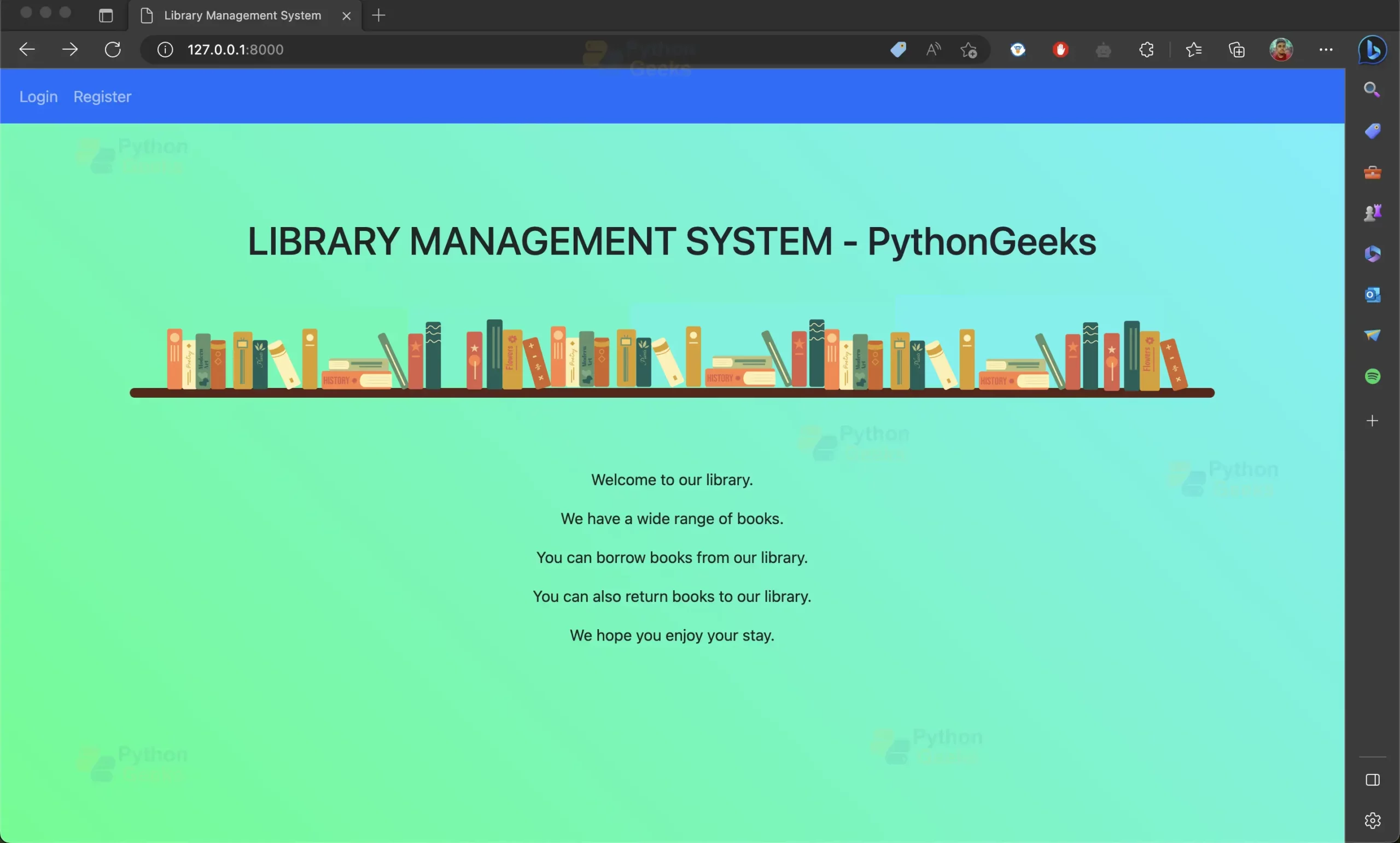
<h1 class="text-center">LIBRARY MANAGEMENT SYSTEM - PythonGeeks</h1>
<br />
<br />
<br />
<br />
<br />
</div>
</div>
<div class="shelf">
<div class="book"></div>
<div class="book"></div>
<div class="book"></div>
<div class="book"></div>
<div class="book"></div>
<div class="book"></div>
<div class="book"></div>
<div class="book"></div>
<div class="book"></div>
<div class="book"></div>
<div class="book"></div>
<div class="book"></div>
<div class="book"></div>
<div class="book"></div>
<div class="book"></div>
<div class="book"></div>
<div class="book"></div>
<div class="book"></div>
<div class="book"></div>
<div class="book"></div>
<br />
<br />
<br />
<p style="text-align: center">Welcome to our library.</p>
<p style="text-align: center">We have a wide range of books.</p>
<p style="text-align: center">You can borrow books from our library.</p>
<p style="text-align: center">You can also return books to our library.</p>
<p style="text-align: center">We hope you enjoy your stay.</p>
</div>
</body>
{% endblock %}
login.html
{% extends 'base.html' %}
{% block content %}
<br>
<center>
   <h1 class="display-5">Login To Library</h1>
</center>
<br><br>
<div class="container border border-dark p-3 mt-10" style="width: 550px">
   <form action="{% url 'login' %}" method="POST">
       {% csrf_token %}
       <div class="form-group">
           <label><b>Username</b></label>
           <input type="text" name="username" class="form-control" placeholder="Username">
       </div>
       <br>
       <div class="form-group">
           <label><b>Password</b></label>
           <input type="password" name="password" class="form-control" placeholder="Password">
       </div>
       <br>
       <center>
           <button type="submit" class="btn btn-primary">Login</button>
       </center>
       <br>
       <center>
           <a href="register">don't have account</a>
       </center>
       <center>
           <a href="admin">Login as admin</a>
       </center>
   </form>
   <br>
   {% for message in messages %}
   <div class="alert alert-danger" role="alert">
       {{message}}
   </div>
   {% endfor %}
</div>
{% endblock %}
register.html
{% extends 'base.html' %}
{% block content %}
<br>
<center>
   <h1 class="display-5">Register To Library</h1>
</center>
<br><br>
<div class="container border border-dark p-3 mt-10" style="width: 550px">
   {% for message in messages %}
   <div class="alert alert-danger" role="alert">
       {{message}}
   </div>
   {% endfor %}
   <form action="{% url 'register' %}" method="POST">
       {% csrf_token %}
       <div class="form-group">
           <label><b>First Name</b></label>
           <input type="text" name="first_name" class="form-control" placeholder="First Name">
       </div>
       <br>
       <div class="form-group">
           <label><b>Last Name</b></label>
           <input type="text" name="last_name" class="form-control" placeholder="Last Name">
       </div>
       <br>
       <div class="form-group">
           <label><b>Username</b></label>
           <input type="text" name="username" class="form-control" placeholder="Username">
       </div>
       <br>
       <div class="form-group">
           <label><b>Email</b></label>
           <input type="email" name="email" class="form-control" placeholder="Email">
       </div>
       <br>
       <div class="form-group">
           <label><b>Password</b></label>
           <input type="password" name="password1" class="form-control" placeholder="Password">
       </div>
       <br>
       <div class="form-group">
           <label><b>Confirm Password</b></label>
           <input type="password" name="password2" class="form-control" placeholder="Confirm Password">
       </div>
       <br>
       <center>
           <button type="submit" class="btn btn-primary">Register</button>
       </center>
       <br>
       <center>
           <a href="login">already a user</a>
       </center>
   </form>
</div>
<br>
{% endblock %}
issue_item.html
<script src="https://ajax.googleapis.com/ajax/libs/jquery/3.4.1/jquery.min.js"></script>
{% extends 'base.html' %} {% block content %} {% for message in messages %}
<div class="alert alert-{{message.tags}} rounded-0" role="alert">
 {{message}}
</div>
{% endfor %}
<center>
 <br />
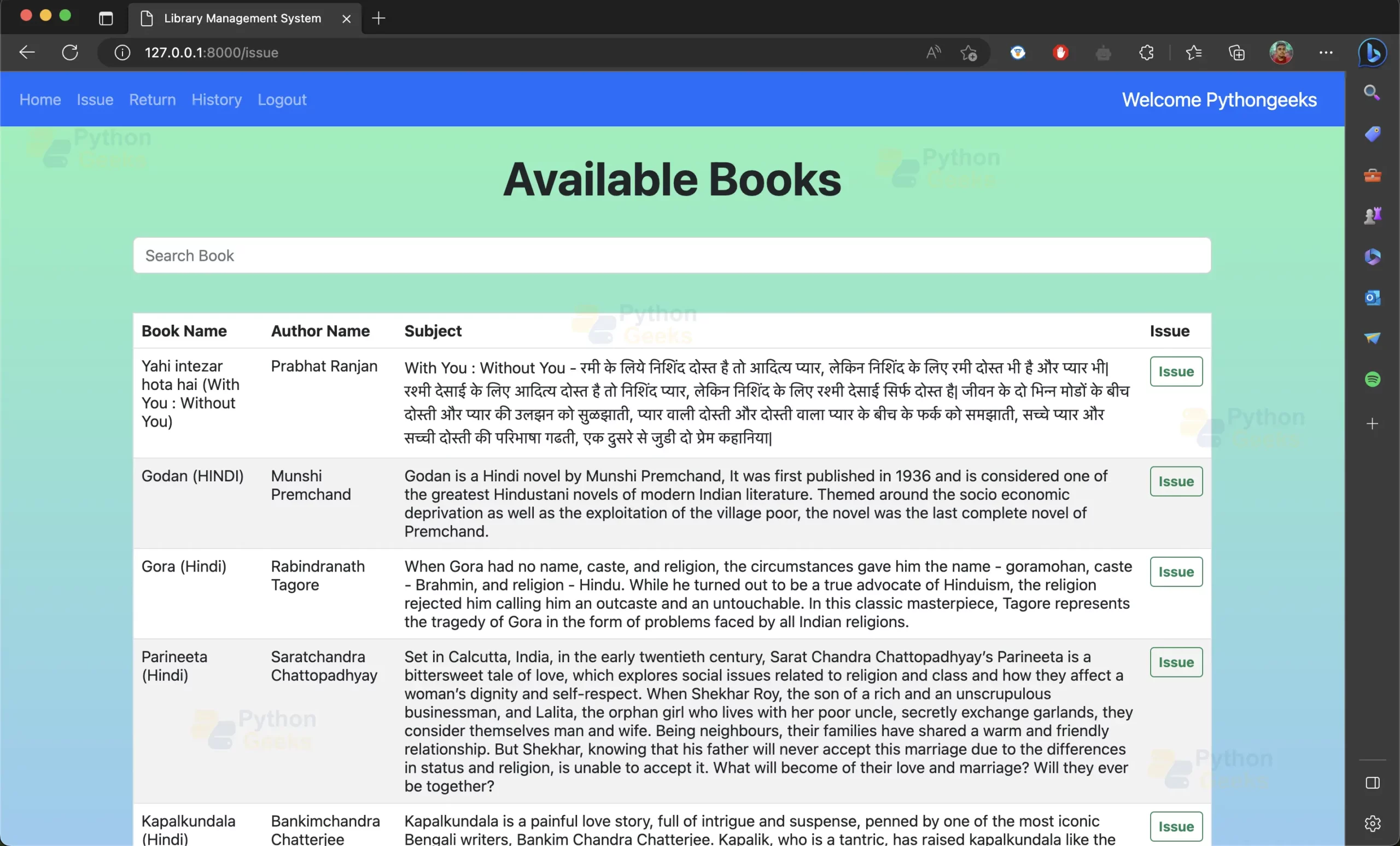
 <h1 class="display-5 fw-bold">Available Books</h1>
 <br />
 <div class="input-group container">
   <input
     id="search"
     type="search"
     class="form-control rounded"
     placeholder="Search Book"
     aria-label="Search"
     aria-describedby="search-addon"
   />
 </div>
</center>
<br />
<div class="container">
 <table class="table">
   <thead class="thead-dark">
     <tr>
       <th class="" scope="col">Book Name</th>
       <th class="" scope="col">Author Name</th>
       <th class="" scope="col">Subject</th>
       <th class="" scope="col">Issue</th>
     </tr>
   </thead>
   <tbody id="table_data">
     {% for book in books %}
     <tr>
       <td>{{book.book_name}}</td>
       <td>{{book.author_name}}</td>
       <td>{{book.subject}}</td>
       <td>
         <center>
           <form action="issue" method="post">
             {% csrf_token %}
             <input type="hidden" name="book_id" value="{{book.id}}" />
             <button type="submit" class="btn btn-outline-success btn-sm">
               <b>Issue</b>
             </button>
           </form>
         </center>
       </td>
     </tr>
     {% endfor %}
   </tbody>
 </table>
</div>
<script>
 $(document).ready(function () {
   $("#search").on("keyup", function () {
     var value = $(this).val().toLowerCase();
     $("#table_data tr").filter(function () {
       $(this).toggle($(this).text().toLowerCase().indexOf(value) > -1);
     });
   });
 });
</script>

<style>
 table {
   border-collapse: collapse;
   border-spacing: 0;
   border-radius: 10px;
   width: 100%;
   border: 1px solid #ddd;
 }

 th,
 td {
   text-align: left;
   padding: 16px;
 }

 tr:nth-child(even) {
   background-color: #f2f2f2;
 }

 tr:nth-child(odd) {
   background-color: #ffffff;
 }

 .container {
   width: 100%;
   padding-right: 15px;
   padding-left: 15px;
   margin-right: auto;
   margin-left: auto;
 }

 .input-group {
   width: 100%;
   margin-bottom: 1rem;
 }

 body {
   background: linear-gradient(#87f4b5, #93cbf1);
   background-attachment: fixed;
   background-repeat: no-repeat;
 }
</style>

{% endblock %}
return_item.html
<script src="https://ajax.googleapis.com/ajax/libs/jquery/3.4.1/jquery.min.js"></script>
{% extends 'base.html' %} {% block content %} {% for message in messages %}
<div class="alert alert-{{message.tags}} rounded-0" role="alert">
 {{message}}
</div>
{% endfor %}
<center>
 <br />
 <h1 class="display-5 fw-bold">Books you have issued</h1>
 <br />
 <div class="input-group container">
   <input
     id="search"
     type="search"
     class="form-control rounded"
     placeholder="Search Book"
     aria-label="Search"
     aria-describedby="search-addon"
   />
 </div>
</center>
<br />
<div class="container">
 <table class="table">
   <thead class="thead-dark">
     <tr>
       <th scope="col">Book Name</th>
       <th scope="col">Author Name</th>
       <th scope="col">
         <center>Return Button</center>
       </th>
     </tr>
   </thead>
   <tbody id="table_data">
     {% for book in books %}
     <tr>
       <td>{{book.book_name}}</td>
       <td>{{book.author_name}}</td>
       <td>
         <center>
           <form action="return_item" method="post">
             {% csrf_token %}
             <input type="hidden" name="book_id" value="{{book.id}}" />
             <button type="submit" class="btn btn-outline-success btn-sm">
               Return
             </button>
           </form>
         </center>
       </td>
     </tr>
     {% endfor %}
   </tbody>
 </table>
</div>
<script>
 $(document).ready(function () {
   $("#search").on("keyup", function () {
     var value = $(this).val().toLowerCase();
     $("#table_data tr").filter(function () {
       $(this).toggle($(this).text().toLowerCase().indexOf(value) > -1);
     });
   });
 });
</script>
<style>
 table {
   border-collapse: collapse;
   border-spacing: 0;
   border-radius: 10px;
   width: 100%;
   border: 1px solid #ddd;
 }

 th,
 td {
   text-align: left;
   padding: 16px;
 }

 tr:nth-child(even) {
   background-color: #f2f2f2;
 }

 tr:nth-child(odd) {
   background-color: #ffffff;
 }

 .container {
   width: 100%;
   padding-right: 15px;
   padding-left: 15px;
   margin-right: auto;
   margin-left: auto;
 }

 .input-group {
   width: 100%;
   margin-bottom: 1rem;
 }

 body {
   background: linear-gradient(#87f4b5, #93cbf1);
   background-attachment: fixed;
   background-repeat: no-repeat;
 }
</style>
{% endblock %}
history.html
{% extends 'base.html' %} {% block content %}
<center>
<br />
<h1 class="display-5 fw-bold">Your History</h1>
<br />
</center>
<div class="container">
<table class="table">
<thead class="thead-dark">
<tr>
<th scope="col">Book Name</th>
<th scope="col">Author Name</th>
<th scope="col">Issue Date</th>
<th scope="col">Return Date</th>
</tr>
</thead>
<tbody>
{% for book in books %}
<tr>
<td>{{book.book_id.book_name}}</td>
<td>{{book.book_id.author_name}}</td>
<td>{{book.issue_date}}</td>
<td>{{book.return_date}}</td>
</tr>
{% endfor %}
</tbody>
</table>
</div>
<div class="mx-auto" style="width: 200px">
<nav aria-label="...">
<ul class="pagination ms-10">
{% if books.has_previous %}
<li class="page-item active">
<a
class="page-link"
href="?page={{books.previous_page_number}}"
tabindex="-1"
>«</a
>
</li>
{% endif %} {% for i in "x"|ljust:books.paginator.num_pages %}
<li
class="page-item {% if forloop.counter == books.number %}active{% endif %}"
>
<!-- Show the link if there are more than 1 page -->
{% if books.paginator.num_pages > 1 %}
<a class="page-link" href="?page={{forloop.counter}}"
>{{forloop.counter}}</a
>
{% endif %}
</li>
{% endfor %} {% if books.has_next %}
<li class="page-item active">
<a class="page-link" href="?page={{books.next_page_number}}">»</a>
</li>
{% endif %}
</ul>
</nav>
</div>
<style>
table {
border-collapse: collapse;
border-spacing: 0;
border-radius: 10px;
width: 100%;
border: 1px solid #ddd;
}
th,
td {
text-align: left;
padding: 16px;
}
tr:nth-child(even) {
background-color: #f2f2f2;
}
tr:nth-child(odd) {
background-color: #ffffff;
}
.container {
width: 100%;
padding-right: 15px;
padding-left: 15px;
margin-right: auto;
margin-left: auto;
}
.input-group {
width: 100%;
margin-bottom: 1rem;
}
body {
background: linear-gradient(#87f4b5, #93cbf1);
background-repeat: no-repeat;
background-attachment: fixed;
}
</style>
{% endblock %}
Step 6: Create URLs for the library management system: In this step we will create urls for the library management system. It will help us to access the views of the library management system. Open the urls.py file in your app directory and define the following urls:
# Importing required libraries
from django.urls import path
from . import views


# Url patterns for Books app module of Library Management System
urlpatterns = [
    path("", views.home, name="home"),
    path("issue", views.issue, name="issue"),
    path("login/", views.login, name="login"),
    path("register/", views.register, name="register"),
    path("logout", views.logout, name="logout"),
    path("return_item", views.return_item, name="return_item"),
    path("history", views.history, name="history"),
]
This code is defining the URL patterns for the Books app module of our Library Management System. The code starts by importing the necessary libraries: path from django.urls and the views module from the current directory.
Then, a list of URL patterns is defined in the urlpatterns variable. Each URL pattern is defined using the path function and has a unique name. The first argument of path specifies the URL pattern, while the second argument is the view function that should be called when that URL is requested. The third argument is the name of the URL pattern, which can be used to refer to that URL pattern in other parts of the code.
In this case, the urlpatterns list includes the following URL patterns:
- An empty string URL pattern (“”) that maps to the home view function.
- An “issue” URL pattern (“issue”) that maps to the issue view function.
- A “login” URL pattern (“login/”) that maps to the login view function.
- A “register” URL pattern (“register/”) that maps to the register view function.
- A “logout” URL pattern (“logout”) that maps to the logout view function.
- A “return_item” URL pattern (“return_item”) that maps to the return_item view function.
- A “history” URL pattern (“history”) that maps to the history view function.
These URL patterns define the endpoints that can be accessed in the Books app module of the Library Management System, and each endpoint is mapped to a specific view function that will be executed when that endpoint is accessed.
Step 7: Testing the Library Management System:
a. Open your terminal and navigate to your project directory.
b. Run the following command to migrate your app:
python manage.py makemigrations
python manage.py migrate
c. Run the following command to run your Django app:
python manage.py runserver
Output:

Summary
Congratulations! You have completed the tutorial on creating a library management system web app using Django. Now you can create your own web apps using Django and implement basic features like login, registration, issue book and return book.
However, this is not the end of your journey with Django. There are many more advanced features that you can explore and implement in your web apps.


iam interested