How to Change the Language on Raspberry Pi OS?
By default, the Raspberry Pi operating system is installed in English. If, like me, it’s not your native language, you can easily change it and use another one. In this tutorial, I will show you different methods to do this.
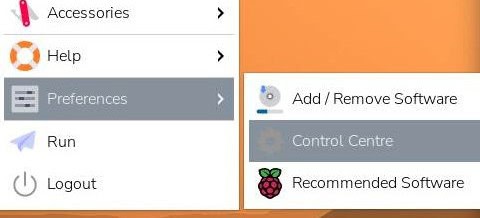
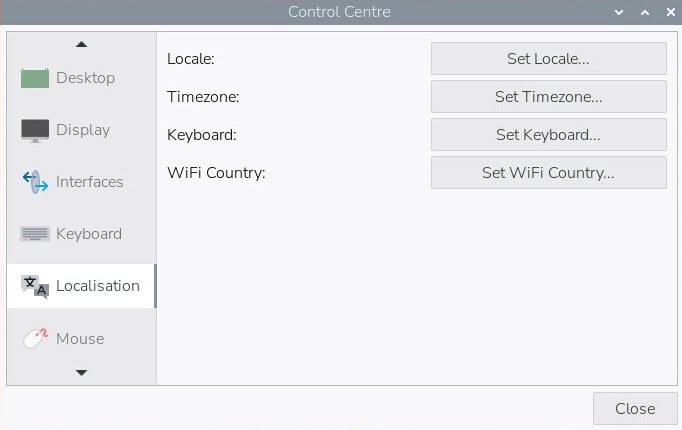
To change the language on Raspberry Pi OS Desktop, go to the main menu > Preferences > Control Centre. Under the Localisation tab, click “Set Locale” to select the language and country to use.
But that’s not the only way, and I will give you more details in the following article. Keep reading to learn everything about this question.
By the way, if you are just getting started on Raspberry Pi, I can help you to learn much faster. My Raspberry Pi bootcamp course helps you step-by-step to discover the Raspberry Pi device and unlock its secrets. In a few hours, you’ll be ready to start any awesome project you’re interested in.
Change Language from the Desktop Interface
The first way to set the language on Raspberry Pi OS is to do so from the Desktop if you have a GUI installed.
Download the free PDF, keep it open, and stop wasting time on Google.
Download now
Here is how to do this from the configuration tool:
- Open the main menu (top left).
- Go to Preferences > Control Centre:
- Navigate to the Localisation tab:
- Click Set Locale…:
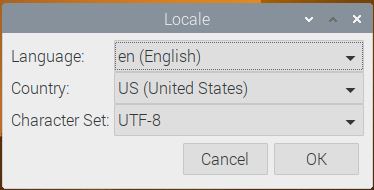
- In this window, you can configure:
- The system language (ex: French).
- The country: most languages have slight differences depending on the country (ex: France, Belgium, Canada, etc.).
- The character set: the set of characters that will be used, keep the default value if you’re not sure.
- Once your selection is complete, click OK to apply the changes.
A reboot is required to apply the new language, and it should be ready to use afterwards.
Note that not all the tools or even parts of tools are translated into all languages. I know that even when I set my system in French, there are still some sentences or entire tools in English.
Download the free PDF, keep it open, and stop wasting time on Google.
Download now

But it should still be easier for you than in the default language.
By the way, you can also change your keyboard layout and Wi-Fi country in this configuration tool if you need to.
If this project doesn’t work as expected on your setup, don’t worry. You can get help directly from me and other Pi users inside the RaspberryTips Community. Try it for $1 and fix it together.
Change System Language from a Terminal
Obviously, if you’re not on Raspberry Pi OS Desktop, none of this is possible. But there are a couple of tools you can use to change the language from the command line: raspi-config or dpkg.
raspi-config
Raspi-config is a very useful tool made for Raspberry Pi OS, to configure everything from the command line, including the system language.
Here is how to use it:
- Start raspi-config with the command:
sudo raspi-configThe system is set to use a QWERTY US layout by default, so if you are using another keyboard, here is a picture that might help: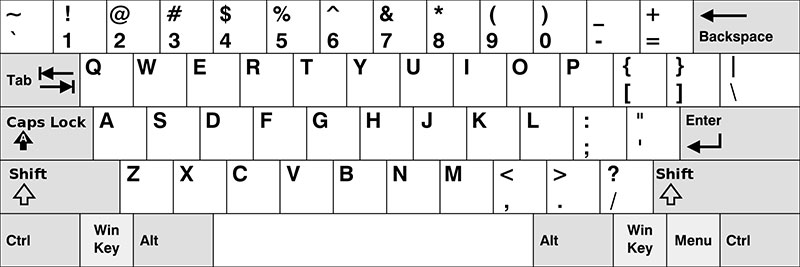
Locate the key on this layout, and type the same on your keyboard (for example the “A” is the first letter on the second line, even if you use an AZERTY keyboard). - Go to “Localisation Options” (5):
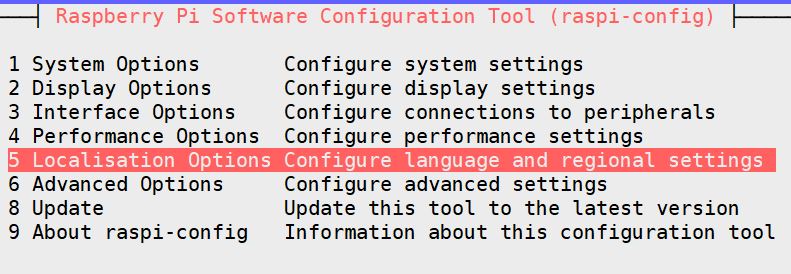
- Then, click on “Locale” (L1):
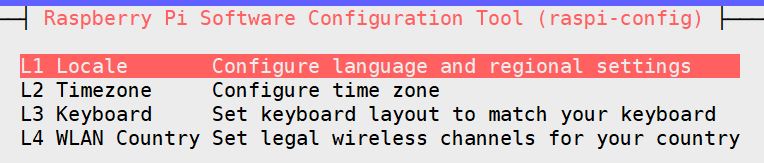
- You can now select the locales you want to enable:
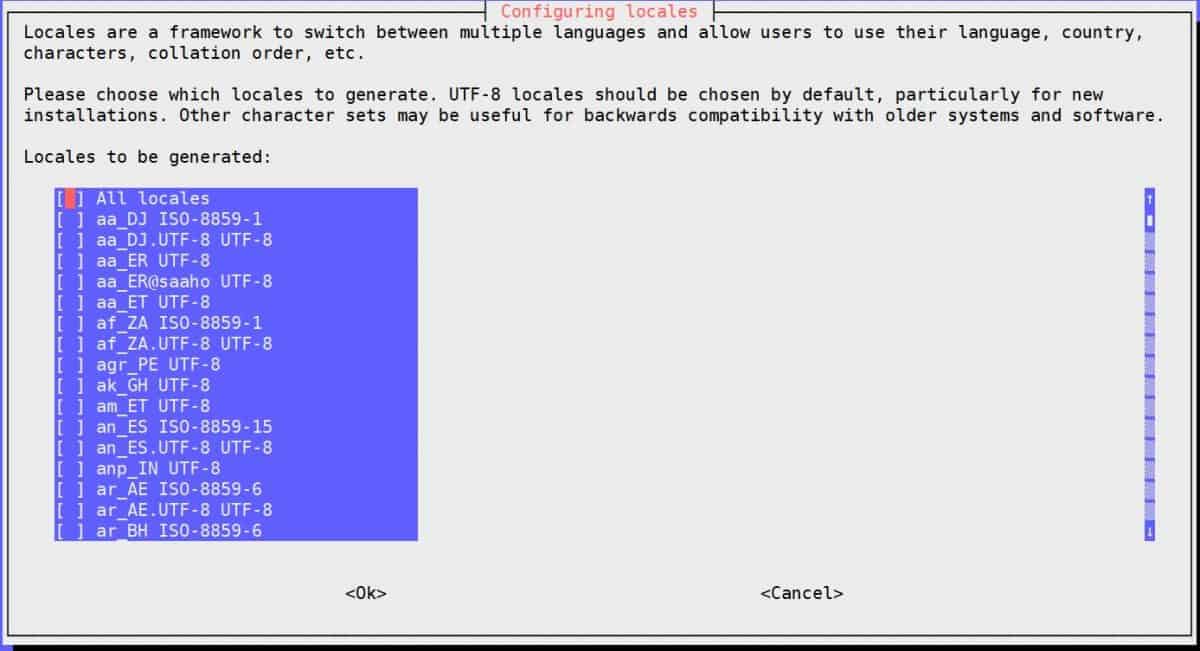
- Scroll in the list with the arrow keys, and press “Space” to select one line.
Once done, press “Enter” to submit your changes. - The tool will now ask you to select the default locale for your system:
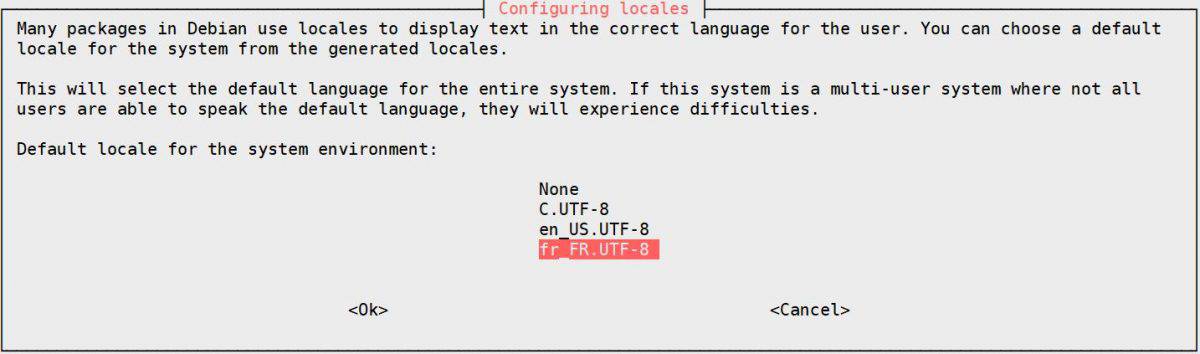
Again, use the arrow key to select one, and press “Enter” to confirm. - It will run a command, and display the raspi-config menu once again.
You can now use this tool (press “Esc”).
Download the free PDF, keep it open, and stop wasting time on Google.
Download now
Your system is now configured to use the language you just chose.
Are you a bit lost in the Linux command line? Check this article first for the most important commands to remember and a free downloadable cheat sheet so you can have the commands at your fingertips.
You might also like: Want to install Windows 11 on your Pi? Here's how
dpkg
As I mentioned, raspi-config is a tool developed by the Raspberry Pi Foundation to help us configure the system from the command line. But there are other Linux commands that will do the same thing.
Download the free PDF, keep it open, and stop wasting time on Google.
Download now
Want to learn a new command today? Here it is.
To open directly the last window from the previous procedure, just type this command:sudo dpkg-reconfigure locales
From there, you can select your language, then the default language, and it’s done.
It’s a bit faster and can be useful if you change it after each new installation. Also, it will work on any Debian-like system, so not only Raspberry Pi OS (ex: Ubuntu, Twister OS, DietPi, etc.).
If you have any additional questions or issues with these methods, feel free to leave a comment in the community, I can try to help you with this.
Whenever you’re ready, here are other ways I can help you:
Test Your Raspberry Pi Level (Free): Not sure why everything takes so long on your Raspberry Pi? Take this free 3-minute assessment and see what’s causing the problems.
The RaspberryTips Community: Need help or want to discuss your Raspberry Pi projects with others who actually get it? Join the RaspberryTips Community and get access to private forums, exclusive lessons, and direct help (try it for just $1).
Master your Raspberry Pi in 30 days: If you are looking for the best tips to become an expert on Raspberry Pi, this book is for you. Learn useful Linux skills and practice multiple projects with step-by-step guides.
Master Python on Raspberry Pi: Create, understand, and improve any Python script for your Raspberry Pi. Learn the essentials step-by-step without losing time understanding useless concepts.
You can also find all my recommendations for tools and hardware on this page.