7 Simple Linux Commands to See What’s Slowing You Down
Have you ever been using your Linux system when suddenly everything feels laggy or unresponsive, but you couldn’t figure out what was causing it? If so, this article is perfect for you. Today, I’ll teach you how to troubleshoot slowness on your system.
Several built-in tools are available on Linux to help diagnose performance issues and fix a slow system. Problems related to CPU, memory, disk I/O, network, or system services can be identified using these commands.
In this guide, I’ll walk you through the most useful Linux commands you can use to find out what’s slowing you down, along with explanations and examples to make troubleshooting fast and effective. Let’s get to it.
If you need help with Linux, I’ve got something that can help you right away!
Download my free Linux commands cheat sheet – it’s a quick reference guide with all the essential commands you’ll need to get things done on your system. Click here to get it for free!
1. Start With a Full-System Diagnosis With htop
The best place to start is with a general overview of your system’s performance. htop is an interactive process viewer that provides real-time insights into system resource usage.
With it, you can monitor:
- CPU usage per core.
- RAM and swap memory usage.
- Average system load (1, 5, and 15 minutes).
- All active processes.
This command doesn’t require any special arguments. You only need to use it as is:htop
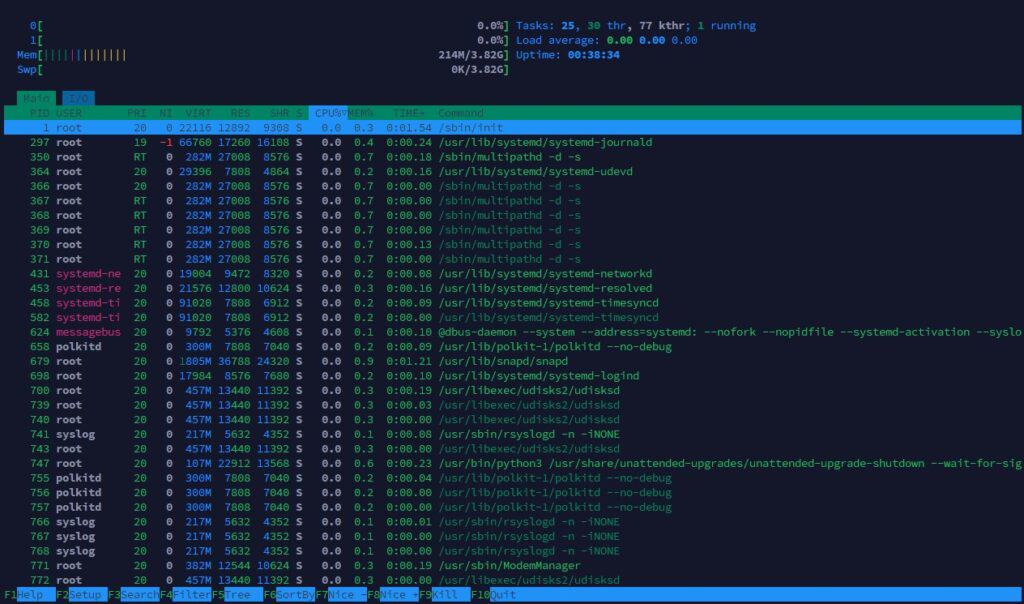
We make this initial approach to the system because most system slowdowns or failures are related to device performance. Using htop lets us quickly determine whether the failure is related to performance.
You might also like: Looking for a fun challenge? Start building your first Raspberry Pi robot!
2. CPU-Related Problems: High CPU Usage
Now, if you have already performed the above procedure and determined you have high CPU usage, it is time to focus on that issue and identify the source of the abnormal usage.
Find CPU-Hungry Processes
First, we will directly check each process’s performance and consumption with respect to the CPU. This will allow us to see if any process is using all the processor’s resources.
Grab This Cheat Sheet!
I've compiled the must-know commands in a simple PDF for quick reference.
Download now
You can easily accomplish this by running:ps aux --sort=%cpu
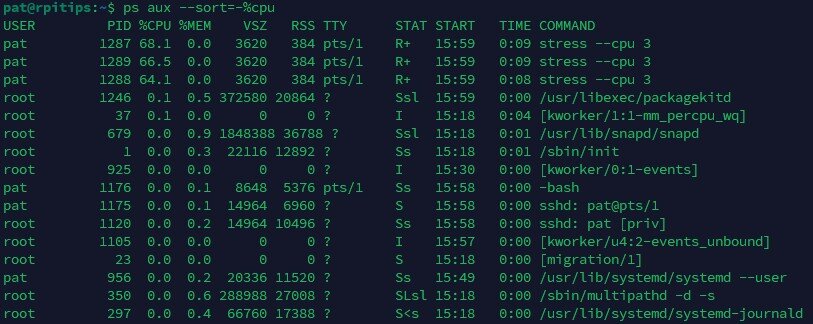
This list shows the processes that use the most CPU resources in descending order. It is an effective way to find the source of poor performance.
Check System Services Using CPU
Sometimes, the slowdown isn’t from an app, it’s from unnecessary background services and if those services are hungry resources, it will affect your system. To see what services are currently running:systemctl list-units --type=service

Here, you can see all the system services that are running, those that are not, and those that have completed their cycle (some of which only run once at startup). It’s just a matter of investigating each utility and determining which ones aren’t useful.
3. Memory-Related Problems: OOM (Out of Memory)
Another common cause of slowdowns is lack of available memory, which could lead to certain errors such as OOM, which causes other services to stop and the system to slow down.
You can quickly check all the details of your memory usage with:free -h

This command shows how much memory is being used, how much is free, and the total amount of memory. It also shows how much memory the cache uses, which is useful for determining if you need more SWAP in your system.
You can monitor your system’s memory in another way. With the following command, you can view the information periodically and a set number of times:vmstat 1 10
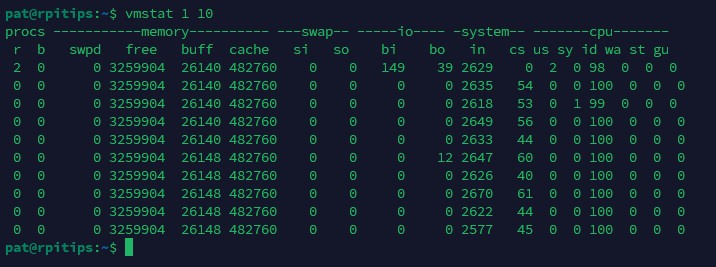
The first argument (1) in the command indicates how often the scan should be repeated. The second argument (10) indicates how many times the scan should be repeated. You can change these values as your choice.
This command is useful when testing because it allows you to constantly evaluate the device’s memory, giving you more flexibility to analyze memory failures.
Grab This Cheat Sheet!
I've compiled the must-know commands in a simple PDF for quick reference.
Download now
If after stopping and killing processes you feel that your memory is still low, you may want to check how much RAM is actually enough for the system (especially if you are using Ubuntu).

If you’re new to the Linux command line, this article will give you the most important Linux commands to know, plus a free downloadable cheat sheet to keep handy.
4. Disk Issues: Storage and I/O Bottlenecks
Although we have already reviewed the main resources that affect system performance, we cannot forget issues related to your device storage, which can significantly impact performance in case of any issues.
Investigate Your Disk Usage
The first method is to check the current size of your system’s existing partitions.
This will allow us to see if any partition is full.
We can evaluate free disk space by using the following command:df -h

You may wonder why this is important. Well, the answer depends on the situation. A full hard disk does not always cause slowness, but if you use a solid state disk (SSD), its performance is greatly affected by full storage, so it’s an important factor to consider.
If you still need more information, read our article about freeing disk space for the most effective ways to do it on Ubuntu (It still applies to any Linux Distribution).
Detect Disk or I/O issues
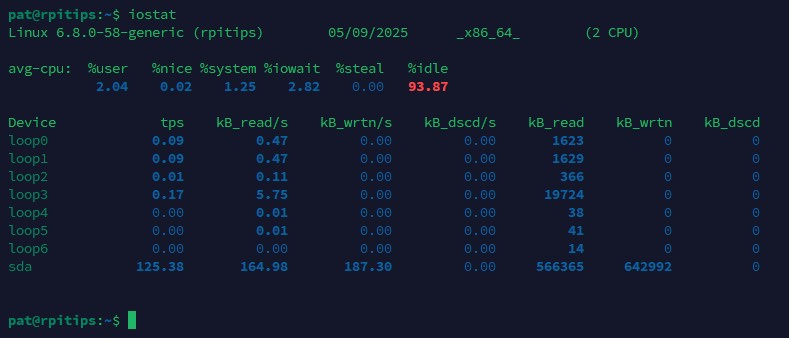
After looking at the size status of the partitions, we should also identify any services that constantly write to or read from the disk. One simple way to do this is to use:iostat
Grab This Cheat Sheet!
I've compiled the must-know commands in a simple PDF for quick reference.
Download now
The system becomes slower when there’s a high I/O rate on the disk. These problems are usually caused by programs that use logs or continuously write to or read from the disk.
5. Network Problems: Analyze Your Current Network
It’s important to be aware of your computer’s network, especially when connecting remotely. Any slowness in the network will make it seem like the computer is slow.
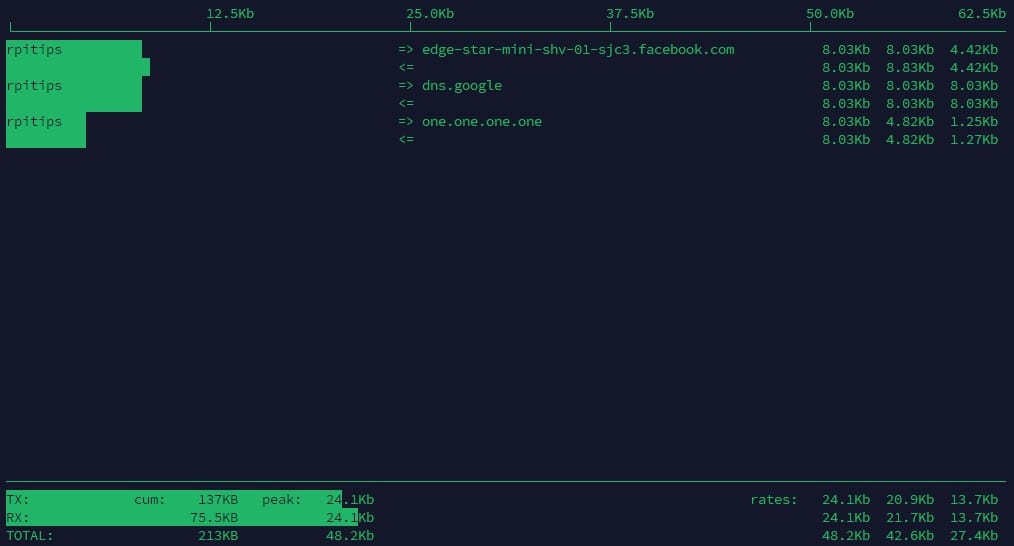
One of the main ways to see network traffic and where it is coming from is by using:sudo iftop
On the other hand, if you need to check the total amount of traffic, whether receiving or sending packets, you can use nload to get an overview of your network interface:nload
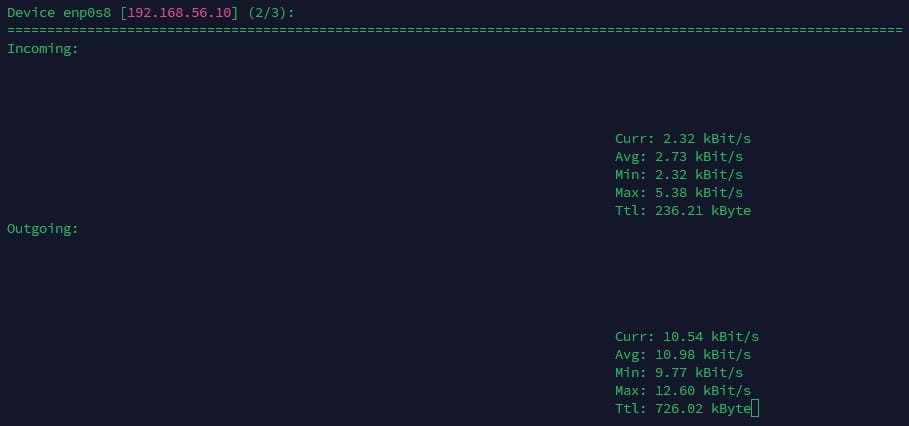
They are both useful tools that allow you to see the amount of network traffic your computer has and where it is coming from.
Note: Please note that both tools are not installed by default in some distributions, so you will have to use your preferred package manager to install the iftop and nload packages.
Related: 11 Essential Linux Commands to Troubleshoot Network Issues
6. Other Hidden Problems
We have reviewed most of the issues that could cause your computer to slow down, but what if the problem persists? Look for hidden issues, such as logs and zombie processes.
You might also like: Looking for a fun challenge? Start building your first Raspberry Pi robot!
Check System Logs for Errors
First, let’s check the logs because they can tell us a lot. If something is wrong, there is a good chance it is stored in the logs.
Grab This Cheat Sheet!
I've compiled the must-know commands in a simple PDF for quick reference.
Download now
To read the logs:journalctl -p 3 -xb

This will show you the critical errors (with priority) that the system has since startup.
There are also different ways to use journalctl, so it’s worth checking out if you need more information about your logs.
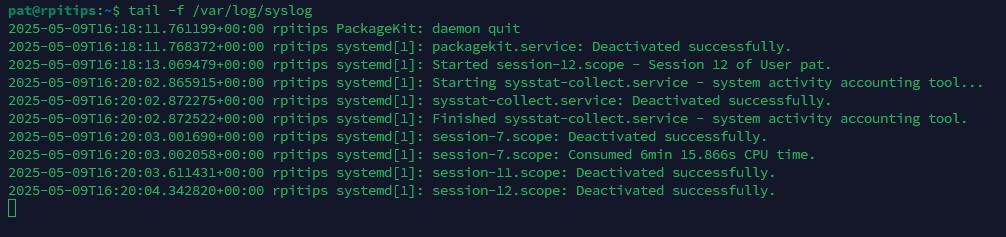
Now if you want to see the logs in real time you can also use:tail -f /var/log/syslog
Find Stuck or Zombie Processes
Zombie processes are dead but not properly cleaned up by their parent process. These are stuck processes. They are not dangerous in small numbers, but they may signal bigger issues.
Find them using:ps aux | grep "Z"
Remember to terminate those processes after finding them.
You might also like: I tried to replace my main PC with a Pi 5, here's what happened.
If you prefer watching videos instead of reading tutorials, you’ll love the RaspberryTips Community. I post a new lesson every month (only for members), and you can unlock them all with a 7-day trial for $1.
7. Bonus: Diagnose Your Boot Time
As an additional bonus, if you feel like your system is taking longer than usual to start up, you can measure how long it takes each service to boot:systemd-analyze blame
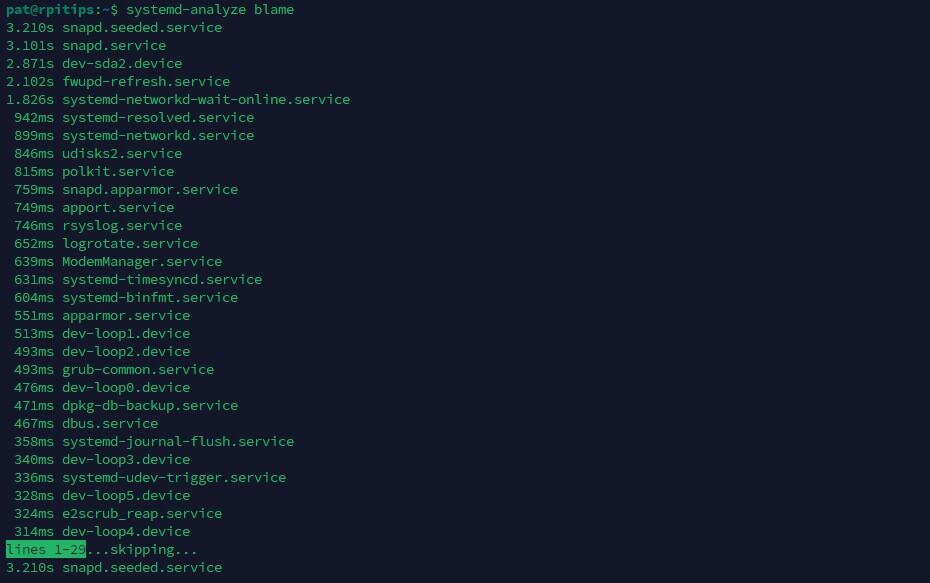
This systemd command will allow you to see which service takes the longest to start.
Once you identify the service causing the issue, you can modify or disable it, if necessary.
Now that you know how to identify slowness in your system, you can leave your machine in as good a condition as if you had reinstalled the operating system. Maintain a frequent routine of these steps to keep your system in good condition and running fast.
Whenever you're ready, here are other ways I can help you:
Master Linux Commands: Overwhelmed with Linux commands? This book is your essential guide to mastering the terminal. It includes practical tips, real-world examples, and a bonus cheat sheet to keep by your side.
The RaspberryTips Community: Need help with Linux or want to chat with people who actually get it? Join the RaspberryTips Community and get access to private forums, exclusive lessons, and direct support (try it for just $1).
You can also find all my recommendations for tools and hardware on this page.