How to Easily Install Apps on Raspberry Pi OS? (5 Methods)
To install new apps on Windows or macOS, you might be used to downloading a setup file (.exe) to install directly. On Raspberry Pi running Linux, it’s a bit different for increased security. In this post, I’ll show you different ways to get new apps easily.
The easiest way to install an application is to use the Add/Remove Software tool in the main menu. It’s a catalog for Raspberry Pi OS that installs new applications with a few simple clicks. But it’s not the only solution.
I’ll start by explaining this first method—the easiest one—for those who need help with it. And I will also introduce other solutions, so even if you have more experience, you’ll hopefully learn something new 🙂
If you’re feeling lost in all the Raspberry Pi jargon, I’ve got something to help you out. I’ve created a free glossary that explains all the essential terms and abbreviations in a way that’s easy to understand. It’s a great resource to have by your side. Get your free copy here.
Method #1: Install Apps From Raspberry Pi OS Desktop
The first method is to use the graphical tool available on Raspberry Pi OS Desktop.
Linux Repositories
Before anything else, you need to know that on Linux, software distribution is mainly done through centralized servers, managed by the system developers.
For example, there are servers managed by Debian, hosting hundreds of applications, built to work on their system (with subfolders for each system version by the way).
Raspberry Pi OS is based on Debian, but is using different servers to store the compatible packages. If you are curious, here is the address of the main server.

By default, official repositories are enabled on a fresh new Raspberry Pi OS installation. But it’s possible to add other ones later to access more software. (In general, less stable versions, or repositories to get software directly from developers.)
I will briefly introduce this at the end of this tutorial, and you’ll find several other tutorials on this website where you need to do this.
“Add / Remove Software” Tool
Now that you understand the idea, let’s move to the practice.
Open the main menu and click on Preferences > Add / Remove Software.
If you are lost in all these new words and abbreviations, request my free Raspberry Pi glossary here (PDF format)!
Download now
This window will show up:
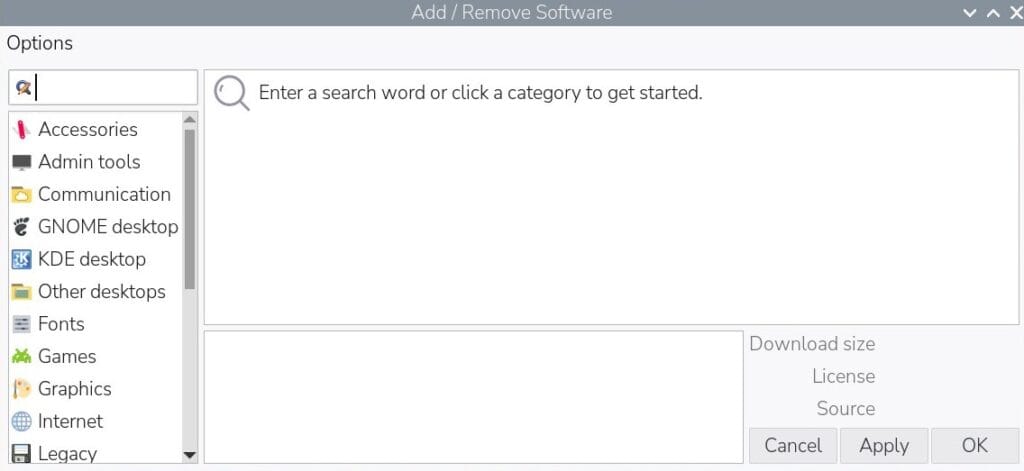
It looks like any other application catalog (Play Store, Ubuntu Lightpad, etc.). The left menu lists all the categories, and by clicking on one of them you can see the corresponding packages, displayed on the right. A search box is also available to easily find an application.
What is a bit complicated is that, in the results, you’ll get the applications, but also all the dependencies. So, the list is a bit hard to analyze. We’ll get back to this.
Updates
The first thing to do before installing anything is to update your system.
Open the “Options” menu and choose one of these options:
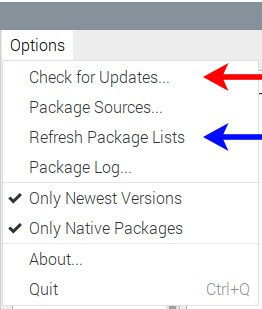
- Red arrow: “Check for updates” will compare the applications versions on your system with those available in the repositories. If a more recent version is available, an update will be suggested (a bit like the Windows updates, but for all apps, not only the system core).
- Blue arrow: “Refresh package lists” will synchronize the files available on the repository with your local cache. In the previous step, the tool doesn’t check directly online, but in a file stored on your Raspberry Pi. So, the blue arrow action will update this file.
In short, I recommend clicking on “Refresh package lists” and then “Check for updates” before any new app installation.
Installing New Software
Once updates are done, I suggest using the search bar to look for what you want to install.
In my example below, I typed in “thunderbird” to search for a popular email client:
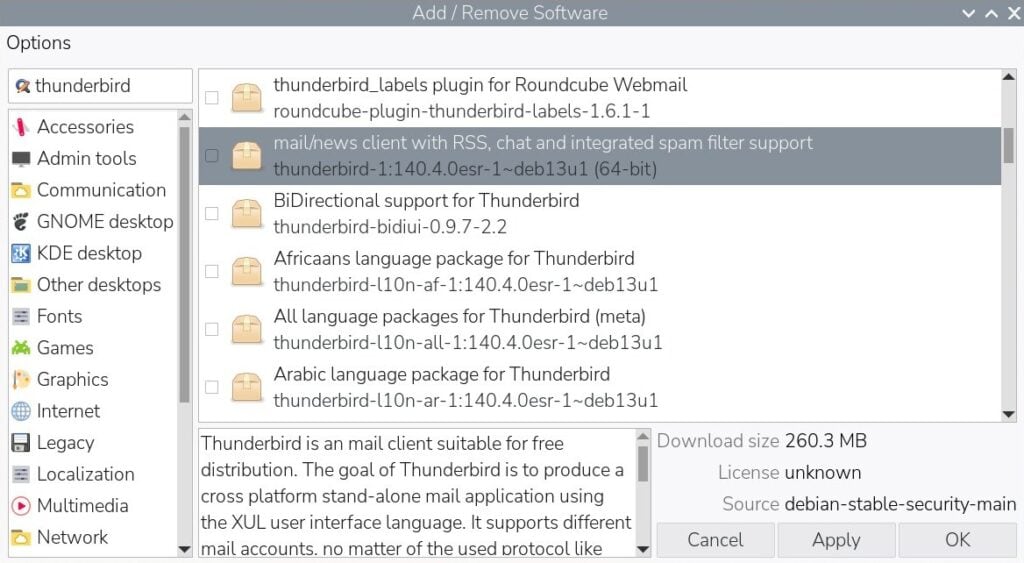
As I already mentioned, the results on the right include Thunderbird, but also all the language packages to translate the app to other languages. It’s not the best experience.
In general, you’ll need to install the shorter package name, the one that corresponds to the application name.
In this case, I’ll check the box on the highlighted line only. Obviously, if you are interested in another language, you can checkmark to add it also. The system will automatically check the language corresponding to your system configuration.
Once all the packages you want are marked, click on “Apply” in the bottom right.
The applications will begin installing, and Thunderbird will be added to the main menu (under the Internet category I think).
If you are lost in all these new words and abbreviations, request my free Raspberry Pi glossary here (PDF format)!
Download now
For example, you can use this method to install MyPaint or my other recommended desktop apps.
Uninstalling Applications
The same tool can remove software from your system if you don’t need it anymore.
To do this, simply uncheck the corresponding package in this tool and apply changes.
If you want to learn more about this, I have a dedicated tutorial on how to uninstall programs on Raspberry Pi. I recommend checking it out.
Method #2: Install Apps From the Command Line
What if you’re not using a desktop environment (or want to learn a bit more)? It’s also possible to do install apps from the command line (in fact, it’s often easier and faster!).
Basic Syntax for Apt
The command we’ll use here is “apt”.
It’s the service also used by the “Add / Remove Software” tool, so the logic is the same, and you can do the same things with it.
Here’s the basic syntax for apt:apt [options] action
- action: what you want to do on your system (update, search, install, remove, etc.)
- options: this is not mandatory, but in some cases you can add additional parameters, like to force an installation or choose a specific version for example. Most of the time, you won’t be using options, especially when you’re new to Linux.
By the way, you’ll need administrator permissions to use these commands—or at least for most of them. So make sure to add sudo before the command if you’re not on an administrator account (like “pat” for example).sudo apt [options] action
You might also like: Want to install Windows 11 on your Pi? Here's how
Examples With Apt
Here are a few concrete examples on how to use apt on Raspberry Pi OS:
- Update repositories:
sudo apt update - Update packages already on your system:
sudo apt upgrade - Upgrade the entire system:
sudo apt full-upgrade - Search for a package:
apt search qmmp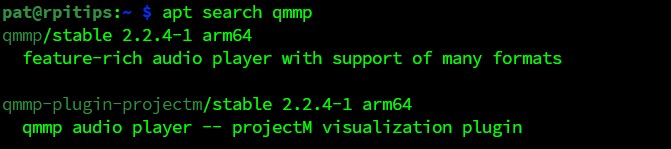
As you can see, it’s the only case where sudo isn’t required.
Quick tip: the grep command allows you to filter the results (more info here):apt search php | grep mysql
- Install an app:
sudo apt install thunderbird - Uninstall a software:
sudo apt remove thunderbird
That’s it, now you know the essential commands. It’s not so complicated, and you’ll save time by using this rather than the graphical tool (in fact I never use the tool).
Download the free PDF, keep it open, and stop wasting time on Google.
Download now
Are you a bit lost in the Linux command line? Check this article first for the most important commands to remember and a free downloadable cheat sheet so you can have the commands at your fingertips.
Related: How To Use ‘apt’: The Complete Linux Command Guide
Method #3: Add a New Repository to Install Apps
I will go faster on the three last solutions, as they’re only useful in specific situations, and probably more for advanced users. Also, the documentation from developers will generally be enough to install these other apps.
A third option to install apps is by adding a new repository.
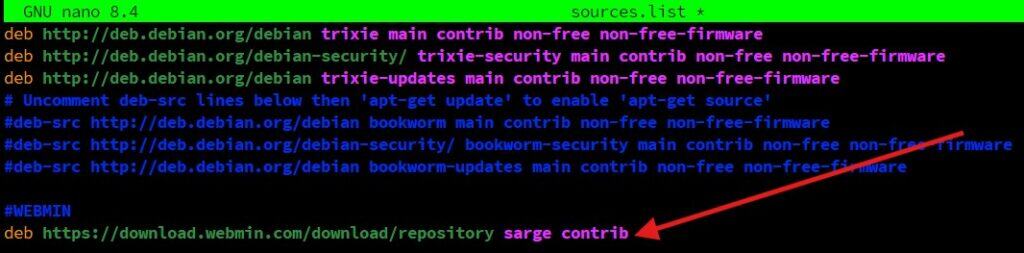
For example, in my guide on how to install Webmin (a web interface to manage Raspberry Pi), there’s an installation method where you need to do this. Check it for a step-by-step procedure.
Read next: 15 Easy Projects for Raspberry Pi Beginners
Method #4: Use the dpkg Command to Install an App Manually
This solution is useful only when the application you want to install isn’t available in the official repositories and also doesn’t offer a repository you can add to get it.
In this case, developers sometimes offer an ARM version of their package available for direct download (as a .deb file). In this scenario, you can download it and use the “dpkg” command to install it on your system, without using APT to do this.

You can find more details about the dpkg command in my article about the 57 most useful commands on Raspberry Pi.
Note: If you’d like to see these steps in action, I have a video on package management just for community members. Join here to watch, and get access to 30+ other lessons for Raspberry Pi along with many other benefits!
Method #5: Compile Apps From Source Code
This last method is the least frequently used and one you should avoid at the beginning: installing an application from source.
Download the free PDF, keep it open, and stop wasting time on Google.
Download now
You’ll generally use this method only if the package is not found in official repositories, additional repositories, or downloadable pre-compiled packages!
You download the source code and compile it directly on your Raspberry Pi.
It’s the case with Asterisk for example, a VoIP server that works on Raspberry Pi, but for which you need to compile everything from scratch.
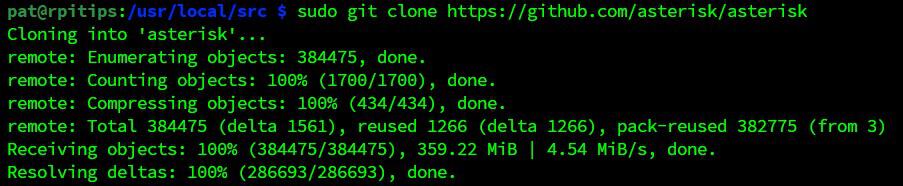
In general, the main steps are:
- git clone <url>: If the source code is hosted on a Git repository, like on GitHub. You can download the files with this command.
- wget <url>: Another option is if the source code is available as an archive file, you can use wget to download files from the command line (on desktop, your web browser will be the easiest solution).
- tar -zxvf <file>: You’ll use tar to decompress the archive file from the command line (on desktop, you can use the extraction tool directly).
- configure: Will perform many checks before the installation, to make sure all the required dependencies are installed. You’ll get an error if there is one missing (that you need to fix by using apt, and then run the configure command again).
- make: Compile the source code to generate the binary files.
- make install: Copy the binary files to the correct path on your system, so that you can use it normally.
Once again, you’ll find more details about these commands in my article and my cheat sheet available here.
By the way, you can also install a desktop environment on Raspberry Pi OS Lite. It might slow down your system a little, but with a recent model, it shouldn’t be a major concern.
If this project doesn’t work as expected on your setup, don’t worry. You can get help directly from me and other Pi users inside the RaspberryTips Community. Try it for $1 and fix it together.
Bonus Method: Snap Store
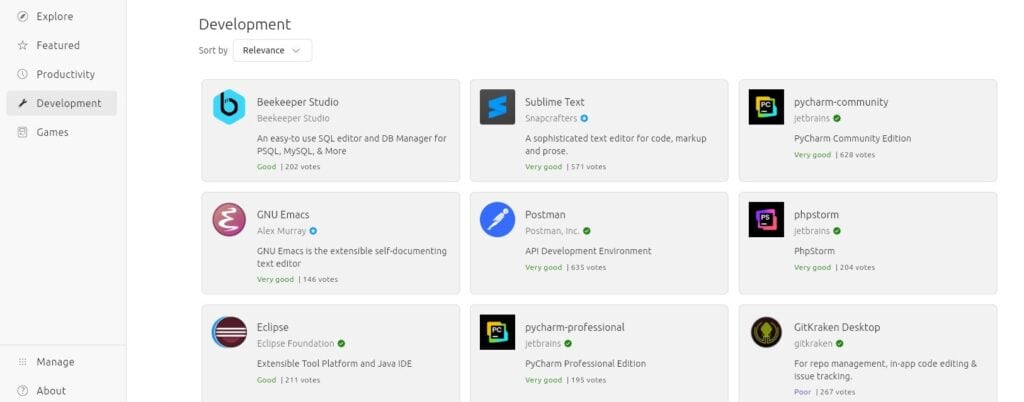
I recently published an article explaining how to install and use the Snap Store on Raspberry Pi OS. If you’re familiar with Ubuntu or other modern distributions, you probably know what I’m talking about. And if not, feel free to read the article to learn more about this other method.
That’s all, folks! I think we’ve seen the most important solutions to install an application on Raspberry Pi. I showed you 5 methods to install a new software on Raspberry Pi OS, with more details on the first two that you’ll use all the time.
I hope that this article was helpful to you, whatever your level, and that you are now ready to install anything on your system. For information, these methods are almost the same on any Linux distribution, so they’re fundamental skills for any Linux system, PC, or servers.
Feel free to share this article on social media if you liked it. And if you want to learn more about the Raspberry Pi, you can check my e-book and course on the dedicated page here.
Whenever you’re ready, here are other ways I can help you:
Test Your Raspberry Pi Level (Free): Not sure why everything takes so long on your Raspberry Pi? Take this free 3-minute assessment and see what’s causing the problems.
The RaspberryTips Community: Need help or want to discuss your Raspberry Pi projects with others who actually get it? Join the RaspberryTips Community and get access to private forums, exclusive lessons, and direct help (try it for just $1).
Master your Raspberry Pi in 30 days: If you are looking for the best tips to become an expert on Raspberry Pi, this book is for you. Learn useful Linux skills and practice multiple projects with step-by-step guides.
Master Python on Raspberry Pi: Create, understand, and improve any Python script for your Raspberry Pi. Learn the essentials step-by-step without losing time understanding useless concepts.
You can also find all my recommendations for tools and hardware on this page.