
Install a Camera on Your Raspberry Pi: The Ultimate Guide
A camera is a must-have for any Raspberry Pi owner, as it allows you to try dozens of interesting new projects. But I remember being puzzled with my first camera, having no idea how to plug it in and configure it on my Raspberry Pi. If you’re now in the same situation, this article will answer all your questions.
Here are the main steps required to use a camera module on a Raspberry Pi:
- Plug the module into the camera port of the Raspberry Pi.
- Enable the camera port in the Raspberry Pi configuration tool (Interfaces tab).
- Confirm the camera is working with: rpicam-still -o test.jpg.
In this guide, I’ll also show you how to choose the camera. I will then explain every step of the installation and give you a few tips you need to know to enjoy your new device right away.
If you’re new to Raspberry Pi or Linux, I’ve got something that can help you right away!
Download my free Linux commands cheat sheet – it’s a quick reference guide with all the essential commands you’ll need to get things done on your Raspberry Pi. Click here to get it for free!
What’s Needed to Install a Camera on Raspberry Pi
Hardware Prerequisites
If you already have a camera for the Raspberry Pi, perfect, you’re ready to go. But if you haven’t already ordered your accessories, here are a few tips.
Camera Models
Unlike USB cameras sold for PCs, the number of products available for Raspberry Pi is quite limited; however, there’s still a choice to be make between these main options:
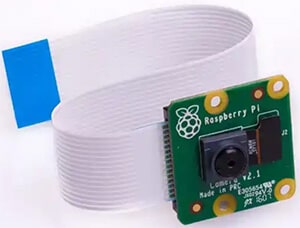
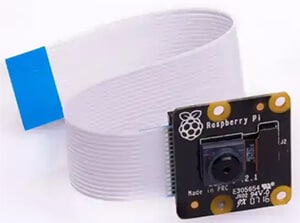
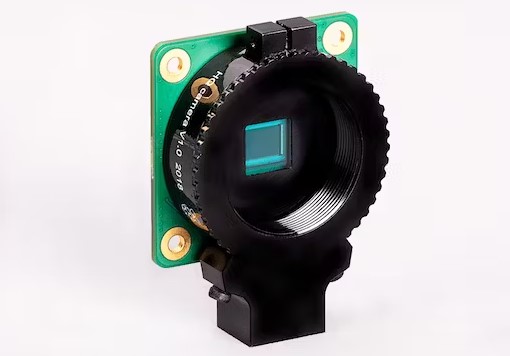
| Official Raspberry Pi Camera Module | Raspberry Pi Camera Module 3 NoIR | Raspberry Pi HQ Camera | |
|---|---|---|---|
 |  |  | |
| Specs | 12 Megapixel 4608 × 2592 1080p50 | 12 Megapixel 4608 × 2592 1080p50 Infrared Night Vision | 12.3 Megapixel Lens required 1080p |
| Price | Purchase link | Purchase link | Check on Amazon |
The Raspberry Pi Foundation offers a few camera models:
You might also like: Want to install Windows 11 on your Pi? Here's how
- The official camera was the first available and has been updated in 2023 (for v3).
It’s a high-quality camera with a 12-megapixel sensor that allows you to get HD pictures (4608 × 2592 pixels) and videos (1080p max). This model is compatible with any Raspberry Pi model and easy to install on Raspberry Pi OS (we’ll see that later). - The second one (NoIR) is almost the same. It’s the official camera except without an IR filter, allowing you to take night photographs. It’s often used for security cameras or to take photos in a low-light environment.
- The third option is a high-quality camera model. It’s like a tiny reflex camera, and you can put additional lenses on it.
- Lastly, a Raspberry PI AI Camera has been released recently that works on all Pi models. It can be used for AI projects with TensorFlow and PyTorch, among other applications. Check out our introduction to the AI Camera here.
Are there other options available?
If you are looking for an affordable solution, there isn’t a better model than these. If you just want to have one for educational purposes, you can absolutely find a cheaper camera.
For example, this one was my first camera, it’s perfect to learn how to use a camera on Raspberry Pi, but the quality is lower. It’s half the price, but if you have to buy another one a few months later, it’s not worth it.
Additional Accessories
A camera is an external device which will often stay outside the case, so depending on what your projects are, other accessories might be useful.
I will just give you a few extra links to look at, so you can do your research easily:
- Some cases are compatible with the camera module.
For example, the “Argon Neo” has a built-in support for the camera on the case (check the picture on Amazon). For more details, you can read my full review of this case here. - Another solution is to keep your current case for the Raspberry Pi and use a simple holder to keep the camera standing properly.
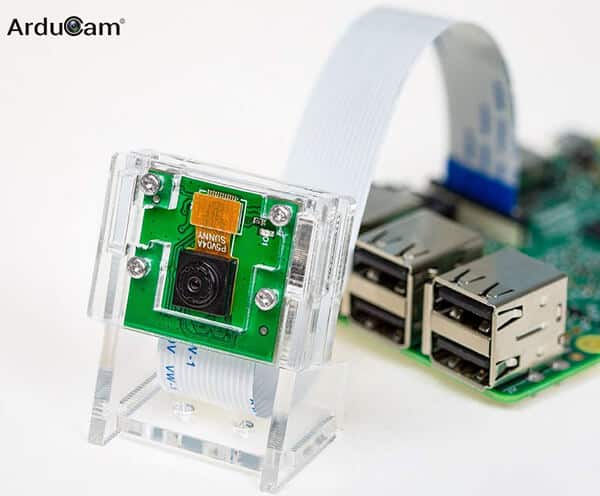
There are many similar products, you can check this one for example.
Along with the benefit of keeping your current case, it’s also easier to use the camera if you can just put it on a table (for example), instead of trying to keep it in the right place and orientation. - The last thing you may need is another camera cable.
The included cable is 15 cm long, that’s fine for basic use, but you may need to have a shorter or longer cable to fit your needs.
In this pack on Amazon, you have a few cable lengths you can use and change for each project (from 30 cm to 1 m).
Software Requirements
Raspberry Pi OS (formerly known as Raspbian) is the recommended operating system to install and use a camera on Raspberry Pi.
Download the free PDF, keep it open, and stop wasting time on Google.
Download now
Everything is included, and especially if you choose the official model, it will work right away. I don’t know exactly which systems are compatible, you may want to try them later but start with Raspberry Pi OS for now.
I already wrote a guide on how to install Raspberry Pi OS on Raspberry Pi, feel free to check it if you’re not confident with the installation.
You can use the Desktop or Lite version—both work fine with any compatible camera, so choose the one you prefer for your project.
After installing the operating system, make sure you take these steps:
- Raspberry Pi OS installed with anything you need (applications, Wi-Fi network, …).
- Raspberry Pi OS configured with all your favorites settings (keyboard layout and language, for example).
- The system updates with the latest version of all packages:
sudo apt update
sudo apt upgrade - SSH is enabled to allow remote access for the first tests:
sudo service ssh start
If this is new for you, you should check my SSH guide here. - If you choose the Desktop version, you can also install a remote desktop app to do everything from your computer.
Are you a bit lost in the Linux command line? Check this article first for the most important commands to remember and a free downloadable cheat sheet so you can have the commands at your fingertips.
How to Install a Camera on Raspberry Pi
Now that you have everything you need, we can start the camera installation in itself.
Hardware Installation
Installing a camera on Raspberry Pi is straightforward once you find the location of the port:
- Take the Raspberry Pi board in hand.
Unplug all cables, the Raspberry Pi must be turned off and disconnected from the power supply. - Find the camera port on the Raspberry Pi (between the HDMI and audio ports).
You’ll find it easily because it’s the only one that fits the cable width, and it should be written “CAMERA” on the main board.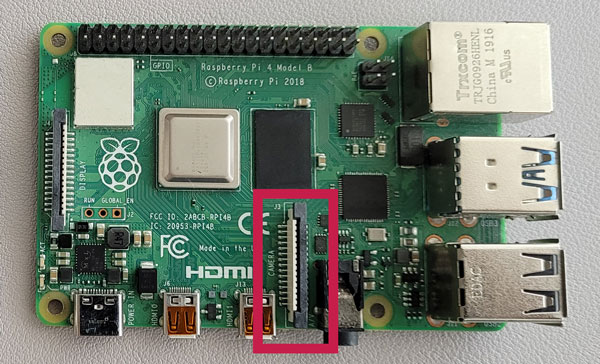
- Before plugging in the cable, you may need to remove the plastic film and lightly pull the black plastic.
- Plug the cable and push the black plastic to hold the cable inside.
Make sure to align both connectors on the same side (cable connectors on the HDMI port side, blue side of the ribbon towards the USB ports):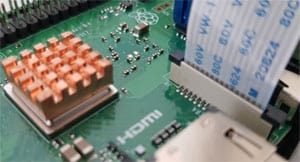
- Then I recommend starting with a rapid test before putting everything back into the case and/or in the holder, just to be sure that it’s working.
Plug all cables back (power, HDMI, network, USB …) and start the Raspberry Pi.
If you have any doubts, you can watch the first minute of this video to see how to plug your camera:
Enable the Camera Port on Raspberry Pi OS
Update: If you’re using the latest version of Raspberry Pi OS, you no longer need to take the steps below, as the camera port is now enabled by default. I keep the instructions for the archives, but you can skip this step for a new installation.
Before using the camera on your Raspberry Pi, you need to enable it in your system. The camera port is disabled by default.
Download the free PDF, keep it open, and stop wasting time on Google.
Download now
- Connect to the Raspberry Pi via SSH (you can find useful tips here to connect via SSH from your computer).
If you prefer, you can use a terminal on the Raspberry Pi OS desktop, or even use the Lite version. - Start the raspi-config tool:
sudo raspi-config - Go to “Interface options” > “Camera”:
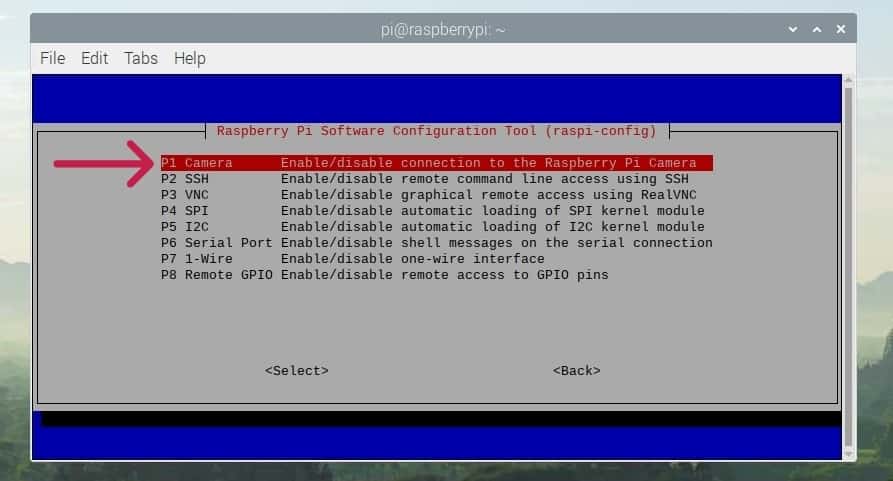
- “Would you like the camera interface to be enabled?”.
Yes! - Exit raspi-config and accept to reboot the device.
That’s all you need to do.
After the reboot, the camera is ready to use.
Note: If you’re new to this and use the Desktop version, you don’t need to type any commands. Just open the Raspberry Pi Configuration tool (under main menu > Preferences ). Click on the “Interfaces” tab and enable the camera.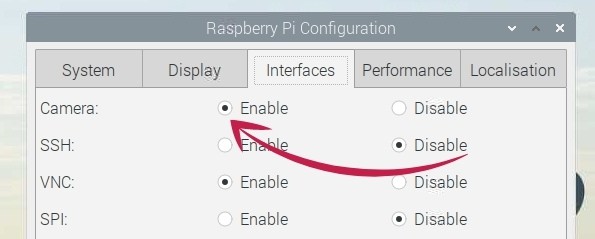
If you experience any issues with the camera installation, or for any reason, it doesn’t work as expected, please check this troubleshooting guide for the Raspberry Pi camera module.
Commands to Interact With the Raspberry Pi Camera
I will now introduce two useful commands to record and see what happens to your camera.
You might also like: Tired of Raspberry Pi OS? Level up with these top-rated systems.
Note: raspistill and raspivid commands are no longer supported on Raspberry Pi Bullseye and newer versions. Try to switch to the new commands as soon as possible, it’s basically the same. But if you are still using an old version (RPI OS Legacy) or have enabled legacy support, you still have access to them.
Take a Photo
The first thing you can try is to simply take a picture of the image seen by the camera.
“rpicam-still” is the new command on Raspberry Pi OS Bookworm (replacing “raspistill” and “libcamera-still”).
It’s already installed on your system.
To use it, the basic command line is:rpicam-still -o image.jpg
With -o you define the target file name (where the pictures will be saved).
It’s possible to use a file name including the path, for example:rpicam-still -o ~/Pictures/mypicture.jpg
Use the -h parameter to display all the possible options for this command:rpicam-still -h
Here are a few interesting options you can try:
--width arg (=0) Set the output image width (0 = use default value)
--height arg (=0) Set the output image height (0 = use default value)
-t [ --timeout ] arg (=5000) Time (in ms) for which program runs
-o [ --output ] arg Set the output file name
-n [ --nopreview ] =arg(=1) Do not show a preview window-p [ --preview ] arg (=0,0,0,0) Set the preview window dimensions, given as x,y,width,height e.g. 0,0,640,480
-f [ --fullscreen ] =arg(=1) Use a fullscreen preview window
--qt-preview =arg(=1) Use Qt-based preview window (WARNING: causes heavy CPU load, fullscreen not
supported)
--rotation arg (=0) Request an image rotation, 0 or 180
--brightness arg (=0) Adjust the brightness of the output images, in the range -1.0 to 1.0
--contrast arg (=1) Adjust the contrast of the output image, where 1.0 = normal contrast
--saturation arg (=1) Adjust the colour saturation of the output, where 1.0 = normal and 0.0 =
greyscale
-q [ --quality ] arg (=93) Set the JPEG quality parameter
For your information, on the Legacy edition of Raspberry Pi OS, it will be:raspistill -o image.jpg
Download the free PDF, keep it open, and stop wasting time on Google.
Download now
Check this: Yes, you can access your Pi from anywhere. Here's how.
If you find this too complex, there’s an easier camera command for beginners: How to Use picamzero to Take Photos and Videos.
Record a Video
To record a video, the command is similar.
“rpicam-vid” is the corresponding command name (replacing “raspivid” and “libcamera-vid”).
So similar to pictures, to record a video use the command:rpicam-vid -o video.h264
Use the CTRL+C shortcut to stop the recording, or add the -t option to specify the recording duration.
H264 files are compatible with VLC.
If needed, you can install it on Raspberry Pi OS Desktop with: sudo apt install vlc
It’s the same to see all the parameters available, use rpicam-vid -h to get all options with a short description. Useful options are:
- –t: to choose the video duration in ms (ex: 6000 for a 6s video). This way you don’t need to use CTRL+C and can schedule the video capture with a script or cron.
- -w and -h: video size (width and height).
Transfer Pictures and Videos to Your Computer (Raspberry Pi OS)
You may be asking how to download pictures on your computer after this.

The easiest way is to use software like FileZilla or WinSCP:
Check this: Need a clear GPIO pinout diagram? Here's mine.
- FileZilla is a free tool available on Windows, Linux and macOS.
It’s mostly used to connect to FTP servers, but there is an option to use it for SCP transfers.
You can download the setup files here.
SCP is a secured protocol to copy files on the network over SSH. So, you don’t need anything else on the Raspberry Pi (just make sure SSH is enabled). - Open FileZilla
- To try it quickly, you can use the quick connect option under the menu:

But there is also a “Site manager” to store all your servers and connect without entering anything. - Fill the host with the Raspberry Pi IP address.
Then your username and password (the one you created during the installation). - Click “Quickconnect” when ready.
- On the left side, this is your computer, browse to the path where you want to download files to (C:\Users\username\Pictures for example).
- On the right side, it’s the Raspberry Pi, browse to the location where you saved the pictures or video.
- Double-click on a file to download it.
Or select multiple files, right-click and “Download files”.
Control the Camera With Python
The last interesting thing I want to show you is how to use an advanced programming language (Python) to go further with your camera and include it as part of bigger projects.
If you’re new to Python and want to do more things on Raspberry, I think you may need to learn the basics first (I wrote a book especially to help you do this, check it out if you’re interested).
Python is the main programming language on Raspberry Pi. And the good news is that everything is already available to use Python directly on Raspberry Pi OS (editors, compilers, basic libraries, …).
If you’re on Raspberry Pi OS Desktop, there are many editors you can use like Thonny (pre-installed) or others you can install with apt.
Download the free PDF, keep it open, and stop wasting time on Google.
Download now
Python code combined with your Pi’s camera module means anything is possible. For example, you could write a script that waits 5 seconds for you to smile, plays a sound effect to let you know the camera is about to activate, and then snaps a photograph.
To learn how to program these advanced features, check out our full tutorial here.
(By the way, if you find the above too complex, there’s an easier camera command for beginners: How to Use picamzero to Take Photos and Videos.)
I hope you enjoyed this introduction to using a camera on Raspberry Pi. If you make bigger projects with your camera, it would be nice to share them here with us, I’ll love it!
If you’re looking for more project ideas you can do with a camera, click on the link to find my recommendations, and you’ll see that everything is possible.
And if you’d like to try a web interface to control your Raspberry Pi camera (but also standard security cams), check out my tutorials on MotionEye or ZoneMinder.
If you enjoy learning about Raspberry Pi, you’ll feel right at home in the RaspberryTips Community. It’s a friendly group of makers helping each other grow. Join us today for $1 and see what it’s like inside.
Related Questions
How to fix the error “raspistill: command not found”?
Raspistill and raspivid are no longer available on recent Raspberry Pi OS versions. They have been replaced with “rpicam” commands like rpicam-still and rpicam-vid.
Check the sections above on taking photos and videos to learn the new commands to interact with your camera. Don’t try to enable raspistill or raspivid—they’re commands of the past :-).
Can I plug a camera into a Raspberry Pi Zero?
A camera module can also be used with a Raspberry Pi Zero, but a different ribbon is required. Make sure to buy a camera module where a ribbon corresponding to your Raspberry Pi model is provided (this one for example).
How do I know if the camera module is properly connected to the Raspberry Pi?
There is no detector or tool to know if a camera is correctly plugged in. Just follow the installation procedure and take a test photo to see if it works or if you encounter any errors.
Can I use a USB camera on my Raspberry Pi?
As a whole, Raspberry Pi supports most USB cameras, so it should be possible to use one instead of the camera module. Just plug it into a USB port and start a compatible application.
You can, for example, use it in OBS Studio, to record or stream the video.
Whenever you’re ready, here are other ways I can help you:
Test Your Raspberry Pi Level (Free): Not sure why everything takes so long on your Raspberry Pi? Take this free 3-minute assessment and see what’s causing the problems.
The RaspberryTips Community: Need help or want to discuss your Raspberry Pi projects with others who actually get it? Join the RaspberryTips Community and get access to private forums, exclusive lessons, and direct help (try it for just $1).
Master your Raspberry Pi in 30 days: If you are looking for the best tips to become an expert on Raspberry Pi, this book is for you. Learn useful Linux skills and practice multiple projects with step-by-step guides.
Master Python on Raspberry Pi: Create, understand, and improve any Python script for your Raspberry Pi. Learn the essentials step-by-step without losing time understanding useless concepts.
You can also find all my recommendations for tools and hardware on this page.




Great tutorial, it helped me a lot.
Thanks Richard!
Dear Sir,
can you write the commands which doesnt replace the picture in Image file, but take another picture with automatic naming. i mean that when we take the second picture it doesnt replace the first picture.
Best Regards
Hi,
I would say something like that:
raspistill -o “image_$(date +%s).jpg”
can you use with a usb camera?
how link camera with google meet