How to Install MariaDB on Raspberry Pi? (MySQL Server)
MySQL, one of the most common database services used on Raspberry Pi, has now been replaced by MariaDB. But I know that some of you have problems installing and configuring it properly. That’s why I’m sharing a specific tutorial on how to install it on your Raspberry Pi.
MariaDB is available in the default Raspberry Pi OS repository, and can be installed with: sudo apt install mariadb-server or via the package manager on the Desktop edition. The configuration can then be found in the /etc/mysql folder.
That’s it for the short answer. In this tutorial, I will guide you through each step, so you’ll know exactly what to do.
If you’re new to Raspberry Pi or Linux, I’ve got something that can help you right away!
Download my free Linux commands cheat sheet – it’s a quick reference guide with all the essential commands you’ll need to get things done on your Raspberry Pi. Click here to get it for free!
What is MariaDB?
Let’s start with a short explanation of what MariaDB is for those who may need a refresher.
What is a Database?
The name is almost explicit. But if you are just starting on MySQL, imagine a database as file where you will store any data you need to keep.
For example, this website uses a database to store the content, comments, or website configuration of each post.
I often explain a database as a folder on your computer, with many excel files in it. The folder is the database, each Excel file is a table, and they contain one column for each data to store.
What is MariaDB?
MariaDB is the service that will host the database.
Similar to how Apache is used to host a web server, MariaDB is used to store data in databases.

It’s a free service, available on any Linux distribution.
MariaDB is a young project. It started in 2009 and is now supported by major companies like Google and Alibaba.
Download the free PDF, keep it open, and stop wasting time on Google.
Download now
It’s not yet one of the most popular database engines (0.90% market share according to Datanyze), but it’s growing fast. Big companies like Google, Mozilla and Wikipedia are using it.
However, MariaDB is not the only database management system available on Raspberry Pi. You can find my top 5 recommendations here.
Difference Between MariaDB and MySQL?
MariaDB is a fork of MySQL (= they created it from a copy of the MySQL source code).
So, for now, there’s barely any difference.
MariaDB was created following the MySQL acquisition by Oracle in 2009.
So, it’s highly compatible with MySQL.
Most of the projects will work on MariaDB without requiring any changes.
How to Install MariaDB on Raspberry Pi OS
Now that you have more information about what MariaDB is, you can try installing it by reading the following instructions. Here are the required steps to install MariaDB on your Raspberry Pi:
- Install the mariadb-server package.
- Use root to access MariaDB for the first time.
- Complete the installation.
- Create a new user and password.
Let’s see how to do all of this in detail.
Install MariaDB Server
As mentioned in the intro, MariaDB is available in the Raspberry Pi OS repository, so the installation is straightforward. Open a terminal (or connect via SSH) and follow these instructions:
- Start by updating your system:
sudo apt update
sudo apt upgrade - Then you can install MariaDB with this command:
sudo apt install mariadb-server
- Type “Y” and Enter to continue.
After a few moments, the installation process is complete and MariaDB is almost ready to use.
If you’ve noticed it, the installation of MariaDB has also installed the MariaDB client.
This will allow you to connect from the command line with: mysql
But by default, there’s no account authorized to connect.
That’s why we need to create root access first.
Download the free PDF, keep it open, and stop wasting time on Google.
Download now
Are you a bit lost in the Linux command line? Check this article first for the most important commands to remember and a free downloadable cheat sheet so you can have the commands at your fingertips.
Root Access
Here is how to define the password for the root user and start to use MariaDB:
- Enter this command:
sudo mariadb-secure-installation - A message like this appears:
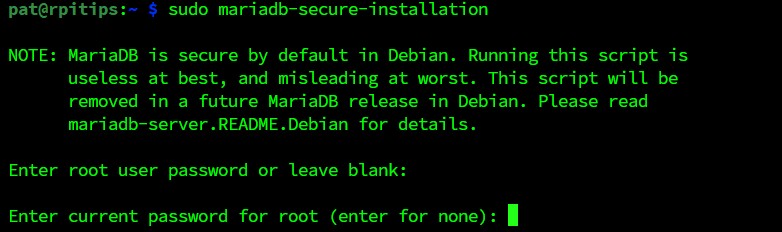
- Press enter to continue (no password by default).
- Enter “Y” to switch to unix_socket authentication.
- Then type “Y” to set a new password, and enter the password of your choice.
- Now, enter “Y” three more times to:
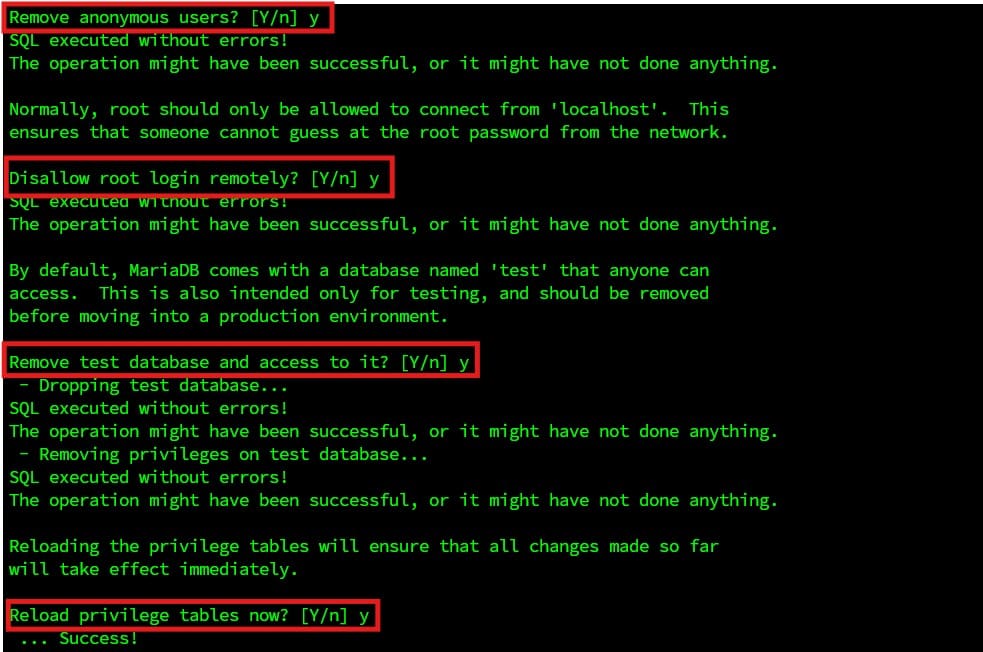
- Remove anonymous users.
- Disallow root login remotely.
- Remove the test database.
- And finally, press “Y” again to reload the privileges.
That’s it—now MariaDB is ready to use with root login.
The “root” user is not enabled by default on Raspberry Pi OS, you can use “sudo” instead, and specify the username in the MySQL command. But if you really want to enable root, it’s possible. I explain how to do this in this article.
Connect With root
You can now use the mysql command for your first connection:sudo mysql -uroot -p
Then enter the password you have defined previously.
And that’s it, you are connected to the MySQL server.
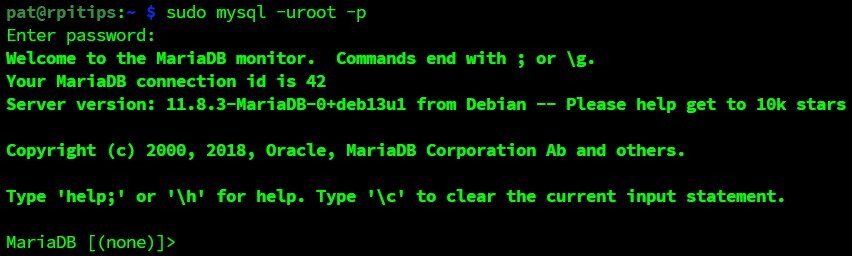
Once you’re connected, you can use all the MySQL queries like these:
- SHOW DATABASES;
- USE <database>;
- SHOW TABLES;
- SELECT * FROM <table>;
- UPDATE, INSERT, DELETE, …
You can check the syntax and all the information on the official documentation.
Create a New Database User
Download the free PDF, keep it open, and stop wasting time on Google.
Download now
As on your system, it’s not recommended using the root user for any application (it’s one of the main security tips I give you in this article).
Keep it for you, for administration and debugging on a local usage. But for any other applications, you will probably create new users, with access to only one specific database.
Create a New User on MariaDB
Here’s how to do this:
- Connect to the MySQL command line:
sudo mysql -uroot -p - Create a new database:
CREATE DATABASE <dbname>;
In this step and all following steps, replace variables between <…> with the name you want to use instead. - Now, create the new user:
CREATE USER '<username>'@'localhost' IDENTIFIED BY '<password>'; - Then, allow this new user to do anything on the database we just created:
GRANT ALL PRIVILEGES ON <dbname>.* TO '<username>'@'localhost';
- Finally, reload the permissions with:
FLUSH PRIVILEGES; - Quit the database:
exit
Test the Connection
You can now check that everything works fine with:sudo mysql -u<username> -p
And use the password you just created.
That’s it, you can now do everything you want on the new database.
You can for example use this to host a website on your Raspberry Pi, or even to host apps like NextCloud or WordPress at home.
If this project doesn’t work as expected on your setup, don’t worry. You can get help directly from me and other Pi users inside the RaspberryTips Community. Try it for $1 and fix it together.
Further Configuration
You can do most of the MySQL configuration in the command line, but it’s not always easy if you don’t know the MySQL language. So, I’ll show you two ways to configure your server.
/etc/mysql
As with many services, you’ll find a configuration file in the /etc folder.
It’s the first way to change the configuration.
Here are the files you’ll find under /etc/mysql:
├── conf.d
│   ├── mysql.cnf
│   └── mysqldump.cnf
├── debian.cnf
├── debian-start
├── mariadb.cnf
├── mariadb.conf.d
│   ├── 50-client.cnf
│   ├── 50-mysql-clients.cnf
│   ├── 50-mysqld_safe.cnf
│   └── 50-server.cnf
├── my.cnf -> /etc/alternatives/my.cnf
└── my.cnf.fallback
Download the free PDF, keep it open, and stop wasting time on Google.
Download now
As you use MariaDB, you need to edit the files under the mariadb.conf.d/ folder.
- For the server configuration, open the 50-server.cnf file like this:
sudo nano /etc/mysql/mariadb.conf.d/50-server.cnf - In this file you can find many configuration options. Each line uses the same format:
option = value
Lines starting with a # are commented, you need to remove this character to change the value. - For example, you can change the bind-address to allow remote connections, or the datadir to move the databases to another directory (on a USB drive for example).
You can find all the information about this file on the MariaDB website.
PHPMyAdmin
You probably won’t change the configuration every day. But one thing that you’ll do more often is to create users, databases, and tables. Or just reading the data in the tables.
If you don’t want to do every operation using the console, you can install PhpMyAdmin.
PhpMyAdmin is a free web interface that you can install on your Raspberry Pi to do all the basic operations on your database.
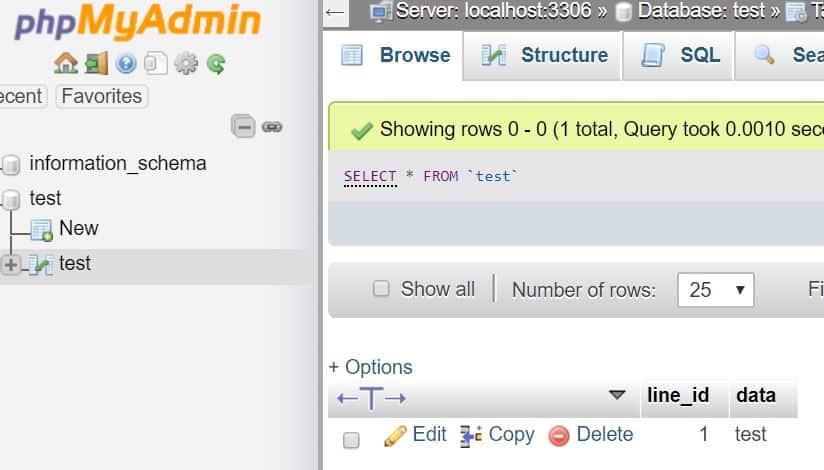
You can follow the step by step tutorial on this post to install it.
This tutorial installs Apache and PHP before, but the PhpMyAdmin installation will add and configure them automatically.
That’s it, you now know how to install MariaDB on Raspberry Pi, and also how to configure and manage it on a daily basis.
By the way, MariaDB/MySQL isn’t the only option to host a database on your Raspberry Pi. Check the link to find the best alternatives you can try.
But installing MariaDB is often a prerequisite for most projects on Raspberry Pi, including:
You might also like: Yes, you can access your Pi from anywhere. Here's how.
- Set Up a LAMP Web Server On A Raspberry Pi In 2022
- How to Install an Email Server on your Raspberry Pi?
- How to install NextCloud on your Raspberry Pi? (2 ways)
If you need more information on this topic, feel free to send them in the community, so I can answer your questions and also write other posts on this subject.
And as usual, thanks to share this post in your favorite social network if it was useful for you!
Whenever you’re ready, here are other ways I can help you:
Test Your Raspberry Pi Level (Free): Not sure why everything takes so long on your Raspberry Pi? Take this free 3-minute assessment and see what’s causing the problems.
The RaspberryTips Community: Need help or want to discuss your Raspberry Pi projects with others who actually get it? Join the RaspberryTips Community and get access to private forums, exclusive lessons, and direct help (try it for just $1).
Master your Raspberry Pi in 30 days: If you are looking for the best tips to become an expert on Raspberry Pi, this book is for you. Learn useful Linux skills and practice multiple projects with step-by-step guides.
Master Python on Raspberry Pi: Create, understand, and improve any Python script for your Raspberry Pi. Learn the essentials step-by-step without losing time understanding useless concepts.
You can also find all my recommendations for tools and hardware on this page.