How to Install Minecraft Forge on Linux? (Illustrated Guide)
Minecraft Forge is an unofficial extension to the Minecraft game, allowing you to install mods to add new features in your game, or simply change them. As a Minecraft fan and Linux user, it’s often difficult to find help on the official websites. This is why I’m writing this article—I’ll explain all the steps to install Forge on your computer.
Overall, the easiest way to install Minecraft Forge is to download the Java installer from the official website. If Minecraft and Java are installed and configured correctly, a new profile will be added to the Minecraft launcher.
If all of this is still unclear for you, don’t worry, I’ll explain everything in detail now, and add pictures for each step so that you can compare it with what you get on your PC.
If you need help with Linux, I’ve got something that can help you right away!
Download my free Linux commands cheat sheet – it’s a quick reference guide with all the essential commands you’ll need to get things done on your system. Click here to get it for free!
Prerequisites to Install Minecraft Forge on Linux
Before trying to install Minecraft Forge on your Linux distribution, you need to have Java and Minecraft installed already.
The Java runtime is probably already installed if you use a modern system. For example, you get it when you install LibreOffice. You’ll need it for Minecraft anyway.
But if you don’t Java on your system yet, install the runtime using:sudo apt install openjdk-21-jre
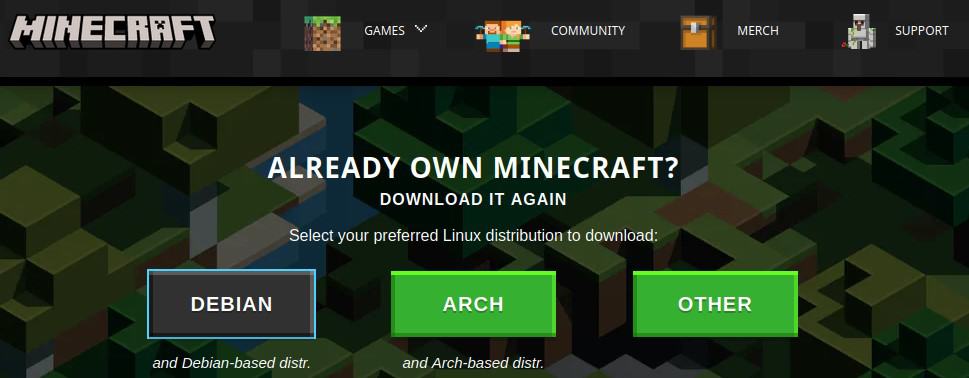
To install Minecraft, go to the Mojang website and log in with your Microsoft account. In the downloads section, they will offer a few options for Linux users. I’m testing this tutorial for you on Ubuntu, so I downloaded the DEB version and installed it with the default software manager.
Nothing complicated here, but just make sure you have your Minecraft launcher installed and running before trying to install Forge.

If you’re new to the Linux command line, this article will give you the most important Linux commands to know, plus a free downloadable cheat sheet to keep handy.
Grab This Cheat Sheet!
I've compiled the must-know commands in a simple PDF for quick reference.
Download now
Minecraft Forge Installation on Linux
Here are the required steps to install Minecraft Forge on Linux:
- Download Minecraft Forge for Linux from the official website.
- Run the Java installer to add it to your Launcher.
- Start a new game and select Minecraft Forge in your profiles list.
You get the idea. I’ll now explain each step in detail.
Download Minecraft Forge for Linux
Open the official website for Minecraft Forge (click here). By default, the latest stable version available will show up. At the time of writing, it’s 1.21.5. Make sure that’s the one you want to install. You can use the left menu to select a different version.
Once the correct version is selected, click “Installer” to download it to your PC:

You’ll be redirected to an ad page that you can skip after 5 seconds. Wait a few seconds to get the installer on your computer, and move to the next step once ready.
Note: If the download fails to load for some reason, you can edit the URL to download the file directly and skip the ad.
Minecraft Forge Installation
Once the Minecraft Forge installer is downloaded, you’ll probably need to add the execution permission before running it.
The easy way: go to Downloads > right-click on the .jar file > Properties > Permissions
Checkmark the execution box.
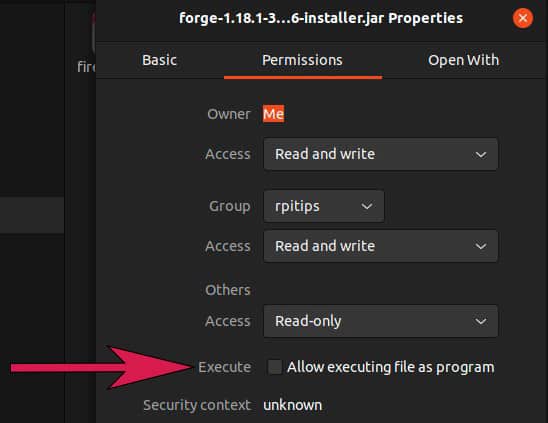
After doing this, you can just double-click on the file to start the installation process.
If double-clicking doesn’t work: another way to execute a .jar is to open a terminal.
And run these commands:chmod +x forge-1.21.5-55.0.3-installer.jar
java -jar forge-1.21.5-55.0.3-installer.jar
(Replace the filename with your version.)
Grab This Cheat Sheet!
I've compiled the must-know commands in a simple PDF for quick reference.
Download now
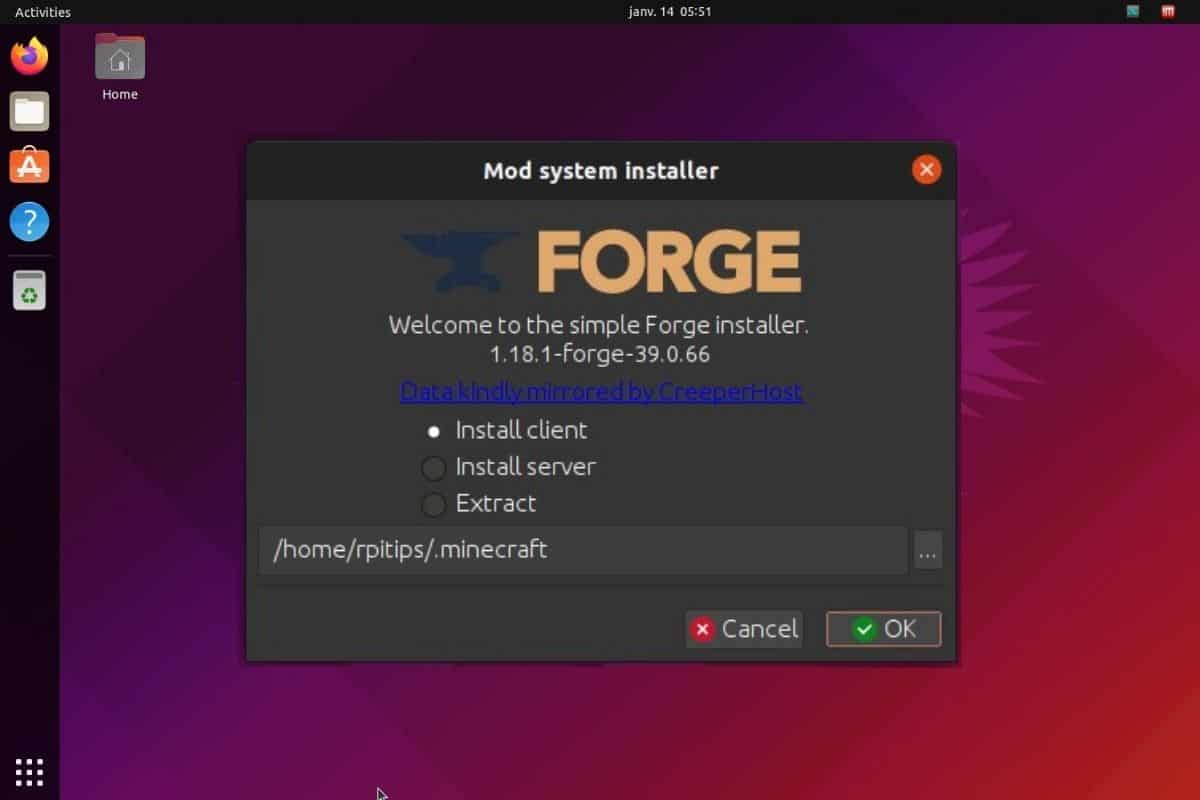
The Minecraft Forge installation wizard will appear and ask what you want to install:

I suppose that most of you reading this want the client, so keep the default value.
If you want to install both, you’ll need to run the installer twice.
The installer will automatically locate your Minecraft installation folder. Make sure to change the path if you have several different Minecraft installations on your computer, and it didn’t write the correct one you would like to use with Forge.
The installation will start when you click OK. There’s nothing much to do during the installation, just wait for the success message:

First Game with Minecraft Forge
The last step, once Minecraft Forge is installed, is to tell the Minecraft Launcher to use it. During the installation, the Minecraft Forge installer should have added a new profile in your Minecraft Launcher. Start your Minecraft launcher and check the profile list on the left:

As you can see, in my case, Forge is selected by default with the version I just installed. I now just need to click on “Play” to start Minecraft with Forge. You may get a warning message, explaining that the game has been modified, just check the box to accept it.
If it’s not there: go to the Installations tab > Forge > Play to start it.
Grab This Cheat Sheet!
I've compiled the must-know commands in a simple PDF for quick reference.
Download now
Your launcher may download files again, and start Minecraft as usual. The main screen might be slightly different, with mentions of Forge being used:

How to Use Minecraft Forge on Linux
Installing Forge on your Linux system is nice, but it doesn’t do anything if you are not adding any mods after that. If you are not used to this, I’ll now explain where to find mods and how to install them.
Each mod will have a specific goal, for example adding a new feature to the game or enhancing your gameplay in some way. For example, the mod “Journeymap” will create a minimap of the world as you explore.
Let’s see how to install it.
Download Mods
The next step once Minecraft Forge is installed and tested is to download the mods you were interested in in the first place. You’ll find them online everywhere, it can be on a developer website, on “best mods” articles, etc.
The easiest way to find and download mods for Minecraft Forge is to visit CurseForge. They have an inventory of the most popular mods, where you can filter by game version, popularity, and more.
- Open CurseForge in your web browser.
- Pick a specific game version (1.21.5 in my case) by using the filter.
- Click Download to get the corresponding file to your computer.
Be aware that there are other mod-loaders, so some mods are not available for Forge. Another way to find compatible mods is to use “Forge” in the game version list. And then, before downloading a mod, check if the game version you want is available (the last update date can help for this).
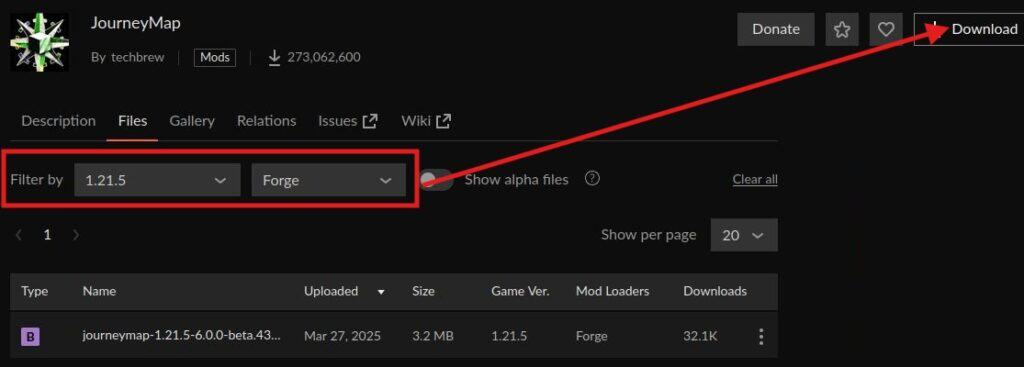
On this page, I can see that the mod is available for the game version 1.21.5 and available for Forge. Now I can click Download—it’s not very intuitive, but that’s the best we have :-).
Install a New Mod
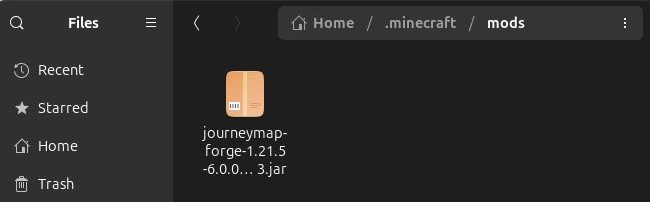
Once the file is on your PC, you need to copy the mod file under your Minecraft installation folder, in the “mods” directory.
Grab This Cheat Sheet!
I've compiled the must-know commands in a simple PDF for quick reference.
Download now
The Minecraft default installation is under a “.minecraft” folder in your home directory. You may need to use “CTRL+H” to display the hidden files. Open it and paste the downloaded file in the “mods” folder:
Restart your Minecraft Launcher and click on “Play” (making sure Minecraft Forge is still selected as your default profile). The main menu will slightly change, showing one more mod loaded, and you can click on the “Mods” button to make sure the new mod is installed:

Obviously, you’ll also see the difference in your game. For example, JourneyMap adds a minimap to the user interface, so you can’t really miss it while playing. Some mods have additional options in the configuration menu; others can be more discreet if they just add something in your games that can’t really be configured (like new ores or whatever).
Update an Existing Mod
There is no magical procedure to update existing mods for Minecraft Forge. You need to repeat the same process as you did for installation: download the new version from CurseForge or from the developer website and put it into the ‘mods’ folder, replacing the old version.
Minecraft Forge may notify you when a new version is available, but you’ll generally update them when a new Minecraft version is released, I think.
Make sure to back up your save games and mods list before doing this. You can’t really know beforehand if the update will break your game, or change too many things in it, especially with mods altering the world generation.
If you enjoy learning about Raspberry Pi, you’ll feel right at home in the RaspberryTips Community. It’s a friendly group of makers helping each other grow. Join us today for $1 and see what it’s like inside.
Minecraft Forge FAQ
How do I install OptiFine on Linux?
OptiFine is one of the most popular mods for Forge. It can be downloaded from the official website. Then, put the files in the “mods” directory and restart the Minecraft launcher, using the Forge profile, to have OptiFine enabled on your Linux system.
If you want to try a vanilla Minecraft server, you can find my guide to install it on Linux here: Hosting A Minecraft Server On Debian: The Ultimate Guide
Whenever you're ready, here are other ways I can help you:
Master Linux Commands: Overwhelmed with Linux commands? This book is your essential guide to mastering the terminal. It includes practical tips, real-world examples, and a bonus cheat sheet to keep by your side.
The RaspberryTips Community: Need help with Linux or want to chat with people who actually get it? Join the RaspberryTips Community and get access to private forums, exclusive lessons, and direct support (try it for just $1).
You can also find all my recommendations for tools and hardware on this page.