If you click our links and make a purchase, we may earn an affiliate commission.
Learn more
I was curious to see how Pop!_OS would run on a Raspberry Pi, especially since it already made waves on PC. So I gave it a try! In this guide, I’ll walk you through the whole setup and share what worked (and what didn’t) along the way.
Pop!_OS is not available in Raspberry Pi Imager, but an image can be downloaded from the official website. You can then use Imager or Balena Etcher to flash it on an SD card or USB stick. The base configuration will be set up on the first boot.
Let’s dive directly into it with the installation process. It’s not that complicated but might be a bit different from what you are used to. Keep reading to avoid missing an important step.
Here are the required steps to get Pop!_OS running on a Raspberry Pi:
Download the image from the official website.
Flash it on a SD card or USB/SSD drive.
Complete the first boot wizard.
I’ll now explain each step before giving you an overview of this interesting system.
Download Pop!_OS for Raspberry Pi
System76 is a computer manufacturer, based in the US, selling various devices like laptops, desktops, and servers. They created Pop!_OS, an Ubuntu-based Linux distribution, to ship their computers with this system installed on them. You can also download Pop!_OS and install it on any computer (or Raspberry Pi!).
On this page, scroll down to the Raspberry Pi release and click the link:
For PC, you have the choice between the LTS version of Pop!_OS or the latest one. LTS means “Long-Term Support” and as for Ubuntu, the idea is to receive security updates for a longer period. It’s generally recommended for servers and critical devices.
On Raspberry Pi, you can probably install the latest version.
Lost in the terminal? Grab My Pi Cheat-Sheet! Download the free PDF, keep it open, and stop wasting time on Google. Download now
Stuck on Another Raspberry Pi Tutorial? Get real answers from 500+ experienced makers, plus exclusive monthly video lessons and ad-free browsing. See What's InsideGet Unstuck Today ($9 only)
The Pop!_OS image is built for the ARM64 architecture, making it compatible with a Raspberry Pi 4 with 4GB RAM recommended. I didn’t test on Pi 3, but I guess it would be too slow to be a good choice (as most Ubuntu versions).
Note for Raspberry Pi 5 owners: As of May 2025, Pop!_OS is still not officially supported on the Pi 5. Check back here for updates in the future.
Flash Pop!_OS on the SD card
Once the image is downloaded on your computer, you can use your favorite tool to flash it on your installation device. As explained in a previous video, Balena Etcher is slightly faster than Raspberry Pi Imager when you already have the image on your PC.
If you’re not in a hurry, you can use whatever tool you are used to, the process will be similar:
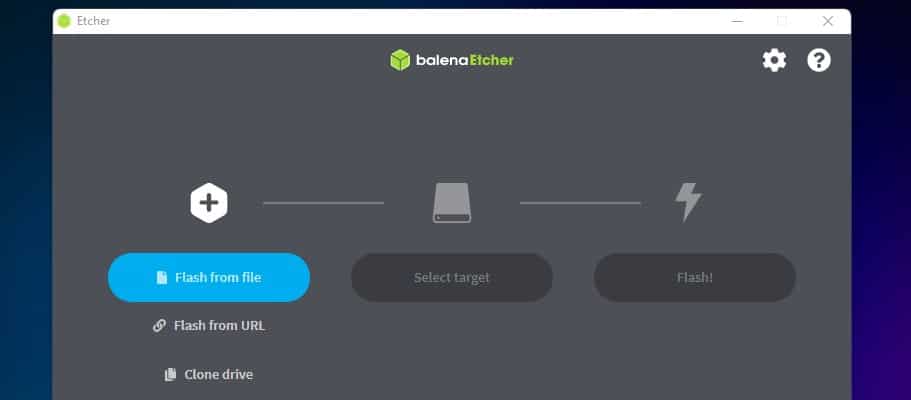
If needed, download Balena Etcher and install it on your PC. It’s free and available for all operating systems.
Start the application, the interface looks like this:
Click on “Flash from file” and select the previously downloaded image for Pop!_OS.
Insert your SD card or USB drive in your computer. Click on “Select Target” and make sure to pick the device you want to use. USB boot is supported, as long as your Raspberry Pi is prepared for this (I explain everything in my course if needed).
Once ready, click on “Flash!” to start the media creation.
After a few minutes, the system is installed on your device, and we can now start using the Raspberry Pi.
First Boot With Pop!_OS on Raspberry Pi
As with most Linux distributions, the first boot on Pop!_OS will start a wizard to help you with the basic configuration of your new system:
Insert your SD card or USB drive in your Raspberry Pi. If you use a USB drive, remember to use the blue USB ports, it’s faster.
Power the Raspberry Pi on. Plug a monitor, mouse and keyboard, as usual.
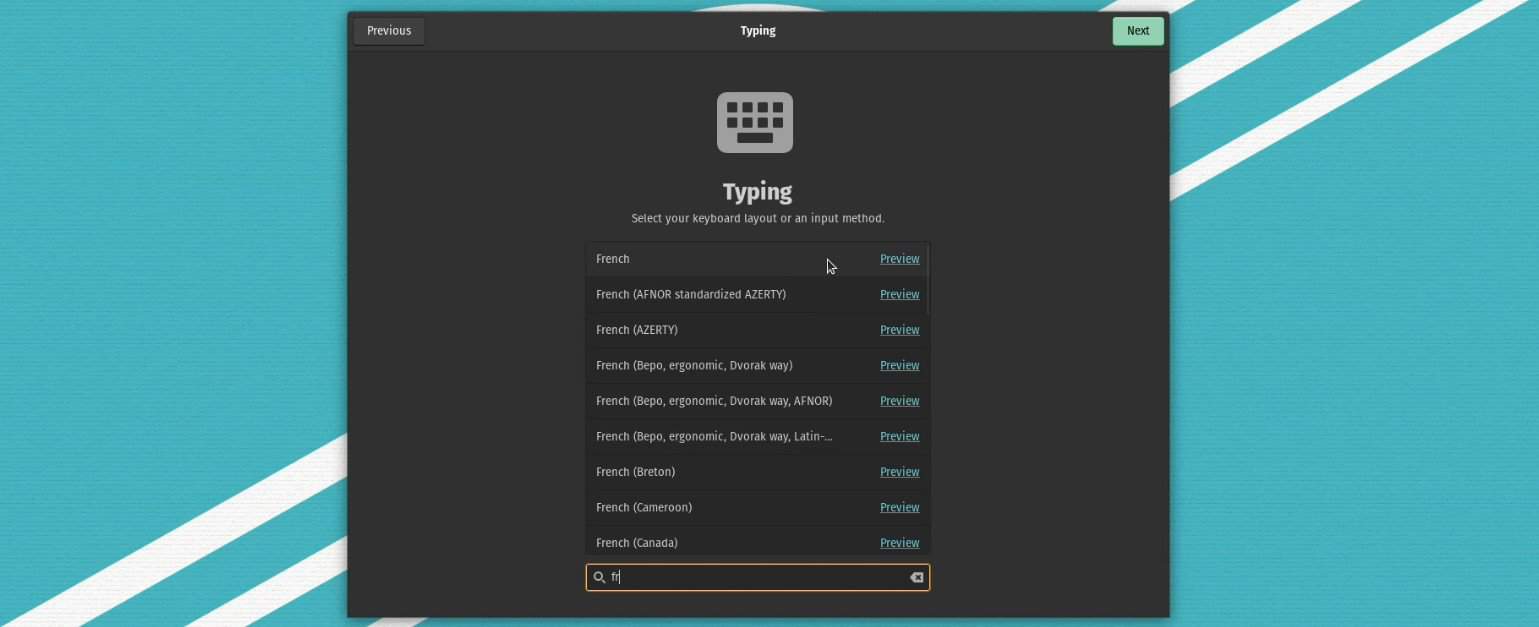
Follow the assistant, by first configuring your keyboard layout and timezone:
At this stage, you can also configure your wireless connection if needed.
The wizard will then ask you if you want to connect your online accounts (Google, Nextcloud, Microsoft, etc.). You can always do it later, it’s not required for now.
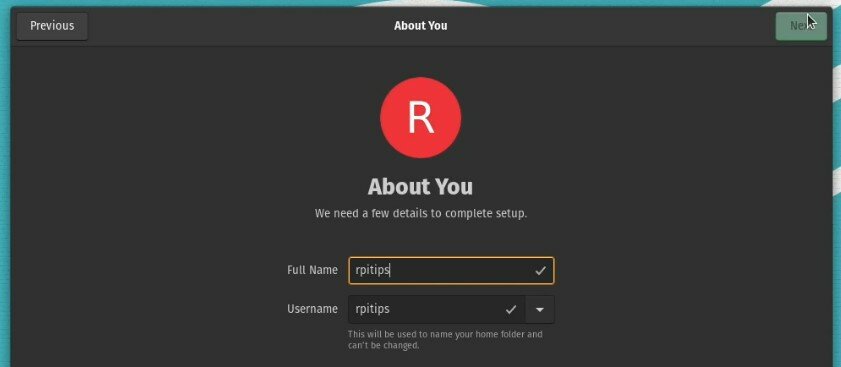
You’ll finally create the first account for the main user. This first user will automatically have the sudo privileges for the system administration.
Once done, the GNOME desktop environment will be fully loaded, and another wizard will help you make a few tweaks to the interface, and give you some additional tips:
Dock configuration: no dock, dock extends to edges or not.
Top bar: use workspaces and applications buttons or not. Date and notifications position.
It will then explain the super key and gestures you can use to save time in your daily usage.
And finally, choose between a light and dark theme.
Overall, the boarding process on Pop!_OS is smooth. We don’t have the installation phase that is pretty boring on most other Ubuntu-based systems, Pop!_OS is quickly set up and configured with your preferences.
If you are used to GNOME with any Linux distribution, you won’t be lost with Pop!_OS, but I’ll now give you a few tips before summarizing my thoughts about this new distribution for Raspberry Pi.
Lost in the terminal? Grab My Pi Cheat-Sheet! Download the free PDF, keep it open, and stop wasting time on Google. Download now
Stuck on Another Raspberry Pi Tutorial? Get real answers from 500+ experienced makers, plus exclusive monthly video lessons and ad-free browsing. See What's InsideGet Unstuck Today ($9 only)
Troubleshooting Issues
As stated on their download page, “Pop!_Pi for Raspberry Pi 4 is a tech preview only—bugs are guaranteed.” And as promised, I did have a some issues with the newest release.
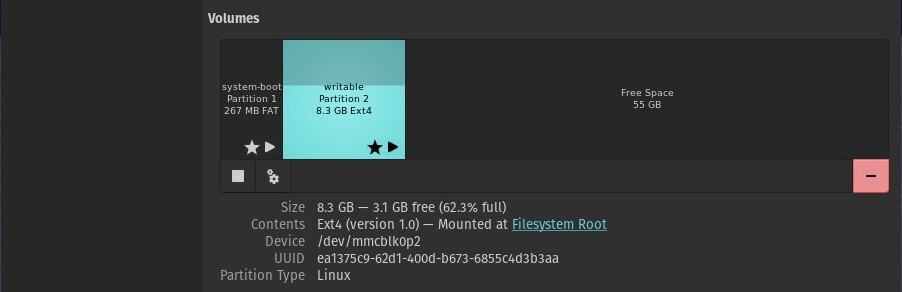
One major issue was that my root partition was immediately full and caused the system to crash. It turns out the image installer sizes the root partition to 8GB, and it immediately gets filled up by initial system updates on first launch.
Leave your Ethernet cable unplugged and don’t connect to Wi-Fi during setup. This prevents the system from automatically downloading update files.
Open the Disks tool from the applications menu.
Select your SD card, and right click the root partition to bring up the context menu.
Choose Resize and expand the root partition to your remaining SD card capacity.
Once I had a proper root partition, I connected to the internet and updated the system as shown in the next section.
Hopefully that solves the problem for you if you ran into this problem on this version.
Pop!_OS Overview on Raspberry Pi
As a whole, the Pop!_OS distribution is promising. Based on Ubuntu 64-bit for the latest applications and decent performance, using GNOME for a modern-looking desktop, and with several optimizations that might make it even better than the original Ubuntu for our Raspberry Pi.
Interface Overview
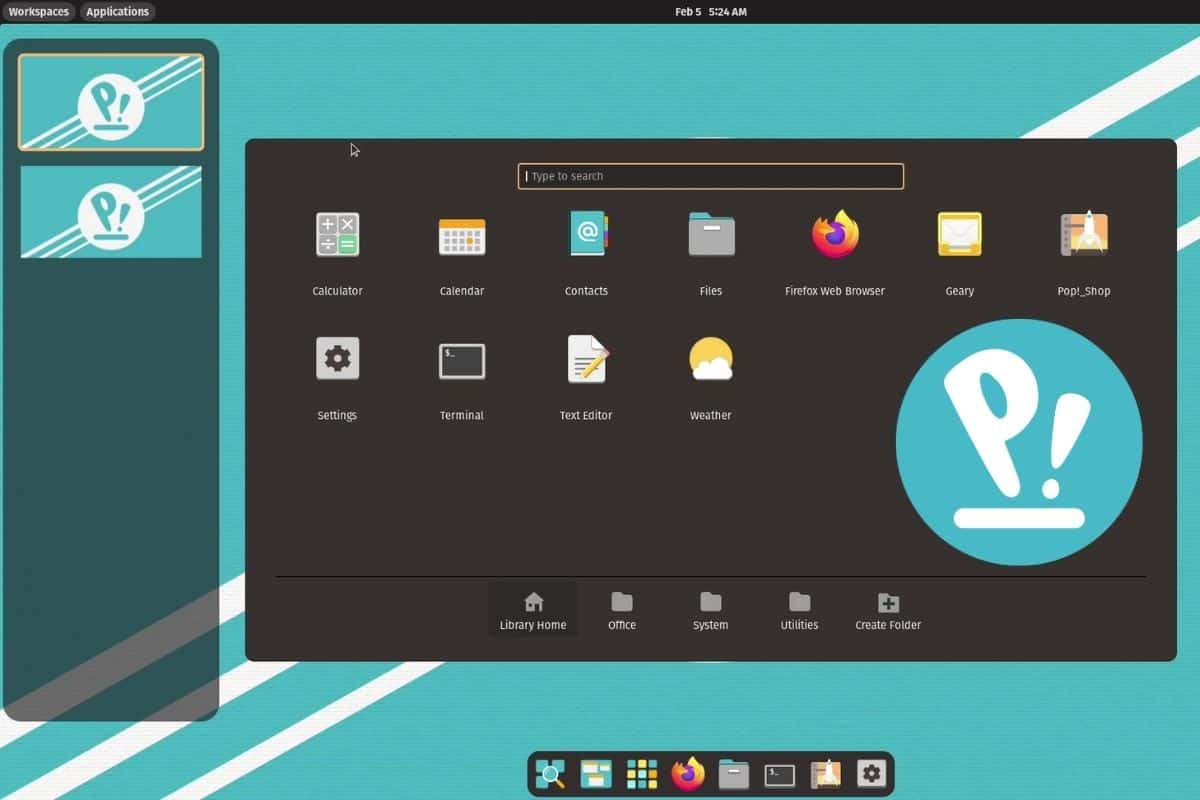
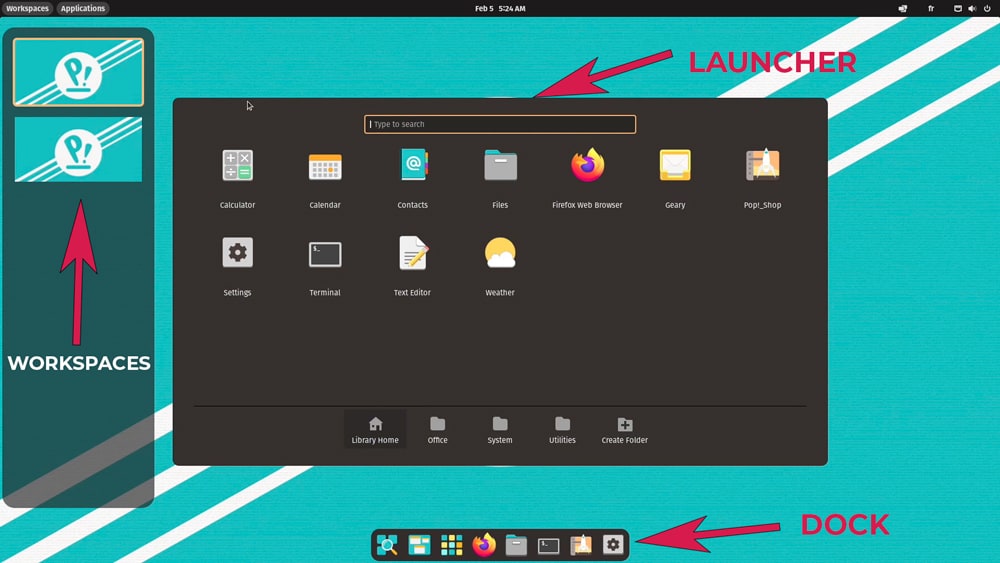
The Pop!_OS interface is built on the GNOME desktop environment. You’ll get the benefits of it, but also some nice additions, making it even more pleasant to use than a default Ubuntu setup.
For example, the dock is really one thing missing a default GNOME setup. I like to be able to run an app quickly, especially those I use often. If you have a main menu, it’s fine, but on Ubuntu, for example, you need to open the app list and then find the one you want in the whole list (that will have tons of pages over time).
Pop!_OS includes a launcher with a search engine (like on Ubuntu), but apps are also sorted by category, which makes them easier to find overall. And a dock is present by default, to quickly open RaspberryTips with your favorite web browser, for example :-).
Lost in the terminal? Grab My Pi Cheat-Sheet! Download the free PDF, keep it open, and stop wasting time on Google. Download now
The issue with GNOME is generally the performance. As Pop!_OS is only recommended for Raspberry Pi 4 with 4 or 8 GB of RAM, it’s not a big deal. I can’t say if it’s faster than on Ubuntu or Debian, but it works decently.
System Configuration
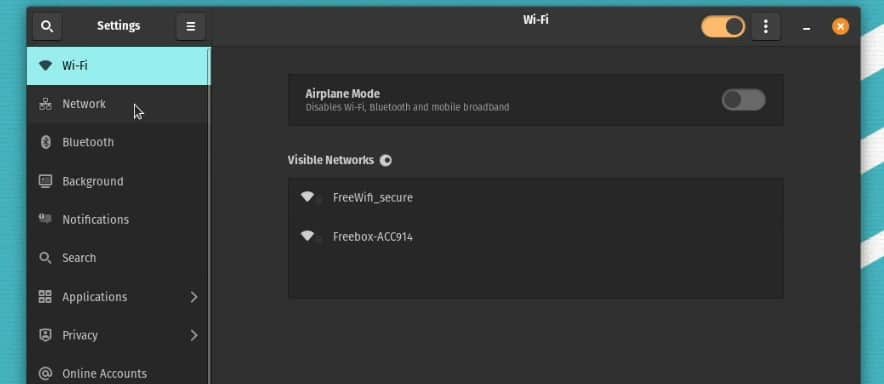
The system configuration on Pop!_OS is made via this nice all-in-one interface. You’ll find all the settings in the same app, with everything sorted by category and a search engine to quickly find something.
I don’t think there is anything customized by System76 there, but it’s already great with the default GNOME environment, so why would you change it?
By default, Pop!_OS comes with Firefox, LibreOffice, and a few other tools. The minimum to get started, but you’ll probably need to install more apps depending on your needs and goals with this system.
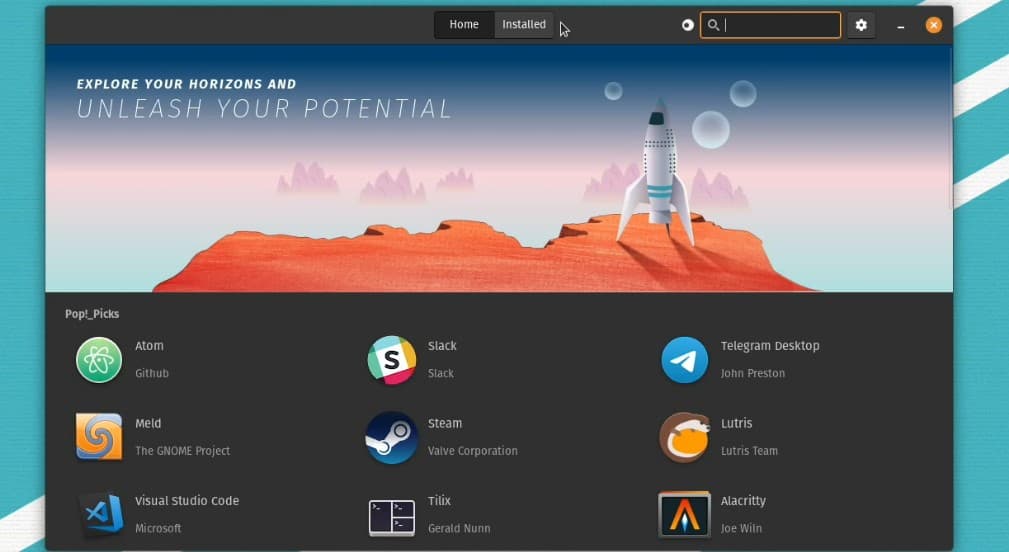
Finding and installing new apps on some Linux distributions is often a nightmare. If you just have the command line (or a graphical tool for it), you’ll get thousands of results for any search, and it might be difficult to find the package you are looking for.
On some modern distributions, an app store is included. It’s not always working well on Raspberry Pi, as some apps don’t support the ARM architecture or Raspberry Pi is not fully supported by the developers. Anyway, I had some issues with Pop!_OS too, but it wasn’t my worst experience at all.
When you open this app for the first time, start by doing the system and software updates. You’ll probably get a notification on the first boot. If not, you can go to the “Installed” tabs or use the menu to update everything on your system.
Lost in the terminal? Grab My Pi Cheat-Sheet! Download the free PDF, keep it open, and stop wasting time on Google. Download now
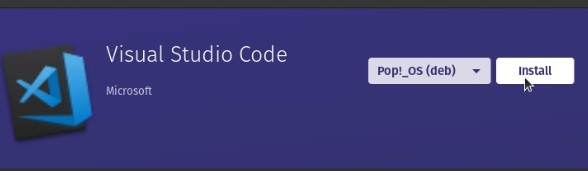
Once done, you can browse the entire catalog to find some apps to install. For example, I tested the Visual Studio Code installation. It didn’t work, neither with the DEB installation method nor Flatpak. But when I tried VLC, it worked well. So, I suppose some apps are not available for Raspberry Pi, but it’s not filtered in the result (just a guess).
Overall, it’s way easier to install and update applications on Pop!_OS than on most operating systems. Pick a category or search for something specific, and install any app in one click. And if it doesn’t work, you can still use the same methods as on Raspberry Pi OS (sudo apt is your friend!).
🛠 This tutorial doesn't work anymore? Report the issue here, so that I can update it!
If this project doesn’t work as expected on your setup, don’t worry. You can get help directly from me and other Pi users inside the RaspberryTips Community. Try it for $1 and fix it together.
As a whole, I’m pretty pleased by the result of Pop!_OS on Raspberry Pi. It’s their first release for this device, so we should be gentle with the developers. They will probably see the first impressions of the Raspberry Pi community, and improve from there. But it’s already a great Linux distribution to try, especially for desktop usage and coding.
Here is a quick video if you want to see Pop!_OS in action, comparing each feature with how it works on Raspberry Pi OS:
I did some performance tests to give you a better idea of my experience with Pop!_OS. Overall, booting the system with Pop!_OS is way slower than Raspberry Pi OS, but once you are logged in, everything seems faster. I did this comparison with Raspberry Pi OS 32-bits for your information, this is probably a bit faster on the latest 64-bits version (but it’s not the one they push by default).
Performance test
Raspberry Pi OS (32-bit)
Pop!_OS
Time to boot
21s
60s
Time to open Wikipedia
20s
13s
Time to open LibreOffice Writer
8s
5s
YouTube experience
Excellent
Decent
The YouTube experience will vary a lot depending on the browser you use (and other factors as well). As both distributions are not using the same one, don’t take it as determining criteria, you can install Chromium on Pop!_OS and get similar results.
By the way, I’m pretty impressed by the results I got with Firefox. In general, when Firefox is installed by default, I set a bad performances score, as it generally doesn’t run well on Raspberry Pi compared to other options like Chromium. But on this setup, it’s not a problem at all, nice!
In short, if you are looking for a solid distribution for desktop usage, I would recommend giving Pop!_OS a try. In my opinion, it’s better than Ubuntu, and I prefer Debian-based systems, so I wouldn’t use Manjaro or any other exotic distribution (it’s only a personal choice, no offense). And the interface is way more pleasant to use than Raspberry Pi OS.
Want to try other similar Linux distributions? Read these reviews and installation guides to find the perfect one for you:
Whenever you’re ready, here are other ways I can help you:
Test Your Raspberry Pi Level (Free): Not sure why everything takes so long on your Raspberry Pi? Take this free 3-minute assessment and see what’s causing the problems.
The RaspberryTips Community: Need help or want to discuss your Raspberry Pi projects with others who actually get it? Join the RaspberryTips Community and get access to private forums, exclusive lessons, and direct help (try it for just $1).
Master your Raspberry Pi in 30 days: If you are looking for the best tips to become an expert on Raspberry Pi, this book is for you. Learn useful Linux skills and practice multiple projects with step-by-step guides.
Master Python on Raspberry Pi: Create, understand, and improve any Python script for your Raspberry Pi. Learn the essentials step-by-step without losing time understanding useless concepts.
You can also find all my recommendations for tools and hardware on this page.
I'm the lead author and owner of RaspberryTips.com.
My goal is to help you with your Raspberry Pi problems using detailed guides and tutorials.
In real life, I'm a Linux system administrator with web developer experience.
If you click our links and make a purchase, we may earn an affiliate commission. Learn more Have you ever wanted access to your Raspberry Pi when away from home? Maybe you already know how to do it from the local network but would like a similar solution from work or a friend’s house. In…
If you click our links and make a purchase, we may earn an affiliate commission. Learn more Visual Studio Code is one of the best programming editors available currently. It’s developed by Microsoft, but it’s available on Linux, and can easily be installed on a Raspberry Pi. I use this editor almost every day as…
If you click our links and make a purchase, we may earn an affiliate commission. Learn more Wireshark is a free and open-source tool to capture and analyze network traffic. It will intercept network packets and display their contents in a nice interface for you. It’s available on Raspberry Pi, and I will show you…
If you click our links and make a purchase, we may earn an affiliate commission. Learn more The Raspberry Pi team regularly releases firmware updates. These updates include the latest features, security upgrades, and other improvements. In this guide, I will show you how to update your Raspberry Pi firmware to the latest version. The…
If you click our links and make a purchase, we may earn an affiliate commission. Learn more If you already have a Raspberry Pi running 24/7, adding a torrent service on top of your existing project(s) is another great use for this device. I know, with the rise of streaming providers, torrents aren’t as popular…
If you click our links and make a purchase, we may earn an affiliate commission. Learn more If you use a Raspberry Pi in a company or when you open up ports, it’s a good idea to think a little about security. You might not be worried about a Pi going rogue, but it can…
×
Tired of figuring everything on your own?
Join the RaspberryTips Community and learn faster with help from other Pi users, exclusive tutorials, ad-free content, and more.
You can get 7 days of full access for just $1 by using the link below.