3 Easy Ways To Install Any Qt Version on Ubuntu
Qt 6 is a software tool that helps developers create applications with user-friendly interfaces that are visually appealing for different devices like computers, smartphones, and tablets. User-friendly, but not necessarily developer-friendly, as you’ll quickly realize. Installing a specific version on Ubuntu can quickly be a headache.
A specific version of Qt can be installed on Ubuntu by searching the default repo, downloading from the Qt online installer, or compiling it from source.
There are different methods available, I tested all of them and will share the top 3 with you in this article, with the commands you need to get started in each case.
If you need help with Linux, I’ve got something that can help you right away!
Download my free Linux commands cheat sheet – it’s a quick reference guide with all the essential commands you’ll need to get things done on your system. Click here to get it for free!
Install Qt 6 From the Default Repository
There is one version of Qt 6 available in the default Ubuntu repository. It’s the easiest way to install it, by using APT in the command line or via a graphical package manager.
This is the easiest way, but you won’t necessarily get the latest version, and it’s not necessarily included with all Ubuntu versions.
At the time of this update, Qt 6.4.2 is available in the repository for noble (25.04), while version 6.9.1 can already be downloaded on the website. It’s not a big difference, but it’s still a few months of updates you won’t get.
Grab This Cheat Sheet!
I've compiled the must-know commands in a simple PDF for quick reference.
Download now
If you’re still using an older Ubuntu version, it might even be an older Qt version or not available at all, so this won’t work for everyone. It’s just the easiest method if you don’t care about being a few versions behind.
Here is the command to check which version is available for your system (if any):apt search qt6-base

If you get a similar result, it means it’s available. You can then install it with:sudo apt install qt6-base-dev
If it’s not available on your Ubuntu version, or if you need a different version of Qt, check out the following methods.
Grab This Cheat Sheet!
I've compiled the must-know commands in a simple PDF for quick reference.
Download now

If you’re new to the Linux command line, this article will give you the most important Linux commands to know, plus a free downloadable cheat sheet to keep handy.
Install Qt 6 With Qt Online Installer
An installer is available for download on the official Qt website, allowing you to install any Qt version, and also all the other tools and dependencies (like Qt Creator). A Linux version is available and works well on Ubuntu.
An account is required, which might be an issue for some of you, but it’s not complicated to use and allows you to customize exactly what is installed (version, libraries, applications, etc.).
Here are the steps to use Qt Online Installer on Ubuntu:
- Download the installation script here:
https://www.qt.io/download-qt-installer-oss
- During the download, you can check if you have this package installed, as it was required and missing on my test machine:
sudo apt install libxcb-xinerama0 - Once the download is completed, add execution permissions to the file:
cd Downloads
chmod +x qt-unified-linux-x64-<version>-online.run
Adjust the file name depending on which one you got. - Run the script with:
./qt-unified-linux-x64-<version>-online.run - You’ll have to log in with your Qt Account directly:
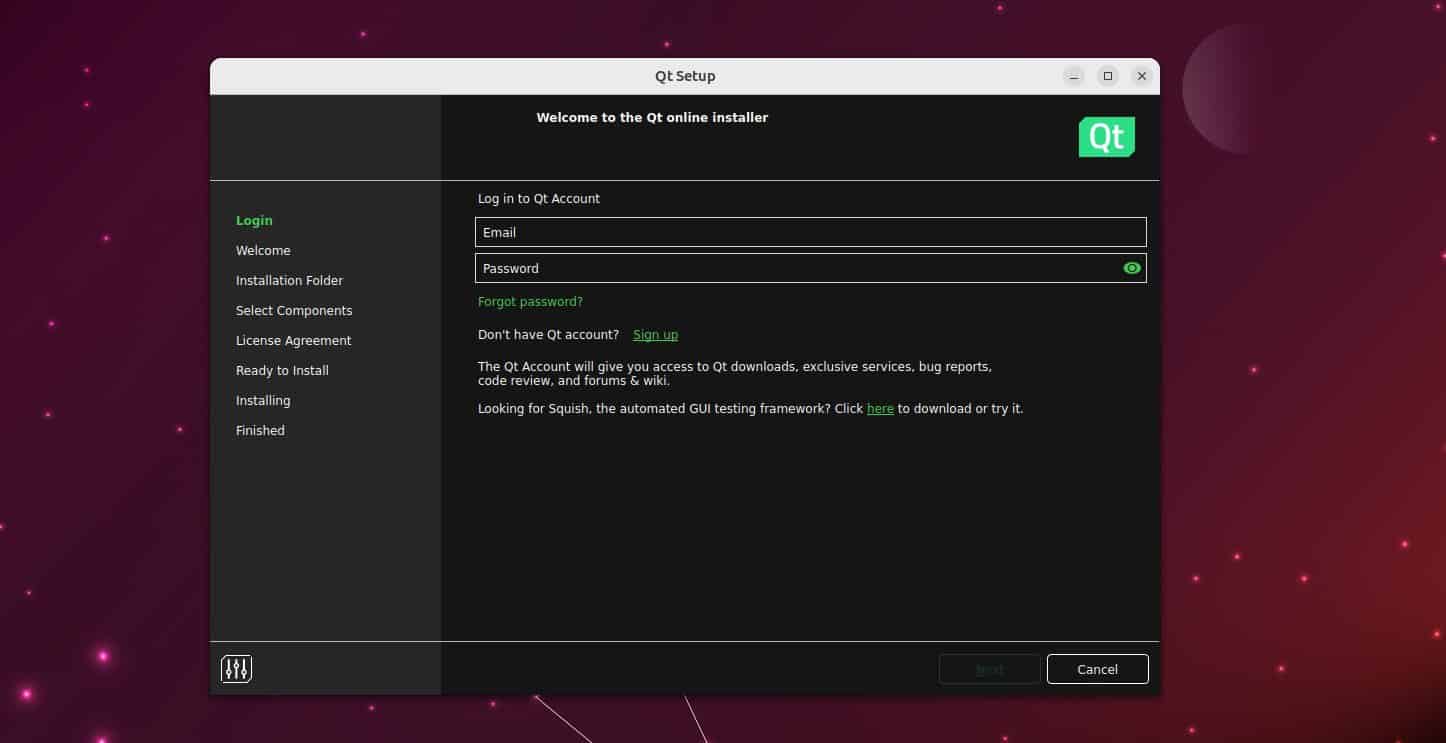
You can create one via the installer if you don’t have one yet (because you need to verify your email address and fill out a form on the website after that before you can use it). - Once signed in, accept the license and continue.
- You’ll get a menu where you can pick what you want to install and customize the installation folder, it’s not complicated, it looks like this:

- If you keep the defaults (Custom installation), you’ll then have another menu where you can decide exactly what to install (version and packages):

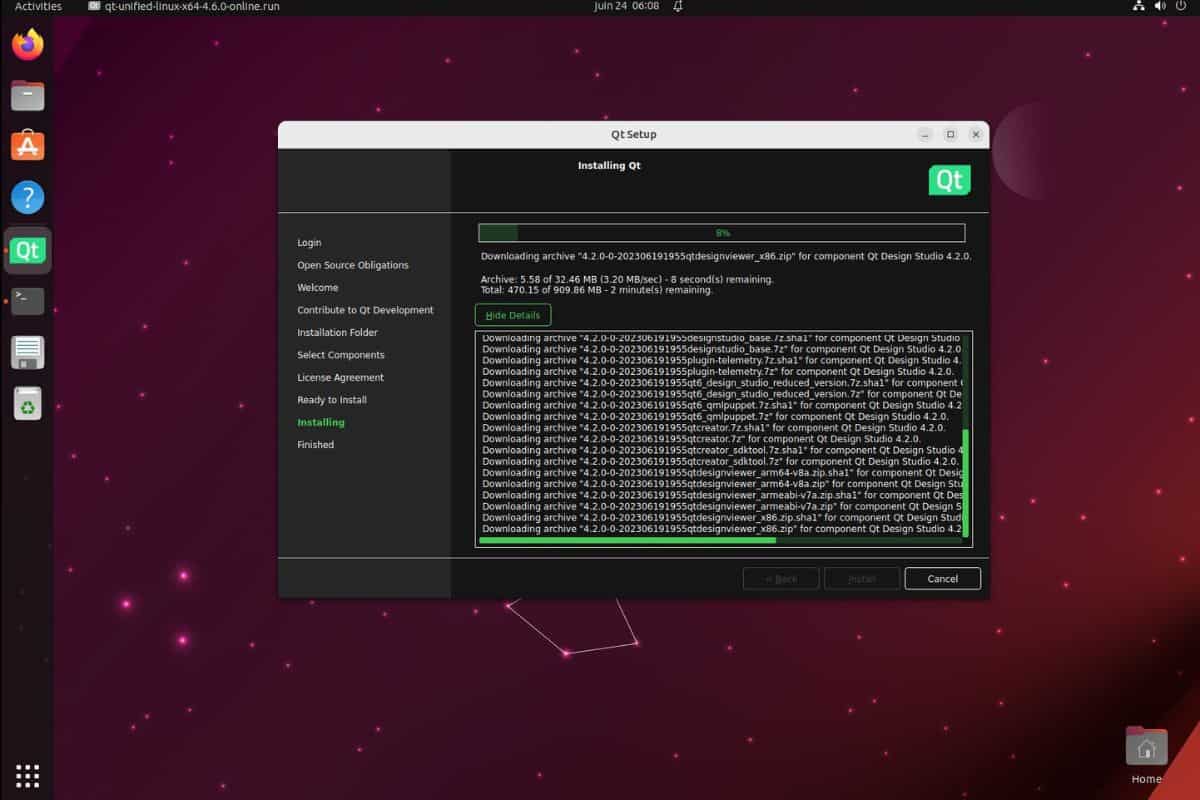
- Accept the license for the things you are installing, and wait a few minutes.
The installer will do everything for you in the background, and you’ll soon have everything installed in the folder you have chosen.
Grab This Cheat Sheet!
I've compiled the must-know commands in a simple PDF for quick reference.
Download now
If you use Qt Creator, this new version will be automatically available in it:

With other IDEs, you might need to go to the settings and add the installation folder manually.
If you have an account and need a specific version, or specific additional libraries and tools, I think using the installer is probably the best method. It’s not that complicated, it’s customizable and built by the editor.
If you prefer watching videos instead of reading tutorials, you’ll love the RaspberryTips Community. I post a new lesson every month (only for members), and you can unlock them all with a 7-day trial for $1.
Install Qt 6 From Source on Ubuntu
The source code of Qt is also available on the official website for any version. It can be downloaded and compiled on any computer, as long as all the prerequisites are available.
Installing Qt from source allows you to get the exact version you want, even if it’s really new and not yet available in the repository. It’s a bit more work, but I’ll show you the steps.
Requirements
Grab This Cheat Sheet!
I've compiled the must-know commands in a simple PDF for quick reference.
Download now
Many packages are required beforehand, let’s install them first. This long command should cover most of your needs:sudo apt install build-essential libgl1-mesa-dev cmake libfontconfig1-dev libfreetype6-dev libx11-dev libx11-xcb-dev libxext-dev libxfixes-dev libxi-dev libxrender-dev libxcb1-dev libxcb-cursor-dev libxcb-glx0-dev libxcb-keysyms1-dev libxcb-image0-dev libxcb-shm0-dev libxcb-icccm4-dev libxcb-sync-dev libxcb-xfixes0-dev libxcb-shape0-dev libxcb-randr0-dev libxcb-render-util0-dev libxcb-util-dev libxcb-xinerama0-dev libxcb-xkb-dev libxkbcommon-dev libxkbcommon-x11-dev

Installation
Once the prerequisites are installed, here are the steps to download and install Qt6 from source:
Check this: Pi5 vs. Pi4: I tested them, here's the result
- Visit the official website and find the version you want to download.
You can find the latest official releases directly on their server here. - There is a subfolder for each version, and then a folder named “single” where you’ll find the archive, download the “tar.xz” file:

It’s a big file, so it might take a while on a slow connection. - Once the file is downloaded, extract the archive.
You can use the GUI, or use tar from the command line:cd Downloads
tar xf qt-everywhere-src-6.5.1.tar.xz
cd qt-everywhere-src-6.5.1 - Run the configure script with:
./configureIt will tell you if anything is missing on your system, but if you installed the prerequisites listed earlier, it should be fine and you will get a success message like this:
- You can then start the build process with:
cmake --build . --parallel
As often when building from source, it might take a while, just be patient. - Once done, complete the installation with:
cmake --install .
By default, Qt is installed under /usr/local/Qt-<version> (for example: /usr/local/Qt-6.5.1).
You may need to add this folder to your path or IDE configuration to use it after the installation.
To make it work from the command line, you can add these lines to your .profile file:PATH=/usr/local/Qt-6.5.1/bin:$PATH
export PATH
I hope this article was useful, and if you like Ubuntu/Linux and programming, I have many other articles like that on this website, feel free to check these for example:
- Ubuntu Backup Essentials: Tips and Tricks from a sysadmin
- Ubuntu Server in Production: Expert Insights To Consider
- Getting Started With PyQt on Raspberry Pi (PyQt5/PyQt6)
Whenever you're ready, here are other ways I can help you:
Master Linux Commands: Overwhelmed with Linux commands? This book is your essential guide to mastering the terminal. It includes practical tips, real-world examples, and a bonus cheat sheet to keep by your side.
The RaspberryTips Community: Need help with Linux or want to chat with people who actually get it? Join the RaspberryTips Community and get access to private forums, exclusive lessons, and direct support (try it for just $1).
You can also find all my recommendations for tools and hardware on this page.