How to Easily Install VMware Tools in GNU/Linux
You have probably already used VMware and their virtual machines, but have you managed to reach their full potential? With VMware Tools, you can improve your user experience using any Virtual Machine.
VMware Tools can be installed using the package repository that’s included in each Linux Distribution or by using the official VMware installer integrated into their applications in disk format (ISO).
Among the benefits you may get using VMware Tools is the ability to copy/paste between host-guest, the screen resolution of the VM adapts to the size of the window, the ability to drag-drop files, and the improvement or fix of any issue presented in the VM.
If you need help with Linux, I’ve got something that can help you right away!
Download my free Linux commands cheat sheet – it’s a quick reference guide with all the essential commands you’ll need to get things done on your system. Click here to get it for free!
Method 1: Using the Official Repositories from Ubuntu (APT)
By default, VMware is included in the installation of the most common Linux Distributions (Ubuntu, Fedora, CentOS, etc.). However, if it is not installed, you can use the official repository of your OS to install it using the terminal. This is the most direct and recommended method to install it.
In my case, I will use Ubuntu, but any of these commands can be adapted to any other distributions you are using. If needed, you can read more about how to do this process in other distributions in the official documentation.
First, you will need to update the system and install all the updates that you have pending:sudo apt update
sudo apt upgrade
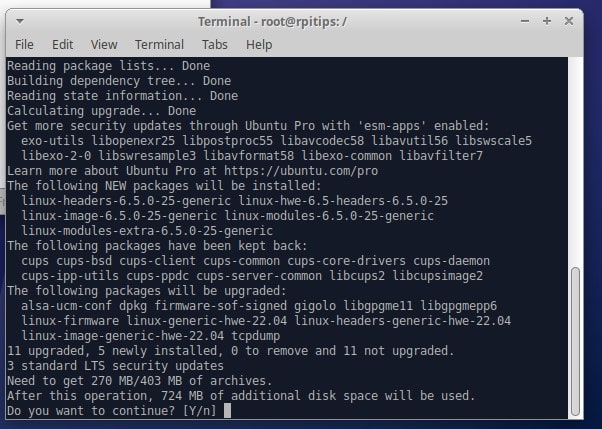
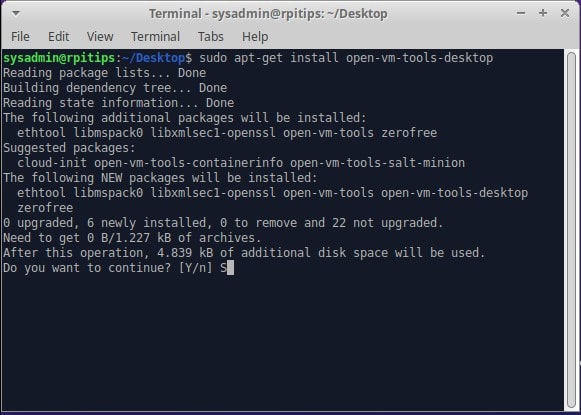
Now, you will need to install the VMware Tools packages required for its functionalities, using the following command:sudo apt install open-vm-tools-desktop
Grab This Cheat Sheet!
I've compiled the must-know commands in a simple PDF for quick reference.
Download now
If you are using Ubuntu-Server or any other distribution where you only have CLI access, you can install open-vm-tools, which contains the appropriate packages for that case.
In some cases, the installation will apply the effects immediately, but if it doesn’t, you can restart the system using:sudo reboot
After that, you probably will see a bigger screen attached to the size of the window, which will tell you that the installation was successful.

If you’re new to the Linux command line, this article will give you the most important Linux commands to know, plus a free downloadable cheat sheet to keep handy.
Method 2: Using the Official Installer from VMware (Manually)
This second method is recommended if the VMware Tools packages are not included in your distribution’s repositories, or if it does not work properly.
In this case, you can perform a manual installation from the official installer included in the VMware Applications.
Grab This Cheat Sheet!
I've compiled the must-know commands in a simple PDF for quick reference.
Download now
For example, I will use VMware Workstation Pro (the free version will work the same way). The application includes a button “Install VMware Tools” that you must click before following the next steps.
You might also like: I've tested hundreds of Linux apps, here are the ones I recommend.
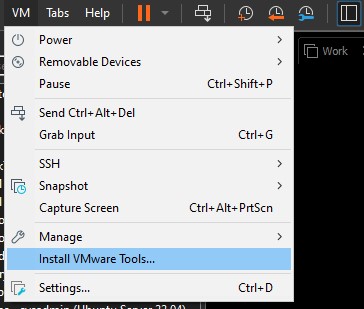
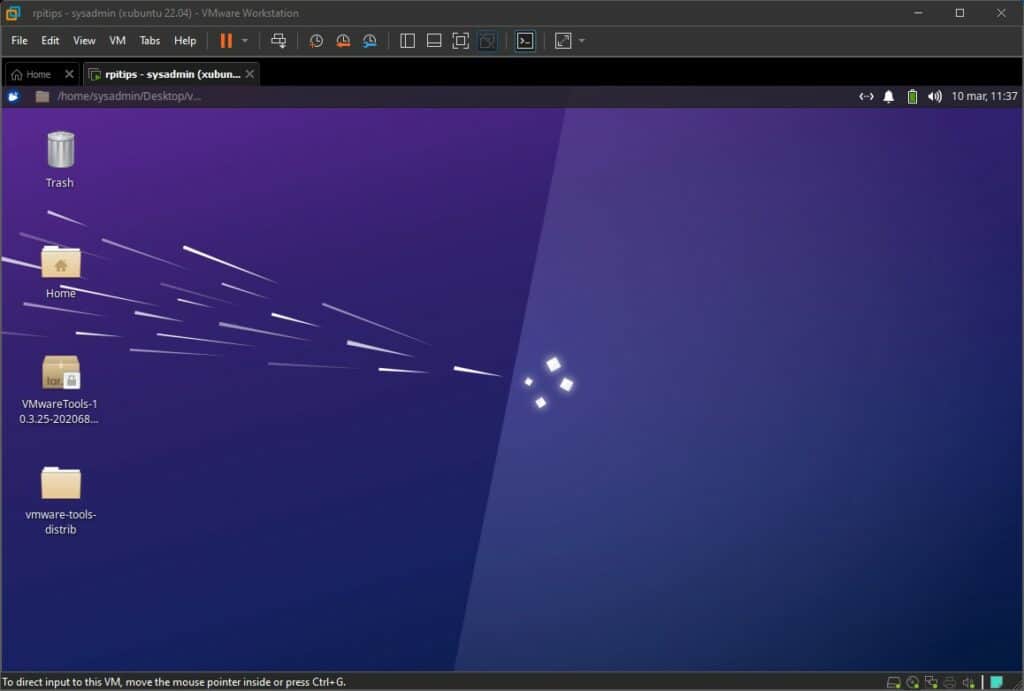
Now you will notice that you will have a mounted disk image, which includes all the necessary files, just like in the image below:
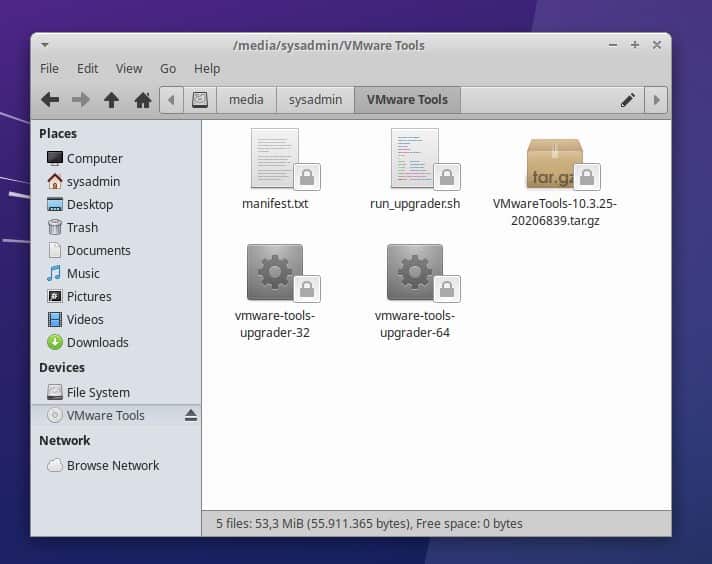
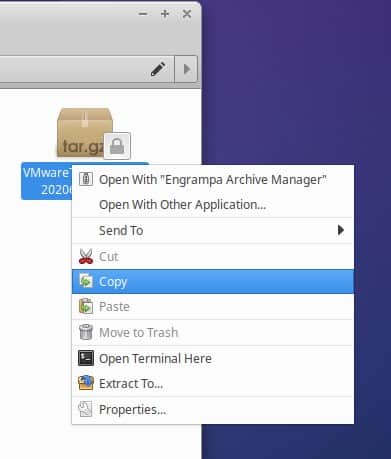
First, you will have to copy the file with the following format VMwareTools.x.x.x.x-xxxx.tar.gz (this may change depending on the version) to the desktop.
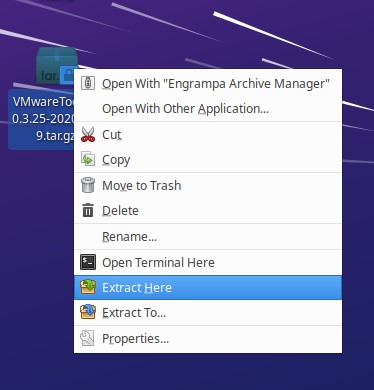
Then you must extract the file you previously copied to the desktop. You can do this by right-clicking on the file, and clicking “Extract here”.
Grab This Cheat Sheet!
I've compiled the must-know commands in a simple PDF for quick reference.
Download now
Note: If you don’t have a desktop interface, you can do all of this from the terminal using the tar command to extract the files to wherever you want.
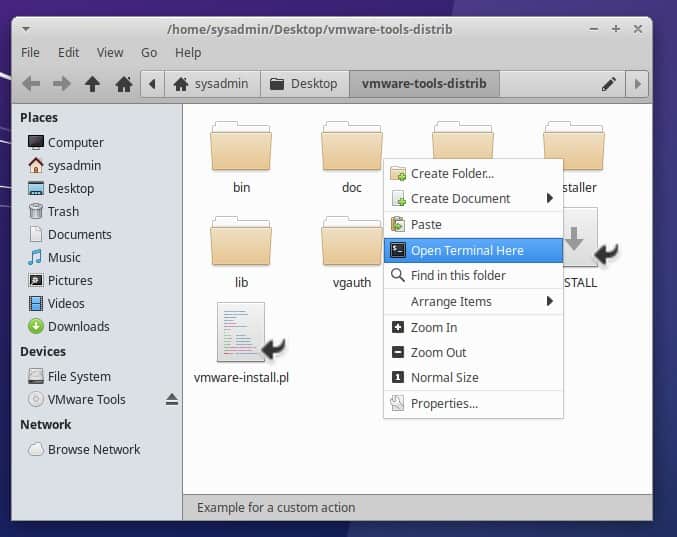
You should notice that there is a new folder on the desktop called “vmware-tools-distrib”. Go into the folder, right-click on any blank space in the folder, and choose the option “Open Terminal Here” (This may change depending on your distribution).
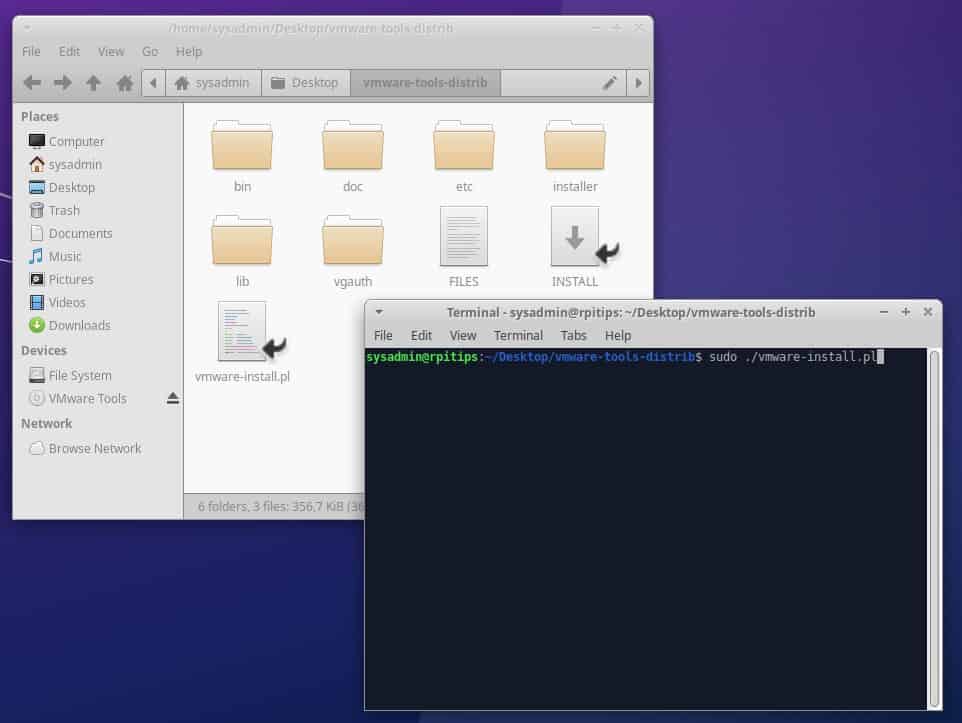
Inside the terminal, you will have to open the installation file called “vmware-install.pl”, you can do it using the following command:sudo ./vmware-install.pl
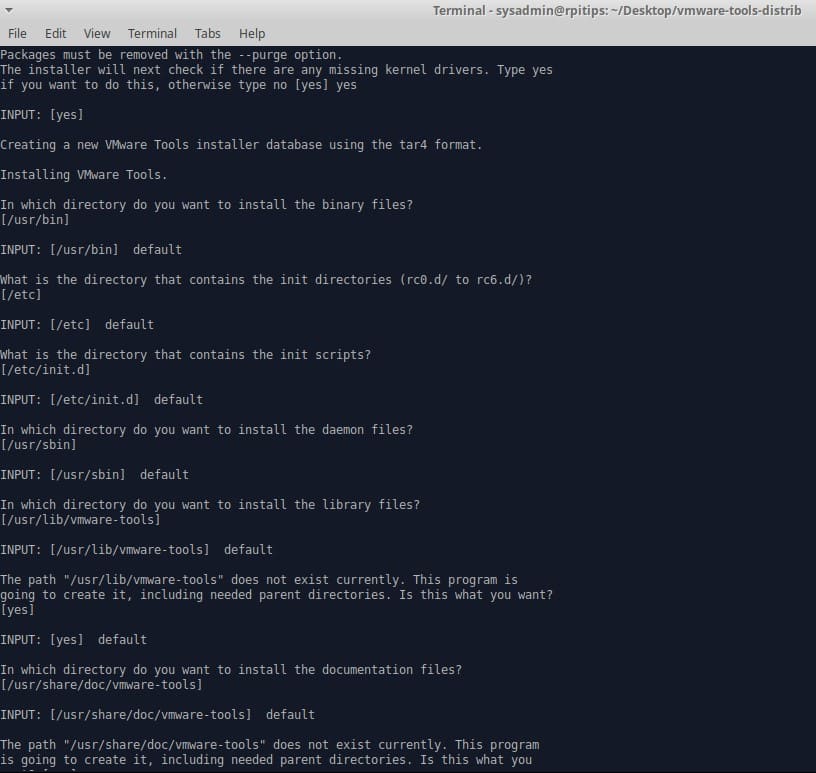
When installing, you will be prompted with different options during the installation process. You can leave everything on default until the installation is finished.
Read next: 15 Easy Projects for Raspberry Pi Beginners
Like in the first method, you may see the changes immediately, if not, restart the computer.
If this project doesn’t work as expected on your setup, don’t worry. You can get help directly from me and other Pi users inside the RaspberryTips Community. Try it for $1 and fix it together.
Related Questions
How do I check if VMware Tools is correctly set up on my GNU/Linux OS?
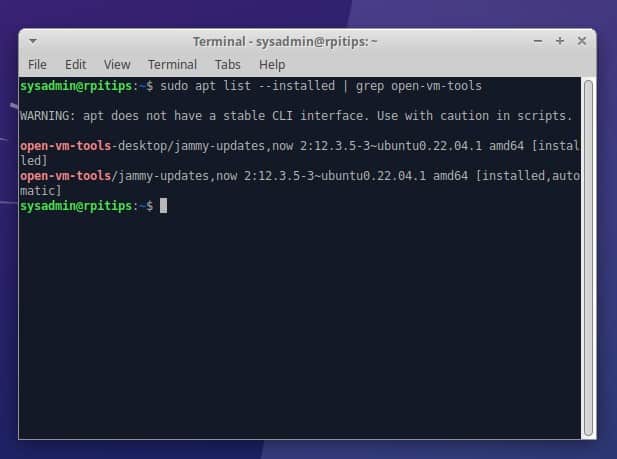
There are different ways to know if you have VMware Tools Installed, the main one is to check using APT (or any package manager you have in your distribution), using the following command:sudo apt list --installed | grep "open-vm-tools"
Grab This Cheat Sheet!
I've compiled the must-know commands in a simple PDF for quick reference.
Download now
Another more visual alternative is to check the button to Install VMware Tools which is integrated into all the VMware software previously used in method 2.
If you look at the button again, you will notice that now appears the option “Reinstall VMware Tools” and it is possible that the button can not be clicked now. In this case, this will indicate that you already have VMware Tools installed.
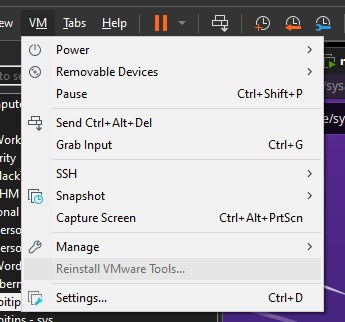
Finally, the easiest option is to check at a glance if the VMware Tool Features are enabled, such as the screen resolution adjusts to the Window Size or the ability to copy & paste between Host-Guests.
How can I upgrade VMware tools on my system?
The easiest way to update VMware Tools is to do it through the package manager using the repository of your distribution. You can update your repository and then use the same command that you used to install VMware Tools, it will download and install the latest update:sudo apt update
sudo apt install open-vm-tools-desktop
Another alternative is to check the VMware Software that you’re using, as it will notify you when a new version is available and allow you to install it.
You might also like: Looking for a fun challenge? Start building your first Raspberry Pi robot!
How do I uninstall VMware Tools from my machine?
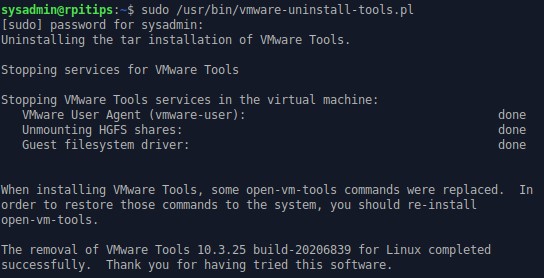
The most recommended way to uninstall VMware Tools is to use a script that is included in the installation and is located in /usr/bin/vmware-uninstall-tools.pl as it will allow you to completely remove it along with its remnants:sudo /usr/bin/vmware-uninstall-tools.pl
Whenever you're ready, here are other ways I can help you:
Master Linux Commands: Overwhelmed with Linux commands? This book is your essential guide to mastering the terminal. It includes practical tips, real-world examples, and a bonus cheat sheet to keep by your side.
The RaspberryTips Community: Need help with Linux or want to chat with people who actually get it? Join the RaspberryTips Community and get access to private forums, exclusive lessons, and direct support (try it for just $1).
You can also find all my recommendations for tools and hardware on this page.