

Install Webmin: Configure Your Raspberry Pi Without Commands
In my job, I often train new staff with Linux commands, so I know how difficult it can be when you haven’t used them. Even if it’s mandatory as a Linux administrator, you may prefer to do things differently at home for your projects. Today, I’ll show you how to install Webmin to configure everything on the Raspberry Pi from a web interface.
Webmin is a great configuration tool for a Raspberry Pi, but it’s not available in the default repository. Therefore, the easiest way to install Webmin on Raspberry Pi OS is to download the binary package from the official website and install it.
In this post, I’ll show you exactly how to download it (and provide a better solution to install it and keep it up-to-date). Then I’ll help you to discover how the interface works and give concrete examples of what you can do with it.
If you’re new to Raspberry Pi or Linux, I’ve got something that can help you right away!
Download my free Linux commands cheat sheet – it’s a quick reference guide with all the essential commands you’ll need to get things done on your Raspberry Pi. Click here to get it for free!
Webmin Installation

As said in the introduction, there are two ways to install Webmin.
But first, you need to have Raspberry Pi OS installed on your Raspberry Pi.
Install Raspberry Pi OS
I haven’t tried it with other distributions, but the Webmin package available on the official site is a Debian package. So, Raspberry Pi OS is perfect, and it’s probably the one you use the most anyway.
Any version of Raspberry Pi OS is OK.
You’ll usually install Webmin on a Lite version so you don’t have to rely too much on terminal commands. But it’s perfectly fine to follow the steps below with a desktop edition of Raspberry Pi OS or any other Debian-based distribution.
You might also like: 15 Easy Projects for Raspberry Pi Beginners
If you need some help to install Raspberry Pi OS, you can check out my complete guide.
Then, I recommend updating the system and enabling SSH, so you can just copy and paste the commands I give you from your PC.
Before going any further, make sure your system is up-to-date. You can either install the updates from the notification on the Desktop version, or type these two commands:sudo apt update
sudo apt upgrade
A reboot is recommended if many packages were updated during this process.
Option 1: Install Webmin Using the Official Script
The first way to install Webmin is to add a new repository using a setup script.
I think that it’s the best solution. With this method, you’ll automatically get the latest version of Webmin when you run system updates (with APT or the desktop tool).
Download the free PDF, keep it open, and stop wasting time on Google.
Download now
I know, there are a few commands to copy & paste for this solution, but once Webmin installed, you won’t have to use a terminal anymore.
Here’s how to download and install Webmin the automatic way:
- Download the official Webmin setup script:
curl -o webmin-setup-repo.sh https://raw.githubusercontent.com/webmin/webmin/master/webmin-setup-repo.sh - Run the script:
sudo sh webmin-setup-repo.sh
- This script will automatically add the Webmin repository with secure GPG keys.
Now the Webmin package is available on your system like any other normal package. - Install Webmin:
sudo apt install webmin --install-recommends
That’s it—it wasn’t very difficult, was it?
Now every time you update your system, you’ll also get updates for Webmin.
But getting updates this way can also be an issue on production systems. In my job, I prefer to do the updates myself for critical apps. This way, I’m already on the server and can check to ensure that a new version didn’t break something.
Even though Webmin is not necessarily a “critical application” per se, I understand that some of you may not like this way of doing things, so I’ve provided an alternative method that allows you to control everything manually (see below).
Are you a bit lost in the Linux command line? Check this article first for the most important commands to remember and a free downloadable cheat sheet so you can have the commands at your fingertips.
Option 2: Manually Install Webmin
The second option is to download the latest Webmin package and install it manually.
- Visit the official site here: http://webmin.com
- From the top menu, click Changelog.
Click on the latest version to see a list of package files:
- Find the .deb file, and download it onto your Raspberry Pi.

- If you’re on a desktop environment, you can simply click on the link to get it.
- If you’re in a terminal or SSH, use the wget command to get the latest version:
wget https://www.webmin.com/download/deb/webmin-current.deb
- Install the downloaded package:
(Make sure to change the filename in the command below to match yours.)sudo apt install --install-recommends ./webmin-current.deb
Your Webmin installation is now complete. You can move on to the next part.
Webmin Interface
Now that you’ve got Webmin installed, how do you actually use it?
As its name implies, Webmin works from a web interface.
It’s pretty intuitive, but I’ll go over a few details for you.
Also: I've tested hundreds of Linux apps, here are the ones I recommend.
Download the free PDF, keep it open, and stop wasting time on Google.
Download now
First Access
You can access the Webmin interface by visiting this address in your web browser:
https://IP_ADDRESS:10000.
For example: https://192.168.1.20:10000.
Check this quick tutorial if you don’t know your Raspberry Pi IP address.
When the page loads, it’s normal to get an SSL error as there’s no certificate by default:
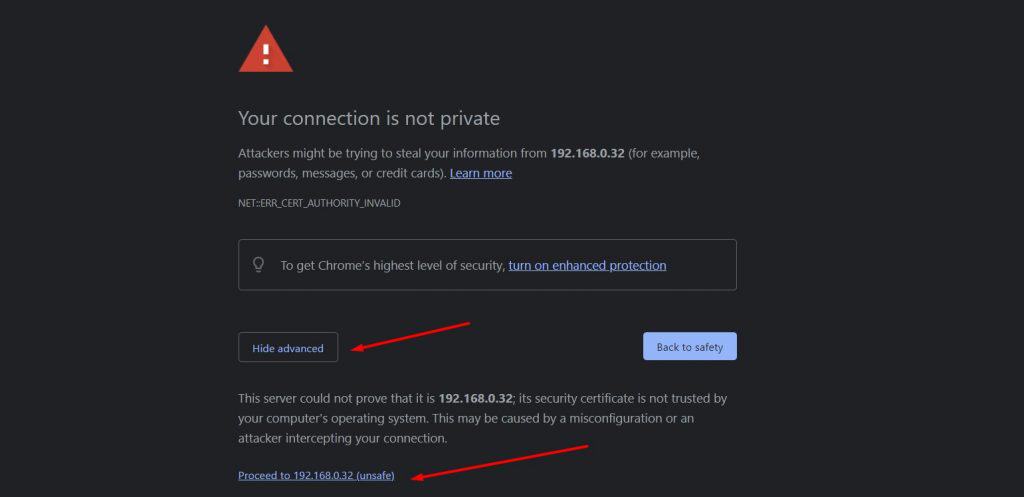
Ignore the error by clicking on Advanced > Proceed to IP_ADDRESS (unsafe).
You can also disable the SSL encryption if you prefer. You can do this in the Webmin interface directly (Webmin > Webmin configuration > SSL Encryption). Or from the configuration file on your system in /etc/webmin/miniserv.conf (change ‘ssl=1’ to ‘ss=0’).
You’ll be presented with a login form with the Webmin logo.
The default login credentials are the same as your user’s on the system.

So, on older versions of Raspberry Pi OS, it might be “pi / raspberry”, but on recent versions, you’ll log in with the user that you created on the first boot.
Interface Overview
Once logged, you’ll see the Dashboard:
You might also like: I've tested hundreds of Linux apps, here are the ones I recommend.

This first page allows you to have a quick overview of your server or Raspberry Pi.
Then, you have the admin menu on the left: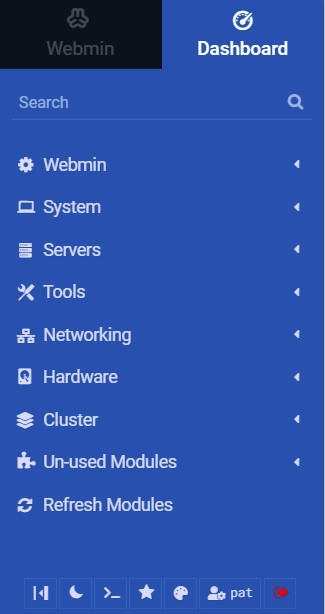
Click on an item to expand its corresponding submenu options: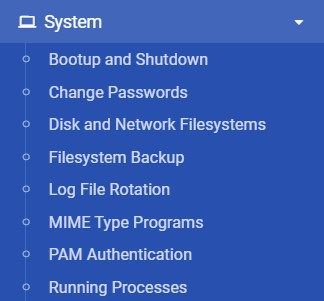
Download the free PDF, keep it open, and stop wasting time on Google.
Download now
For example, try going to Tools > File Manager:
You now have access to a graphical file browser, even if your system is Raspberry Pi OS Lite.
I’ll let you browse the different menus and submenus to get an idea of everything you can do with this powerful tool.
Warning: As soon as you are connected to Webmin, you have administrator privileges (as with sudo). So be careful with what you change.
Examples
As you can see, there are many tools available by default.
Here are a few ones I like.
User Management
Creating and managing users and groups may be difficult for a beginner from the command line, but Webmin offers a graphical tool to do this intuitively:
- In the left menu, go to System > Users and Groups.
- You’ll see all the existing users, and also groups by clicking on the other tab.
- From here, you can add new users and groups, and manage everything easily.
- For example, when you click on a group, you can switch users in or out like this:

SSH Server
Another example is the tool that lets you configure your SSH options.
The tool is in Servers > SSH Server.
From here you can manage the SSH server directly in the interface:

If you never remember what options you need to change or the corresponding values, it’s the perfect tool for you. For each available option, there is a checkbox or a dropdown list, so that you can’t make a mistake.
There are dozens of more admin tools like these in Webmin, so take your time to browse through the menu, and you’ll probably find something useful.
Install New Modules
That’s not all. You can also add modules to Webmin.
You might have noticed the “Un-used modules” entry in the left menu.
From here, you can see the default modules provided by Webmin, ones that are not enabled because you don’t use these programs: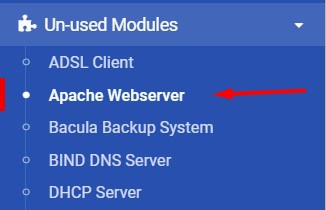
Download the free PDF, keep it open, and stop wasting time on Google.
Download now
If you install one of them on your system later, Webmin will install the corresponding service on your system (the Apache web server, for example) and enable the corresponding module in Webmin.
Check this: 7 Surprising Uses for a Raspberry Pi
You can also find other modules here on the Webmin website.
By default, you’re only provided the ones developed by Webmin, but there are many 3rd-party modules created by other developers.
For example, there’s a module to manage a MySQL/MariaDB database:
Here’s how to install a 3rd-party module:
- Download the file or copy the Download link.
- From your Webmin menu, go to Webmin > Webmin Configuration.
- Click the Webmin Modules icon.
- From here, you can install a new module, from a local file or a URL:

- After installation, your new module will appear as a submenu item.

If you enjoy learning about Raspberry Pi, you’ll feel right at home in the RaspberryTips Community. It’s a friendly group of makers helping each other grow. Join us today for $1 and see what it’s like inside.
Video
If you want to see this cool app in action, you can check my video on the same topic here:
That’s it, you know how to install Webmin on a Raspberry Pi and what you can do with it (almost everything). I hope you liked this post, I think it’s really a great tool for beginners, even if it’s a bit old school.
If you want to try something more modern, there’s a similar tool called Cockpit, that you should give a try. Check out our full guide: Cockpit on Raspberry Pi: The Ultimate Monitoring Tool.
Once you’re ready to move to the next step in your Raspberry Pi journey, I encourage you to check the links below to use my book or course to expand your skills with Linux and the Raspberry Pi in general.
You might also like: I've tested hundreds of Linux apps, here are the ones I recommend.
If you’re looking for something that goes a bit beyond that, more like a portal with tons of applications you can install from a web interface, you might want to take a look at CasaOS or YunoHost, which isn’t just focused on system administration.
Whenever you’re ready, here are other ways I can help you:
Test Your Raspberry Pi Level (Free): Not sure why everything takes so long on your Raspberry Pi? Take this free 3-minute assessment and see what’s causing the problems.
The RaspberryTips Community: Need help or want to discuss your Raspberry Pi projects with others who actually get it? Join the RaspberryTips Community and get access to private forums, exclusive lessons, and direct help (try it for just $1).
Master your Raspberry Pi in 30 days: If you are looking for the best tips to become an expert on Raspberry Pi, this book is for you. Learn useful Linux skills and practice multiple projects with step-by-step guides.
Master Python on Raspberry Pi: Create, understand, and improve any Python script for your Raspberry Pi. Learn the essentials step-by-step without losing time understanding useless concepts.
You can also find all my recommendations for tools and hardware on this page.




Excellent article with good technical details . For the new guy in Linux and Raspberry pi programmer it is really boon to him like me.
KEEP posting your tips and guides for our benefit.
Hi,
Thank you very much for this comment
Is it possible to install “virtualmin” on Raspbian ?
Didn’t know this fork, but as it almost seems an exact copy of Webmin, it should be possible