
How to Use Zoom Meeting on Raspberry Pi? (Video Conference)
Zoom is a video conferencing software that literally exploded during the lockdown in 2020. It’s almost the default software now for any company to keep in touch with its employees, but also often used in other areas like education and marketing. The goal today is to find the best way to access Zoom conferences from a Raspberry Pi.
There is no Zoom application available for Raspberry Pi, but Zoom can be installed easily by adding an extension to the default web browser: Chromium.
So, in this tutorial, I’ll show you how to use the web version of Zoom on Raspberry Pi. I’ll also give you a quick overview of the current situation with other methods, and conclude with alternatives to consider, specially on Raspberry Pi.
If you’re new to Raspberry Pi or Linux, I’ve got something that can help you right away!
Download my free Linux commands cheat sheet – it’s a quick reference guide with all the essential commands you’ll need to get things done on your Raspberry Pi. Click here to get it for free!
How to Use Zoom with Chromium
Zoom is intended to work with a desktop app, to help you configure the audio and video, so the web access is a bit hidden when you join a conference.
As there is no app for the Raspberry Pi, I’ll give you a step-by-step process to use it from Chromium:
- Install Raspberry Pi OS and update it.
- Install the Chromium app for Zoom
- Go to Zoom.us and join a meeting room.
Prepare your system
I’ll show you how to use Zoom with Raspberry Pi OS Desktop, but you can absolutely use other systems if you prefer, you just need a compatible web browser: Chromium, Firefox or Edge.
It didn’t work for me with the Firefox version we have on Raspberry Pi, so the only way seems to use Chromium for this.
Download the free PDF, keep it open, and stop wasting time on Google.
Download now
If you need help to install and configure Raspberry Pi OS, please have a look at my dedicated tutorial on the topic here.
If you already have Raspberry Pi OS Desktop installed, it’s recommended to update your system before anything else. For example, in a terminal:sudo apt update
sudo apt ugprade
You might also like: The 5 fastest web browsers for Raspberry Pi — tested and ranked!
If you need a microphone, I recommend starting by checking that everything is ok first. You can read this guide on how to install a microphone.
Same thing for the camera, my camera guide can help you if needed. I tried with the camera module and it’s working fine.
Once everything is ready, you can move to the next step!
Are you a bit lost in the Linux command line? Check this article first for the most important commands to remember and a free downloadable cheat sheet so you can have the commands at your fingertips.
Join a Zoom conference on Raspberry Pi
- Open Chromium (or a compatible browser)
- Go to Zoom.us
- In the top menu, click on “Join”

- On the page that shows up, enter the Meeting ID (or the link) and submit:

Note: If you are hosting the meeting on your computer for the test, you can get the Meeting ID by click on the little (i) in the top left of the window.On the page that shows up, enter the Meeting ID (or the link) and submit:
Note: If you are hosting the meeting on your computer for the test, you can get the Meeting ID by click on the little (i) in the top left of the window. - You can then click on “Join the meeting” to open Chrome PWA that will handle the meeting directly.
- Accept the term of services to join the meeting
- If there is a password to access it, you need to type it here:

And that’s it!
You should now be connected to the meeting, and attend the meeting as from any other computer.
Download the free PDF, keep it open, and stop wasting time on Google.
Download now
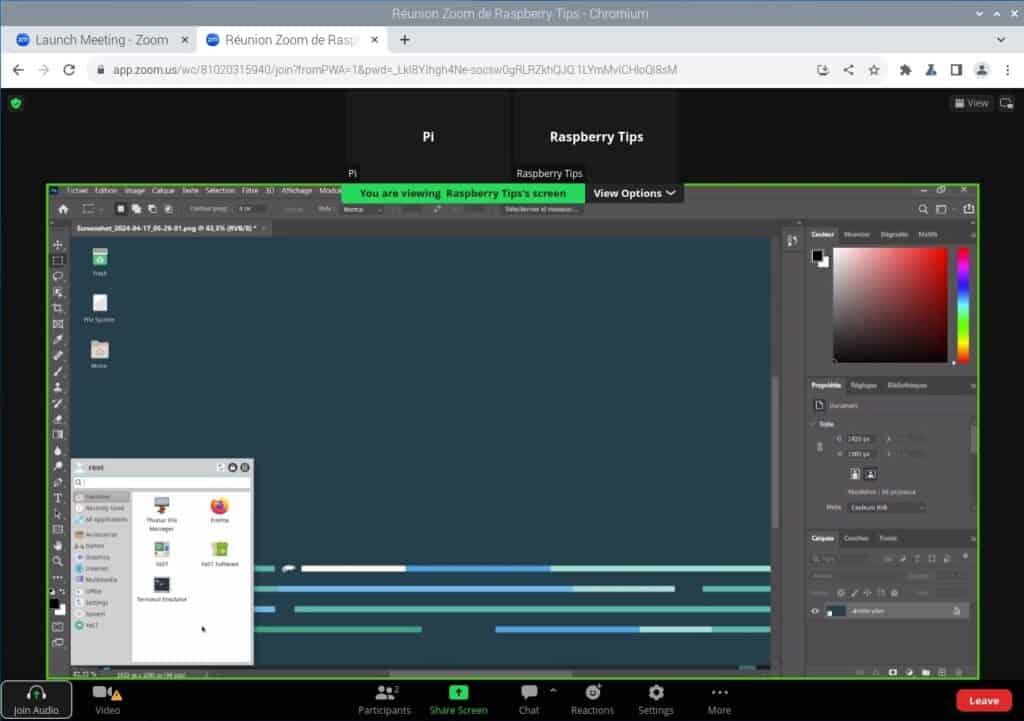
Audio and video are working well if correctly configured on the system. You can also use screen share to stream your screen to the meeting. Also, I didn’t have any issue with the video stream from the host in my tests, despite what I read on some forums (but maybe you get this with more users or longer session).
Zoom alternatives for Raspberry Pi
Now, without a native app available for Raspberry Pi, Zoom is not necessarily the perfect choice. If you are the host, or can influence the software used by your team, it’s definitely something to think about.
There are better alternatives to consider, that work well on Raspberry Pi.
Jitsi Meet
Download the free PDF, keep it open, and stop wasting time on Google.
Download now
Jitsi Meet is the first Zoom alternative you can check.
The good news is that it’s an open-source video conferencing solution, which is pretty rare on the market currently.
The usage is really close to Zoom, you can also use it from your browser: https://meet.jit.si/
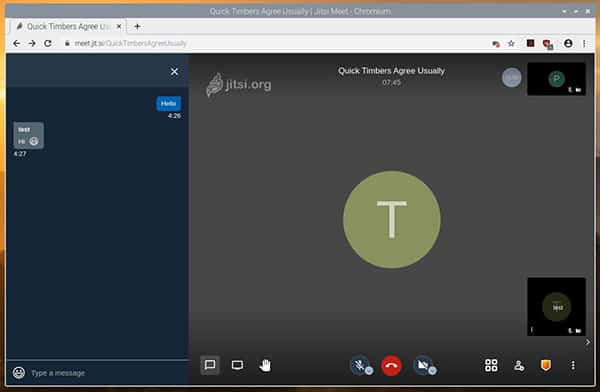
Audio, video and screen sharing are working correctly. You can even self-host your server if you want (link here).
And I found a tutorial to install the apps that I didn’t test yet (here). It doesn’t seem to be natively optimized for Raspberry Pi, but if it works why not? 🙂
Google Hangouts
Google Meet / Google Hangouts is also an interesting solution for video conference on Raspberry Pi.
It only works in a web browser, and you need a Google account.
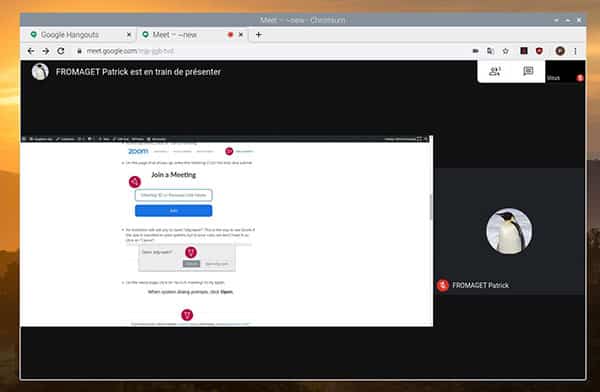
But the advantage is that almost everyone has a Google account now (Gmail, YouTube, Android, etc.). So it’ll be easy to ask someone to use Google Hangouts rather than Zoom.
There is also a good integration with all the Google apps, so if you are using Google for other things, it’s an easy way to manage video conferences.
Skype Meet Now
Download the free PDF, keep it open, and stop wasting time on Google.
Download now
And a last one to conclude, Skype is also a very popular software on computers, so it should be easy to find interlocutors that have it.
Even if Skype is losing users each month, they still have a solid base of people with the software installed.
You might also like: Don't buy a new SD card until your read this.
As for the other solution, you only need a web browser to access it, here is the URL: http://web.skype.com/. An account is required.
From here, you can start a call or a meeting with the same options as the other alternatives to Zoom.
If you prefer watching videos instead of reading tutorials, you’ll love the RaspberryTips Community. I post a new lesson every month (only for members), and you can unlock them all with a 7-day trial for $1.
Conclusion
That’s it, you now know how to use Zoom on Raspberry Pi. As you have seen, it’s not really optimized for Raspberry Pi, but it’s working fine.
There are a few other alternatives that combine correct operating on Raspberry Pi OS and high usage over the world, but not really the perfect solution for everyone.
Whenever you’re ready, here are other ways I can help you:
Test Your Raspberry Pi Level (Free): Not sure why everything takes so long on your Raspberry Pi? Take this free 3-minute assessment and see what’s causing the problems.
The RaspberryTips Community: Need help or want to discuss your Raspberry Pi projects with others who actually get it? Join the RaspberryTips Community and get access to private forums, exclusive lessons, and direct help (try it for just $1).
Master your Raspberry Pi in 30 days: If you are looking for the best tips to become an expert on Raspberry Pi, this book is for you. Learn useful Linux skills and practice multiple projects with step-by-step guides.
Master Python on Raspberry Pi: Create, understand, and improve any Python script for your Raspberry Pi. Learn the essentials step-by-step without losing time understanding useless concepts.
You can also find all my recommendations for tools and hardware on this page.







Contrary to your comment that you can screen share on Chromium, notice that in your screen shot above there is no button for Share Screen. I don’t think it is supported.
The Zoom Chrome App in Chromium doesn’t work for me, either – logins time out every time.