9 Essential Linux Commands to Find Files Quickly
Finding files on Linux can feel tricky for beginners. The directory system is different from Windows, and it’s easy to get lost. But I have some good news: Linux has powerful commands that make it simple. In this post, I’ll share 9 essential commands to help you find files faster.
Commands such as find, locate, and grep come pre-installed in most distributions and can be used to find files on Linux. Tools such as Midnight Commander, ripgrep-all, and fzf can also be installed from the official repository.
I’m excited to share them with you. Each one is perfect for specific situations when you want to search for files on your machine using the command line. Let’s get started!
If you need help with Linux, I’ve got something that can help you right away!
Download my free Linux commands cheat sheet – it’s a quick reference guide with all the essential commands you’ll need to get things done on your system. Click here to get it for free!
find – Search for Files
When searching files on your Linux machine, the most basic command line tool is the find command. Using this command, you can search your file system for files based on your search criteria, and it will show you a list of all files that match the defined criteria.
Installation
Find comes preinstalled in most Linux distributions, and you can check it using the command:find --version
However, if find is not installed in your distribution, you can install it from the official repository using the command:sudo [apt/yum] install findutils
Usage
Find usage is straightforward. The general syntax for find is as follows:find /path/to/search -options criteria
You might also like: Tired of Raspberry Pi OS? Level up with these top-rated systems.
For example, to find a file named “sample1.txt” in your home directory, you can use the command as follows:find ~ -name sample1.txt
If you want to find all txt files in a specific directory, you can use the command like this:find /home/pat/Documents/Samples -name *.txt
As you can see, the usage of find is straightforward and intuitive. Find has several search options and criteria. Besides searching for file names, you can also search using file size, file type, file modification time, etc.
You can find more details regarding the find command on official Linux manual pages.
locate – Searched Using Indexed Database
Another helpful command for searching files on Linux OS is the locate command. Unlike find, locate does not do a real-time search of all files on your system. Instead, it only looks through a prebuilt database and shows the results matching the search criteria. Consequently, locate can be much faster in execution than find.
Installation
You can install locate using the plocate package from the official repository using the command:sudo [apt/yum] install plocate
Usage
locate only searches for files that have been indexed in your database. By default, locate automatically maintains an indexed database of all your files once a day. However, you can use this command to update the database manually:sudo updatdb
You might also like: Don't buy a new SD card until your read this.
Grab This Cheat Sheet!
I've compiled the must-know commands in a simple PDF for quick reference.
Download now
Once your database is updated, you can search for a file with a specific name using the command:locate sample1.txt
To search for all HTML files on your system, you can use the command (using the -n flag to limit the number of results):locate "*.html" -n 20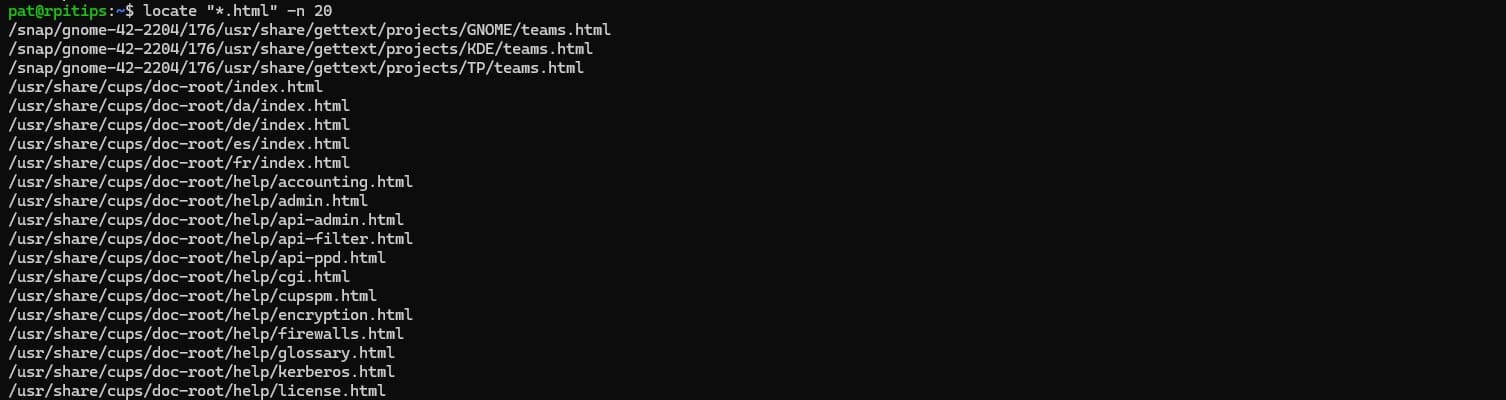
Another cool thing this command can do is count the number of files matching your search criteria. For example, if you want to find out how many HTML files are in your file system, you can use the command as follows:locate -c "*.html"
As you can see, locate is very similar to find in terms of usage. find is relatively more versatile in its search criteria. However, locate has the advantage of being faster in execution owing to its indexed database.
You can find more details on the locate command on the official Linux manual pages as well.

If you’re new to the Linux command line, this article will give you the most important Linux commands to know, plus a free downloadable cheat sheet to keep handy.
grep – Search for Patterns Within Files
The Global Regular Expression Print or grep is a command in Linux that can be used to look for patterns in any text file. It can search for files based on their content instead of using file names.
You might also like: Do this to keep a full backup of your Raspberry Pi
Installation
grep is one of the most basic commands in Linux. It comes packed with all distributions, and does not need to be installed separately. However, if you are working with a Linux distribution that isn’t pre-packaged with grep, you can install it using the official repository:sudo [apt/yum] install grep
Usage
To search for all files in your home directory that contain the text “Lorem,” you can use the grep command as follows:grep -r "Lorem" ~
You can also use the -n flag to find the exact line number on which the keyword appears in each file:grep -rn "Lorem" /home/pat/Documents/Samples/Text
You can combine the grep command with the find command to incorporate multiple search criteria. For example, to search for your home directory for all text files greater than 1kB that contain the keyword “Lorem,” you can combine the two commands as shown below:find ~ -size +1k -name *.txt -exec grep -l "Lorem" {} \;
As you can see, the grep command is exceptionally versatile. Searching for files based on patterns is just one use-case scenario. To learn more about this Swiss knife, read this in-depth tutorial on “How To Use ‘grep’: The Complete Linux Command Guide”.
whereis – Locate Binary Source of a Command
Another useful command in Linux OS that comes pre-installed with most distributions is the whereis command. This command allows you to search pre-defined locations for a specific command line tool’s binaries, manuals, or source code.
Installation
The whereis command is included in the util-linux package and comes pre-installed with most Linux distributions. However, if you want to install it manually, you can use the official repository:sudo [apt/yum] install util-linux
Read next: 25 project ideas you can try at home with Raspberry Pi
Grab This Cheat Sheet!
I've compiled the must-know commands in a simple PDF for quick reference.
Download now
Usage
The usage of whereis command is very straightforward. You can use the following syntax to search for a specific command’s associated binaries, manuals, and source files:whereis <command>
You can also use different flags with this command to filter results based on your requirements. For example, you can use the -b flag to list only the location of binary files associated with that command:whereis -b <command>
Another similar command is the which command, which helps you find the location of an executable associated with a specific command:which -a <command>
tree – Display Directories and File Tree
tree is a command line tool that lists all files and folders in a hierarchical format of directories and subdirectories. It can be used with a search filter to search for specific files and display the information in an easier-to-understand format.
Installation
You can install this tool from the official repositories using the command:sudo [apt/yum] install tree
Usage
the tree can be used without any arguments to list down all files in a tree-like hierarchal format, showing the folder and subfolders and the exact location of each file.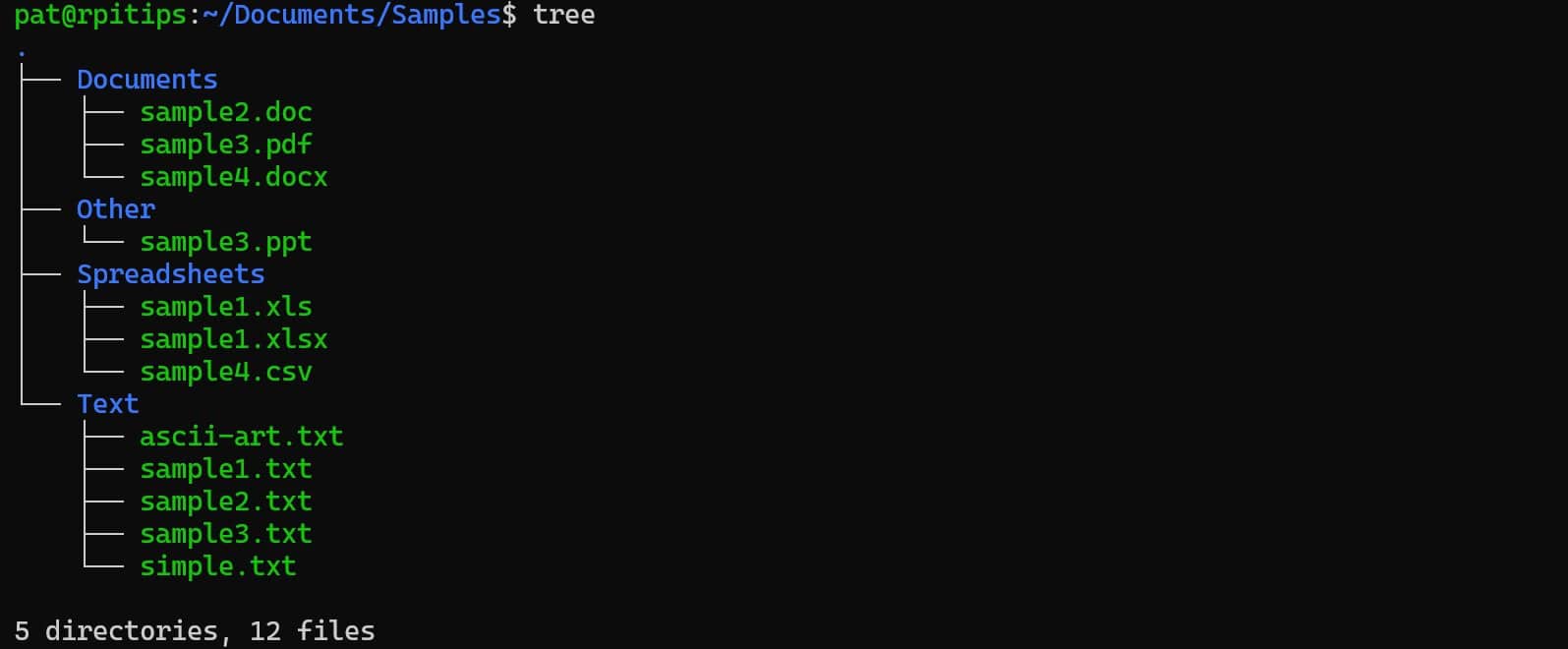
Alternatively, you can search for a specific pattern using the -P command line option:tree -P *.txt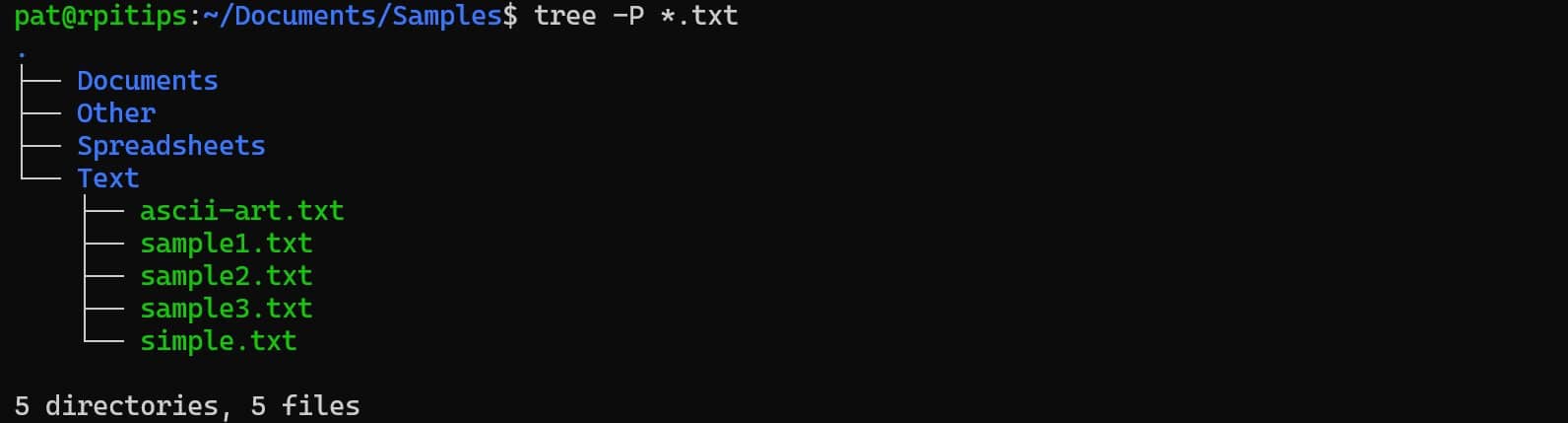
Several other command line options to use with this command can help you filter out and search for a specific file using specific criteria. You can read the official Linux manual pages to see the complete list of all command line options.
du – Find Files Based on Size
You can use the du command line tool to find files that consume the most space on your Linux system and fill up your disk space. While it is not a search tool, it can help you carry out system hard disk administration.
Installation
du is included in the coreutils package and comes pre-installed with all Linux distributions. However, you can use the official repository to install this manually:sudo [apt/yum] install coreutils
Usage
To carry out disk usage analysis of a specific directory and its subdirectories, you can use the command:du <directory> 
You can use flags with this command to refine your search. For example, you can use the -a flag to display all files, including hidden files. You can additionally use the -h flag to display the size in a human-readable format:du -a -h <directory>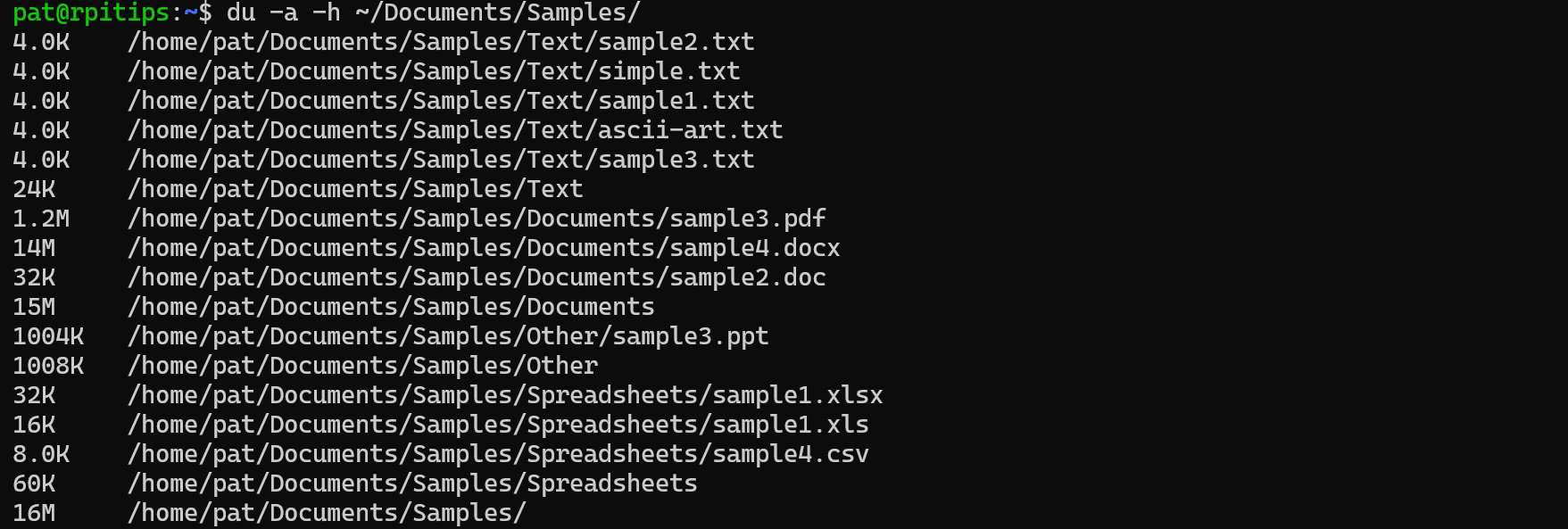
You can consult the official Linux manual pages to check out all available command line options.
You can also follow this tutorial to look at a few useful tools for disk space administration – How to Manage Disk Space on Linux Like a Pro.
Grab This Cheat Sheet!
I've compiled the must-know commands in a simple PDF for quick reference.
Download now
Check this: 25 project ideas you can try at home with Raspberry Pi
Midnight Commander – Navigate Manually to Find Files
If you are adept with Windows File Explorer and its search-related options, you might be looking for a command line file explorer in Linux to look for similar options. Midnight Commander (MC) can navigate the Linux file system and search for files manually.
Installation
You can install the Midnight Commander (MC) from the official repository using the command:sudo [apt/yum] install mc
Usage
You can run the Midnight Commander using the command: mc and pressing Enter. You will be greeted with a dual-pane file explorer, which can be used to navigate and explore the file system. You can use both keyboard and mouse inputs.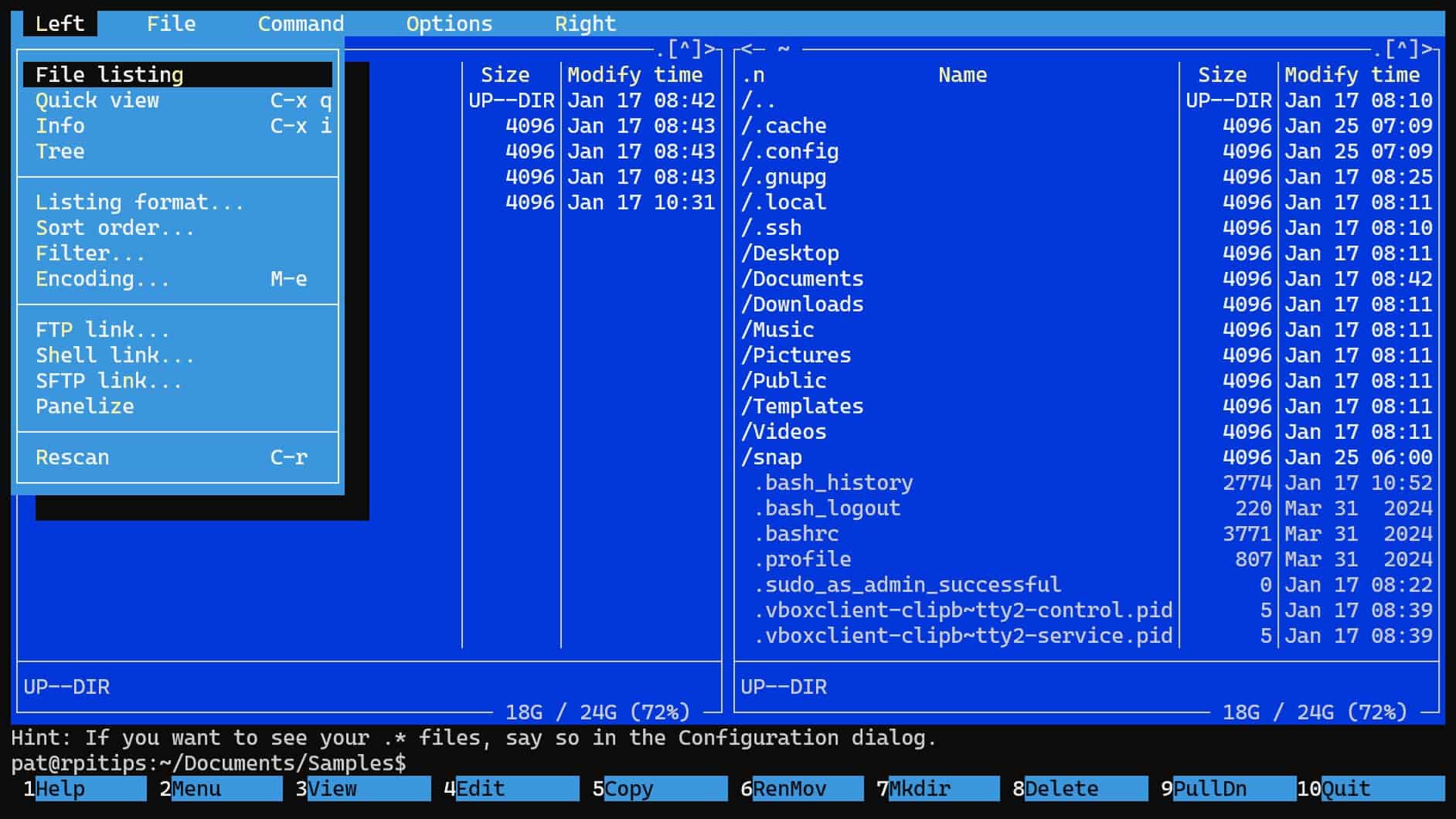
You can search for files by navigating to Command ->Find file. Alternatively, you can use the keyboard shortcut Alt+Shift+?.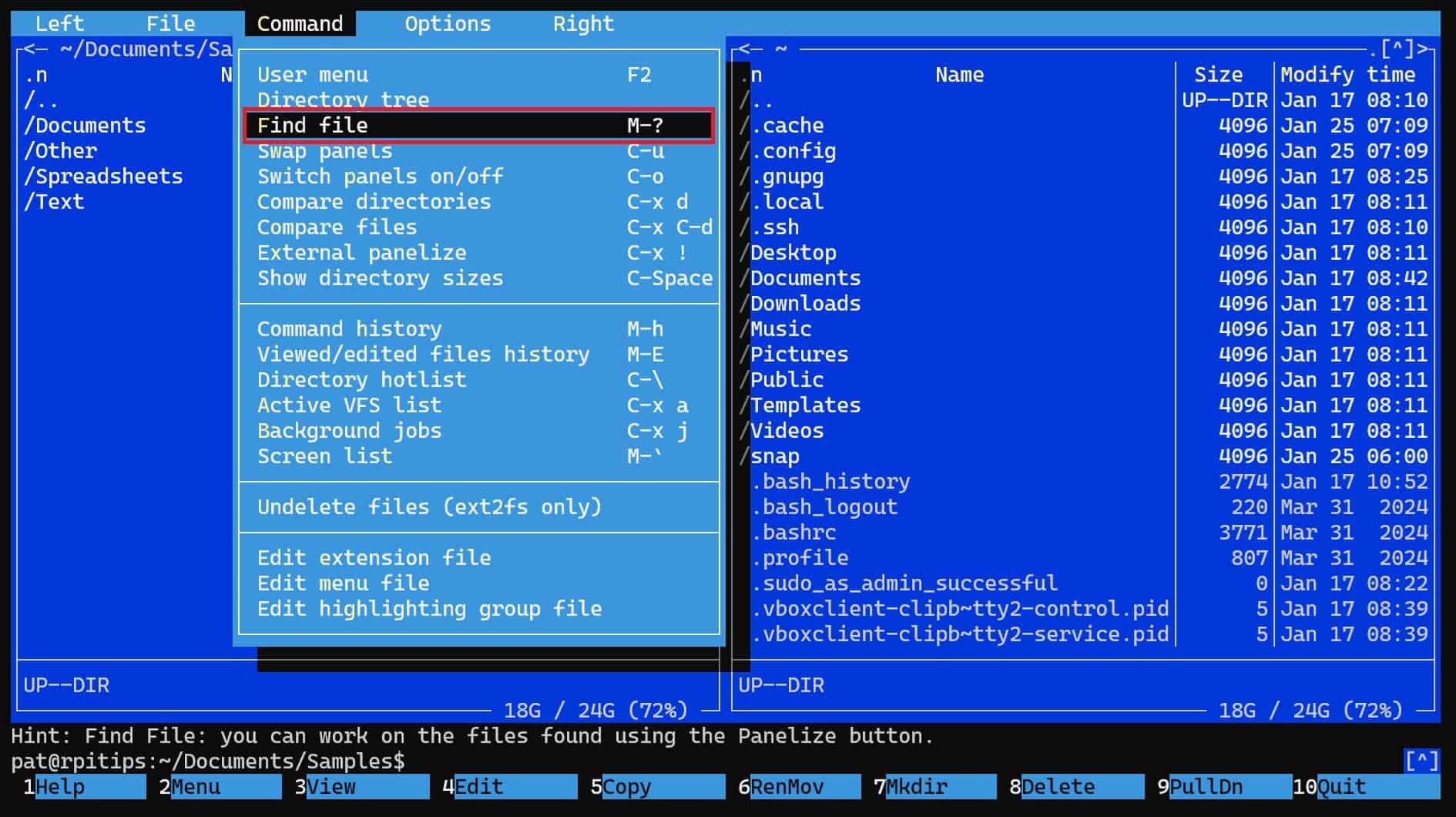
You can use the available options to search for files. The search options are similar to those in any graphical file explorer.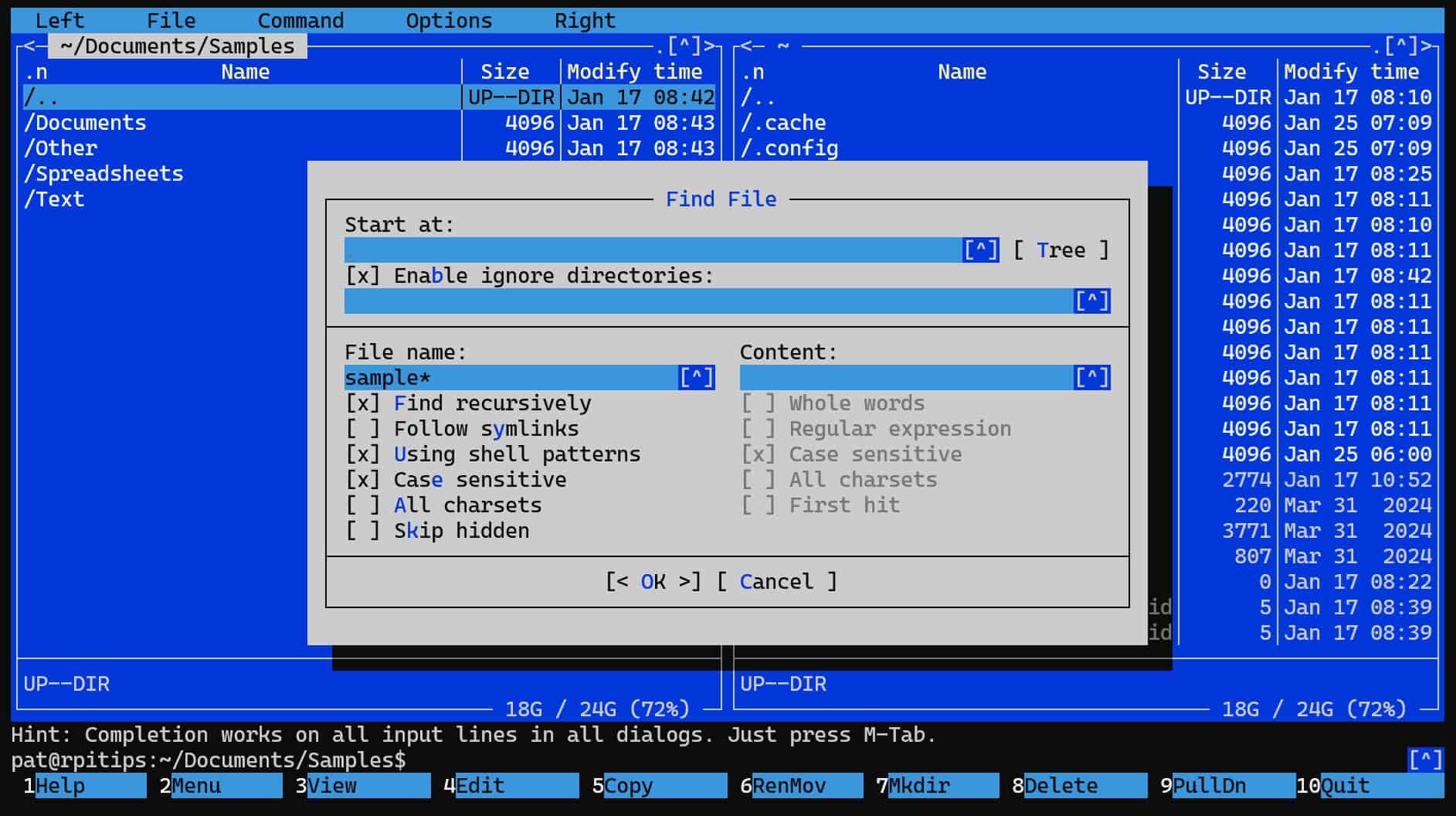
Upon selecting OK, you will be shown a list of all files that meet your criteria.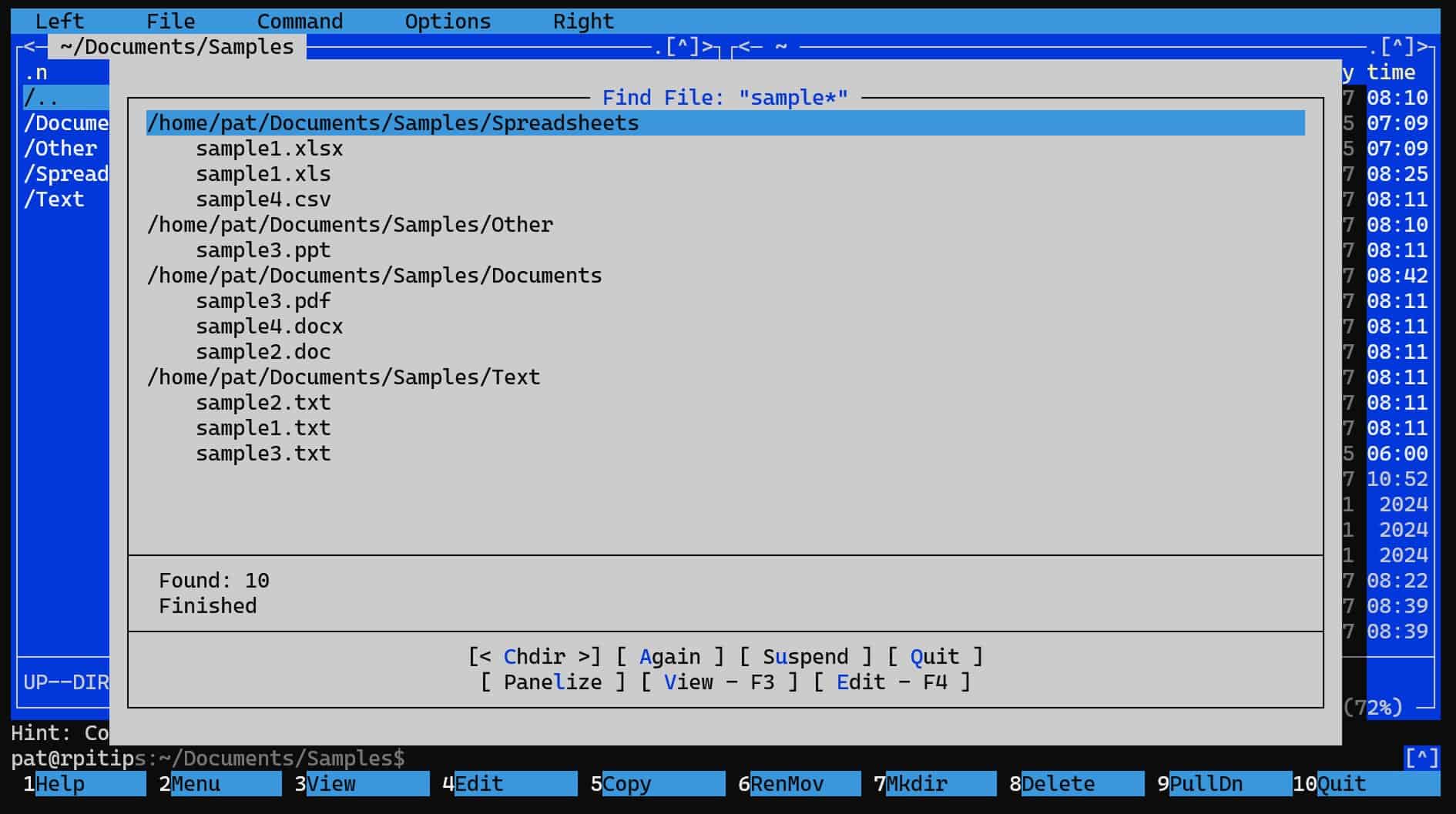
If you are familiar with typical file explorer search options, Midnight Commander can be an excellent command line tool for searching for required files. You can read more about its usage options on their official website.
Check this: Pi5 vs. Pi4: I tested them, here's the result
ripgrep-all – Search for Patterns Within PDF and Word Documents
Another helpful alternative to grep for searching for files based on their content is the open-source tool rip-grep. rip-grep is an open-source command line tool developed as an alternative to grep and is relatively faster in processing/ execution.
ripgrep-all is another open-source command line tool. It is a wrapper for the rip-grep tool that allows looking into files other than plain text. For example, you can use ripgrep-all to search based on the content of PDFs, E-Books, Office Documents, etc.
Installation
ArchLinux users can install ripgrep-all through the official repository using pacman:sudo pacman -S ripgrep-all
However, ripgrep-all is not available through the official repository of Debian-based distributions like Ubuntu.
To install ripgrep-all on Ubuntu, follow these steps:
- Make sure your system is up-to-date using the command:
sudo apt update && sudo apt upgrade -y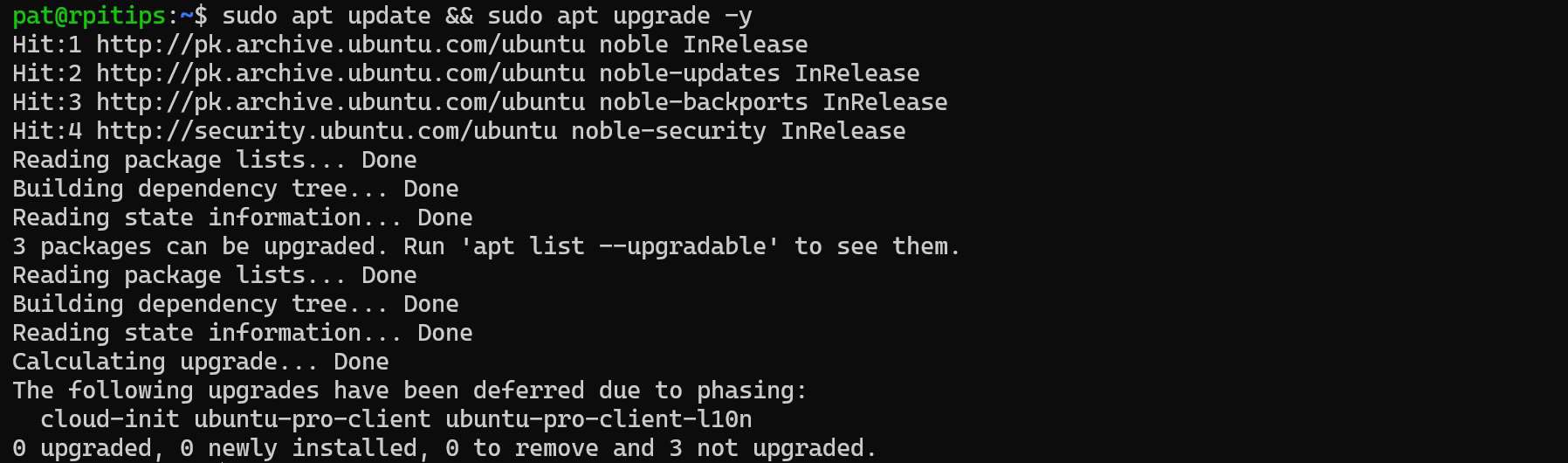
- Install requisite dependencies using the command:
sudo apt install ripgrep pandoc poppler-utils ffmpeg
- Download the latest version of ripgrep-all from their GitHub page or use the wget command below:
wget https://github.com/phiresky/ripgrep-all/releases/download/v0.10.6/ripgrep_all-v0.10.6-x86_64-unknown-linux-musl.tar.gz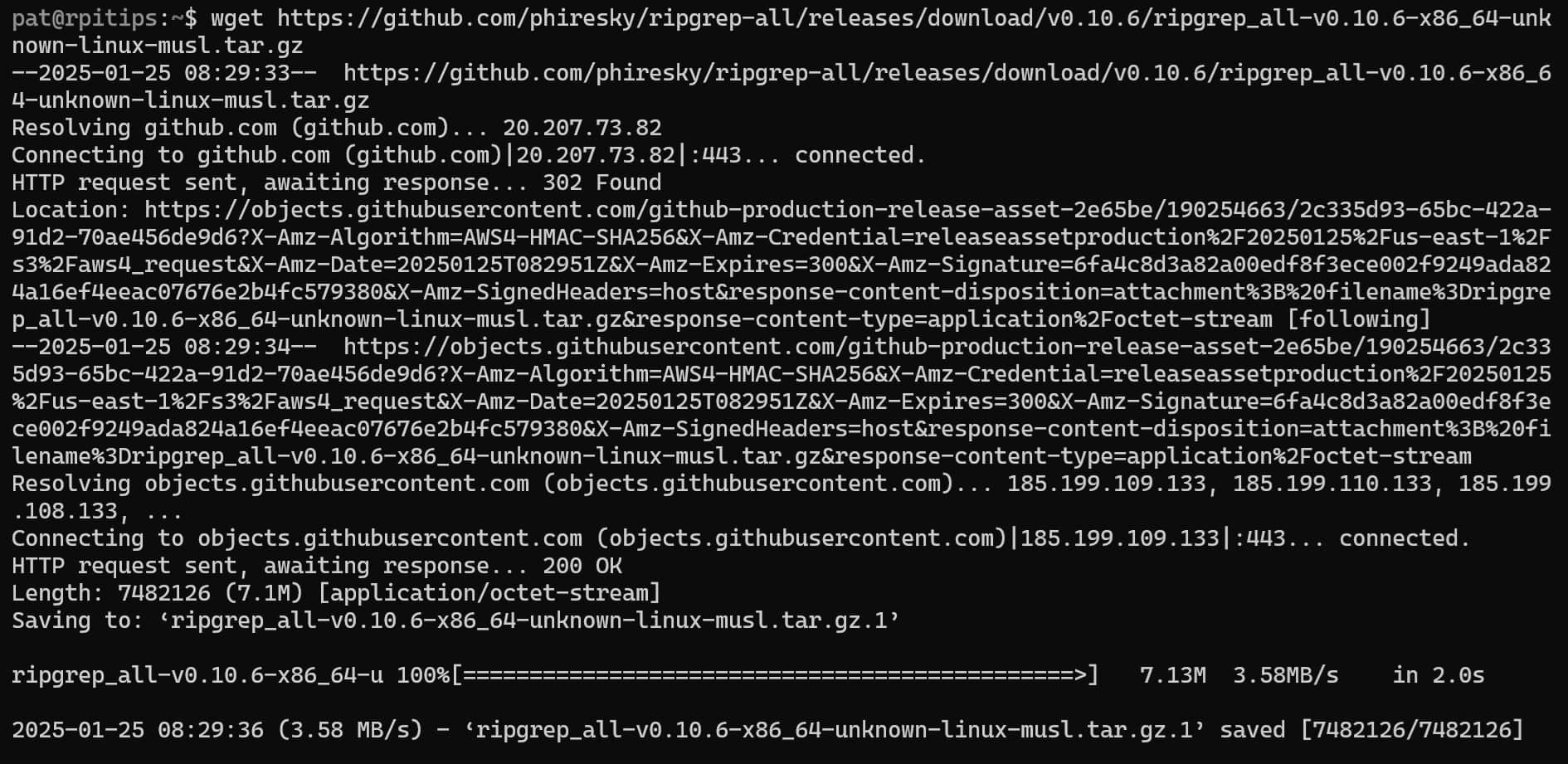
- Extract the file using the command:
tar -xzf ripgrep_all-v0.10.6-x86_64-unknown-linux-musl.tar.gz - Now copy the requisite binaries to your PATH folder using the command:
sudo cp ripgrep_all-v0.9.6-x86_64-unknown-linux-musl/rga* /usr/local/bin/
And that is it; now you can use the ripgrep-all using the command rga.
Usage
ripgrep-all can look inside several file formats and help you make a contextual search. The file formats supported by ripgrep-all include:
Grab This Cheat Sheet!
I've compiled the must-know commands in a simple PDF for quick reference.
Download now
- Media – mkv, mp4, avi
- Documents – epub, odt, docx, fb2, ipynb, pdf
- Compressed Archives – zip, tar, tgz, tbz, tbz2, gz, bz2, xz, zst
- Databases – db, db3, sqlite, sqlite3
- Images (OCR) – jpg, png
The general syntax for ripgrep-all is:rga <Options> <Pattern> <Path>
For example, you can use the command below to search for all files in your home directory containing the text “Heading” in them:rga Heading ~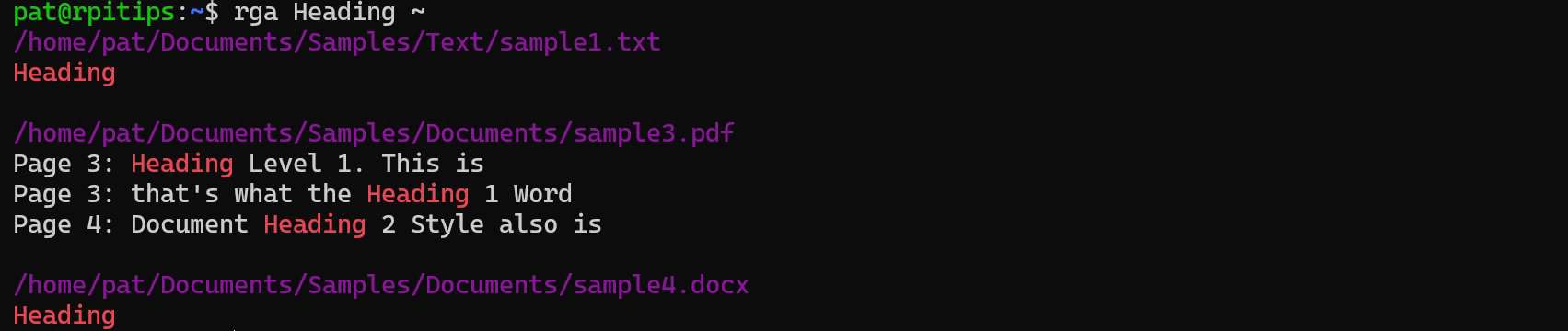
Additionally, you can use the command line option -C to see lines before and after the matched line to see a bit of the context:rga -C 2 'Heading' ~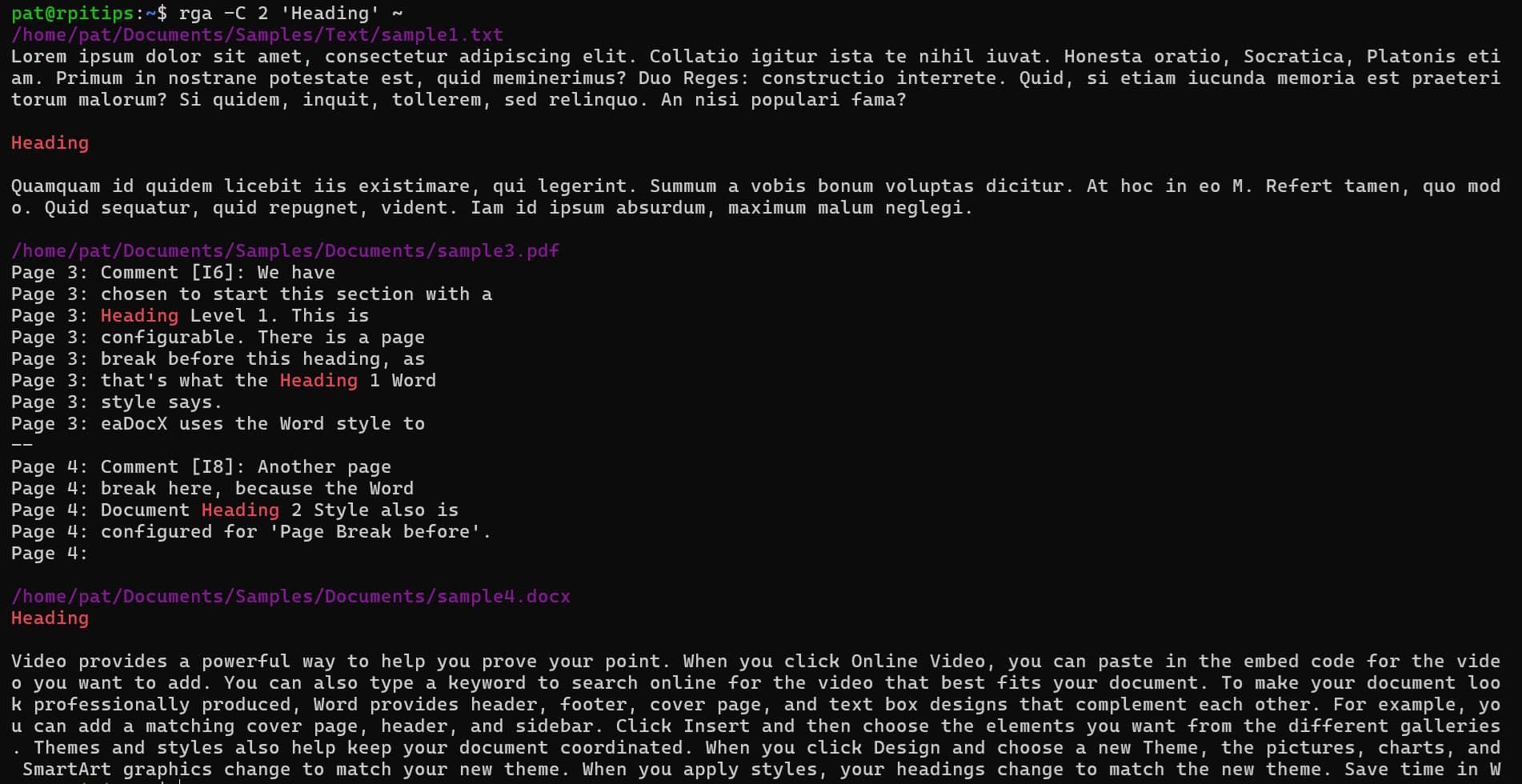
As you can see, while being reasonably similar to grep, ripgrep-all has the advantage of looking inside files other than plain text.
If you prefer watching videos instead of reading tutorials, you’ll love the RaspberryTips Community. I post a new lesson every month (only for members), and you can unlock them all with a 7-day trial for $1.
rga-fzf – Context-Based Fuzzy Search
I kept my favourite search tool until the very end. fzf is an open-source program that enables you to do a fuzzy search. It is a potent and versatile tool that works on the general Unix principles of stdin and stdout.
Fuzzy search refers to locating items that may not precisely match your search criteria. However, the results are organized in order of increasing similarity to the match criteria.
Installation
fzf can be installed from the official repository using the package manager:sudo [apt/yum] install fzf
Usage
fzf can be used by simply typing fzf and pressing Enter.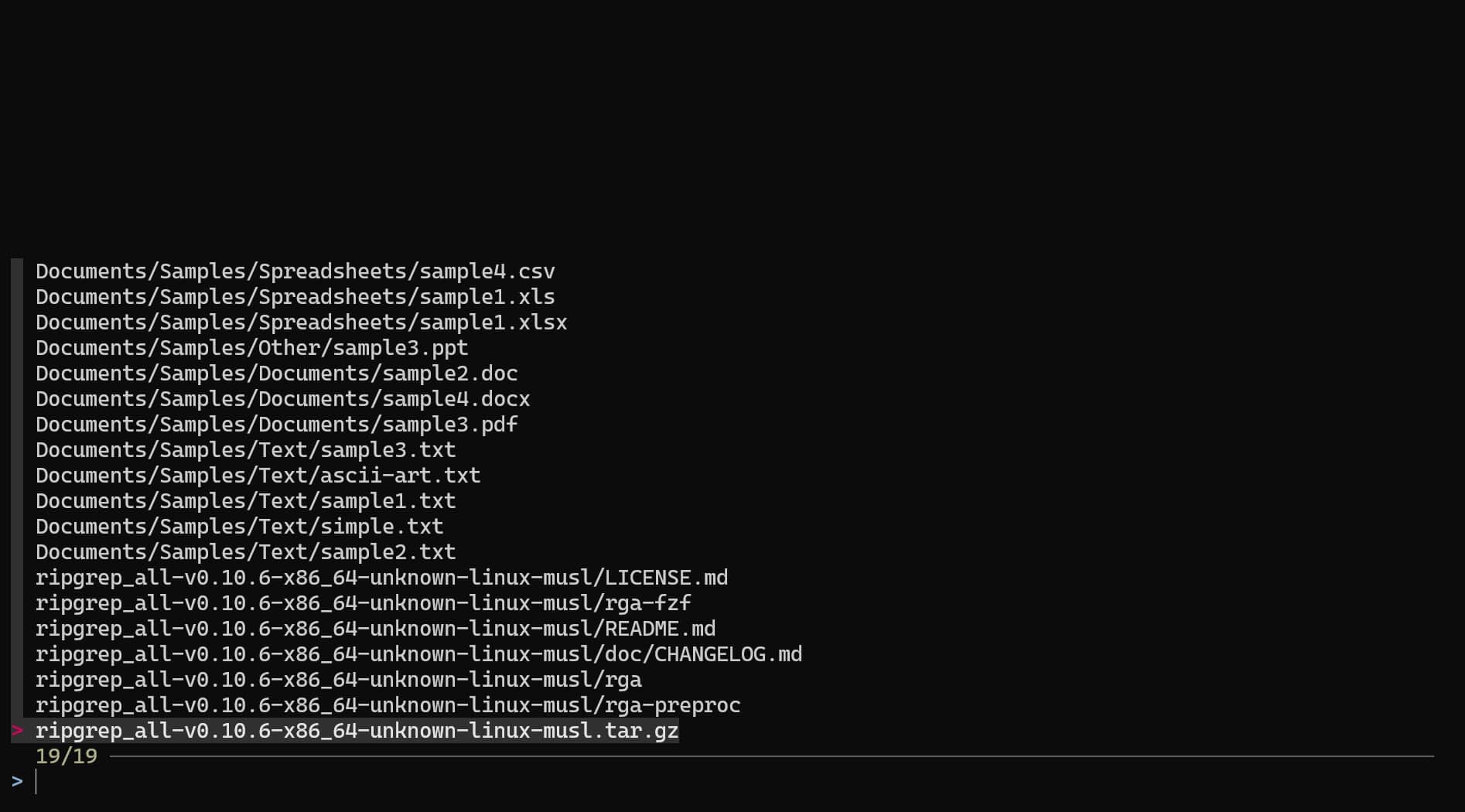
This will initiate a recursive fuzzy search starting from your present working directory. Now, you can start typing your search pattern to shortlist all files matching the criteria.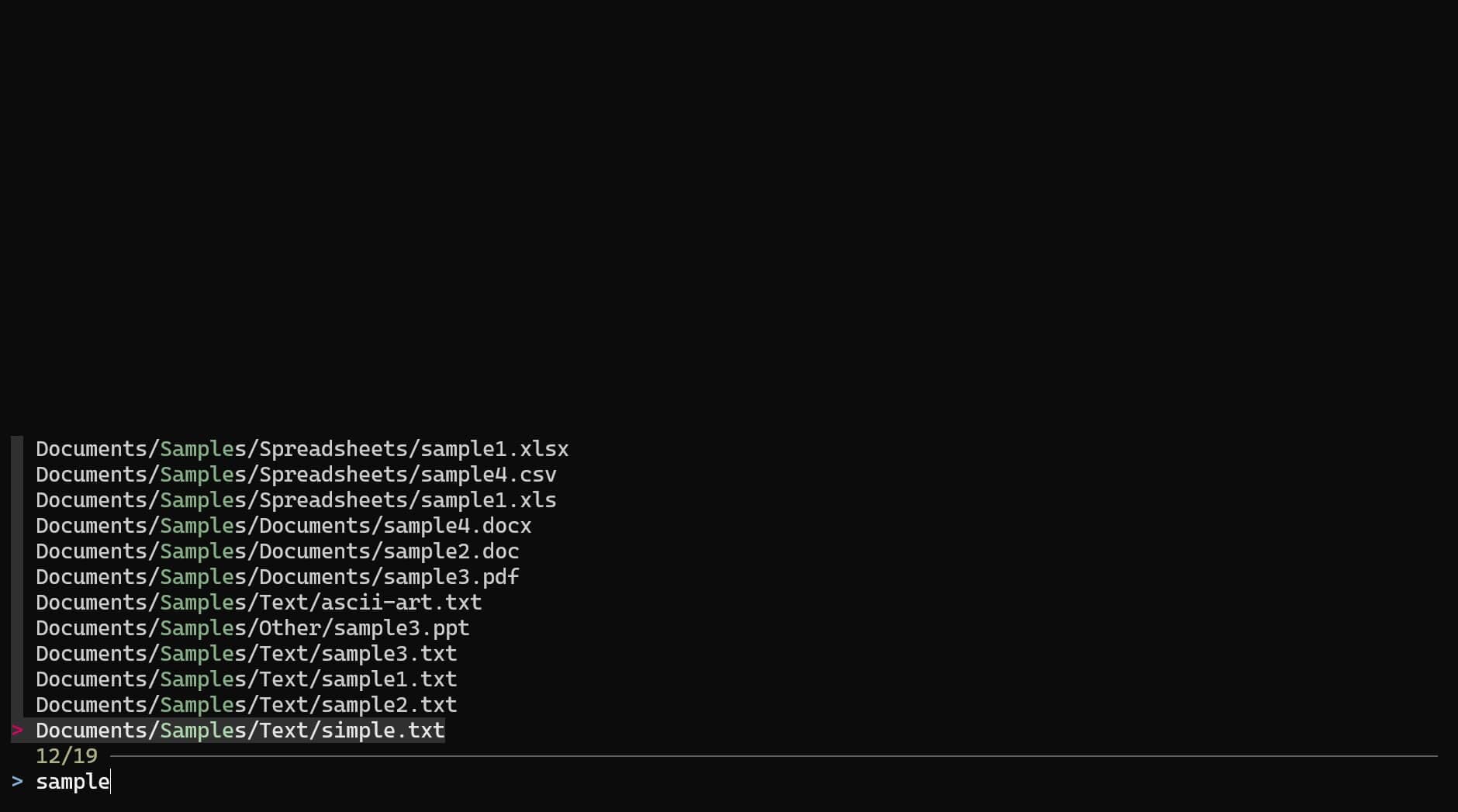
The key advantage of fuzzy search over regular search (using wild cards) is that you don’t need to match spellings, etc. You can keep typing multiple words, and it will show you the best to worst match results.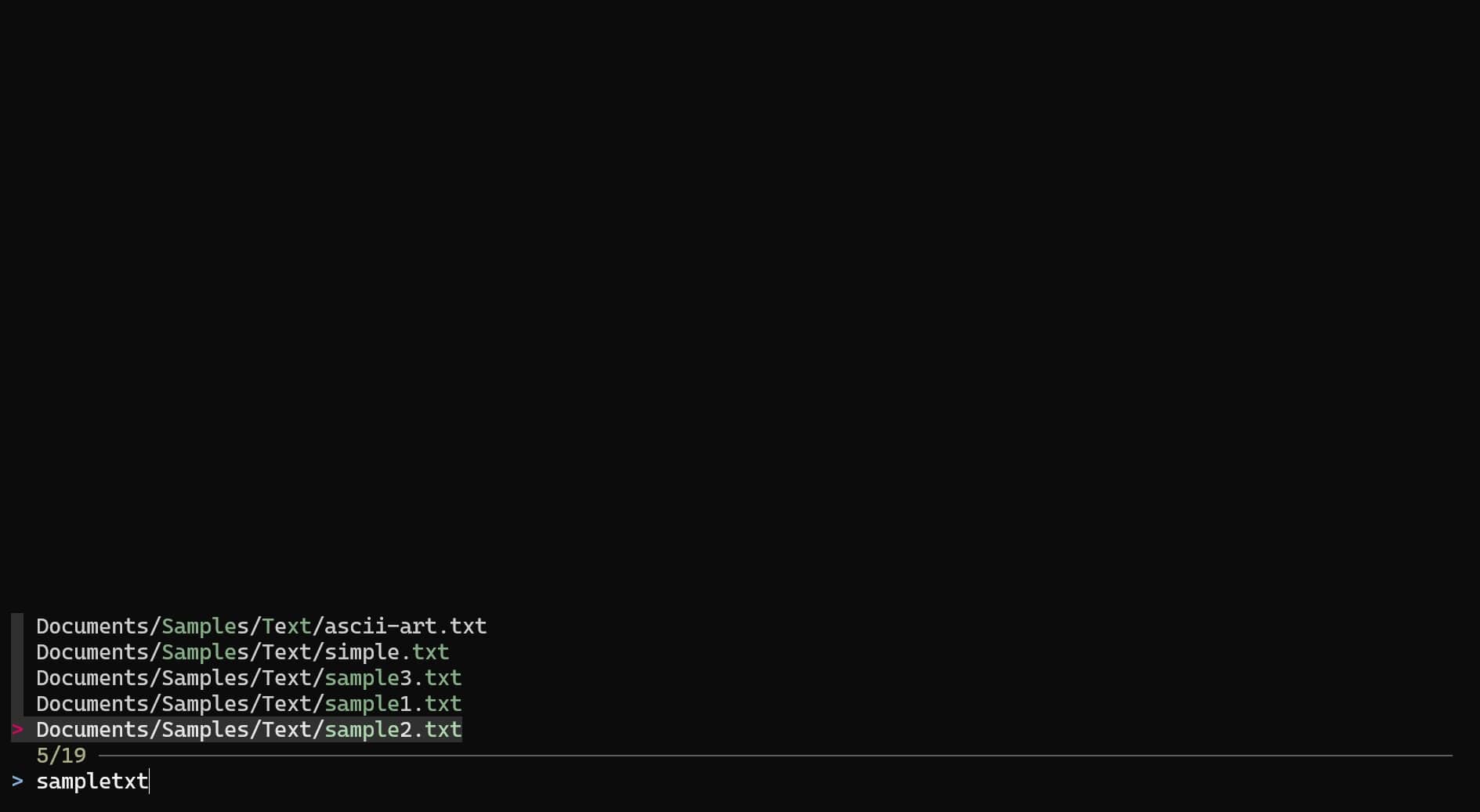
However, this tool particularly shines when combined with other valuable tools. For example, you can combine fzf with ripgrep-all and use the command rga-fzf.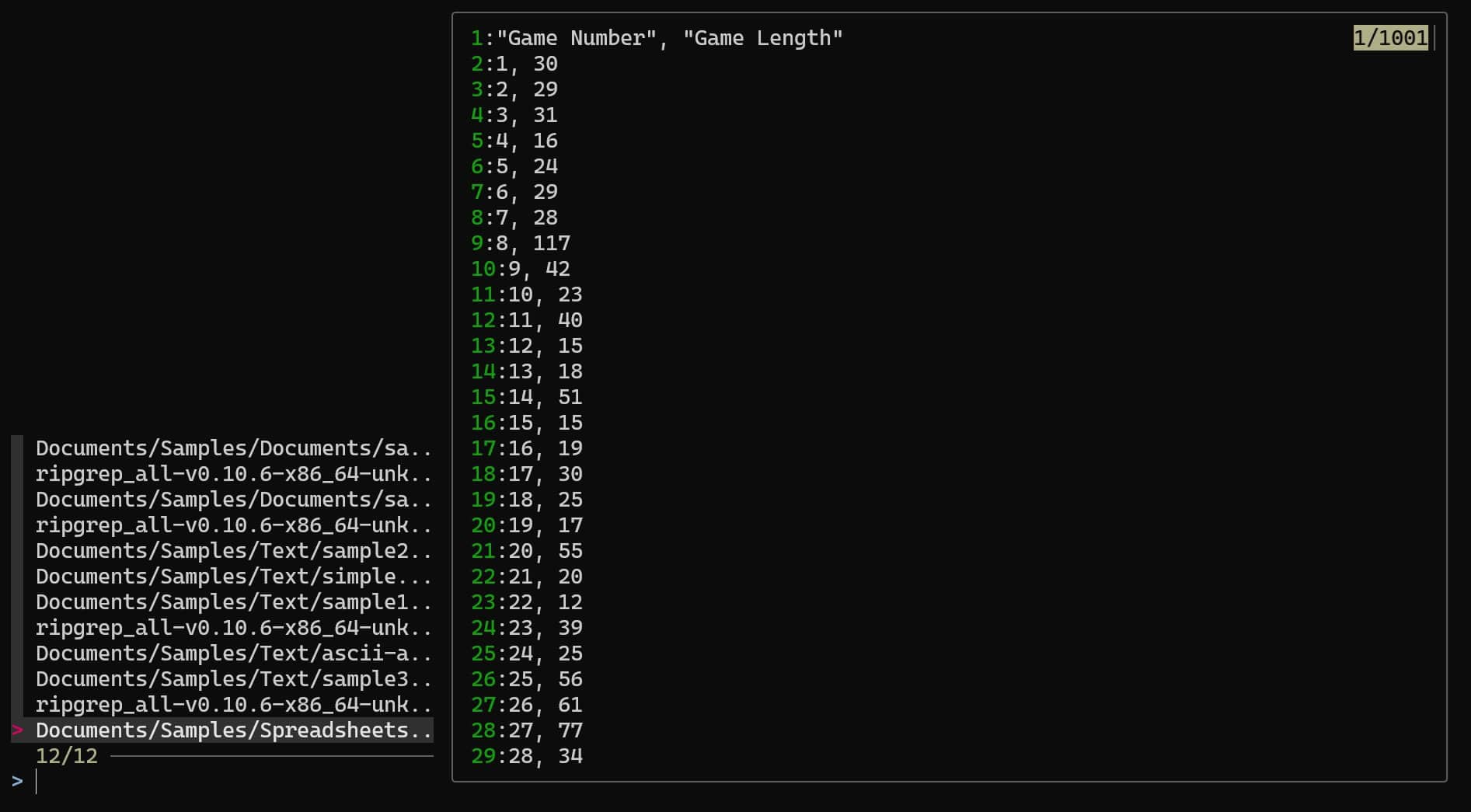
This allows you to run a contextual search that will make a fuzzy search of your search criteria within the content of all file formats supported by ripgrep-all. It also shows the sample output of the file’s content.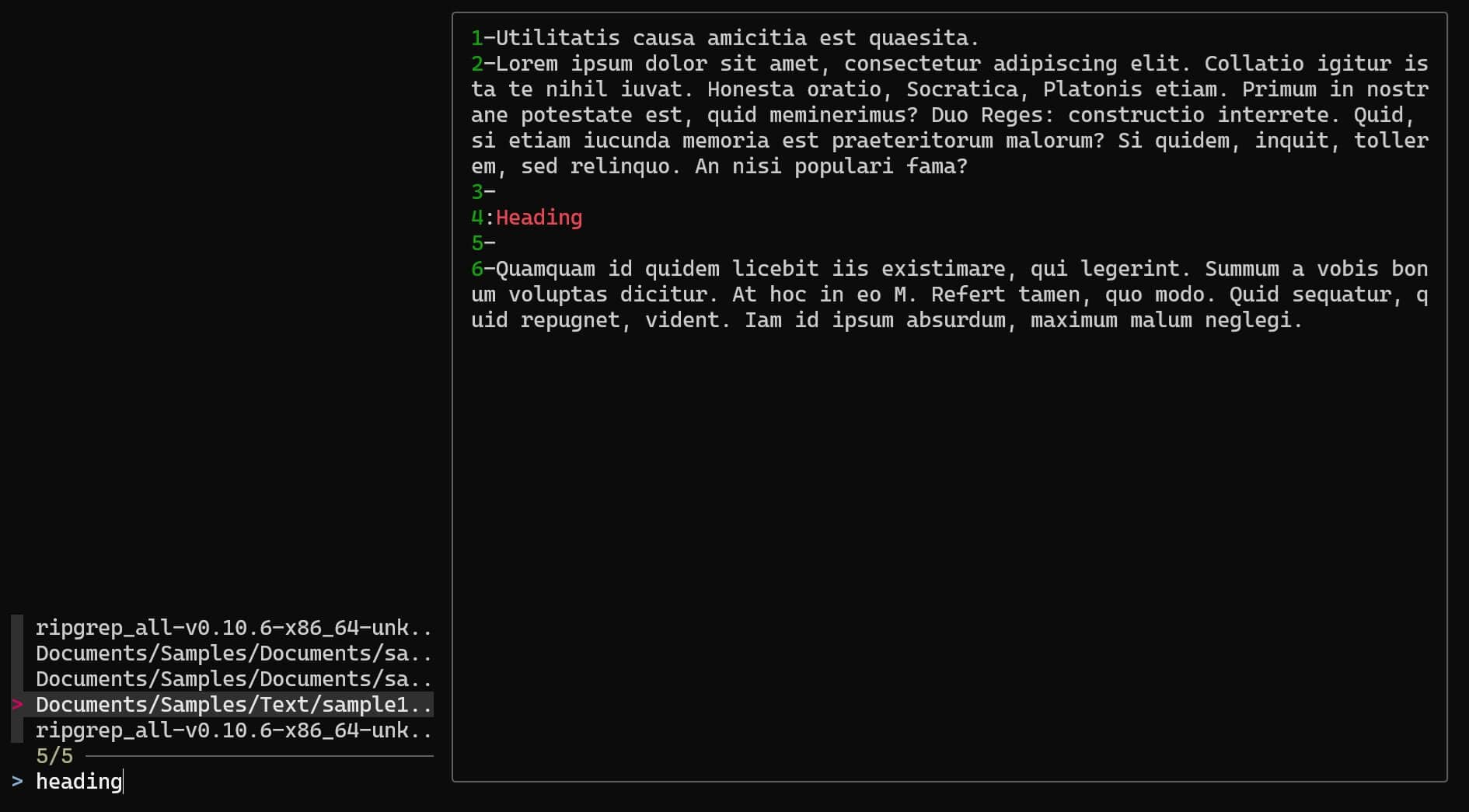
As you can see, fzf is a powerful and flexible tool. Since it is based on the Unix philosophy of stdin and stdout, it features several interesting integrations with other command-line tools. You can read all about this tool on their official GitHub page.
Whenever you're ready, here are other ways I can help you:
Master Linux Commands: Overwhelmed with Linux commands? This book is your essential guide to mastering the terminal. It includes practical tips, real-world examples, and a bonus cheat sheet to keep by your side.
The RaspberryTips Community: Need help with Linux or want to chat with people who actually get it? Join the RaspberryTips Community and get access to private forums, exclusive lessons, and direct support (try it for just $1).
You can also find all my recommendations for tools and hardware on this page.