Getting Started With Nginx on Raspberry Pi (Full Guide)
Nginx is primarily a web server, but can also be used as a proxy server. It’s free, open-source and often in direct competition with Apache to build web applications. As a web developer, I’m more used to Apache, but Nginx is known to be almost 3 times faster and lighter, which is great for a Raspberry Pi. Let’s see how to get it on your Pi.
The main package for Nginx is available in the default Raspberry Pi repository, so it can be installed with apt directly: sudo apt install nginx. The web files can then be created under /var/www/html and the configuration can be modified in the /etc/nginx folder.
Don’t worry, I’ll explain everything in detail if you need a more step-by-step approach to this. Let’s start with an introduction, to make sure you understand what is Nginx and when to use it.
If you’re new to Raspberry Pi or Linux, I’ve got something that can help you right away!
Download my free Linux commands cheat sheet – it’s a quick reference guide with all the essential commands you’ll need to get things done on your Raspberry Pi. Click here to get it for free!
What is Nginx and What’s It Used For?
nginx [engine x] is an HTTP and reverse proxy server, a mail proxy server, and a generic TCP/UDP proxy server, originally written by Igor Sysoev.
Nginx website
As we are Raspberry Pi users, we’ll generally use Nginx in two cases: for a web server or a web proxy. Let’s take a few seconds to explain both usages.
Web Server
A web server is simply an app installed on a server, to answer HTTP (or HTTPS) requests. If you type the Raspberry Pi IP address in a web browser directly after the system installation, you’ll get an error. Nginx is the piece of software you need to make your Pi answer this request.
If you already used Apache or even a Python web server, it’s the same idea.
You might also like: Don’t waste money — read this guide before picking your Raspberry Pi.
Nginx is known to use less memory and resources while performing 2.5 times faster than Apache overall. Nginx can also handle a high volume of connections.
This make it the perfect choice for high traffic websites (Netflix is using it for example), or low-resource servers used to save money on hosting costs (like a Raspberry Pi!).
Helping you to install it on your Raspberry Pi is my main goal today, we’ll get to it in the next part. But first, let’s talk a bit about the web proxy usage.
Download the free PDF, keep it open, and stop wasting time on Google.
Download now
Web Proxy
A web proxy also answer web requests, but it generally acts as a gateway between the user on the Internet and another app. For example, Nginx can answer requests on port 80 and redirect it to your Plex server, Torrent web interface or Webmin. These apps that are listening on a different port by default.
At work, we had a Rocket Chat server listening on a random port (3000, if I recall correctly). But when we type the IP address without the port, Nginx would answer the request and display the Rocket Chat page automatically. This is great to share an easy URL with other users.
Obviously, a web proxy is not only used for convenience, but also for increased security, better performances, logging purposes or even load balancing (you can distribute the requests to multiple servers).
Getting Started with Nginx on Raspberry Pi
In this section, I’ll show you how to install Nginx on your Raspberry Pi, and run it as a basic web server.
Can a Raspberry Pi Run Nginx?
Nginx can be installed on Raspberry Pi with APT. The Nginx package available in the default repository and is well-supported on Raspberry Pi.
By the way, it’s a good idea to use it as a web server on Raspberry Pi, as it’s generally lighter and faster than other alternatives (like Apache).
Note: If your Raspberry Pi is running Ubuntu, you might want to check out this tutorial instead: Nginx on Ubuntu: The Ultimate Setup Guide for Your Web Server.
How to Install Nginx on a Raspberry Pi
Installing Nginx on a Raspberry Pi is straightforward:
- Open a terminal.
- Refresh your package list to get the latest versions:
sudo apt update - Install Nginx:
sudo apt install nginx
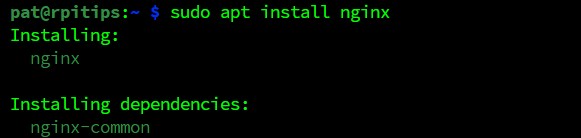
A few seconds later, Nginx is installed on your device, and you can already start using it.
Download the free PDF, keep it open, and stop wasting time on Google.
Download now
First Steps with Nginx on Raspberry Pi
To check if everything was installed correctly, start by visiting http://IP, replacing “IP” with your Raspberry Pi IP address. (You can check out my article on how to find your Raspberry Pi IP address if you don’t know it.)
In your web browser, it should load something like this:
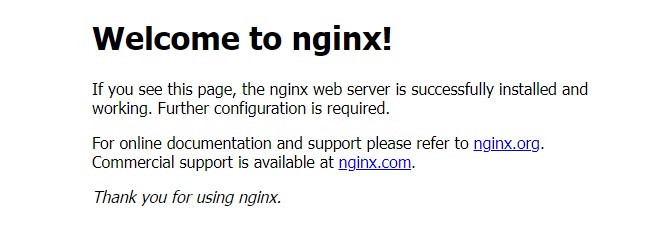
It means Nginx is installed, and the web service has started properly.
The default page can be found at /var/www/html/index.nginx-debian.html on your system.
You can edit it, or remove it and start over from scratch.
Your web files need to be saved under /var/www/html to be accessible from a web browser. Use index.html as the main page to be shown when accessing http://IP.
If you need to change anything in the default Nginx configuration, you can edit the main configuration file with:sudo nano /etc/nginx/nginx.conf
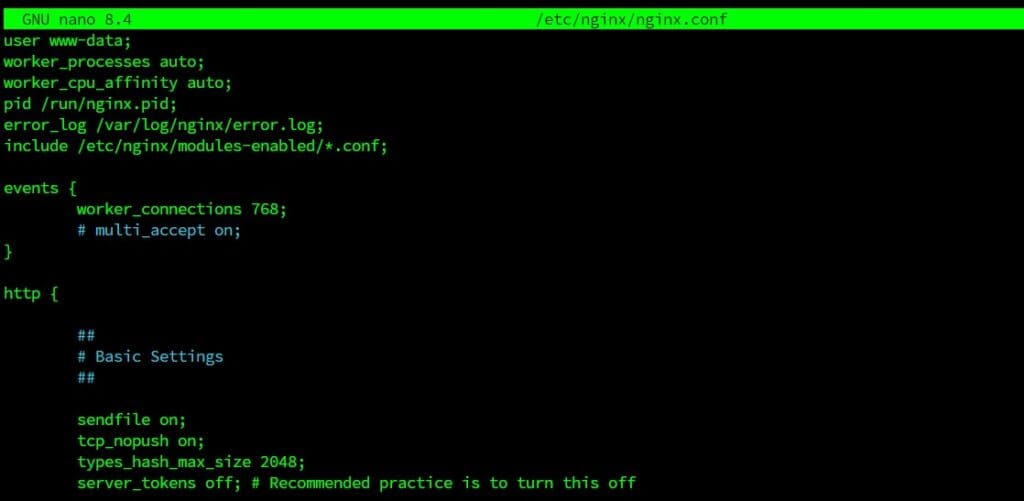
And as with Apache, there are two subfolders there to tweak the configuration for each website or app hosted on your Raspberry Pi:/etc/nginx/sites-enabled/
/etc/nginx/sites-available/
We’ll get back to this later to allow PHP code in our web files.
You can find the official documentation on their website if you need further explanation.
Upgrade Nginx to Support PHP and MySQL
For some basic projects, maybe HTML files are enough. But in most cases, you will need to use PHP code and a MySQL database. This is not straightforward when you are doing this for the first time, so I’ll guide you with this too. It will also help to better understand the Nginx configuration.
Download the free PDF, keep it open, and stop wasting time on Google.
Download now
Note: I have a video lesson available for the community members, where I explain everything to host a website at home. It’s built with Apache instead of Nginx, but most of the steps are the same. You can join here and watch it directly if you are interested (with 10+ other lessons for Raspberry Pi and many other benefits).
Read next: 15 Easy Projects for Raspberry Pi Beginners
PHP Installation
PHP is used to add dynamic content into your web pages. For example, this website use the same HTML template for all blog posts, and the blog post content is dynamic, using PHP to display the tutorial you are looking for (depending on the URL).
Here’s how to enable PHP on your Nginx server:
- First, you need to install PHP on your system:
sudo apt install php-fpmPHP-FPM is a better choice than the usual PHP mod for performances. And it works particularly well with Nginx. - Then you have to tell Nginx to accept PHP code and extension (index.php for example).
- Edit the default configuration file:
sudo nano /etc/nginx/sites-enabled/default - Add index.php to the list of index files:
index index.php index.html index.htm index.nginx-debian.html;
- In the same file, find these lines:
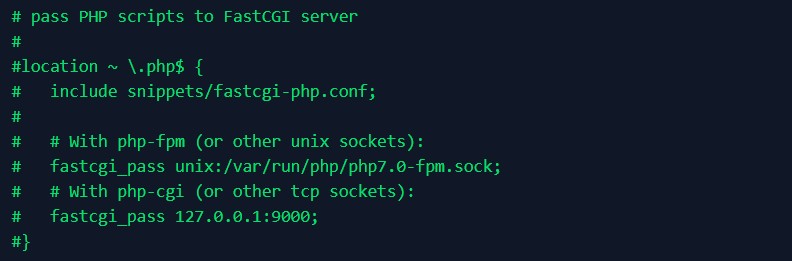
- Uncomment and change them to look like this:

(Pay close attention to how php-fpm.sock is entered.) - Save and exit (CTRL+O, CTRL+X)
- Edit the default configuration file:
- Restart Nginx to apply the changes:
sudo systemctl restart nginx
Now, let’s create a test php file under /var/ww/html to check if it’s working correctly.
Here’s a simple example of what to put inside your test.php file:
<?php
phpinfo();
?>
After you save, you should now be able access it via your browser (http://IP/test.php).
If PHP is being processed with Nginx correctly, you should get served a page like this:
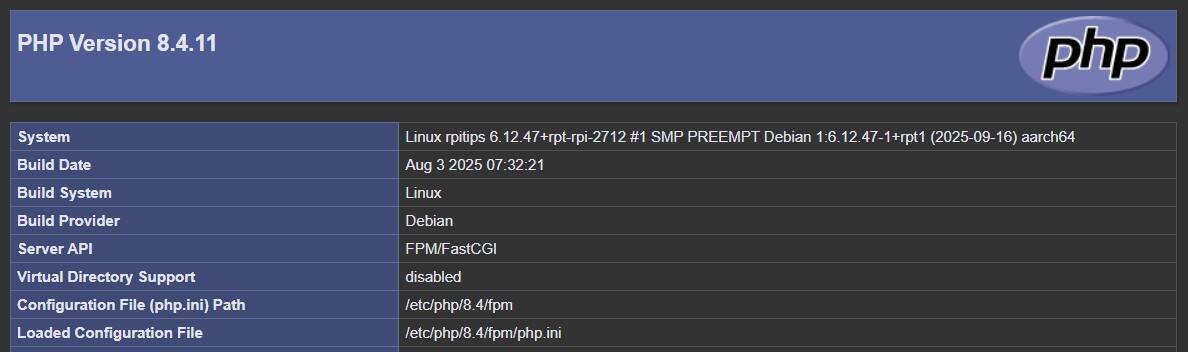
You can now use PHP code in any of your web pages.
MySQL Installation
A MySQL server is often used alongside PHP to store data on the server. For example, the tutorials written on this website are all stored in a database. When you access a specific URL, PHP will request from the MySQL server to find the corresponding text to display.
To use MySQL with Nginx, you first need to install a MySQL server on your Raspberry Pi. I have a full guide about this, so I’ll let you click on the link and follow the other tutorial first. I will only focus here on how to user MySQL functions with PHP on a Nginx server.
Download the free PDF, keep it open, and stop wasting time on Google.
Download now
The process is the same as with another web server, you just need to install one PHP module:sudo apt install php-mysql
Once done, you can now use MySQL functions in your code. Check this tutorial on W3Schools if you don’t know how to do this.
MySQL is not your only option, you can find the best database servers for Raspberry Pi here, and use it with Nginx. But MySQL/MariaDB is often the default choice for a web server.
If you prefer watching videos instead of reading tutorials, you’ll love the RaspberryTips Community. I post a new lesson every month (only for members), and you can unlock them all with a 7-day trial for $1.
FAQ
Apache vs Nginx: Which one is better on Raspberry Pi?
Overall, Nginx offers better performance and can handle more simultaneous connections than Apache.
For small projects, I would recommend using the web server you’re most familiar with. But if you have a Raspberry Pi with less than 512M of RAM or a single-core CPU (Pi Zero or older ones, for instance), testing Nginx might be a good idea. The same goes for bigger projects, with many requests at the same time.
I tend to prefer Apache because I’m used to it, but in theory, Nginx is often a better choice.
Can I run Python code with Nginx?
By default, Nginx doesn’t know how to run Python scripts. As for PHP, using fastgci_pass in the default configuration is required to use Python code on your Nginx server.
Another way could be to start a Python web server on another port, and use the Nginx proxy feature to redirect HTTP requests to this port. I’m not sure however is Nginx is really useful in this case, you can just use the Python web server directly.
If your new website is important, like with real traffic from remote users (not only you), it’s probably a good idea to put something in place to monitor it. You can read my article on the topic here: The Definitive Guide to Monitor a Website on Raspberry Pi.
Whenever you’re ready, here are other ways I can help you:
Test Your Raspberry Pi Level (Free): Not sure why everything takes so long on your Raspberry Pi? Take this free 3-minute assessment and see what’s causing the problems.
The RaspberryTips Community: Need help or want to discuss your Raspberry Pi projects with others who actually get it? Join the RaspberryTips Community and get access to private forums, exclusive lessons, and direct help (try it for just $1).
Master your Raspberry Pi in 30 days: If you are looking for the best tips to become an expert on Raspberry Pi, this book is for you. Learn useful Linux skills and practice multiple projects with step-by-step guides.
Master Python on Raspberry Pi: Create, understand, and improve any Python script for your Raspberry Pi. Learn the essentials step-by-step without losing time understanding useless concepts.
You can also find all my recommendations for tools and hardware on this page.