How To Use ‘pip’: The Complete Linux Command Guide
If you’ve been working on any Python projects lately, you’ve probably come across this command to install libraries: PIP. It is a must-have for all Python developers. While its basic usage is pretty simple, there are some hidden features I want to talk about.
PIP (Package Installer for Python) is a package manager for libraries and dependencies. It is used through simple commands that allow the installation, update, and removal of packages or dependencies.
In this guide, I will show you how to install PIP, how to use it to install packages, manage dependencies in different ways, and even show you how to create a safe virtual environment to install any package without fear.
If you need help with Linux, I’ve got something that can help you right away!
Download my free Linux commands cheat sheet – it’s a quick reference guide with all the essential commands you’ll need to get things done on your system. Click here to get it for free!
Installing PIP on your system
Before you start using PIP, check that you have Python. Most Linux distributions come with Python2 or Python3. You need to know which version you have. You can do this using one of the following commands:python3 --version or python --version

Depending on the version of Python that you have installed, the method could be different. It is recommended to use Python3 since it is the most updated. You can install PIP using:sudo apt get install python3-pip
Note: Keep in mind that the command to use will depend on the distribution and the package manager used in the OS.

Using your package manager is the best way to install it. But, where that’s not possible, use the official process from the documentation.

If you’re new to the Linux command line, this article will give you the most important Linux commands to know, plus a free downloadable cheat sheet to keep handy.
Command Syntax
The PIP syntax is quite simple because it does not have many options.
The basic PIP syntax looks like:PIP <COMMAND> <ARGUMENT> <OPTION>
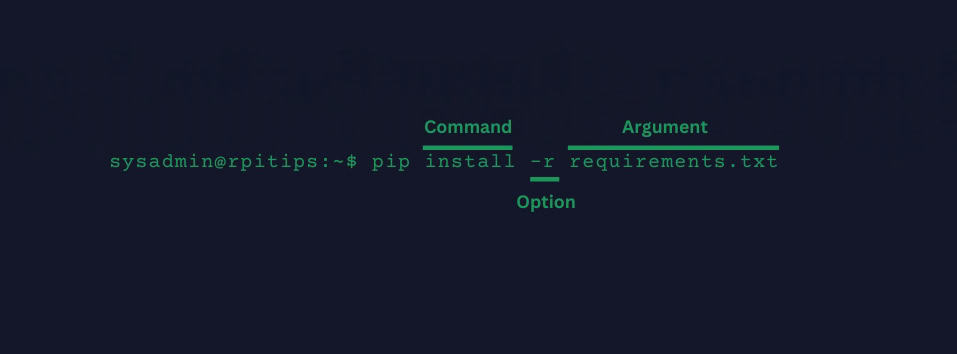
In COMMAND, you have all the options the command offers, such as install, uninstall, list packages, and so on. ARGUMENT, conversely, contains the additional information required by some command options, such as the specified package or file.
Finally, with OPTION, you can add any option, or feature that can be used depending on the command.
Usage Examples
Now that you have an idea of the main syntax, let’s look at some simple examples.
Grab This Cheat Sheet!
I've compiled the must-know commands in a simple PDF for quick reference.
Download now
Install/Uninstall packages
The process of installing packages or dependencies is a straightforward process, in which you specify the package or dependency you want to install in the command, just like this:pip install <package/dependency>

By default, when you install anything with PIP, the directory where your files are stored is in the home directory of the user that you used to install the package/dependency. The directory where packages are usually stored in/home/$USER/.local/.
Note: It is not recommended to use PIP as root because you may encounter conflicts in the permissions and issues with your system’s package manager.
Now, to uninstall any package or dependency, the command is quite similar, you need to specify the installed package/dependency and use the following command:pip uninstall <package/dependency>

Search packages
Some time ago, in previous versions of PIP, it was possible to use the search command to check packages from the online repository, but this was removed and is no longer used in newer versions. The command used was:pip search <package/dependencies>

As shown in the image, if you try to do this with the current version of PIP, it will show you an error, so you will have to use the Pypi.org website for searching any package or dependency.

Show package details
You can get details or additional information about a package you have installed by using show, just like this:pip show <package>

In the output, you will see all the information related to the package/dependency (URL, version, details, etc) and even the directory where it is stored.
List all installed packages
It is possible to list all the packages you have installed so far. You will detail the version of any package you installed. This is useful to verify the packages and dependencies you need for your environment:pip list

This command will only show the packages installed on your environment, so packages in other environments or users will not show in the output (unless you specify it with the argument –user).
Install a list of packages using a requirements.txt file
There are times when you need to install multiple packages and dependencies, and doing it manually would be tedious and impractical, for those cases, you can install all of them using a file called “requirements.txt”.
You might also like: 25 project ideas you can try at home with Raspberry Pi
Grab This Cheat Sheet!
I've compiled the must-know commands in a simple PDF for quick reference.
Download now
This is a widespread practice that developers use when they share their projects based on Python, as they usually leave a requirements.txt file that contains all the information of the packages and dependencies used in the project.
To install all the packages from a list using a requirements.txt file you can use:pip -r install requirements.txt

Note all these different types of logs that you can find on the image:
- Successful logs: All those logs that will show the download and installation process without any errors.
- Error logs: All the different error logs that may appear, such as version incompatibility, dependencies, not finding a package or even not finding a version of a package, will be marked as an error.
Note that the installation of requirements.txt works sequentially, i.e. if any of the list fails, the rest will stop installing, it is something to keep in mind when you do troubleshooting.
Main Options
Let’s summarize the most important subcommands and options you can use with PIP in a short format so you can see everything at a glance.
Commands:
- install – Install packages.
- download – Download packages.
- uninstall – Uninstall packages.
- freeze – Output installed packages in requirements format.
- list – List installed packages.
- show – Show information about installed packages.
- check – Verify installed packages have compatible dependencies.
- config – Manage local and global configuration.
- search – Search PyPI for packages.
- cache – Inspect and manage pip’s wheel cache.
- index – Inspect information available from package indexes.
- wheel – Build wheels from your requirements.
- hash – Compute hashes of package archives.
- completion – A helper command used for command completion.
- debug – Show information useful for debugging.
- help – Show help for commands.
Options:
- -r, –requirement <file> – Install from the given requirements file. (install, uninstall)
- –no-deps – Don’t install package dependencies. (install)
- –pre – Include pre-release and development versions. (install, list)
- -e, –editable – Install a project in editable mode from a local project path or a VCS URL. (install, list)
- –user – Install to the Python user install directory. (install, list, freeze)
- -t, –target – Install packages into. (install)
- -U, –upgrade – Upgrade all specified packages to the newest available version. (install)
- –force-reinstall – Reinstall all packages even if they are already up-to-date. (install)
- -I, –ignore-installed – Ignore the installed packages, overwriting them. (install)
- -y, –yes – Don’t ask for confirmation of uninstall deletions. (uninstall)
- -o, –outdated – List outdated packages. (list)
- -u, –uptodate – List up-to-date packages. (list)
- –format – Select the output format: columns (default), freeze, or json. (list)
- -f, –find-links – If a URL or path to an HTML file, then parse for links to archives such as sdist or wheel files. (install, list)
- –exclude-editable – Exclude editable package from output. (list, freeze)
- –index-url – Base URL of the Python Package Index. (install, list)
- –extra-index-url – Extra URLs of package indexes to use in addition to –index-url. (install, list)
Tips
Use virtual environments for managing different dependencies for different projects
There are situations where it is necessary to have specific versions of any package, and still not affect what you already have installed on your system. In these cases, it is necessary to use a virtual environment to install and manage PIP packages and dependencies.
I have a full article on virtual environments here if you want to understand the whole concept and how to use them, but let’s quickly summarize what you need to know for PIP.
You might also like: Do this to keep a full backup of your Raspberry Pi
This type of environment is often used by programmers using Python, as it allows them to have different projects under development without affecting the OS. Creating a virtual environment allows you to have different versions in different environments without affecting each other.
Before creating a virtual environment, you must verify that you have installed python3.1x-venv (this may change depending on the version of Python), otherwise you will get this error:

In the image, you can see that the logs specify the version of the package you need and it may change depending on the one you have installed. You can use this command to install it regardless of the version that you have (the package manager will find it automatically):apt install python3-venv
Grab This Cheat Sheet!
I've compiled the must-know commands in a simple PDF for quick reference.
Download now
To create a virtual environment, you will only have to execute the following command:python3 -m venv myenv
To activate it, type:source myenv/bin/activate

Now, what if you want to exit? if you don’t want to use the virtual environment anymore and want to return to the way you were before. You can simply use deactivate:

Update PIP regularly
You should frequently update PIP to avoid any errors or conflicts you may encounter using it. You can update PIP like any other package using the command:pip install --upgrade pip

Create and maintain a requirements.txt file for sharing the project’s dependencies
We have already seen how to install a list of packages using the requirements.txt and now it is time to explain how you can generate that file.
This is especially useful when you have worked or developed in a project that uses Python, as it will allow you to share with others the dev environment and the components that you have used for your project.
To generate the file you must use the following command:pip freeze > requirements.txt
Note: Keep in mind that just like using the pip list command, only the list with the packages of the user or the virtual environment you are will be created.

If you want to modify or verify the content of the requirements.txt file, you can use any text editor from your preference:nano requirements.txt

So, if there is a package in your list that causes you problems or you don’t want to install it, you can remove it by deleting the whole line.
Alternative
Conda
Conda is a package manager similar to PIP and is one of the main alternatives. It is quite popular in the fields of data science and machine learning. It has a more complex dependency-handling capacity, and it is possible to handle virtual environments with the same tool.
Also, Conda can handle non-python packages, like R, Node.js, and various compilers, for example.
Pipenv
Pipenv is the closest alternative you can get to PIP, as it combines the functionality of pip with virtual environments to offer more features and usages.
Grab This Cheat Sheet!
I've compiled the must-know commands in a simple PDF for quick reference.
Download now
Read next: 25 project ideas you can try at home with Raspberry Pi
It allows you to have a simplified workflow using dependency management and a virtual environment in a single tool, better dependency resolution, and better security through vulnerability checks.
If you enjoy learning about Raspberry Pi, you’ll feel right at home in the RaspberryTips Community. It’s a friendly group of makers helping each other grow. Join us today for $1 and see what it’s like inside.
Related Questions
How do I install a specific version of a package?
Installing a specific version is a very common practice when you need to run a project developed in a specific environment. To install a specific version of a package, you can use the following syntax:pip install package==version

You can also specify a package to be higher or lower than a specific version. Using > to specify higher versions and < for lower versions from a specific number.pip install package>=version
pip install package<=version
The website of PyPi contains info about all the versions of a package, and you can even get the direct command line for doing the installation:

How can I uninstall all packages from a requirement file?
In the same way you install a list of packages using a requirements.txt, you can also use it to specify a list of packages that you want to remove from your environment. The syntax is pretty similar.pip uninstall -r requirements

How do I upgrade all installed packages?
If you need or want to upgrade all the packages that you have installed in your environment, there is not an exactly straightforward command to do this task, but you can use tools like “pip-review“.
With pip-review, you can check which packages are out of date, as well as upgrade them, you can do it manually or automatically. You can install this tool directly using pip:pip install pip-review
And then use it in the following way to check all outdated packages:pip-review

if you want to update them manually checking each package on your own, you can use:pip-review --interactive
But, if you just want to update everything without being asked, you can do the whole process automatically without intervening using:pip-review --auto

Whenever you're ready, here are other ways I can help you:
Master Linux Commands: Overwhelmed with Linux commands? This book is your essential guide to mastering the terminal. It includes practical tips, real-world examples, and a bonus cheat sheet to keep by your side.
The RaspberryTips Community: Need help with Linux or want to chat with people who actually get it? Join the RaspberryTips Community and get access to private forums, exclusive lessons, and direct support (try it for just $1).
You can also find all my recommendations for tools and hardware on this page.