How to Shut Down Raspberry Pi via SSH Commands? (Remotely)
When you first start with Raspberry Pi, even simple actions might be an issue, especially when using it remotely. For instance, is there a way to shut down a Raspberry Pi remotely? I will answer this question right away, and then give you more tips if you are interested.
To stop a Raspberry Pi from the terminal (locally or remotely via SSH), type the “sudo shutdown -h now” command. All services will be stopped properly and immediately, the current session will be terminated, and the Raspberry Pi will be powered off.
If you’re not familiar with SSH or the command line, I will guide you step-by-step on how to this.
Also, if you need to do this regularly from your computer, don’t miss my tip on how to do this more efficiently.
If you’re new to Raspberry Pi or Linux, I’ve got something that can help you right away!
Download my free Linux commands cheat sheet – it’s a quick reference guide with all the essential commands you’ll need to get things done on your Raspberry Pi. Click here to get it for free!
Connect to the Raspberry Pi (via SSH)
In this first part, I explain the prerequisites to remotely access your Raspberry Pi via SSH. You can skip this if you are already connected, but it’s a requirement if you intend to stop your Raspberry Pi remotely.
Make Sure SSH Is Enabled
Before anything else, make sure the SSH service is running.
By default, it’s not the case on Raspberry Pi OS, so you need to enable it.
Here’s how to do this.
I’m giving you the short version below, but if you’re new to this, I would recommend reading this other article first: Use SSH To Remote Control Your Raspberry Pi: A complete guide.
Raspberry Pi OS Desktop
If you have a desktop version, you can enable SSH like this:
- Open the main menu, and go to Preferences.
- Launch the Raspberry Pi Configuration tool.
- Under the Interfaces tab, click “enable” or activate the SSH slider.
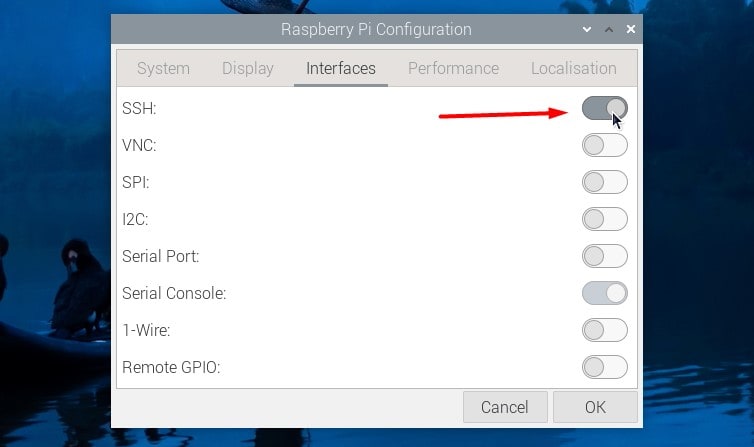
Click OK to apply the changes.
From now on, the SSH service will be started automatically on boot.
Download the free PDF, keep it open, and stop wasting time on Google.
Download now
Raspberry Pi OS Lite
On Raspberry Pi OS Lite, the easiest way is to use raspi-config to do this:
- Launch the Raspberry Pi Software Configuration Tool:
sudo raspi-config - Navigate to Interface Options > SSH:
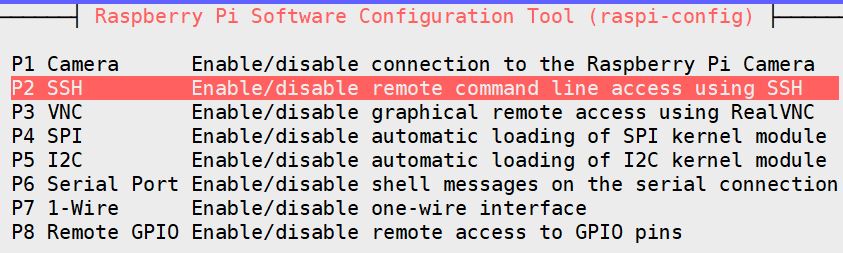
- Answer Yes when asked, “Would you like the SSH server to be enabled?”
The SSH server will start directly, and be enabled on boot, so you don’t have to do this each time.
Find Your Raspberry Pi IP Address
Before connecting to your Raspberry Pi remotely, you’ll also need its IP address.
On Raspberry Pi OS Desktop, you can get it easily by hovering your mouse over the network icon in the top-right corner.
On Raspberry Pi OS Lite, you can use this command:ip a
Depending on whether you’re using Ethernet (eth0) or Wi-Fi (wlan0), the IP Address is on the second line, after the “inet” keyword: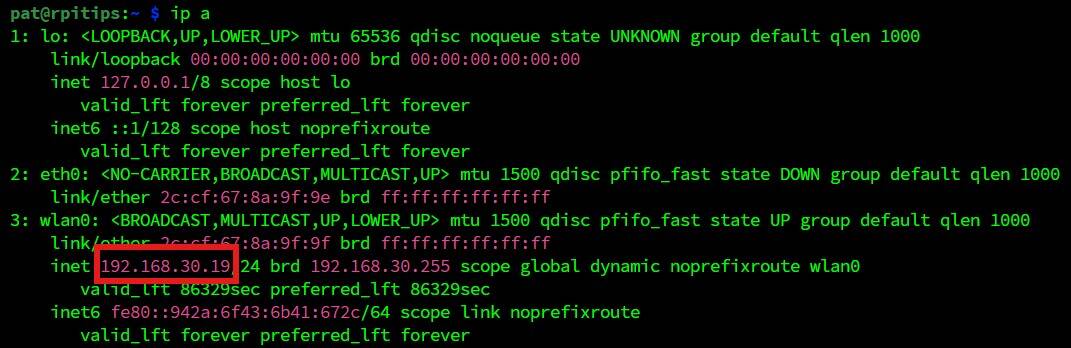
You might also like: I've tested hundreds of Linux apps, here are the ones I recommend.
If you need further assistance for this step, I have a dedicated tutorial on the topic here.
Connect to the Raspberry Pi
Once the Raspberry Pi configured, you can now access it via SSH.
As even Microsoft Windows now includes an SSH client in the command prompt, you can use the same command whichever operating system you’re on.
- Open a terminal (or the command prompt on Windows).
- Type the following command:
ssh USER@IP_ADDRESS
Replace IP_ADDRESS with the one you got in the previous step, and USER with the current user (it was “pi” on old installations, it’s now a custom one you create on the first boot). - On the first connection, you might need to accept the Raspberry Pi fingerprint by typing “yes” and pressing Enter.
- Then enter the user’s password.
(It was “raspberry” by default previously, but now it’s a custom one created by you).
If you don’t remember it, check this article to recover your password.
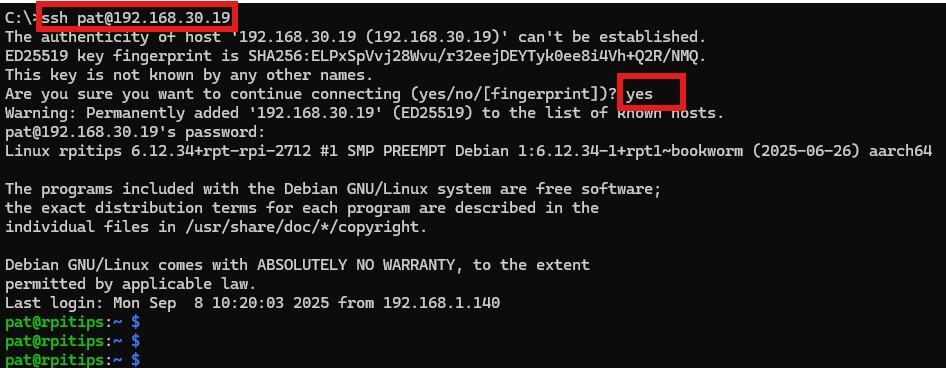
That’s it, you are now connected to your Raspberry Pi.
You can follow the next part to stop it from there.
Download the free PDF, keep it open, and stop wasting time on Google.
Download now
Are you a bit lost in the Linux command line? Check this article first for the most important commands to remember and a free downloadable cheat sheet so you can have the commands at your fingertips.
Shut Down a Raspberry Pi via SSH
Pulling out the power supply, or using the power button of the case, is not the right way to stop a Raspberry Pi. It may corrupt the SD card depending on the processes in progress.
To properly shut down a Raspberry Pi remotely, use SSH and type one of the commands available to stop all services and turn the Raspberry Pi off. One of them is “sudo halt”, and it stops the Pi right away.
In this part, I will give you three commands to properly shut down the Raspberry Pi, and also a few tips to go further.
Check this: 7 Surprising Uses for a Raspberry Pi
3 Commands You Can Use to Stop a Raspberry Pi
Without further ado, here are the three commands you can use to stop a Raspberry Pi :
- Halt
Probably the one to remember as it’s the shortest one:sudo halt
There are a few options available, but that are not really useful in our case. So, the simple command like this should be enough. - Poweroff
It’s an alias of halt, you can use it if you prefer, but it’s basically the same command:sudo poweroff - Shutdown
This one is more interesting as there are several useful options available.
The basic command to stop your Raspberry Pi will be:sudo shutdown now
Options you may want to try:- Stop the Raspberry Pi after one minute:
sudo shutdown
(Other users will be notified.)
- Schedule the Raspberry Pi shutdown at a specified time:
sudo shutdown 06:00
You can also use a cron job for more options. - Cancel scheduled shutdown:
sudo shutdown -c
- Stop the Raspberry Pi after one minute:
In all cases, you need the administrator privileges to stop the system, so don’t forget to put the sudo command at the beginning if you aren’t already logged as root.
Download the free PDF, keep it open, and stop wasting time on Google.
Download now
Also, once a shutdown is scheduled, non-administrators can’t log in anymore.
They will get an error message:System is going down. Unprivileged users are not permitted to log in anymore.
Once the green light stops blinking, you can safely disconnect or turn off the power supply. The Raspberry Pi will start again as soon as you turn the power supply back on (as with most computers, it’s not possible to do this remotely).
Related: How to Properly Shut Down Your Raspberry Pi (Avoid data loss)
Create a Script to Automate This from Your PC
In theory, you should be doing a proper shutdown every time you use your Raspberry Pi.
In some cases, it’s not the most convenient way. If your Pi is embedded, you might not want to connect to SSH each time just to stop it.
No problem, you can “automate” this.
On Windows
For Windows users, the easiest way is to use Putty in command line:
- Install Putty if you don’t have it yet.
It’s a free SSH client, you can download it here. - Create two new files:
stop-pi.bat
stop-cmd.txt - In stop-pi.bat, paste the following line:
putty.exe -ssh <user>@<IP> -pw <PASSWORD> -m stop-cmd.txt
Don’t forget to put the username, IP address, and password corresponding to the Raspberry Pi you want to stop. - And in stop-cmd.txt:
sudo shutdown now - Save everything and double-click the stop-rpi.bat file.
It should shut down your Raspberry Pi directly. You can close the windows opened by the script on your computer.
Not bad, you can now create a shortcut somewhere if you want, and use this each time you want to stop your Raspberry Pi.
On Linux / macOS
On Linux / macOS, it’s almost the same thing, but you’ll need to create a bash script.
First, make sure to generate an SSH key and that you can access your Pi without typing any password. Then paste this line in a new bash script:ssh <user>@<IP> "sudo shutdown now"
You can also use SSH keys on Windows, but it’s a bit more complicated, so Putty is the easiest way.
Turn the Raspberry Pi Back On

Download the free PDF, keep it open, and stop wasting time on Google.
Download now
Unfortunately, there’s no simple way to power the Raspberry Pi back on remotely after this. So, the only thing you can do is to unplug the power supply and plug it back in.
If there is a power button on your case (like on the Argon ONE I tested here), using it twice should work.
That’s it, you now know how to shut down your Raspberry Pi remotely. For tips on what else you can do remotely (and a workaround guide for remote power on), see our questions below. Until next time, friends.
If you enjoy learning about Raspberry Pi, you’ll feel right at home in the RaspberryTips Community. It’s a friendly group of makers helping each other grow. Join us today for $1 and see what it’s like inside.
Related Questions
How do I reboot the Raspberry Pi via SSH?
To restart the Raspberry Pi via SSH, type the command “sudo reboot” in the terminal. It will properly stop all services and turn the Raspberry Pi off, but it will restart it automatically after that.
You might also like: Yes, you can access your Pi from anywhere. Here's how.
Can I remotely turn on a Raspberry Pi?
It’s not possible to remotely turn on a Raspberry Pi that is completely powered off, as it lacks the feature known as “Wake-on-Lan” (WoL) which is more commonly found in computers and laptops.
WoL allows a device to be woken up from a powered down or sleep state through a network message, but doesn’t exist for Raspberry Pi devices. However, we do have a few workarounds you can read about in our article: Can You Wake a Raspberry Pi Remotely? (Wake-On-Lan Guide)
It’s important to keep in mind that a Raspberry Pi is a low-power device, so leaving it running continuously does not consume a significant amount of power.
However, if power usage, heat, or long-term wear and tear are concerns, a smart plug may be the best solution.
Whenever you’re ready, here are other ways I can help you:
Test Your Raspberry Pi Level (Free): Not sure why everything takes so long on your Raspberry Pi? Take this free 3-minute assessment and see what’s causing the problems.
The RaspberryTips Community: Need help or want to discuss your Raspberry Pi projects with others who actually get it? Join the RaspberryTips Community and get access to private forums, exclusive lessons, and direct help (try it for just $1).
Master your Raspberry Pi in 30 days: If you are looking for the best tips to become an expert on Raspberry Pi, this book is for you. Learn useful Linux skills and practice multiple projects with step-by-step guides.
Master Python on Raspberry Pi: Create, understand, and improve any Python script for your Raspberry Pi. Learn the essentials step-by-step without losing time understanding useless concepts.
You can also find all my recommendations for tools and hardware on this page.