Use SSH to Remote Control Your Raspberry Pi: A Complete Guide
Being able to control your Raspberry Pi from another computer is an important part of the Pi learning curve. There are many options for remote access, so why is SSH the protocol beginners should start with? If you’re new to Linux, Raspberry Pi, or just SSH, you’ve come to the perfect place: I created this guide to answer all of your questions about this method.
SSH is a protocol available on Linux systems that will execute commands from another computer. It needs to be enabled in the Raspberry Pi configuration first, and then an SSH client from another computer will be able to connect to the Raspberry Pi.
I will guide you through the whole process, showing you how to activate SSH, find your IP address, and connect to the Raspberry Pi from your computer.
If you’re new to Raspberry Pi or Linux, I’ve got something that can help you right away!
Download my free Linux commands cheat sheet – it’s a quick reference guide with all the essential commands you’ll need to get things done on your Raspberry Pi. Click here to get it for free!
What is SSH in Raspberry Pi?
Let’s start at the beginning. If you have no idea what SSH is, I probably need to introduce a few things before giving you the procedure to use it.
SSH stands for Secure SHell. It’s a common network protocol that’s used to connect from one computer to another safely. The communication between the two computers is encrypted, and authentication is required.
It’s generally used by system administrators to access and manage remote servers. As a sysadmin, I had around 20 servers to monitor, and by using SSH, I could work on them for days without having to walk over to the server room. It’s very convenient in this case.
But even at home, it can be really useful to access your Raspberry Pi, run a few commands, and disconnect. For example, if your Raspberry Pi is mounted inside a robot, hidden somewhere, or if you’re just too lazy to plug in a monitor, SSH is a time saver.
SSH is convenient because it’s simple. You just need to have your Raspberry Pi powered on, connected to the network, and SSH enabled. I will explain how to use it next.
Step 1: Enable SSH on Raspberry Pi
Note: If you want to see all these steps in action, I have a video lesson available for the community members. You can join here and watch it directly if you are interested (with 20+ other lessons for Raspberry Pi and many other benefits).
On Raspberry Pi OS, SSH is disabled by default. So, your first step is to enable it. There are different methods to achieve this, depending on your current setup.
Here are the main ways to enable SSH on Raspberry Pi:
- On Raspberry Pi OS Desktop: Enable SSH in the Raspberry Pi Control Centre under the “Interfaces” tab.
- On Raspberry Pi OS Lite: Use raspi-config and go to the “Interfaces” submenu.
- With Raspberry Pi Imager: Apply advanced options when flashing the SD card.
I will now explain all these methods (and more) in detail.
Download the free PDF, keep it open, and stop wasting time on Google.
Download now
SSH on Raspberry Pi OS Desktop
If you use Raspberry Pi OS Desktop, SSH isn’t enabled by default.
You can enable it easily via the Raspberry Pi Control Centre:
- Open the desktop main menu > Preferences > Control Centre.
- Switch to the “Interfaces” tab.
- Click the slider to enable SSH
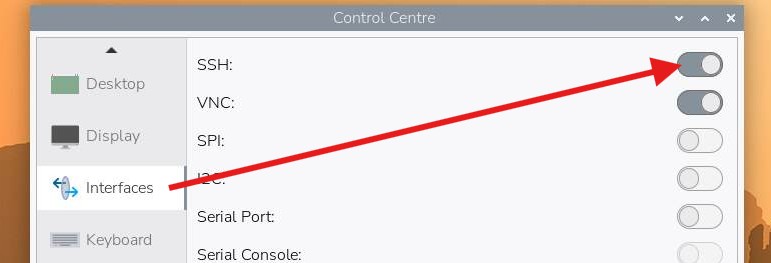
- Close the window. The SSH server is now enabled and ready to accept connections.
By the way, if you have a desktop environment installed, you can use graphical remote access instead of SSH. VNC is one popular method, but there are many other options listed in this other article. It will give you access to the full GUI, not just the command line.
SSH on Raspberry Pi OS Lite
If you’re running the Lite version of Raspberry Pi OS, there’s no desktop environment, so you can’t use the graphical Control Centre. However, there’s a similar tool on the command line:
- Launch the Raspberry Pi Software Configuration Tool by typing the command:
sudo raspi-config - You’ll get a menu wizard that configures many things on your Pi.
From here, you can use it to easily enable SSH. - Go to “Interface Options”:
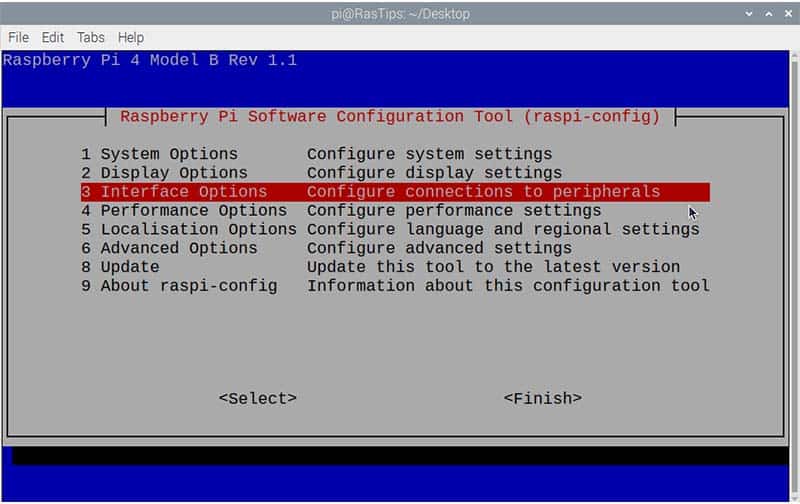
You can use the arrows on your keyboards to move from one item to another, ENTER to choose an item, and the TAB key to access the actions below. - Select “SSH” and choose “Yes” to enable it.

- Exit from raspi-config. SSH is now enabled.
SSH During SD Card Creation
If your system isn’t installed on your SD card yet, it’s possible to load it with SSH enabled from the start. I have a complete tutorial on this (Install a Headless Raspberry Pi without monitor, keyboard and mouse), but I’ll give you the short version here.
Enabling SSH With Raspberry Pi Imager
If you’re installing Raspberry Pi OS with Raspberry Pi Imager, you can use its advanced options to enable SSH. Here’s how:
- Launch Raspberry Pi Imager
(If you don’t have it, you can download it from here.) - Choose your Pi model, any version of Raspberry Pi OS from the Operating System list, and your storage device (probably your SD card.)
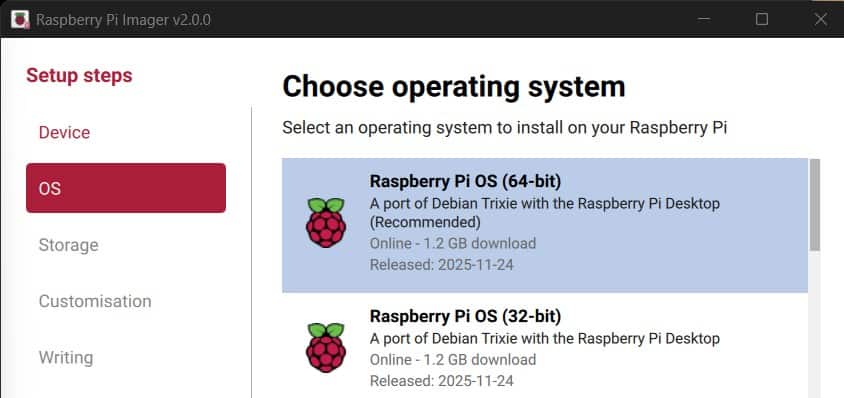
- After the basic stuff above, you’ll begin the “Customisation” steps.
- For ‘Hostname,’ give your Pi any name you’d like
- Under ‘Localisation,’ choose your time zone and keyboard layout.
- For ‘User,’ set the username and password you’d like to create for the first user.
Important: this is what you’ll be using to log in via SSH!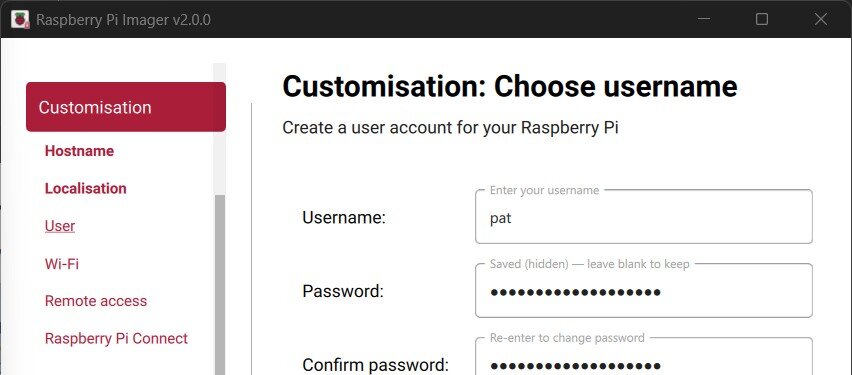
- Under ‘Wi-Fi,’ enter your credentials for your network, or skip this step if you don’t need it.
- The next step, “Remote access,” is where you’ll enable SSH.
Click the button to “Enable SSH” and mark “Use password authentication.”
- When you reach “Raspberry Pi Connect,” skip it, because this guide is for SSH.
(If you’re interested in Raspberry Pi Connect, check out our guide here.) - Now you should be at the Writing stage, where you’ll get a summary of everything.
Click the WRITE button to begin.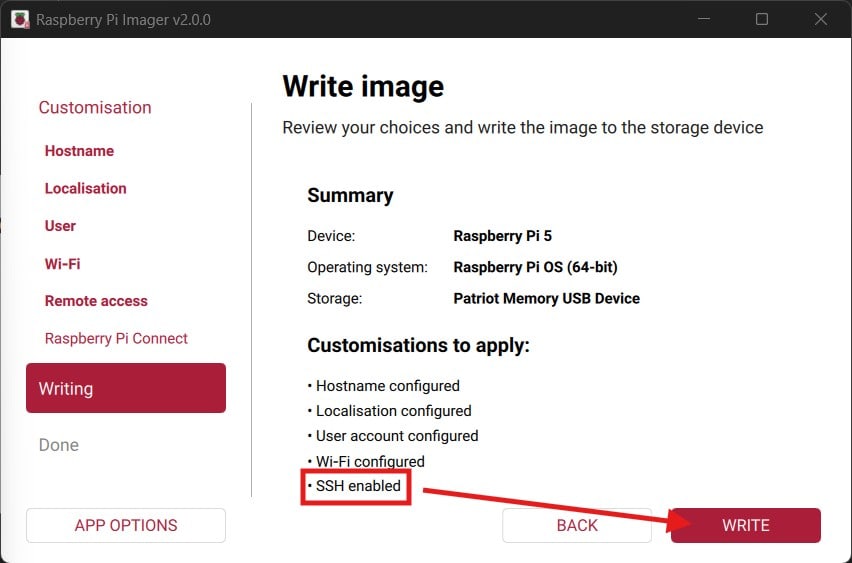
- Your SD card will proceed to be flashed as usual.
SSH will be enabled on the first boot.
You can find my complete guide about Raspberry Pi Imager here, to learn all the tips and tricks for this very useful tool.
Enabling SSH Manually
If you’re not using Raspberry Pi Imager to flash your SD card, or want to enable SSH on an SD card you’ve already flashed previously, you can also enable SSH manually:
- Insert your SD card into your computer’s SD card reader.
- Browse to it with your file explorer (generally named “boot”).

- Create a new file in the SD card’s boot partition, named “ssh” without extension.
If you’re on Windows, make sure it doesn’t create “ssh.txt” or something like that. You might need to enable displaying extensions in your file explorer settings. - Safely eject the SD card. SSH will be enabled on the next boot.
SSH on Other Linux Distributions
If you’re using Linux distributions other than Raspberry Pi OS, most of these solutions won’t work, so you’ll need to do things differently. In most cases, SSH is enabled by default.
But if not, you can generally get an SSH server running easily with a few commands:
- Install SSH on a Debian-based distribution:
sudo apt install openssh-server - Start the SSH service and enable it to autostart on boot:
sudo systemctl start ssh
sudo systemctl enable ssh
If your distribution is not based on Debian, use the corresponding package manager to do the same thing. You’ll surely find this in the distribution documentation, as it’s one of the most common steps after a system installation.
Are you a bit lost in the Linux command line? Check this article first for the most important commands to remember and a free downloadable cheat sheet so you can have the commands at your fingertips.
Download the free PDF, keep it open, and stop wasting time on Google.
Download now
Step 2: Prerequisites to SSH into a Raspberry Pi
Now that an SSH server is enabled on your Raspberry Pi, we only need to do a few more things before connecting to it.
Find the Raspberry Pi IP address
An IP address is the identifier of your device on the network. You need it to establish the SSH connection, as your computer needs to know where to access the Raspberry Pi.
If you have a desktop environment, you can find your Pi’s IP by hovering over the network icon (top-right corner on Raspberry Pi OS), or in the system settings.

On Raspberry Pi OS Lite (or other minimal distributions), use the following command instead:ip a
Check this: Don't buy a new SD card until your read this.

The IP address format is something like A.B.C.D with each number having a value between 1 and 254. In my example, the IP address of my Raspberry Pi is 192.168.1.69—take note of your IP, as you’ll need it later.
If you need more explanations, please check this article.
Want an easier way with your phone?
If you’re on Android, install the RaspberryTips App, and it will quickly find your Raspberry Pi’s IP address for you! You can even use the app to connect via SSH.
SSH Login and Password
When you connect to SSH, you’ll need to authenticate. By default, you can log in with your existing Raspberry Pi OS username and password, so it shouldn’t be complicated.
If you have amnesia and don’t remember your username, use the ‘whoami’ command:

If you don’t remember your password, open the main menu > Preferences > Control Centre and set a new password. You can find more details on how to change the password on Raspberry Pi here.
Step 3: Connect to Raspberry Pi via SSH
We now have everything we need to connect to the Raspberry Pi via SSH for the first time. There are several methods you can use. You can either use the command line for a quick test or install an SSH client for graphical convenience.
Connecting to SSH on the Command Line
Download the free PDF, keep it open, and stop wasting time on Google.
Download now
SSH is well integrated with most modern operating systems, so it’s generally possible to use it directly from your computer’s command line. The syntax is the same, whatever your operating system is (Windows, macOS, Linux):ssh <username>@<ip_address>
So, in my example:ssh [email protected]
On Windows, find the command prompt in the main menu and type the command. Upon connecting, the Pi will ask for you to enter your password:

Getting a new prompt (pat@rptips:~$) means you’ve successfully connected to your Pi!
If your computer is running Linux, you may need to install an SSH client manually with your package manager (“sudo apt install ssh” or something like that). But for most distributions, it’s already installed by default.
Connecting with an SSH Client
Using the terminal or command prompt on your computer is the fastest way to test if SSH is working, but it’s not the most convenient or comfortable to use. There are many SSH clients that will give you a better experience (more features, better interface, etc.).
The most commonly-known one for Windows users is PuTTY, which you can download from here. It works great, and you can save your sessions, to allow you to simply connect to each device in one click, without having to remember the IP address.
But my favorite client is Termius. You’ll find it in the Microsoft Store or directly on their website. It looks great, saves your sessions and passwords, and allows you to reconnect in one click when the connection is lost.

On Linux and macOS, I generally create aliases for my servers and don’t use any specific client. But you can probably find some similar options (Termius is available on macOS and Linux, for example).
If this project doesn’t work as expected on your setup, don’t worry. You can get help directly from me and other Pi users inside the RaspberryTips Community. Try it for $1 and fix it together.
Going Further With SSH on Raspberry Pi
That’s it! You’ve completed the most complicated part and can now access your Raspberry Pi terminal from your computer. But in fact, it’s only the beginning. It gives you access to new work, and probably new projects if you’re doing it right.
Raspberry Pi Commands
Getting access to the Raspberry Pi terminal from your computer is fine, but you’ll need to know some commands, or it’ll be useless. Using a terminal is like speaking a different language, you’ll need to spend time learning and testing the Linux commands.
Remembering the commands can be pretty difficult, but I’ve got you covered. You can read this article where I give you the most important commands, with a short explanation of the syntax and a few examples. You can even download my cheat sheet with all of them in a convenient PDF format.
Connect to SSH without a Password
Download the free PDF, keep it open, and stop wasting time on Google.
Download now
If you only have one Raspberry Pi with a simple password that you remember easily, it’s fine. But when you have several servers running and need to access them regularly, it might be a mess.
It’s possible to use public-key authentication to access your Raspberry Pi without a password. In short, you’ll register your computer on the Raspberry Pi, to allow it remote access without any password in the future.
The process to do this is a bit long to cover here, but I explain everything at the end of this other article. Read and test it out if you want to avoid using passwords (it’s even better for security).
Raspberry Pi Security Tips
If SSH is disabled by default on most distributions, including Raspberry Pi, there’s a reason for it. As soon as you enable it, there’s a risk that someone can access your Pi without your permission.
For example, if you use the same username and password everywhere, and someone gets access to another PC on your network, they can easily get access to your Raspberry Pi, too. But even if you have different passwords, there are still risks involved with having SSH enabled.
I won’t go into the details here, but I have a full guide to improve security on a Raspberry Pi. I highly recommend reading it and applying some of the tips I give. The first tips are not complicated and will protect you from most issues.
Use a VPN for Remote Access Over the Internet
The last thing you may be interested in is how to access your Raspberry Pi terminal when you are not on the same network. Let’s say you are at work and want to check something at home, it won’t work directly.
The IP address you have on your Raspberry Pi is a private IP address, something local, that doesn’t exist on your company network. If you want to access your Raspberry Pi from elsewhere, the best method is to use a VPN.
A VPN will create a secure tunnel between your computer (anywhere in the world) and your Raspberry Pi at home. A VPN server needs to be installed on your Raspberry Pi (or another device on your home network) as well as a VPN client on your computer (or smartphone).
Check this: Pi5 vs. Pi4: I tested them, here's the result
The concept might seem a bit complicated, but installation is pretty straightforward. Check this tutorial to learn how to install OpenVPN on your Raspberry Pi in a few minutes.
It’s also possible to use port forwarding on your router instead. But I don’t recommend it, as anyone can access the opened port. You can try it, but a VPN is much safer in my opinion.
Whenever you’re ready, here are other ways I can help you:
Test Your Raspberry Pi Level (Free): Not sure why everything takes so long on your Raspberry Pi? Take this free 3-minute assessment and see what’s causing the problems.
The RaspberryTips Community: Need help or want to discuss your Raspberry Pi projects with others who actually get it? Join the RaspberryTips Community and get access to private forums, exclusive lessons, and direct help (try it for just $1).
Master your Raspberry Pi in 30 days: If you are looking for the best tips to become an expert on Raspberry Pi, this book is for you. Learn useful Linux skills and practice multiple projects with step-by-step guides.
Master Python on Raspberry Pi: Create, understand, and improve any Python script for your Raspberry Pi. Learn the essentials step-by-step without losing time understanding useless concepts.
You can also find all my recommendations for tools and hardware on this page.