How To Use ‘systemctl’: The Complete Linux Command Guide
Do you ever install a server, like SSH or FTP, and have no idea what’s going on with it while it runs in the background? Luckily, the modern Linux system has a single utility dedicated to this task. In this post, I’ll explain the systemctl command and the most common ways to use it.
The systemctl command is a utility used to manage services. It also has many broader uses as the central tool of systemd, the initialization system in charge of most Linux operating systems today.
Read on to learn the most useful ways to use systemctl for day-to-day Linux administration, plus a few more tricks you might want to keep up your sleeve.
If you need help with Linux, I’ve got something that can help you right away!
Download my free Linux commands cheat sheet – it’s a quick reference guide with all the essential commands you’ll need to get things done on your system. Click here to get it for free!
Command Syntax
The systemctl command typically follows this syntax: systemctl <command> <unit>
It starts with the main call and is followed by these optional parts:
- <command>: the action to take.
- <unit>: the service (or resource) to apply that action to.
So in short, you simply tell systemctl what action to take on what service.
Pretty intuitive, I think.
Usage Examples
Let’s jump right into the most typical ways you’ll use the systemctl command.
You might also like: Need a clear GPIO pinout diagram? Here's mine.
Although this utility is a giant monolith, you’ll mostly use it to manage services. When narrowed down to this scope, it’s easy to use and remember.
Start / Stop a Service
Start a service to make it available to users: systemctl start <service>
After installing a new service, like Plex Media Server for instance, you’ll want to launch the service.
The service will run in the background, and other users can connect to it.

Stop a service to make it unavailable to users: systemctl stop <service>
Stopping a service takes it down, which is useful when you need to perform maintenance or if you want to stop others from being able to connect to it.
Grab This Cheat Sheet!
I've compiled the must-know commands in a simple PDF for quick reference.
Download now
Autostart a Service on Boot
But what happens to a service when you shutdown or reboot?
When the system reboots, your service will be down.
If you want the service to always start, such as a web server that you want to be available 24/7, the solution is to make it load automatically every time the system boots.
Enable a service to automatically start it on boot: systemctl enable <service>

Disable a service to remove it from the autostart list:systemctl disable <service>
Troubleshoot a Service
Sometimes, I can’t connect to one of my servers, like VNC remote access, and I don’t know why. These commands will help you find out what’s going on so you can get things running again.
Check the status of a service:systemctl status <service>

Oops, according to the status above, it looks like I couldn’t connect to my VNC server because the service is stopped (‘inactive’). It also won’t start the next time I boot (‘disabled’) like I was expecting.
The solution to this problem is to start the service and enable it, using the commands we covered earlier. Now I can connect to my VNC server again, and it will still be up when I reboot.
Next, what if your service is up and running, but it’s acting funny?
Like many things in IT, sometimes the easy fix is to turn it off and on again.
Restart a service to stop and start it again:systemctl restart <service>

What if you need to change the configuration for a service, but you don’t want to bring it down because it will disrupt your users’ activities? For instance, maybe you have a Postfix email server, and are testing a lot of settings over and over.
Grab This Cheat Sheet!
I've compiled the must-know commands in a simple PDF for quick reference.
Download now
In this case, you can use the reload command instead.
Reload a service to update its configuration without restarting it:systemctl reload <service>

Finally, what if a service has gone rogue, and no matter what you do it keeps freezing up your system or won’t stop when commanded? It’s time for the last resort, activating the kill switch.
Kill a service to terminate it forcefully: systemctl kill <service>
List All Services
If you want to manage or troubleshoot a service but don’t know what name it goes by on your system, the systemctl command can be used to figure it out.
If you enter the systemctl command with no parameters, you’ll get a long list of everything initialized on your system, like kernel modules and virtual RAM disks. This can be 200 lines (or more), and in my experience, that’s often information overload.
Let’s say you’re only interested in what services are on the system. You can filter systemctl‘s output to narrow down what you see.
List services only:systemctl list-units --type=service
This command filters the output to show services only and is more readable.

But maybe you want to narrow that list down even more. If you’re only interested in learning about services that are active, use these next commands.
List running services to see which ones have been started: systemctl list-units --type=service --state=running

After you find the name of the service, like the cups printer daemon, you can use any of the commands we covered earlier to manage it.
Grab This Cheat Sheet!
I've compiled the must-know commands in a simple PDF for quick reference.
Download now
List enabled services to see which services have been set to run at boot:systemctl list-unit-files --type=service --state=enabled

After finding the service you were looking for, you can use the disable command we covered earlier to remove it from the autostart list so that it won’t automatically load at boot.
That covers the most common systemctl commands I tend to ever need. For a more in-depth rundown of what else is possible, continue the next section to see the full command-line options.
Master Linux Commands
Want to level up your Linux skills? Here is the perfect solution to become efficient on Linux.
Command-Line Options
I have a confession to make: I simplified the explanation of systemctl above. Although I primarily use it to manage services, systemctl can manage any system component.
For example, it can modify a service, socket, device, mount point, swap file, partition, management rules, and generally any resources used by the system. That sounds like everything to me!
Anything that systemctl can manage is referred to as a ‘unit.’ Knowing this will help clarify some of the options below when you see the word ‘unit’ being mentioned.
You might also like: Yes, you can access your Pi from anywhere. Here's how.
The actions that you perform on a unit can be modified with command-line options.
Here’s a summary systemctl’s options and what they do:
- -t: Filters the output to specific types like services or sockets only.
- -a: Shows all loaded units regardless of their current state.
- -q: Reduces output to show standard statuses only.
- -l: Gives the full name of all descriptions without shortening them in the output.
- -n: Outputs a specific number of journal lines only, starting from the most recent, when used with status.
- -p: Limits the output to only display certain properties.
- -r: Lists local containers recursively when listing units.
- -f: Forces overwrite of any conflicting symlinks when used with enable.
Forces execution of the action without shutting down all units when used with halt, poweroff, reboot, or kexec. - -s: Sends a signal, such as SIGTERM, SIGINT, or SIGSTOP, to a specified process when used with kill.
- -H: Performs the action on the specified remote host via SSH.
- -M: Performs the action on the specified local container.
- -o: Formats the the journal entries that are shown when used with status.
- -h: Displays help information.
- –version: Prints the version and exits.
- –state=: Shows only units in the specified states, such as inactive, active, loaded, failed, etc.
- –failed: Lists units in a failed state, same as using –state=failed.
- –show-types: Shows the socket type when listing sockets.
- –no-reload: Does not reload a service’s configuration when used with enable or disable.
- –global: Enables or disables a unit globally for all future logins of all users when used with enable or disable.
- –runtime: Applies changes only temporarily until the next reboot when used with enable, disable, or set-property.
- –root=: Looks for unit files in the specified root path when used with enable, disable, or is-enabled.
- –reverse: shows dependencies between different units when used with list-dependencies.
- –before: Shows units after the specified unit when used with list-dependencies.
- –after: Shows units before the specified unit when used with list-dependencies.
- –plain: Prints a list instead of a tree when used with list-dependencies.
- –-ignore-inhibitors: Overrides inhibitor locks when used with sleep or shutdown actions.
- –no-wall: Does not send wall message before reboot, halt, or power off actions.
- –job-mode=: Controls how to deal with already queued jobs when queueing a new job. Possible options are fail, replace, replace-irreversibly, isolate, ignore-dependencies, ignore-requirements, flush, triggering, or restart-dependencies.
- –system: Issues the command to the system’s service manager, which is already the default behavior.
- –user: Issues the command to the user’s service manager instead of the system’s service manager.
- –no-pager: Does not pipe output into a pager.
- –no-block: Does not wait for the operation to finish like it normally would.
- –no-legend: Does not print the column headers and footers.
If you want to see a list of all the command-line options, you can always pull up the manpage:man systemctl
Tips
We covered the most common uses of systemctl at the beginning of this article, which is often all you need to manage services on a day-to-day basis. But here are here some extra tricks on what you can do with the systemctl command.
- Use ‘sudo’ – if your systemctl command fails to execute, you probably just need elevated privileges. Prefix it with the sudo command.
- Common procedure when installing a server – The most common thing to do after installing a program that runs as a service is to use systemctl to start, enable, and check its status.

- Press TAB twice for a list of actions – Can’t remember what you can do with systemctl?
Just type systemctl and hit TAB twice to see a list of all possible actions.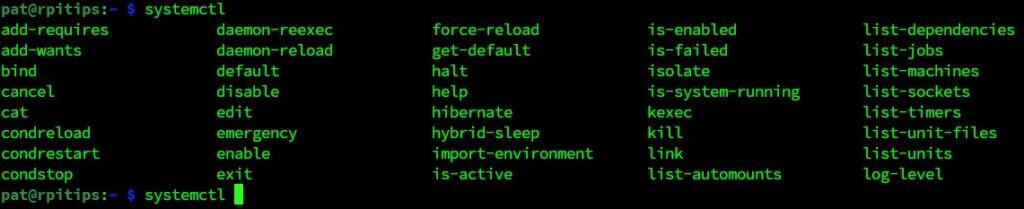
- Use grep to filter output – If you find it difficult to remember the commands to filter systemctl’s output, you can use grep instead. Or create an alias for the full command.

- Integrate custom scripts via systemctl – Do you have a custom program or script you want to run at boot? You can write a service file to integrate it into your system. That way, you can use systemctl to start/stop/enable/status it just like any other service you’ve installed.
- View and edit service files – You can view or edit service files, including custom ones you’ve added to your system, without having to figure out what folder they’re hiding out in.
Just use the cat and edit actions.systemctl cat <service>
systemctl edit <service>
- Prevent other users from starting a service – Maybe you have a service disabled for a specific reason, and you want to make sure other users or services can’t start it. In that case, use the mask action to blacklist the service from loading.
sudo systemctl mask <service>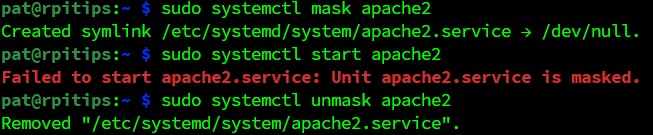
That covers most of what’s commonly used, but systemctl has quite a large range of application. After all, it’s in charge of the entire Linux system! If you have more complex uses and want to see everything systemctl can do, check out its official documentation.
Alternatives
Grab This Cheat Sheet!
I've compiled the must-know commands in a simple PDF for quick reference.
Download now
The systemctl command is part of the the systemd initialization system, which most Linux distros are using today.
But some distros are still using the older SysVinit way of doing things. For example, you might find this to be true on systems designed to be as lightweight as possible, such as Alpine Linux, Void Linux, MX Linux, or Gentoo.
Instead of systemctl, these systems use the service command:service <service_name> <action>
You might also like: Are you sure your Pi is secure? Here are 17 simple tips to protect it.

So if you’re using a Linux system where you get an error saying that the systemctl command doesn’t exist, then use this older syntax instead. The common actions are the ones you already know about, such as start/stop/enable/status.
Lastly, you can use the deprecated service syntax even if your distro has moved on to Systemd. For example, this older command will still work on Ubuntu. But I recommend getting used to using systemctl. It’s the proper way going forward.
That’s all for today’s guide. I hope I’ve made systemctl feel less intimidating to understand. After getting used to it, you might start to appreciate how it has standardized system commands across different Linux systems.
If you enjoy learning about Raspberry Pi, you’ll feel right at home in the RaspberryTips Community. It’s a friendly group of makers helping each other grow. Join us today for $1 and see what it’s like inside.
Related Questions
Why have most Linux distros replaced SysVinit with systemd?
Systemd is intended to improve upon the older SysVinit initialization system.
For instance, Systemd has the following advantages:
- Unifies a single interface for managing services and system resources
- Creates a more efficient boot process
- Parallelizes tasks
- Restarts services that have failed automatically
- Implements consistent logging across all services
- Allows for making dynamic configuration changes
There are some criticisms that systemd is too monolithic. That may be a valid complaint.
But purely from a user perspective, I see its intention as making system administration more user-friendly and standardized across different Linux operating systems.
Can I create my own service files using systemd?
Yes, we mentioned how to create your own systemd service files briefly in this article. After creating your own service file, you can manage it using systemctl like you would any other service on your system.
What other utilities are part of systemd?
Besides systemctl, the following utilities are included with systemd:
- journalctl: the new logging system. Our guide here.
- hostnamectl: manages your system’s name and helps you identify your distro.
- localectl: configure keyboard and locale.
- timedatectl: set the time and date.
- networkctl: view network connection status.
Whenever you're ready, here are other ways I can help you:
Master Linux Commands: Overwhelmed with Linux commands? This book is your essential guide to mastering the terminal. It includes practical tips, real-world examples, and a bonus cheat sheet to keep by your side.
The RaspberryTips Community: Need help with Linux or want to chat with people who actually get it? Join the RaspberryTips Community and get access to private forums, exclusive lessons, and direct support (try it for just $1).
You can also find all my recommendations for tools and hardware on this page.