If you click our links and make a purchase, we may earn an affiliate commission.
Learn more
If you already have multiple Wi-Fi access points, you know that management can be a nightmare. But by transforming your Raspberry Pi and into a Unifi controller, this task becomes easier: you can manage all your APs in a single place. In this guide, I’ll show you how to install it.
The Unifi Network Application can be installed on Raspberry Pi by adding a Debian repository and using apt to install the required packages. A .deb package is also available directly on the website. Configuration can then be done via a convenient web interface.
The installation is straightforward, you can install it like any Debian package. But the access points configuration is not so easy, and I saw no article explaining this. As I’m using it at work, I can show you all the configuration steps with real access points and clients. Let’s see how to do this!
Ubiquiti Networks is an American company, selling hardware for wireless technologies like access points, routers and cameras.
They started with wireless devices, and they are now diversifying upon a broader range of products. The latest innovative product concerns solar technology that helps you to manage solar farms.
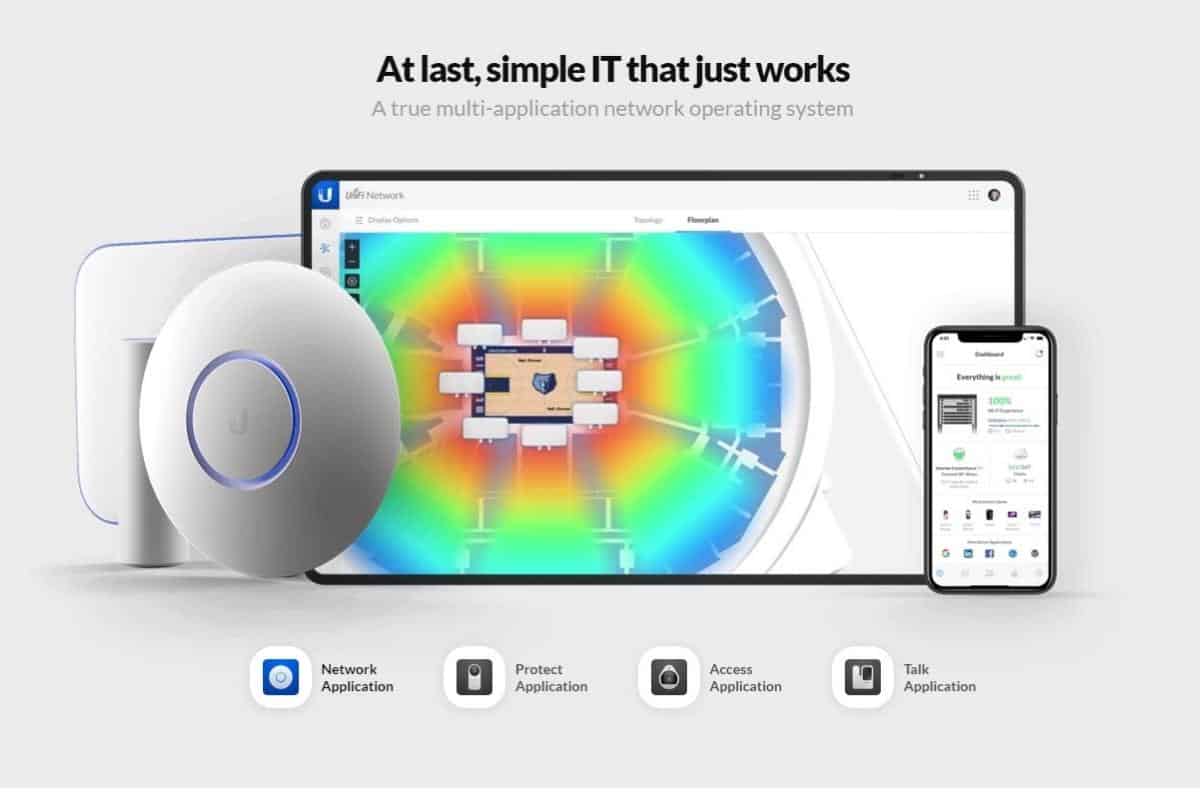
Anyway, the product that interests us today is their popular UniFi line of wireless network devices. These will be controlled by a software: Unifi Network Application (formerly known as Unifi Network Controller).
The goal of the Unifi Network Application is to manage multiple access points and wireless devices from a single web interface. From there, you can see all the access points and broadcast a unique SSID. The controller will handle the roaming between access points and load distribution.
Why Do I Need These Products?
These products target mainly companies and large areas but you can have the same “prosumer” needs at home if you have issues with your Wi-Fi connection (rooms with no network, roaming, stability, etc.).
Before switching to Ubiquiti products, I remember having tested many brands to solve my issues, but none of them could support over 10-20 users simultaneously (I even tested a fireproof model from D-Link, something like this one on Amazon ^^). So, I definitely recommend trying Ubiquiti, as it’s inexpensive compared to enterprise brands but performs very well.
For example, let’s say you need three access points at home. If you turn your Raspberry Pi into a Unifi controller, you will only have one Wi-Fi SSID (outdoor included)—instead of three. And you can move from one side to another without disconnection.
Ubiquiti Products
Ubiquiti products are distributed by resellers but are also available on several e-commerce sites:
Lost in the terminal? Grab My Pi Cheat-Sheet! Download the free PDF, keep it open, and stop wasting time on Google. Download now
Stuck on Another Raspberry Pi Tutorial? Get real answers from 500+ experienced makers, plus exclusive monthly video lessons and ad-free browsing. See What's InsideGet Unstuck Today ($9 only)
To test these products, you don’t need many things. Just buy one or more access points and build your professional wireless network. Here is the link: Ubiquiti Unifi AP on Amazon.
You have several packages available: Only one, 2 AP (access point), 4 AP, etc. Choose the one you prefer, but there aren’t big savings for buying bulk, so you can start with one or two, and order the others after.
Whatever your choice, a PoE switch will make the installation easier. If you want to start without it, there’s another option: Ubiquiti provides an adapter with the AP (power cord + network = PoE Network), but you need a power outlet and two RJ45 cables instead of only one cable for everything.
Here is the link to the PoE injector on Amazon, make sure to check the AP power requirements are they are not all the same (a Pro AP needs PoE-48 for example).
UniFi Network Application Installation
Now that you understand what UniFi products are, we can move on to setting up the software. Here’s an overview of how to turn your Raspberry Pi into a UniFi controller:
Download the Unifi Network Application autoinstaller script.
Run the UniFi autoinstaller script.
Don’t worry, I’ll explain everything in detail next.
Installation on Raspberry Pi OS
As for any tutorial on this site, you first need to install Raspberry Pi OS on your Raspberry Pi. Any version will do (I’m using Raspberry Pi OS Lite). If you don’t know how to do this, read my article on How to install Raspberry Pi OS on your Raspberry Pi.
Once installed, update your system and reboot: sudo apt update sudo apt upgrade sudo reboot
Lost in the terminal? Grab My Pi Cheat-Sheet! Download the free PDF, keep it open, and stop wasting time on Google. Download now
Stuck on Another Raspberry Pi Tutorial? Get real answers from 500+ experienced makers, plus exclusive monthly video lessons and ad-free browsing. See What's InsideGet Unstuck Today ($9 only)
Are you a bit lost in the Linux command line? Check this article first for the most important commands to remember and a free downloadable cheat sheet so you can have the commands at your fingertips.
Note: If you don’t use Raspberry Pi OS, I also have an article on how to install UniFi on Ubuntu. This method should work for most Debian-based distributions.
Set a Static IP Address
As our Raspberry Pi will act as a server on our network, we need to use:
A wired connection If you want a fast Wi-Fi network, you need to have your controller and your access point on a good connection. So, I don’t recommend setting up the controller with a Wi-Fi connection. Check this tutorial if you need help with this step: How to Connect the Raspberry Pi’s Ethernet Port (2 ways).
A static IP address The Raspberry Pi will become an important node on your network, so we need to fix its IP. By default, the Raspberry Pi uses DHCP to get a random IP among those available.
You can either set a static IP in the DHCP server (on your router probably) or do so from the Raspberry Pi configuration. If you don’t know how to do this, I already explain it at the end of this article. Feel free to take a look before going further: Set a static IP address on your Raspberry Pi.
Unifi Network Application Installation
Now that your Pi has a static IP, we’re ready to start the installation.
Note: Dependency changes have caused the newest versions of Unifi Network Application to stop working on Raspberry Pi. Workarounds forced us to install outdated and insecure packages.
To make things easier, we’re going to use an autoinstaller script provided by GlennR, who has maintained it for the last six years.
Here’s how to install UniFi Network Application on Raspberry Pi using an autoinstaller script:
Find the most recent script available on GlennR’s page:here
Copy the link for the version you want and download the script: wget https://get.glennr.nl/unifi/install/unifi-9.0.108.sh
Run the script using the filename you downloaded: sudo bash unifi-9.0.108.sh
The script will initiate and a splash screen will appear. The script will detect your Raspberry Pi (and use special steps for its hardware). It will begin by installing a few prerequisite packages.
When asked to use compiled MongoDB, say Yes.
You’ll be asked a few more questions. You can just hit Enter to accept the defaults:
Do you want to share your config? N
Do you want to keep the script on your system? Y
Do you want to update your system? Y
Then comes the most important part: the script installs dependencies that work on Pi. -a MongoDB server binary. (This caused many installation issues in the past.) -OpenJDK. (Java was another common problem that caused breakage.)
Finally, the Unifi Network Application is installed.
Now that the installation is finished, let’s check if the UniFi server is online: systemctl status unifi
Success! If everything is good, move on to the next section to learn how to use the software.
Unifi Controller Configuration
First Access
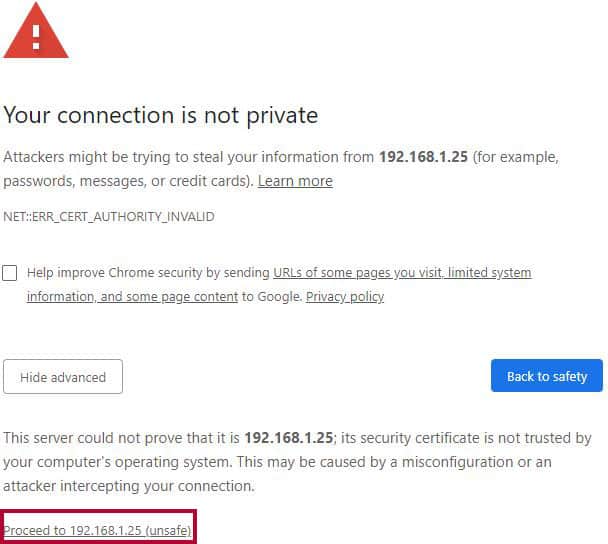
To access the web interface, go to https://<IP>:8443 For example, in my case it’s https://192.168.1.25:8443/ (Don’t forget the https:// or you’ll get an error saying “bad request…requires TLS.”)
When it loads, you’ll get a warning because we don’t have a secure certificate at the moment. Accept the exception and move to the next page to configure everything you need to get started:
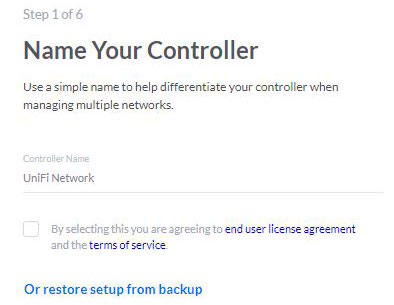
Step 1: Start by giving your controller a name. Check the license agreement box and click on “Next”
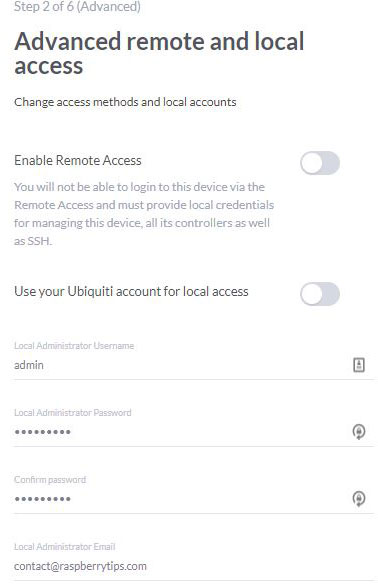
Step 2: Choose if you want to enable the cloud interface (default) or not (advanced). It depends on what you are trying to do. If you are always on the same network (home or in a company), you don’t really need the cloud panel. But it can be useful for remote sites.
If you keep the default option, fill the form to create an Unifi account.
On the advanced option, you have a form like this: If you enable one option, you need to create a cloud account AND a local account. I don’t need it for my test, so I disable everything.
Step 3: Sign in or configure options. This step is also different depending on your choice in the previous step. You may need to sign in your account, or just to configure two additional options (auto backup and auto-optimize). Keep them enabled if asked.
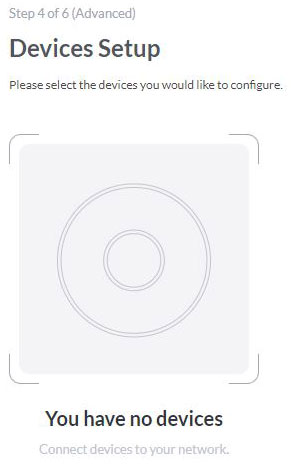
Step 4: Configure your devices. You can just skip this, it’s not required for now. You can add devices at anytime in the interface.
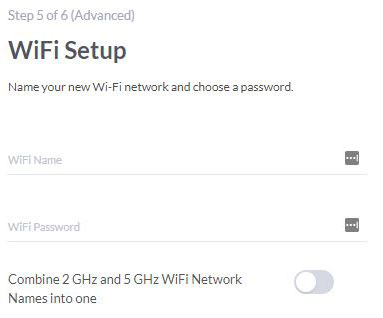
Step 5: You can finally configure your Wi-Fi settings now. You can also change this in the interface, so just pick something to get started.
Step 6: Finally, you also need to review your settings and you are ready to go.
Lost in the terminal? Grab My Pi Cheat-Sheet! Download the free PDF, keep it open, and stop wasting time on Google. Download now
Good job! You will now be redirected to the web panel. We can finally see it and configure more things if needed.
Web Interface Overview
Once logged in the web interface, you’ll get many submenus to manage everything. For the moment, it should be pretty empty, but in the left bar you can see:
Dashboard: Here you can have a preview of your network performance (number of APs and clients). Most of this dashboard needs the Unifi Security Gateway, so it’s not an important page.
Statistics: In this page you can monitor clients and traffic in the whole network. For the moment, nothing here 🙂
Map: In this one you can upload a map of your building, and place all APs on it. This way you can know where they are and see the global Wi-Fi coverage (approximately).
Devices: This page shows you all the Unifi devices you have on your network. It’s the most important page, you will manage APs from here.
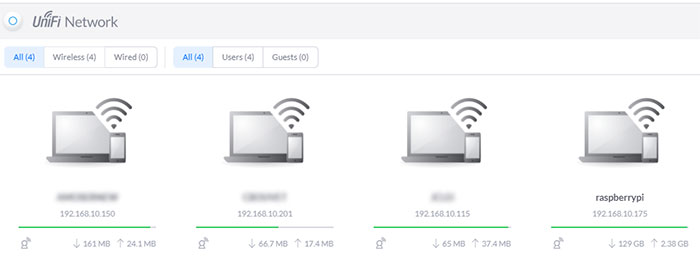
Clients: Same thing for the clients. You’ll see here all the connected clients with information about them (IP, AP, network usage, …):
Insights: Here you can see miscellaneous information. I’m using this mainly to see known clients (not connected now, but you can check the history, block or unblock them).
Events: This window shows you all the recent logs on your network This can be clients connections, AP upgrades, roaming, …
Alerts: Same thing with errors and warnings.
Settings: And this is the page where you’ll configure everything. We’ll use it to create the wireless network.
Chat support: If you need help from Unifi, you can ask for help here.
Now that you have visited the whole interface, we can move forward to configure the access point.
There are two possibilities for the access point cabling.
With a PoE switch:
Plug the access point to the POE Switch with an RJ45 cable.
Basically, that’s it. The status light should turn on and you can move to the next step.
Without PoE switch:
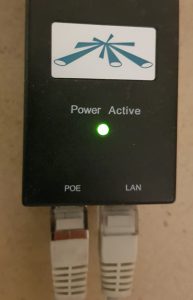
You must have a POE adapter like this: (it’s available on Amazon if you don’t have one with your access point: check it here).
Connect the LAN port to your switch or wall network socket.
Connect the POE port to the access point.
If the access point LED starts to blink, it’s ok.
Software Configuration
Now that we powered on the access point, we can go back to the Unifi web interface for the next steps:
Access the web interface: https://IP:8443.
Click on “Devices” in the left menu.
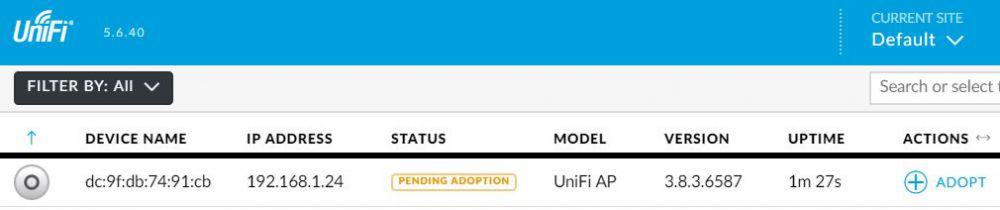
You should now see your access point in the list: The controller is seeing it, but we need to tell that it’s an access point for this controller.
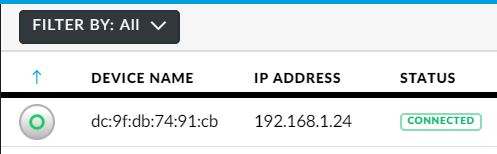
Click on “Adopt” at the end of the line. The adoption process starts, after a few seconds, you should get the “Connected” status.
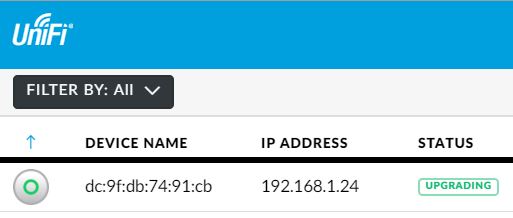
If needed (probably), you can upgrade the AP firmware to the latest version by clicking “Upgrade”. Your access point will take a few minutes to download and update the firmware.
Anyway, the first access point is ready, and we can now create the wireless network (SSID).
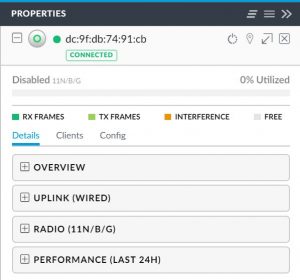
You can click on the line to see and change other settings for the access point (on the right).
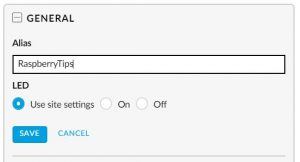
For example, you can set an alias for each access point to know which one is which. In the properties window, click on the config tab and set an alias.
Lost in the terminal? Grab My Pi Cheat-Sheet! Download the free PDF, keep it open, and stop wasting time on Google. Download now
Change everything you want on the access point and move to the SSID creation.
Create a Wireless Network
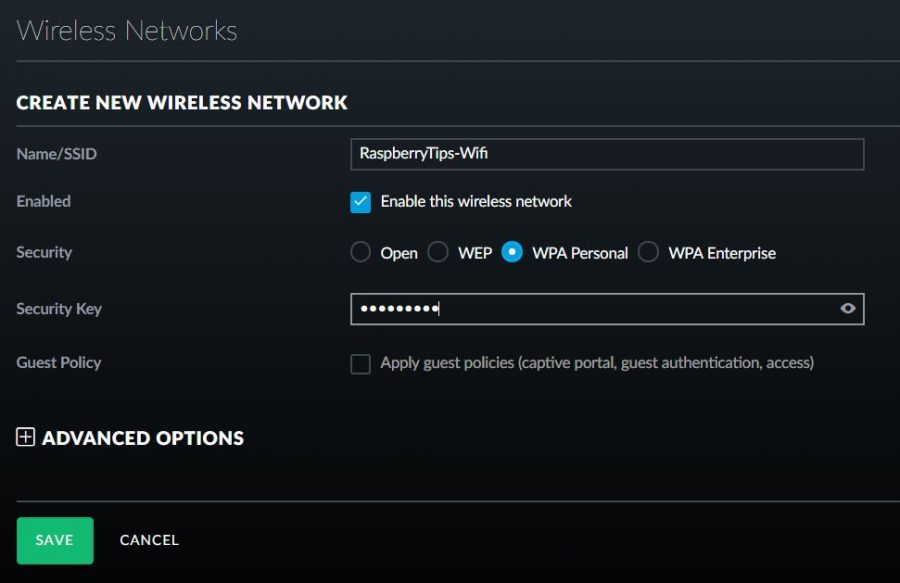
Creating a wireless network is basically setting an SSID, a password and a security type. You can do this in the “Settings” menu from the left bar:
In settings, click on “Wireless Networks”.
Then click on the “Create a new wireless network” button:
In the new window, choose an SSID, a security type and a password: Choose WPA-Personal (or WPA2/WPA3) for security, as WEP is not secure. And prefer a long password (ideally a phrase from 15 to 30 characters).
Click “Save”.
The access points will restart with the new settings. After a few seconds, the new wireless network is available for all your devices.
Connect to it and check that everything works fine. By default, the Unifi controller will give you an IP address within your main network. You have nothing else to do, but you can change it in Settings > LAN.
Then go back to the different menus to see information and statistics about your device. Enjoy 🙂
That’s it, you know how to install and configure a Unifi controller on your Raspberry Pi. This controller is running perfectly on my Raspberry Pi (3B+ and 4). I don’t know how many clients it would handle, but at home it’s more than enough.
🛠 This tutorial doesn't work anymore? Report the issue here, so that I can update it!
If this project doesn’t work as expected on your setup, don’t worry. You can get help directly from me and other Pi users inside the RaspberryTips Community. Try it for $1 and fix it together.
Download the Unifi Network Application updater: wget https://get.glennr.nl/unifi/update/unifi-update.sh
Run the script: sudo bash unifi-update.sh
If you want this easy script to keep working on your Pi in the future, consider supporting GlennR. He makes new versions for every update that you can find here.
Do I need to keep the Raspberry Pi on?
Not really. As soon as the Raspberry Pi stops, the controller is no longer available but the access points will continue to work. You can still access the Wi-Fi network, but you lose controller’s features like roaming between APs.
Does the Unifi controller have advanced features you didn’t mention?
Yes, a lot. I made a quick tutorial, but you can do a lot more: schedule downtimes, create guest access with VLAN or not, Radius with Active Directory, filter MAC address, block and unblock clients, etc …
How to reset an Unifi access point?
If you lose access to an access point or have strange scenarios in the adoption process, you can reset it to factory defaults. To do this, use the reset button near the RJ45 socket. While the access point is on, let the button pressed for 10 seconds and then wait for the reset.
Whenever you’re ready, here are other ways I can help you:
Test Your Raspberry Pi Level (Free): Not sure why everything takes so long on your Raspberry Pi? Take this free 3-minute assessment and see what’s causing the problems.
The RaspberryTips Community: Need help or want to discuss your Raspberry Pi projects with others who actually get it? Join the RaspberryTips Community and get access to private forums, exclusive lessons, and direct help (try it for just $1).
Master your Raspberry Pi in 30 days: If you are looking for the best tips to become an expert on Raspberry Pi, this book is for you. Learn useful Linux skills and practice multiple projects with step-by-step guides.
Master Python on Raspberry Pi: Create, understand, and improve any Python script for your Raspberry Pi. Learn the essentials step-by-step without losing time understanding useless concepts.
You can also find all my recommendations for tools and hardware on this page.
I'm the lead author and owner of RaspberryTips.com.
My goal is to help you with your Raspberry Pi problems using detailed guides and tutorials.
In real life, I'm a Linux system administrator with web developer experience.
If you click our links and make a purchase, we may earn an affiliate commission. Learn more You might be familiar with PCI Express (PCIe) technology on your PC motherboard: they’re the slots you use to add peripherals like a graphics card. But did you know that the Raspberry Pi now also has a PCIe…
If you click our links and make a purchase, we may earn an affiliate commission. Learn more If you have a Raspberry Pi running most of the time at home, setting up a VPN server on it might be a great way to keep access to your home network from anywhere in the world. In…
If you click our links and make a purchase, we may earn an affiliate commission. Learn more The camera support for the Raspberry Pi opened a host of new applications. There are numerous applications which require the Pi to live stream its captured video and make it accessible to the user through some interface. Official…
If you click our links and make a purchase, we may earn an affiliate commission. Learn more With RedHat dropping support for CentOS, choosing a good alternative operating system is challenging. Fortunately, the Linux community is strong and brings us Alma Linux, a forever free enterprise-grade Linux OS focused on stability and long-term support. Even…
If you click our links and make a purchase, we may earn an affiliate commission. Learn more Having a VPN gateway has many advantages: control over who has access to the network, access to content from other geographical locations, etc. However, setting up the Pi as a VPN server is quite complex. So in this…
If you click our links and make a purchase, we may earn an affiliate commission. Learn more Have you ever wanted a display in your home that plays your favorite pictures or videos on repeat, or shows a dashboard you check regularly? If you have a Raspberry Pi, setting up this display is easier than…
16 Comments
Configuration recommendations?
I’ve found that iOS devices seem to have trouble connecting if not close to the AP. The result is incorrect password but the devices connect fine when close.
Seems odd behavior for these enterprise APs.
Thanks
Ken
I have yet to get this awesome (thanks for making it straight forward!) guide to work.. I realize it may be outdated and some dependencies or OS version may be effecting things. Would be great if someone could help update. Im still working at it.. (i have a working install of unifi but had to do it a very complicated way which made a mess out of the install).
Ill post if i figure i out. Otherwise ill use my bloated install for now.
Edit.. Ok well 3rd time is the charm i guess.. I literally ran every command 3x.. and it finally worked when i did an apt update and it gave warnings on how unifi package has been configured multiple times…
Main error preventing me was Signatures could not be verified as public key is not available. Request issues/else? Or does it override after so many attempts to NOKEY?
Hi.
After running through the guide, I’m almost happy.
Things seem to be fine on the Raspberry, but it doens’t answer at port 8443.
How can I verify the installation?
What can be wrong?
I hope you can help me.
Hi Søren,
Did you try HTTP and HTTPS?
I think it’s https by default
sudo service unifi status is running ?
I use the adress https://192.168.1.15:8443. I looks like the port 8443 is blocked on the respberry. Is there a way to open that port?
How do I make the sudo service running?
Sorry, I’m very new to the Raspberry.
The service will open the port on start
sudo service unifi status

sudo service unifi start

sudo service unifi stop
If it doesn’t work, you can check the logs to find the error (/var/log/syslog for example)
Hello everyone,
For information, I just updated this post
The installation and the welcome wizard was a bit different, so this is now up to date
I couldn’t update the screenshots on the access point adoption process due to the current lockdown. But it should be almost the same
Let me know if you have any issues
Thank you for the article. It was most helpful. The only problem I ran into was access the URL for the controller. IE, Edge, Chrome, Brave all indicated this error: ERR_SSL_VERSION_OR_CIPHER_MISMATCH. Being I had not restarted the RPi after all the steps, I decided to reboot and the problem went away. 🙂 Really great site you have!
Thanks for your feedback Chris!
Great article, thanks!
So quick question. I followed this and have everything working but there is an update to 5.14. I keep getting a message stating
E: Repository ‘https://dl.ubnt.com/unifi/debian stable InRelease’ changed its ‘Codename’ value from ‘unifi-5.13’ to ‘unifi-5.14’
N: This must be accepted explicitly before updates for this repository can be applied. See apt-secure(8) manpage for details.
How can I fix this?
Hi Barry,
Try this:
apt-get update –allow-releaseinfo-change
apt-get clean
apt-get update
If it’s not enough, apt-get dist-upgrade can also do the job
Let me know
Hi, thanks for the article. How can I go about downgrading to 5.x.x as I’m currently on 6.0.23 and I think it’s causing me issues.
Hi,
You can’t downgrade.
But you can uninstall it, reinstall the old version and import and old backup made with the same version.
If you don’t have the backup it’s not possible (or at least you start from scratch and need to reset the APs).
Comments are closed.
×
Tired of figuring everything on your own?
Join the RaspberryTips Community and learn faster with help from other Pi users, exclusive tutorials, ad-free content, and more.
You can get 7 days of full access for just $1 by using the link below.




 The script will detect your Raspberry Pi (and use special steps for its hardware).








Configuration recommendations?
I’ve found that iOS devices seem to have trouble connecting if not close to the AP. The result is incorrect password but the devices connect fine when close.
Seems odd behavior for these enterprise APs.
Thanks
Ken
I have yet to get this awesome (thanks for making it straight forward!) guide to work.. I realize it may be outdated and some dependencies or OS version may be effecting things. Would be great if someone could help update. Im still working at it.. (i have a working install of unifi but had to do it a very complicated way which made a mess out of the install).
Ill post if i figure i out. Otherwise ill use my bloated install for now.
Edit.. Ok well 3rd time is the charm i guess.. I literally ran every command 3x.. and it finally worked when i did an apt update and it gave warnings on how unifi package has been configured multiple times…
Main error preventing me was Signatures could not be verified as public key is not available. Request issues/else? Or does it override after so many attempts to NOKEY?
Hi.
After running through the guide, I’m almost happy.
Things seem to be fine on the Raspberry, but it doens’t answer at port 8443.
How can I verify the installation?
What can be wrong?
I hope you can help me.
Hi Søren,
Did you try HTTP and HTTPS?
I think it’s https by default
sudo service unifi status is running ?
I use the adress https://192.168.1.15:8443. I looks like the port 8443 is blocked on the respberry. Is there a way to open that port?
How do I make the sudo service running?
Sorry, I’m very new to the Raspberry.
The service will open the port on start
sudo service unifi statussudo service unifi start
sudo service unifi stop
If it doesn’t work, you can check the logs to find the error (/var/log/syslog for example)
Hello everyone,
For information, I just updated this post
The installation and the welcome wizard was a bit different, so this is now up to date
I couldn’t update the screenshots on the access point adoption process due to the current lockdown. But it should be almost the same
Let me know if you have any issues
Thank you for the article. It was most helpful. The only problem I ran into was access the URL for the controller. IE, Edge, Chrome, Brave all indicated this error: ERR_SSL_VERSION_OR_CIPHER_MISMATCH. Being I had not restarted the RPi after all the steps, I decided to reboot and the problem went away. 🙂 Really great site you have!
Thanks for your feedback Chris!
Great article, thanks!
So quick question. I followed this and have everything working but there is an update to 5.14. I keep getting a message stating
E: Repository ‘https://dl.ubnt.com/unifi/debian stable InRelease’ changed its ‘Codename’ value from ‘unifi-5.13’ to ‘unifi-5.14’
N: This must be accepted explicitly before updates for this repository can be applied. See apt-secure(8) manpage for details.
How can I fix this?
Hi Barry,
Try this:
If it’s not enough, apt-get dist-upgrade can also do the job
Let me know
Hi, thanks for the article. How can I go about downgrading to 5.x.x as I’m currently on 6.0.23 and I think it’s causing me issues.
Hi,
You can’t downgrade.
But you can uninstall it, reinstall the old version and import and old backup made with the same version.
If you don’t have the backup it’s not possible (or at least you start from scratch and need to reset the APs).