Can You Use macOS On Raspberry Pi? (The Solution)
Sometimes, it seems like a Raspberry Pi can do everything. Even if it was created with a specific goal in mind, I’ve written over 300 tutorials on this website: running Windows 11, hosting virtual machines, or using it for other amazing projects. So, why not go even further: is there a way to install macOS on it?
macOS can’t run on a Raspberry Pi. Even though Raspberry Pi and Mac computers share the same architecture (ARM64), macOS is proprietary software that can only run on Mac computers. Due to strict licensing, no community project is allowed to port it to the Raspberry Pi.
I’ll elaborate a bit more about this fact in this article, and give you some solutions to have a fake macOS on your Raspberry Pi. So, if you are used to it, you’ll feel at home even on a Linux distribution.
If you’re looking for inspiration for your next Raspberry Pi project, I’ve put together a list of 75+ ideas with full descriptions, difficulty ratings, and links to tutorials. Whether you’re a beginner or more advanced, there’s something here for you. Grab the list for free here!
Can you install macOS on Raspberry Pi?
Raspberry Pi is not supported by Apple, and there is no community project that is trying to accomplish this, because of the licensing conditions of macOS.
The recent Mac computers use a revolutionary processor (started with the M1 in 2021) that is based on the ARM architecture. Already recognize this abbreviation? It’s an acronym for “Advanced RISC Machines” and it’s the architecture used by Raspberry Pi computers from the very start.
But even if the architecture on Mac is similar (ARM and 64-bit), it’s not possible to run macOS on a Raspberry Pi or any other ARM computer. The Apple operating system checks for a specific chip and won’t run or install on anything else.
You might also like: Do this to keep a full backup of your Raspberry Pi
Need some inspiration for your next Raspberry Pi project? Get access to my personal list here!
Download now
That’s how their business works. It supports a very limited list of hardware, and if you are just interested in the operating system, or even just one app that only exists in their ecosystem, you have to buy the whole thing (a Mac computer, install macOS on it and use the Apple Store for the app).
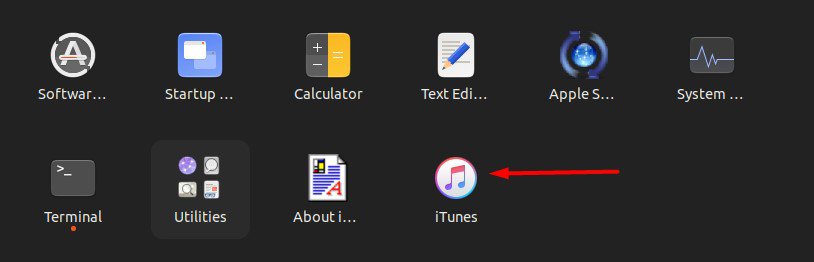
I recently wrote an article on how to install iTunes on Ubuntu. And even that is complicated. You bought an iPhone from them, but can’t use it with your computer because you don’t have a Mac. You can think what you want of this strategy, but that’s how it works with Apple.
Apple is not the type of company to open and support thousands of different computers, especially a niche tiny computer like the Raspberry Pi. We’ve seen that it’s possible with Microsoft with the WoR project, but it’s an entirely different brand philosophy.
So, no, I confirm there is no way to install macOS on your Raspberry Pi, but I want to give you some tips to get closer to it, at least in terms of the interface appearance.
If you prefer watching videos instead of reading tutorials, you’ll love the RaspberryTips Community. I post a new lesson every month (only for members), and you can unlock them all with a 7-day trial for $1.
Alternatives to macOS on Raspberry Pi
The only way to get close to having macOS on a Raspberry Pi is to use themes to customize the desktop interface appearance on a supported Linux distribution, like Raspberry Pi OS or Twister OS.
Twister OS
Twister OS is a Linux distribution that built its reputation by faking the appearance of macOS on a classic Linux distribution. It was even formerly named “iRaspbian”.
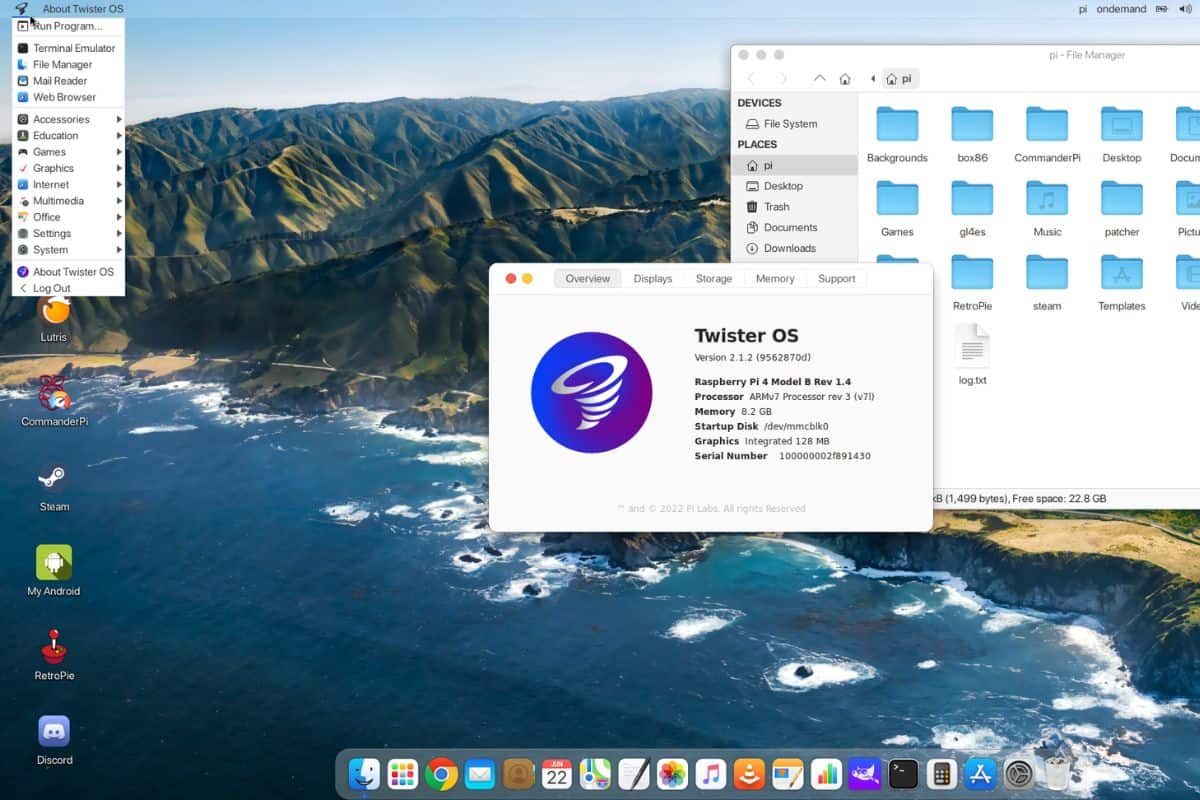
When you see a screenshot of the Twister OS desktop environment on social media, you might think it’s running macOS, but it’s not. Twister OS is based on Raspberry Pi OS, and it just uses themes and different tools to make it look like other operating systems.
Need some inspiration for your next Raspberry Pi project? Get access to my personal list here!
Download now
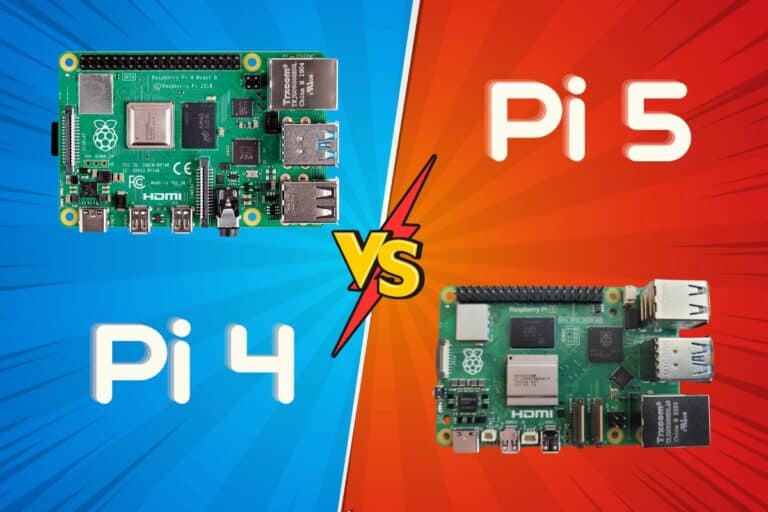
Check this: Pi5 vs. Pi4: I tested them, here's the result
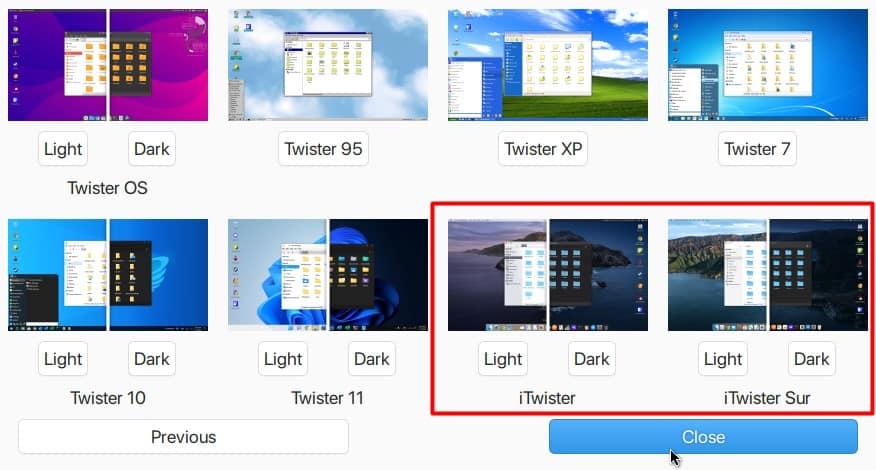
When you install Twister OS, several themes are available to look like mythical versions of macOS (light or dark alternatives are included), you just have to use this menu to switch the full interface design:
Once the macOS theme is applied, you should feel pretty much at home:
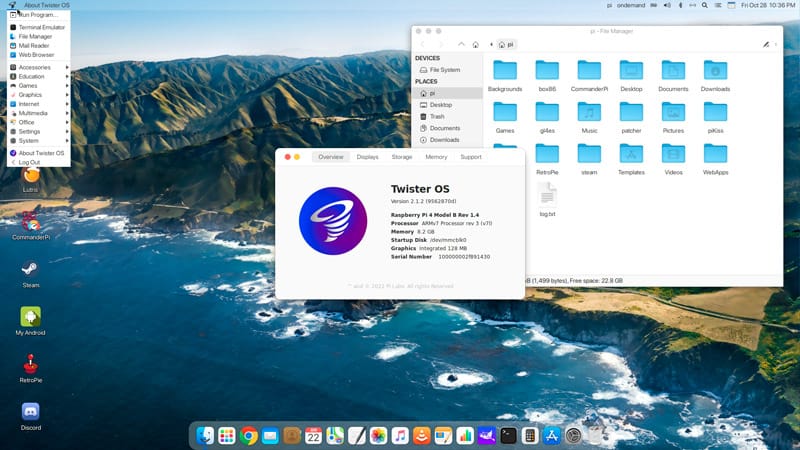
It’s all fake. It’s still Raspberry Pi OS under the theme, but at least you have the dock, the icons on the left of each window, similar colors and even similar wallpapers. They go as far as switching all the default icons to the ones used on Mac computers (it’s not Finder or iTunes in the dock, it’s the Linux equivalents).
If you want to give it a try, I wrote a complete guide on how to install Twister OS on a Raspberry Pi. It’s a good solution if you’ll use your Raspberry Pi for desktop usage and want everything pre-installed for you. Read the article to discover all the differences with Raspberry Pi OS.
Warning: Twister OS hasn’t been updated for a while. It’s still based on Raspberry Pi OS Buster (Legacy) and there is no guarantee it will continue supporting the Raspberry Pi in the future. It’s a nice environment, but not necessarily the best choice for long-term use.
Download the free PDF, keep it open, and stop wasting time on Google.
Download now
That’s why Raspberry Pi OS is generally the recommended distribution to install on any Raspberry Pi. It’s officially supported by the manufacturer and doesn’t rely on a single developer. You can find my other recommendations in this list if you want to try something new: 15 Best Operating Systems for Raspberry Pi (with pictures)
Raspberry Pi OS with a theme
If you are not willing to try Twister OS, especially if they don’t release an update soon, the other solution is to start with Raspberry Pi OS and try to make similar changes from there. As Twister is based on Raspberry Pi OS, it should be possible.
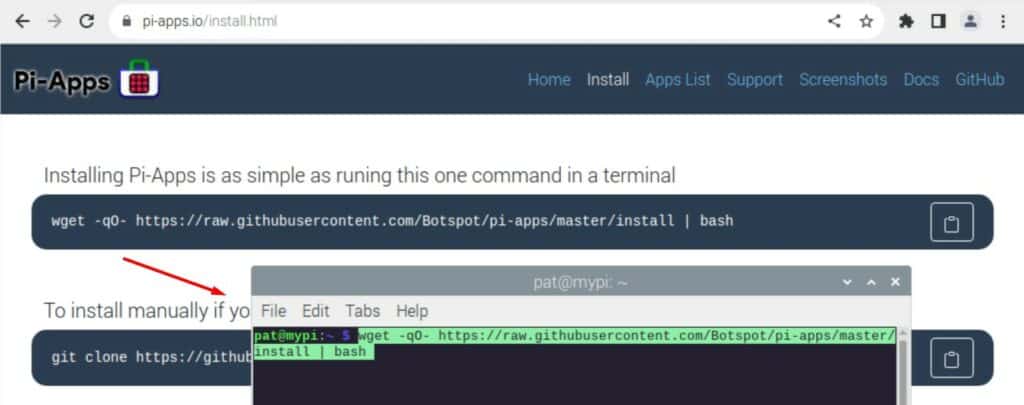
The easiest way to get started, in my opinion, is to use Pi-Apps. Pi-Apps is a simple tool that allows you to install applications that are not available in the default Raspberry Pi OS repository, in one click.
Pi-apps also includes several advanced customizations for Raspberry Pi OS, and there is a macOS theme available in the list.
Install Pi-Apps with this command line:wget -qO- https://raw.githubusercontent.com/Botspot/pi-apps/master/install | bash
Are you a bit lost in the Linux command line? Check this article first for the most important commands to remember and a free downloadable cheat sheet so you can have the commands at your fingertips.
Download the free PDF, keep it open, and stop wasting time on Google.
Download now
Once installed, start the app from the Desktop icon (or the main menu).
Go to “Appearance” > “Mac OS Theme” and click on “Install”:
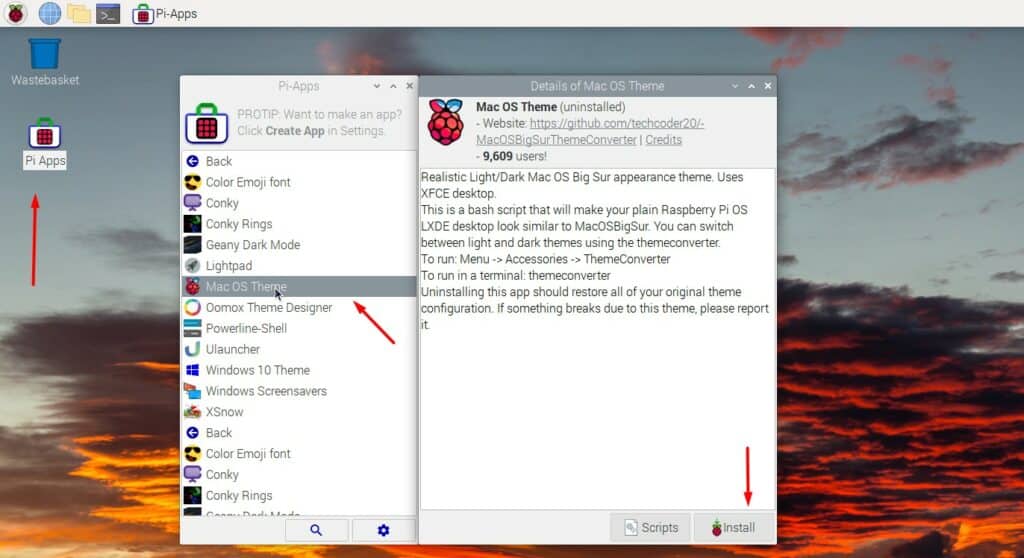
You may need to press “Enter” in the terminal window during the installation, but aside from that, Pi-Apps should do everything for you.
Note: At the time of writing, it wasn’t available with the 64-bit version of Raspberry Pi OS. And I think it works best with the Legacy edition of Raspberry Pi OS (I’m not sure if it has been updated since Bullseye, according to the GitHub project).
After a few minutes, the macOS Theme is now installed. Reboot your Raspberry Pi and you can enjoy your new theme:
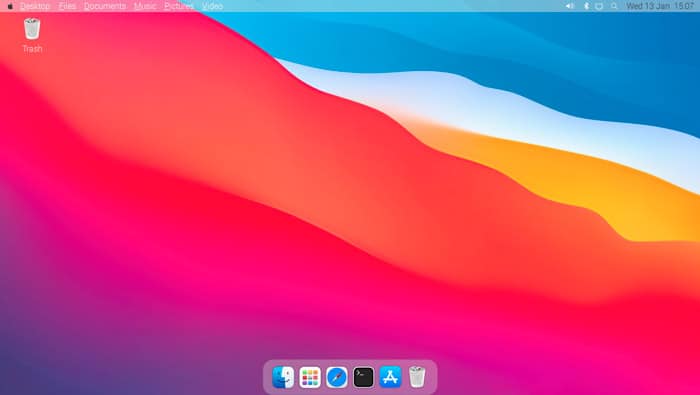
Like with Twister OS, there is a dock at the bottom of your screen, similar icons and a familiar desktop interface.
Those are the best alternatives I was able to find for those who are used to macOS and want to use a Raspberry Pi for desktop use. Remember that once you get used to Linux, better options are available, with the full support of this incredible computer, check these tutorials once you are ready:
- The Ultimate Guide to Get Started with Ubuntu on Raspberry Pi
- How to Install Manjaro on Raspberry Pi?
- Install Raspberry Pi OS Bullseye on Raspberry Pi (Illustrated guide)
Whenever you’re ready, here are other ways I can help you:
Test Your Raspberry Pi Level (Free): Not sure why everything takes so long on your Raspberry Pi? Take this free 3-minute assessment and see what’s causing the problems.
The RaspberryTips Community: Need help or want to discuss your Raspberry Pi projects with others who actually get it? Join the RaspberryTips Community and get access to private forums, exclusive lessons, and direct help (try it for just $1).
Master your Raspberry Pi in 30 days: If you are looking for the best tips to become an expert on Raspberry Pi, this book is for you. Learn useful Linux skills and practice multiple projects with step-by-step guides.
Master Python on Raspberry Pi: Create, understand, and improve any Python script for your Raspberry Pi. Learn the essentials step-by-step without losing time understanding useless concepts.
You can also find all my recommendations for tools and hardware on this page.