

   __ __         __            ___
  / // /__ _____/ /__  ___ _  / _ \___ ___ __
 / _  / _ `/ __/  '_/ / _ `/ / // / _ `/ // /
/_//_/\_,_/\__/_/\_\  \_,_/ /____/\_,_/\_, /
retro edition                         /___/
Now optimized for embedded devices!!
| About | Successes | Retrocomputing guide | Email Hackaday |
What takes eight hours to solder and uses more shrink tubing that you thought imaginable? An LED matrix installed in a real pumpkin. When I mentioned that we’d like the LED pumpkin in last Friday’s post scaled up to a full LED matrix I had no idea it would be me doing the work. But [Caleb] and I thought it might be just the thing to present for the hacker’s favorite holiday.
Installed in the autumn vegetable is a marquee made from a 5×14 matrix of light emitting diodes. I spaced them by printing out a grid on the computer, taping it to the pumpkin, and drilling 70 holes in the front of the thing. The real trouble came when inserting all of the LEDs from the inside; each of them has four wires soldered to it, creating a net of black wiring. Above you can see it turned out great. This is a shot of it scrolling the message HAPPY HALLOWEEN.
Join us after the break for video of this prop. But we’re not just sharing the finished product. I’ll take you through the build process. Along the way you’ll learn the design considerations that go into an LED matrix and how you can use these techniques to build your own in any size and configuration you desire.
If you want to see a larger version of the banner image try this, and below is the video clip promised. Sorry for the poor quality, I’m working on borrowing a better video recorder (I’ll post an update if I manage to get one). There are a couple of animations that happen too fast for the camera. One is a side-to-side sweep that looks similar to a Cylon Eye or the front of Kitt, the car from Knight Rider. The other effect that is poorly represented in the video is a chase function that outlines the rectangle of the display. These both look great to the eye, and fortunately the scrolling text comes out pretty well in the video.
I’m going to take you down the rabbit hole of LED Matrix design but before that let’s look at what it took to make this Jack-’o-lantern. If it turns out to be more than you can chew, we’ve got a beginners tutorial to help you get started with these microcontrollers.
Before we talk about how to design the circuit, let’s take a look and the build process.
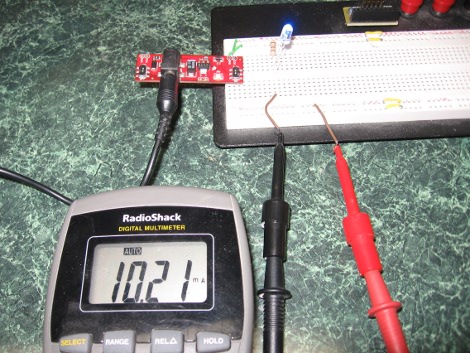
I decided from the start to use different colored LEDs. For reasons that I’ll discuss in-depth in the design section of this tutorial I needed to drive the LEDs at about 10 mA each. I calculated my resistors and then measured each to make sure I was close to my target. This is just fine for blue.
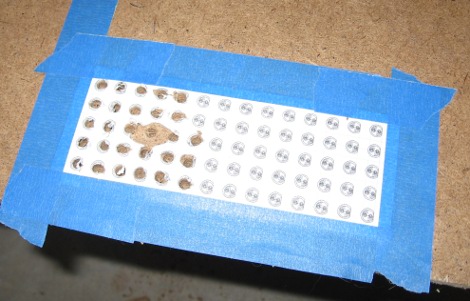
I wanted a way to hold the LEDs while I’m soldering, and I needed a template for drilling the pumpkin. Here I’m using that template made from my Eagle board layout to make an assembly jig using some hardboard. This turned out to be a rather poor choice of material because it started to come apart on the underside, but it worked.
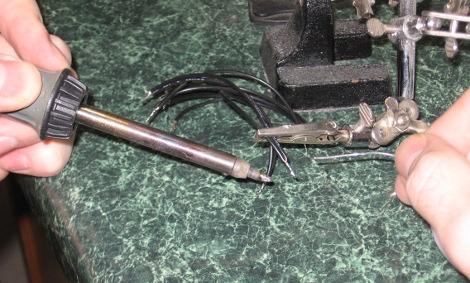
I need to solder all of the cathodes in the same row together. I cut small pieces of wire (13 for each row) plus a longer wire to connect to the driver board. Above I’m soldering those wires into daisy chains.

Here’s a daisy chain for one row… four more to go.
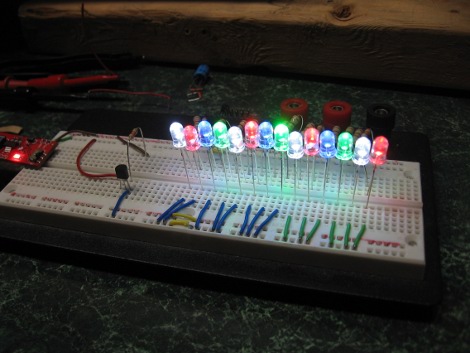
I’m using clear LEDs which means you can’t tell what color they are when there’s no electricity running to them. Before moving a row to the assembly jig I tested them on the breadboard.
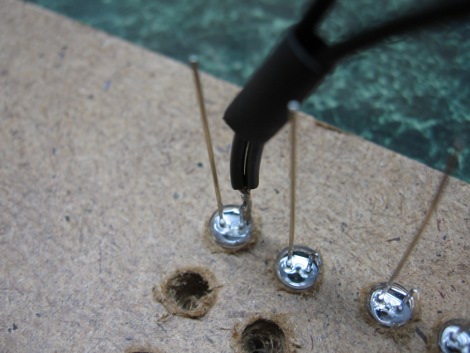
As I moved each LED from the breadboard to the jig I clipped off the excess cathode lead. From there remember the mantra: ‘Shrinktube FIRST!!!’ or you’ll be sorry. You can see it just above the solder joint in this image.
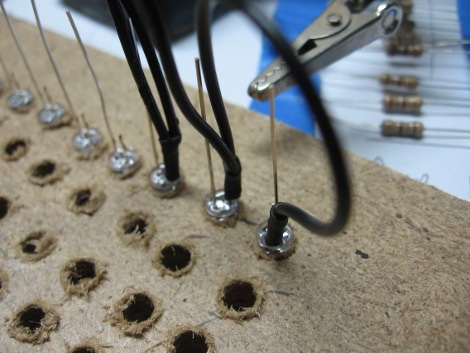
Just keep going down the row until complete. In the image above I’ve already heated the shrink tube with a candle-lighter. Note: The two images above are different rows. For one I started on the left and for the other I started on the right. I hope it’s not too confusing.
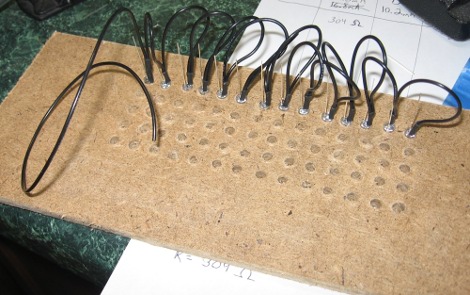
Here’s one row of completed soldering. After each I removed it and set it aside.
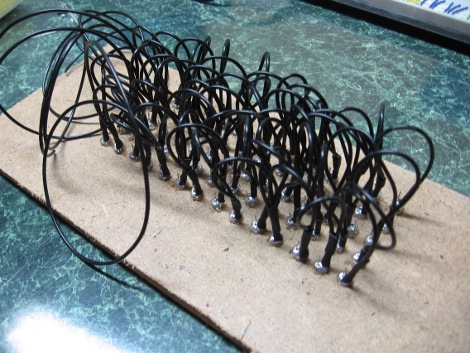
All of the rows have been completed and I’ve reinstalled them in the jig in preparation for soldering the anodes into columns.
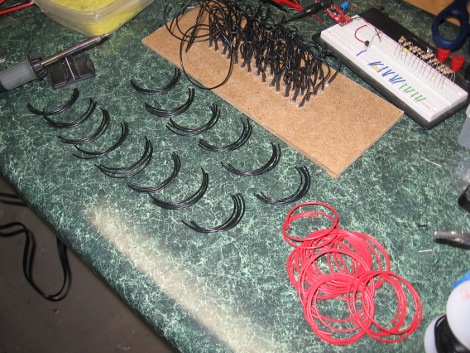
Here’s the wires cut to make daisy chains for the columns. I used black wire for the short sections because I’ve got a huge supply of it compared to the red, which I’ve cut for the control lines.
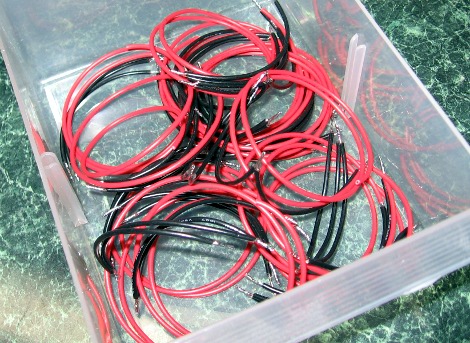
The completed column daisy chains.

Here I’m soldering the fourth column. After I’ve finished one I just lifted up the five LEDs and held them aside with this third hand. Go slowly and be patient… you can do this!
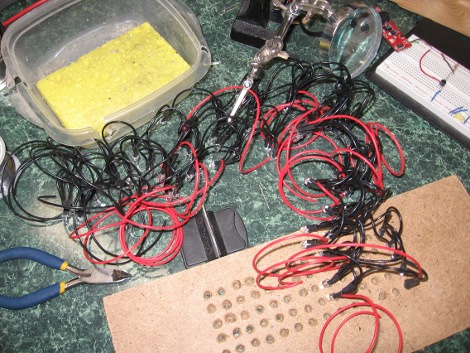
Done! Well, the LEDs are all soldered. It’s time to make a control board for the rows.
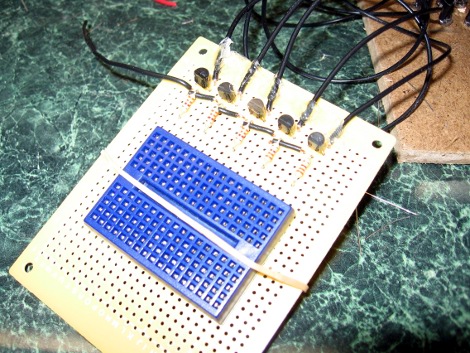
Here’s the control board for my rows. I hot glued the incoming lines from the rows to the board for strain relief. Each is connected to the collector of a 2N3904 transistor. The camera flash makes it hard to see but there is a 3k3 resistor connected to the base of each transistor. I’ll add single-conductor wire to those later so they can be plugged into the breadboard. On the left you can see a wire for the GND rail, which connects to the ground of the power supply.

Each column contains the same color LED. I found that the red LEDs needed a different resistor from the rest. Here I’ve soldered resistors to the control wires for each column and soldered groups onto pin heads for each interface with the breadboard.
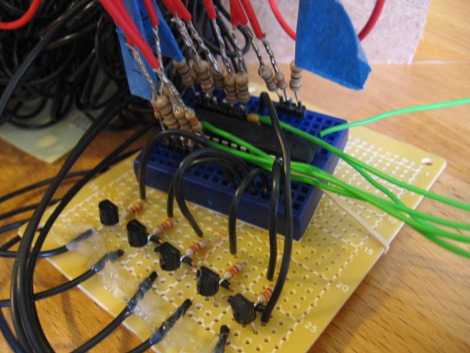
Here’s the finished control board. At the center of the breadboard is an ATmega168 microcontroller. The black arches connect the transistor base to PortC of the chip via the 3k3 resistors. There are three groups of column pin headers that plug into PortB and PortD.
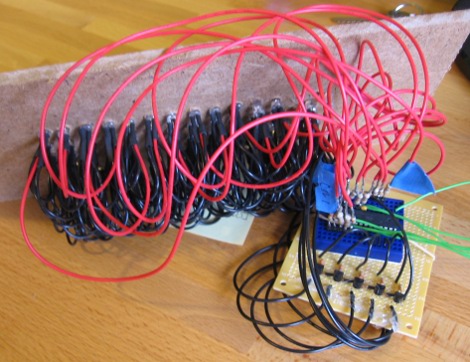
This is an overview of the completed hardware. At this point I was sure hoping I’d be able to get this into the pumpkin.
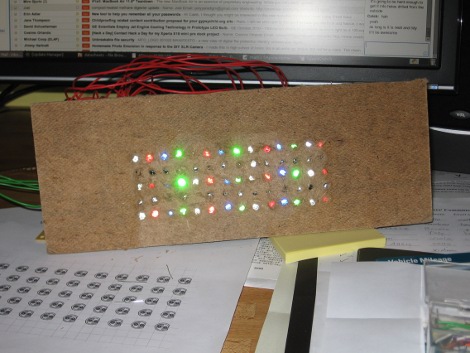
Here I’m working on the firmware for the matrix. This is where a better choice of material for the assembly jig would have been nice. But like I said before, it worked.

I started with a fairly large donor pumpkin. I tried to pick one that had a fairly flat face without too much curve.
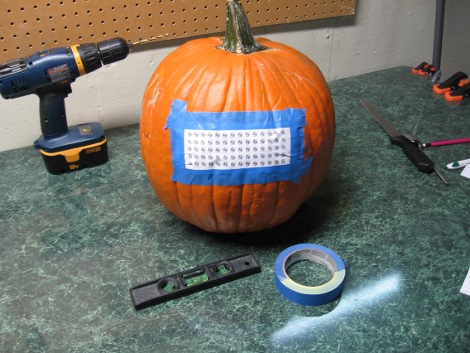
Before starting I made sure to locate where the matrix would be drilled by taping on another copy of the template I used for the assembly jig.

I cut a large access hatch in the back and cleaned out the guts. The seams of this will not be seen from the front.

Here it is, nice and clean. I want to keep as much wet gunk away from the electronics as possible.
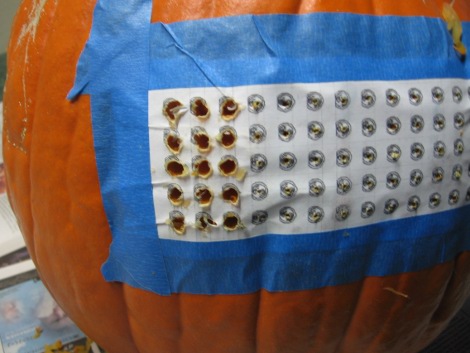
Time to drill. I used a bamboo shish-kebab skewer to poke a pilot hole through the skin of the pumpkin so the drill-bit wouldn’t wander. I found a 13/64th drill bit worked perfectly.
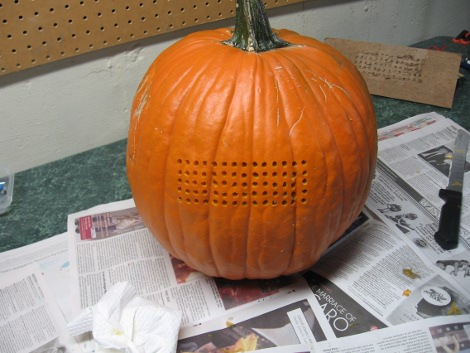
Here’s the completed grid.
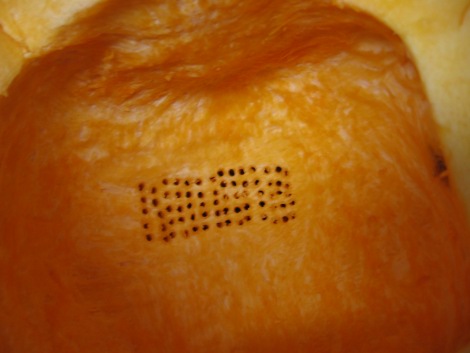
Here’s where the LEDs need to go. I spent a bit of time making sure the holes were cleaned out using the skewers.
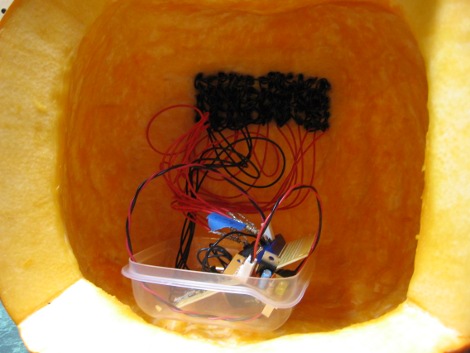
Take a deep breath and start inserting LEDs. Once I had them all in place I powered up the unit and checked to make sure I hadn’t switched around any of them. Once I knew it was right I used a skewer to push each LED through to the surface.
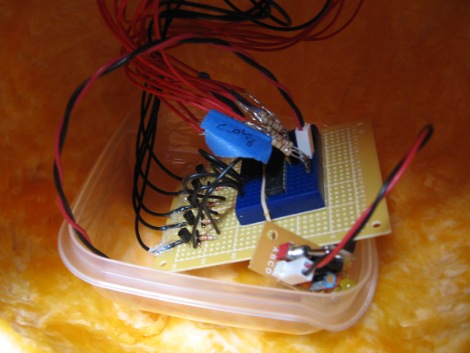
This little plastic dish keeps the control circuitry dry on the bottom. I’ve added a little 5v regulator I built for a different project, with a 9V batter hidden beneath the larger board.

The power is on and I’ve sealed the hatch using a few skewers.

This is how it looks with the lights on. Here it’s displaying the work BOO.

The finished product. Whew, what a relief!
How to design an LED matrix
Ok, let’s jump into the why’s and how’s of building an LED matrix.
Multiplexing
The display I built has 70 LEDs. If you individually address each LED you’re going to need 70 pins on your microcontroller. But there’s an easier way. Multiplexing is a method of lighting just a portion of the display at one time. Using a microprocessor you can switch which section is on so quickly that your eye doesn’t ever perceive it being off.
Because one section will be turned off while scanning through the other parts of the display you want to keep the number of multiplexed sections low. I chose to multiplex the five rows of this matrix. That means that one row will be on 1/5th of the time, which we call a 1/5th duty cycle. This is basically a type of pulse-width modulation, a technique we use to dim LEDs. I’ve used ultra-bright LEDs for this very reason.
Here’s how the multiplex of this display is going to work: Turn off all rows and columns. Set the columns you want to be illuminated in the first row. Turn on the first row driver and the columns in that row will light up. Start over and move to the second row. Here’s the schematic for the matrix I built (click to enlarge):

Columns and Addressing
We want each LED to have the same brightness. Because only one row will ever be on at one time. A single resistor in each column will work for all of the LEDs in that column. That is because an LED must be connected to both voltage and ground in order for current to flow. All of the Anodes (positive leg of the LED) are connected together in the columns, and all of the cathodes (negative leg of the LED) are connected in rows. So turning column 1 on and row 1 will let current flow through the LED at that location. The LEDs in rows 0, 2, 3, and 4 will not light because their rows haven’t been turned on and so they have no connection to ground on their cathode. In this way we build a grid of LEDs that are addressable.
Size Limitations
Multiplexing introduces an issue with current draw. I am limited in the number of columns I can drive because I’m connecting them to a microcontroller. If you look at the ATmega168 electrical characteristics in the datasheet you’ll find it can source 40mA per pin. But there is a limitation on what the supply pin of that chip (VCC) can source. The VCC pin is limited to 200mA. We must stay below that threshold or the chip may be damaged.
This is part of the reason that I chose to use 14 columns. There will never be more than 14 LEDs on at once because that’s how many are in a single row. If I drive them at 10mA each, I’m pulling a total of 140mA. This is below the 200mA threshold and leaves some room for error, and for the current that the ATmega168 needs to run. I’ve also limited it to 14 because I wanted to reserve 2 particular pins on the device for other purposes, but more on that later.
We need to consider the current on the low side of the LED matrix. The rows act as the ground connection for the display. If all the LEDs in a row are illuminated at once, there will be around 140mA coming down that control wire. It can’t be connected directly to a microcontroller because that’s too much current for one pin. Instead, I’ve used an NPN transistor. The 2N3904 conveniently has a 200mA limit which is enough to handle the 140 mA sinking from the display. These transistors work like a switch, requiring just 1/100th of the current you are switching to be present on the base leg of the device in order for it to connect the control wire to ground.
How can we make bigger displays?
I wanted to keep the parts count for this display small, but there’s really no limit on size if you’re willing to add more components. Beefier transistors allow you to switch much higher currents. And you can use cascading shift registers to expand the number of columns. Those shift registers are addressed with one data line and a clock… pulsing data in serially instead of in parallel as we’re doing in our example. You take a speed hit because it takes two cycles for each column (one to set the data bit, one to clock it in, and repeat until all columns have been pulsed in). Explaining this in detail is beyond the scope of this tutorial but as long as you are keeping current consumption for your parts within the device specifications you can go big.
Making the connection
As I said above, I wanted to keep my parts count to a minimum and so chose not to use shift registers. That means I need one pin for each column and one pin for each row. Using all eight pins on PortB and PortD of the microcontroller I could still hook up the five rows to PortC AND have at least one pin left over (two pins if you want to use RST as I/O). Why didn’t I make this 16 columns long?
There’s a good reason. I wanted to leave the serial port on the chip available for future use. RXD and TXD are located on pins 0 and 1 of PortD. I could have moved the last two columns to a different port but that would mean addressing 3 ports for the columns instead of two; causing a slowdown in the performance of the processor.
Writing code for a multiplex display comes in two parts; some type of frame buffer, and code to handle the multiplexing in the background. Please download the source package and follow along. There are pin, port, and data direction register defines at the top that will clarify what some of the code examples in this post are doing.
Frame buffering
This is a simple concept. You need a data structure that represents the physical display. We’re operating with pixels that are either on or off, which is the definition of binary code. So we just need to think of our currently displayed frame as five integers. An integer is a 16-bit number when working with AVR; one bit for each LED (two bits will go to waste) and five integers for the five rows:
volatile int buffer[5] = { 0x0000, 0x0000, 0x0000, 0x0000, 0x0000 };
I’ve used hexadecimal instead of binary to instantiate this array. That’s a pretty common practice because it takes 1/4 of the characters to represent the same amount of data. Be assured, 0×0000 and 0b0000000000000000 equal the same value.
Also notice that I’ve used the keyword ‘volatile’. This is extremely important, because this data will be accessed by both an interrupt service routine, and the main body of the code. If it is not volatile the compiler may optimize out changes to this code, resulting in bizarre and hard to debug behavior. Also, we’re using 16-bit data types on an 8-bit device. It will be important to disable interrupts when changing the data so that we don’t have an interrupt happen between changing the first and second bytes of an integer. More on this later.
Interrupt drive multiplexing
This is really one of the easiest parts of this process. It can just be a little hard to wrap your mind around what’s happening at first.
We don’t want to ever think about what’s happening with the scanning of our five rows. Using a timer-based interrupt we can multiplex the display at a constant rate and forget about it.
Here’s how it works. We set up a timer to trigger an interrupt many times per second. When that interrupt occurs, the processor will stop running the main loop of our code (no matter what’s going on) and run the code in our Interrupt Service Routine (ISR). Here’s how I setup Timer1 to interrupt 500 times per second:
//Initialize the Timers
static inline void initTimers(void) //Function used once to set up the timer
{
  TCCR1B |= 1<
  TIMSK1 |= 1<
  OCR1A = 0x07D0;			//Set compare value for 500 times per second
sei();				//Enable global interrupts
}
Let’s consider the math for just a bit. The ATmega168 has an internal clock that is set to run at 1 MHz. I’d like to have my display updated 500 times per second, resulting in a complete refresh 100 times per second. So 1,000,000 cycles per second divided by 500 interrupts equals a target of 2000 cycles. I need to set up a timer that will count each of the system clock cycles and trigger an interrupt when 2000 of them have passed. That is what I’m doing with the OCR1A value, 0x07D0 is the hexadecimal equivalent of 2000.
For those of you who really know what you’re doing you’ve probably notice an error. The Timer starts counting at 0 instead of 1, which means I really should be interrupting at one cycle less that 0x07D0 but it’s close enough for jazz.
Interrupt handling
Now that we’ve written code to create an interrupt 500 times per second we’ve got to do something when that happens. The plan is to keep track of the next row that should be turned on. At the beginning of the interrupt we’ll turn off the entire display, set the column pins for the next row to be displayed using the frame buffer, turn on that row, and setup for the next interrupt. Here’s the code to make that happen:
ISR(TIMER1_COMPA_vect)	//Interrupt Service Routine handles multiplexing
{
  //Shutdown all rows
  rowPort &= ~rowMask;

  //Shutdown all columns
  colPort0 &= ~colMask0;
  colPort1 &= ~colMask1;

  //Set buffer data to columns
  colPort0 = (char)buffer[row_track];
  colPort1 |= ((char)(buffer[row_track] >> 6) & 0xFC); //Shift data and mask out lower bits (reserver for Rx and Tx)

  //Drive row
  rowPort |= (1<<(4-row_track));

  //Preload row for next interrupt
  if(++row_track == 5) row_track = 0;		//Row tracking
}
There is a bit of magic code going on above. Here it is out of context so we can pick it apart:
colPort1 |= ((char)(buffer[row_track] >> 6) & 0xFC)
I’ve defined ‘colPort1′ earlier in the source code as PORTD. That’s the one where we’ve reserved the lowest two bits for later use as a serial connection. When we write the integer data to a port only the lowest 8-bits will be read by the microcontroller because that’s the size of the ports. To the right of the equals sign I’m casting the integer data as an 8-bit char. We want the most significant byte of that integer data for columns 8-13, so we’re shifting the data to the right. But I only shifted it six spaces, because we’re not going to use the lower two bits of the register. Finally, I used the bitwise ‘&’ operator to mask out the lower two bits so that we don’t mess up any other uses for those pins that may come in the future. I feel this line of code is a great example of the power of binary data and if you don’t fully understand it you simply must take the time to study how this works. It’s a fantastic part of working with embedded systems.
Manipulating the frame buffer
Our display is multiplexing in the background and we no longer have to worry about that. Now you can display just about anything you want by manipulating the frame buffer.
In this case, the frame buffer is an array of five integer values. As I discussed earlier, when working with an 8-bit device it takes at least 2 cycles for it to write a 16-bit integer. What happens if an interrupt fires between those two cycles? For this reason it’s important to disable interrupts while changing the frame buffer. But disabling interrupts will stop our automated multiplexing so make sure you change the frame buffer quickly and enable interrupts as soon as you can.
void clearScreen(void)
{
  cli();
  for (unsigned char i=0; i<5; i++) buffer[i] = 0x0000;
  sei();
}
The above code is probably the simplest example we can use. This will immediately clear the display. The ‘cli();’ command will disable interrupts, and the ‘sei()’ command will enable them. In between I’ve used a ‘for’ loop to set all five integers in our buffer array to 0×0000, which represents off. If I had set them to 0×1111, all of the LEDs in the display would be illuminated.
You take it from here
Explaining every part of the example code is beyond the scope of this tutorial. But take some time to figure out how it works. I’ve stored the font array and the messages in PROGMEM or I would have run out of ram. [Dean Camera] has a great tutorial on PROGMEM use which you should read if you haven’t used it before. As for everything else, play around and see what you can do!
How to program AVR microcontrollers

Imagine that you have been asked to construct a portable shipping container workshop that will be sent to the other side of the globe, where the power grid is sketchy and the resources tight. If you had $20,000 to outfit this 20’ container, what components and tools would you include?
This was the question recently posed to us by [Luke Iseman], CTO at re:char. He and his partners are in the midst of putting together a mobile makerspace that will eventually be shipped over to Western Kenya in order to help the locals fertilize their land using biochar. The primary function of this workshop will be to build biochar chambers, so plenty of durable tools and machines are a must. They already have a pretty solid list of items put together, but they wanted input the from makers and hackers out there, who may have worked under similar conditions.
Have any suggestions? Share them in the forum, we’re sure [Luke] and co. will appreciate it!
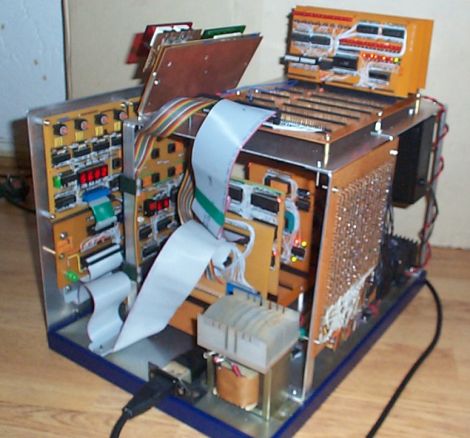
There’s something quite satisfying about building your own computer. Nowadays, constructing your own desktop PC is relatively easy, so if you really want to get your hands dirty, you have to take a step back in time and give some vintage hardware a spin.
[YT2095] has spent a good portion of the last two months building a computer based on the classic Z80 CPU. His machine, called “Z Eighty Development” or “ZED” for short is an amazing build, and most definitely a labor of love. He has put an estimated 700+ hours into this machine and it’s a beaut! When closed, the machine is pretty unassuming, but once he folds down the keypad, you can see that all of his time has been put to good use.
Most of the board’s components are connected together via wire wrap, including the large 48k memory card he built, as you can see from the link above. The wide array of add on cards all work together to accomplish his goal of “zero overhead” – freeing up the Z80 from having to do any unnecessary processing, such as I/O, etc.
It’s quite an impressive build, and ranks up there with some of the best Z80 based computers we have seen through the years.
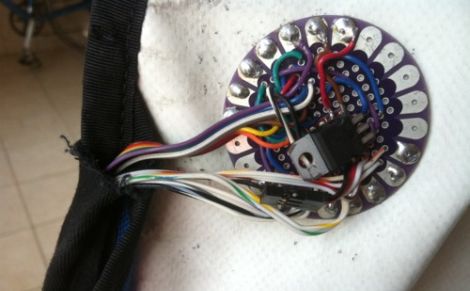
[Josh] was looking for a way to enjoy exploring the city of Chicago safely, and hacked together a messenger bag navigation system to ensure he always knew where he was going.
While riding, he wanted to embrace the idea of Dérive, but he felt that he was being too overly conscious of time as well as his location, which took all the fun out of his unplanned excursions. Having recently been “doored” by a car, he was also looking for a way to help him navigate the city streets without being overly distracted with finding his way around.
His “Map Bag” solves both of these problems for him, without being obtrusive. He fit a messenger bag with a LilyPad Arduino and a GPS receiver for keeping track of his location. The Arduino can constantly monitor speed, heading, and location, directing [Josh] to his destination by vibrating one of 8 shaftless motors that are installed throughout the bag’s chest strap. Now while he rides, he can take in the city’s atmosphere while also knowing that he will get exactly where he needs to – on time.
He does not have any source code or schematics on his site as of yet, but we hope to see some in the near future. If you are interested, check out the videos of the bag’s construction embedded below.

You can make those buttons on your steering wheel much more functional if you have a way of monitoring them. Don’t even think of cracking open the factory finish to get to the solder points, just tap into the CAN bus and monitor the data traffic.
The small board seen above is the result of a project [Peter Shabino] calls the CAN sniffer. The connector on the left will plug into the Control Area Network system on your car, giving the chips on board something to do. There’s an MCP2551 CAN transceiver (hidden under that linear regulator) and an SPI controlled MCP2515 CAN controller which take care of the particulars of the CAN protocol. The big chip in the middle is a PIC 16F876, responsible for making sense out of the data. From there a MAX232 chip is used to provide a serial interface to connect the device to a computer.
This really isn’t tied down to one particular function. Once you have access to the bus for a microcontroller you’ll only be limited by your firmware writing skills. [Peter] has posted an archive with all of the open source files, as well as an illustrated step-by-step board assembly. We’ve embedded the schematic from that archive after the break.

