To master web automation using Playwright with Python, follow this comprehensive guide. This tutorial covers everything from installation, setup, to practical usage, culminating in a working example that automates a website.
Setting Up Playwright with Python
Follow this step-by-step quick start guide to learn to use Playwright with Python for web automation testing.
Introduction to Playwright
Playwright is an open-source automation framework developed by Microsoft for testing web applications. It supports modern browsers like Chromium (Google Chrome), Firefox, and WebKit (Safari) through a unified API. Playwright is compatible with multiple programming languages, including Python and Java, making it a popular choice among developers.
Installation and Setup
Prerequisites:
- The package installer for Python (pip) is installed.
- Ensure Python 3.7 or higher is installed on your system.
Installation Steps:
Install Playwright: Use pip to install the Playwright package:
pip install playwrightInstall Browser Binaries: After installing the Playwright package, download the necessary browser binaries:
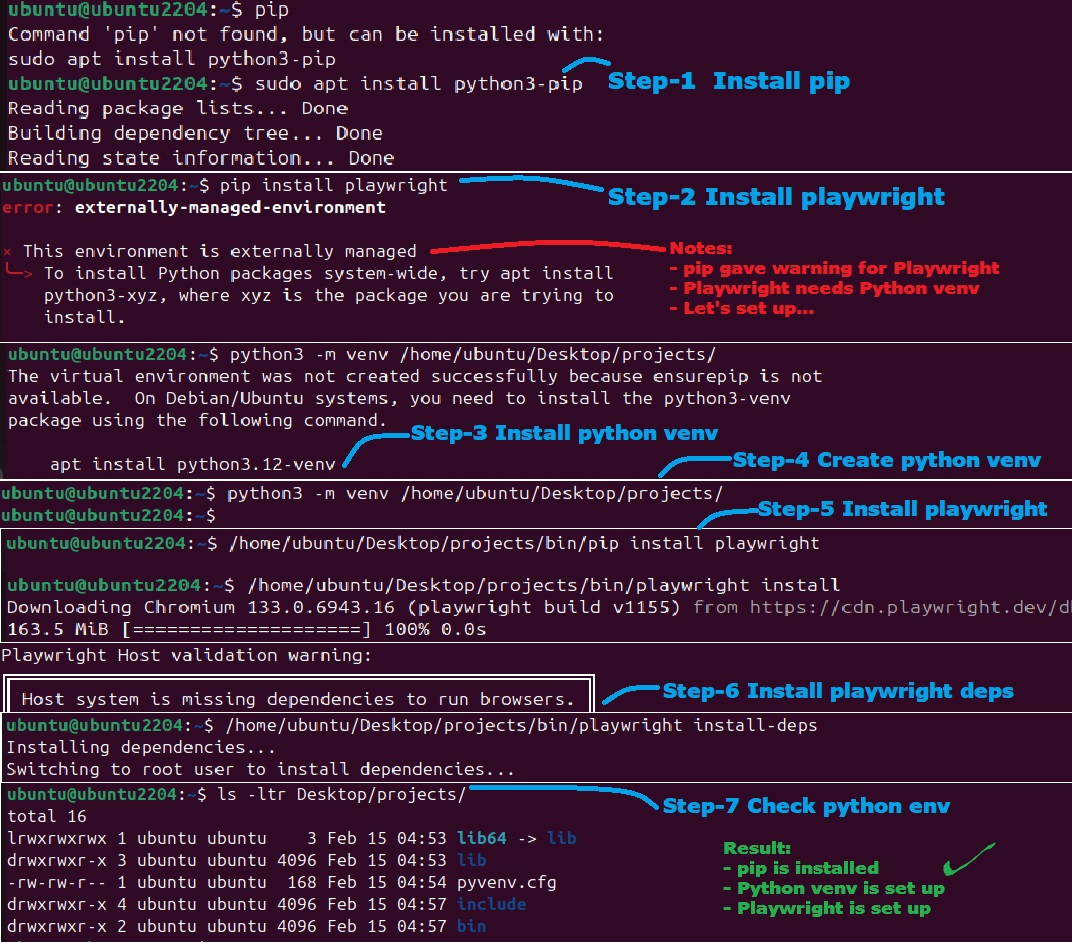
playwright installThis command fetches the latest versions of Chromium, Firefox, and WebKit browsers. However, in some situations, you might need to create Python venv for installing and set up Playwright. For this, refer the below screenshot as it provides all the steps you’ll need to follow.
Automating with Playwright and Python
We are presenting you with two use cases for web automation testing. The first is a simple Python script using Playwright functions to launch a demo website and capture the screenshot. In the second use case, you will get to see a real website login using the Playwright Python script.
Your First Playwright Python Script
Create a new Python file, e.g., “example.py”, and copy/paste the following code. If you are using Ubuntu, run the vi command, copy the below code, save, and exit from the editor.
from playwright.sync_api import sync_playwright

def run(playwright):
    browser = playwright.chromium.launch(headless=False)  # Launch browser in headed mode
    page = browser.new_page()  # Open a new page
    page.goto("https://google.com")  # Navigate to the website
    page.screenshot(path="example.png")  # Capture a screenshot
    browser.close()  # Close the browser

with sync_playwright() as playwright:
    run(playwright)
After you successfully saved the script, it’s time to run it using the below command. The beauty is Playwright automatically picks your default browser. You don’t have to set it yourself in the code. Saving a few bytes 🙂
$ python3 example.py
This script launches a Chromium browser, navigates to “https://google.com“, takes a screenshot, and saves it as “example.png”.
Website Login with Playwright and Python
This is our 2nd use case in which we’ll demonstrate automating the login process for a dummy website. We’ve picked one of the demo sites for automation to run this scenario.
Use the below script for automating the login.
from playwright.sync_api import sync_playwright

def run(playwright):
    browser = playwright.chromium.launch(headless=False)
    page = browser.new_page()
    page.goto("https://www.saucedemo.com/")  # Replace with the actual login URL
    page.fill('input[name="user-name"]', 'standard_user')  # Replace with the actual username field selector and value
    page.fill('input[name="password"]', 'secret_sauce')  # Replace with the actual password field selector and value
    page.click('input[type="submit"]')  # Replace with the actual submit button selector
    page.wait_for_url("https://www.saucedemo.com/inventory.html")  # Replace with the URL you expect after login
    print("Login successful")
    browser.close()

with sync_playwright() as playwright:
    run(playwright)
Go through the following points to understand the above code. If anything is not clear, feel free to comment and ask your queries.
- Launching the Browser: The script initiates a Chromium browser instance in headed mode (headless=False) to observe the automation process.
- Navigating to the Login Page: It directs the browser to the specified login URL.
- Filling in Credentials: The page.fill() method inputs the provided username and password into the respective fields. Ensure the selectors match the actual HTML elements of the login form.
- Submitting the Form: The script clicks the login button to submit the form.
- Post-Login Navigation: It waits for the browser to navigate to the dashboard page, indicating a successful login.
You may like to read: Playwright Interview Questions You Must Know
Quick Tips for Using Playwright with Python
The below is a simple checklist for you to create high quality automation using Playwright with Python.
- Headless Mode: For faster execution without a UI, launch the browser in headless mode by setting headless=True.
- Browser Contexts: Utilize browser contexts to simulate multiple users or sessions without launching separate browser instances.
- Selectors: Leverage Playwright’s robust selector engine to accurately target elements. Prefer using text selectors or CSS selectors for better reliability.
- Automatic Waiting: Playwright auto-waits for elements to be ready before performing actions, reducing the need for explicit waits.
- Error Handling: Implement try-except blocks to handle exceptions and ensure the browser closes gracefully in case of errors.
Summary: Using Playwright with Python
Playwright, combined with Python, offers a powerful framework for automating web interactions and testing web applications. Its support for multiple browsers, robust API, and developer-friendly features make it an excellent choice for both beginners and experienced automation engineers.
By following this guide, you should be equipped to set up Playwright, create and run automation scripts, and implement best practices to enhance your web automation projects.
You can subscribe to our YouTube channel for regular knowledge sharing and career updates.